

Dropbox integration
A Dropbox integration connects one Dropbox account and one folder in it to Doxtly. If your team already keeps its client folders in Dropbox, this is where generated contracts and certificates can land, and where workflows can keep an Excel file up to date. A law firm might point it at its Clients folder and have a workflow file each signed engagement letter in the client’s own subfolder.
Available when: you hold Manage integrations
What needs it
Section titled “What needs it”- the Cloud files page, which appears in the sidebar once a drive is active, for people who may view cloud files
- the workflow steps Upload to Dropbox and Download from Dropbox in the designer’s palette, that is Upload to Dropbox and Download from the cloud set to Dropbox, and Read from a sheet and Write to a sheet, which work with Excel (
.xlsx), OpenDocument (.ods) and CSV files - cloud templates, which follow a file in your Dropbox
- Save to a cloud drive in the PDF editor
- data sources of forms and PDF templates, which read a spreadsheet or a JSON file from the drive
You can connect several Dropbox accounts, or the same one several times with different folders, for example one for each department.
Connect Dropbox
Section titled “Connect Dropbox”You need a Dropbox account, personal or a member of a team. There is nothing to set up at Dropbox.
- Go to Organization, Integrations, click New integration and pick Dropbox.
- Fill in Integration name, such as “Client folders”.
- Click Connect Dropbox.
- Dropbox asks you to sign in and shows what Doxtly asks for: your account’s basic information, and seeing and editing your files and folders. Check that the account shown is the right one and click Allow.
- You return to the integration, which is now Active and shows “Connected as” with the account’s address.
- Under Folder selection, open the folder Doxtly should work in and click Choose this folder.
- Click Save.
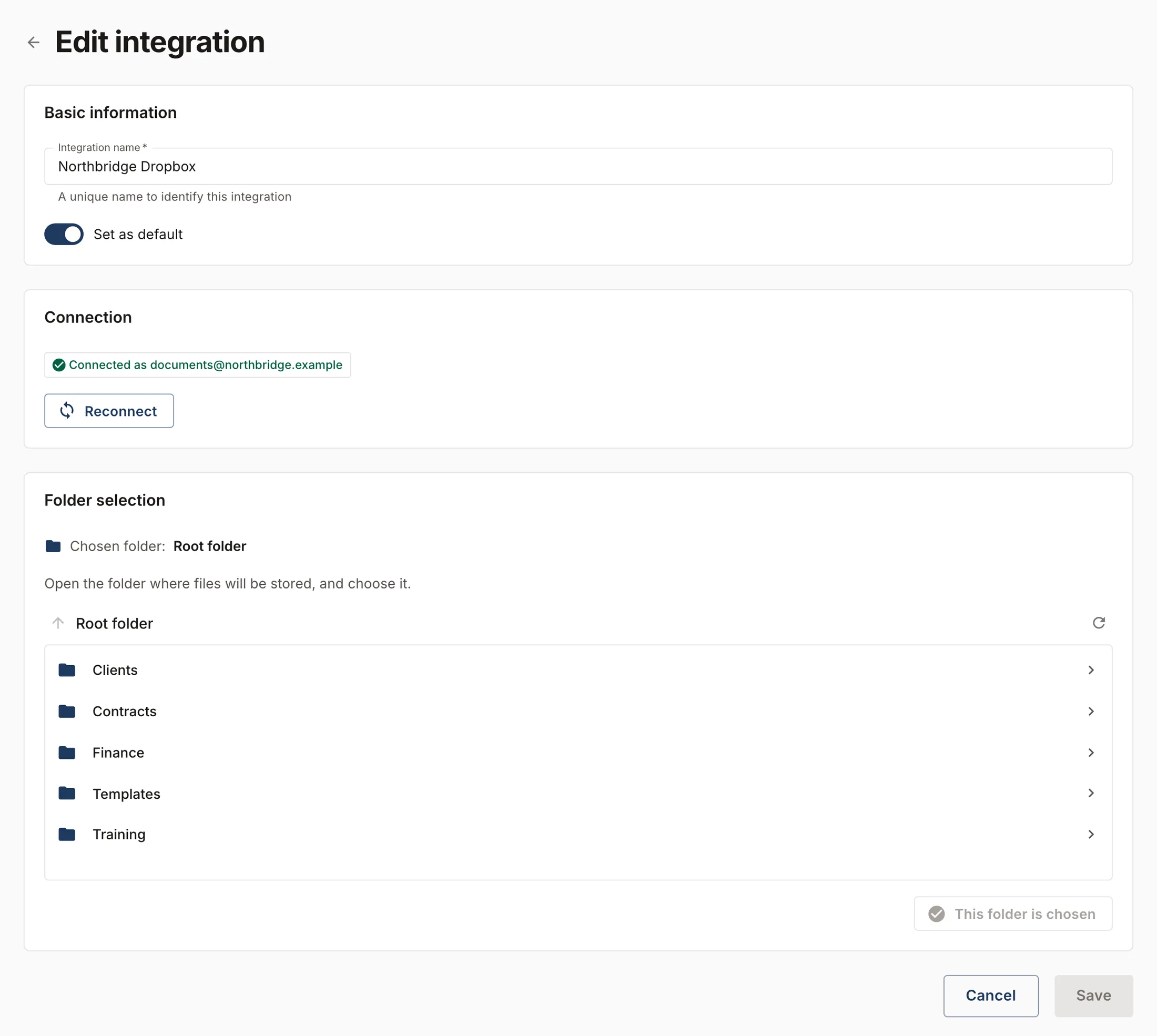
Until it is connected, the page says “Please connect your Dropbox account to continue”. A new integration has no Save button at this point, because connecting is what creates it. If you stop at Dropbox’s page, you find a Draft in the list. Open it and click Connect Dropbox again. The overview lists the messages you may see if the connection fails.
Every field
Section titled “Every field”| Field | What it does |
|---|---|
| Integration name | Your label, shown wherever people pick a drive. Up to 255 characters, unique among your Dropbox integrations. A repeat is refused with “An integration of this type with this name already exists.” |
| Set as default | Makes this the Dropbox used when a workflow step names no particular one. See the default integration. |
| Connect Dropbox, Reconnect | Signs in at Dropbox. |
| Folder selection | The root folder, shown once Dropbox is connected and Active. |
The root folder
Section titled “The root folder”The root folder is the fence around everything Doxtly does in this Dropbox. Workflows and the Cloud files page work inside it, and nothing outside it can be named. Without a choice, the root is the top of the account: the picker calls it Root folder, and the list’s summary shows it as /. Everything in the folder is visible to Doxtly, including files you and your colleagues put there yourselves, and shared folders you added to it.
Walk down by clicking folders. Up one folder and the trail above the list take you back, and Refresh folders reads the list again. When the folder you want is open, click Choose this folder, which then reads This folder is chosen. Nothing changes until you click Save.
Doxtly remembers the folder itself, not only its name, so renaming or moving the root folder in Dropbox doesn’t break the integration: it keeps working in the folder wherever it now is. Deleting the folder does, and the integration then finds nothing until you choose another.
The card appears only while the integration is Active. On one that turned Invalid, click Reconnect first.
Paths in workflows are read from the root folder, so moving the root to another folder later means those workflows look somewhere else. Check them after a change.
Only people with Manage integrations can walk through the folders here, because the connection reaches the whole account.
Team spaces
Section titled “Team spaces”If your company uses Dropbox for teams with a team space, the folder picker starts at the top of the team space, where the team folders are, with your own member folder among them. Choose a team folder as the root, and everyone whose workflows and templates use the integration works in the files your team shares. What Doxtly can open still follows your own access in Dropbox: a team folder you may only view can be read but not written to.
What Dropbox files can do in Doxtly
Section titled “What Dropbox files can do in Doxtly”- Deleted files can be restored. Deleting a file or folder on the Cloud files page moves it to Dropbox’s deleted files, where you can restore it at dropbox.com for as long as your Dropbox plan keeps them.
- Spreadsheets are files. Dropbox has no spreadsheets of its own, so workflows read and write Excel, OpenDocument and CSV files, as on OneDrive.
- A change made meanwhile is not overwritten. When a workflow writes to a spreadsheet that somebody changed after the workflow read it, the write is refused and tried again on the new version, so neither change is lost.
- Dropbox Paper documents can’t be read. Dropbox opens them only in its own editor and hands out no file, so they can’t be downloaded, used as templates or edited in the PDF editor.
- Changes reach templates on their own. When a file a cloud template follows changes in Dropbox, Doxtly learns of it and checks the template, as it does on the other drives. A file deleted in Dropbox, or in a folder deleted there, marks the template as having lost its source.
When the connection stops working
Section titled “When the connection stops working”Dropbox can end a connection: access was removed in the account’s Connected apps settings, the account was closed, a team administrator stepped in, or the account joined or left a team, which moves the place its files start from. The integration turns Invalid the next time Doxtly uses it. Workflow steps on it fail with “The connection to Dropbox has expired or was revoked. Connect the integration again.” Cloud files lists the drive as needing to be reconnected, and templates that follow files in it keep generating from their last approved version.
Open the integration and click Reconnect. Reconnect on the Cloud files page takes you to the same place, and people without Manage integrations are told to ask an administrator.
Dropbox shows its consent page again when you reconnect, where you can switch to another account. If you do, that account has none of the old folders, so Doxtly moves the root back to the top of the new account. Choose a folder again, and check the workflows and templates that use it. After joining or leaving a team, check the root folder too: the account’s files now start somewhere else.
What you see once it’s set up
Section titled “What you see once it’s set up”Click the row in the list for the summary: Connected account and Root folder, which reads / for the top of the account. The connected address also appears under the name in the list.

Delete a Dropbox integration
Section titled “Delete a Dropbox integration”Doxtly refuses while a workflow relies on the integration, a template follows a file in it or a data source reads from it, and names them. Files in Dropbox stay where they are: deleting the integration ends the connection, nothing else. To take Doxtly’s access away on Dropbox’s side too, remove Doxtly under Connected apps in your Dropbox settings. See Delete an integration.