Portal access
A portal is open to anyone with its address unless it has at least one password. Give every person or group a password of their own, and the access log shows under which name each visit came in.
Passwords
Section titled “Passwords”Available when: your role has the Manage portals permission
In the editor, click the gear icon and open the Access section.
Click Add password for each entry and give it a Name, such as who it is for, and a Password. Any of them opens the portal; you can remove one without changing the others. The eye button beside a password shows it, so you can read it out or copy it to whoever needs it.
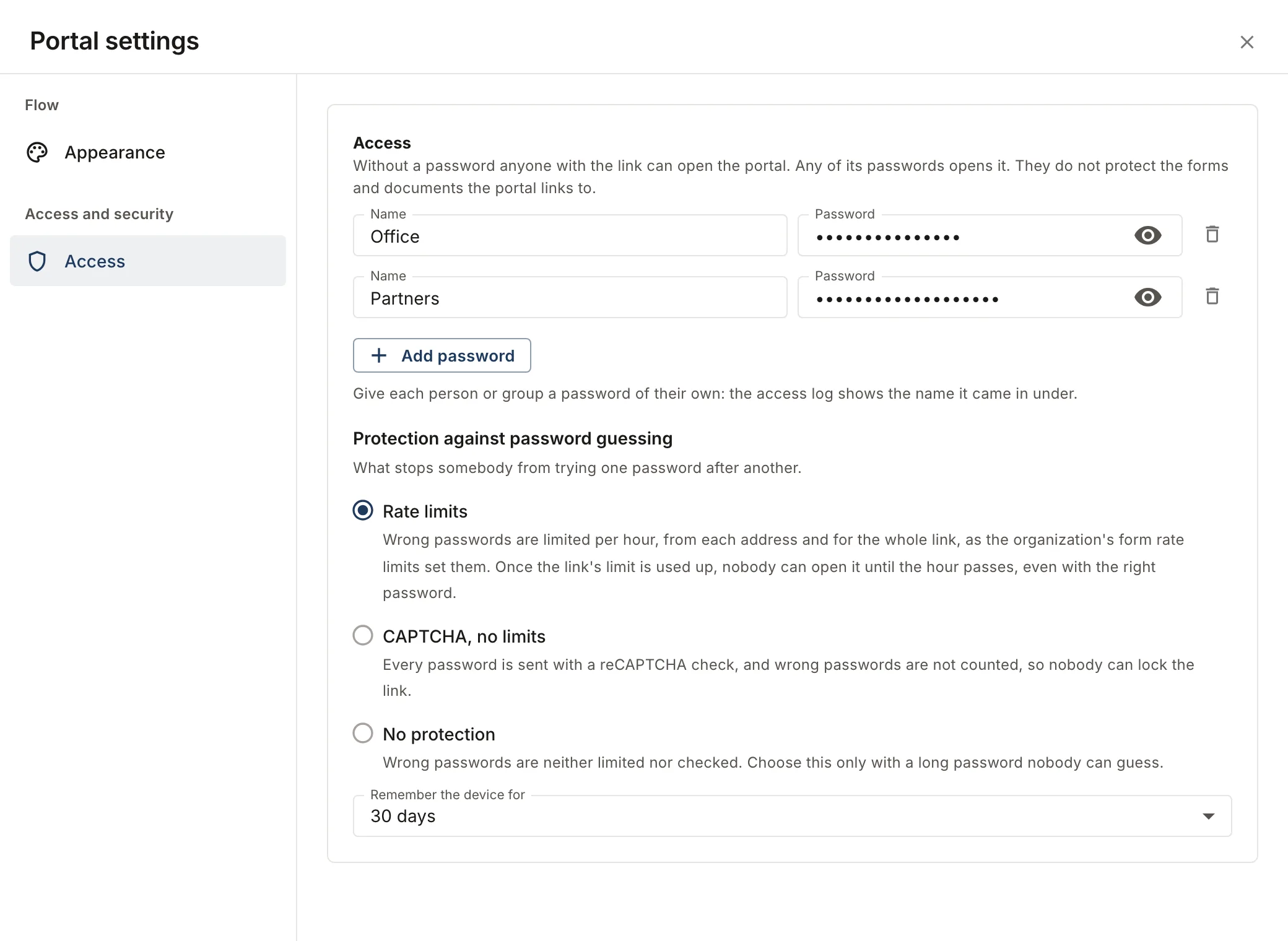
- Names and passwords are unique within a portal: two entries cannot share either, so the access log is never ambiguous. An entry’s name can be up to 100 characters.
- A portal holds up to 50 passwords, each up to 255 characters. With none, the section says No passwords yet: anyone with the link can open the portal.
- A password guards the portal’s page and nothing behind it. Every form, interactive document and quiz keeps its own password and limits.
Protection against password guessing works as for an interactive document: Rate limits, CAPTCHA, no limits or No protection. Remember the device for sets how long a device that gave a password stays let in: 7 days, 30 days or 90 days.
Coming in
Section titled “Coming in”A protected portal first shows its name and This portal is protected. The visitor types a password into Portal password and, if they want, ticks Remember me on this device, then clicks Open portal. A wrong password gets That password is not correct.
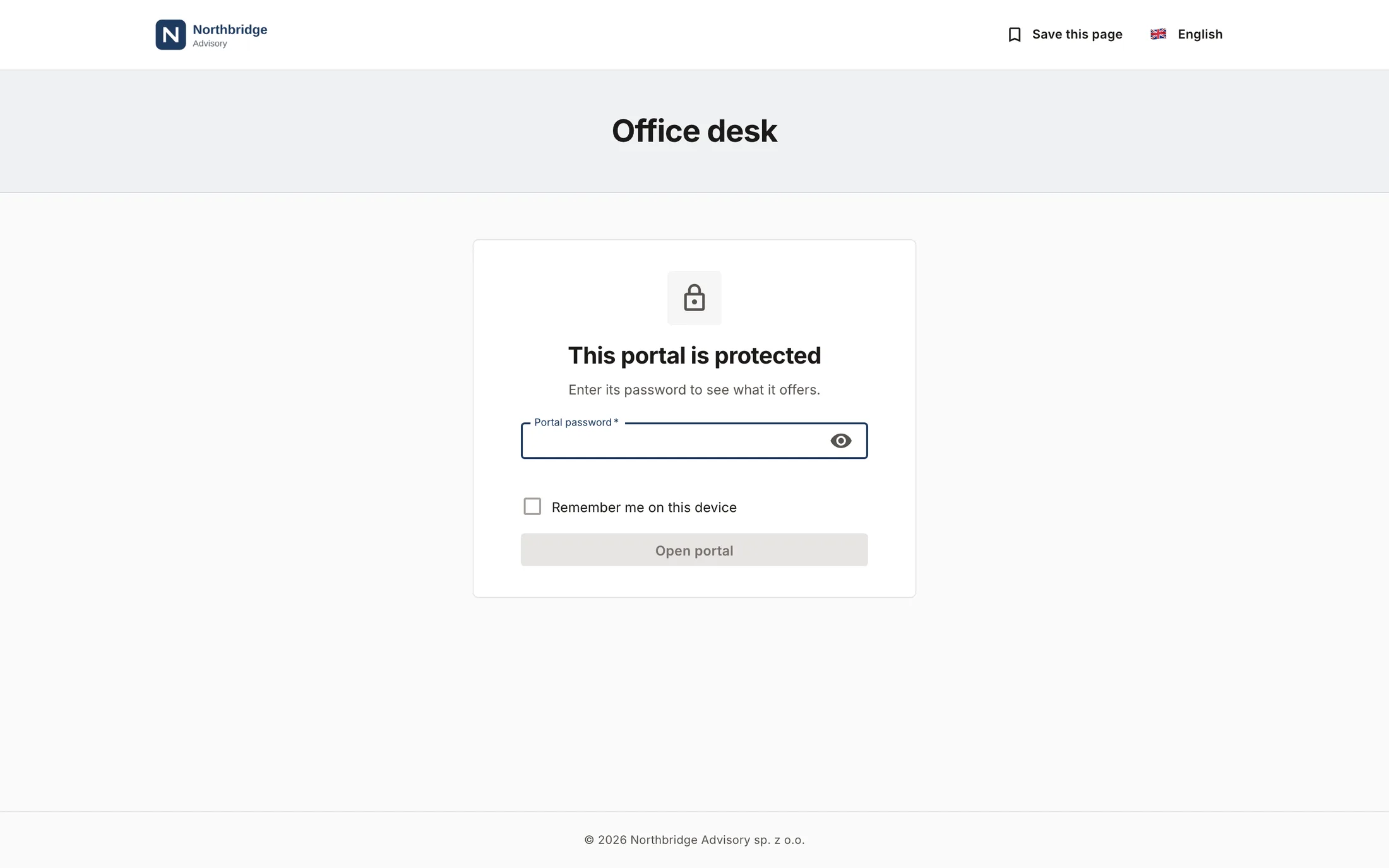
With the box ticked, the device stays let in for the time the portal is set to; without ticking it the device forgets the password when the tab closes.
The address of a portal is https://<subdomain>.app.doxtly.com/p/<token>, where the token is a long random code of that portal alone, so nobody finds a portal without having been given its address. It works on your organization’s own address alone; on any other it answers as if the portal does not exist.
A new address
Section titled “A new address”Available when: your role has the Manage portals permission
If a portal’s link reaches someone it should not have, open the portal’s Share dialog and click Generate a new address, then confirm.
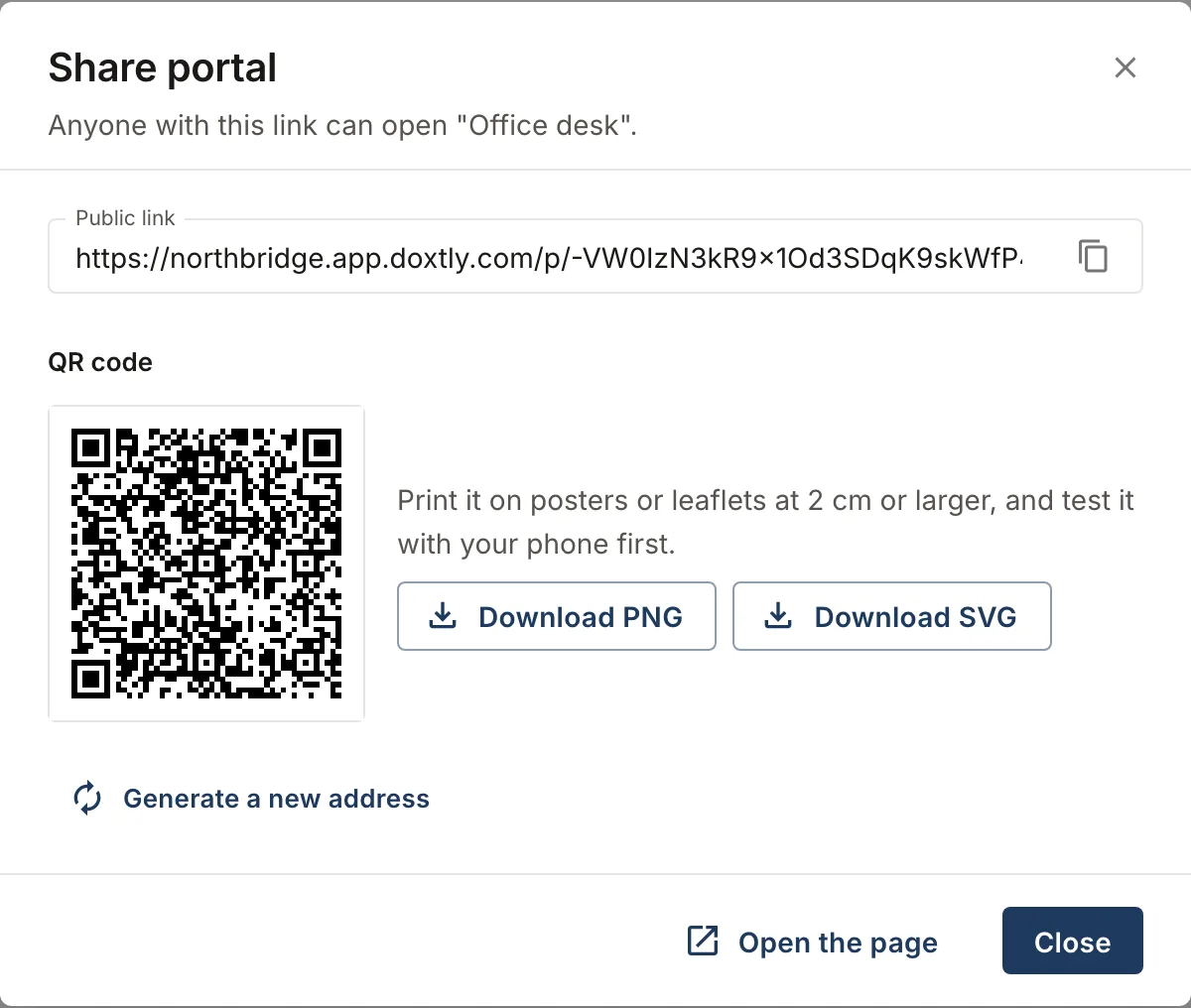
The old link stops working at once, also in messages already sent and in bookmarks, so anyone who should still open the portal needs the new one. The portal’s passwords stay as they are, and devices remembered with them stay in.
The portal’s page
Section titled “The portal’s page”Available when: your role has the View portals permission
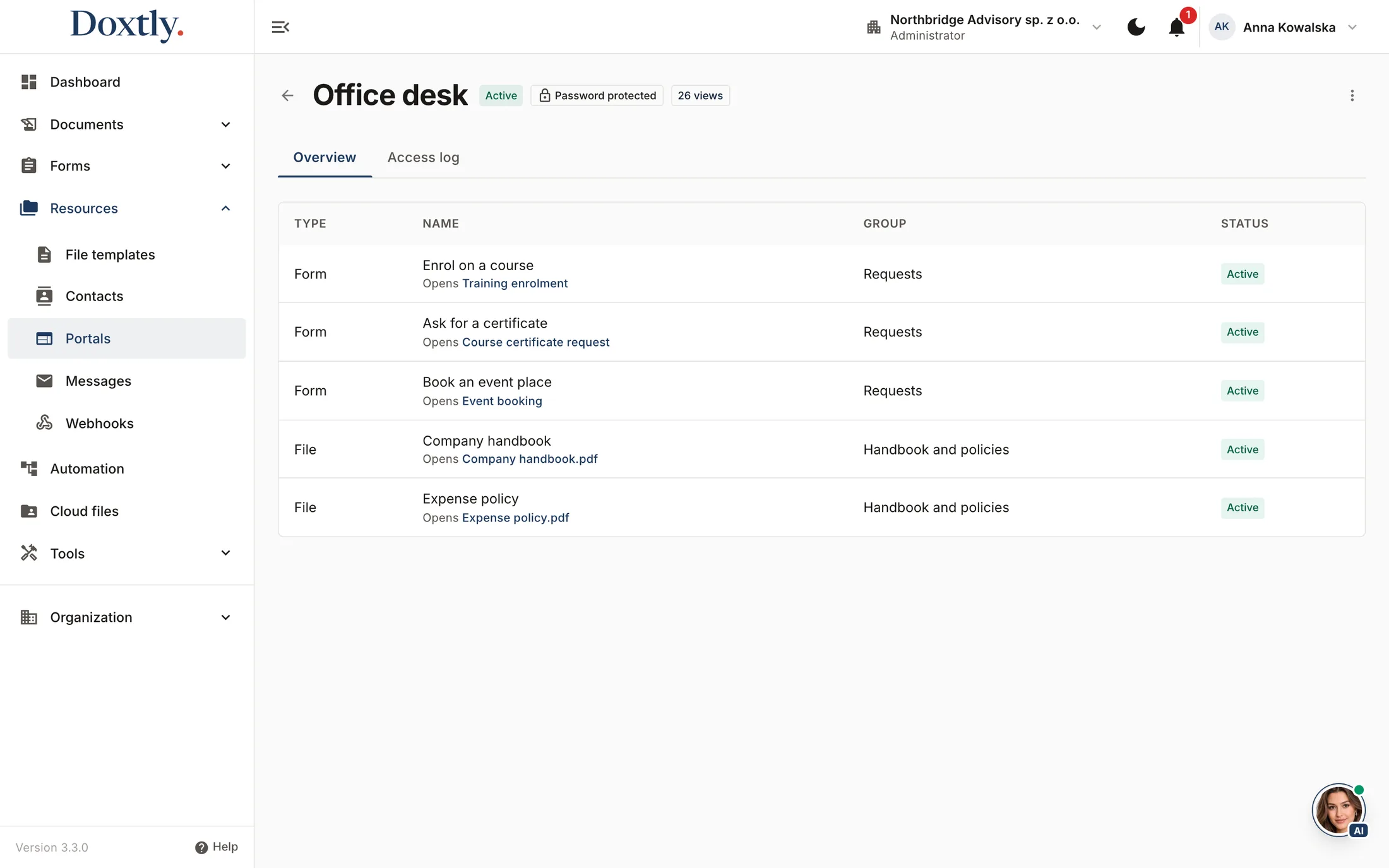
In the list of portals, click a row to open the portal’s page. Its header shows whether the portal is active, whether it is password protected and how many times it was viewed; the ⋮ menu holds the same items as the row menu of the list. Its Overview lists every link of the portal, with its Type (Form, Interactive document, Quiz, Survey or File), its Name (the link’s label, as visitors read it; when the label differs from what the link opens, Opens under it names the current title, leading to it in the application when your role may open it), its Group and its Status: Active, Inactive – hidden on the portal, Unavailable or Drive disconnected. A portal without links says No links yet.
Access log
Section titled “Access log”Available when: your role has the Manage portals permission
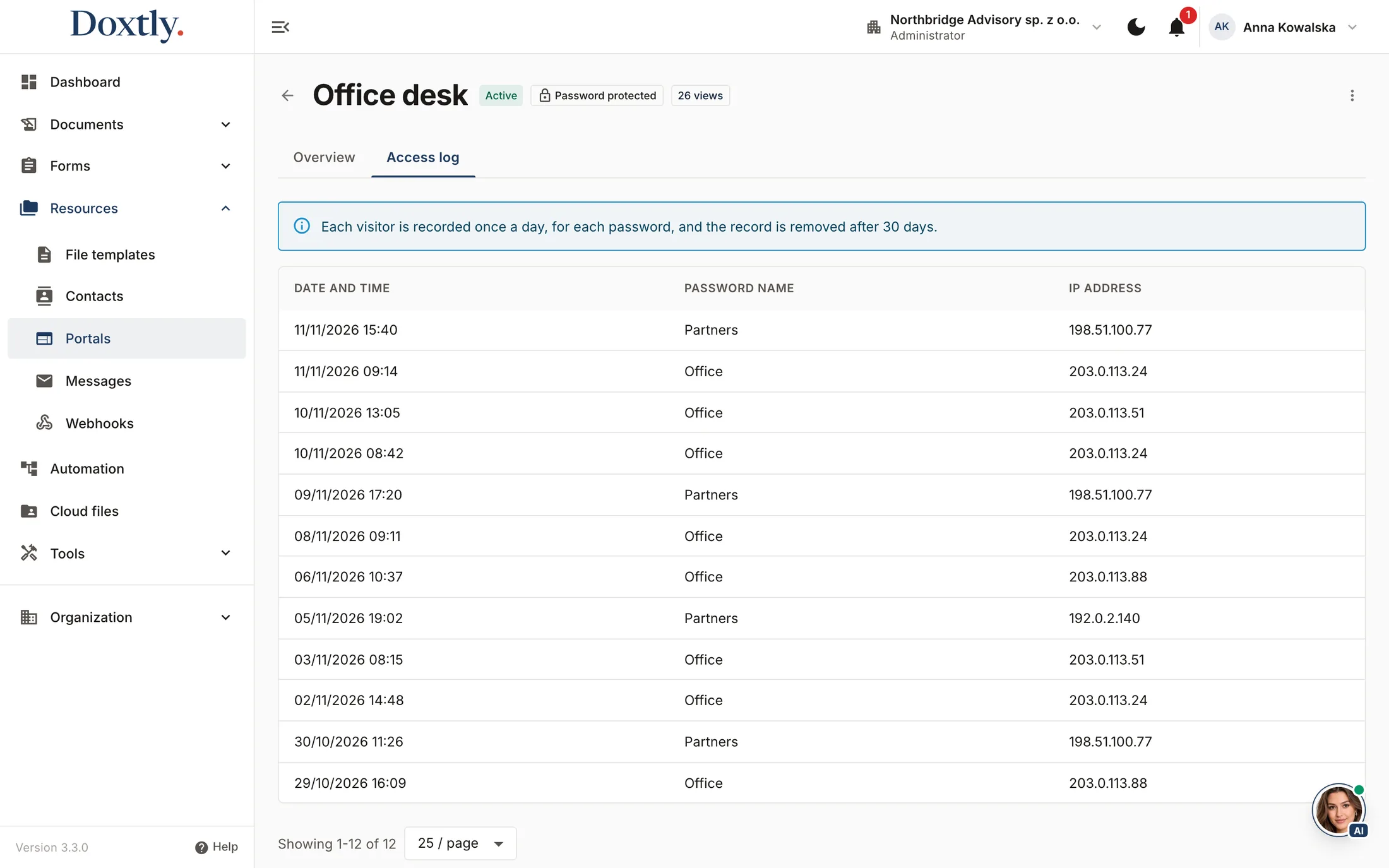
The Access log tab on the portal’s page lists who came in: the date and time, the password name and the IP address, newest first. Each visitor counts once a day for each password, so refreshing the page or coming back the same day adds nothing. The day follows your organization’s time zone. On a portal without passwords only the date and the IP address are shown. With no visits in the last 30 days the tab says No visits in the last 30 days.
The views beside the portal’s name count something else: every time its page was shown since the portal was made, with a visitor counted again after half an hour. So they rarely match the number of rows in the log.