

Survey settings
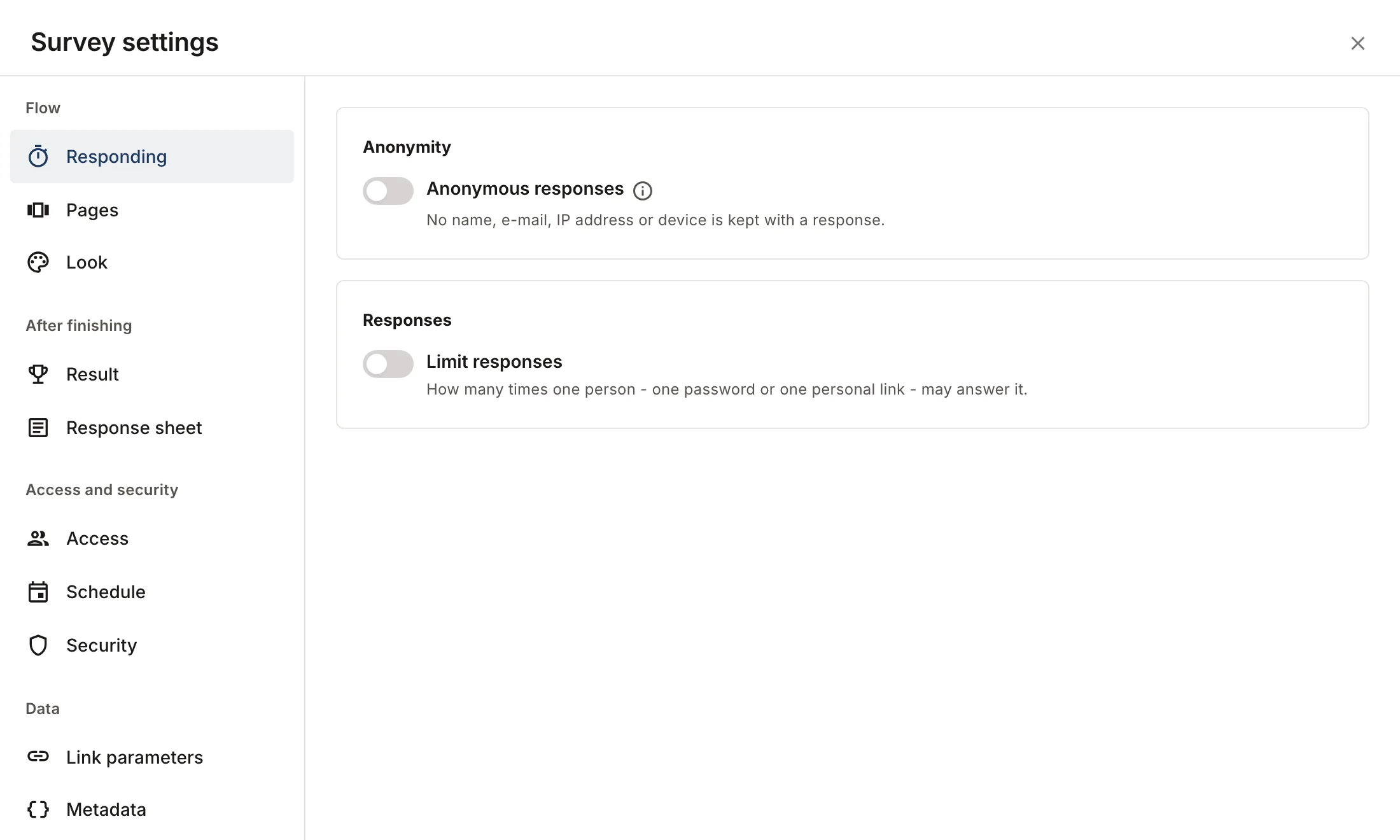
The settings decide how a survey is answered: how the questions are paged, whether a response is anonymous, what the person sees once they send it, when the survey is open and who may answer it at all. Open them with the gear icon (Settings) in the designer’s top bar. They are saved with the survey, by Save.
Available when: your role has the Manage surveys permission
The Survey settings dialog lists its sections down the left side under four headings: Flow (Responding, Pages, Look), After finishing (Result, Response sheet), Access and security (Access, Schedule, Security) and Data (Link parameters, Metadata). On a phone, pick one from the Section list at the top. An anonymous survey has no Response sheet and no Link parameters section. A survey is never timed, scored or watched, so the time limit, the pass mark, grading, leaving the tab and the certificate are not there.
Responding
Section titled “Responding”Anonymous responses
Section titled “Anonymous responses”With Anonymous responses on, under Anonymity, a response keeps no name, e-mail, group, IP address, device, location or link parameters, and nothing ties it to the person on the access list or the contact whose link they used: their way in still works, but the response belongs to nobody. Use it for an employee satisfaction survey, where people answer honestly only when nobody can read their answers back to them.
| What anonymous means | What it doesn’t mean |
|---|---|
| No one in your organization, Doxtly included, can tell which response is whose. | An answer written in the person’s own words can still say who wrote it. |
| The person is marked as having responded (so reminders stop) up to 10 minutes later, never with their response. | You can still see who responded on the People tab, just not what they answered. |
| The results, the cross-tab and the text answers show nothing of a group of fewer than 5 responses. | A survey with fewer than 5 responses shows only how many there are. |
An anonymous survey can’t ask who someone is: questions that ask for a name, e-mail, group or ID number cannot be used. It has no response sheet and no link parameters, and Limit responses counts browsers, not people.
Responses
Section titled “Responses”Limit responses sets Responses per person, from 1 to 100. Off, anyone may answer again as often as they like. On an open link, a person is one browser: someone using a second browser or a private window counts again. When only the people on an access list may answer, their responses are counted together, whatever browser or device they use.
How the questions are split into pages, as a form’s sections are when it is split into pages. Split into pages offers the same three ways as a quiz:
| Option | What it does |
|---|---|
| One question per page (default) | Each question on a page of its own, in large type, Enter to go on and letters to choose. |
| One section per page | Each section is a page, with its title and description on top. A survey without sections is one page. |
| Everything on one page | Every question on one page, for a short survey. |
The designer marks on the sheet where each page begins. When there are pages, the section also offers Move on once a single choice is answered (one question per page only: the next question follows by itself, 0.4 seconds after a choice or a rating is picked), the Progress (a bar, steps, a percentage or nothing) and the List of questions (All questions, Questions reached or Hidden). Answering a survey shows what the respondent sees.
Moving between questions
Section titled “Moving between questions”Not shown with everything on one page.
| Option | What it does |
|---|---|
| Free (default) | Any page, in any order. |
| Forward only | A page once left is closed: its answers cannot be changed. |
Result
Section titled “Result”A survey thanks the person once they send it: Thank you for taking the survey. This section sets what else happens.
| Setting | What it does |
|---|---|
| Send button | The text of the button that sends the response, in each language, as for a form’s submit button. |
| Success message or redirect | A message shown below the thank-you, or an address the person goes to instead; see Success message and Redirect to another page on forms. The message is written per language, like the send button. |
The message can use the answers by their keys, such as {{ question_1 }}, and the response’s own values, which the variable picker lists under Response: Survey title ({{ _survey.title }}), Response number ({{ _response.number }}), Time taken (seconds) ({{ _response.durationSeconds }}), Sent at ({{ _response.submittedAt }}) and Response ID ({{ _response.id }}). For example: Thank you, your feedback on {{ _survey.title }} reached us.
Security
Section titled “Security”The same protections as for a quiz, described in full in Quiz settings:
| Setting | What it does |
|---|---|
| Password | Asked for before the first question. Leave it empty for an open link. Not used when the survey is only for the people on its access list. |
| Only from these websites | The survey opens only in a frame on one of these websites, the one that shows it with the snippets or a plugin; anywhere else it is not found. Its own link opens it only when the address the link starts with, such as https://app.doxtly.com, is on the list too. |
| Block IP addresses | Responses from these addresses are refused. |
| Ask a CAPTCHA to start | An invisible reCAPTCHA check as the person starts, which stops robots from using up your plan’s responses. It needs an active reCAPTCHA integration. |
| Enable honeypot protection | A hidden field only robots fill. See Honeypot. |
| Limit requests | On by default. Slows down anyone who opens or sends too many responses in a short time. |
| Save the location | The browser asks the person to share their location; the survey can be answered without it. |
| Own retention period | Keeps the survey’s responses for the number of days in Keep responses for, from 1 to 3,650 (365 when you switch it on). Off, responses are kept as long as the organization keeps form submissions. |
Link parameters
Section titled “Link parameters”Accept link parameters saves values added to the link, such as ?channel=newsletter, with the response, and hands them to the workflows as _params. Choose which parameters are accepted, as on a form. Give each channel its own link, and a workflow knows where each response came from. An anonymous survey keeps no link parameters, so the tab is not there.
Metadata
Section titled “Metadata”Values of your own, handed to the workflows the responses start, as _metadata: a campaign name, a department, the owner’s email. See Metadata.
Access
Section titled “Access”Who can take it decides whether the survey is open to anyone with its link or only to people you name.
| Option | Who gets in |
|---|---|
| Anyone with the link (default) | Anyone who opens the link, after the survey’s password if you set one in the Security section. |
| People with their own passwords | Only the people on the survey’s access list, each with a password of their own. |
| Invited people (personal links) | Only the people on the access list, each through a personal link Doxtly emails to them. Whoever opens the survey’s ordinary link is told This survey is by invitation. |
The people are added, uploaded and invited on the survey’s People and access page; Manage people takes you there once the survey is saved. A Live sheet can keep the list in step with a spreadsheet, as described for quizzes.
Contacts you send the survey to with Send to fill in get in through their own link, whichever option you choose here. Every survey email to a contact ends with a link to stop receiving surveys, and a contact who used it gets no more surveys from you, whether sent by hand, to many at once or by a workflow.
Schedule
Section titled “Schedule”When the survey can be answered.
| Setting | What it does |
|---|---|
| Opens at a set time | Before then, the link says when it opens. |
| Closes at a set time | From then on, the link says it is closed. A response already started can still be sent. |
| Limit the responses | How many responses the survey takes in all. It closes when the last one starts, and anyone who comes later is told it is full. |
Quotas
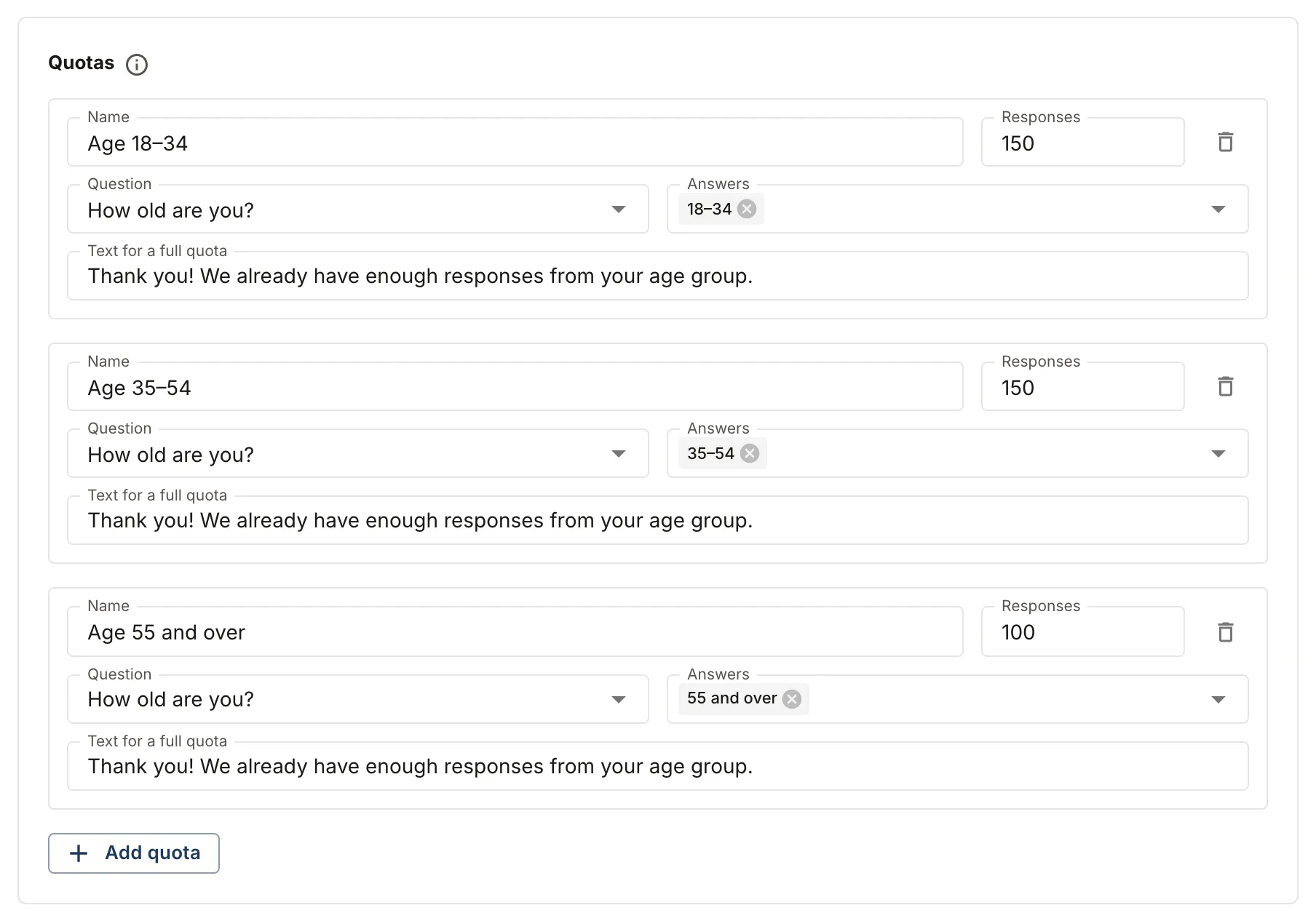
Section titled “Quotas”A quota closes one segment of respondents once it has enough of them, say 200 from Kraków. Add quota, give it a Name and the number of Responses it takes, and under Question pick a choice question and the Answers that put a respondent in it; with no question it takes everybody. A response is counted when it is sent, in every quota it meets. When one of those is full, the respondent reads that the survey is closed for them, in the quota’s Text for a full quota or the standard words, and their response is kept apart: it is listed as Quota full under Responses and left out of the results. Two responses sent at once for the last place never both take it. Up to 20 quotas; the results show how full each one is.
Response sheet
Section titled “Response sheet”A response sheet is a PDF of one response, ready to print or file: the answers as given, with no points, marks or explanations. Download it from the response’s row in the results, or print many at once. The QR code beside its number opens the response’s page in Doxtly, for someone signed in to your organization who may see the survey’s results. This section sets what it holds:
| Setting | What it does |
|---|---|
| Shown in the header | What the header shows, and in what order: Name, E-mail, Group, Response no., Started, Finished, Time taken and Language. |
| Print the pictures | Prints the questions’ pictures at thumbnail size. |
| Paper | A4 or Letter. |
| Signature lines | Up to four lines at the end, each with its label. |
How the survey’s page looks: the Theme and the Cover (the progress is set in Pages). A new survey starts in your organization’s default theme, Organization branding (the neutral look in the accent colour of your branding) unless you chose another. Themes and the theme editor are shared with quizzes, forms and interactive documents and described in Quiz settings: a theme your organization makes can be used by any of them. Theme library opens the organization’s Themes. Picking a theme takes only Manage surveys; New theme and Edit theme are there for people with Manage themes, and a theme’s custom CSS, including one with Standard look, applies to the survey’s page as well.