

Managing files
Everything you do here happens in the drive itself. Upload a file and it’s in your Google Drive, OneDrive, SharePoint, Dropbox or Box, ready for workflows. Rename a folder and it’s renamed there too.
Available when: your role includes Manage cloud files (downloading takes only View cloud files)
The three main actions sit at the top of the page:

Uploading
Section titled “Uploading”Files go into the folder you have open. There are two ways:
- click Upload files and choose one or more files;
- drag files or whole folders from your computer onto the list.
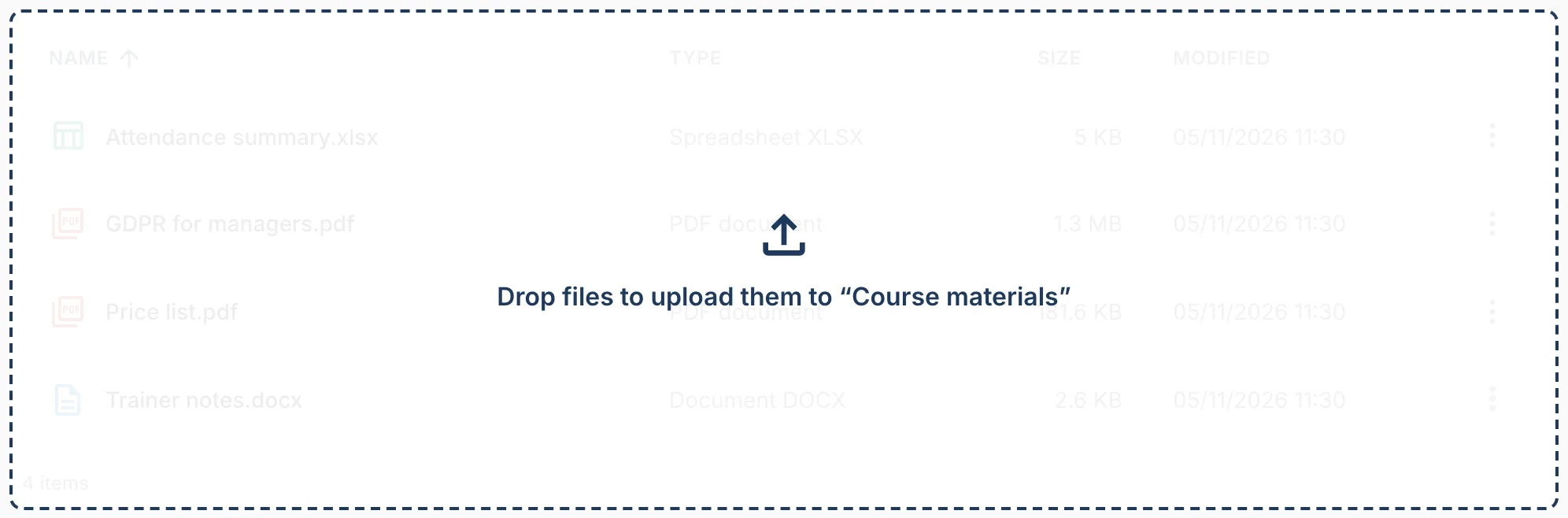
A dropped folder keeps its structure: folders that don’t exist yet are created along the way. If a subfolder has a name the storage can’t accept, its files go straight into the current folder.
A single file can be up to 50 MB. A larger one is refused before anything is sent, and is listed as failed with the reason. Characters no provider accepts in a file’s name are replaced with _.
The upload panel
Section titled “The upload panel”A panel in the corner of the screen shows how the batch is going. Three files are sent at a time. While it runs, you can carry on browsing, even in another storage: the panel stays, and each file keeps its destination.
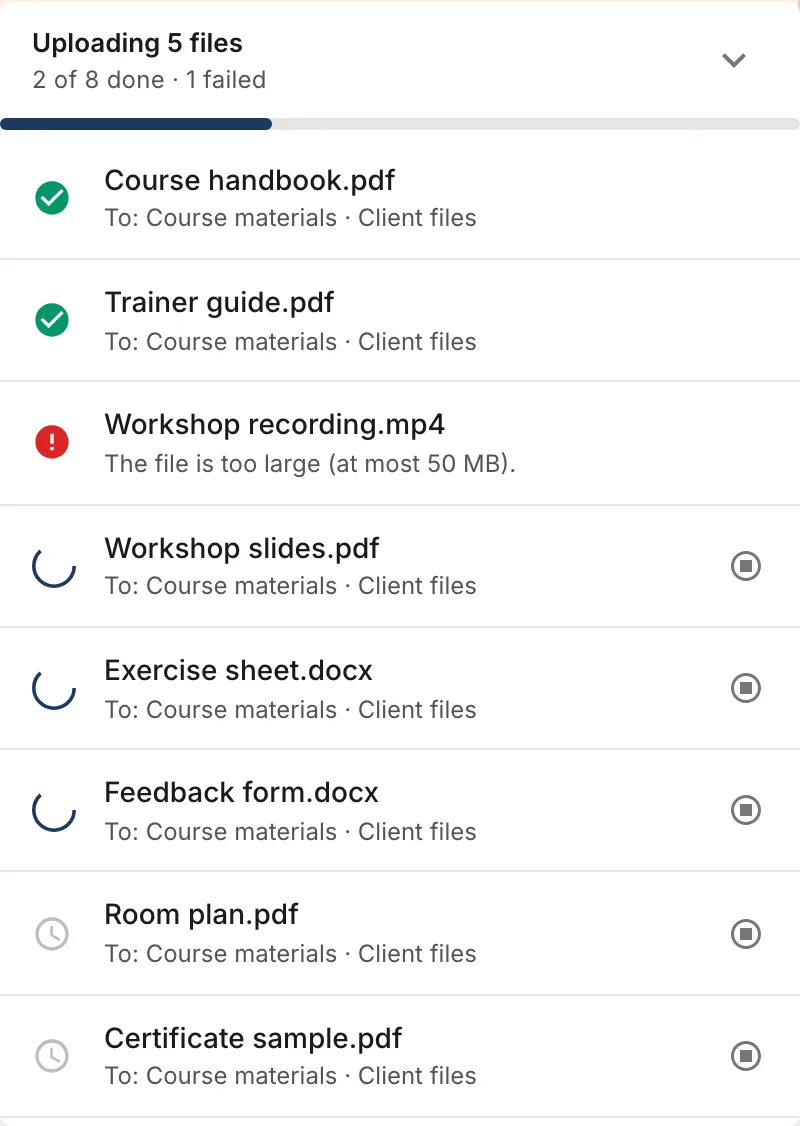
The header gives the count, such as Uploading 5 files and 2 of 8 done · 1 failed, and 8 files uploaded once the batch is through. The arrow folds the list away. On a phone it starts folded. Each file shows its status:
| You see | What it means | What you can do |
|---|---|---|
| A clock | Waiting in the queue. | Cancel |
| A progress ring, with To: and the destination | Being sent. | Cancel |
| Saving to the storage… | All sent, and now being written to the drive. | Nothing: it can no longer be stopped |
| A green tick | Uploaded. | |
| A green tick and Saved as “…” | Uploaded under a different name, for instance after Keep both. | |
| A file with this name already exists | Waiting for your decision. | Answer the dialog |
| Skipped | You chose not to upload it. | |
| A red mark and the reason | Failed. | Retry, unless it’s too large |
| Canceled | You stopped it. | Retry |
When nothing is running, the x closes the panel and clears the list.
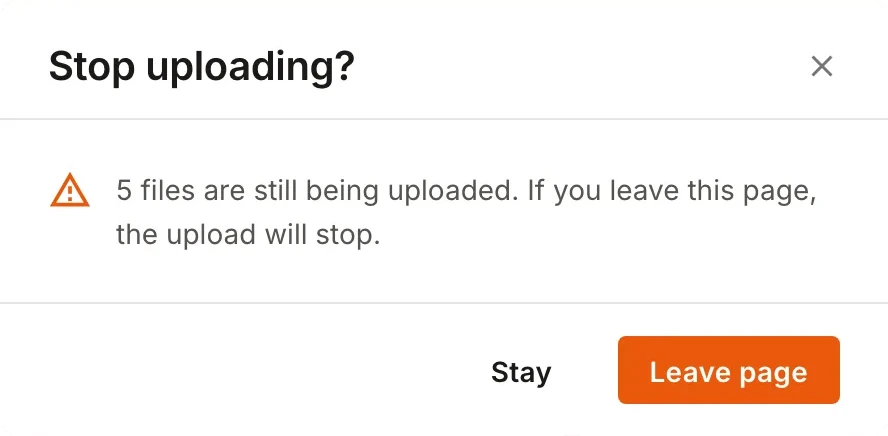
Leaving the Cloud files page stops whatever is still being sent, so Doxtly asks Stop uploading? first. Choose Stay to let it finish, or Leave page. Files already uploaded stay in the drive.
When a name is taken
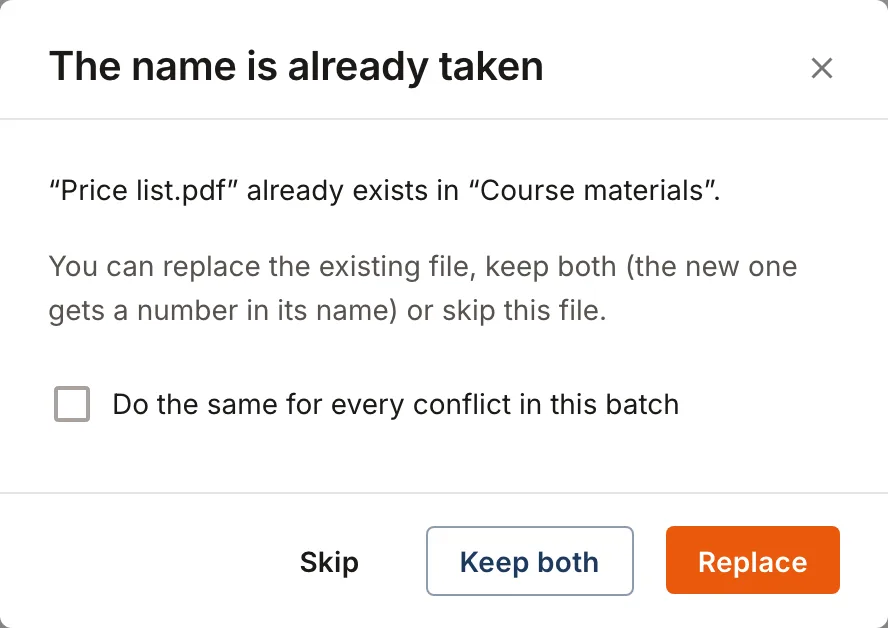
Section titled “When a name is taken”Doxtly never overwrites anything without asking. When a file with that name is already in the folder, you decide.
| Button | What happens |
|---|---|
| Replace | The existing file is replaced by the new one. |
| Keep both | The new file gets a number in its name, such as Price list (2).pdf. |
| Skip | This file isn’t uploaded. Closing the dialog does the same. |
If other files of the same batch are still on their way, you also get Do the same for every conflict in this batch, which saves you answering twenty times. A batch you add later is asked about afresh.
Saving spreadsheets as Google Sheets
Section titled “Saving spreadsheets as Google Sheets”On Google Drive, the small arrow beside Upload files holds one option: Save spreadsheets as Google Sheets. It’s on by default, and Doxtly remembers your choice in this browser.
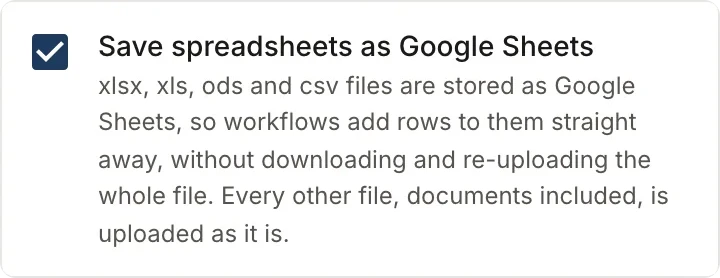
With it on, .xlsx, .xls, .ods and .csv files become Google Sheets when uploaded. Every other file, documents included, is uploaded as it is.
It’s worth leaving on when a workflow will add rows. A workflow writes straight into a Google Sheet, while a spreadsheet file has to be downloaded, changed and uploaded again each time, and only up to 10 MB. Turn it off when the file must stay an Excel file, for example for colleagues who open it in Excel. The option doesn’t exist on OneDrive, SharePoint, Dropbox and Box, where everything is uploaded as it is.
New folder
Section titled “New folder”Click New folder, type a Folder name and click Create. The folder is created in the one you have open. If a folder of that name is already there, nothing is changed and you keep the existing one. A file of that name stands in the way, and you get an error.
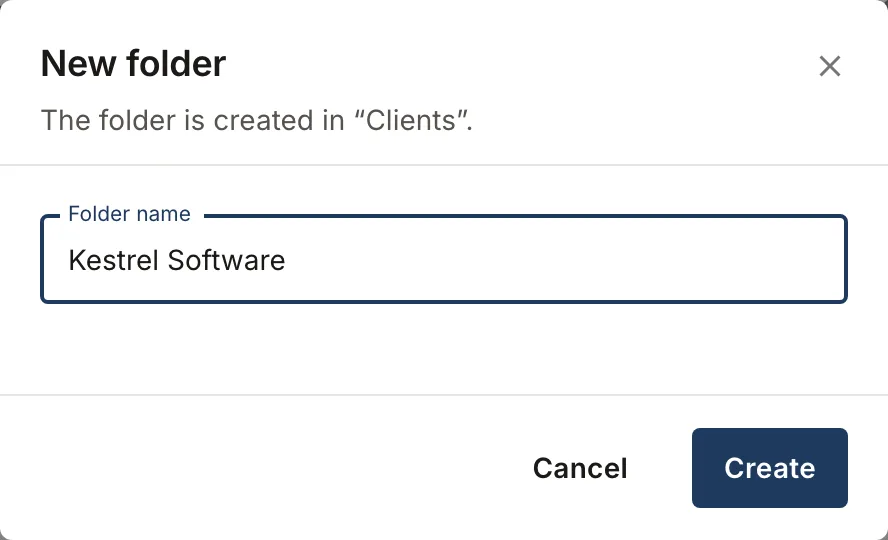
You rarely need to create folders in advance for workflows. A workflow creates the folders in its path as it goes.
Creating a blank document
Section titled “Creating a blank document”Create makes an empty file and opens it for editing in your provider’s editor, in a new tab. It’s handy when you want a working document in the right folder straight away, such as a sheet a workflow will fill.
-
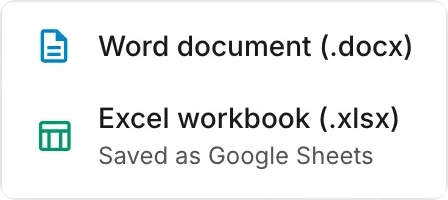
Click Create and choose Word document (.docx) or Excel workbook (.xlsx).
-
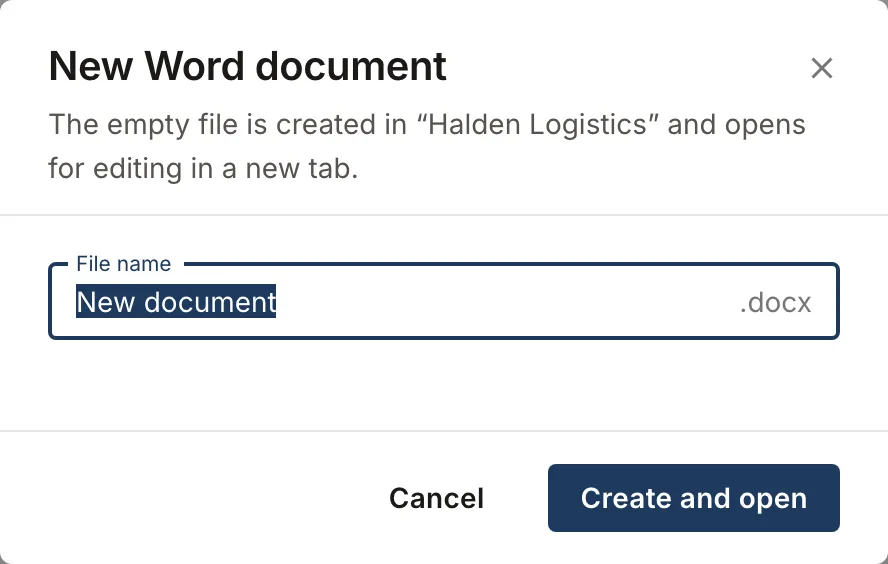
Type a File name. It starts as New document or New workbook, and the extension is added for you.
-
Click Create and open.
On Google Drive with Save spreadsheets as Google Sheets on, the workbook is created as a Google Sheet, with no extension, and the menu says so. A Word document always stays a .docx file.
If the name is taken, the dialog says so under the field and creates nothing. A new file never replaces another.
The same rules apply wherever you name something:
- a name can’t contain
/ \ " * : < > ? |or control characters; - it can’t consist of dots only;
- it can have up to 255 characters, or 250 for a new blank file, to leave room for its extension;
- spaces around it, and dots at its end, are dropped.
A whole path can have up to 1024 characters and go 32 folders deep.
Renaming
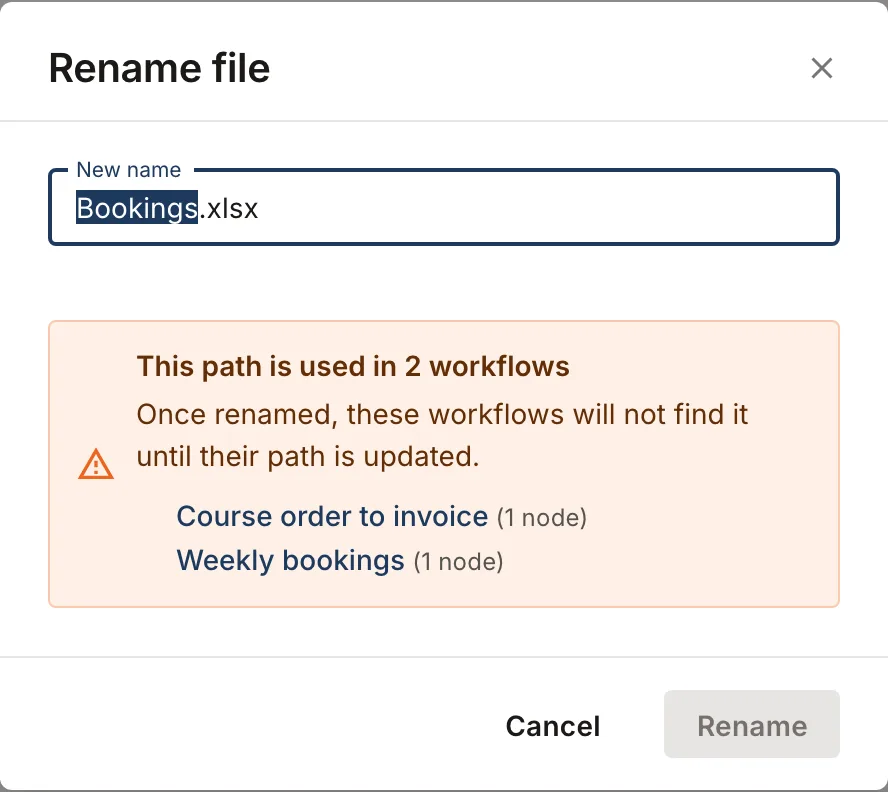
Section titled “Renaming”Choose Rename in the item’s menu. Doxtly selects the name without its extension, so typing replaces the name and keeps the type. If something in the folder already has that name, the dialog says so and nothing changes. The Rename button stays off until the name is different.
Moving
Section titled “Moving”Choose Move… in the item’s menu, pick a folder in the tree and click Move here. An item can only move within its storage.
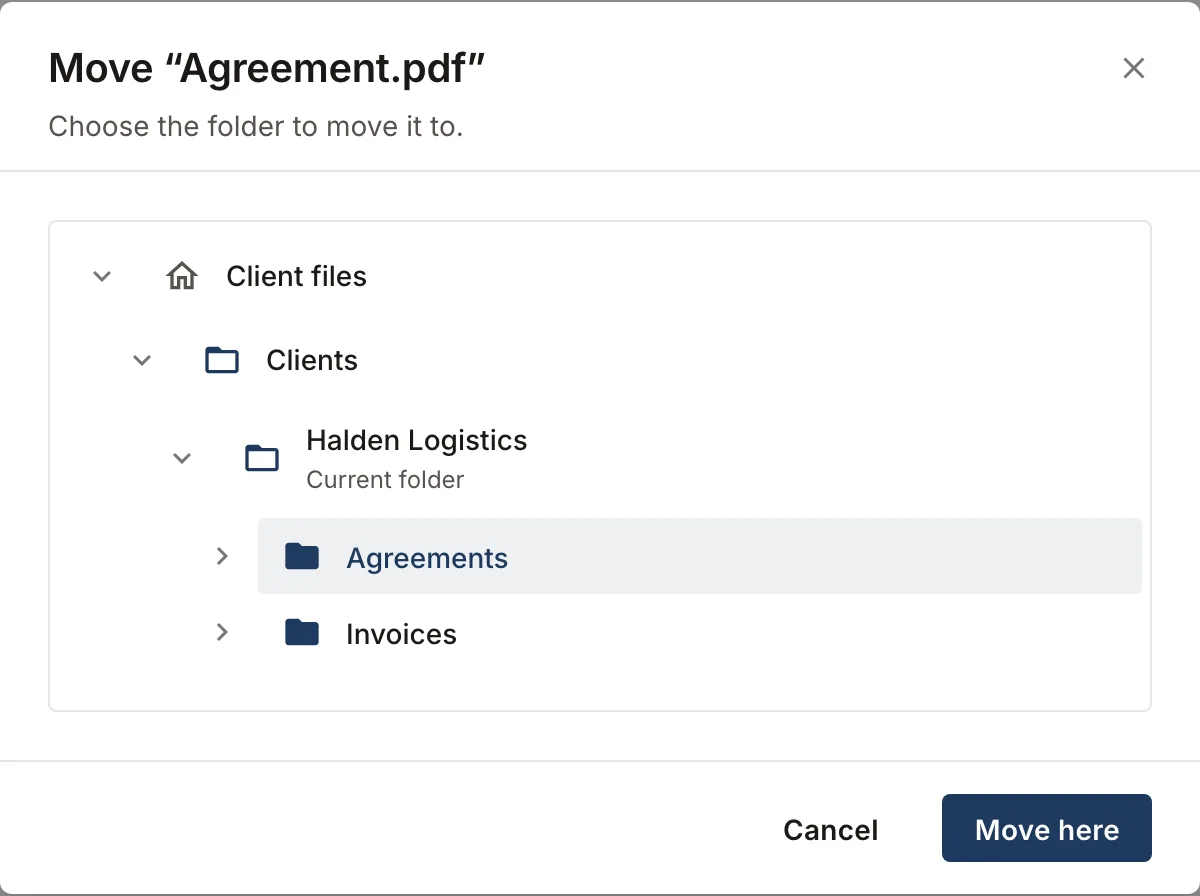
The tree opens on the folder the item is in now, marked Current folder. Click the arrow beside a folder to see what’s inside. Folders load as you open them. When you move a folder, it and everything inside it are left out of the tree, because a folder can’t go inside itself. Choosing the folder it’s already in says It is already in this folder., and the button stays off.
If the name is taken at the destination, you get the same three choices as for an upload. A folder can’t be replaced, so for a folder only Keep both and Skip are offered. Skip closes the move without moving anything.
Deleting
Section titled “Deleting”Choose Delete in the item’s menu and confirm. A folder goes with everything in it.
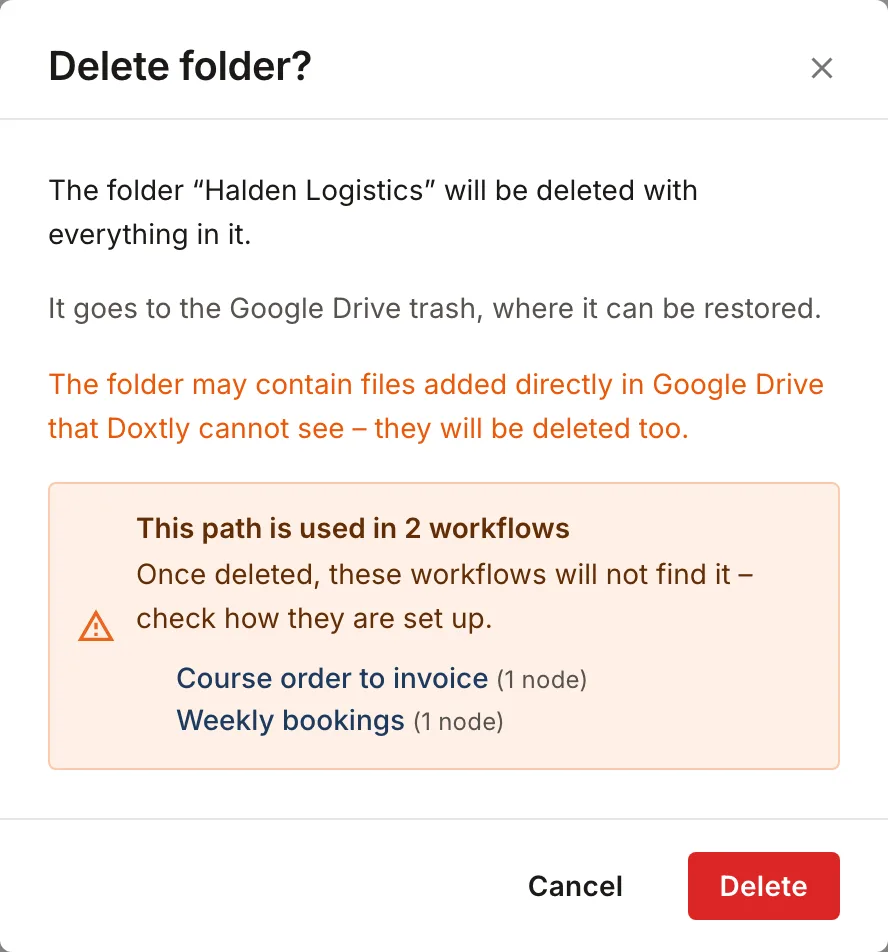
The item goes to your provider’s trash, on Google Drive, OneDrive, SharePoint, Dropbox and Box alike (Dropbox calls it deleted files), and you restore it there, not in Doxtly.
On a Google Drive connection that sees only Doxtly’s files, a folder may also hold files added directly in the drive, which Doxtly can’t see. They’re deleted with the folder, and the dialog warns you.
The root folder of a storage can’t be renamed, moved or deleted.
Downloading
Section titled “Downloading”Download in the item’s menu, or in the details panel, saves a file to your computer. Folders can’t be downloaded.
A file can be up to 100 MB. For a larger one, use Open in Google Drive, Open in OneDrive, Open in SharePoint, Open in Dropbox or Open in Box and download it there.
Native Google documents have no file of their own, so Doxtly exports them:
| Document | Downloaded as |
|---|---|
| Google Sheet | .xlsx |
| Google Doc | .docx |
| Google Slides | .pdf |
| Anything else, such as a Google Drawing | .pdf |
Saving exports to a drive
Section titled “Saving exports to a drive”Available when: your organization has an active Google Drive, OneDrive, SharePoint, Dropbox or Box integration and you have both the View cloud files and Manage cloud files permissions, besides the permission the export itself needs
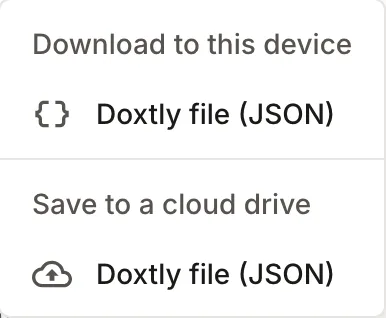
An export can go straight into a drive instead of your downloads, so the survey’s monthly responses land in the team’s folder without a detour through your computer. Where an export menu offers files, it then has two groups: Download to this device, with each file, and Save to a cloud drive, with the same files. It is the same menu a document’s PDF has. Without a drive or without those permissions, the menu offers only the downloads, with no headings.
-
Under Save to a cloud drive, choose the file.
-
Pick the Drive. The default one is chosen at first.
-
Walk through the folders. New folder creates one on the spot.
-
Check the File name. It is offered as the title, what the file holds and today’s date, such as
Customer survey – responses 2026-11-22.xlsx. If you remove the extension, it is added back. -
Click Save. A message says where the file went, and Open folder opens that folder in Cloud files.
If the folder already holds a file of that name, you choose Replace, Keep both (the new file gets (2) in its name) or Skip, as for an upload. Skip leaves the dialog open, for another folder or another name.
| Where | Files |
|---|---|
| A quiz’s or survey’s results, Download | The results report (PDF), the responses or attempts (Excel, CSV) |
| A quiz’s Summary tab, Export | Excel (.xlsx), Excel with answers, CSV |
| The question library, Export | Excel, and for quizzes GIFT and Moodle XML |
| A form’s results, Export | Excel (.xlsx), CSV |
| Export of a form, an email template, a workflow or an interactive document, on its list or in its designer | Doxtly file (JSON) |
| Export of a quiz or a survey | Download or Save to a cloud drive in its export dialog |
| The people chosen on a quiz’s or survey’s People tab, Export | People (CSV) |
| An attempt’s certificate, on the list of attempts or in the attempt | Download certificate (PDF) |
| An attempt’s answer sheet or a survey response’s sheet, on the list or in the attempt or response | Answer sheet, Examiner copy, Response sheet (PDF) |
| An import of signed documents, once finished | Download the rows not imported (CSV) |
| An invoice, Download PDF in its menu | The invoice (PDF) |
| A package export, each ZIP file | The ZIP file, if it is 50 MB or less; a larger one is only downloaded |
| A generated file, Download in its menu | The file |
| A document’s audit certificate, Download audit certificate | The certificate (PDF) |
| A paper copy’s scan, on the document’s Parties tab | The scan |
An export too large to make at once is made in the background. Saved to a drive, it is written there when it is ready, and a notification names the file, the folder and the drive, and opens the folder in Cloud files. Since nobody can be asked then, a name already taken is kept beside it with (2). If the drive refuses the file, for instance because it was disconnected or the file is over 50 MB, the notification says it could not be saved, and you download it instead; it is kept for 7 days.
A single file without a drive to save to is downloaded at once, with no menu. An export that asks something first, such as whether a quiz’s examiner notes go in, has Save to a cloud drive beside Download in its dialog.
Importing from a drive
Section titled “Importing from a drive”Available when: your organization has an active Google Drive, OneDrive, SharePoint, Dropbox or Box integration and you have the View cloud files permission, besides the permission the import itself needs
Every import of a file opens the same dialog. From computer takes a file you drop on the area or choose there; From cloud drive opens the drive’s folders, so a sheet kept on the team’s drive comes in without a download. Without a drive or without the permission, the dialog shows only the area for a file from your computer.
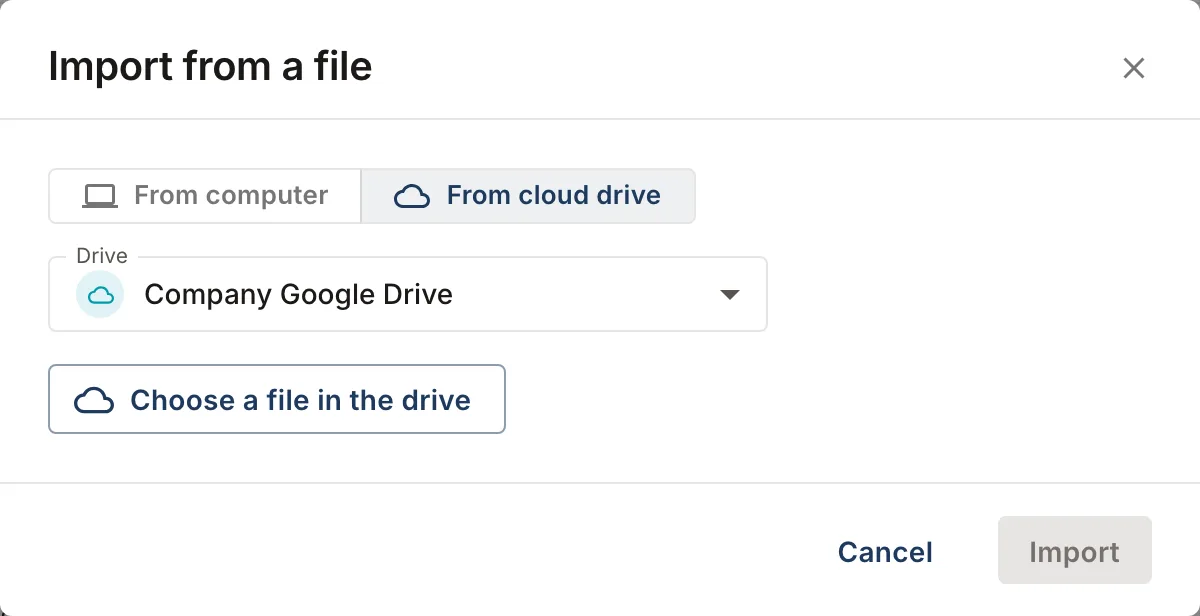
-
Choose From cloud drive. With more than one drive connected, pick the Drive.
-
Click Choose a file in the drive, walk to the file and select it. Files of another type stay listed but greyed out.
-
The file is read as one from your computer would be: the same preview, the same options and the same limits. Change chooses another file.
The file is read once; later changes in the drive don’t reach what was imported. A Google Sheets file is read as the Excel file it exports to. Where an import takes several files, such as the PDF files of an import of signed documents, select each in the drive’s folders, from more than one folder if you like, and click Select (3); a second click on a file takes it back.
| Where | Files |
|---|---|
| Import questions in a quiz’s or survey’s designer, and in the question library | GIFT, Aiken, Moodle XML, Excel, CSV, and Word read by Doxie |
| Add people from a file to an access list | Excel, CSV, Google Sheets |
| Import from file of a form, an email template, a workflow, an interactive document, a quiz or a survey | A Doxtly file (JSON) |
| Import signed documents from a sheet: the sheet, Load a corrected sheet and the PDF files | CSV, XLSX, ODS, XLS, Google Sheets; PDF files, several selected at once |
| Word to template | A Word file (.docx) |
| A picture in a designer: a form’s or an interactive document’s image and a drawing field’s background, a quiz’s or survey’s pictures (also its options’ and in the question library), an email’s image and logo | JPG, PNG, GIF, WebP, within the place’s own size limit |
| The organization’s logos in Branding | JPG, PNG, WebP, SVG; cropped as one from your computer |
| The attach button in Doxie and in an AI agent’s Try it | What each takes from your computer: for Doxie a Word file, a PDF, a Doxtly file or a picture; for an agent pictures, PDF and text files, several at once |
| A contact’s photo | PNG, JPEG, WebP, up to 2 MB |
| An AI agent’s skill from a file, in the skill form and in Upload a file | Markdown and text files (.md, .markdown, .txt); several at once in Upload a file |
| A picture in a template’s data, under Fill in data | JPEG, PNG, HEIC, WebP |
| The written authorization of an authorization, when you grant it and later from its details | PDF, PNG, JPEG, up to 10 MB |
Where a file comes in through a button rather than a drop area, such as Doxie’s attach button, the button opens a menu, From computer or From cloud drive, once a drive is offered. A picture or an attachment from the drive is stored exactly as the same file chosen on your computer: copied into the organization’s own files when the design or the message is saved, so later changes or deletions in the drive don’t touch it.
Before you rename, move or delete
Section titled “Before you rename, move or delete”A workflow finds files by path. These three dialogs check the path first, and if workflows use it, they name them and tell you what will happen, for example Once moved, these workflows will not find it until their path is updated. If no workflow uses it, the dialog says nothing about workflows. Nothing is blocked: you decide. Afterwards, open each workflow and correct the path in its step.
Say Northbridge renames the folder Clients to Customers. The dialog names the workflow that files signed agreements under Clients/..., and the office manager updates that step straight after the rename, before the next agreement is signed.
If the check fails, the dialog says It could not be checked whether workflows use this path. and you can still carry on. How this works is covered in Used in workflows.
When a workflow is at work
Section titled “When a workflow is at work”Workflows and people can reach for the same file at the same moment. When a workflow is writing under the same name, your change waits for up to 20 seconds, so a file doesn’t vanish halfway through a write. If the workflow is still busy after that, your change stops with a message and nothing is lost. Try it again a moment later.