

Condition node
A Condition asks a question about the run’s data and sends the run down one of two paths. Use it whenever a step should happen only sometimes: a partner countersigns only above a certain fee, a welcome email goes only to new clients.
Always available
Add a condition
Section titled “Add a condition”- Add Condition from the Conditions group of the palette.
- Connect the step before it to the node.
- In Properties, write the Expression. Use the
{x}button to pick a variable: it goes in as a bare path, without braces. In the side panel the field is narrow, so its buttons are gathered under one{x}▾button, Variables and functions (the editor). - Connect the True output, the False output, or both. They can’t both lead to the same step, because then there would be nothing to decide.
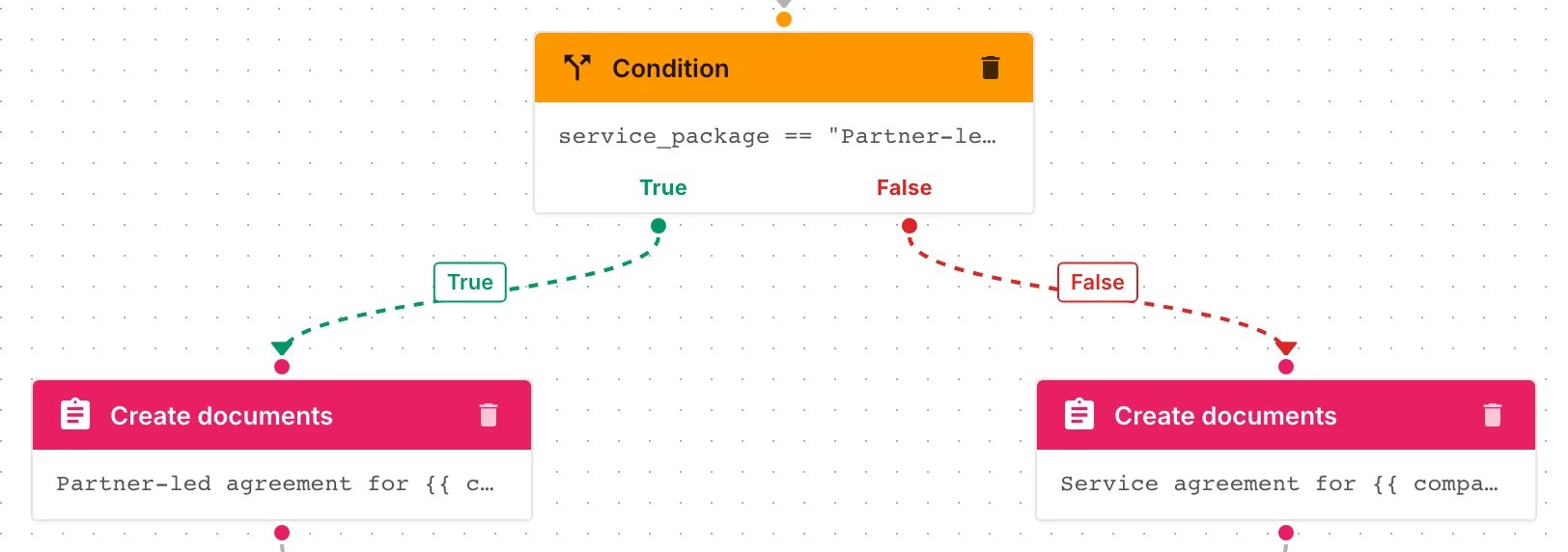
The node shows its expression on the canvas, so you can read the question without opening it.
Settings
Section titled “Settings”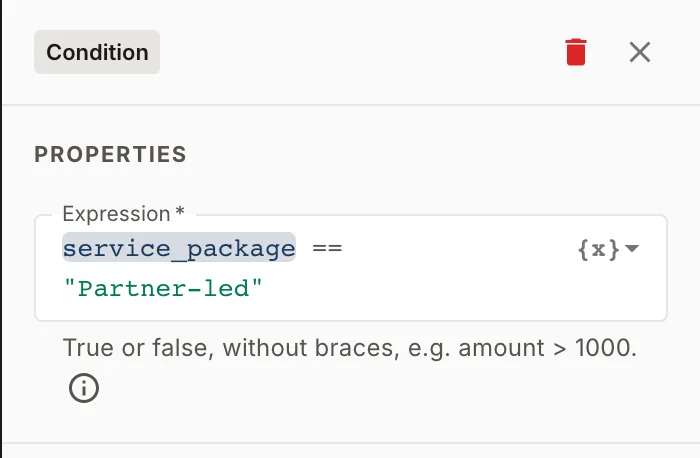
| Setting | What it does |
|---|---|
| Expression | The question. Required. |
| Node ID | The node’s identifier, under Node information. |
Outputs
Section titled “Outputs”| Output | Taken when |
|---|---|
| True | The expression’s answer counts as true. |
| False | It counts as false. |
At least one must be connected, or the designer says A node that branches must have at least one output connection. A run that takes an unconnected branch ends there, with no error: that’s how you say “stop here unless…”. The run’s data passes through unchanged, and the two paths may meet again further on.
Writing an expression
Section titled “Writing an expression”The expression is written in Doxtly’s one expression language, without braces. A variable is its path, then you compare:
fee > 10000company.country == "SE"services[0] == "audit"_submission.revision == 0STARTSWITH(postcode, "41")Text goes in quotes, single or double. A list item is read by its number from 0, so items[0].sku is the first item’s sku. A name with a space or a hyphen is written in brackets, _metadata["client name"] or _nodes["nda-check"].found; the {x} button writes it that way for you. f(x) lists every function, and Σ opens the operations of the variable under the cursor.
Comparing
Section titled “Comparing”| Operator | Means | Example |
|---|---|---|
== |
Equal | status == "approved" |
!= |
Not equal | status != "rejected" |
=== |
Equal, and of the same type | count === 0 |
!== |
Not equal, or of another type | code !== "0" |
< <= |
Less than, or equal | age < 18 |
> >= |
More than, or equal | fee >= 10000 |
== is forgiving about types: "5" == 5 is true. === isn’t. Two texts that aren’t numbers compare letter by letter, so dates written as 2026-11-12 compare in time order: endDate < "2027-01-01".
A grid’s row
Section titled “A grid’s row”A grid compares row by row: satisfaction.communication == "poor" holds when Poor was chosen in the row Communication. You need not type it: the {x} list offers each answer of each row, such as Satisfaction › Communication is “Poor”, and writes the comparison. Compare with ==, not ===: a row holds its label too, so it is no plain text.
Combining
Section titled “Combining”| Operator | Means | Example |
|---|---|---|
and or && |
Both | fee > 10000 and isNewClient |
or or || |
At least one | country == "SE" or country == "NO" |
not or ! |
The opposite | not isNewClient |
XOR(a, b) |
Exactly one | XOR(hasDiscount, hasVoucher) |
Use brackets to group: (country == "SE" or country == "NO") and fee > 5000. not reaches over a whole comparison, so not country == "SE" means not (country == "SE").
| Write | Means | Example |
|---|---|---|
"…" in text |
The text contains it | "urgent" in notes |
STARTSWITH(text, start) |
Begins with | STARTSWITH(postcode, "41") |
ENDSWITH(text, end) |
Ends with | ENDSWITH(email, "@northbridge.example") |
MATCHES(text, pattern, "i") |
Fits a regular expression | MATCHES(email, "@northbridge\.example$", "i") |
LOWER(text), TRIM(text) |
Text tidied before comparing | LOWER(TRIM(country)) == "no" |
~ |
Joins text | firstName ~ " " ~ lastName |
All of these care about letter case, except MATCHES with "i". A regular expression is written as plain text, with no slashes around it and a backslash written once.
| Write | Means | Example |
|---|---|---|
in |
Is one of | country in ["SE", "NO", "DK"] |
not in |
Is none of | status not in ["closed", "lost"] |
LEN(list) |
How many items | LEN(participants) > 10 |
The list can also be a variable: "audit" in services asks whether the ticked options of a multiple choice include audit. in compares like ==, so "5" in [5] is true.
Numbers
Section titled “Numbers”| Write | Means | Example |
|---|---|---|
+ - * / |
Add, subtract, multiply, divide | price * quantity > 1000 |
% |
Remainder | number % 2 == 0 |
POWER(a, b) |
To the power of | POWER(2, 10) |
MIN(…), MAX(…), SUM(…), ROUND(…) |
And every other function | MAX(fee, minimumFee) > 5000 |
Dividing by zero gives 0 rather than an error.
Choosing a value
Section titled “Choosing a value”| Write | Gives | Example |
|---|---|---|
a ? b : c |
b if a is true, otherwise c |
isVip ? 0 : 500 |
a ?: b |
a if it’s true, otherwise b |
nickname ?: fullName |
a ?? b |
a, or b if a is missing or null. Empty text is still a value. |
discount ?? 0 |
a | default(b) |
a, or b if a is missing, null, empty text or an empty list |
vatNumber | default("none") |
Values you can write
Section titled “Values you can write”| Value | How |
|---|---|
| Text | "approved" or 'approved' |
| Number | 10000, 2.5, 1e6 |
| Yes and no | true, false |
| Nothing | null |
| A list | ["SE", "NO"] |
What counts as true
Section titled “What counts as true”The answer doesn’t have to be a comparison. A bare isNewClient works, and so does company.vatNumber, which asks whether it’s filled in.
| The value | Counts as |
|---|---|
false, null, a missing variable |
False |
0 |
False |
| Empty text | False |
| An empty list | False |
Anything else, including the texts "0", "false" and " " |
True |
A PDF checkbox gives the text "1" when ticked and "0" when not, and "0" is text, so it counts as true. Compare it: consents.marketing == "1".
When a value is missing
Section titled “When a value is missing”A variable the run doesn’t have is null, and the run goes on. Nothing in a condition fails because a value is missing: an optional field left empty, an untouched checkbox, a link parameter that wasn’t given or a whole group the form left out all read as null, and company.vatNumber with no company too. So discount > 10 on a run without discount is false, and the run takes False.
Where null should count as something else, give it a fallback:
(discount ?? 0) > 10company.vatNumber | default("none") != "none"The designer warns, in orange under the field, about a variable no step before this one gives, such as a misspelt name, because that one would always be null.
When you save, the expression is checked. One that can’t be read, such as email ends with "@x" or amount >, is refused with The expression of condition node “…” cannot be evaluated and the reason, with its position. The designer shows the same under the field and in Problems before you save.
Example: partner approval above 10,000
Section titled “Example: partner approval above 10,000”Northbridge wants a partner’s signature on large agreements only. After the onboarding form, a condition reads:
fee >= 10000 and company.country in ["SE", "NO", "DK"]True leads to a Create documents step with the partner as a second party. False leads to one with the client alone.
A few everyday questions
Section titled “A few everyday questions”| The question | The expression |
|---|---|
| Did they tick the marketing consent on a PDF? | marketingConsent == "1" |
| Is this a correction, not a new submission? | _submission.revision > 0 |
| Did they come from the newsletter? | _params.utm_source == "newsletter" |
| Is the client outside the Nordics? | company.country not in ["SE", "NO", "DK"] |
| Did someone decline on the party’s behalf? | _party.onBehalf |
More in Expressions and functions.