

WhatsApp integration
A WhatsApp integration sends messages through your own WhatsApp Business account, reached by way of Twilio or directly through Meta. It suits clients who live on WhatsApp more than in their inbox, for example a training firm whose course participants already message it there and who get their joining details in the same chat.
Available when: you hold Manage integrations
What needs it
Section titled “What needs it”- WhatsApp OTP when signing: a one-time code sent to each party’s WhatsApp
- the messages about a package when WhatsApp is chosen as their channel: signature and approval requests, reminders and the other notifications
- Send link by WhatsApp on a form, an interactive document or a portal
- the Send WhatsApp message workflow step, which is unavailable in the designer until a WhatsApp integration is active
Your provider bills the messages.
Prepare your account
Section titled “Prepare your account”- Create an account at twilio.com.
- Register a WhatsApp sender under Messaging, which links a phone number to your WhatsApp Business account. To try things out first, use Twilio’s WhatsApp sandbox: only people who have joined it can get messages.
- On the front page of the Twilio Console, copy the Account SID and the Auth Token.
- At developers.facebook.com, create an app of the business type and add the WhatsApp product to it.
- Add your business phone number under WhatsApp, API Setup, and copy its Phone number ID. This is a long number of its own, not the phone number.
- In Meta Business Settings, create a system user, give it your app and WhatsApp account, and generate a token with the
whatsapp_business_messagingpermission. Don’t use the temporary token from the API Setup page: it stops working within a day, and the integration with it.
Set it up
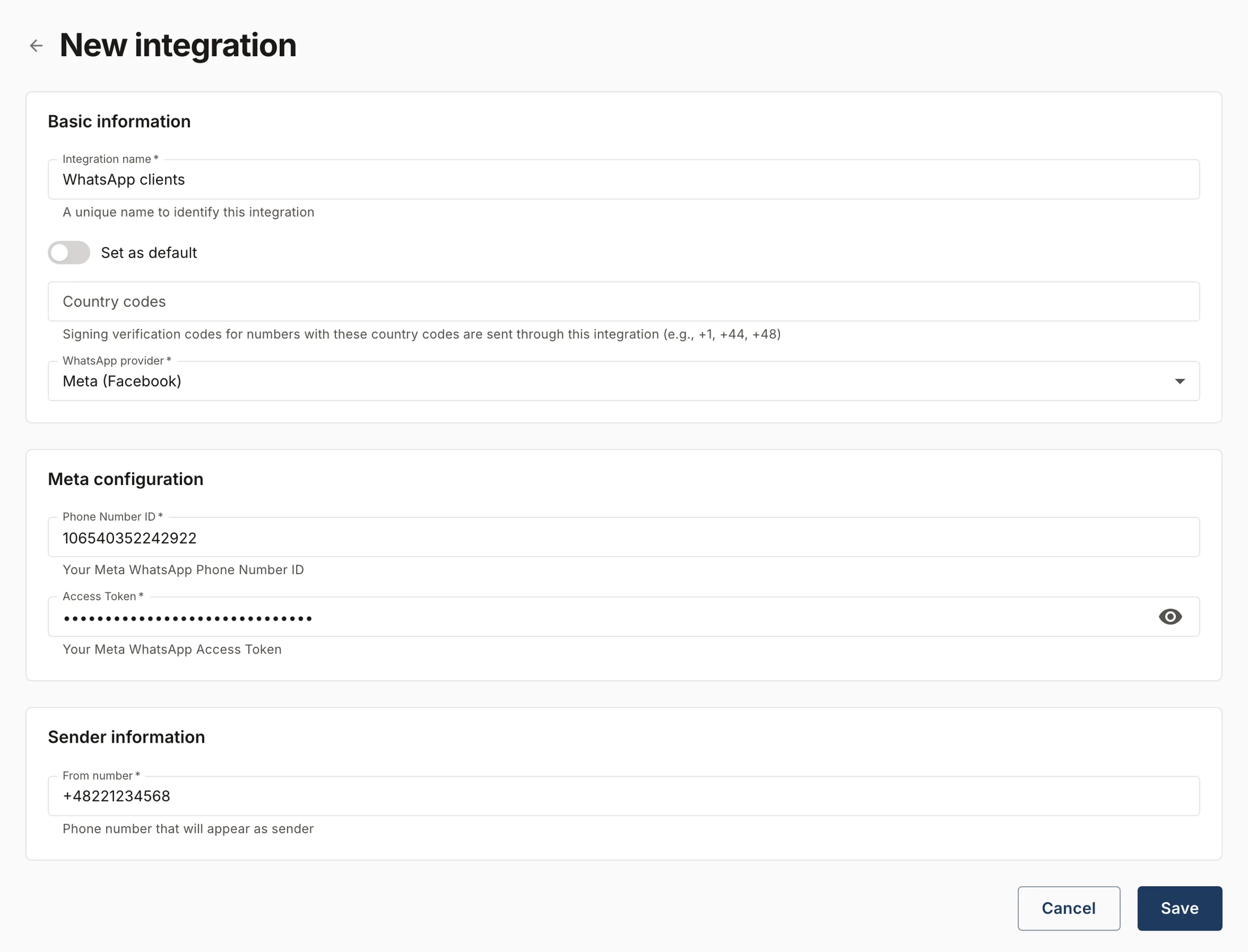
Section titled “Set it up”- Go to Organization, Integrations, click New integration and pick WhatsApp.
- Fill in Integration name.
- Choose the WhatsApp provider.
- Fill in the keys. Twilio asks for Account SID and Auth Token, Meta for Phone Number ID and Access Token.
- Under Sender information, fill in From number.
- Click Save. The integration is a Draft, and you land on its page.
- Click Test connection. Doxtly asks the provider whether it accepts the keys, and no message goes out. When it passes, the integration is Active.
A passed test proves the keys work. It doesn’t prove a message will arrive, so send yourself a real one from a test workflow.
Every field
Section titled “Every field”| Field | Shown for | What it does |
|---|---|---|
| Integration name | All | Your label. Up to 255 characters, unique among your WhatsApp integrations. A repeat is refused with “An integration of this type with this name already exists.” |
| Set as default | All | Makes this the integration used when nothing else decides. |
| Country codes | Integrations that are not the default | Which countries this integration handles. Works as it does for SMS: it decides which integration sends the signing codes, requests and links Doxtly sends on its own, and a workflow step uses the integration chosen in it. |
| WhatsApp provider | All | Twilio or Meta (Facebook). New forms start on Twilio. |
| Account SID | Twilio | Your Twilio account’s identifier. Up to 255 characters. |
| Auth Token | Twilio | Your Twilio password for programs. Up to 255 characters, stored encrypted and never shown again. |
| Phone Number ID | Meta | The ID of the number Meta sends from. Up to 255 characters. |
| Access Token | Meta | The system user’s token. Up to 255 characters, stored encrypted and never shown again. |
| From number | All | Your WhatsApp number in international form, such as +48221234567. Required, up to 255 characters. With Twilio, this is the number messages leave from, so don’t add a whatsapp: prefix. With Meta, the Phone Number ID decides, and this field is only your note of the number. |
When you edit an integration, leave the token empty to keep the stored one. If you switch provider, the account and token fields empty themselves and you type the new ones. Going back to the saved provider before you save restores the old values.
What you see once it’s set up
Section titled “What you see once it’s set up”Click the row in the list for the summary: Provider, From number, Country codes if there are any, each with its flag and country as in the form, and “Verified on” with the date of the last passed test. The integration’s page shows “WhatsApp configuration verified successfully”.

Saving a change removes the verified mark. The integration stays Active and uses the new settings at once, so run the test again.
Templates for signing codes
Section titled “Templates for signing codes”A signing code by WhatsApp reaches somebody outside the 24-hour window only as an approved template of the Authentication category, with the code in its text and on a copy-code button. Create it in your WhatsApp account, then enter it for each language in WhatsApp templates, on the integration’s page: the Authentication template name and the Meta language code for Meta, or the Twilio Content SID for Twilio. A language without one gets the code as plain text, which reaches only people who wrote to you in the last 24 hours.
Delivery statuses
Section titled “Delivery statuses”Twilio reports what became of each message by itself. For Meta, set up the status webhook in your own Meta app: the integration’s page gives you the Webhook address and the Verify token, and you paste the app’s secret into Meta app secret, which signs what Meta sends. Without it, sent messages stay at Accepted by the provider.
When a message doesn’t go out
Section titled “When a message doesn’t go out”| Message | What to do |
|---|---|
| “… did not accept the WhatsApp credentials. Please check your configuration.” | The test failed. Correct the keys. An expired Meta token shows up this way. |
| “Failed to send WhatsApp message via …. Please check your configuration.” | The provider refused the message. The usual cause is the 24-hour rule above. The provider’s own log has the exact reason. |