

Contacts
Contacts are your organization’s address book: the clients, suppliers and partners you send documents and forms to. A law firm keeps its clients here, a training company its trainers. Once someone is a contact, their details are one click away whenever you add them to a package or send them a link, and your workflows can start when somebody is added or changed.
Available when: the View contacts permission; Contacts in your plan
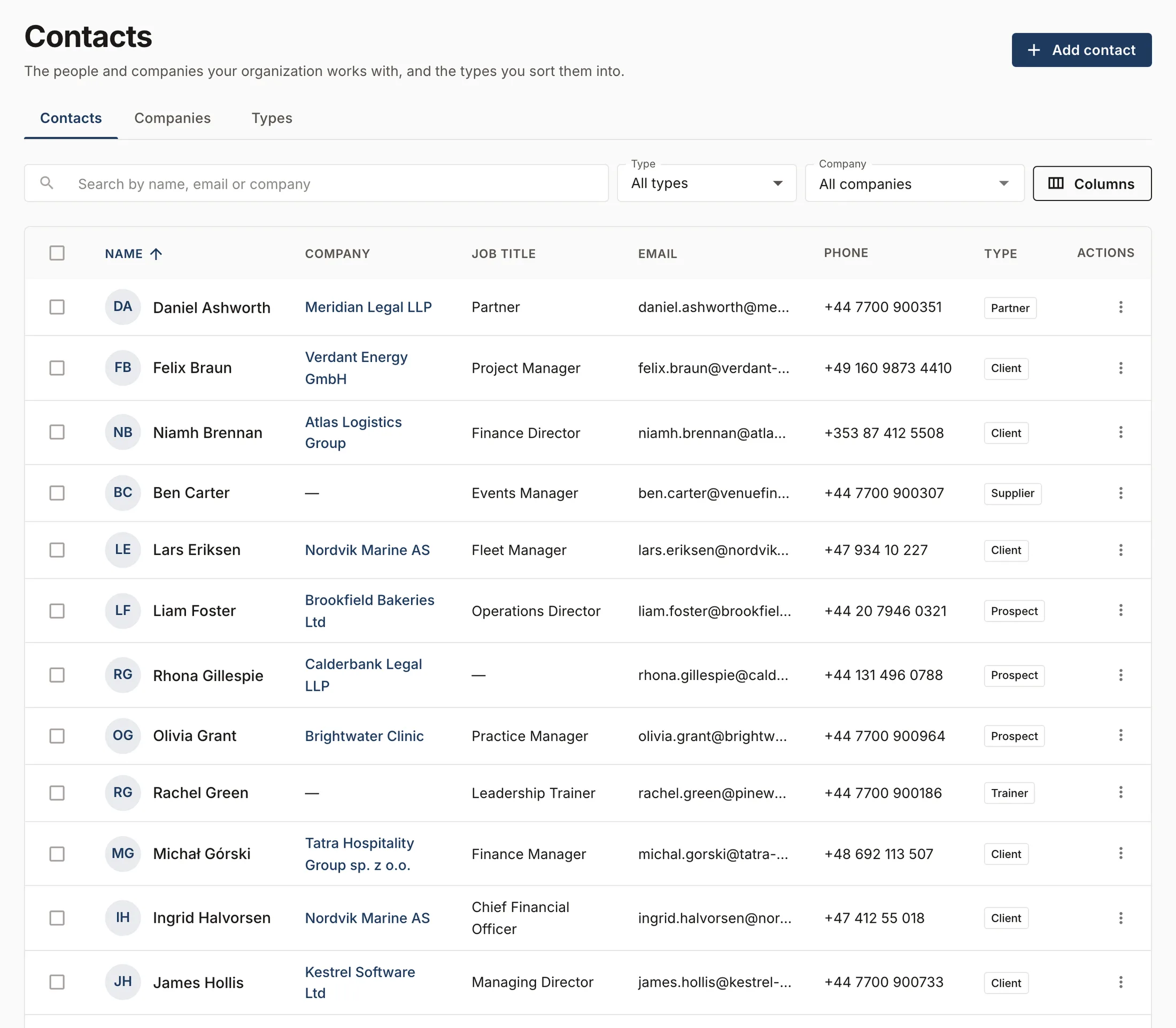
You find them under Resources > Contacts in the menu. The page has three tabs: Contacts, the list itself, Companies, the companies your contacts work for, and Types, the groups you sort people into.
What a contact holds
Section titled “What a contact holds”| Field | Required | What it is for |
|---|---|---|
| First name, Last name | Yes | Who the person is. |
| Yes | How the contact is recognized. One address is one contact in your organization, whatever its letter case. | |
| Phone | No | A click on the contact’s page calls it. Written with a country code, such as +48 600 100 200 or 0048 600 100 200, it also matches documents to the contact. Without one it is saved as typed, and the hint under the field turns into a warning once you leave it, as such a number matches nothing. |
| Job title | No | Shown in the list. |
| Company | No | One of your companies, or a new name that becomes one when you save. Searched, and a link to the company in the list. |
| Type | No | One of your types, or none. |
| Language | No | One of the 14 languages Doxtly speaks, each listed under its own name (Polski, English, Deutsch, العربية and so on), or Not set. The language messages to this person are written in, where it can be chosen. |
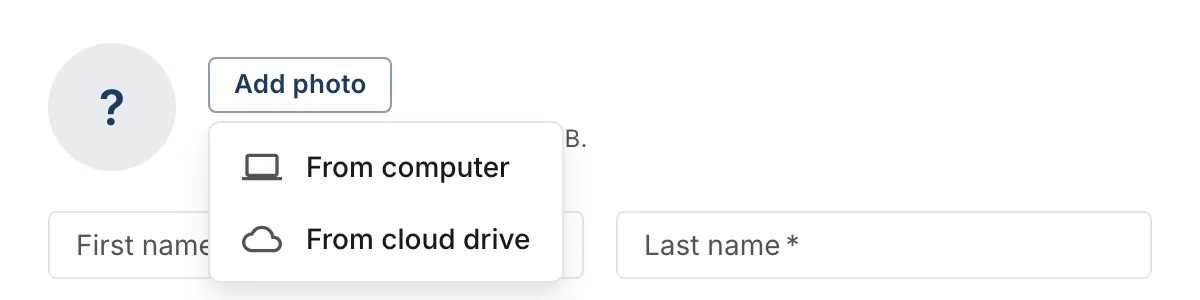
| Photo | No | A PNG, JPEG or WebP picture of up to 2 MB. Add photo takes it from your computer or, once your organization has a cloud drive connected, offers From computer and From cloud drive. Without a photo, the initials are shown. |
The first and last name take up to 100 characters each, the email 255, the phone 50 and the job title 150.
Anything else your organization keeps about a person, such as a client number or a date of birth, goes into custom fields, on the Custom tab of the same dialog.
Contacts have no retention period. They stay until somebody deletes them, because an address book that empties itself is no use. Photos count towards your organization’s disk space, so a photo that would take you past the limit is refused.
Add a contact
Section titled “Add a contact”-
Open Resources > Contacts and press Add contact.
-
Fill in the First name, Last name and Email, and whatever else you know.
-
Press Add contact.
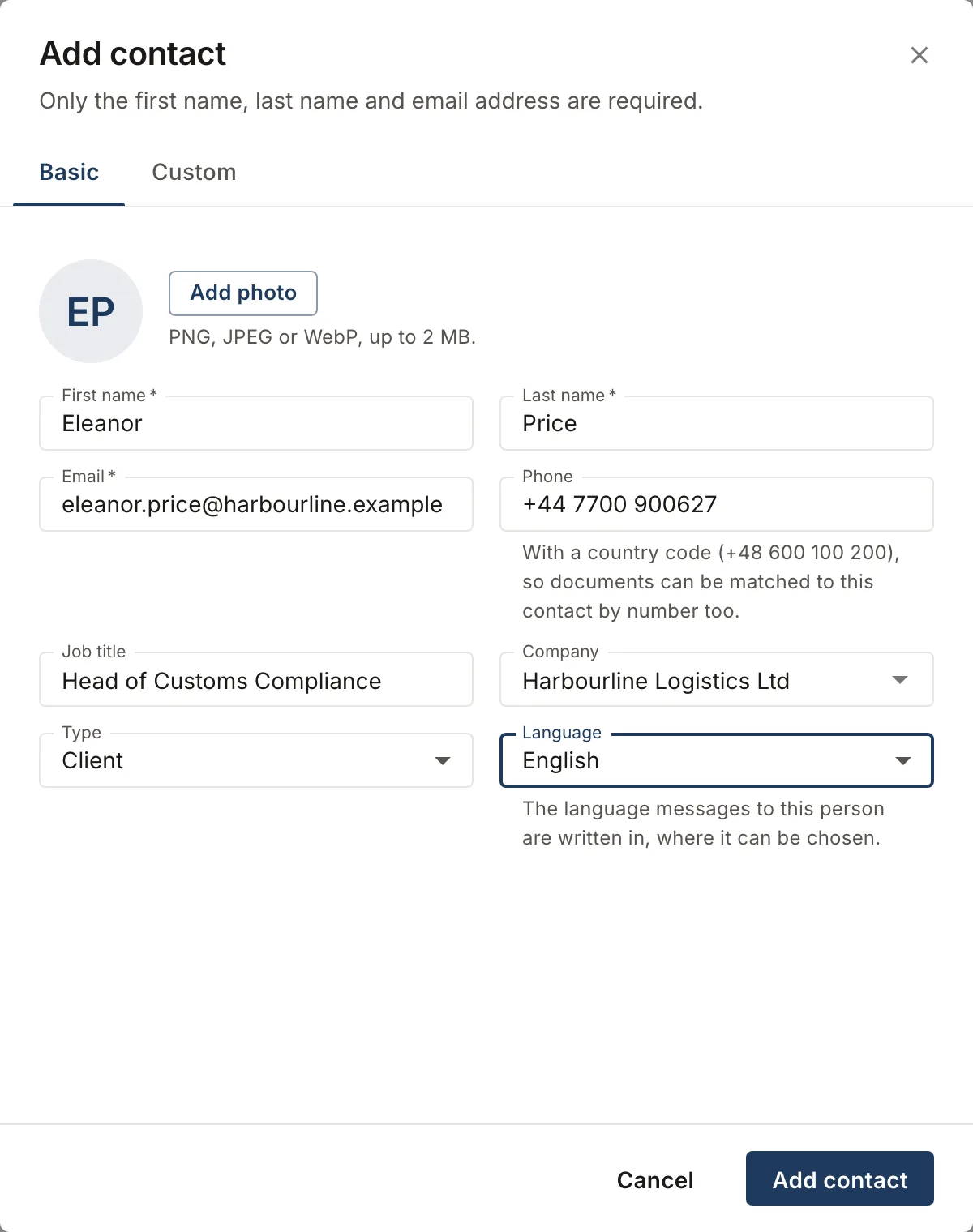
If the address already belongs to a contact, the dialog says so and offers Open, which takes you to that contact. To change or delete a contact, use the three-dot menu on its row or the menu on its page.
Deleting a contact takes its notes and history with it. Packages it was part of are not touched: a package keeps its own copy of each party.
Find a contact
Section titled “Find a contact”The search box looks in the first name, last name, email and company. Type narrows the list to one type, or to No type, and Company to one company, or to No company. On a computer, sort by clicking a column heading; the list starts sorted by last name. Columns, beside the filters, adds the Language and Added columns and your custom fields that are not sensitive, and Reset to default brings the standard columns back. On a phone each contact is a card with the same details.
Where contacts help you
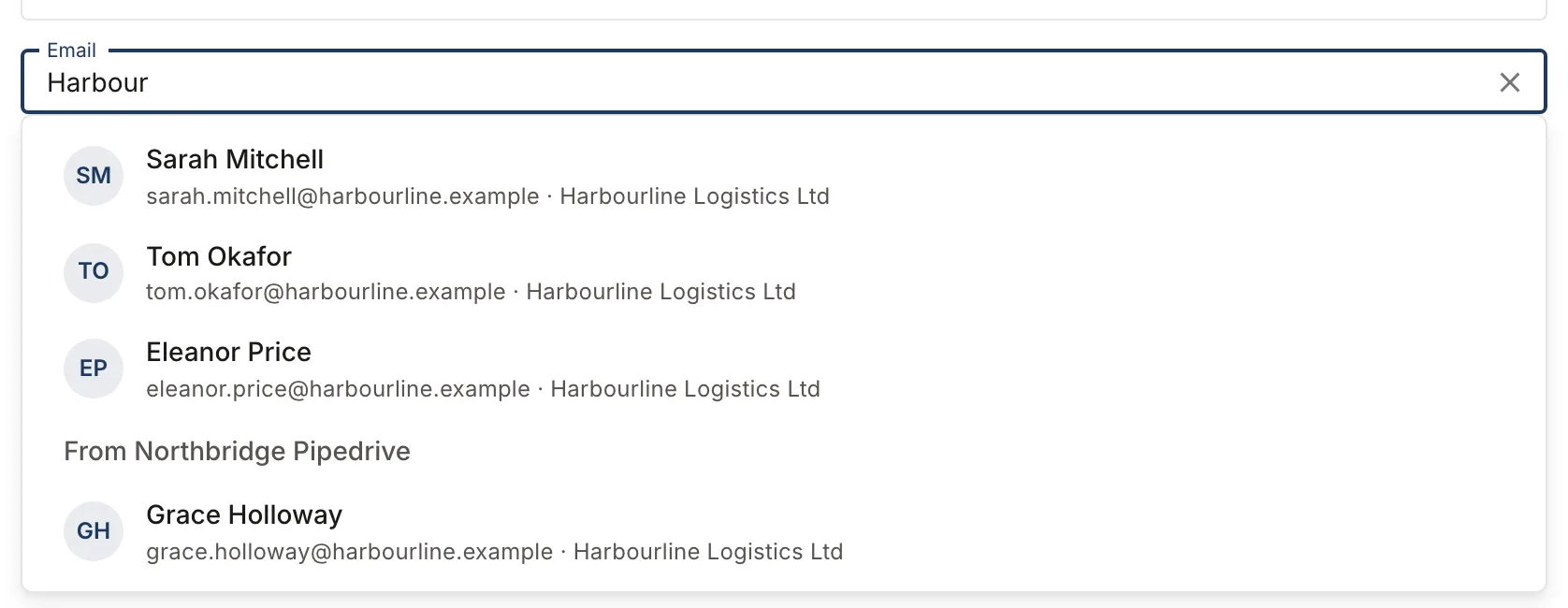
Section titled “Where contacts help you”When you type an address. The recipients of Send link, a package viewer and a party in the manual package editor suggest your contacts as you type a name, an email or a company. You can still type any address. A party picked from the suggestions also fills in the name, phone, language and job title, all of which you can change. People without View contacts see an ordinary email field.

From your CRM. With a Pipedrive, HubSpot or Copper integration and CRM integrations in your plan, the same fields search your CRM too. Its people appear below your contacts under From and the integration’s name, with their address and organization. A person already linked to one of your contacts is that contact. Picking anyone else brings them into your contacts first: into the contact that has one of their addresses, or into a new one, with their organization as its company and their ID from the CRM in the field the integration keeps it in, such as Pipedrive’s Person ID field. The contact’s history says who brought them in, and its workflows start as on any save. Bringing a person in takes Manage contacts; without it, only people already linked to a contact are offered.
A CRM is searched only for an integration that keeps people’s IDs in a field. When an integration isn’t searched for that reason, or can’t be searched at that moment, a line under the suggestions says why, such as “Pipedrive is limiting the number of requests. Try again in a moment.”, and your contacts are suggested as usual.
On a package. On the Parties tab of a package, a party matched to a contact by email or by phone with a country code has a Contact chip leading to it, and the party’s menu on the package page has Show contact. Otherwise, with Manage contacts, you get Save as contact, which opens the dialog filled in with the party’s details. If the person already is a contact under another address, Link to contact in the party’s menu on the package page picks the contact and, after saying so, remembers the party’s email and phone with a country code as earlier addresses; the party in the package stays as it was.
To have them fill something in. Send to fill in sends a contact a personal link to a form, an interactive document, a quiz or a survey. Tick contacts in the list to send it to many of them at once, each with a link of their own.
In workflows. The Save contact, Update contact and Delete contact steps change contacts from a run, and the Contact saved trigger starts a workflow when one changes. The recipe Save form submitters as contacts puts both to work.
On the dashboard. The Contacts tile counts your contacts and shows how many were added in the last month.
Limits
Section titled “Limits”Your plan sets how many contacts you can keep: see Plans and limits. At the limit, Add contact is disabled and says why, and a workflow step that would create a contact fails with the same reason. Changing existing contacts always works.
Who can do what
Section titled “Who can do what”| Permission | What it allows |
|---|---|
| View contacts | The list, contact pages, notes, history, types, companies, and the address suggestions. |
| Manage contacts | Adding, editing and deleting contacts, photos and companies, Save as contact, and writing notes. |
| Manage contact types | Adding, renaming and deleting types. |
| Manage custom fields | Adding, editing, ordering and deleting custom fields. |
| View sensitive values | Showing the values of sensitive custom fields and, with Manage contacts, changing them. |
See Roles and permissions for who has them by default. The contact steps and the contact trigger need these permissions as well: see Who can do what in workflows.