

Send to a messenger
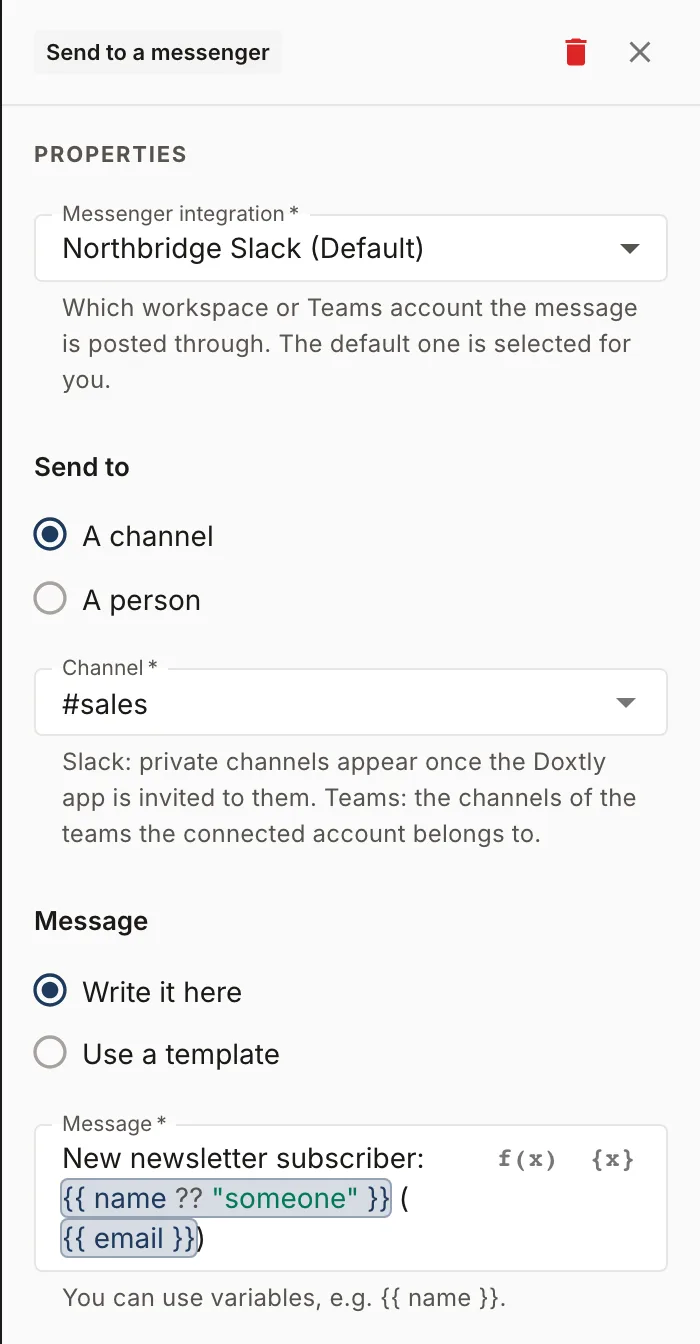
Send to a messenger posts a message to your team’s messenger while the workflow runs: to a channel everyone follows, or to one person. Use it for news your team acts on: a contract signed, a new enquiry, a client who registered for a course.
Available when: the organization has an active Slack or Microsoft Teams integration
Without one, the node is greyed out in the Notifications group of the palette, with the reason beside it. You connect Slack or Microsoft Teams under Integrations.
Setting it up
Section titled “Setting it up”-
Drag Send to a messenger onto the canvas and connect it.
-
Check the Messenger integration. Your default one is already selected.
-
Under Send to, choose A channel and pick the Channel, or choose A person and fill in Person’s email address.
-
Write the Message.
Settings
Section titled “Settings”| Setting | Values and default | What it does |
|---|---|---|
| Messenger integration | Required. Your active Slack and Microsoft Teams integrations. The default one, or your only one, is selected for you. | Which workspace the message is posted in. Choosing another integration clears the channel, because its channels are different. |
| Send to | A channel or A person. A channel by default. | Where the message goes. |
| Channel | Required for a channel. The channels of the workspace, found by typing part of the name. | The channel the message is posted in. On the canvas the node shows its name. |
| Person’s email address | Required for a person. An address, a variable, or both. | The message goes, as a direct message from the Doxtly app, to whoever in the workspace has this address. |
| Message | Write it here or Use a template. Written here by default. | Where the text comes from. |
| Message (the text box) | Required when written here. Text and variables. | What it says. |
| Message template | Required with a template. Your text message templates for no occasion. | The text, in each of its languages. |
| Language | With a template. The organization’s, a chosen one or a variable, with a fallback. | Which version of the template goes out. |
The channel
Section titled “The channel”On Slack, public channels are listed straight away, and a private channel once the Doxtly app is invited to it: type /invite @Doxtly in the channel. See Private channels. On Teams, the list holds the channels of the teams the connected account belongs to, as Team › Channel. See Which channels Doxtly can post in.
The person
Section titled “The person”Doxtly looks the address up when the step runs, so it must be the address of their Slack account or, on Teams, of their Microsoft 365 account. On Teams the message arrives in their chat with the connected account. An address written out in full is checked when you save; one from a variable is known only on the run.
The message
Section titled “The message”The message is plain text. Links in it become clickable in Slack. Characters that Slack would read as formatting, such as < or &, are shown as typed, so a value from a form can’t turn into a mention of the whole channel.
A variable that gives nothing leaves a gap in the text, and the message still goes. Give it a stand-in where a gap would read badly: New enquiry from {{ company ?? "a new client" }}. Variables can carry operations and functions: click one and then Operations.
What the next steps get
Section titled “What the next steps get”Nothing they can use: the step adds no variables and no files.
On the run’s page the step shows where the message went, the channel or the person’s name, the integration it went through and, for a message from a template, the language it went in. The message’s text is not kept.

When it fails
Section titled “When it fails”A workflow goes on only if the message went out. A failed step stops the run, and people who may view workflows get a Workflow failed notification.
| What you see | Why | What to do |
|---|---|---|
Could not work out the person's email address from "..." |
A variable in the address is missing or empty | Make the field required, or put a Condition before this step |
"..." is not an email address. |
The value isn’t an address | Fix the data |
Nobody in the messenger's workspace has the address ... |
The person has no account with that address in the Slack workspace or the Microsoft 365 organization | Use the address of their account, or post to a channel |
Doxtly may not post in this Slack channel. Invite the Doxtly app to it, or choose another channel. |
A private channel the app isn’t in, or a channel archived since | Invite the app, or pick another channel |
Slack has no such channel or person. Choose another one. |
The channel was deleted | Pick another channel |
Slack no longer accepts Doxtly's connection. Connect the integration again. |
The app was removed from the workspace | Reconnect the integration |
Slack is limiting the number of messages. Try again in a moment. or Slack cannot be reached right now. Try again in a moment. |
Slack is busy or down | Rerun the run later |
Slack did not accept the message. |
Slack refused it for another reason | Check the channel or the person, then Rerun |
The message is empty, so there was nothing to send. |
The whole text came out empty | Add some fixed text |
The messenger integration of this step is not connected. Connect it again or choose another one. |
The integration was deleted or turned Invalid | Reconnect it, or pick another one |
Through a Microsoft Teams integration the same messages name Microsoft Teams instead of Slack. There, Doxtly may not post in this Microsoft Teams channel… means the connected account can’t post in that channel, and a lost connection is mended as described under When the connection stops working.
Doxtly doesn’t retry by itself. Rerun on the run’s page starts a new run with the same trigger data, from the beginning of the saved workflow, so steps before this one happen again.
Example: a signed contract in #sales
Section titled “Example: a signed contract in #sales”Northbridge Advisory’s sales team wants to know the moment a client signs. A workflow started by the package event The package is fully signed for the “Client agreement” package type posts to #sales.
| Setting | Value |
|---|---|
| Messenger integration | Northbridge Slack |
| Send to | A channel |
| Channel | #sales |
| Message | {{ _package.title }} ({{ _package.number }}) is signed by everyone. |
To tell one person instead, such as the account manager, choose A person and fill in their address, anna.kowalska@northbridge.example. With the event A party signs, {{ _party.fullName }} signed {{ _package.title }} tells them about each signature as it comes.