

Integrations
An integration is a connection between your organization and an outside service you already use. Mail to your clients leaves from your own mailbox, signing codes go through your own SMS account, and generated contracts land on your own drive. You set a connection up once, and everyone in the organization works through it.
Available when: you hold View integrations to see the list, and Manage integrations to change anything
What each type gives you
Section titled “What each type gives you”Doxtly has nineteen types. Most of what it does for your clients needs at least one of them, so an email integration is usually the first thing to set up.
| Type | Providers | What it makes possible | Connected by |
|---|---|---|---|
| Custom SMTP, Gmail, Outlook, SendGrid, Mailgun, Amazon SES | Signing links and email codes, links to forms and interactive documents, email templates, the Send email workflow step, completion notices to signers | Server details, or signing in to the mailbox | |
| SMS | Twilio, SMSAPI | SMS OTP when signing, the Send SMS workflow step | Keys from the provider |
| Twilio, Meta (Facebook) | WhatsApp OTP when signing, the Send WhatsApp message workflow step | Keys from the provider | |
| Google Drive | The Cloud files page, workflow steps that read and write files and spreadsheets, cloud templates, saving from the PDF editor | Signing in to the account | |
| OneDrive | Microsoft | The same as Google Drive, on a Microsoft drive | Signing in to the account |
| SharePoint | Microsoft | The same as Google Drive, in a document library of a SharePoint site | Signing in to the account, then choosing the site and the library |
| Dropbox | Dropbox | The same as Google Drive, in a Dropbox account or a team space | Signing in to the account |
| Box | Box | The same as Google Drive, in a Box account | Signing in to the account |
| reCAPTCHA | Spam protection on forms, and a CAPTCHA with the password of a form or an interactive document | Keys from Google | |
| AI | Anthropic, OpenAI | AI agents, the AI step in workflows, and Doxie when you assign it to her | Your API key |
| Slack | Slack | Your organization’s notifications in channels, each person’s own notifications as direct messages, the Send to a messenger workflow step | Installing the Doxtly app in the workspace |
| Microsoft Teams | Microsoft | The same as Slack, in Teams channels and chats, posted as the connected account | Signing in to the account |
| Pipedrive | Pipedrive | Contacts kept in sync with your CRM, the workflow steps that move deals and attach signed documents and notes, the CRM trigger, people from the CRM suggested where you type an address | Signing in to the Pipedrive company |
| HubSpot | HubSpot | The same, for a HubSpot account | Installing Doxtly’s app in the HubSpot account |
| Copper | Copper | The same, for a Copper account | An API key of a Copper user and that user’s address |
| Przelewy24 | Przelewy24 | Payments in forms, with BLIK, fast transfers and cards, into your merchant account | Keys from the Przelewy24 panel |
| Stripe | Stripe | Payments in forms through Stripe Checkout, with cards, wallets and local methods, into your Stripe account | Installing the Doxtly app in your Stripe account |
| PayU | PayU | Payments in forms, with BLIK, online transfers and cards, into your PayU shop | Keys from the PayU panel |
| PayPal | PayPal | Payments in forms, with PayPal accounts and cards, into your PayPal business account | The client ID and secret of a REST app you create at PayPal |
Seven types are tied to your plan: Pipedrive, HubSpot and Copper are not offered on a plan without CRM integrations, which Pro and Business include, and Przelewy24, Stripe, PayU and PayPal not on a plan without payments, which Starter, Pro and Business include. AI is offered on every plan, but on a plan without AI agents it serves Doxie alone. See Plans and limits. Every other type is on every plan, and you can have as many of each as you need.
What you pay the provider is between you and the provider. An SMS from your Twilio account or a run on your OpenAI key is billed by them, not by Doxtly.
No mailbox to connect? Every organization also has Doxtly e-mail, an email integration of Doxtly’s own, listed among your email integrations and switched off until you switch it on. It sends everything an email integration sends, paid from your plan’s messages and then the Doxtly balance. And even with no email integration at all, your organization can send its documents for signature from Doxtly’s mailbox, within your plan’s limit.
Where to start
Section titled “Where to start”You rarely need all nineteen. Think about what you want to happen and work back from there. Northbridge Advisory, a training and consulting firm, started with three:
- Email through its Microsoft 365 mailbox, so that NDAs go out for signature from
office@northbridge-advisory.exampleand replies land with the team. - Google Drive, so that a workflow can file each signed agreement in the client’s folder.
- SMS through Twilio, so that a client confirms who they are with a code before signing a service agreement.
It added reCAPTCHA when its public enquiry form started collecting spam, and AI when it wanted an agent to read incoming documents. A second mailbox and more drives followed, as the list below shows.
The Integrations page
Section titled “The Integrations page”Open Organization, then Integrations. The list is grouped by type, with the number of integrations beside each type’s name. In each group the default comes first, then the rest by name. The list shows 25 integrations per page, and you can switch to 10 or 50 below it.
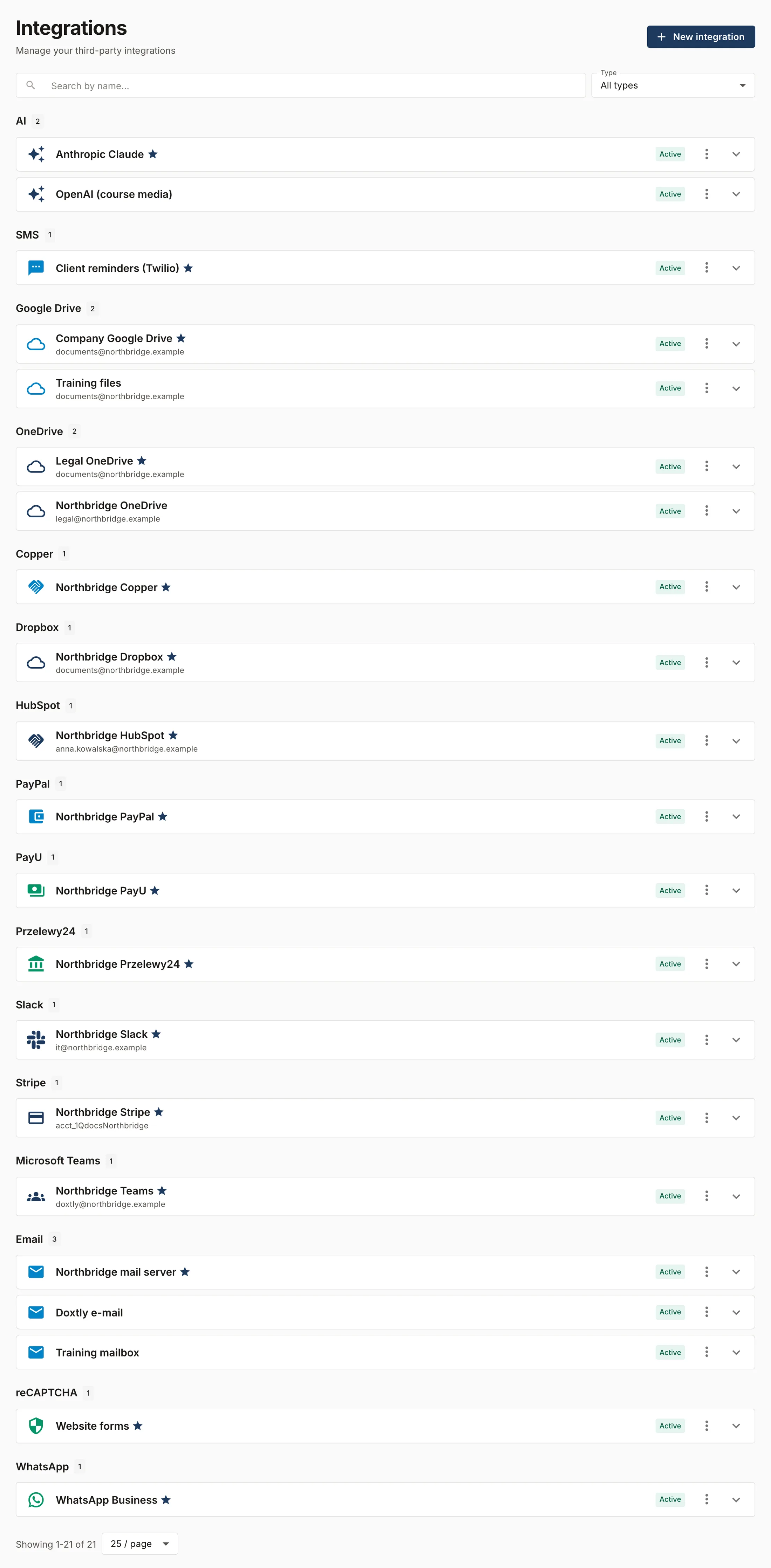
Each row shows:
- the integration’s name, with a star if it is the default of its type
- the connected account under the name, for Gmail, Outlook, Google Drive, OneDrive, SharePoint, Dropbox, Box, Pipedrive and HubSpot
- its status
- a three-dot menu with Edit and Delete, if you hold Manage integrations; on Doxtly e-mail, which can’t be deleted, Settings and Switch on or Switch off

Click a row to fold out a summary of its settings. Secrets never appear here: you see that a key exists, not the key. What the summary holds depends on the type, and each type’s page lists it.

To find one integration, type part of its name in Search by name… or pick a Type. The types in that list come in the order of their groups on the New integration page, so the drives are together and the messaging services are together. All types shows everything again. On a plan without CRM integrations, Pipedrive, HubSpot and Copper aren’t in that list, and on a plan without payments, none of Przelewy24, Stripe, PayU and PayPal is. Active filters appear as chips under the bar, and Clear all removes them. The address of the page holds your filters, so you can bookmark a filtered list.

An organization with nothing connected sees “No integrations yet”, with a New integration button for those who may add one. If your filters match nothing, the page says “No integrations found” and offers Clear all filters.

If you hold only View integrations, you see the list and the summaries but no New integration button and no three-dot menu.
Add an integration
Section titled “Add an integration”- Click New integration.
- Pick the type. The cards are grouped by what they do: Files, Messages, CRM, Payments, AI and Security. A chip above them shows one group only, and All shows them all again. Search integrations… narrows the cards by name and description, within the chosen group.
- Fill in the form. Each type’s page says what to get from the provider first.
- Click Save or, for an account you sign in to, the connect button.
- Back on the integration’s page, click Test connection if the form has it, and wait for “Connection test successful”.
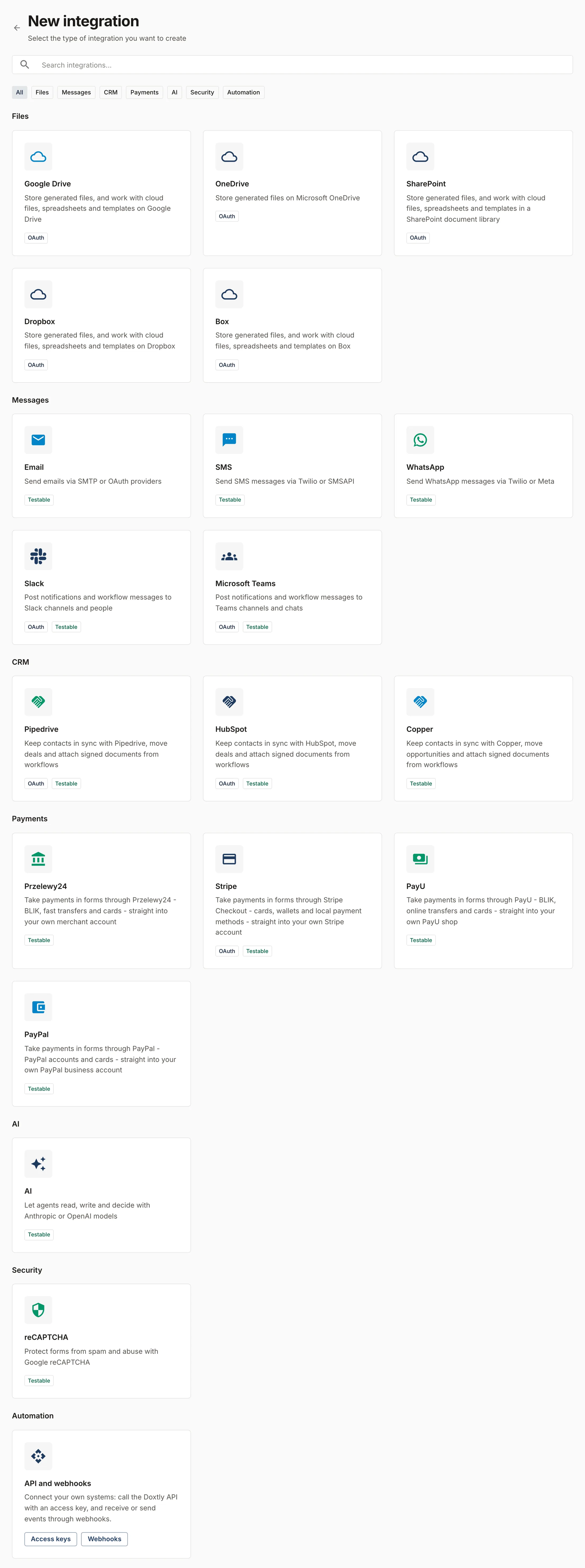
Two chips on the cards tell you what to expect. OAuth is on the types you connect by signing in at the provider: Google Drive, OneDrive, SharePoint, Dropbox, Box, Slack, Microsoft Teams, Pipedrive, HubSpot and Stripe. Testable is on those with a connection test: everything but the drives. Email carries only Testable, because the choice between signing in and SMTP comes later, with the provider.
The last section, Automation, is not an integration to set up. Its API and webhooks card is where your own systems connect to Doxtly. Access keys opens the keys a program calls the API with, and Webhooks opens the webhooks that receive events from other systems and send yours to them. Each button is there only if you may open its page, and the section disappears when you may open neither.
Cancel on a new integration takes you back to the choice of type. On an existing one, it takes you back to the list.
Every form starts with the same two fields:
| Field | What it does |
|---|---|
| Integration name | Your own label, shown in lists across the app, such as “Office mailbox” or “SMS Poland”. Up to 255 characters. No two integrations of one type can share a name, and a repeat is refused with “An integration of this type with this name already exists.” An email and an SMS integration may share one. |
| Set as default | Makes this the default of its type. See below. |

Saving does not make an integration work. A new integration starts as a draft, and it goes live when it passes its test or finishes connecting. Until then nothing in Doxtly uses it. AI is the exception, because your key is checked as you save.
Statuses
Section titled “Statuses”| Status | What it means | What to do |
|---|---|---|
| Draft | Saved but not tested, or not connected yet. Nothing uses it. | Run the test, or connect the account. |
| Active | Passed its test or finished connecting. Doxtly uses it. | Nothing. |
| Invalid | The last test failed, or the provider no longer accepts the connection. Nothing uses it. | Correct the settings and test again, or use Reconnect. |

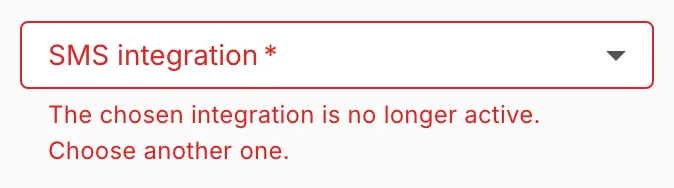
Only an Active integration is ever used, and only those appear in pickers elsewhere in the app, with “(Default)” beside the default. When the integration a form or a workflow step points at stops being active, the picker doesn’t quietly go blank. It says “The chosen integration is no longer active. Choose another one.” With nothing active of that type, it says “No active integration of this kind yet. Connect one under Integrations.”
A provider can turn an integration Invalid without anyone touching it. If the owner of a Google account withdraws Doxtly’s access, the next attempt to use the connection is refused and the status changes.
Test the connection
Section titled “Test the connection”Test connection sits at the bottom of the integration’s page, next to Save. It is offered once the integration exists, and it stays greyed out while you have unsaved changes, because the test runs on what is saved. On Gmail and Outlook it also waits until the mailbox is connected, on Pipedrive and HubSpot until the company or account is, and on Stripe until the account is. Google Drive, OneDrive, SharePoint, Dropbox and Box have no test button: finishing the connection is their test.
Each type tests something different, and only one of them sends anything:
| Type | What the test does | Costs or side effects |
|---|---|---|
| Email with SMTP | Sends a real message from the From email to itself | One email in that mailbox |
| Gmail, Outlook | Asks the provider to renew the connection | None |
| SMS | Asks the provider about your account | None, no message goes out |
| Checks the credentials with the provider | None, no message goes out | |
| reCAPTCHA | Asks Google whether it knows the secret key | None |
| AI | Asks the provider for its list of models | No tokens are used |
| Pipedrive | Reads the company’s pipelines | None |
| HubSpot | Reads the account’s deal pipelines | None |
| Copper | Asks Copper which account the API key belongs to | None |
| Przelewy24 | Asks Przelewy24 whether it accepts the keys | None, nothing is paid |
| Stripe | Reads the account’s Checkout Sessions | None, nothing is paid |
| PayU | Asks PayU for access with the client ID and secret | None, nothing is paid |
| PayPal | Asks PayPal for access with the app’s credentials, then subscribes Doxtly to the app’s payment notifications | One webhook added to the app, the first time; nothing is paid |
On success you see “Connection test successful”, the status becomes Active, and the integration gets a verified mark: a green line on its page and a Verified on chip with the date in its summary. Drives and the CRMs have no such mark. On failure you see the reason, or “Integration test failed. Please check your configuration and try again.”, and the status becomes Invalid.
Some types are more forgiving. If Google can’t be reached during a reCAPTCHA test, an AI provider is merely busy, or a CRM is out of reach or limiting requests, the test fails but the integration keeps its status, and you can try again. Only a key the provider rejects makes them Invalid, or, for a CRM, a connection or API key it no longer accepts.

Only people with Manage integrations can run a test.
The default integration
Section titled “The default integration”When you have several integrations of a type, the default is the one used whenever nothing more specific was chosen. A firm might have an “Office mailbox” as its default and a “Training mailbox” that only course certificates go out through.
- The first integration of a type is always the default. The switch is locked on, with the note “The first integration of this type must be set as default”.
- Turning Set as default on for another integration takes it off the previous one.
- You can turn it off on a saved integration and leave a type with no default.
A star in the list marks the default, and pickers add “(Default)” beside its name.
Which integration gets used
Section titled “Which integration gets used”| Used for | How Doxtly picks |
|---|---|
| Email the organization sends | The active default. With no active default, the only active integration. With several and no default, nothing is sent. |
| A workflow step, a form’s reCAPTCHA | The integration chosen in the step or the form, which must be active. With none chosen: the only active one, or else the active default. With several and no default there is nothing to use: a step fails and asks you to choose one. |
| A signing code by SMS or WhatsApp | The integration whose country codes match the number. Otherwise the active default, or the only active one. |
| An AI agent | The agent’s own integration, or else the default. |
Pickers preselect the default for you, so a new workflow step starts out pinned to it. A step pinned to an integration keeps using that one even if you later change the default.
Change an integration
Section titled “Change an integration”Open the three-dot menu and pick Edit. Every form works the same way:
- Secrets are never shown again. The password, token or key field stays empty, and its hint says what happens: leave it empty to keep what is stored, type to replace it.
- Save is greyed out until you change something, and after saving you stay on the page, ready to test.
- Saving doesn’t run the test, so the integration keeps its status and starts working with the new settings at once. On email, SMS and WhatsApp the verified mark is removed. Run Test connection straight after, so that you learn about a typing mistake now and not from a client. A corrected integration that was Invalid stays that way until it passes.
Six types behave differently:
- Picking a different email provider on a Gmail or Outlook integration drops the connection, as the email page explains.
- Changing the keys of a reCAPTCHA integration stops the forms that use it until you test it, as the reCAPTCHA page explains.
- A new key on an AI integration is checked with the provider as you save, and a key that’s refused changes nothing.
- A new Merchant ID, POS ID, CRC key or API key makes a Przelewy24 integration a Draft again, so forms take no payments through it until it passes Test connection, as the Przelewy24 page explains.
- A new POS ID, OAuth client ID, Second key (MD5) or OAuth client secret makes a PayU integration a Draft again, and so does a new Client ID or Secret on a PayPal integration, until it passes Test connection. See the PayU and PayPal pages.
Connect by signing in
Section titled “Connect by signing in”Gmail, Outlook, Google Drive, OneDrive, SharePoint, Dropbox, Box, Pipedrive, HubSpot and Stripe connect by signing in at the provider, a method called OAuth. You never give Doxtly your password. You sign in on Google’s, Microsoft’s, Dropbox’s, Box’s, Pipedrive’s, HubSpot’s or Stripe’s own page, read what Doxtly asks for, and agree. You do not have to create an app or get keys at the provider: Doxtly already has one.
- Fill in the form and click the connect button, such as Connect Google Drive. A new integration is saved as a draft at this moment.
- Your browser goes to the provider’s page. Sign in with the account you want to connect and accept.
- The provider sends you back to the integration’s page, and the status is Active.
Later the same button reads Reconnect. Use it when a connection was withdrawn or expired, or to connect another account. If you have unsaved changes the button is greyed out, and a note says why: leaving for the provider would lose them, so Save first.

If a person unticks a permission on the provider’s page, the connection works only partly. The integration then shows “This connection was granted narrower permissions than the integration now needs. Reconnect and accept every permission on the consent screen.”
Finish in the browser tab that started, within 30 minutes. Each consent link works once, and only for the person who started it, so forwarding the link to a colleague does not work. If the account belongs to someone else, start the connection together on one computer, or give them Manage integrations.
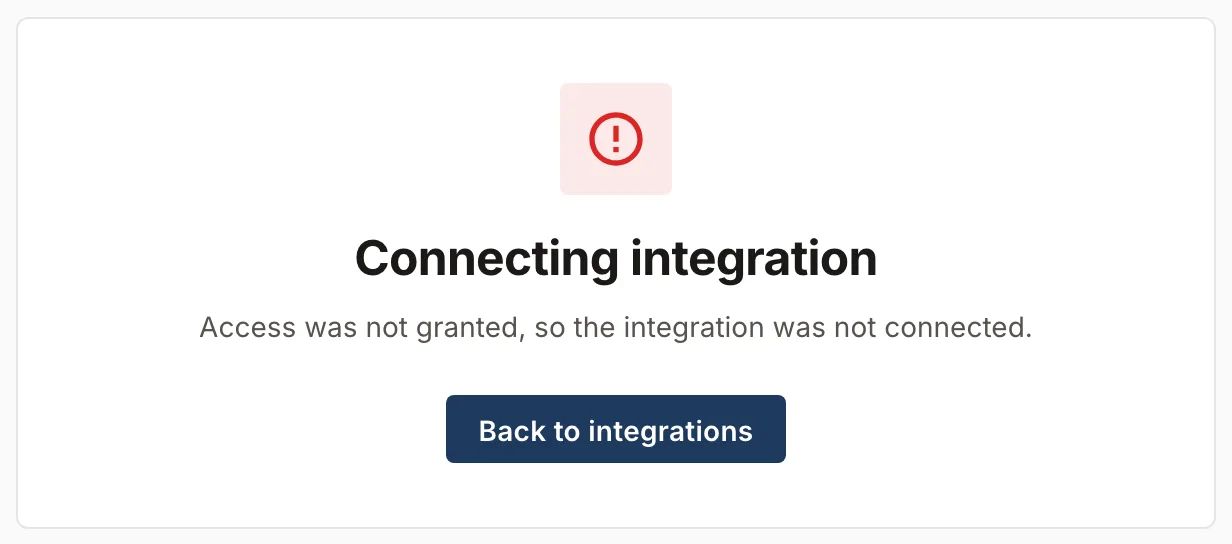
If something goes wrong, you land on a Connecting integration page with Back to integrations, which takes you to the integration so you can try again:
| Message | What happened |
|---|---|
| “Access was not granted, so the integration was not connected.” | You clicked cancel or deny at the provider. |
| “The provider refused the connection (…). Try connecting the integration again.” | The provider returned an error. The code in brackets is the provider’s own. |
| “The provider’s answer is incomplete. Try connecting the integration again.” | The provider’s answer came back without what Doxtly needs. |
| “This connection was not started in this browser tab, so it was not finished. Connect the integration again from its page.” | You finished in another tab or browser, or someone else opened the link. |
| “The integration could not be connected. Try connecting it again.” | Anything else, including a link that took too long. |
Delete an integration
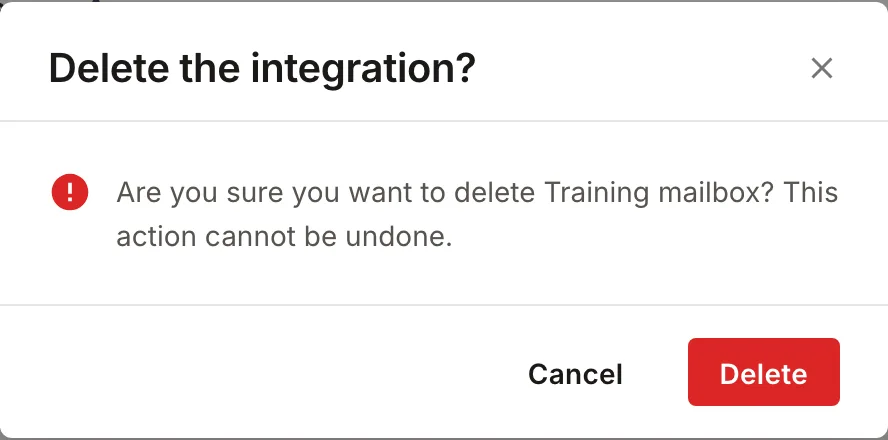
Section titled “Delete an integration”Open the three-dot menu, pick Delete and confirm with Delete in the Delete the integration? dialog. This can’t be undone. The stored secrets and any connection go with it.
Google Drive, OneDrive, SharePoint, Dropbox and Box are protected. Doxtly refuses to delete one while:
- a workflow is pinned to it, or would have no other drive of that kind to fall back on. You see “This integration is still used by these workflows: …”. Inactive workflows count too.
- a cloud template follows a file in it. You see “Templates follow files in this integration: …”.
- a data source of a form or a PDF template reads from it. You see “Forms or templates read data from this integration: …”.
The other types have no such check, so look before you delete:
- A workflow step pinned to a deleted email, SMS or WhatsApp integration fails on its next run.
- A form with reCAPTCHA on and pinned to a deleted integration refuses every submission until you pick another one in its settings. See what affects your forms.
- An AI agent that had chosen a deleted integration moves to the default.
- Deleting a Pipedrive integration stops the workflows listening to it and fails the CRM steps that use it, and removes the webhooks Doxtly kept in Pipedrive. The custom fields keep the IDs they hold. See Delete a Pipedrive integration. Deleting a HubSpot or Copper integration does the same; see HubSpot and Copper.
- A Przelewy24, Stripe, PayU or PayPal integration with a payment still waiting for the payer can’t be deleted: “This integration has payments waiting for the payer. It can be deleted once they have ended.” Once deleted, its payments stay, but can no longer be refunded through Doxtly. Deleting a PayPal integration also removes its webhook from your PayPal app. See Delete a Przelewy24 integration.
- Deleting the default does not make another one the default. Pick a new one yourself.
Who can do what
Section titled “Who can do what”Two permissions cover everything here. Set them in Roles.
| Permission | What it allows |
|---|---|
| View integrations | The Integrations page and the summaries. |
| Manage integrations | Everything else: adding, editing, connecting, testing, deleting and browsing a drive’s folders while choosing one. |
People without these permissions still benefit from integrations. Someone who builds workflows can pick an integration by name in a workflow step without being able to open this page, and everybody’s Send link works if the organization has an active email integration.