

Who can do what
A workflow belongs to the whole organization and runs in its name, not in the name of whoever built it. So access comes down to a short list of permissions, plus a stricter rule for the few steps that reach something sensitive. This page is for whoever hands out roles.
The permissions
Section titled “The permissions”| Permission | What it allows |
|---|---|
| View workflows and their runs | The workflows list, the Executions tab and each run’s details, the Categories tab. Whoever holds it also gets the notification when a run fails or times out. |
| Manage workflows | Building and changing workflows, switching them on and off, rerunning runs, deleting workflows, putting them in categories, exporting and importing them. |
| Manage workflow categories | Adding, renaming and deleting categories. |
All three apply to the whole organization. They can’t be limited to one department, because a workflow isn’t kept to one either.
The built-in roles grant them like this:
| Role | View | Manage workflows | Manage categories |
|---|---|---|---|
| Administrator | Yes | Yes | Yes |
| Manager | Yes | Yes | Yes |
| Member | Yes | Yes | Yes |
| Viewer | Yes | No | No |
For anything else, make a custom role. See Roles.
Two arrangements come up often. At Northbridge the course coordinators build their own workflows, but one operations lead keeps the categories tidy: the coordinators get Manage workflows without Manage workflow categories. The support desk only checks that a client’s documents went out, so they get View workflows and their runs and nothing more, which also means they hear about failed runs.
What a viewer sees
Section titled “What a viewer sees”Someone with only the view permission can check that things went through. They can:
- read the list and use its filters;
- read each run, step by step;
- see the categories.
They get no New workflow button and no row menus, and clicking a workflow doesn’t open it, because the designer takes Manage workflows. They can’t rerun a run either.
Building takes trust
Section titled “Building takes trust”To make building practical, the designer lists your forms, interactive documents, templates, active email templates, SMS and WhatsApp templates, package types, AI agents, webhooks, contact types, quizzes, surveys, connected drives and active email, SMS, WhatsApp, AI, Slack, Microsoft Teams, Pipedrive, HubSpot and Copper integrations by name for anyone with Manage workflows, even if their role can’t open those things elsewhere. They can pick a template without being able to read it. Beyond the name, they see only what’s needed to wire it up:
- which variables a template uses and whether each is required;
- the names of its metadata, never the values;
- the signing parties of a template;
- the kind of a template or integration, and which integration is the default.
Never the text of a template, its file, a form’s contents, an agent’s instructions, or an integration’s settings and keys.
Package types are all offered, including those kept to other departments.
Metadata values appear in the picker as previews only for people who may view the form, document or template they come from.
Secret webhook headers stay hidden once saved. A Document password, however, is visible to anyone who can view the workflow. See Document passwords.
Steps that take more
Section titled “Steps that take more”A few steps reach further than the workflow itself, so setting them up takes an extra permission. Without that rule, someone who can’t see your Google Drive could read any file in it by building a workflow that downloads it and emails it to them.
| Step | Takes, besides Manage workflows |
|---|---|
| Download from the cloud | View cloud files |
| A spreadsheet read (Find a row, Load rows, Count rows) on a file in a drive | View cloud files |
| Upload to the cloud | View cloud files and Manage cloud files |
| Write to a sheet on a file in a drive | View cloud files and Manage cloud files |
| AI agent | Use AI agents, and AI agents in your plan |
| Save contact, Update contact, Delete contact | View contacts and Manage contacts |
| Sync a contact with the CRM | View contacts and Manage contacts, and CRM integrations in your plan |
| Update a deal, Attach files in the CRM, Add a note in the CRM | CRM integrations in your plan |
| Find a contract | View documents, because the steps after it read the contract it finds, its parties among them |
| Send a quiz | Manage quizzes and View contacts, because it adds people to a quiz and sends contacts their links |
| Send a survey | Manage surveys and View contacts, because it adds people to a survey and sends contacts their links |
| Quiz summary | View quizzes, attempts and results, because it hands a quiz’s results to the steps after it |
| Grade quiz attempt | Grade attempts, because it writes the grades of an attempt |
| The trigger A contact is saved | View contacts, because a run hands the contact to its steps |
| A CRM trigger | View contacts, because a run hands the CRM’s people to its steps, and CRM integrations in your plan |
| A Payment trigger | View payments, because a run hands the payment and the payer’s email address to its steps, and payments in your plan |
A spreadsheet step working on a file of the run, such as one a form brought or an earlier step made, touches no drive and takes nothing extra.
Every other step needs only Manage workflows: other triggers, Condition, Switch, Data transformation, Send email, Send SMS, Send WhatsApp message, Send to a messenger, Generate document, Create documents and Webhook. Having Doxie write a transformation’s code takes Use Doxie as well, and the Recurring trigger’s frequency writer takes Use the AI assistants and AI agents in your plan. The steps themselves don’t.
What a builder can do with such a step
Section titled “What a builder can do with such a step”If your role lacks what a step takes:
| You want to | Allowed? |
|---|---|
| Add one | No. It’s greyed out in the palette, and the tooltip names what’s missing. |
| Change its settings, even to something harmless | No. |
| See its settings | Yes, read-only. |
| Move it on the canvas | Yes. |
| Connect it to other steps, or disconnect it | Yes. |
| Delete it | Yes. Removing it reaches nothing. |
| Rename the workflow, switch it on or off, change other steps | Yes. |
| Change its Node ID | No, nor that of a step whose files or values it uses. |

A locked step says so in its panel and names the permissions: Changing the settings of this step requires permissions your role does not have: View cloud files. Its settings are shown read-only. You can still connect it to other steps, move it or delete it. Where a step keeps its settings in a dialog, the button reads Show the settings of this step.
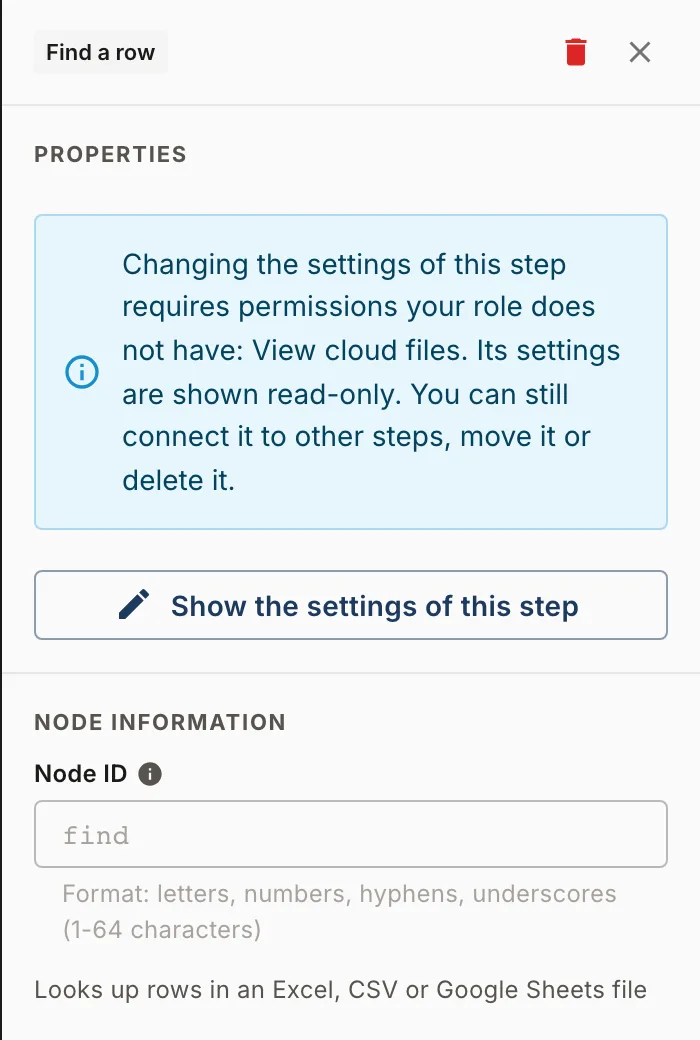
If you turn a step you may edit into one you may not, for example by pointing a spreadsheet step at a drive, the panel warns you: Set up like this, the step requires permissions your role does not have: …. Change it back, or ask someone who has them.
The rule holds on the server too. Saving a new or changed step without the permissions is refused with Adding node “…” or changing its settings requires permissions your role does not have, followed by the ones you lack.
Once someone with the right permissions has set a step up, it keeps running for everyone, whoever edits the rest of the workflow. Runs don’t depend on the role of the person who last saved.