

Variables and preview
Variables are what turn one template into a thousand personal emails. You write {{ client.firstName }} where the name belongs, and each message gets its own value. The preview then shows you the result before anyone receives it.
Writing a variable
Section titled “Writing a variable”Put the name between double curly braces, with dots for nested values. Inside the braces you write Doxtly’s one expression language, the same as in workflows and forms, and every function works here too: after a |, as in {{ name | first(4) | upper }}, or called by its name, as in {{ formatdate(course.startDate, "d MMMM yyyy") }}. Click a variable and then Operations to add them without typing, or pick a function with f(x).
Dear {{ client.firstName | default("participant") }},
Your course {{ course.title }} starts on {{ course.startDate | formatdate("dd.MM.yyyy") }}.
Around the braces, the template is Twig, a small template language: {% if %} and {% for %} decide what’s shown and repeat it (see Logic in text). Twig has a few differences from the rest of Doxtly, which the field points out as you type:
- Write
and,orandnot, not&&,||or!, and==rather than===. +only adds numbers. Join text with~:{{ firstName ~ " " ~ lastName }}.- A path can’t use brackets:
items[]and$["first name"]are for workflows and forms. - A date is written with
formatdateand a date pattern, a count withlen:{% if documents | len > 1 %}, and an amount withformatnumberand your separators:{{ total | formatnumber(2, ',', ' ') }}prints12 500,00. Twig’s owndate,format,number_format,lengthandsortaren’t available. - A function takes the number of values the function list gives it, and the value before a
|counts as its first:{{ nick | default('there') }}. A template that gives one more, such asdefault('Not given', true), isn’t saved, and the message names how the function is written.
Month and day names follow the language of the version being sent, so a Polish version prints 12 listopada 2026 where the English one prints 12 November 2026. TODAY() and NOW() are your organization’s day and time.
You can use variables in the Email subject, heading text, the text of a Text block, a button’s text and URL, an image’s Alt text, the Footer text, and anywhere in hand-written HTML. The subject, heading and button fields and the text editor colour what you write the way every Doxtly field does, {% … %} tags included, and say under the field what can’t be read.

A default message, or any template written for an occasion, gives each of these fields and the text editor a {x} button that lists the variables of its occasion, so you pick them instead of typing. A template for no occasion can be used from many places, so there you type the names, and they have to match the data the sender provides. Names use letters, digits and underscores and can’t start with a digit. A top-level key with any other character, such as first-name, is ignored, so write firstName or first_name.
Where the values come from
Section titled “Where the values come from”| Sent through | Available variables |
|---|---|
| A workflow’s Send email step | Everything the workflow holds at that step, such as a form’s answers or a party’s signing link. See Workflow data and variables. |
| Send link on a form, an interactive document or a portal | The variables of its occasion: the link with any link parameters ({{ formUrl }}, {{ documentUrl }} or {{ portalUrl }}), the name of what it opens ({{ formName }}, {{ documentName }} or {{ portalName }}), {{ senderName }} and {{ organizationName }}. {{ recipientName }} stays empty, because only an address is given. Nothing else. |
| The API | The keys you pass as data. |
A template written for Send link therefore needs little more than a button with the link, such as {{ formUrl }}, as its address. Only a template whose Used for is that occasion is offered there.
Two values are always there:
| Variable | Value |
|---|---|
{{ subject }} |
The finished subject of the message. Available in the body. |
{{ organization_name() }} |
Your organization’s name at the moment of sending. |
How values behave
Section titled “How values behave”A missing value leaves a gap. The email still goes out, with nothing where the value would be, so guard against that with a default: Dear {{ client.firstName | default("client") }}. true and false print as true and false, and a list prints its items joined with commas.
Values in the body are escaped. If a value contains <b>, the recipient reads those characters instead of getting bold text. To output trusted HTML as it is, add the raw filter. Values in the subject are printed as they are, since a subject is plain text.
Every value the template read is stored with the sent email, under the Variables tab, so you can check later what a message was built from.
An example from start to finish
Section titled “An example from start to finish”Northbridge’s CRM asks Doxtly to send a course confirmation. The template has the subject Your place on {{ course.title }}, and its body says:
Dear {{ participant.firstName | default("participant") }},
{% if course.online %}Your joining link arrives the day before.{% else %}We'll see you at {{ course.venue }}.{% endif %}
{% for session in course.sessions %}  {{ loop.index }}. {{ session.date | formatdate("dd.MM.yyyy") }}: {{ session.topic }}{% endfor %}
The CRM sends this as data:
{ "participant": { "firstName": "Anna" }, "course": { "title": "Contract Law Basics", "online": false, "venue": "12 Harbour Street", "sessions": [ { "date": "2026-11-12", "topic": "Offer and acceptance" }, { "date": "2026-11-19", "topic": "Liability clauses" } ] }}Anna receives “Your place on Contract Law Basics”, with this text:
Dear Anna,
We'll see you at 12 Harbour Street.
1. 12.11.2026: Offer and acceptance2. 19.11.2026: Liability clauses
Logic in text
Section titled “Logic in text”The Condition and Loop blocks cover most needs without code. The same Twig also works inside a text field or in HTML:
{% if client.isReturning %}Welcome back!{% else %}Welcome!{% endif %}
{% for course in courses %}  {{ loop.index }}. {{ course.title | upper }}{% endfor %}
Templates run in a restricted version of Twig. Saving refuses a tag, filter or function that isn’t listed here, and says which.
| Kind | Allowed |
|---|---|
| Tags | if, for, set, apply, autoescape, verbatim, block |
| Functions | Every function of the expression language, by its name in capitals or lower case: {{ SUM(a, b) }}, {{ formatdate(signedOn, "d MMMM yyyy") }}. Twig’s own range, cycle, organization_name and organization_accent |
Filters (after |) |
Every function that can follow a value, in lower case: upper, first(4), pad(6), formatdate("dd.MM.yyyy"), join(", ") and the rest. Twig’s own default, escape, e, raw, nl2br, striptags, url_encode, title and reverse |
A single render may take at most 5 seconds, and there’s a cap on how much work it can do, which only an extremely long loop would reach.
Saving checks your Twig: a tag left open, a name the language doesn’t have, such as Twig’s date, or something else written wrongly is refused with a message that says what and where, and the designer lists the same under Problems before you save. What saving can’t know is your data, so preview a template before you set it to Active.
Data structure
Section titled “Data structure”Data structure shows what a template reads: every key and the type of its value. A ? after a key marks an optional value, meaning the template only tests it or asks about it first, so the email reads fine without it. A value the template prints is required, because leaving it out leaves a gap.
Open it from More in the designer, where it reads the template as it stands, saved or not, or from the template’s menu in the list, where it reads the saved version.
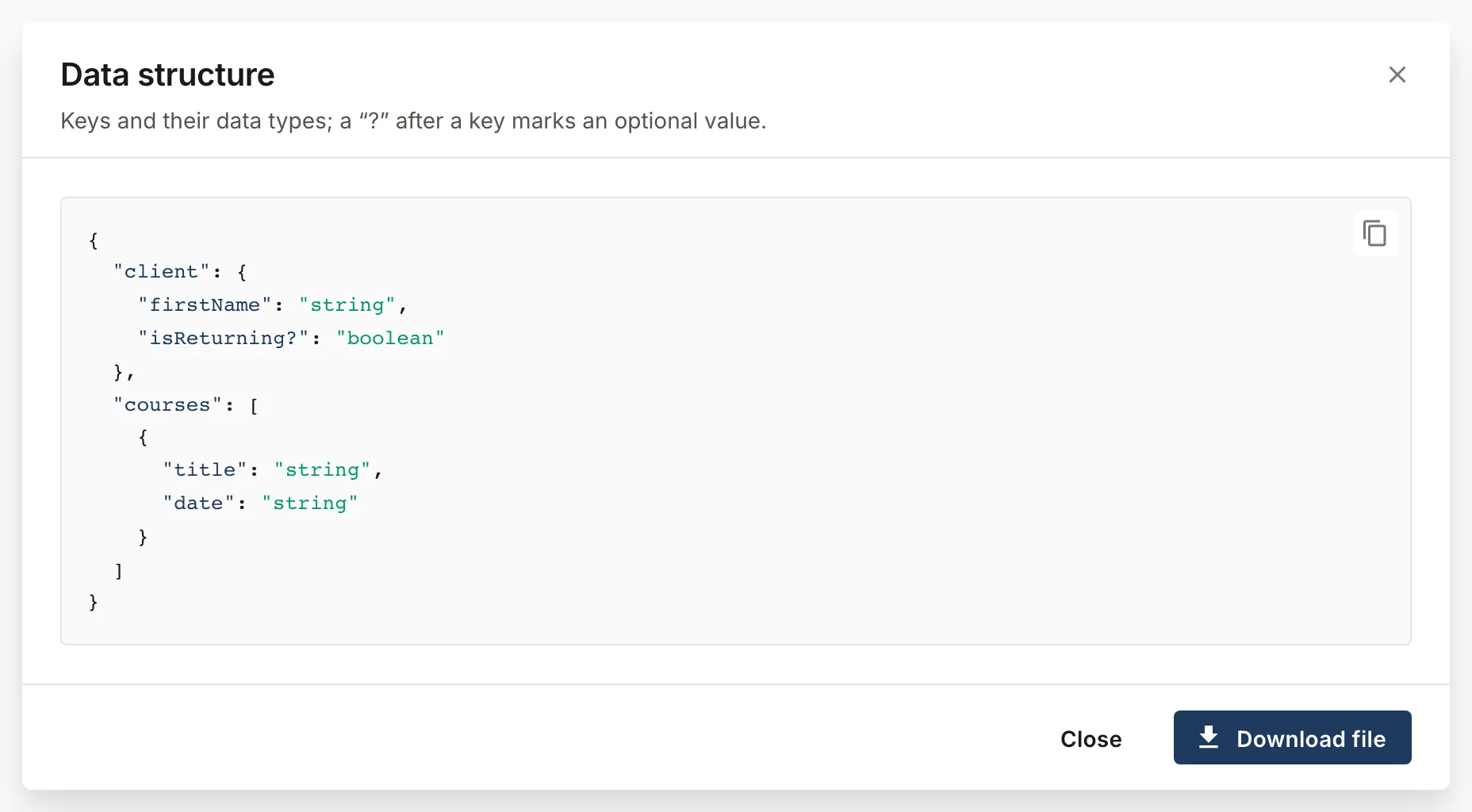
Copy structure and Download file give you the same thing as text or as a JSON file. It’s what you’d send to the developer connecting your CRM, or use to check that a workflow provides everything the email expects. The subject that the body can print isn’t listed, because Doxtly fills it in itself.
Preview
Section titled “Preview”The preview renders the email the same way sending does, with sample values you can change. Nothing is sent and nothing is stored.
Available when: your role includes Manage email templates, since the preview lives in the designer
- Click the Preview icon in the designer’s top bar. The template doesn’t need to be saved.
- Read the finished subject and check the email on the right.
- Change values in Sample data on the left.
- Click the Render again button, with the play icon, to see the result.
- Switch between Mobile and Desktop at the top.
- Close the window with the X in the corner.
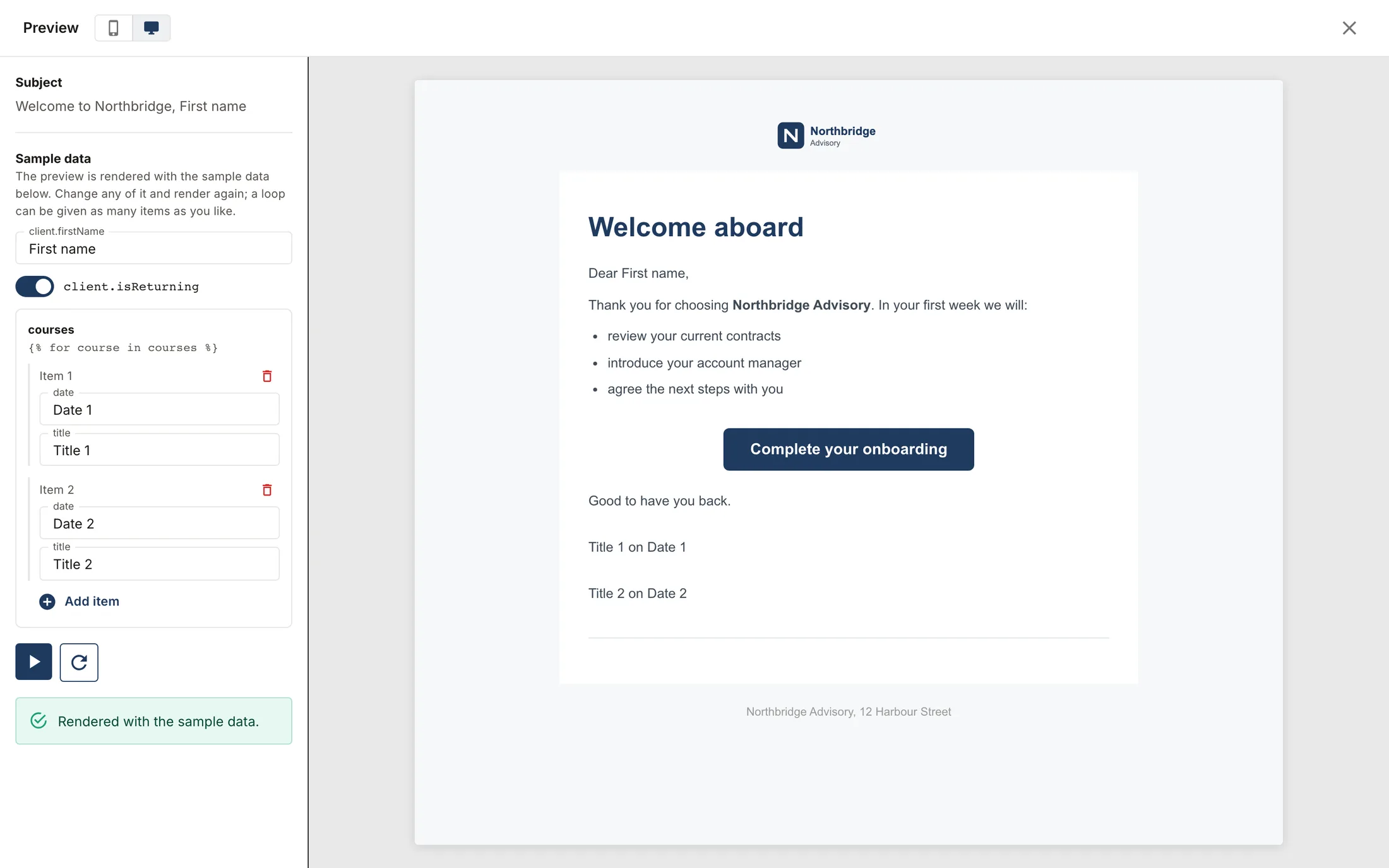
Doxtly reads the variables out of the subject and body and gives each a control, already filled in so the first render looks complete. A template with none says This template uses no variables.
| Control | Appears for | Starts as |
|---|---|---|
| Text field | A variable that’s printed | Its name in words: client.firstName becomes “First name” |
| Switch | A name used only in a condition, such as {% if passed %} |
On |
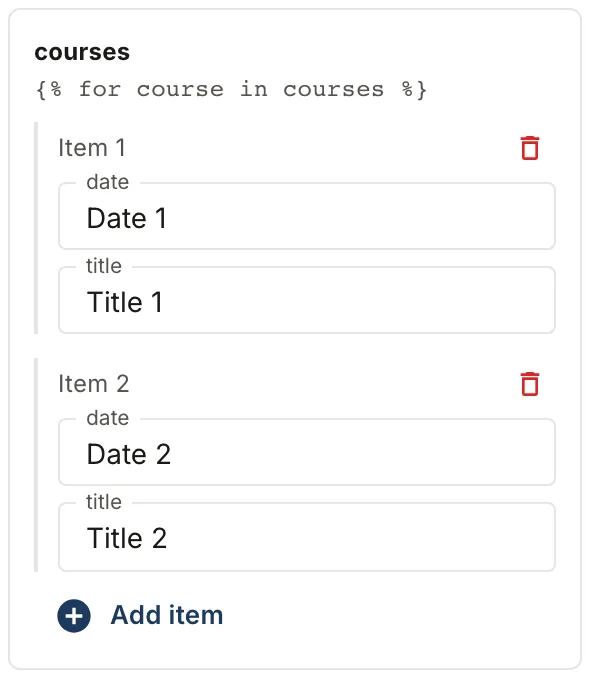
| Item list | A loop | Two numbered items, such as “Title 1” and “Title 2” |
In an item list, Add item adds another row and the bin icon removes one, so you can check how the email looks with one course or with ten. A list always keeps at least one item. A field of an item that only decides a condition appears as a switch, and a loop over plain values gives each item a single Value field.
To check a Condition, flip its switch and render again. This is the fastest way to read both versions of an email.
The button next to Render again, Show template, goes back to the raw template with its markers visible.
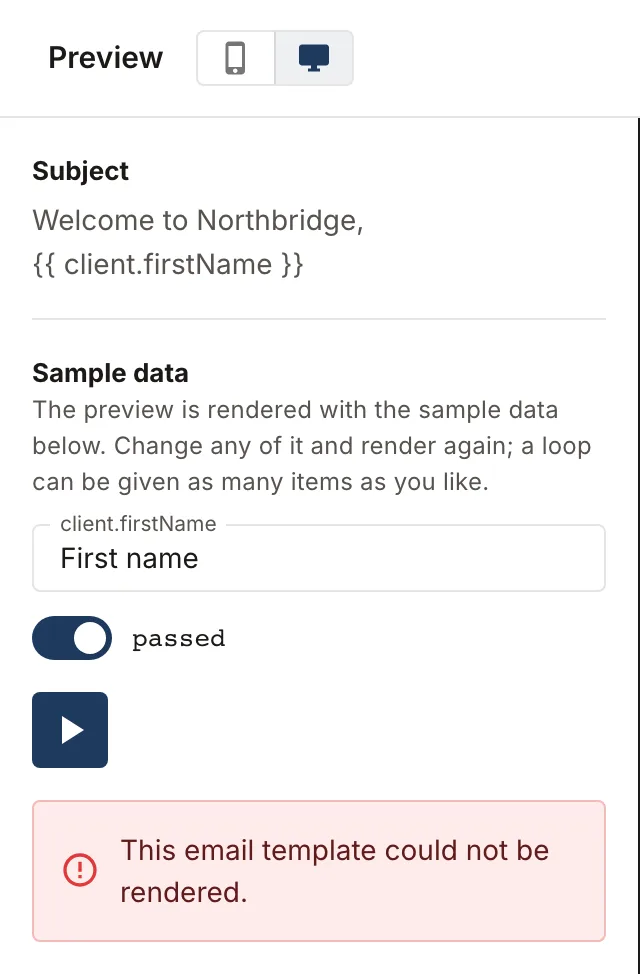
If the template can’t be rendered, a red message appears under the buttons, usually “This email template could not be rendered.” That points to a typing error in the Twig, or to something outside the allowed list. A subject that fails doesn’t block the body, which still renders, with the subject shown as you wrote it.
Your sample data disappears when you close the window. Previews are limited to 30 requests a minute per person, and a render of a template with a subject takes two of them, so that’s about 15 renders a minute.
See a real message
Section titled “See a real message”The designer has no button for sending a test. Mail programs differ, though, so for an important template it’s worth seeing the real thing, sent to yourself. How depends on what the template is for.
A template for a form’s, an interactive document’s or a portal’s link goes out from the item it is for. It takes Manage forms, Manage interactive documents or Manage portals, since the sending starts there.
- Set the template to Active and save it.
- Open any active form, interactive document or portal and choose Send link in its menu.
- Pick the template under Message, add your own address, and click Send.
- Check the message in your mailbox, then find it on the Sent tab.
A template for workflows is tested with full data: run the workflow that uses it with your own address, or call the API and pass the values you want. Each of these is a real email and counts towards your plan.