

Authorizations
An authorization lets a colleague accept or refuse document packages addressed to you. If the managing partner of Northbridge Advisory goes on holiday for two weeks, she authorizes the head of operations here, so client contracts don’t sit waiting for her return. This tab is where you give authorizations, follow them and withdraw them. How the whole thing works, including the legal side and what appears on a signed document, is in the Authorizations guide. This page covers the tab itself.
Anyone in your organization can use authorizations, on every plan and without any role permission. There is nothing to switch on: an administrator can only turn them off for the whole organization.
Open your profile and choose Authorizations. The tab has two lists.
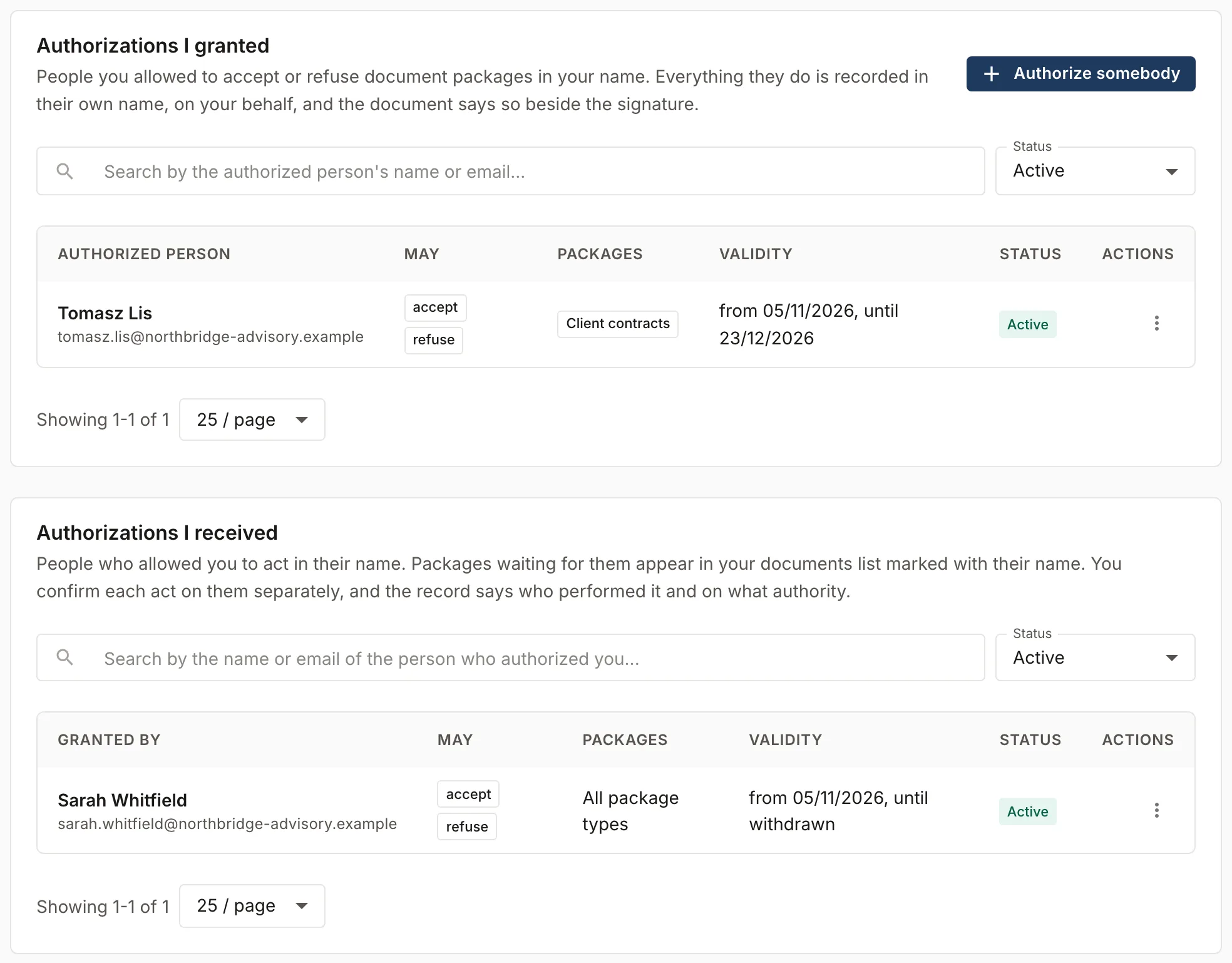
| List | What it holds | What you can do |
|---|---|---|
| Authorizations I granted | The people you allowed to act in your name | Add one with Authorize somebody, read its details, withdraw it, attach the written authorization |
| Authorizations I received | The people who allowed you to act in their name | Read the details. The packages themselves wait for you in Documents. |
Finding one
Section titled “Finding one”Each list has its own search box, by name or email, and its own Status filter, so narrowing one leaves the other alone.
| Status filter | What it shows |
|---|---|
| Active | The default: everything that still stands, which includes authorizations not yet started and suspended ones |
| Ended | Withdrawn and expired authorizations. They are never deleted, so this is your record of who could act for you last year. |
| All | Both of the above |
What you have narrowed by shows as chips under the search box. Remove a chip to drop that filter, or use Clear filters to go back to the default view. Each list shows 25 rows to a page at first, and you can change that below the list.
If nothing matches, you see No authorizations found. An empty list with no filters reads You have not authorized anybody, with an Authorize somebody button, or Nobody has authorized you.
Reading a row
Section titled “Reading a row”| Column | Meaning |
|---|---|
| Authorized person or Granted by | The other person, with their address. Account blocked below the name means their account is blocked, so the authorization is suspended for now. |
| May | accept, refuse, or both |
| Packages | All package types, or the document types it is limited to. Three are named, and +2 or the like stands for the rest. |
| Validity | From when, and until when or until withdrawn |
| Status | Active, Not yet started, Suspended, Expired or Withdrawn. The guide explains each. Point at Suspended to see whose account is blocked. |
| Actions | The three dots open Details and history, and Withdraw on one you granted while it is active, not yet started or suspended |
Click a row to open its details and history. That is also where you attach the written authorization, if you granted it and it hasn’t ended. On a phone, each authorization is a card with the same information.
When your organization has switched them off
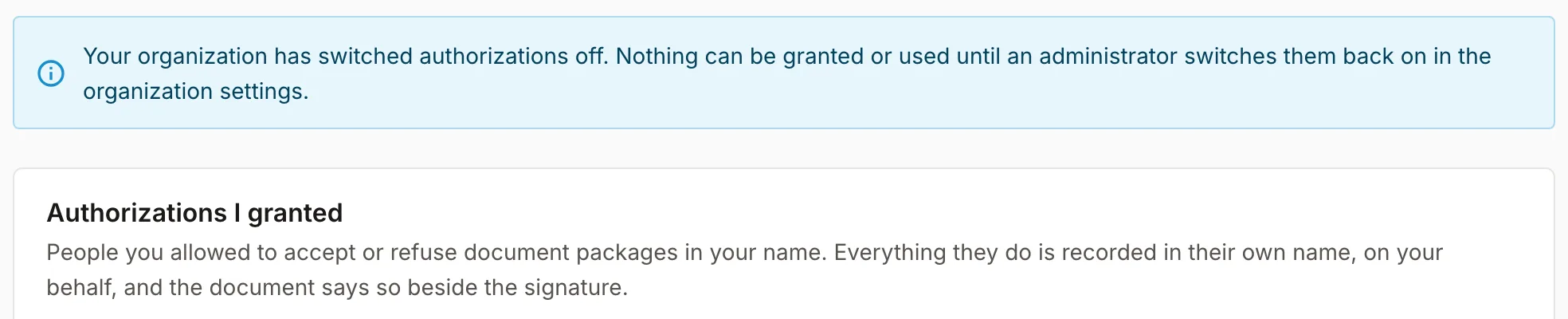
Section titled “When your organization has switched them off”An administrator can turn authorizations off for the whole organization, in the organization settings. The tab then says so at the top, and Authorize somebody disappears. Nothing can be granted or used until they are switched on again, but you can still read your lists and withdraw what you granted.
What you need before you start
Section titled “What you need before you start”- A password. You confirm each grant with it. If you sign in only with Google, Microsoft or Facebook, set a password first.
- A colleague with an active account in the same organization. An authorization works inside one organization, so a person who is in two organizations gives one in each.
Each grant and each act can trigger a notification. You choose how you are told in your preferences.