

Import and export
A form can be saved as a single JSON file and imported again, in your organization or in another one. Use this to keep a copy before a big redesign, to carry a form from a test organization to the live one, or to give a ready form to a client who has their own Doxtly account.
A form uses things of its organization: a reCAPTCHA integration, the drive files its data sources read, the Przelewy24, Stripe, PayU or PayPal integration its payment goes through. The file doesn’t name them by anything only your organization knows. When the form is imported, Doxtly asks which of the importing organization’s own integrations and drives to use in their place, and suggests the likely ones.
Export a form
Section titled “Export a form”You can export from two places. Either way Export opens a short menu: Doxtly file (JSON) downloads the file to this device; with a drive connected the menu also lists it under Save to a cloud drive, which puts it into a folder of the drive (see Saving exports to a drive).
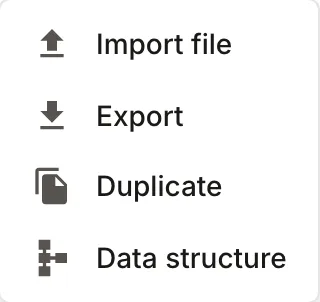
From the designer, open More actions and choose Export. You get the form as it stands in the designer, including changes you haven’t saved. If the file can’t be made at that moment, you’ll see “The form could not be exported. Try again.” and no file is made.
From the list, open the menu at the end of a form’s row in Web forms and choose Export. You get the form as last saved. This needs only the View forms and submissions permission.
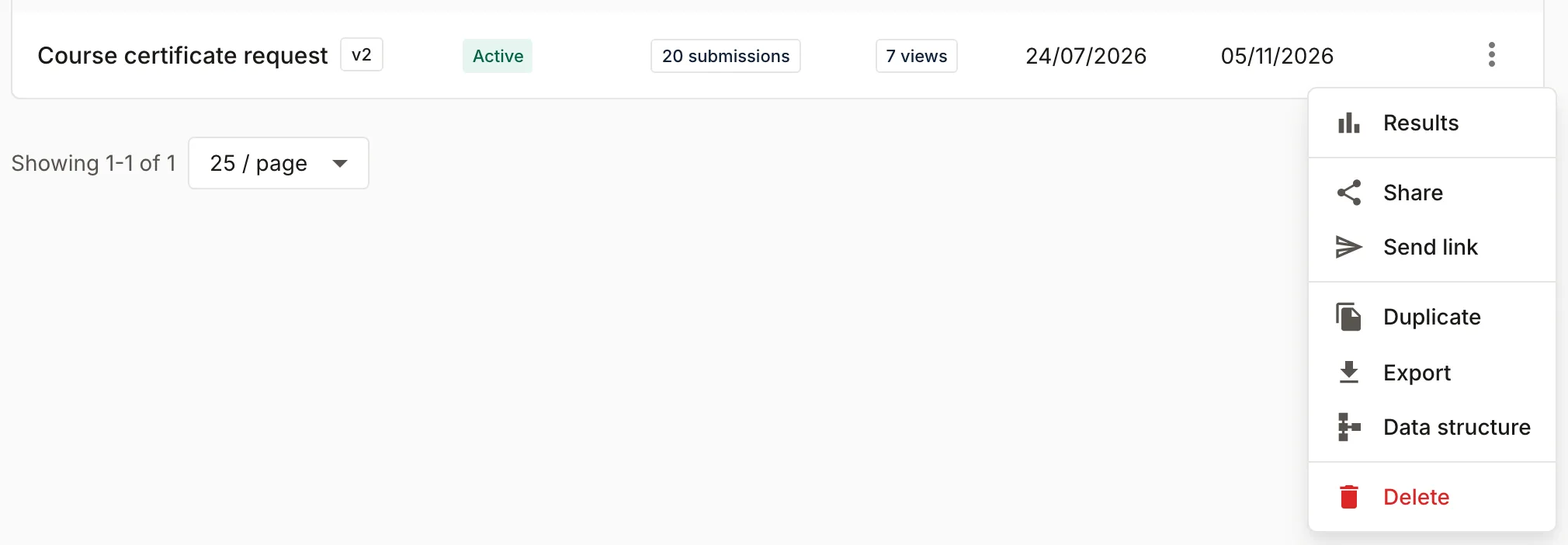
The file is named after the form, for example form-client-onboarding.json.
What the file holds
Section titled “What the file holds”| In the file | Not in the file |
|---|---|
| The title | The form’s password |
| Every element with all its settings | Submissions and uploaded files |
| Form settings: submit button, success message or redirect, results, pages, security, link parameters, metadata | The Active state |
| The theme: a built-in one by its name; one of yours with its look and its custom CSS, made again in the importing organization (or the same one it already has) | Your other themes |
| Pictures, with their content, the options’ pictures included | The form’s link, ID and assigned departments |
| The name of the reCAPTCHA integration it uses | The integration itself |
| The name of the payment integration its payment element uses | The integration itself |
| For each data source, the name of its drive and the path of its file | The drive, and the file’s contents |
Import a form
Section titled “Import a form”You can import in two ways.
- As a new form. In Web forms, open Import and choose From a file (without import from a link, the button is Import from a file). In the dialog, drop or pick a
.jsonfile from your computer or, with a drive connected, choose From cloud drive and Choose a file in the drive (see Importing from a drive), then press Import. A new form opens with the file in it. - Into the designer. Open a form, or start a new one, open More actions and choose Import file. This replaces the form open in the designer, its elements and its settings alike. Nothing is merged, and a setting the file doesn’t mention goes back to its default.

Either way, nothing is stored until you press Save or Create, and one Undo takes the whole import back.
-
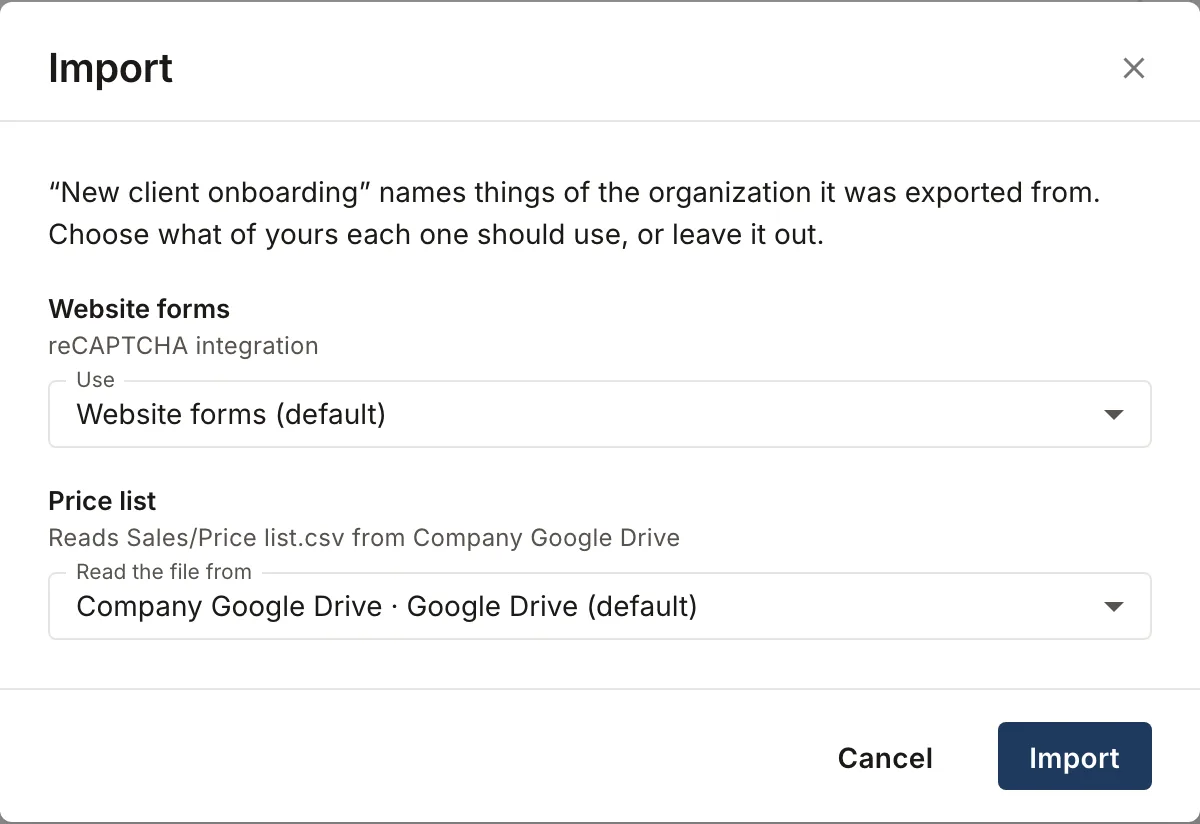
Choose the file. If the form uses a reCAPTCHA integration, data sources with drive files or a payment integration, the Import window opens.
-
For each item, check what Doxtly chose. Use takes one of your reCAPTCHA integrations; Read the file from takes one of your drives, where the file is found by the same path. Choose Leave out for anything you don’t want to bring.
-
Press Import.
-
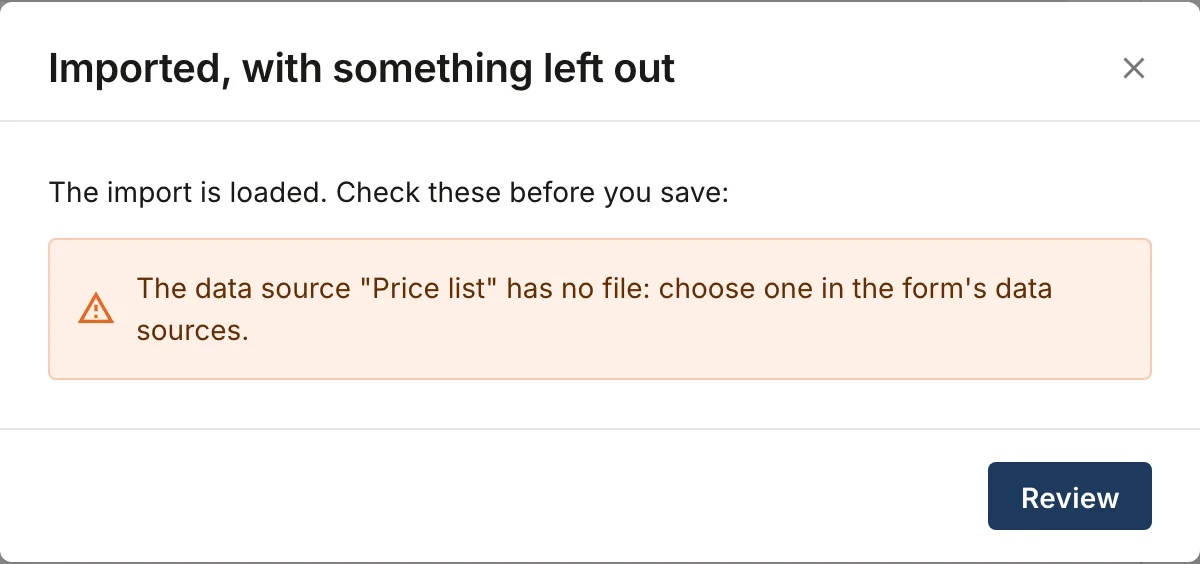
Read what was left out, if anything, and press Review.
-
Check the form and press Save or Create.
A form that uses neither goes straight into the designer, with no window to answer.
A typical case: Northbridge builds its client onboarding form in a test organization, exports it, and imports it in the live organization. The file names the integration “Website” and the drive “Shared drive” with the path Forms/slots.json. In the live organization Doxtly suggests the default reCAPTCHA integration and finds Forms/slots.json on the drive chosen, so the form works as soon as it’s saved.
What Doxtly suggests
Section titled “What Doxtly suggests”| Item | Suggested | If you choose none |
|---|---|---|
| reCAPTCHA integration | One of the same name; else your default; else the only one you have | reCAPTCHA is switched off, so the form doesn’t refuse every submission |
| A data source’s drive | One of the same name; else your default drive; else the only one | The data source stays, without a file, until you choose one |
| Payment integration | One of the same name; else your default or only integration of the same provider (Przelewy24, Stripe, PayU or PayPal); else one of another provider, chosen the same way | The payment element keeps no integration, and the form can’t be saved until you choose one in the designer |
The lists show only your active integrations and drives, the default marked (default). If your organization has none, the list says so and the item is left out.
What is left out, and why
Section titled “What is left out, and why”After the import Doxtly lists what it couldn’t bring. Each message says what to do.
| Message | What happened |
|---|---|
| reCAPTCHA is switched off: there is no reCAPTCHA integration to protect the form with. Connect one and switch it on again. | No reCAPTCHA integration was chosen. |
| The data source “…” has no file: choose one in the form’s data sources. | No drive was chosen for it. |
| The payment element has no payment integration: choose one in the designer before you save the form. | No payment integration was chosen. |
| The data source “…” has no file: nothing was found at “…” on the chosen drive. Choose the file in the form’s data sources. | The drive has no file at that path. |
| The data source “…” has no file: you may not choose drive files. Ask somebody who may to choose it. | You don’t have the View cloud files permission. |
| The picture “…” was left out: it is too large or of a format Doxtly does not take. | A picture over 10 MB, or not PNG, JPEG, GIF or WebP, such as an SVG from an older version. The rest of the form is imported. |
| Your plan has no room for the … data sources of this form: saving it will be refused until you remove some of them or move to a larger plan. | Shown before you import, too. See Subscription. |
After importing, check these
Section titled “After importing, check these”- Password. The file never holds a password. Importing into a form that has one keeps it; a new form has none.
- Name. The form takes the title from the file. If you imported a copy, rename it so you can tell them apart.
- Theme. A theme of yours that comes with the file shows in Settings > Look with the note that it joins your themes when you save. It is made when you press Save or Create, unless your organization already has one exactly alike.
- Workflows. A form’s workflows aren’t part of the file. Connect the new form to its workflows, or import them too.
The form’s Active state and departments stay as they were in the designer. A new form starts as active.
Pictures are stored as new files of this form when you save.
A file exported before Doxtly 3.3.0 carries the form’s custom CSS on its own, from the time forms kept their CSS. The import plans a theme for it, named after the form (“Client onboarding – style”), with the form’s look and that CSS, and makes it when you save. Parts of the CSS that a theme refuses, such as an @import or a picture from another site, are left out.
If the import fails
Section titled “If the import fails”| Message | What it means |
|---|---|
| The file could not be read: it is not a file exported from Doxtly. | The file isn’t valid JSON, usually from a stray comma or because it was cut off. Correct it in a text editor and import it again. |
| This file can’t be imported: it is not a file exported from Doxtly, or it is damaged. | It’s valid JSON, but not a form, email template, interactive document or workflow. |
| This file holds a workflow, which cannot be imported here. | The file is of another kind. Import it where that kind lives. |
| This file comes from a newer version of Doxtly (format version 3) and can’t be imported here yet. | Made by a newer version of Doxtly than this one. |
The form cannot be loaded: elements[2].columns is missing or invalid. |
The named element lacks something it needs. The path tells you where to look in the file. |
Files exported before this kind of file existed still import: their reCAPTCHA integration and drives are offered for mapping in the same way.
Writing or editing the JSON by hand? Each element needs an id and an elementType, and a field also needs type, label, required and dataPath. A section, container or dynamic fieldset needs children, and a container also needs columns. The simplest starting point is to export a form that’s close to what you want. The import checks only what the designer needs to open the form, so a problem can still show under Problems afterwards, or when you press Save.
Who can do it
Section titled “Who can do it”Exporting needs View forms and submissions. Importing needs Manage forms, as creating a form does. Choosing drives for data sources also needs View cloud files. An access key with View forms and submissions can export a form too, through the API; importing is done in the app only.
Other ways to reuse a form
Section titled “Other ways to reuse a form”- To carry one element or block between forms, use Copy and Paste.
- To copy a form within your organization, without a file, use Duplicate.
- To make a new form similar to an existing one, ask Doxie to build one like it, naming the existing form by its title.
- To start from a public form in another system, import it from a link.
- To see only the data a form produces, use Data structure.