

Send email
Send email sends one of your email templates to one person while the workflow runs. It is how a client gets their signing link, a participant their certificate, and your office a note that something came in.
The template decides the subject and the content. The step decides who gets it, what travels with it and which mailbox it goes out from.
Available when: the organization has an active email integration
Without one, the node is greyed out in the Notifications group of the palette. Connect a mailbox under Integrations first, or switch on the built-in Doxtly e-mail. Each message counts as one email towards your plan, however many addresses are in CC. Through Doxtly e-mail, every recipient, copies included, is also one of its messages.
Setting it up
Section titled “Setting it up”-
Drag Send email onto the canvas and connect it where the message should go out.
-
Pick the Email template. Only active templates are listed, apart from your organization’s default messages, which are written for occasions of their own.
-
Fill in Recipient email address. Click
{x}(Insert a variable) to take it from the run, for example the form’s email field. -
Read the Template variables box to see that the template has what it needs.
-
Decide on the Attachments. By default the step attaches every file the run holds at this point, so check that this is what you want.
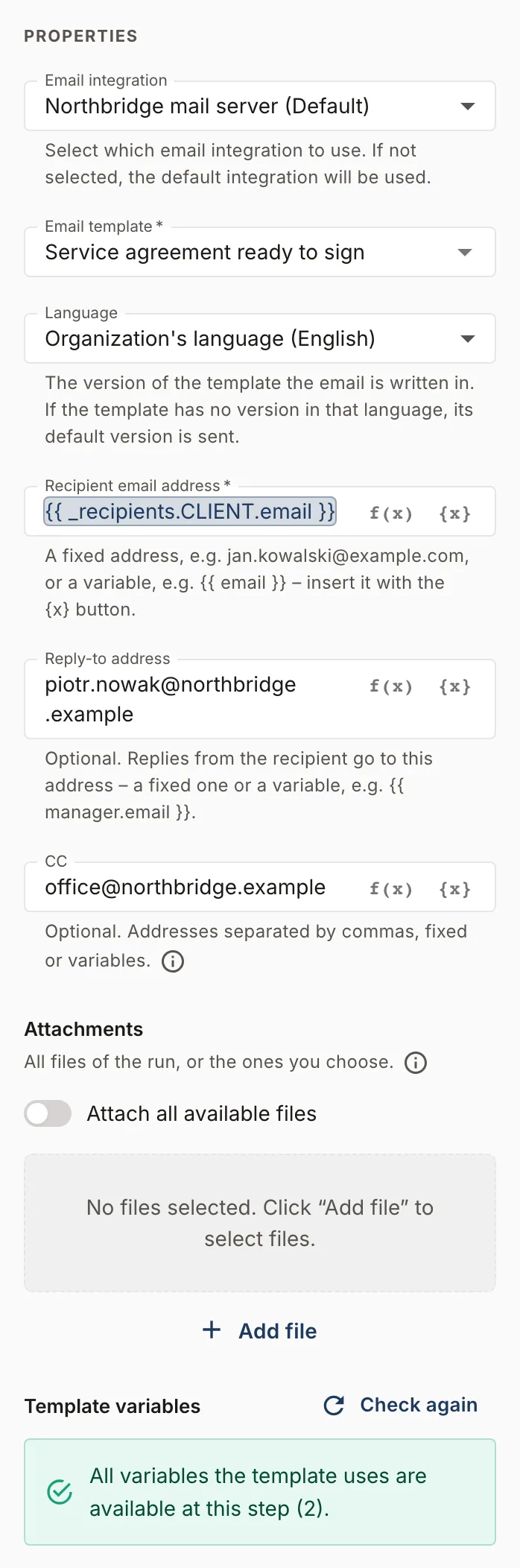
Settings
Section titled “Settings”| Setting | Values and default | What it does |
|---|---|---|
| Email integration | Optional. Your active email integrations. The default one is selected for you. | The mailbox the message goes out from. |
| Email template | Required. Your active email templates, by name, apart from the default messages. | The subject and the content. |
| Language | Organization’s language by default, a language you pick, or From a variable… | Which version of the template the email is written in. See Language. |
| Recipient email address | Required. One address: fixed, a variable, or both. | Who the message goes to. |
| Reply-to address | Optional. One address: fixed or a variable. | Where replies go, for example the account manager rather than a shared mailbox. |
| CC | Optional. One or more addresses separated by commas, fixed or variables. | Copied into the recipient’s message: office@northbridge.example, {{ manager.email }}. |
| Attachments | Attach all available files on by default, or files picked one by one. | What travels with the message. |
Variables in these fields can carry operations and functions, such as {{ id | first(8) }} or {{ nickname ?? firstName }}: click a variable and then Operations, or use f(x).
Who it goes to
Section titled “Who it goes to”The recipient field takes exactly one address, and the step sends exactly one message. To reach several people, put the others in CC, where they all see each other, or add one Send email step per person. Separate steps give each person their own message, which you need when each gets a personal signing link.
In CC and Reply-to address, a variable that gives nothing, empty or not on the run at all, is left out: the fixed addresses beside it stay, and an empty Reply-to address means none. Recipient email address is strict: if a variable in it gives nothing, the step fails before anything is sent. The designer marks a variable no step before this one gives, in orange in CC and Reply-to address and in red in the recipient, so a mistyped name is caught before a run.
In CC the commas are read after the variables are filled in, so a variable holding anna@northbridge.example, tom@northbridge.example copies both people.
Language
Section titled “Language”A template can be written in several languages, each a version of its own. Language picks the version the email goes out in:
- Organization’s language, named in brackets, is your organization’s language. A step saved before this setting existed works this way.
- A language, such as Polski or English, always sends that version.
- From a variable… reads the language from the run, for example
{{ client.language }}from a field of your form. A code such asploren, or a locale such asen-GBorpl-PL, works. Under it, If it is not a supported language says what to use when the value is empty or names another language: your organization’s language, or one you pick.
When the template has no version in the language chosen, the email goes out in the template’s default version. On the run’s page the step records the language the email went in and whether a fallback was used, and under Sent emails each message keeps its language.
Which mailbox it goes out from
Section titled “Which mailbox it goes out from”The field selects your default integration, shown with (Default) after its name, or the only one you have, and stores that choice in the step. Making another integration the default later doesn’t change this step. If the chosen integration is switched off, the field says The chosen integration is no longer active. Choose another one. and runs fail until you do.
With several integrations and no default, the field stays empty until you pick one. A step saved with it empty decides on each run: it uses your only active integration, or else the default. If it still can’t tell, the step fails and asks you to choose.
Attachments
Section titled “Attachments”With Attach all available files on, every file the run holds when it reaches this step goes along: the form’s uploads, photos and drawings, documents generated so far, files downloaded from a drive. Think twice before leaving that on in a workflow that handles several people’s documents.
Turn it off to pick files yourself: click Add file, search if the list is long, choose a file and click Add. Repeat for each file. The picker offers only files from the trigger and from steps before this one, grouped by where they come from. Which groups you see depends on your workflow: Form fields, Uploaded pictures, Filled documents, Trigger document, Every file of the trigger, Signed documents, Package attachments, Requested attachments, Generated documents, Downloaded from the cloud and Spreadsheets from the workflow.
With the switch off and nothing picked, the email goes without attachments.
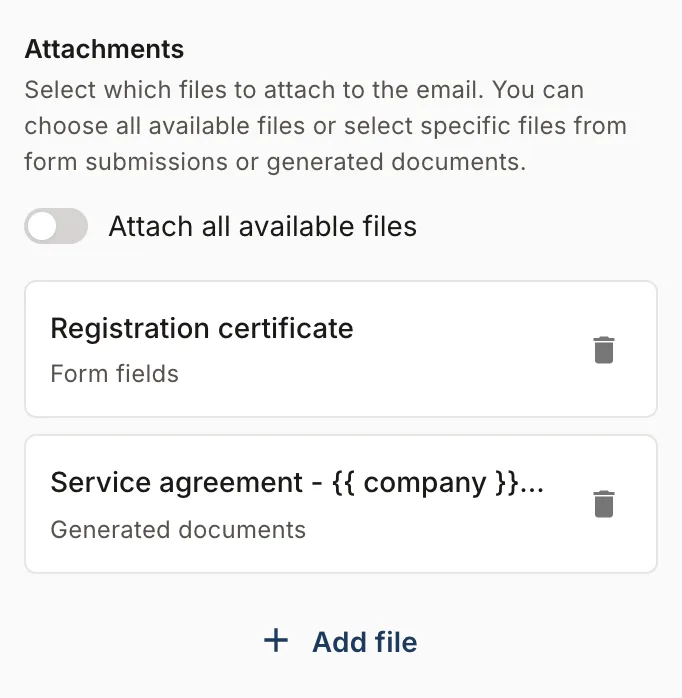
A picked file that this run doesn’t have, like an optional upload left empty, is left out and the email still goes. A file that exists but can’t be read is different: the step fails rather than send the email without the contract.
Attachments can be 25 MB in total. Your mail provider may allow less: a mailbox connected through Outlook takes 4 MB per message, pictures included. A message that is too big for the provider ends as a Failed email. Through Doxtly e-mail a message can be at most 10 MB, attachments included, with at most 10 attachments.
If the form field behind a picked file is removed, the file stays in the list marked The file is no longer available, so you can replace it. If the step that made the file is removed, the workflow won’t save until you take the file off the list.
What the template sees
Section titled “What the template sees”The whole of the run’s data at this point, under the same names you use in the designer: the form’s fields, _metadata, _params, _execution, and the parties of any package created so far. So a button in your template can point at {{ _recipients.CLIENT.signingUrl }}. Email templates have their own variables and preview page.
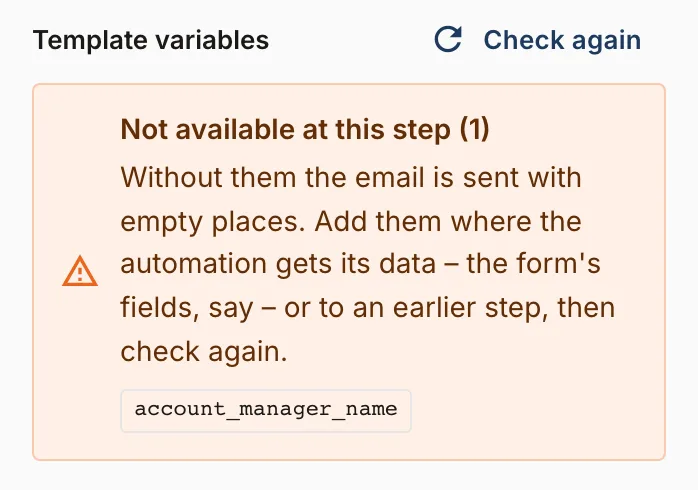
Once you pick a template, the Template variables box compares what it uses with what this step can see.
| What the box says | What it means |
|---|---|
| All variables the template uses are available at this step | You’re set. |
| The template uses no variables. | Nothing to check. |
| Not available at this step | The email goes out with empty places where these should be. Add them where the data comes from, for example as a form field, or in an earlier step. |
| Optional, not available at this step | The email does without them: a condition reads a missing value as false, and a value with a default uses the default. |
| Cannot be verified before the run | Only a real run can tell, and the box says why. A Data transformation before this step is the usual reason. |
This is only a warning, and the workflow still saves. Unlike a generated document, an email goes out anyway. Click Check again after you add the missing field. On the canvas the node shows Template variables missing until then.
What the next steps get
Section titled “What the next steps get”Nothing they can use: the step adds no variables and no files. The steps after it run once the message has gone. The exception is a message through Doxtly e-mail that waits for sending capacity: the run goes on, and the step says Waiting for sending capacity with the time the message goes after.
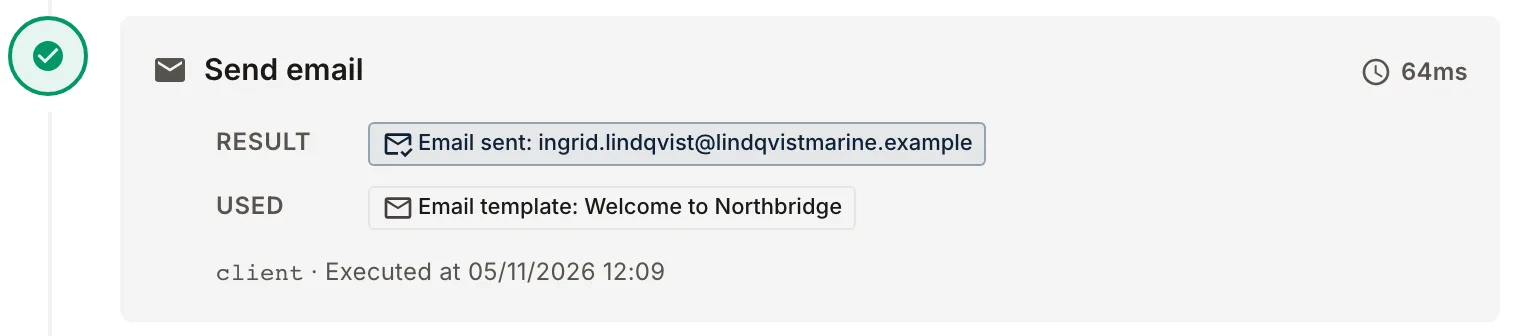
The sending is recorded in two places. On the run’s page the step shows Email sent under Result and the Email template under Used. Under Sent emails you see the message itself, with its status and, if the template asks for it, whether it was opened. An email starts no workflow.
When it fails
Section titled “When it fails”The run stops at this step and nothing after it happens. People who may view workflows get a Workflow failed notification. A message that fails doesn’t count towards your plan.
| What you see | Why | What to do |
|---|---|---|
Could not work out the email recipient from the variables. |
A variable in the recipient gave nothing on this run, or the recipient came out empty. Nothing was sent. | Check the variable’s name, make the form field required, or add a fallback such as {{ client.email ?? "office@northbridge.example" }} |
| A Failed email link on the step | The message was tried and didn’t go: a bad address, a mistake in the template that only shows when it is sent, a message too big for your provider, or the mail server said no | Open the link for the reason |
Email template must be active to send emails. |
The template was deactivated after you chose it | Activate it |
Email template "..." not found. |
The template was deleted | Pick another one |
SMTP configuration is not verified. |
The integration hasn’t passed its connection test | Run Test connection under Integrations |
Integration "..." is not active. or was not found. |
The chosen integration was switched off or removed | Pick another one |
Choose which "Email" integration this step uses. |
The field is empty, and you have several integrations and no default | Pick one, or set a default |
No active "Email" integration is configured. |
The field is empty and no mailbox is active | Connect one, or switch one back on |
Total attachment size exceeds the 25 MB limit. |
Too much attached | Pick fewer files, or share a link through a cloud drive instead |
A file this step uses could not be read. |
A file of the run is gone | Check the step that produced it |
| A limit of your plan is named | The plan’s emails are used up | See Plans and limits |
Doxtly doesn’t retry a failed step by itself. Rerun on the run’s page starts a new run with the same trigger data. It goes through the whole saved workflow from the start, so documents are generated again and earlier emails go out a second time.
Example: the signing link
Section titled “Example: the signing link”Northbridge Advisory has just created a service agreement with Create documents, and the client should get their link from the account manager.
| Setting | Value |
|---|---|
| Email template | Service agreement ready to sign |
| Recipient email address | {{ _recipients.CLIENT.email }} |
| Reply-to address | {{ account_manager_email }} |
| CC | office@northbridge.example |
| Attachments | Off, nothing picked: the link is all the client needs |
The template holds a button leading to {{ _recipients.CLIENT.signingUrl }}. The client gets one branded message with a personal link, replies go to their account manager, and the office has a copy. Under Sent emails the archived copy shows that link with its secret part replaced, because a signing link is personal.
Example: a note to your own team
Section titled “Example: a note to your own team”The same step keeps the office informed. When a new onboarding form comes in, Northbridge’s office wants the answers and the uploaded ID scan in its inbox, and wants to be able to reply straight to the client.
| Setting | Value |
|---|---|
| Email template | New client onboarding |
| Recipient email address | office@northbridge.example |
| Reply-to address | {{ client_email }} |
| Attachments | Attach all available files on |
Hitting Reply in the office now reaches the client, not the shared mailbox the message came from. If client_email is an optional field, a client who left it blank leaves Reply-to address empty, and the message still goes.