

Formulas
A formula works a value out from the answers: a total, a discount, a price from a list, a date two weeks after another. It is the whole content of a form’s Dynamic value, of a QR code or Barcode and of a PDF template’s dynamic value, and it can set the amount of a Payment and a rule of Allowed dates and times. The same language fills a form’s submission title, success message, default values and conditions. That language, with every operator and function, defaults for missing values and date patterns, is described once in Expressions and functions. This page is about writing a formula in a form.
The editor
Section titled “The editor”A formula is written in the same editor as every other field that takes variables: it colours variables, functions, operators, text and numbers as you type, and has the same three buttons at its end, {x} Insert a variable, f(x) Functions (50) and Σ Operations on this variable, gathered under one {x}▾ button where the field is narrow, as in the field settings. See The editor.
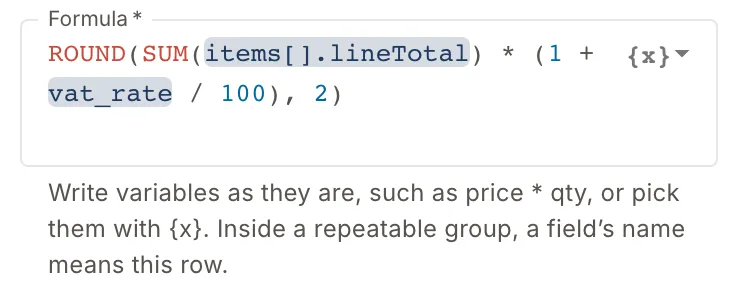
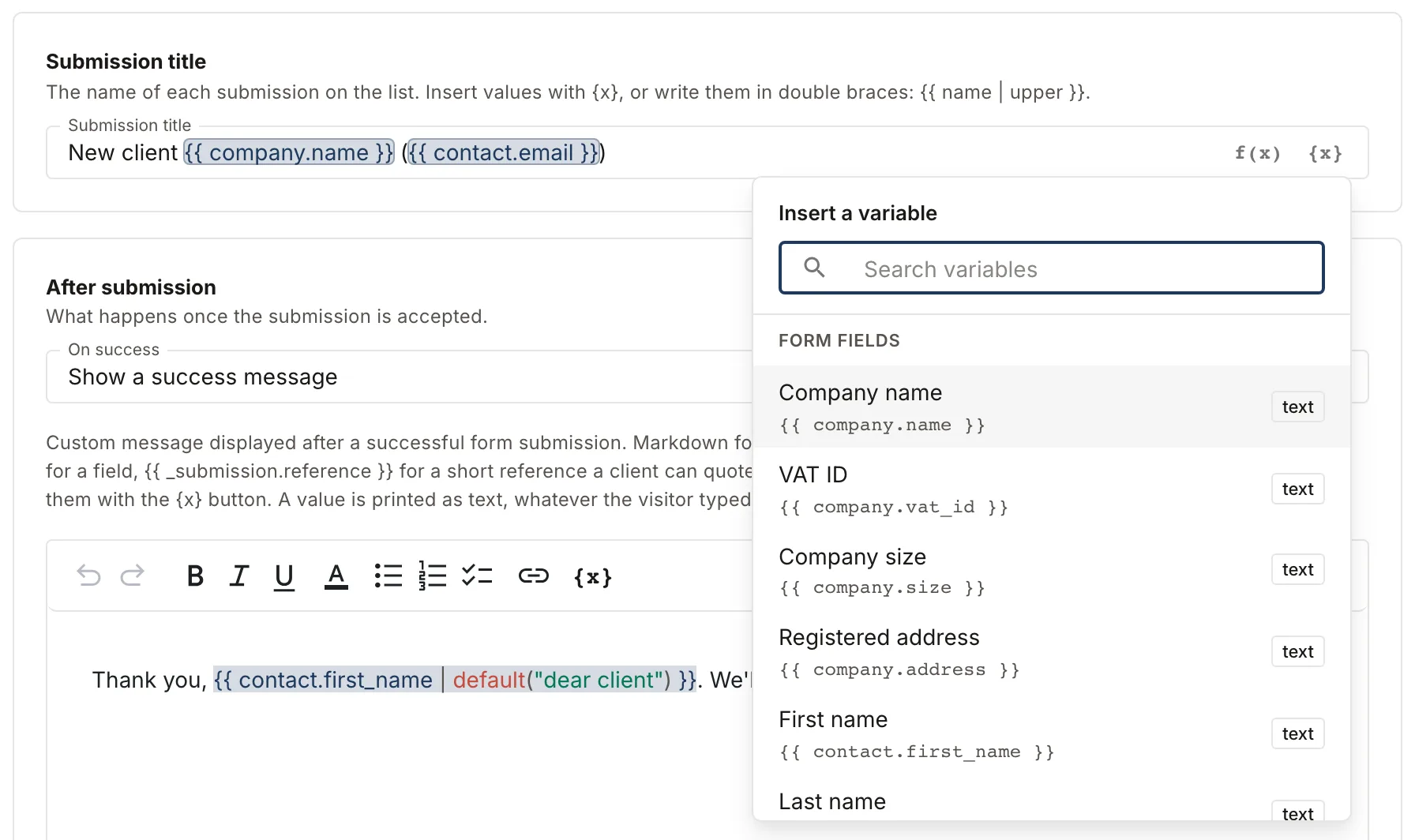
{x} lists the form’s fields, its data sources and what the form keeps from its link, each with its path and kind. In a formula it writes the bare path, and in a text field such as the submission title it writes {{ path }}.
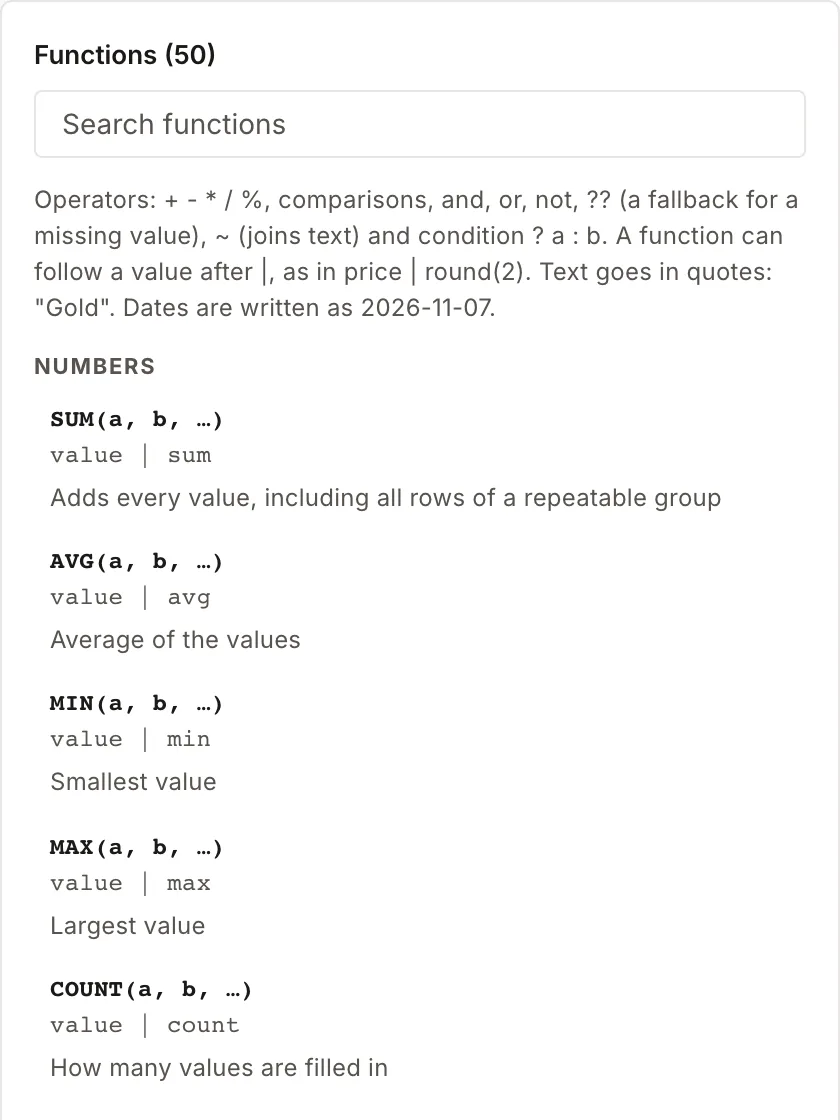
f(x) lists every function by group, with what it takes and how it’s written after a |; the same list is described in All functions.
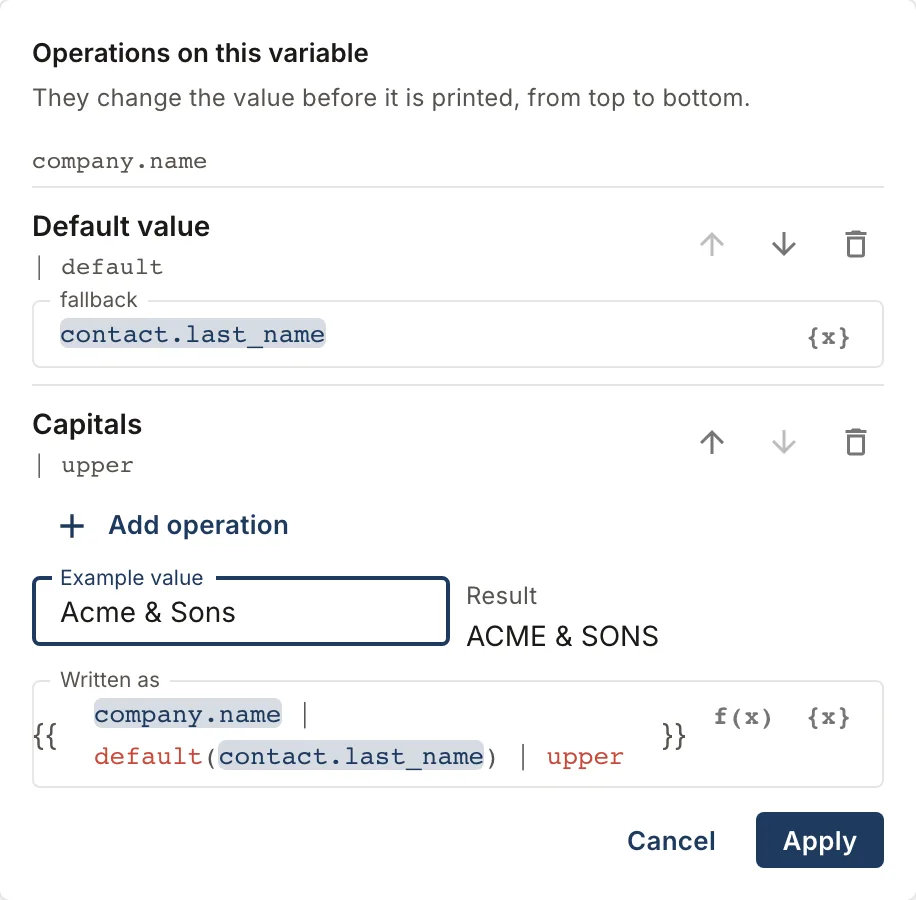
Σ, or Alt+Enter with the caret on a variable, opens Operations on this variable: steps such as Capitals, Pad on the left, Date format or Default value, tried on an example value before you apply them.
A mistake is pointed out under the field as you write, and a form with one can’t be saved; see Mistakes are pointed out as you write.
Writing a formula
Section titled “Writing a formula”A Dynamic value has a Calculation group, where you write its formula and decide how the result looks, and a PDF template’s dynamic value has the same editor. You write it as Formula or as Cases.
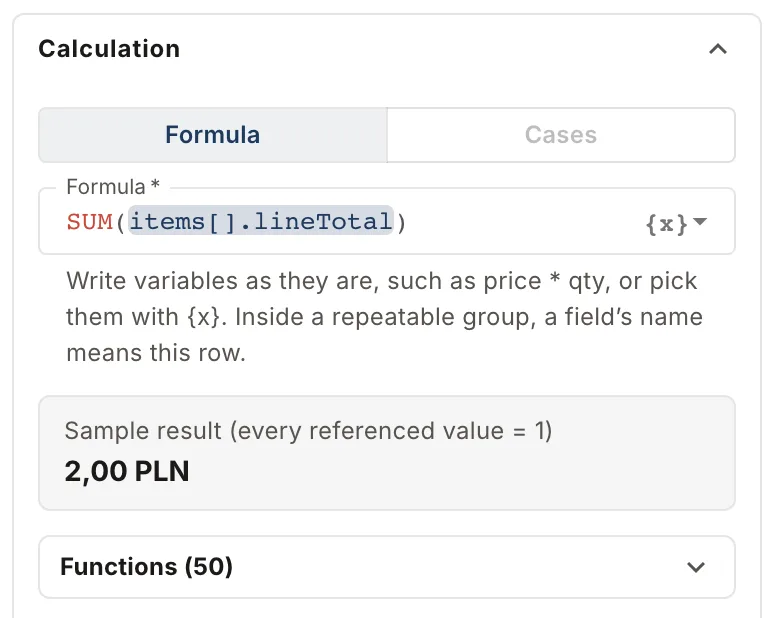
The formula
Section titled “The formula”Write it in Formula, with variables as they are, no braces. A total with VAT looks like this:
qty * price * (1 + vat / 100)Sample result runs the formula with every value it reads set to 1, formatted as you set it. The Functions (50) list under it unfolds to show every function.
A Dynamic value can read another Dynamic value, which can read a third: each one is worked out after the values it reads, so a chain always shows the current result, on every page of a multi-step form, not only the one in view. Conditions can use the results too. Dynamic values that read each other in a loop, such as a total that reads tax while tax reads total, never settle, so the form can’t be saved with one: the designer marks the fields, and saving names the loop, total → tax → total.
When the form is sent, Doxtly works every Dynamic value out again from the answers and keeps that result, whatever the browser sent.
Cases suits a result that depends on one answer, such as a price by plan, or on thresholds, such as a discount by amount. It writes the formula for you, and you can switch back to Formula at any time to see it.
- By value: pick the answer in Depending on. For a Select or Single choice, a row appears for each option, shown by its label, and you only type the results. For any other field, add a row per value with Add case. Ignore letter case makes
Proandprothe same. This writes aSWITCHformula. - First condition met: each row is a condition and a result, such as
amount >= 1000and0.1. The first row whose condition holds gives the result. This writes anIFSformula.
Otherwise is the result when no row applies. Left empty, the field shows its Empty value text. A result is a small formula of its own: 25, price * 2, or text in quotes, 'Gold'.
A formula that is more than a SWITCH over one value or an IFS stays in Formula, which then says it’s too complex to show as cases.
Values from a data source
Section titled “Values from a data source”A formula reads a data source through its variable, _data.name, and the {x} button lists them. With a Rows variable, LOOKUP finds a row by a column’s value:
LOOKUP(_data.prices, 'plan', plan, 'amount')Link parameters
Section titled “Link parameters”When the form keeps its link parameters, a formula reads them as _params.name. A link ending in ?campaign=spring makes _params.campaign ~ '-' ~ order_no read spring- and the order number.
Using rows
Section titled “Using rows”Rows of a dynamic fieldset work in two directions.
Inside a row, a field’s name means “this row”:
qty * priceAdd that as a Dynamic value with the data path lineTotal in an items fieldset, and each row shows its own total.
Outside the rows, [] collects a value from all of them:
SUM(items[].lineTotal)items[]._length is the number of rows, and items[0].qty the quantity in the first row, counted from 0.
How the result looks
Section titled “How the result looks”Formatting changes what the respondent sees and what a PDF prints. The value kept stays the plain result, so 1234.5 remains 1234.5 when it reaches a workflow.
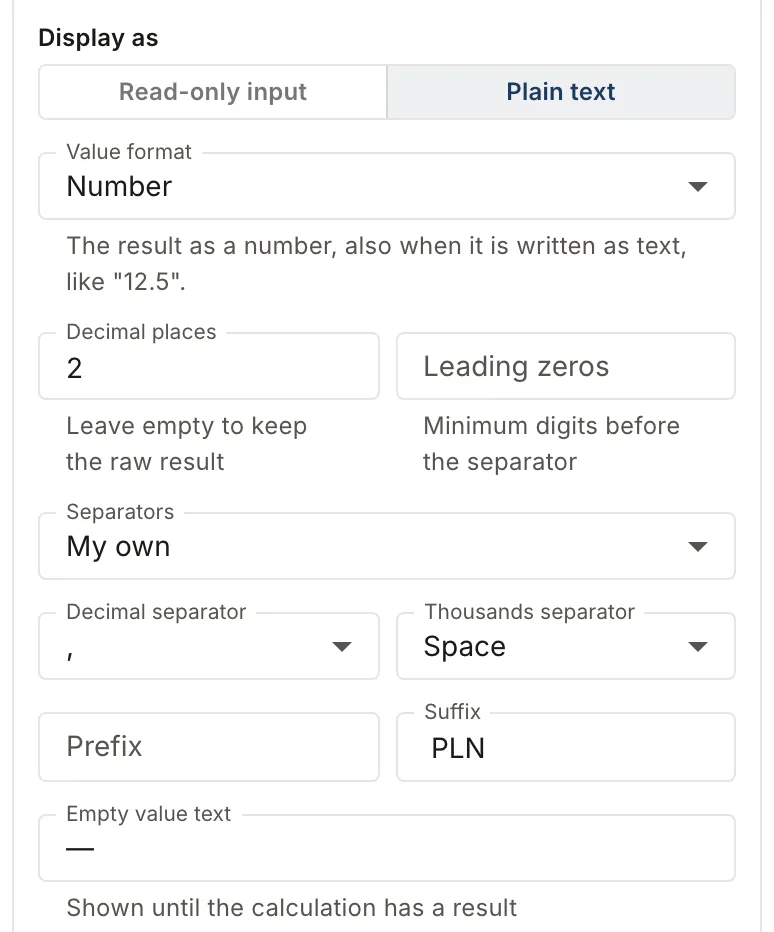
| Setting | What it does |
|---|---|
| Display as | For a form’s Dynamic value: Read-only input looks like a greyed field, Plain text shows large text, good for a total. |
| Value format | Automatic (the default) shows a number with the settings below and anything else as it is. Number also reads text that is a numeral as a number. Text shows the result as worked out, never rounded. Date and Date and time write a result that is a date in the format you choose, and leave anything else as it is. |
| Decimal places | Rounds a number for display, 0 to 10. Empty keeps the raw result. |
| Leading zeros | Pads to at least this many digits before the separator, 0 to 20. 4 turns 7 into 0007. |
| Separators | As the language writes them gives 1 234,50 in Polish and 1,234.50 in English. My own lets you set the Decimal separator (. or ,) and Thousands separator (None, Space, , or .). |
| Prefix, Suffix | Text around the value, such as $ or PLN. |
| Format | For Date and Date and time: the format, as a date format. |
| Empty value text | Shown while the result is empty, such as —. Arithmetic on blank answers gives 0, not an empty result, so this text suits expressions that can come out empty, like client.name. |
For example, 2 decimal places, My own separators with a space for thousands and a comma for decimals, and the suffix PLN show 1234.5 as 1 234,50 PLN.
Minimum value
Section titled “Minimum value”Some forms mustn’t go out below a certain value: a shop with a minimum order, an order form where at least one product has to be chosen. A form’s Dynamic value takes a Minimum value at the end of its Calculation group, after the value format. Once a minimum is set, Message when it’s lower gives the words the respondent reads while the result is below it, up to 255 characters. Leave Minimum value empty for no minimum.
While the result is lower than the minimum, or comes out empty or as something that isn’t a number, the form can’t be sent. When the respondent presses the button, or Next on a form split into pages, the field shows the message, and it goes away as soon as the result reaches the minimum. Doxtly works the value out again from the answers when the form arrives and refuses a submission below the minimum with the same message, so the rule can’t be got around in the browser. Without a message of your own, the form says “Value must be at least 50.00 PLN.”, the minimum written the way the field writes its value.
- A minimum order value: a minimum of 50 on the order’s total, with the message “Minimum order value: 50 PLN”.
- At least one product: a minimum of 1 on the number of items ordered, such as
handbook.qty + notebooks.qty + hoodie.qtyorSUM(items[].qty), with the message “Choose at least one product”.
A Dynamic value with a minimum needs a Data path, because the minimum is checked against the value kept with the submission. Without one, saving the form says “A dynamic value with a minimum needs a data path: the minimum is checked against the value kept.” A field hidden by its condition isn’t checked.
The minimum is the counterpart of a Number input’s Min: that one holds a number the respondent types, this one a number the form works out. A Payment whose amount is a formula takes the same minimum. A PDF template’s dynamic value has none.
Answers in a formula
Section titled “Answers in a formula”What the language does with values, as it shows on a form:
- A blank answer counts as
0when you subtract, multiply or divide, so a half-filled form still works out, and dividing by zero gives0, so a form never shows an error to respondents. - A blank answer is empty text, not a missing value.
"" + 3gives"3", so add up fields that may still be empty withSUM(a, b), and give an answer a stand-in withdefault()rather than??:discount | default(0). See Missing values and defaults. - Text that looks like a number is read as one, with a decimal comma too:
"4,5"is 4.5. - A date field’s answer is written
2026-11-07, a date and time2026-11-07T14:30. “Today” is the day in your organization’s time zone, so a respondent abroad gets the same day as you, and month and day names follow the language the form is shown in. To write a date your way, see Date patterns.
Examples
Section titled “Examples”A total of all rows. A Dynamic value under an order’s rows, with Decimal places 2 and the suffix PLN:
SUM(items[].lineTotal)A training quote. A training company’s order form has a seats number field and a package select with the values basic and premium. A Dynamic value gives a price with a 10% discount from 10 seats up:
seats * (package == 'premium' ? 900 : 600) * (seats >= 10 ? 0.9 : 1)Set Decimal places to 2 and Suffix to PLN, and give it the data path quote_total. The quote updates as the respondent types, and quote_total is stored with the submission, ready for the offer a workflow generates.
A contract number built from today’s date.
'UM/' ~ (TODAY() | formatdate('yyyy')) ~ '/' ~ (seq | pad(4))