Editing submissions
A client misspells their company name on the onboarding form and calls you about it. Without editing, they would have to send the form again, and you would end up with two submissions and two sets of documents. With editing, you correct the one submission yourself, the change is recorded under your name, and you choose whether the form’s workflows run again on the corrected data.
Available when: your role includes Edit submissions and the form allows editing, as a new form does unless you turn it off
Turning editing on and off
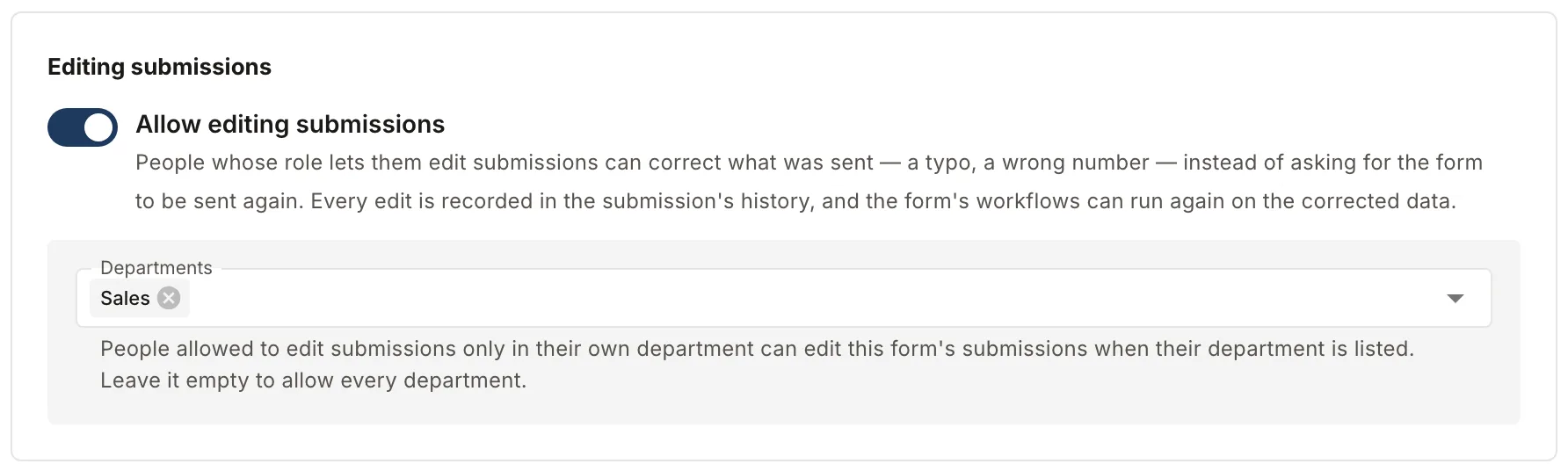
Section titled “Turning editing on and off”A form you create in the designer allows editing from the start, so usually there is nothing to set up. A form imported from a file takes the setting from the file, and one created through the API starts with editing off. To change it:
- Open the form in the designer and open its settings.
- Go to the Security section and find Editing submissions.
- Turn Allow editing submissions on or off.
- Optionally, choose Departments (see Who may edit).
- Save the form.
An edit works on what the submission keeps, so while this setting is on the form keeps everything. Save form data stays on and cannot be switched off, and every uploaded file is stored even if its field has Store the file permanently off. If you collect sensitive files only for a workflow to pass on, remember that they now stay until the submission is deleted.
The setting applies to the form as it is now. Turn it on later and the form’s older submissions can be edited too, though a file that was not stored back then stays unavailable. A submission sent while Save form data was off has no answers to show, so the edit page opens empty and what you enter becomes its data. Turn the setting off and no submission of that form can be edited until you turn it on again. What was already edited stays as it is, history included. Whether the form itself is switched on or off makes no difference to editing.
Who may edit
Section titled “Who may edit”You edit a submission when you can see it and your role lets you edit it: View forms and submissions and Edit submissions, both in the Web forms group of a role, with Edit submissions reaching the submission’s form. Edit submissions alone gives nothing. The built-in Administrator, Manager and Member roles hold it for the whole organization. Viewer does not.
A custom role can grant it for the whole organization or only for a department. The Departments field appears once Allow editing submissions is on. It matters only for people whose permission is limited to a department, and leaving it empty lets every department in.
| Granted for | Reaches |
|---|---|
| The organization | Submissions of every form. |
| A department | Submissions of forms that list the person’s department under Departments, and of forms that list no department at all. |
So if Northbridge’s training team should correct course sign-ups and nothing else, give them the permission at department level and list the training department on those forms. See Departments.
When Edit submissions is missing from the menu
Section titled “When Edit submissions is missing from the menu”| Situation | What to do |
|---|---|
| Your role does not have Edit submissions or View forms and submissions, or your department does not reach this form. | Ask an administrator. |
| The form does not allow editing. A blue notice on the submission says so, and if you may manage forms it offers Open the form. | Turn on Allow editing submissions. |
| The submission is kept aside as spam. On a form that allows editing, a blue notice says “A submission kept aside as spam cannot be edited. Mark it as not spam first.” | Mark it as not spam first. |
| The submission is Awaiting payment or Unpaid (expired). A notice at the top of it says it was not accepted yet, or never was. | Nothing: a submission of a form that takes a payment can be edited once it is paid, and an expired one never. |

Making a correction
Section titled “Making a correction”- Open the submission from the Submissions tab.
- Choose Edit submission in the header menu.
- Change what needs changing. The bar at the bottom says “No changes yet” and then counts them, for example “2 fields changed”.
- Click Review and save. If a value breaks one of the form’s rules, the field is highlighted, a message says “Some fields need attention”, and you stay on the page. A date or time you leave as it was isn’t checked against the field’s allowed dates again, so it isn’t refused just because time has passed or the rules changed.
- Check the changes, add a reason if you like, choose what happens next, and click Save changes or Save and run workflows.
You land back on the submission, with an Edited badge in its header and a message confirming what was done, such as “The submission has been updated and 1 workflow started.”
How the form behaves while you edit
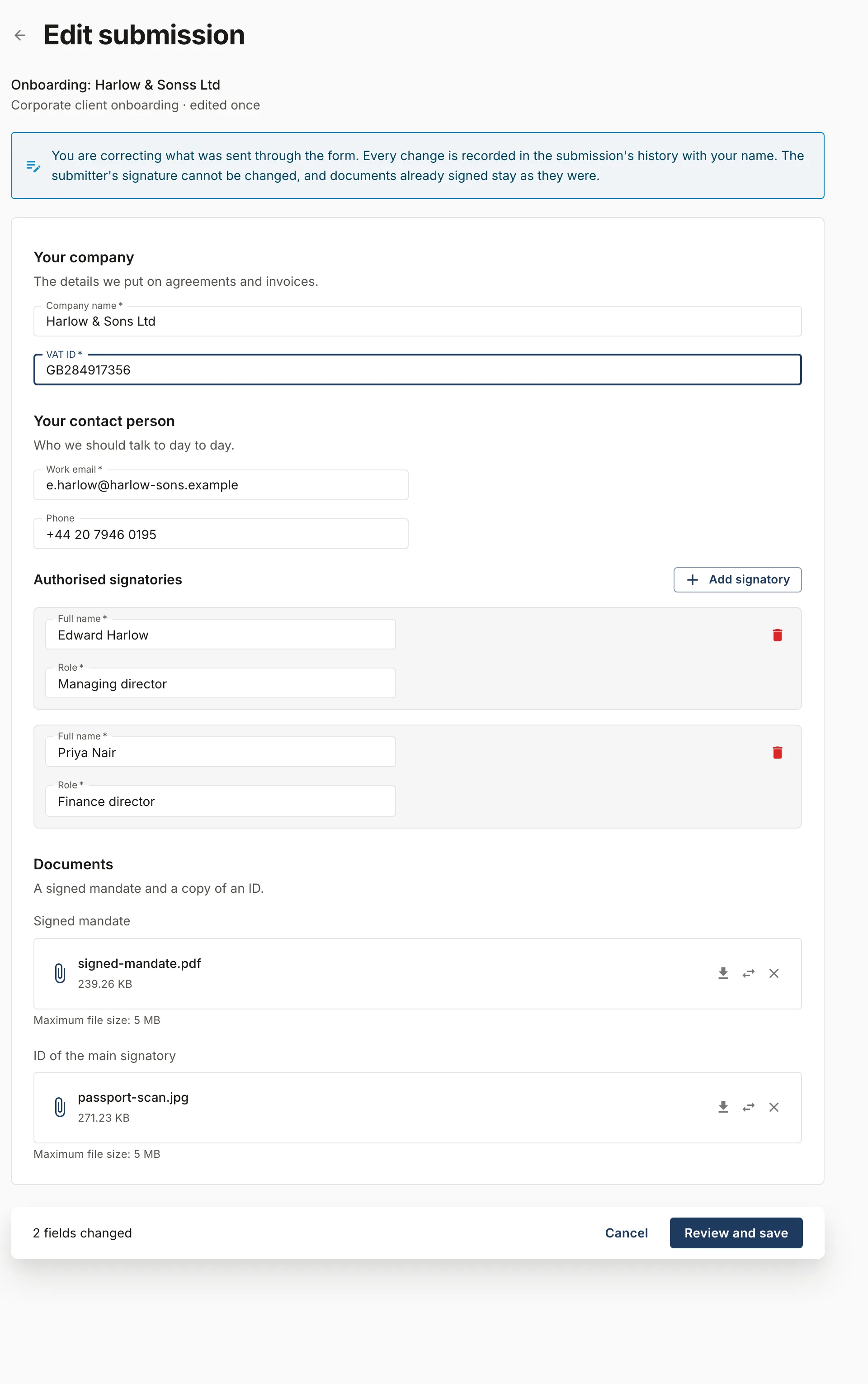
Section titled “How the form behaves while you edit”Above the form you see the submission’s title, the form’s title, how often it has been edited (“edited once”), and a notice that every change is recorded under your name. The form is the one the person filled in, with the current answers in it. It differs from the public form in a few ways.
| What | While editing |
|---|---|
| Multi-page forms | All pages show at once, so you do not have to step through the pages. |
| Version of the form | You get the form as it is today, not as it was when it was sent. If somebody added a required field since, you have to fill it in before you can save. |
| Rules | The same checks as a real submission: required fields, patterns, number limits, file types and sizes. |
| Conditional fields | Conditions work as usual. A field that a new answer hides is emptied, and that shows up as a change. |
| Computed fields | Worked out again from the corrected values. |
| Password on the form’s link | Not asked for. |
| reCAPTCHA, honeypot, location | None of these apply. You are signed in, and nothing asks for your location. |
| Anti-spam score | Not worked out again. The score on the Info tab stays the one from the original sending. |
| Signatures | Shown but locked. A signature belongs to the person who drew it, and nobody can change it, replace it or add one. For the same reason a required signature field has no asterisk here and doesn’t stop you from saving, even if it is empty. |
| Drawings | Shown on their canvas, over their picture if they have one. You can draw on a drawing further, undo, or Clear it and draw it again. A drawing you leave alone stays the file it was. One you draw on is saved as a new picture file, which takes the old one’s place as a replaced file does. A required drawing has to hold one when you save. |
| Repeated groups | Add row and Remove row work. A signature stays with its row, wherever the row moves. A row you add has no signature. |
File fields show the file the submission holds, with its name and size, and three icon buttons beside it.

| Button | What it does |
|---|---|
| Download | Saves the file so you can check it. |
| Replace file | Picks another file. It shows as “new file” until you save. |
| Remove file | Empties the field. On a new file you have just picked, it empties the field too, so to get the old file back click Cancel and start again. |
A file picked by mistake that breaks the field’s rules is refused and the existing one stays. A file the form did not store shows as “not stored, cannot be downloaded”. You can leave it as it is, replace it or remove it.
Cancel takes you back to the submission. Leaving with unsaved changes asks first: Keep editing or Discard and leave.
The review dialog
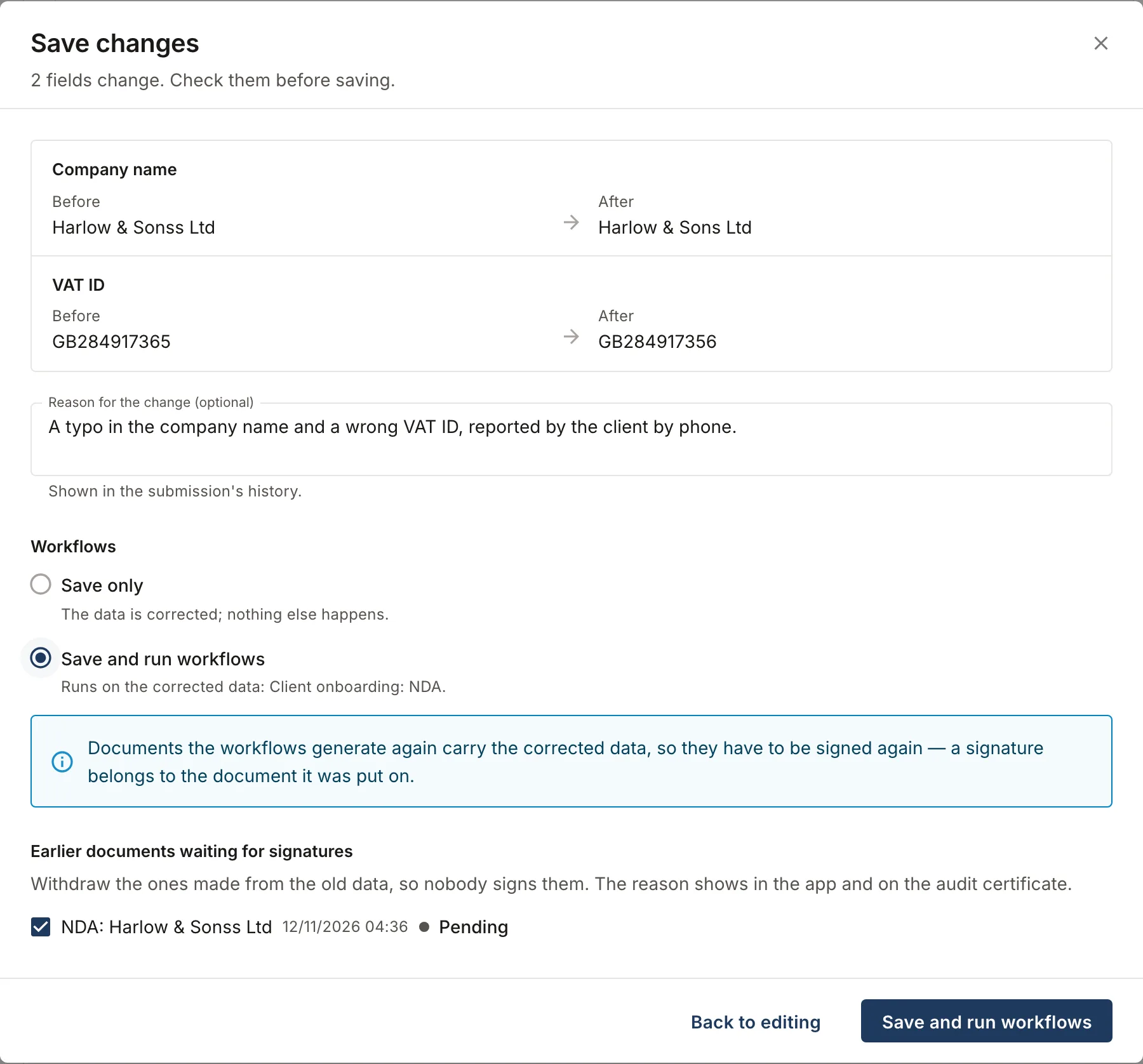
Section titled “The review dialog”Nothing is saved until you confirm here. The dialog shows each changed field under its name, with Before and After values. In a repeated group the name includes the row, as in “Participants #2 › Email”. Empty values show as a dash, ticks as Yes or No, and files by name.
| Option | What it does |
|---|---|
| Reason for the change (optional) | Up to 1000 characters, shown in the history. Write what a colleague would ask in six months: “A typo in the company name, reported by the client by phone.” |
| Save only | The data is corrected and nothing else happens. This is selected at the start. |
| Save and run workflows | Corrects the data and runs the workflows listed under the option. A note reminds you that new documents have to be signed again. The option is unavailable if no workflow of this form runs on edits. |
| Earlier documents waiting for signatures | Appears only when earlier runs of this submission created document packages that are still open and that you may manage, which takes Manage documents. Each line shows the package’s title, date and status. Tick the ones to withdraw. |
Back to editing returns to the form with your changes intact. The main button follows your choice: Save changes or Save and run workflows.
What happens when you save
Section titled “What happens when you save”- The submission’s data is replaced. Everything that reads it from now on, including a new workflow run, sees the corrected values.
- The Submission title is built again, so a corrected name also corrects the title in the list.
- The first edit keeps a whole copy of the data as it was sent. Each edit records what it changed.
- The record of the original sending does not change: the IP address, the page it came from, the location, the browser, the link parameters and the metadata all describe the moment the form was sent.
- Ticked document packages are withdrawn, and then, if you chose to, the workflows run.
An edit does not count as a new submission on your plan. Any workflow run it starts is a run like any other and counts as one.
If a package or a workflow gets in the way
Section titled “If a package or a workflow gets in the way”The correction is saved first, and the withdrawals and workflows come after it. So if a package can’t be withdrawn, perhaps because the last party signed a moment earlier, your correction still stands. Doxtly stops at that package: the ones after it stay as they are, and no workflow starts. You see a warning such as “The submission was updated, but 1 document package could not be withdrawn. Void it on the package’s page. The workflows were not started.”
The history records this with a “1 document package could not be withdrawn” chip and Saved without running workflows. Open the package and use Void package to finish the job. See Documents. If workflows alone can’t be started, the warning says so in the same way.
Workflows after an edit
Section titled “Workflows after an edit”A workflow only runs on edits if you tell it to. Open its trigger A form is submitted and set When:
| Option | Runs |
|---|---|
| A submission is sent | On every new submission. This is what a trigger does unless you change it. |
| A submission is edited | Only when somebody saves an edit with Save and run workflows. Use this for a separate correction flow, such as telling the account manager what changed. |
| Either | On both. |
The Save and run workflows option lists the active workflows set to A submission is edited or Either. If there are none, the dialog says “No workflow runs when this submission is edited” and only Save only is available. See Form submission trigger.
A run started by an edit gets the corrected data, every file the submission now holds, and the submission’s original metadata and link parameters. It appears under Triggered workflows on the Info tab with an After edit #1 chip.
Every form workflow run also gets a _submission block, so one workflow can tell a new submission from a correction:
| Variable | Value |
|---|---|
_submission.id |
The submission’s ID. |
_submission.title |
Its title. |
_submission.submittedAt |
When it was sent, in your organization’s time zone. |
_submission.submittedDate |
The day it was sent, in your organization’s time zone. |
_submission.language |
The language of the page it was sent from, such as pl. Empty on a submission from before. |
_submission.revision |
0 on a new submission, the edit’s number on an edit. |
_submission.editedAt |
When the edit was saved. Empty on a new submission. |
_submission.editedBy |
Who saved it. Empty on a new submission. |
For example, a condition on _submission.revision greater than 0 can send a “your details were corrected” email only after an edit. See Data and variables.
Nobody is waiting on the form’s page after an edit. A workflow that normally shows documents for signing right after the form is sent sends the signing link instead, the way the main party’s Signature request says.
Generated documents and signatures
Section titled “Generated documents and signatures”An edit never changes a document that already exists. A PDF generated from the first version keeps the old values, and a signed document stays exactly as it was signed. New documents appear only if you run the workflows, and those are new documents with the corrected data, which have to be signed again: a signature belongs to the document it was put on.
Say Northbridge’s onboarding workflow generated an NDA and sent it for signature, and the client’s company name was wrong. A clean correction looks like this:
- Fix the company name on the submission.
- In the review dialog, tick the NDA’s package under Earlier documents waiting for signatures, so nobody signs the wrong version.
- Choose Save and run workflows. The workflow must be set to run on edits.
Withdrawing voids every document in the package that is not finished, and the signing link stops working: whoever opens it sees a Package voided page. Your reason is stored as the void reason, which shows in the app and on the audit certificate. Without one, Doxtly uses “Replaced after the form submission was corrected.” in your organization’s language.
The dialog offers a package only if it can still be withdrawn and you may manage it. If you do not see one you expect, check it in Documents.
The history of a submission
Section titled “The history of a submission”Once a submission has been edited, you can see it in several places.
| Where | What you see |
|---|---|
| List and header | An Edited badge. |
| Info tab | Last edited, with the time, the editor and the number of edits. |
| Data tab | A switch between Current and As sent. |
| History tab | Every edit, newest first, down to the original sending. |
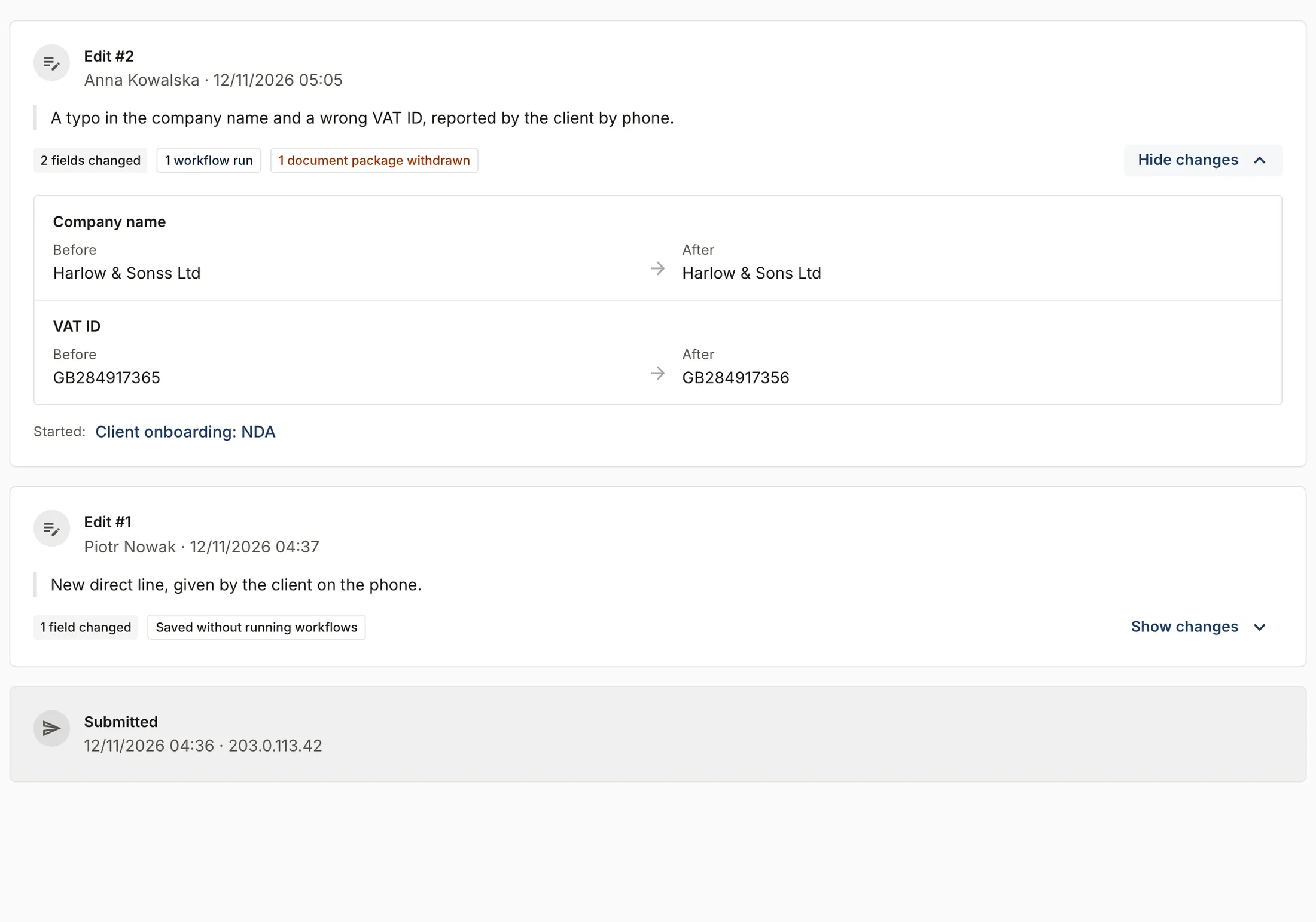
Each edit shows its number, the editor, the time, and the reason if there was one. Chips sum it up: how many fields changed, how many workflow runs it started or Saved without running workflows, how many document packages it withdrew, and how many it could not. Show changes unfolds the values before and after and, under Started:, the runs the edit started, linked if you may view workflows. The last entry, Submitted, shows when the form was sent and from which IP address.
Anyone who may view the submission can read its history. Editing is what takes the extra permission.
What happens to files
Section titled “What happens to files”- A file nobody touched stays where it is.
- The file the person originally sent is kept when an edit replaces or removes it. It leaves the Files tab, but you can still download it: open Show changes on that edit and click its name.
- A file added by one edit and replaced by a later edit is deleted straight away. The history still shows that there was one, as File marked “Not available”.
So a submission holds at most its original files and its current ones, however many edits it goes through. Deleting the submission deletes both.
Two people editing at once
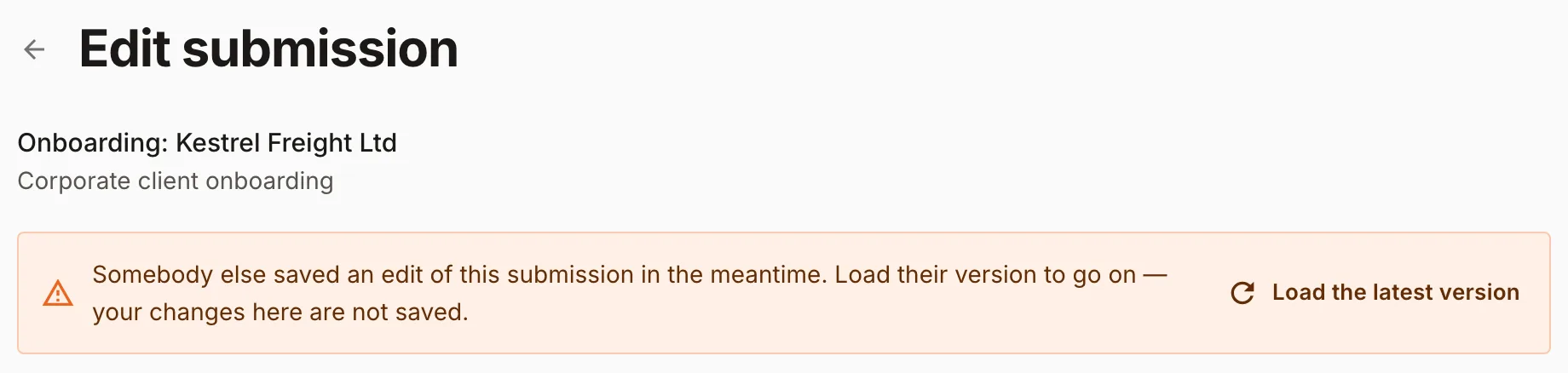
Section titled “Two people editing at once”Each edit is made on the version you opened. If a colleague saves first, your save is refused and a warning appears: “Somebody else saved an edit of this submission in the meantime.” Nothing is overwritten, but your changes are not saved either. Click Load the latest version, look at what your colleague changed, and make your correction again if it is still needed.
Other refusals explain themselves. If somebody turns off Allow editing submissions while you are on the page, for example, the message says so and your changes stay on the screen.