Triggers
A trigger is the event that starts a workflow: a client sends a form, a contract gets its last signature, Monday morning comes round. Every workflow has exactly one, and it decides what data the steps after it can read.
Always available
Choosing a trigger
Section titled “Choosing a trigger”You pick a trigger in two steps: what it Starts on, then When. A form, an interactive document, a document package, a contact, a CRM, a payment, a quiz and a survey each offer a choice under When. A template, a webhook and Recurring have one event, so there’s nothing to choose.
| Starts on | When | Listens to | Brings files |
|---|---|---|---|
| Form | A submission is sent, is edited, or either | One form | The form’s uploads |
| Interactive document | A submission is sent, is edited, or either | One interactive document | Filled documents, uploads, pictures |
| Template | A document is generated | One template | The generated PDF |
| Document package | A party’s turn begins | One package type, and optionally one party | None |
| A party opens the documents | One package type, and optionally one party | None | |
| An approver approves the package or rejects | One package type, and optionally one approver | None | |
| A party signs | One package type, and optionally one party | Documents as they stand, attachments, pictures | |
| A party pays or a party’s payment fails | One package type, and optionally one party | None | |
| A party declines to sign | One package type, and optionally one party | None | |
| The package is fully signed | One package type | Signed documents, attachments, pictures | |
| The package expires | One package type | None | |
| The package is voided | One package type | None | |
| A contract changes | One type of contracts | None | |
| A contract is ending soon | One type of contracts | None | |
| A contract ends | One type of contracts | None | |
| Contact | A contact is created, is changed, or either | One type, no type, or any | None |
| CRM | A CRM deal changes stage or status | One CRM integration, optionally one pipeline or stage and a status | None |
| A CRM person is saved: created, changed, or either | One CRM integration | None | |
| Payment | A payment succeeds, fails or is refunded | One form, or every form | None |
| Quiz | A quiz attempt is started, needs grading, is finished or is regraded; a result is released; the quiz closes; somebody does not respond | One quiz | The answer sheet, once an attempt is finished or regraded |
| Survey | A survey response is started or submitted; somebody does not respond; the survey closes; a quota is full | One survey | The response sheet, once a response is submitted |
| Webhook | Another system calls your webhook | One webhook | None |
| Recurring | The clock reaches a time you set, again and again | Nothing | None |
Pick by the moment the work should begin. To send a welcome pack after onboarding, start on Form. To file a contract only when everybody has signed, start on Document package with The package is fully signed. To offer a renewal a month before a contract runs out, start on Document package with A contract is ending soon. To chase unpaid invoices each morning, use Recurring. To send a contract when a deal moves on in Pipedrive, start on CRM. To tell your accounting when a fee is refunded, start on Payment. To send a certificate to everyone who passes a training quiz, start on Quiz. To tell the account team about an unhappy client’s feedback, start on Survey. To react to a sale in your online shop, use Webhook.
Set up a trigger
Section titled “Set up a trigger”- In the designer, add Trigger from the Triggers group of the palette. Drag it onto the canvas, or click it.
- Click the node to open its Properties.
- Choose what it Starts on. A new trigger starts on Form.
- Choose When, if the trigger offers a choice. Each answer says when it comes.
- Choose the Trigger source: the form, interactive document, template, package type or webhook to wait for, or for a CRM the CRM integration. Type a few letters to narrow the list. Recurring has a Frequency here instead.
- Fill in what else the trigger asks for, then connect the trigger to the first step.
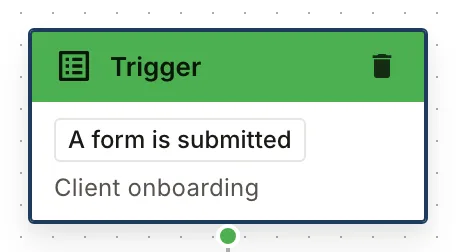
Once set, the node shows the event, an icon for it and the source by name, so you can read the workflow’s starting point at a glance. The workflow list shows the same event under the workflow’s name. Until a required setting is filled in, the node says Configuration incomplete and the workflow can’t be saved.
Settings every trigger has
Section titled “Settings every trigger has”| Setting | What it does |
|---|---|
| Starts on | What the trigger listens to. Required. |
| When | Which of its events starts the workflow. Shown only where there is a choice. |
| Trigger source | What the event must come from. Required for everything except Recurring, which doesn’t show it. Payment has an optional Form in its place, Contact a Contact type, Quiz a required Quiz, and Survey a required Survey. The list holds what your organization has, by name. No options available means there’s nothing of that kind yet, so create the form or template first. |
| Node ID | The trigger’s identifier, under Node information. Later steps use it to pick the trigger’s files. See the node ID. |
A document package’s events of one party (its turn, opening the documents, an approver’s answer, a signature, a refusal) add Party indicator (optional), and Recurring has its Frequency.
Choosing something else under Starts on empties Trigger source and the party, because a form can’t stand in for a template. Changing When keeps them, and every party event hands over the same _party block, so your steps keep working.
Rules every trigger shares
Section titled “Rules every trigger shares”- One trigger per workflow. With one on the canvas, the palette entry is disabled and says Only one trigger is allowed per workflow. To react to two events, build two workflows.
- Many workflows can listen to one source. Each active workflow gets a run of its own for the same event. Use this to keep unrelated jobs apart: one workflow for the welcome email, another for the CRM update.
- Only active workflows start. A workflow that is switched off ignores the event, and that event isn’t replayed when you switch it back on.
- A run counts towards your plan once a step after the trigger has finished. That holds even if a later step fails. A run that fails on its first step doesn’t count. Once the plan’s runs are used up, a new run stops before its first step and shows as failed, and your organization gets a notification. A webhook request is refused instead. See plans and limits.
- A run keeps the workflow it started with. Saving changes the runs that start after the save. A run already under way finishes on the old version.
- A workflow that can’t start doesn’t undo the event. The submission is still stored, the document still generated and the signature still valid.
Building or changing a trigger takes the Manage workflows permission and nothing more: you need no access to the form or template itself. See who can do what.
What a trigger hands to the steps
Section titled “What a trigger hands to the steps”Every run starts with data, and steps read it through variables. Each trigger page lists exactly what it brings, with a sample. Roughly, a run holds:
| Part | Example | Comes from |
|---|---|---|
| The values | {{ company.name }} |
What was filled in, sent or generated. A recurring trigger has none. |
| The trigger’s block | {{ _submission.title }} |
The trigger itself: _submission, _schedule, _package, _party, _contact, _webhook, a CRM’s _crm with _opportunity or _person, a payment’s _payment with _refund, or a quiz’s _quiz with _attempt and, once finished, _results. A form’s submission adds _payment when the form takes one, and _contact with _company when it came through a personal link. |
| Metadata | {{ _metadata.campaign }} |
The form, document or template. There may be none. |
| Link parameters | {{ _params.utm_source }} |
The address the form was opened with. There may be none. |
| The run | {{ _execution.date }} |
Every run, whatever the trigger. |
Every run has _execution:
{ "_execution": { "id": "019a4f1e-7c2b-7d11-9e50-3b1c7a9d2f10", "eventId": "019a4f1e-7bf0-7a3c-8c12-5e0a4d7f6b21", "workflowId": "0198c2d4-11aa-7e02-b6f3-9a04c1e7d835", "triggeredAt": "2026-11-05T10:15:02+01:00", "date": "2026-11-05" }}Every date a trigger hands over is written in your organization’s time zone, so {{ _submission.submittedAt | formatdate("HH:mm") }} prints local time.
Workflows that start each other
Section titled “Workflows that start each other”One workflow can set off another: it generates a document that a second workflow waits for, and that workflow’s package, once signed, starts a third. That’s what the document and package triggers are for.
A workflow that sets itself off would run for ever, so a chain has limits: at most 10 runs one after another, and at most 100 runs in all, which matters when one run sets off several others. A run past either limit isn’t carried out. It appears in the history as failed and says why, naming the run the chain began with. Rerunning it by hand starts a fresh chain.
Where a run shows its trigger
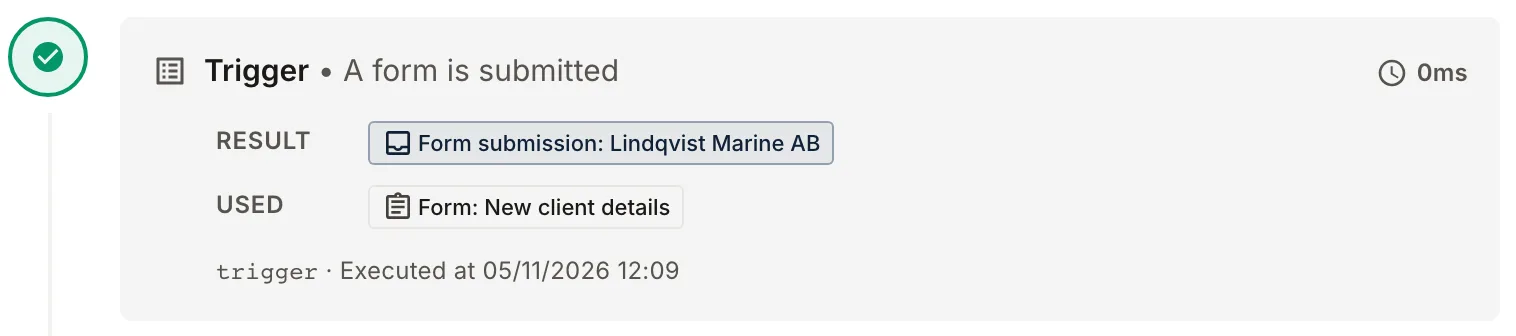
Section titled “Where a run shows its trigger”On a run’s page, the first step shows the trigger’s event and links to what it listens to. The run also names the record that started it: the submission, the package, the contact or the webhook request, as a link if your role may open that page. A generated document has no page of its own, so its identifier is shown as text, and a document that wasn’t saved leaves nothing to name. A payment’s run names the submission it paid for. A quiz’s run names the attempt as text: an attempt has no page of its own. A recurring run shows its frequency, and a CRM’s run names no record: the deal or person is in its data. See runs.