

Subscription
The subscription page is where you see which plan your organization is on, how much of it you have used, and what you pay. Open it when a limit is getting close, when you want to move to a bigger plan, or when a payment needs attention.
Every organization has its own subscription. If you belong to two organizations, each has its own plan, usage and invoices.
Available when: you hold the View subscription and invoices permission. Changing anything also takes Manage subscription.
Find it under Organization → Subscription. The page has five tabs: Overview, Plans, Usage, Balance and Storage usage. For the full table of what each plan includes, see plans and limits.
Who can do what
Section titled “Who can do what”Two permissions control this page. By default only Administrators hold them, and you can give them to other people through a role.
| Permission | What it allows |
|---|---|
| View subscription and invoices | Opening this page and invoices, and seeing the usage figures and the card on file |
| Manage subscription | Choosing a plan, Manage billing, cancelling, resuming, Manage overage and Top up Doxtly balance |
Without Manage subscription you see the same page without those buttons. Someone with neither permission has no Subscription entry in the menu, but the plan’s limits apply to them like everyone else: the app stops offering what no longer fits.
View subscription and invoices also decides who sees the Storage widget on the dashboard and the Storage usage tab. Notifications about limits and payments go to the people who hold both permissions, so give both to whoever should react when a card is refused.
The Overview tab
Section titled “The Overview tab”The Overview tab answers “where do we stand?” in one screen.

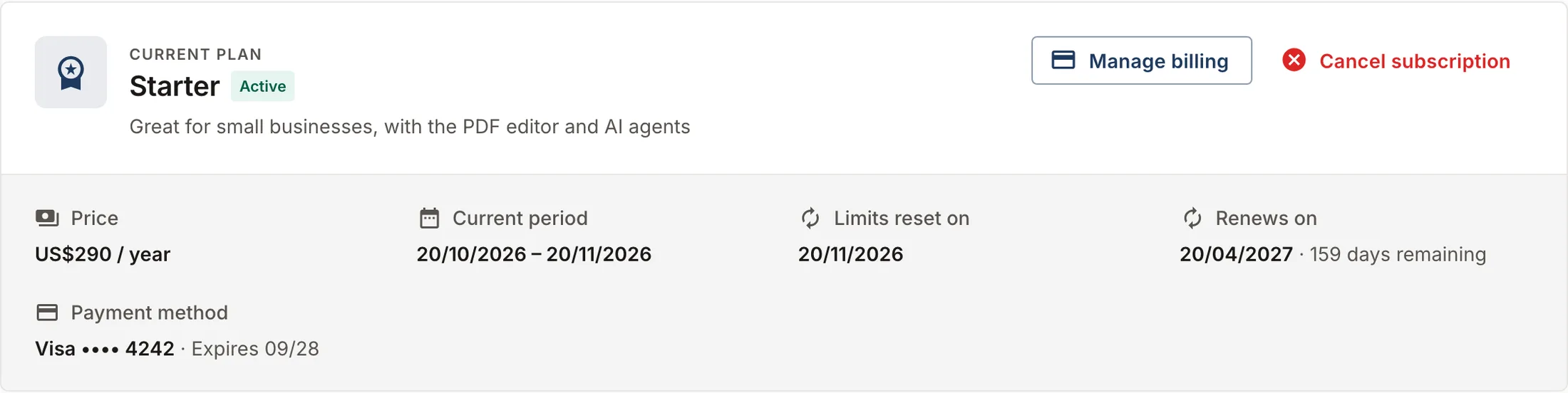
The Current plan card names your plan, adds its one-line description, shows its status and lists the facts of the subscription:
| Field | What it tells you |
|---|---|
| Price | What the plan costs per month, or per year if you pay yearly. If the organization buys as a private person, (+ VAT) appears beside it. |
| Current period | The first and last day of the current month of limits. On a monthly plan this is also the billing period. |
| Renews on | When a paid plan renews and is charged, with the days remaining. A plan stopped for an unpaid invoice doesn’t show it, because nothing renews until the invoice is paid |
| Limits reset on | When the monthly limits start again. On the Free plan this replaces Renews on, because nothing is charged. On a yearly plan it stands beside it. |
| Trial ends | During the Starter trial, the day it ends, in place of Renews on. Price then reads Free until that day, and a note under the plan says what happens if you don’t choose one. |
| Ends at | Replaces Renews on once a subscription is set to end |
| Canceled at | The day the subscription was canceled |
| Payment method | The card brand, its last four digits and when it Expires, or No card on file. Paid plans only. |
The status badge beside the plan name is covered under what each status means. Hover over it for a one-line explanation.
The buttons on the right depend on your plan and its state, and you need Manage subscription to see them. Manage billing is there whenever your organization has paid by card, even on a plan that has stopped, so you can always put in a working card. Cancel subscription appears while a plan you pay for by card is running, including while a payment is past due, and Resume subscription takes its place once the plan is set to end. On Free and during the trial there is nothing to cancel.
If Doxtly runs your subscription for you, for example when it invoices you directly, the card says Managed by Doxtly in place of these buttons: to change, cancel or renew the plan, contact your account manager.
When a limit is reached
Section titled “When a limit is reached”If at least one limit is used up, a warning appears under the card with the number of limits reached. On a plan with a bigger one above it, the warning offers Compare plans, which takes you to the Plans tab. It also says what frees each limit: a limit counted per month resets in the next period, and one counted in total, such as workflows or templates, holds until you remove some of what it counts.

Usage at a glance
Section titled “Usage at a glance”Usage at a glance shows the four limits closest to running out, so you do not have to read all of them. View all usage opens the Usage tab.
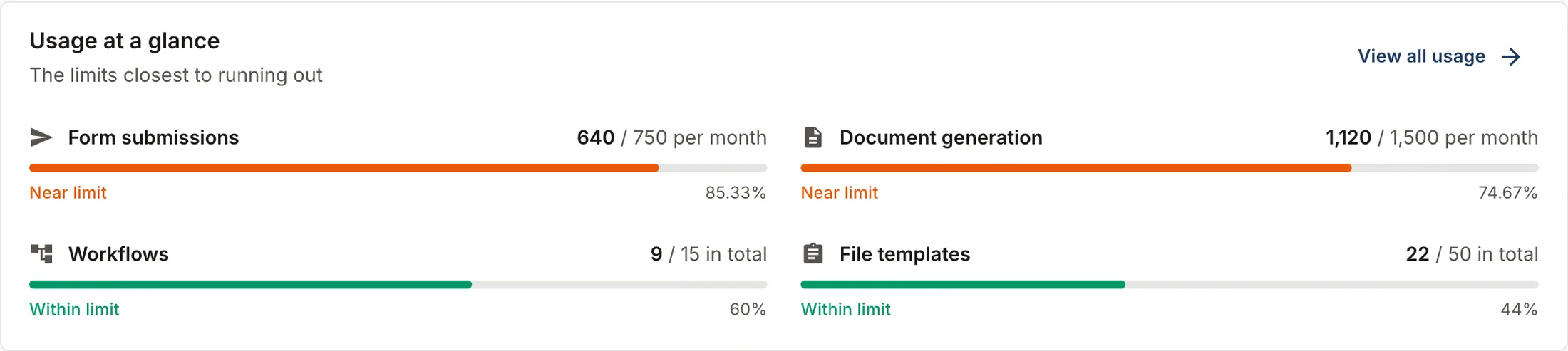
If your plan has stopped, nothing is being counted, so the card has no bars. It says Your plan has stopped, so its features are unavailable and there is no usage to show. The Usage tab says the same.

The Plans tab
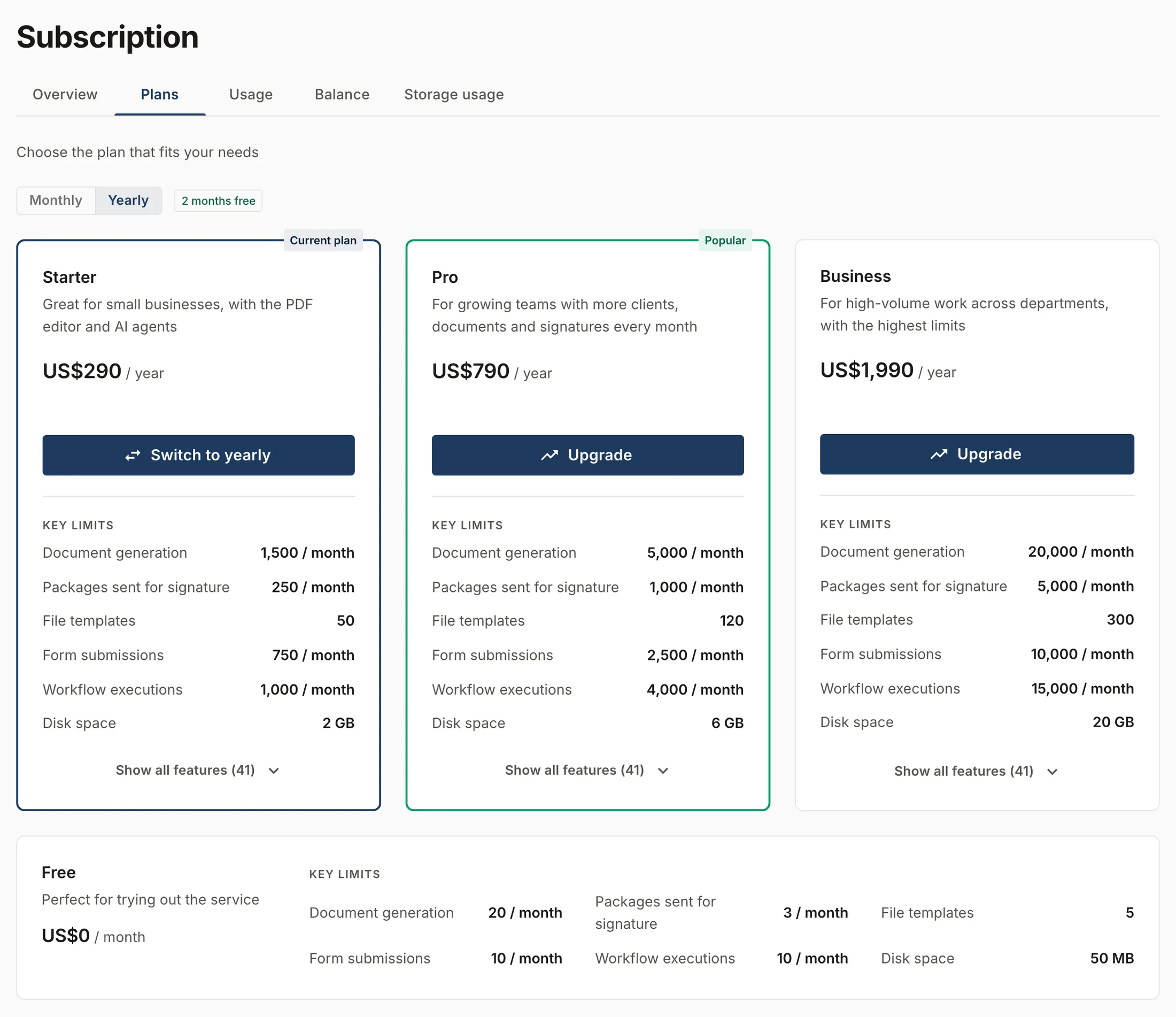
Section titled “The Plans tab”Monthly and Yearly above the cards switch between paying every month and paying for a year at the price of ten months. USD, EUR, PLN and GBP beside them switch the currency you pay in. The prices below are in US dollars.
| Free | Starter | Pro | Business | |
|---|---|---|---|---|
| Price per month | $0 | $29 | $79 | $199 |
| Price per year | $290 | $790 | $1,990 | |
| Document generation | 20 / month | 1,500 / month | 5,000 / month | 20,000 / month |
| Packages sent for signature | 3 / month | 250 / month | 1,000 / month | 5,000 / month |
| File templates | 5 | 50 | 120 | 300 |
| Form submissions | 10 / month | 750 / month | 2,500 / month | 10,000 / month |
| Quiz attempts | 10 / month | 750 / month | 2,500 / month | 10,000 / month |
| Survey responses | 10 / month | 750 / month | 2,500 / month | 10,000 / month |
| Workflow executions | 10 / month | 1,000 / month | 4,000 / month | 15,000 / month |
| Disk space | 50 MB | 2 GB | 6 GB | 20 GB |
| PDF editor, AI agents, SVG templates | Not included | Included | Included | Included |
A small practice with a handful of templates is usually fine on Free while it tries things out. Once clients fill in your forms every day, the 10 submissions a month run out fast, and that is the moment to look at Starter.
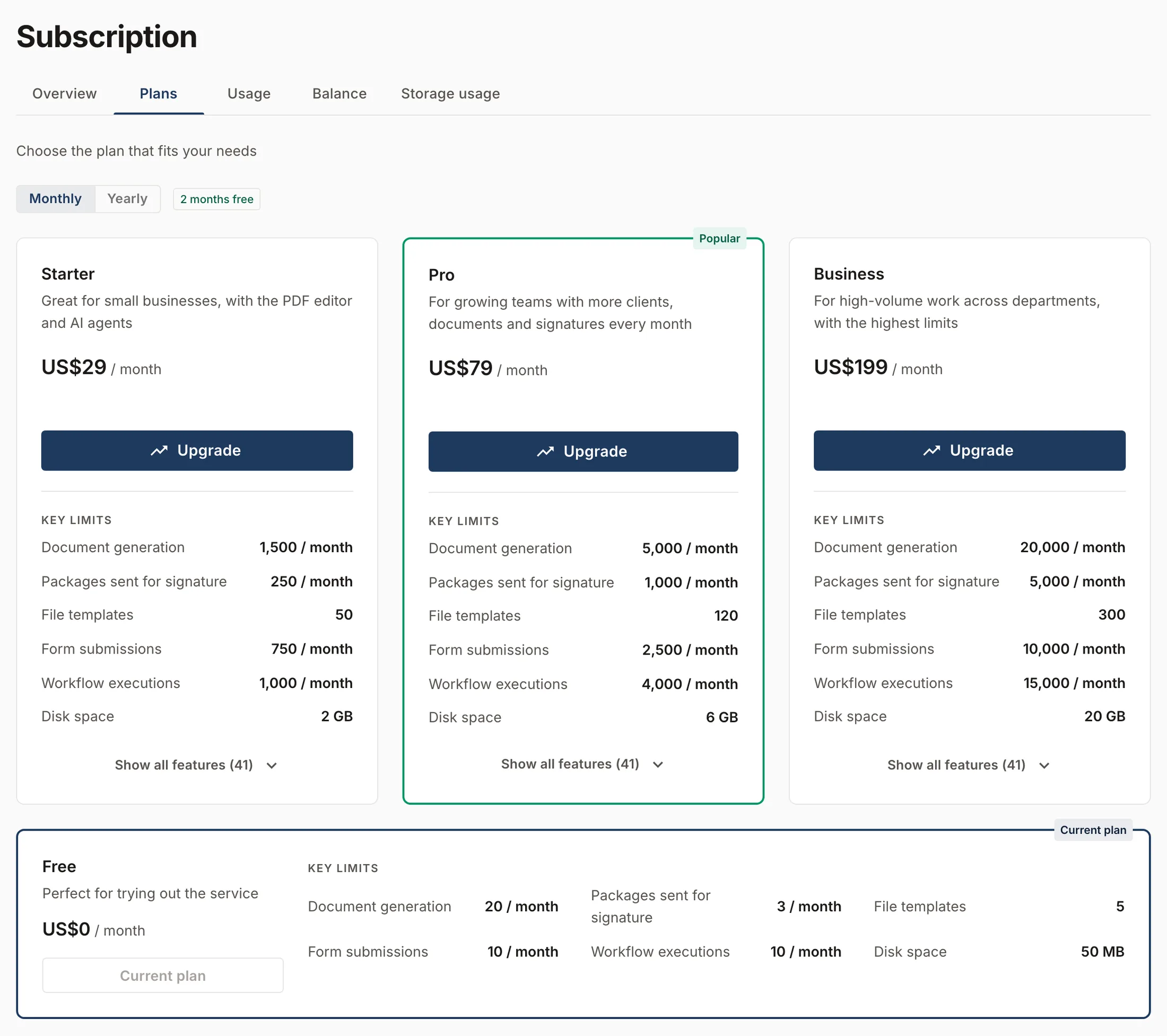
Your plan carries a Current plan chip, and Pro carries a Popular chip unless you are on it.
Each card shows the plan’s price per month, or per year with Yearly chosen, its button and its Key limits, the six that most tell plans apart: document generation, packages sent for signature, file templates, form submissions, workflow executions and disk space. If the organization buys as a private person, as every new organization does until its Billing data says otherwise, (+ VAT) appears under the price of a paid plan.
Show all features, followed by the number of features, adds the rest to every card at once, so you can compare row by row. They come in groups:
| Group | What it adds |
|---|---|
| Documents | File templates and document generation, when not already among the key limits |
| Contacts | Contacts |
| Forms | Forms, portals and data sources |
| Interactive documents | Interactive documents and their submissions |
| Quizzes | Quizzes, quiz attempts and advanced quiz analytics: more than two segments compared, the cross-tab’s significance test and the AI analysis |
| Surveys | Surveys, survey responses and advanced survey analytics, the same for surveys |
| Emails | Email templates, sent emails, emails from Doxtly’s mailbox, and SMS and WhatsApp templates |
| Signing | Packages sent for signature and identity verifications |
| Workflows | Workflows, webhooks and outgoing webhooks |
| Storage | Data space |
| Capabilities | Word, PDF and SVG templates, API access, automation access, two-factor authentication, the PDF editor, AI agents, the Doxie AI assistant, Doxie’s Advanced AI Mode, CRM integrations, payments and single sign-on (SSO) |
| Other | Document numbering |
A paid plan gives the price of each identity verification, such as $2.00 each, in place of a limit. The Free plan doesn’t include them. Where a feature is either in the plan or not, a check mark means the plan includes the feature and a dash means it does not. The Doxie AI assistant row has a check mark on a plan that includes Doxie on Doxtly AI, and Own AI integration only on the Free plan, where Doxie works only through your organization’s own AI integration. No plan gives an amount for her. Show fewer features closes the lists.

The button on a card tells you what choosing it would do:
| Button | Meaning |
|---|---|
| Current plan | You are on this plan. The button is disabled. |
| Upgrade | This plan costs more than yours |
| Downgrade | This plan costs less than yours |
| Switch to yearly | You are on this plan and pay monthly. Shown with Yearly selected. |
| Set billing address | The organization has no billing address yet, and a paid plan needs one |
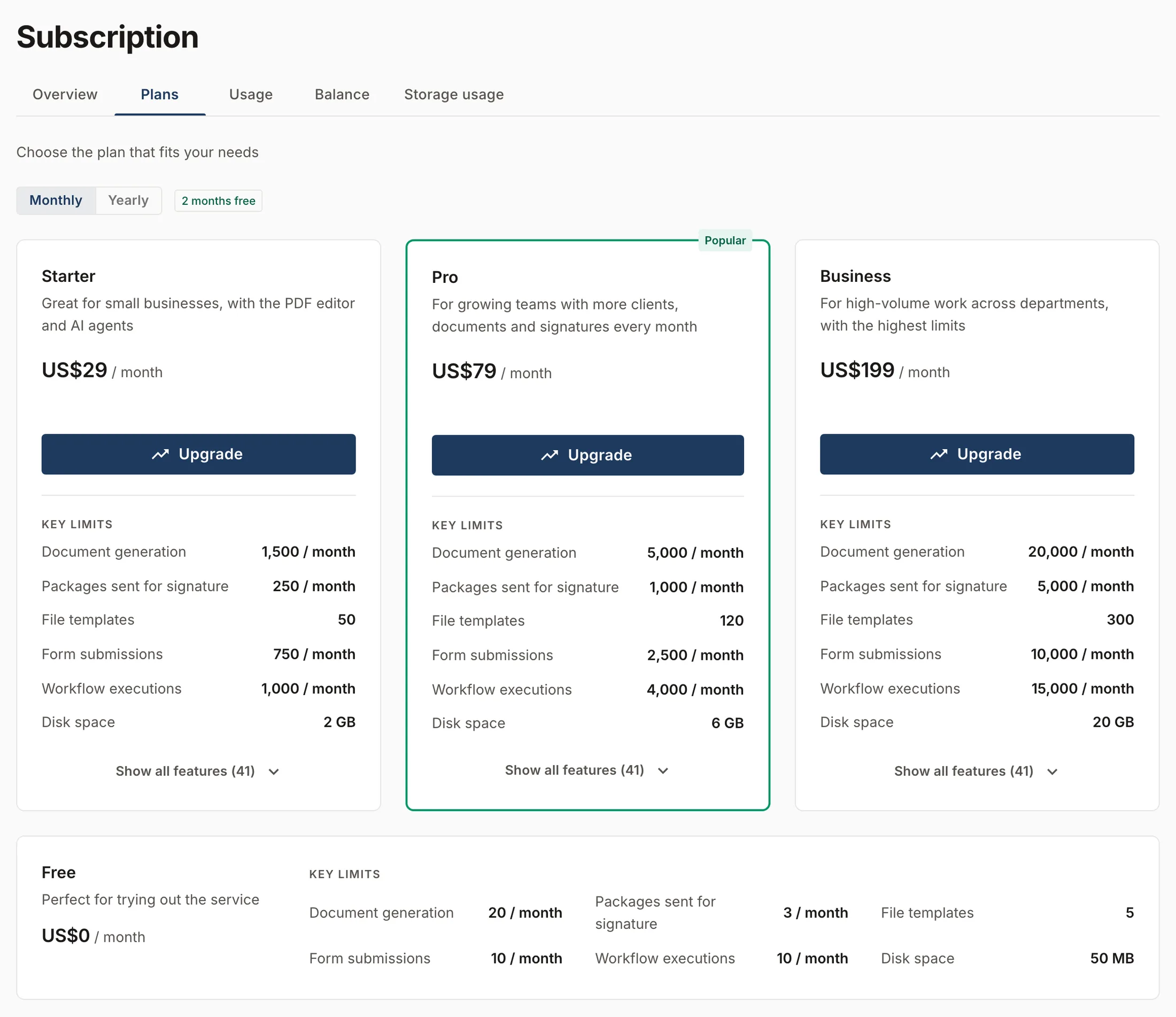
The paid plans are cards side by side, and Free is a strip under them. Free is not something you buy, so it has no button unless it is your current plan. To leave a paid plan, see cancelling. Without Manage subscription, the cards are there to read and have no buttons.
Once a subscription has ended, with the status Canceled or Expired, no plan counts as current. Every paid card then says Upgrade, including the plan you had, so you can buy the same one again.
Coming from the pricing page
Section titled “Coming from the pricing page”If you chose a paid plan on the pricing page, this tab opens by itself once you are in, with the plan marked Your choice and a note above the cards.
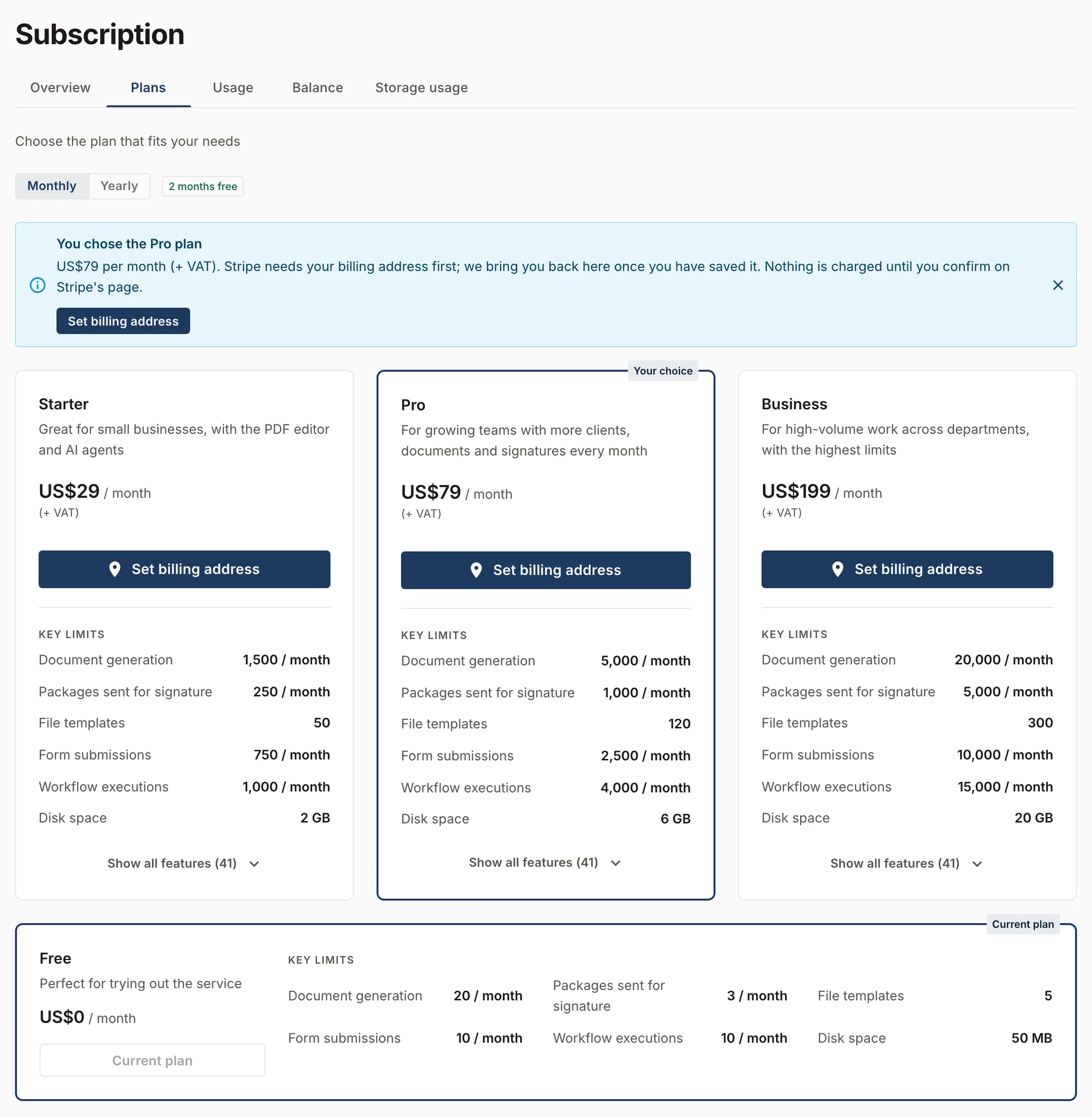
The note gives the price and says that nothing changes until you confirm on Stripe’s page. Nothing has been bought at this point: the organization is on the plan it was, and only you can take the next step.
| Button in the note | What happens |
|---|---|
| Set billing address | The organization has no billing address yet. You fill it in on the Billing data section and come back here with the plan still selected. Without the permissions to change those settings, you get a message asking you to have an organization administrator add it. |
| Continue to Stripe | Stripe’s payment page opens, or Stripe’s confirmation of the change if the organization already pays for a plan. The rest is as described below. |
Changed your mind? Close the note, or leave the page, and the plan stays as it was. The choice is offered once: reload the page and it opens with nothing selected, and you can still pick any plan from its card.
If the organization is already on that plan, the note says You are already on the Pro plan., and there is nothing to confirm. If you may not change the subscription, you are not brought here at all.
Moving to a paid plan for the first time
Section titled “Moving to a paid plan for the first time”Paying happens on Stripe’s secure payment page. Doxtly never sees your full card number.
-
Open Organization → Subscription → Plans.
-
If the card says Set billing address, click it. You land on the Billing data section of the organization settings. Fill in the address and save, and you come back here with that plan selected. Without the permissions to change those settings, you get a message asking you to have an organization administrator add it.
-
Click Upgrade on the plan you want. Stripe’s payment page opens.
-
Enter your card, check the billing address and confirm. Stripe works out the tax from your billing details.
-
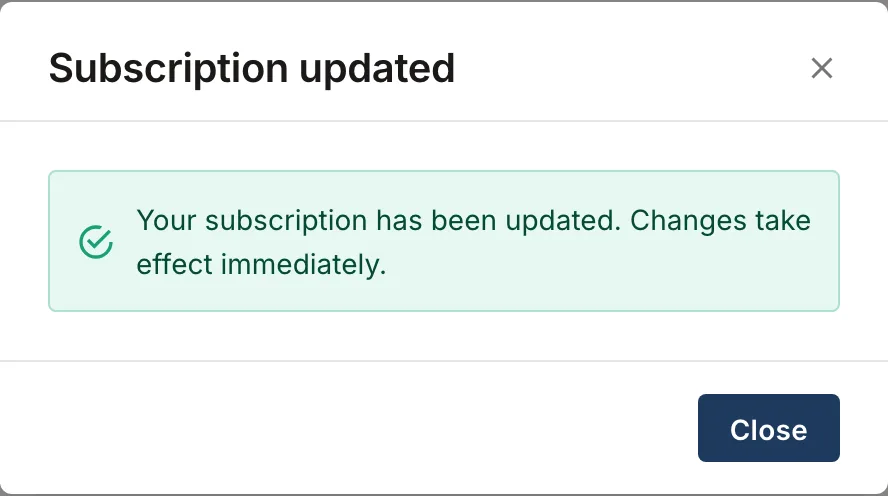
Stripe sends you back to the subscription page, which shows Subscription updated. The plan can take a few seconds to appear, and the page keeps checking for up to a minute, so there is no need to reload.
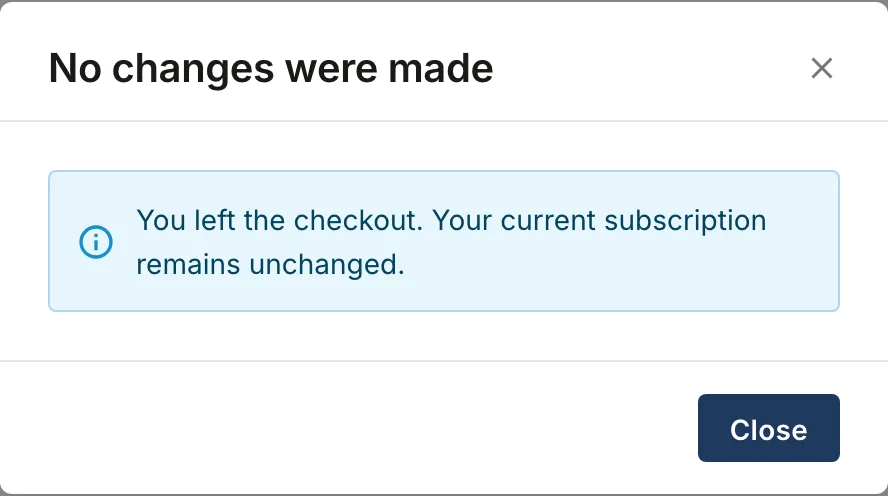
If you leave the payment page without paying, you come back to a No changes were made dialog and your subscription stays as it was.
If Stripe does not accept your tax ID, you see Your payment provider does not accept the tax ID. Check it in the organization’s billing data. Correct it on the Billing data section and try again.
Moving between paid plans
Section titled “Moving between paid plans”If you already pay for a plan, Upgrade or Downgrade does not start a second subscription. Stripe opens a confirmation page for the same subscription, which shows what the change costs before you agree. Confirm, and you come back to the same Subscription updated dialog. Leave without confirming, and you get No changes were made. Any adjustment for part of a month is charged with the change and is on its invoice.
What happens to your usage when the plan changes
Section titled “What happens to your usage when the plan changes”The new limits apply as soon as Stripe confirms the change.
- Moving from Free to a paid plan starts a new billing period, so the monthly counters begin at zero.
- Moving between paid plans keeps you in the same billing period, and what you already used counts against the new limit. If you upgrade partway through, any overage the higher limit now covers is no longer charged.
- Moving to a smaller plan deletes nothing. If you keep more than the new limit allows, say 80 templates on a plan with 50, they all keep working, the bar says Limit exceeded, and you cannot add more until you are back under it.
Payments
Section titled “Payments”Stripe charges your card on the Renews on date, every month or every year, and the invoice for the payment appears in Doxtly shortly after, issued by Doxtly’s operator. The first charge happens when you take the plan.
Currency
Section titled “Currency”You can pay for a plan in US dollars, euro, Polish zloty or pounds sterling. Each currency has its own price, set in that currency and not converted from dollars, so it does not move with the exchange rate.
| Per month | Starter | Pro | Business |
|---|---|---|---|
| USD | $29 | $79 | $199 |
| EUR | €25 | €69 | €169 |
| PLN | 109 zł | 289 zł | 729 zł |
| GBP | £22 | £59 | £149 |
A year costs ten months in every currency.
- The Plans tab starts with your country’s currency: zloty for a billing address in Poland, euro in the eurozone, pounds in the United Kingdom, and US dollars anywhere else. Without a billing address, it follows your browser’s language. Switch to any other before you pay.
- The subscription stays in the currency you paid in. Its renewals, a move to another plan, overage and the costs per use are all charged in it, and its invoices are in it. While it runs, the Plans tab shows prices in that currency only.
- To pay in another currency, cancel the subscription and choose a plan in the new currency once it has ended. The overage cap and the cost limits of your consents are amounts in the old currency, so you set them again.
- The Doxtly balance is always in US dollars. A top-up is paid in your subscription’s currency.
Paying for a year
Section titled “Paying for a year”A year paid in advance costs the same as ten months, so two months are free. It suits a business that knows it will use Doxtly all year.
- Limits stay monthly. They start again every month of the paid year, and what you don’t use does not carry over. Limits reset on gives the next date, and Renews on gives the day the year ends.
- Overage is billed monthly. It arrives on an invoice of its own after each month, not at the end of the year.
- You can move to another yearly plan. Stripe shows what the change costs first. An upgrade charges the difference for the rest of the year. On a downgrade, the unused part stays as a credit on your billing account and pays your next invoices. It is not paid out.
- A paid year runs to its end. With Monthly selected, the plan cards have no buttons while the year lasts. To pay monthly, cancel the subscription and choose a monthly plan when the year is over.
- Cancelling keeps the plan until the last day of the year. Nothing is refunded for the months left, and nothing more is charged. A consumer’s statutory right of withdrawal is described in the terms.
Manage billing
Section titled “Manage billing”Manage billing opens Stripe’s billing portal in the same tab. Use it to change the card on file, for example before the old one expires. When you finish, Stripe brings you back to the subscription page.
If you change the billing name or address in the portal, Doxtly copies the change to your organization’s Billing data. It works the other way too: what you save on that tab is sent to Stripe and used for billing from then on.
Tax and billing details
Section titled “Tax and billing details”Your invoices are made out to the company or customer name, address and tax ID in the Billing data section of the organization settings. Stripe works out tax from them. The invoice PDF is in Polish and English.
When a payment fails
Section titled “When a payment fails”If the card is refused, or your bank asks you to confirm the payment, the status changes to Past due and your plan keeps working. Stripe tries again.

Whoever both views and manages the subscription gets a Payment failed notification and an email. The notification leads to this page; the email also has a direct link to pay on Stripe. It says whether and when Stripe will try again.
While a payment is outstanding, a banner stays at the top of every page for those people. You can fold it for the rest of the session, not dismiss it. The Outstanding payment card on the Overview tab shows the invoice, the amount, the reason, the next attempt and the card it’s charged to, with Pay or Confirm payment to go to Stripe and Change payment method.
From the first failed payment, features billed per use, such as identity checks, are paused until the invoice is paid, so anyone trying them is told why. Everything else goes on. Before Stripe’s last attempt, the same people are reminded once by a Last payment attempt ahead notification.
When Stripe gives up, the notification says it will not try again and that your plan may stop. If every attempt has failed, the status changes to Unpaid and plan features stop until the outstanding invoice is paid.
If the very first payment for a plan fails, the plan does not start, and the status is Incomplete. Pay or confirm it with Pay or Confirm payment on the Outstanding payment card, or through the link in the email. If that never happens, the status becomes Expired and you buy a plan again on the Plans tab.
Overage
Section titled “Overage”Overage lets work carry on past a monthly limit and charges for it per use. It suits a business with an uneven month: a training company that issues 2,000 certificates at the end of a course, or a firm whose intake form gets a sudden rush. Without overage, the form would turn clients away on the 28th. With it, the form stays open and you pay a few cents per submission.
Available when: your organization is on a paid plan and has a valid card on file. Changing it takes Manage subscription.
Overage is off until you turn it on. On Free, the Usage tab shows neither the overage chip nor Manage overage.
| Past the limit | Price per use |
|---|---|
| Document generation | $0.05 per document |
| Form submissions | $0.02 per submission |
| Quiz attempts | $0.02 per attempt |
| Survey responses | $0.02 per response |
| Sent emails | $0.01 per email |
| Packages sent for signature | $0.10 per package |
| Workflow executions | $0.03 per execution |
Interactive document submissions have no overage: past the limit they are refused. Neither do limits on what you keep, such as templates, forms, disk space and data space.
Turning overage on
Section titled “Turning overage on”-
Open Organization → Subscription → Usage.
-
Click Manage overage.
-
Switch on Allow overage. The Overage cap field appears.
-
Enter a cap between $1 and $10,000. This is the most overage can add to one bill. Start from what an unusually busy month would cost you: a cap of $50, for example, covers 2,500 extra form submissions.
-
Click Save settings.
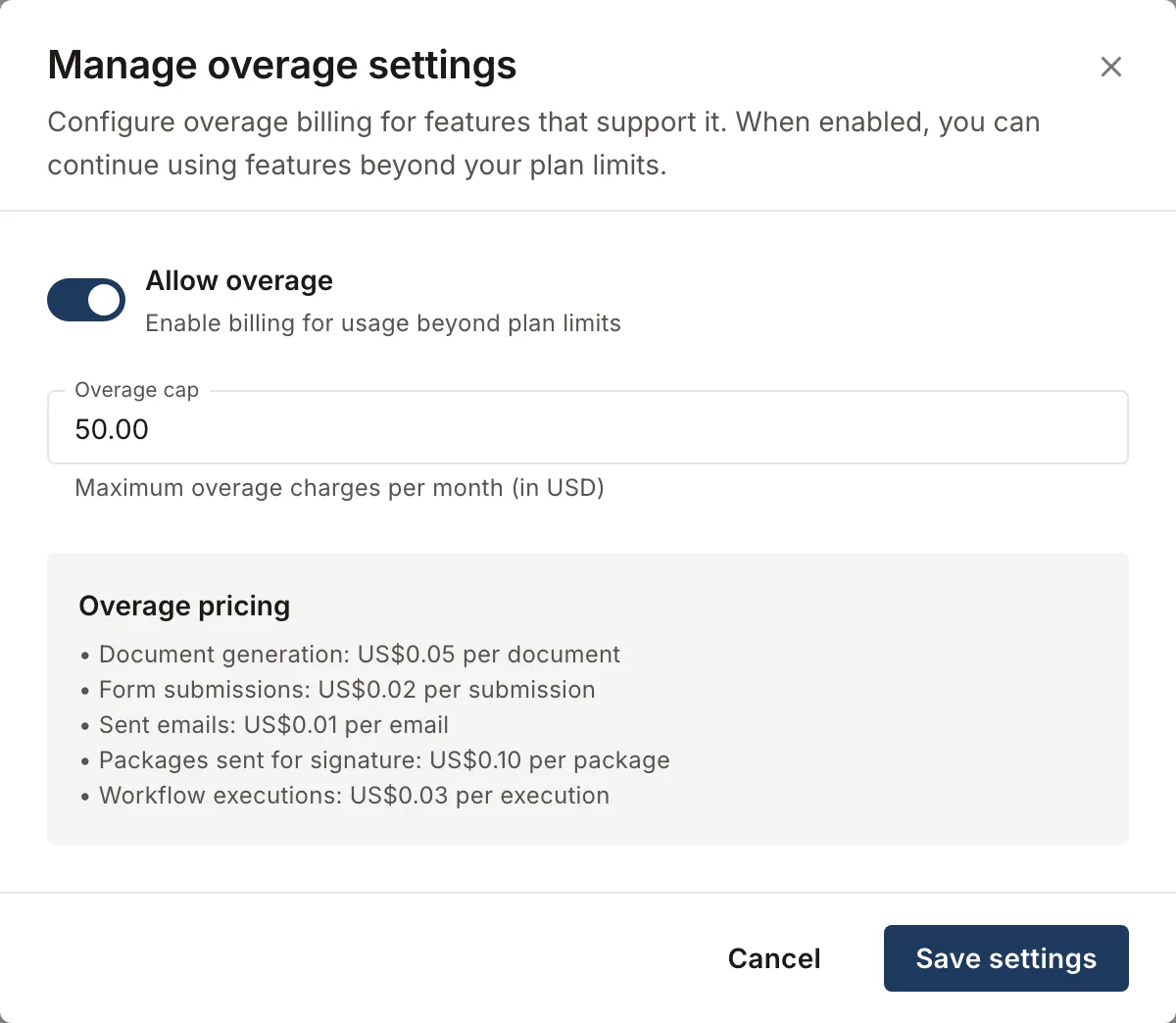
The dialog repeats the price list under Overage pricing. A cap outside the range is refused with a message in the dialog, and so is switching overage on without a valid card: Valid payment method required for overage billing. Add a card through Manage billing first.
If you switch overage off, the cap is kept for the next time you turn it on. Cancel closes the dialog and changes nothing.
How overage is charged
Section titled “How overage is charged”On a monthly plan, overage is added to the invoice that renews your subscription after the period it happened in, as one line per feature with the quantity, such as Document generation overage. Say your Starter plan allows 750 form submissions and you received 870. The renewal invoice carries a Form submissions overage line for 120 at $0.02, which is $2.40.
On a yearly plan, each month’s overage goes on an invoice of its own once the month ends, and the last month’s on the invoice that renews the year. A subscription that ends gets a last invoice for the overage of its final month, because no renewal will carry it.
Lines are added until the cap is reached, so overage on one invoice never comes to more than your cap. Identity verifications are the exception: Doxtly pays a provider for each one, so every one is charged, on a line of its own before the overage, and never counts towards the cap. They are let through only with your agreement to that cost and within the limit for a billing period set with it, which your overage settings don’t change.
The chip on the Usage tab shows where you stand: Overage enabled with Used: and what overage comes to so far against your cap, such as US$2.40/US$50.00, or Overage disabled. The used amount never shows more than the cap, and leaves out identity verifications, which never count towards it.
Costs per use
Section titled “Costs per use”Some features cost Doxtly money every time they are used, so they are billed per use, apart from your plan and from overage. Today that is identity checks: a party photographs an identity document and their face before signing (see identity verification). Each attempt is billed, at the price the card shows.
Available when: your organization is on a paid plan with a payment method. Changing it takes Manage subscription.

The Costs per use card on the Overview tab says for Identity checks either Off with the price per attempt, or On with the price and the limit for a billing period.
-
Click Turn on.
-
Enter the Limit for a billing period, the most identity checks may cost in one billing period, at least the price of one attempt. A firm that verifies about twenty new clients a month at US$2.00 each might set US$60.
-
Tick the box that agrees to the price, Identity checks are billed at US$2.00 per attempt., and click Confirm.
Change opens the same dialog to set another limit, and Turn off stops the checks. When the limit is reached, checks stop until the next billing period, and every other feature carries on. Whoever chooses the method on a party is then told that the limit for this billing period has been reached. The costs don’t depend on the overage switch and never count towards your overage cap. While a payment is outstanding they are paused. You see the same price, and how many checks are left this period, when you choose the method on a party. The charges arrive on your invoices as a line of their own.
The Usage tab
Section titled “The Usage tab”The Usage tab lists every limit of your plan, so it is the place to look before a busy month or when you are deciding whether a bigger plan would pay off. The Feature usage card’s subtitle gives the current period.
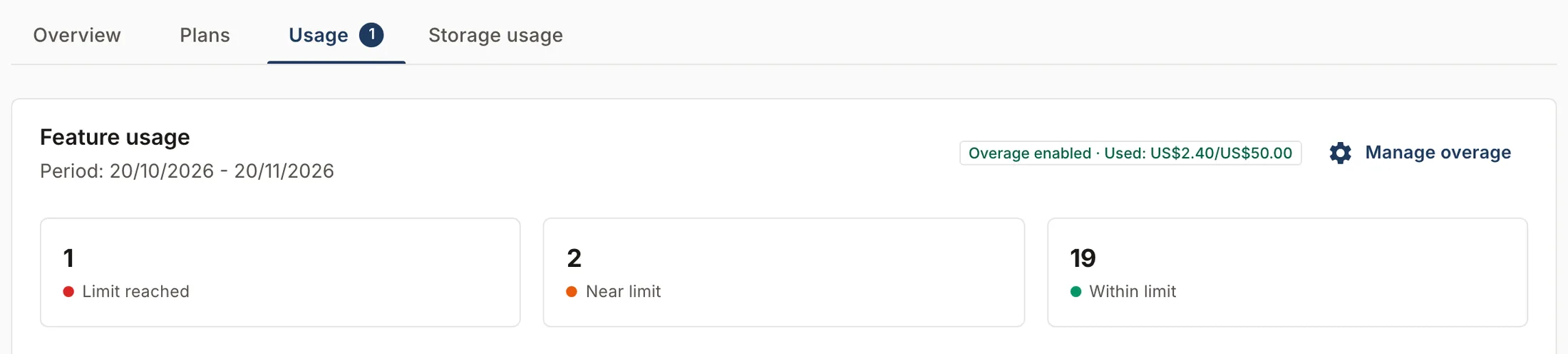
Three tiles count how many limits are at Limit reached, Near limit and Within limit. A limit you have gone past counts with the reached ones. The same count appears as a small badge on the tab itself, so you notice it from the other tabs.
Below them, the limits are grouped by area: Documents, Contacts, Forms (which includes portals and data sources), Interactive documents, Quizzes (quizzes and quiz attempts), Surveys (surveys and survey responses), Emails (which includes emails from Doxtly’s mailbox and SMS and WhatsApp templates), Signing (packages sent for signature and identity verifications), Workflows (which includes webhooks and outgoing webhooks) and Storage.
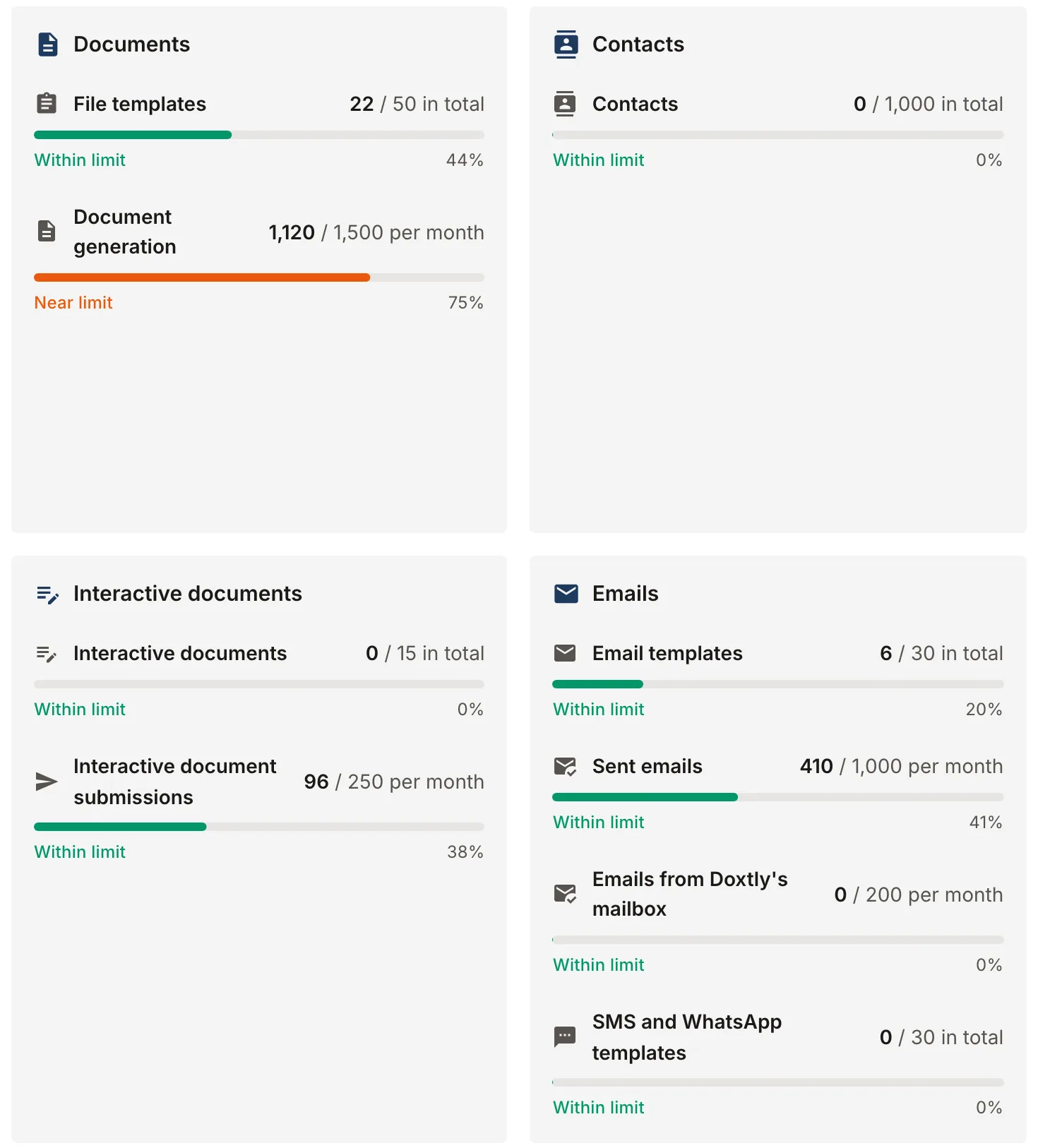
Each line shows what you used, the limit, whether the limit is per month or in total, a bar, and the percentage used. Disk space and data space are shown as sizes, such as MB or GB. The bar is green within the limit, amber near it and red from the moment it is reached.
Identity verifications have no limit to reach, so their line has no bar: it shows how many people were verified this month, the price of each, such as US$2.00 each, and what they come to so far, such as US$6.00 so far. They don’t count in the tiles or the badge.
On a plan with a monthly Doxtly AI limit, one more line comes last, such as Doxtly AI: 42% of the monthly limit, with See balance, which opens the Balance tab where the limit and the balance are shown in full. The line has no bar of its own, but it counts in the tiles and the badge like the other limits. The Free plan has no such line.
| Label | When it shows |
|---|---|
| Within limit | Under 70% of the limit |
| Near limit | From 70% |
| Limit reached | At 100% |
| Limit exceeded | Past the limit. With overage it also shows how far, such as +120 over the limit. |
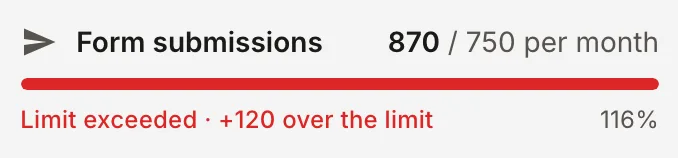
A limit goes past 100% when overage is on, or after a move to a smaller plan.
Only what finally succeeded counts. Plans and limits explains how each thing is counted.
The Balance tab
Section titled “The Balance tab”Doxie, the AI assistant, and the one-click AI buttons, such as Import a form from a link, run on Doxtly AI, unless an administrator gives Doxie your organization’s own AI integration. The Balance tab shows how much Doxtly AI your organization has left, and is where you top up your Doxtly balance. Doxtly AI comes from two places, used in this order:
- The Monthly Doxtly AI limit included in your plan. It starts again on the 1st of every month.
- The Doxtly balance, money you pay in advance. Doxtly AI uses it only once the monthly limit is used up, and whatever is left carries over to the next month.
When both are used up, Doxie and the AI buttons pause until the limit starts again or the balance is topped up. Everything else in Doxtly keeps working. See Which AI runs Doxie.
The same balance also pays for Doxtly e-mail, the built-in e-mail integration, once your organization switches it on, so one top-up covers both.
The monthly limit
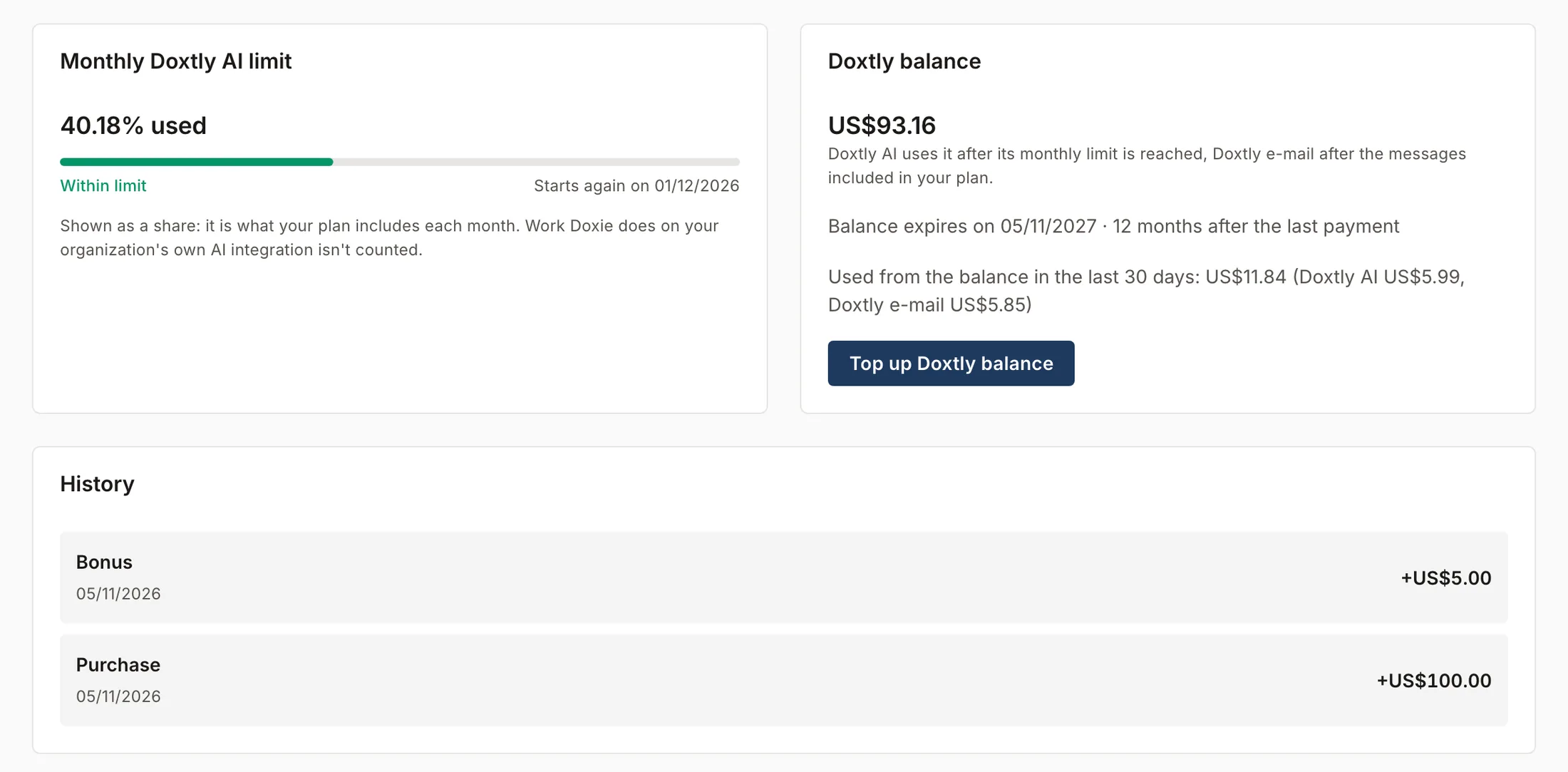
Section titled “The monthly limit”The Monthly Doxtly AI limit card shows how much of this month’s limit is used, such as 42% used, with a bar and the same labels as the limits on the Usage tab: Within limit, Near limit and Limit reached. Starts again on gives the date it starts afresh.
The limit is shown as a percentage, never as an amount, because it is what your plan includes: Doxtly’s own cost limit for your plan. Higher plans include more. What Doxie does on your organization’s own AI integration isn’t counted. On a plan with no monthly limit, such as Free, the card says Your plan includes no monthly Doxtly AI limit. Doxie works on your organization’s own AI integration, or on your Doxtly balance.
The balance
Section titled “The balance”The Doxtly balance card shows the balance in US dollars, because it is your money, paid in advance at Doxtly’s price. The amount is rounded down to the cent. Doxtly AI takes from it only once the monthly limit is used up, and Doxtly e-mail once the messages included in your plan are, as the line under it reminds you: Doxtly AI uses it after its monthly limit is reached, Doxtly e-mail after the messages included in your plan.
Below the amount, one line says when the whole balance expires, for example Balance expires on 20 Nov 2027 · 12 months after the last payment. Every top-up moves that day for everything left, so as long as you top up at least once a year, nothing expires. If part of the balance comes from a payment that is being disputed, a line says how much is on hold; it can’t be used meanwhile.
Used from the balance in the last 30 days helps you judge how much to top up. Once Doxtly e-mail has taken from the balance too, the line splits the amount between Doxtly AI and Doxtly e-mail. A typical question to Doxie uses a few cents; designing a form or turning a Word file into a template uses more.
Everyone who can open this page sees the balance. Only people with Manage subscription see Top up Doxtly balance.
Topping up the balance
Section titled “Topping up the balance”Available when: your organization is on a paid plan paid by card through Stripe, and you hold Manage subscription.
-
On the Balance tab, click Top up Doxtly balance.
-
Choose an amount: 10, 25, 50 or 100 USD. To pay another, type it in Another amount (USD), in whole dollars from 10 to 500. If your subscription is in euro, zloty or pounds, the summary also says what you pay in that currency: You pay … for it. One US dollar of balance costs €0.90, 3.80 zł or £0.80.
-
Check the summary: You get … of balance, with Including a bonus of … when the amount earns one, and Plus VAT. You pay on Stripe’s secure page.
-
Click Pay with Stripe and pay by card on Stripe’s page.
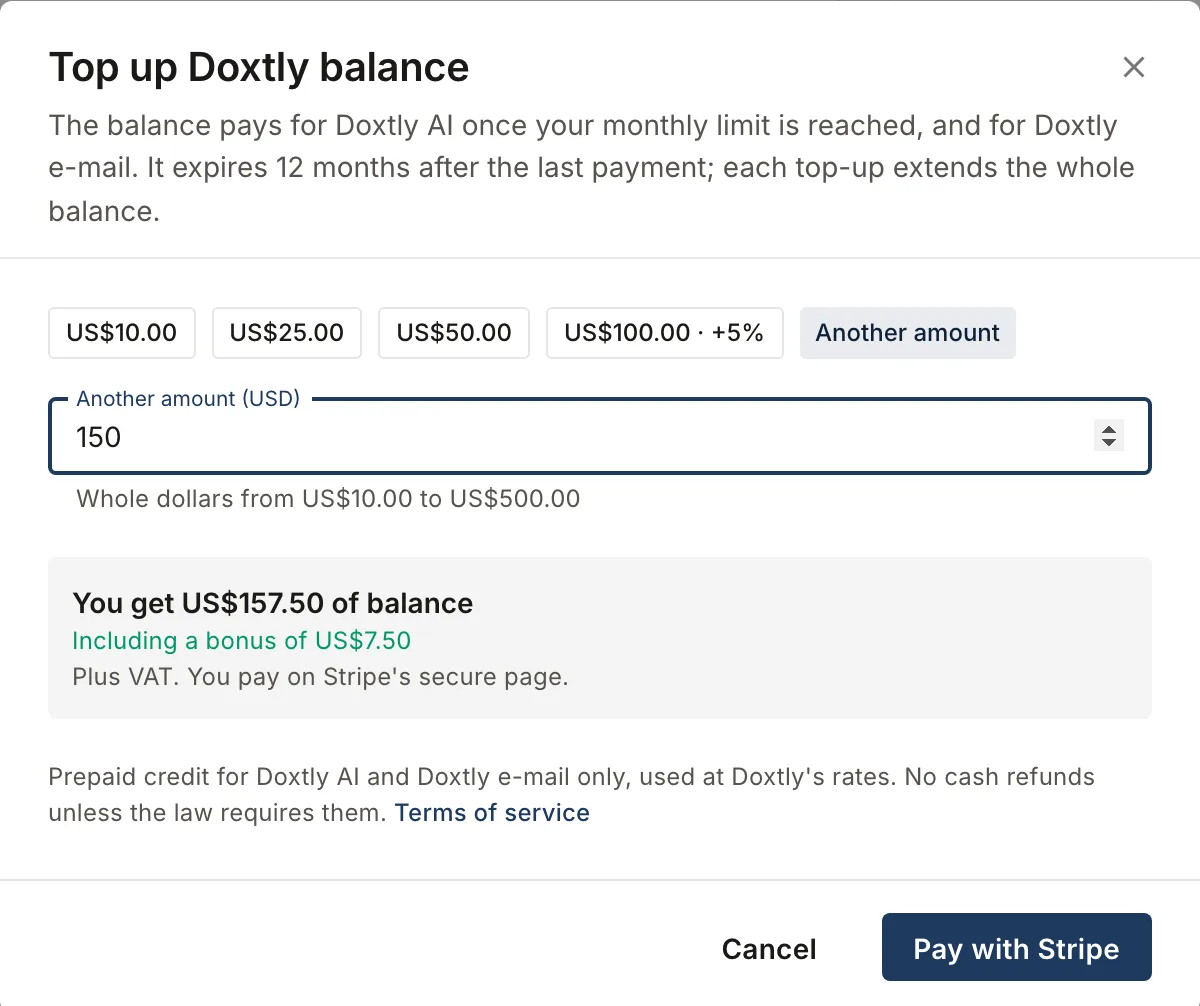
Larger top-ups earn a bonus, added to the balance on top of what you pay:
| You pay | Bonus | Example |
|---|---|---|
| 10 to 99 USD | None | Pay 50 USD, get 50 USD of balance |
| 100 to 249 USD | 5% | Pay 100 USD, get 105 USD of balance |
| 250 to 500 USD | 10% | Pay 250 USD, get 275 USD of balance |
VAT is added at checkout from your billing details, as for your plan.
After paying, Stripe sends you back to the Balance tab, which shows Payment in progress… with the amount. The balance is credited only once Stripe confirms the payment. If that takes a while, the tab says Stripe has not confirmed the payment yet. The balance is credited as soon as it does, and you will be notified. You don’t need to pay again. If you leave Stripe’s page without paying, nothing is charged and nothing changes.
The invoice for a top-up appears on the Invoices page with the type Doxtly balance. For a while it may be listed as Invoice in preparation: that means your payment has arrived and the invoice for it is being issued. You don’t need to do anything; once it is issued, the row gets its number and PDF. See Invoice in preparation.
When you can’t top up
Section titled “When you can’t top up”In place of the button, the balance card says why:
| The card says | Why | What helps |
|---|---|---|
| Your plan was arranged individually: ask your account manager to top up the balance. | Your plan is managed by Doxtly rather than paid on this page. | Your account manager can add balance to your organization. |
| Top-ups become available once you choose a paid plan after your trial… | Your organization is in its Starter trial. | Choose a paid plan on the Plans tab. |
| The balance can be topped up on a paid plan… | Your organization is on Free, or has no plan. | Choose a paid plan. A balance you already have stays usable until it expires. |
| Your plan isn’t being paid by card through Stripe right now… | The plan isn’t paid by card through Stripe at the moment, for example because the subscription has ended. | Renew or choose your plan on the Plans tab. A balance you already have stays usable. |
| Top-ups are suspended for your organization. Contact Doxtly support. | Top-ups were stopped, for example after a card payment for one was disputed. | Write to us through the contact form. |
History
Section titled “History”The History card lists every change to the balance, newest first, with its date and amount: Purchase, Bonus, Added by Doxtly, Added by Doxtly free of charge, Expired, Refunded, Payment disputed and Taken back. A purchase has an Invoice link to the Invoices page.
Terms of the balance
Section titled “Terms of the balance”In short (the full text is in section 5.8 of the terms):
- The balance is prepaid credit for Doxtly AI and Doxtly e-mail only. It isn’t cash, can’t be paid out and can’t be moved to another organization.
- Doxtly AI uses it only after the monthly limit, and it carries over from month to month.
- The whole balance expires 12 months after your last payment. Each top-up moves that day for everything left, bonuses included, and you are told 30 days and 7 days before it.
- A balance you bought stays usable on any plan, Free included, until it expires.
- There are no cash refunds, whatever the balance paid for (Doxtly AI, Doxtly e-mail messages or the fee for sending from an own domain), except where the law requires one (for example when a consumer in the EU withdraws from the purchase before using it), when Doxtly stops providing the service, Doxtly AI or Doxtly e-mail (the unused balance is refunded, and so are the days left of an own domain’s fee already taken), or as a goodwill gesture.
- A refund or a chargeback takes back the unused part of that top-up, never below zero. After a chargeback, top-ups may be suspended.
- A bonus has no cash value: it is used, expires and is taken back together with its purchase.
- Whatever is left is lost when the organization is deleted.
Warnings and notifications
Section titled “Warnings and notifications”When the monthly limit is 80% used and there is no balance to go on with, or when the balance runs low, a thin orange line, red once little is left, runs along the top of Doxie’s message box. Pointed at, it tells people who can see the subscription how much of the limit is used and how much balance is left, with Open the balance in Subscription; everyone else reads This organization’s Doxtly AI limit is running out.
Notifications of the type Doxtly AI go, in the app and by email, to the people who hold both subscription permissions:
| When | What it says |
|---|---|
| 80% of the monthly limit is used (once a month) | Most of this month’s limit is used, and Doxie goes on with the balance, if there is one |
| The monthly limit is used up (once a month) | Doxie goes on with the balance, if there is one; otherwise she is back when the limit starts again or the balance is topped up |
| The balance is running low: under 20% of the last top-up, or under 2 USD | How much is left, and that you can top it up on the Subscription page |
| The balance is used up | Doxie works again when the monthly limit starts again or the balance is topped up |
| The balance expires within 30 days, and again within 7 days | How much expires, and on which day |
| A top-up is credited | How much was added |
The Storage usage tab
Section titled “The Storage usage tab”Storage usage shows what takes up the plan’s disk space, kind of file by kind of file, so you can see what to clean up before you reach the limit.
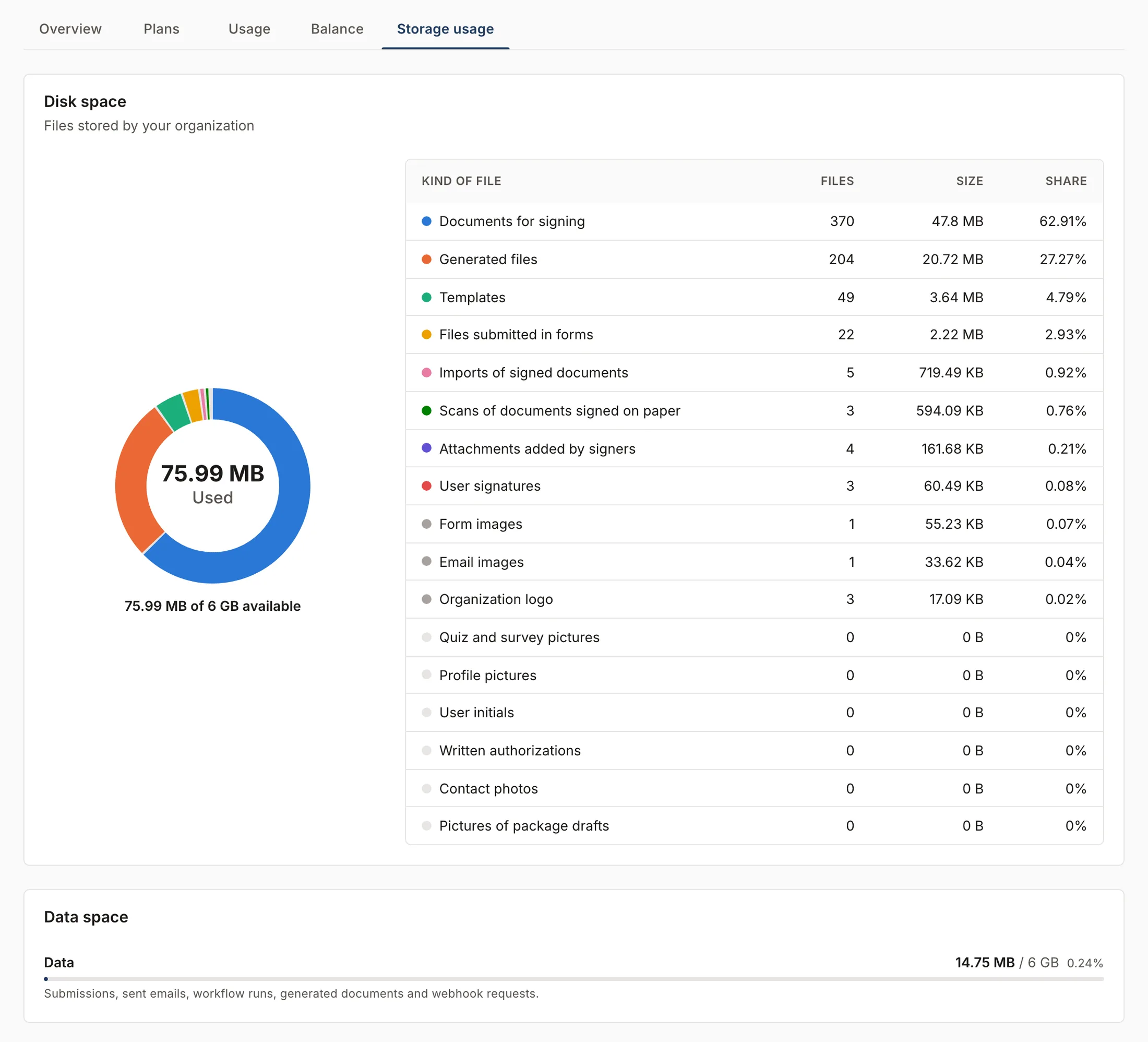
A pie shows how the used space splits up, with a table beside it: each kind of file with its size, how many files there are and its share of what is used. The kinds are Documents for signing, Generated files, Templates, Files submitted in forms, Scans of documents signed on paper, Attachments added by signers, User signatures, User initials, Profile pictures, Email images, Form images, Organization logo, Written authorizations, Contact photos, Quiz and survey pictures, Pictures of package drafts and Imports of signed documents, the sheets and files of an import not yet finished; anything else is counted as Other files. Kinds with no files are listed too, at zero. The table carries the same figures as the pie and names its colours, so it works without seeing the chart; at most eight kinds get a colour of their own, the others share one grey slice while the table lists them all.
Under it, Data space shows one bar for everything stored apart from files: submissions, sent emails, workflow runs, generated documents and webhook requests. The other tabs show only the used amount and the limit.
What happens at each limit
Section titled “What happens at each limit”| Limit | Kind | At the limit | With overage |
|---|---|---|---|
| Document generation | Per month | New documents are refused, and a workflow step that needs one fails | Carries on at $0.05 each |
| Form submissions | Per month | The person filling in the form gets an error and nothing is stored | Carries on at $0.02 each |
| Interactive document submissions | Per month | New submissions are refused | Not available |
| Quiz attempts | Per month | A new attempt cannot be started; the person is told it could not be started | Carries on at $0.02 each |
| Survey responses | Per month | A new response cannot be started; the person is told it could not be started | Carries on at $0.02 each |
| Emails from Doxtly’s mailbox | Per month | Sending from it is refused. | Not available |
| Sent emails | Per month | Sending is refused. Each recipient counts as one, and people copied in add nothing, so a send to 10 recipients needs 10 left. | Carries on at $0.01 each |
| Packages sent for signature | Per month | The workflow step that makes the package fails before anything is created | Carries on at $0.10 each |
| Workflow executions | Per month | A new run is recorded as failed before its first step, Rerun is disabled with the reason beside it, and a webhook request is turned away with an answer asking the sender to try again later | Carries on at $0.03 each |
| File templates, forms, portals, data sources, interactive documents, quizzes, surveys, email templates, SMS and WhatsApp templates, workflows, webhooks, outgoing webhooks | In total | You cannot add another. Everything you have keeps working, so an organization that moved to Free with 2 forms can go on collecting answers on both. The default messages every organization is given don’t count. | Not available |
| Contacts | In total | Add contact is disabled, and a workflow step that would create a contact fails. Existing contacts can still be changed. | Not available |
| Disk space | In total | Documents are still generated and returned, but not saved in your account | Not available |
| Data space | In total | Webhook requests are still taken and their workflows run, but what they bring is not kept | Not available |
The data space figure can be a few minutes behind.
When a limit refuses something, whoever manages the subscription gets a notification: Feature limit exceeded, or Storage quota exceeded for disk space and data space. It is critical for monthly limits, because customers are being turned away, and a warning for the rest.
You have these ways out:
- Wait. Monthly limits start again with the next billing period.
- Upgrade. The new limits apply as soon as Stripe confirms the change.
- Turn on overage, on a paid plan.
- For limits in total, delete what you no longer need.
- For data space, keep data for less time on the Data retention section of the organization settings.
Cancelling and resuming
Section titled “Cancelling and resuming”Cancelling stops the renewal. You keep the plan, and everything in it, until the end of the period you paid for: the month, or the whole year on a yearly plan, with the monthly limits still starting again each month.
-
On the Overview tab, click Cancel subscription.
-
Confirm with Yes, cancel. No, keep it leaves everything as it was.
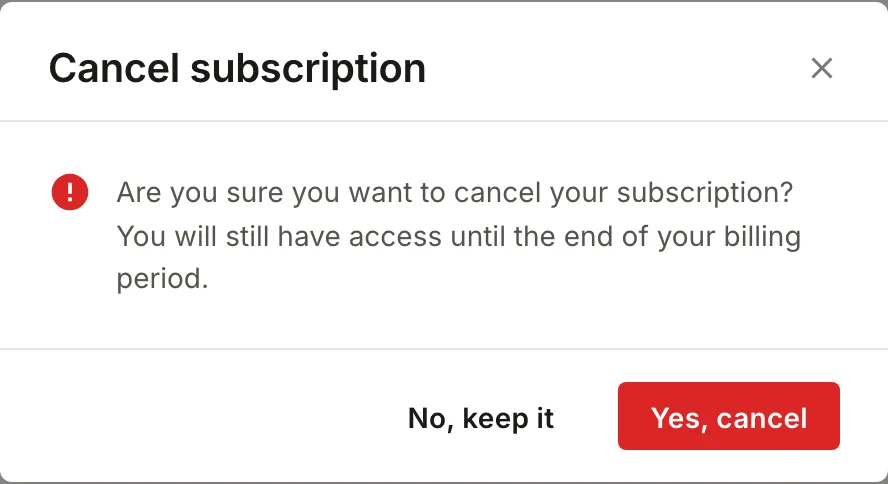
The card then shows Ends at and Canceled at, and Resume subscription appears.
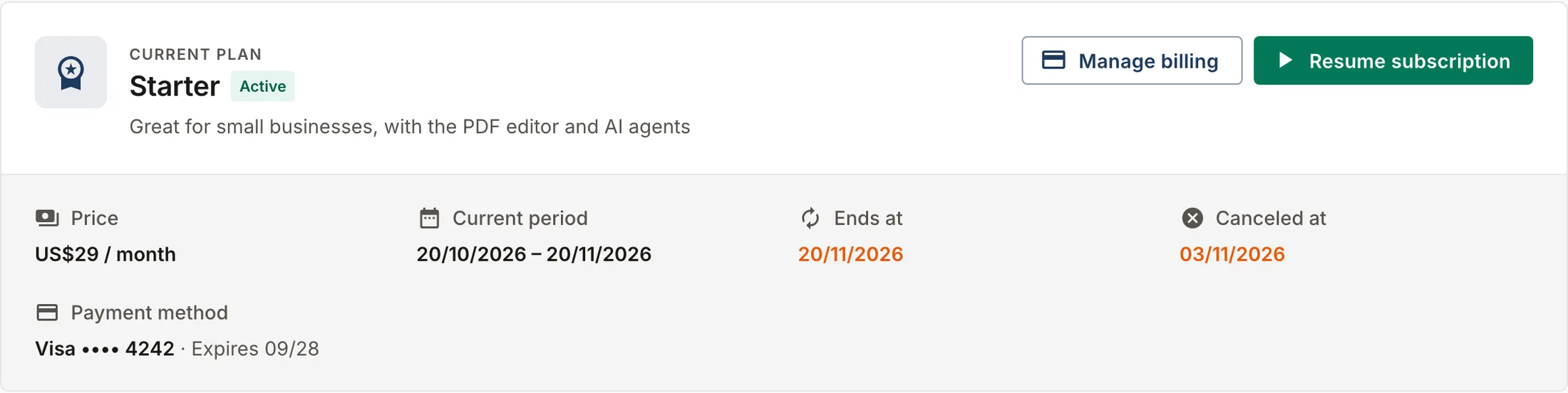
Changed your mind? Click Resume subscription and confirm with Yes, resume any time before the end date. No, keep it canceled leaves it set to end. Billing carries on as before at the end of the current period, with no new payment now.
The Free plan cannot be cancelled, because there is nothing to stop.
What each status means
Section titled “What each status means”| Badge | What it means | Plan features |
|---|---|---|
| Active | Everything is in order | Work |
| Past due | A payment failed and Stripe is trying again | Work |
| Unpaid | Every payment attempt failed | Stopped until the outstanding invoice is paid |
| Paused | There is no way to pay for the subscription | Stopped until a payment method is added |
| Incomplete | The first payment has not been completed | Stopped until it is completed |
| Expired | The first payment never went through | Stopped until you buy a plan again |
| Canceled | The subscription has ended | Stopped until you buy a plan again |
When a plan stops
Section titled “When a plan stops”When the status is one of the stopped ones, the organization has no plan at all, not even Free’s allowance. Whoever manages the subscription gets a Subscription no longer active notification saying which of these happened.
While it lasts:
- No documents are generated, and nothing is sent from your email templates.
- Forms and interactive documents refuse new submissions, so anyone who submits one gets an error.
- Workflows do not run.
- You cannot create templates, forms, interactive documents, email templates, workflows or webhooks.
- The PDF editor and AI agents are unavailable.
Your data stays. Ending a subscription deletes nothing by itself, so you can still sign in and read what you have, and everything works again once a plan is active. The subscription page stays open too, so you can pay the outstanding invoice, add a card through Manage billing or buy a plan on the Plans tab, whichever your status calls for.
Because public forms stop accepting clients, treat a Subscription no longer active notification as urgent if your forms face customers.