

In-person signing
In-person signing is for the customer who is sitting across the desk from you. Instead of sending them a link, you hand them your own device and they sign there. You stay the host: you say how you checked who they are, you confirm it is you, and the certificate names you beside their signature.
Available when: your role has Host in-person signing and reaches the package, it is the party's turn, and they haven't signed or refused.
It works on every plan, and it does not count separately from any other signature. The certificate records that you vouched for who they are.
Prepare the package
Section titled “Prepare the package”On the People tab of the package editor, or of a Create documents step in a workflow, switch on Signs in person – do not send an invitation on the party’s row. Doxtly then sends them no link, SMS or reminder, their menu doesn’t offer Send the signing link again, and the party is shown as Waiting for in-person signing on the package page.
A code by SMS is the recommended check for a party who signs in person, because the code goes to their own phone. A party asked for an identity document cannot sign in person. Neither can a party that stands for a department, an approver, or a party asked for a qualified or advanced signature, which is given with their own certificate.
You don’t have to tick anything in advance: In-person signing is offered for any party whose turn it is and who can sign this way.
Hand over the device
Section titled “Hand over the device”Open the package, and in the party’s row, open the menu.
- Choose In-person signing.
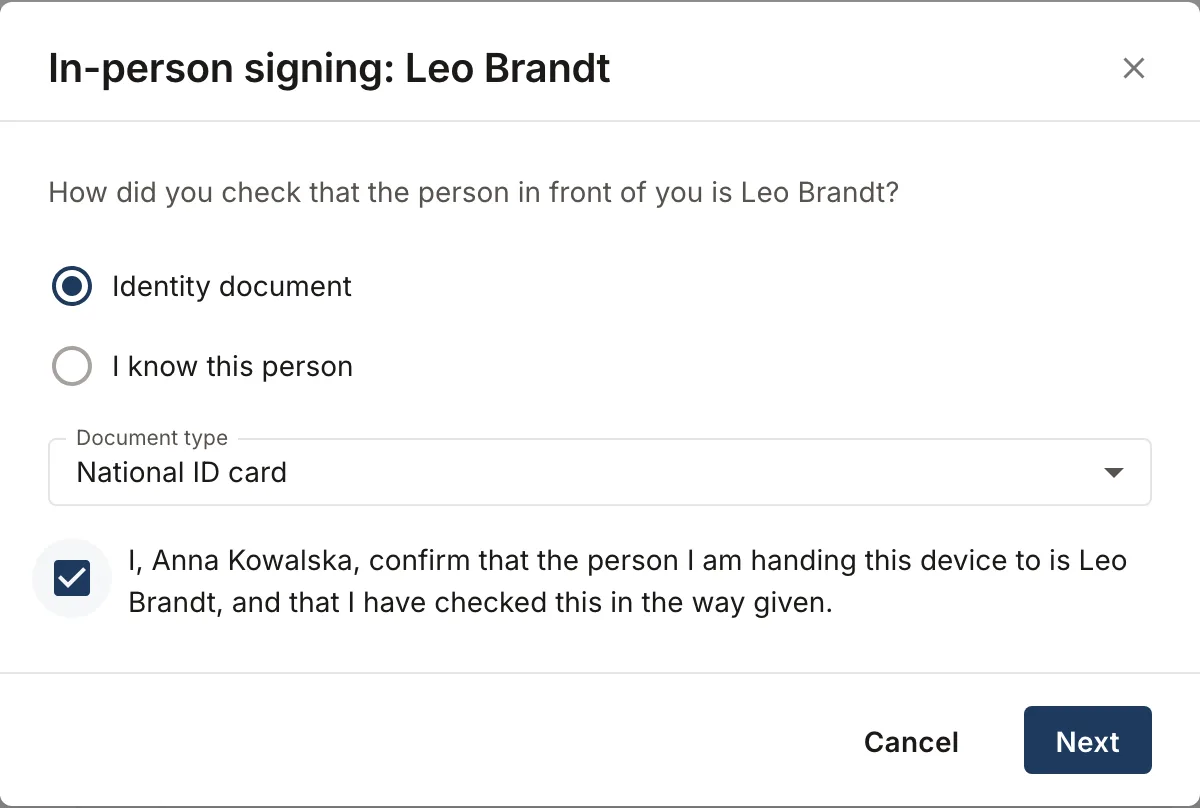
- Say how you checked the person in front of you: an Identity document, with its Document type (National ID card, Passport, Driver’s license or Other), or I know this person. Doxtly never asks for the document’s number.
- Tick the statement, which is worded with your name and the party’s: that the person you are handing the device to is the party, and that you checked this as you said. Choose Next.
- Confirm that it is you: a fresh sign-in at your organization’s identity provider, a code from your authenticator app, a code sent to your inbox, or your password, in that order of what your account has. The party may not see what you type, so step back if you need to. Choose Next.
- Read the warning that the application will lock until you take the device back, and choose Hand over the device.
The screen changes to a full-screen page with no menu, addressed to the party.
What the party does
Section titled “What the party does”They see who handed them the device and what they are signing, and Not you? Please hand the device back.
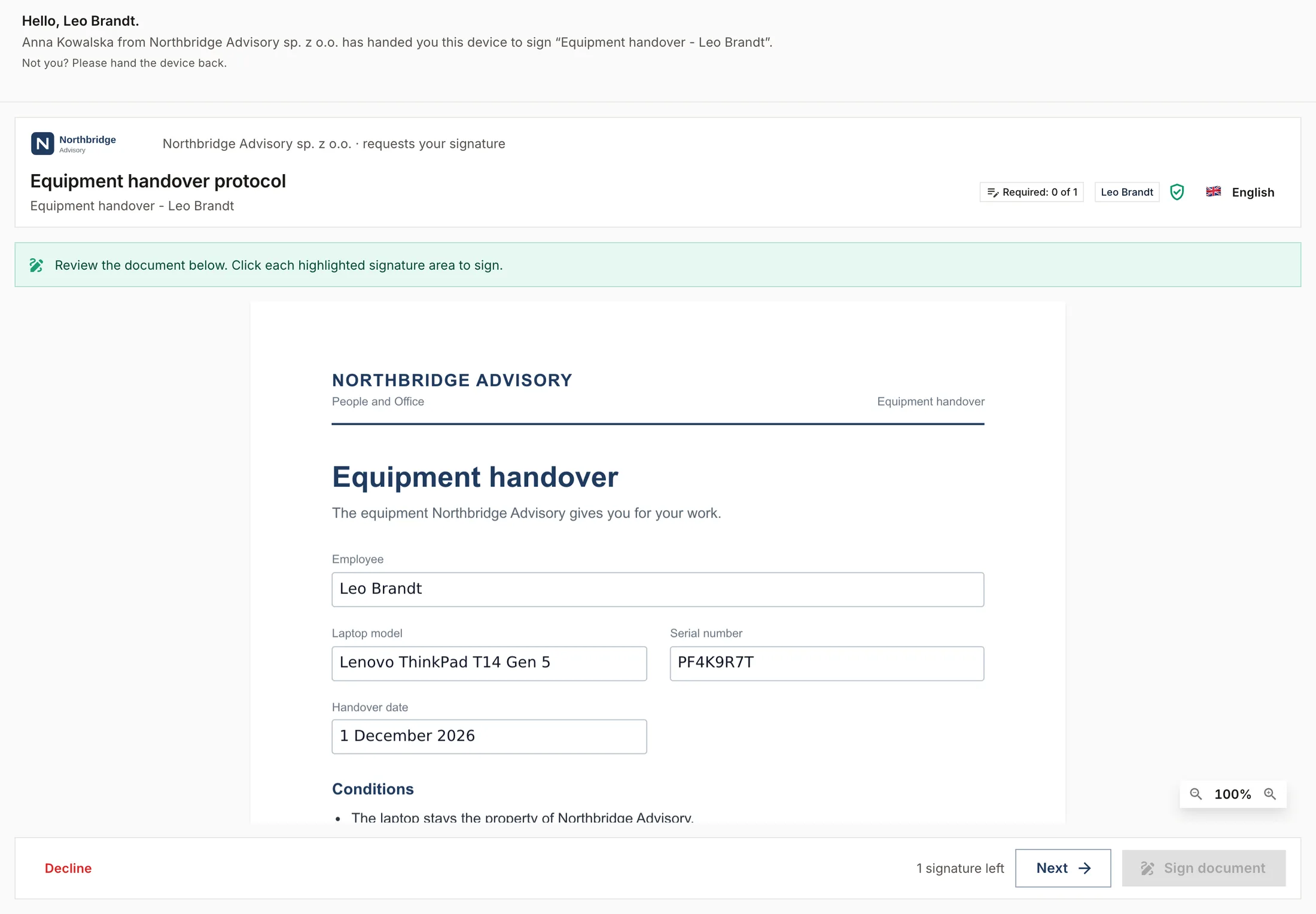
Then the page works as a signing page always does, with three differences:
- If the package asks them to verify, they do it here, on your device, with the method chosen for them: a code to their phone or inbox, or their access password. Step back while they type.
- My signature and Upload image are not offered: your saved signature on the account is never within reach, and they draw or type their own.
- There is nothing to download, and no paper route.
The page is in the party’s language, as through a link: the one chosen for them, or else their browser’s. When you take the device back, the application is in yours again.
Their consent is the in-person wording, which says the device was handed to them for this.
Take the device back
Section titled “Take the device back”When they have signed or refused, the page says Thank you. Please hand the device back to you by name. Choose I am your name – taking the device back, confirm it is you the same way you did before, and choose Take the device back. Everything the party had on the page is cleared from the device, and you return to the package’s page.
What the certificate shows
Section titled “What the certificate shows”
The audit trail records the handover, how it ended (signed or refused) and, as a separate line, the device being taken back. It names the channel as in person, Host: with your name and email in place of the Performed by line, how you checked the person (for example, passport), and the version of your statement. A party asked for no code of their own has no Authentication line: your check of who they are is all there was. It adds a sentence that the statement is yours, that Doxtly does not verify it, and that the record does not prove physical presence. A document number is never recorded, as the law asks: only what is needed for the purpose. The chain that links the document’s signatures binds the host and the statement, so changing either later would show.
The party’s own signature on the document stays the same as any other: nothing like “on behalf of” is added to it.
Keeping the party on the page
Section titled “Keeping the party on the page”To stop the person walking around the rest of the device while they sign, lock it to the browser before you hand it over:
- iPhone or iPad: Guided Access (Settings > Accessibility > Guided Access, then triple-click the side or Home button).
- Android: app pinning (Settings > Security and privacy > More security settings > App pinning).
- Company devices: a kiosk mode set up through your device management.
Who can do this
Section titled “Who can do this”The permission is Host in-person signing, in the same scope as View documents, on the packages you can read. The built-in Administrator, Manager and Member roles have it; Viewer does not. It works only from a signed-in session of yours, and never for a package you are a party to as yourself.
In a workflow
Section titled “In a workflow”No new trigger is needed: a party switched to Signs in person – do not send an invitation has in_person in _party.channel (the package’s party events) and in _recipients.<INDICATOR>.channel (the run that created the package). A party you hand the device to without that switch keeps secure_link there, because the value says how the party was set to sign, while the certificate records how they really did. A copy for the party comes through a workflow or from the host’s download, as for any other signature.