

Copper integration
A Copper integration connects your company’s Copper account, the CRM where your team keeps its people, companies and opportunities, to Doxtly. An opportunity moved to Proposal can start a workflow that writes the contract, and once the client signs, the opportunity is marked won and the signed PDF is attached to it.
Available when: your plan includes CRM integrations (Pro and Business), and you hold Manage integrations
On a plan without CRM integrations, Copper isn’t offered among the types. See Plans and limits.
What needs it
Section titled “What needs it”The same as every CRM integration: the four steps of the CRM group (Sync a contact with the CRM, Update a deal, which changes a Copper opportunity, Attach files in the CRM and Add a note in the CRM), the CRM trigger, and the people from Copper suggested where you type an address.
Get an API key
Section titled “Get an API key”Copper connects with an API key of one of your Copper users, and that user’s email address. Doxtly reads and writes as that user and hears only of the opportunities and people the user can see, so use the key of an administrator, best of a user you keep for integrations, such as doxtly@northbridge.example.
- In Copper, go to Settings, Integrations, API Keys and click Generate API Key.
- Copy the key. Copper shows it in full only now.
Connect Copper
Section titled “Connect Copper”- Go to Organization, Integrations, click New integration and pick Copper in the CRM group.
- Fill in Integration name, such as “Northbridge Copper”.
- Fill in User’s email address, the address of the Copper user who created the key, and paste the API key.
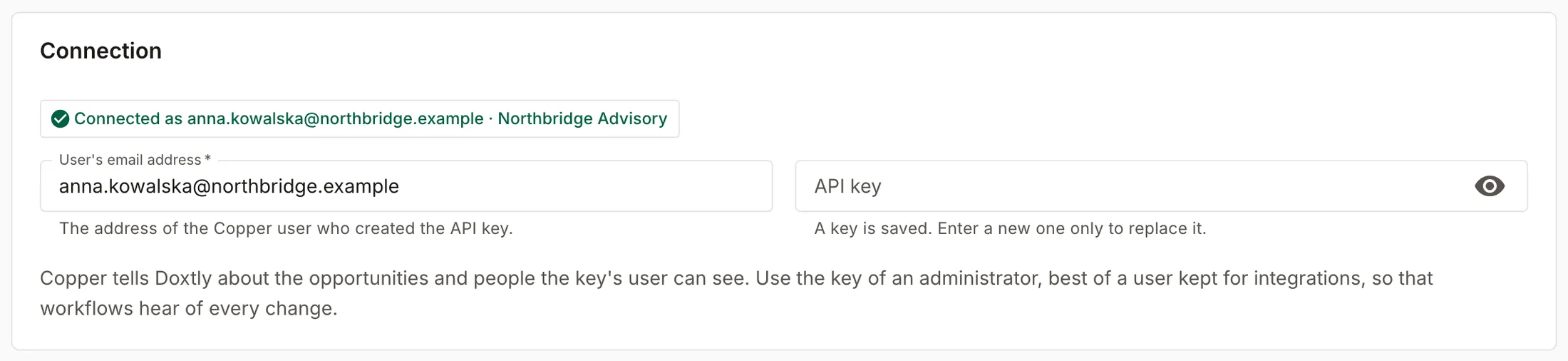
- Click Connect Copper. Doxtly checks the key with Copper, and the integration opens Active, showing “Connected as” with the address and the account’s name.
If Copper doesn’t accept the key with that address, nothing is saved and you see “Copper did not accept the API key with this address. Check that the key is active and that the address is the one of the Copper user who created it.”
The key is never shown again. To replace it, type the new one in API key and click Save; leaving the field empty keeps the saved key. A new key must belong to the same Copper account, because the IDs your contacts, companies and packages keep are that account’s.
Copper IDs and field mapping
Section titled “Copper IDs and field mapping”Once the integration is Active, the Copper IDs card lets you choose the custom fields that keep Copper’s IDs: Person ID (a field of contacts), Copper company ID (a field of companies) and Opportunity ID (a field of document packages). They work as the Pipedrive IDs do: a Text field, not sensitive, unique and not another integration’s.
The Field mapping card maps First name, Last name, Email, Phone and Job title to Copper’s fields of a person, and Company name to the company’s Name, from the start. Copper’s custom fields are offered by their names. Only values that hold something are copied, and Doxtly sends Copper only the fields that change, so the rest of a record stays as it is.
Changes in Copper reach Doxtly
Section titled “Changes in Copper reach Doxtly”Doxtly keeps three webhooks in your Copper account, for opportunities changed and people created and changed. It makes them as you connect, checks them every hour and removes them when you delete the integration; Copper allows 100 of them an account.
- An opportunity moved to another stage, or marked won, lost or abandoned, starts the workflows listening to it. An abandoned opportunity counts as lost.
- A person created or changed starts the workflows listening to people.
- Copper doesn’t say who made a change, so any change to a record Doxtly wrote in the five minutes before is taken for Doxtly’s own and starts nothing.
- Copper calls each webhook once and never again. That’s why Doxtly also looks, every hour, at the opportunities changed since it last looked: an opportunity moved, won or lost while Doxtly couldn’t be reached still starts its workflows, up to an hour late, and a change both the webhook and that look find starts them once. A person changed in that time isn’t heard, nor is a move undone before Doxtly looks, nor an opportunity that was only marked won or lost if Doxtly has heard nothing of it since you connected the integration.
- Copper has no way to tell Doxtly of merged records. After a merge, a step working on the record merged away fails with “Copper has no such record. It may have been deleted or merged into another one.”; a contact is found again by its email address the next time it is synchronized.
When the key stops working
Section titled “When the key stops working”The integration turns Invalid when Copper no longer takes the key, for example because it was deleted in Copper or its user was deactivated. Steps on it fail with “Copper no longer accepts Doxtly’s connection. Connect the integration again.”, and the page says “Copper no longer accepts the API key. Enter a new one and save.” Enter a new key and click Save: the integration is active again, and its IDs and mapping are kept.
Test connection asks Copper which account the key belongs to. Nothing is changed in Copper.
Copper’s limits
Section titled “Copper’s limits”Copper takes 180 requests a minute from an account. Over it, Doxtly waits and tries again by itself; if that’s not enough, the step fails with “Copper is limiting the number of requests. Try again in a moment.”
Delete a Copper integration
Section titled “Delete a Copper integration”Deleting the integration removes its webhooks from Copper and forgets the key; to revoke the key itself, delete it in Copper’s API Keys. Workflow steps on it then fail, and workflows listening to it no longer start. The custom fields keep the IDs they hold, and nothing in Copper is deleted.