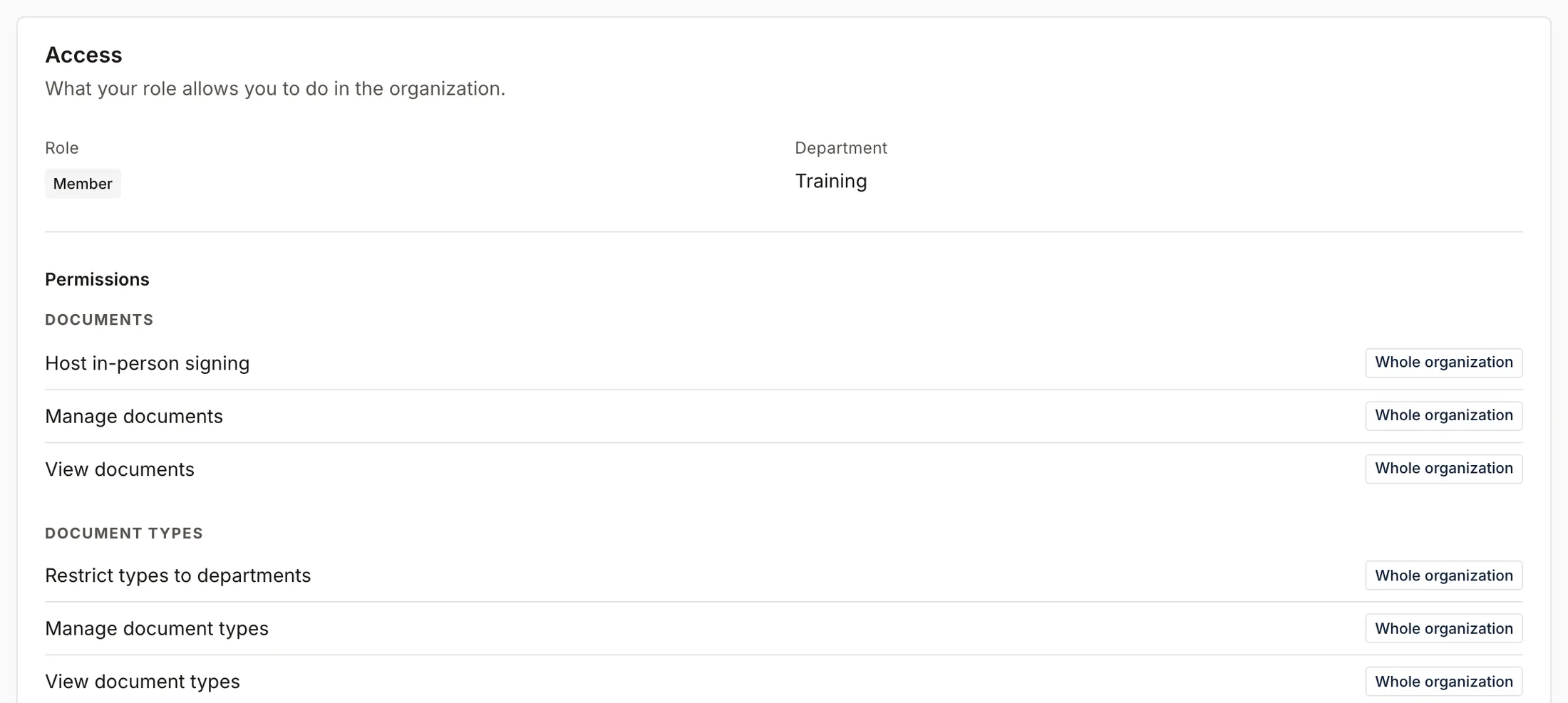
Users
The Users page is where you see who is in your organization and what they hold, and where you act when someone changes team, goes on long leave or leaves the company. To bring someone new in, see Invitations. Plans don’t limit how many people you can have.
Available when: your role has View people or Invite people. The Users tab needs View people, and the Invitations tab needs Invite people
Open it from Users in the Organization group of the sidebar. You get two tabs, Users and Invitations, and the Invite user button at the top if you may invite.
Who you see
Section titled “Who you see”The list follows the reach of your View people permission:
| Reach | What you see |
|---|---|
| Whole organization | Everybody |
| Own department | The people of your department, and yourself. If you are in no department, only yourself |
| Own records | Only yourself |
So a built-in Member sees their own team, and a built-in Viewer sees one row: their own. A Member in no department also sees only themselves.
Reading the list
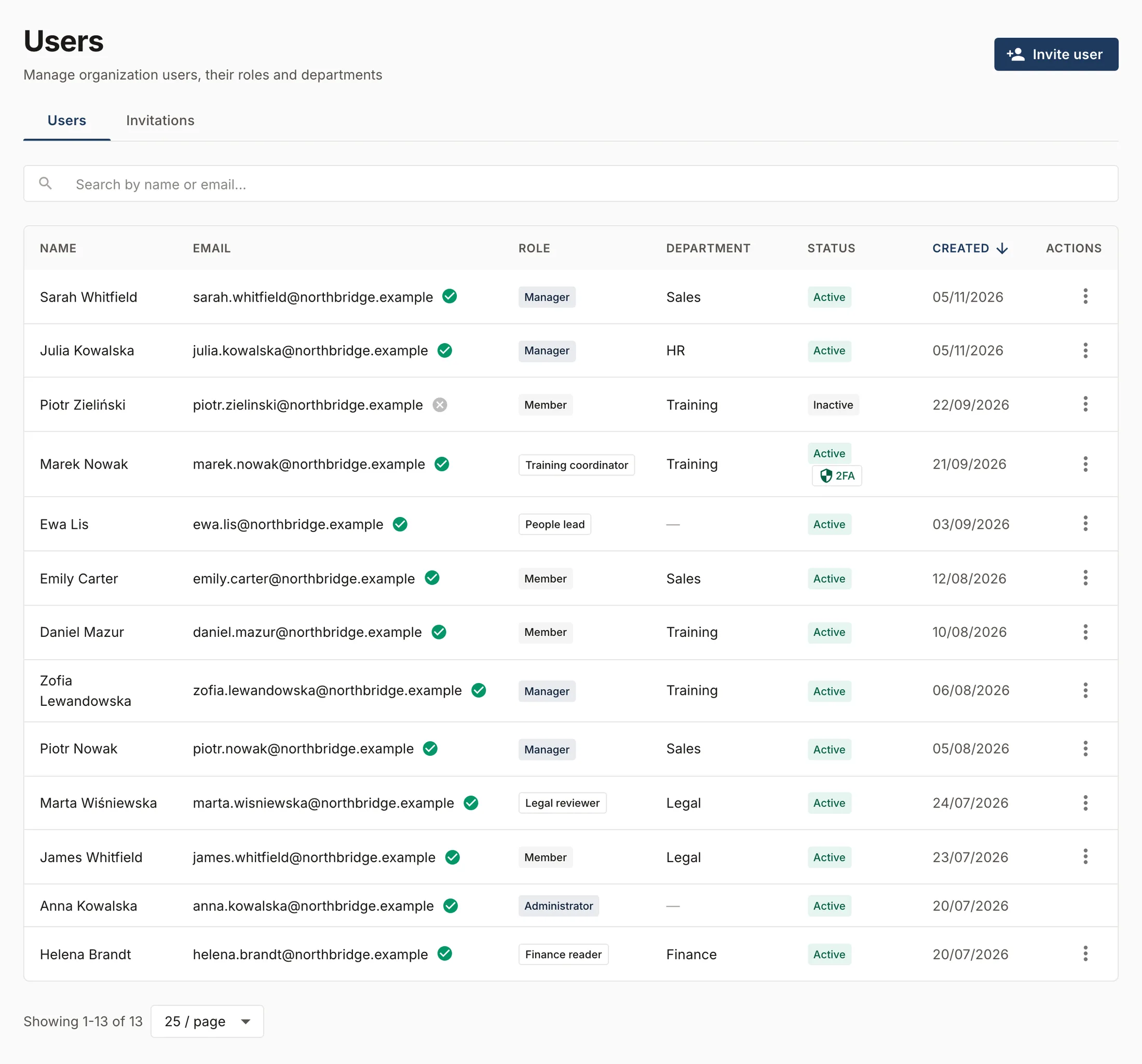
Section titled “Reading the list”| Column | What it shows |
|---|---|
| Name | First and last name, as the person gave them in this organization. |
| The address, with a green mark for Email verified or a grey one for Email not verified. Rest the pointer on the mark to read it. | |
| Role | The role they hold. Administrator and Manager are filled chips in the app’s main color, Member and Viewer grey ones, and the roles your organization made itself are outlined. |
| Department | Their department, or a dash if they have none. Many people won’t have one, and that’s fine. |
| Status | Active or Inactive. A 2FA chip beside it means they sign in with two-factor authentication, which helps you see who is ready before you make it compulsory. |
| Created | When they joined. |
| Actions | The menu of what you may do to this person. |

The search box looks through first name, last name and email. Your search appears as a chip you can remove, and Clear filters empties it. If nothing matches, the list says No results found and offers the same button. Click any column heading except Actions to sort by it, again to reverse, and a third time to return to the default order, newest first. Name sorts by first name, and Created only switches between its two directions, because newest first is already its order. The list shows 25 people a page.
On a phone, each person is a card with the same details.
What you can do to a person
Section titled “What you can do to a person”Press the three dots at the end of a row.
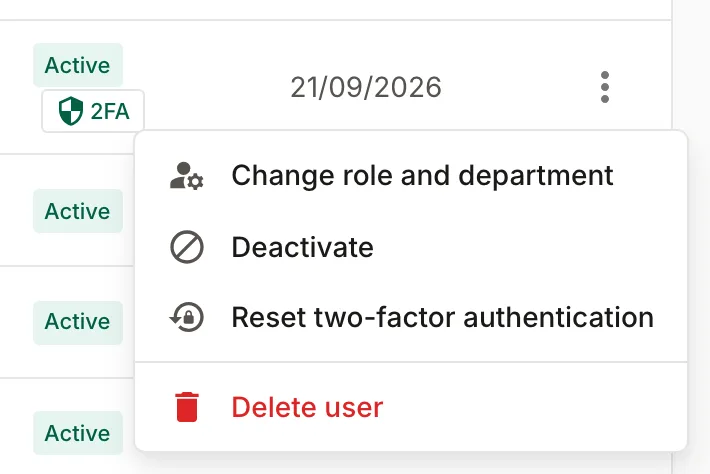
The menu shows only what you may do to this person, and a row with nothing on offer has no menu at all. Three rules decide:
- Your own row has no menu. You can’t change your own role, deactivate yourself or delete yourself, so nobody locks themselves out by accident.
- Your permission must reach them. With Manage people at Own department, you can act only on people in your department.
- Their role must be one you could hand out yourself. If their role allows anything you don’t hold, you can’t touch them. That’s why a Manager can’t change, deactivate or delete an Administrator, even though a Manager’s reach is the whole organization.
Change role and department
Section titled “Change role and department”Available when: your role has Manage people reaching this person
Choose Change role and department in the menu, or click anywhere on the row. Use it when someone is promoted or moves to another team. When Marek takes over the Training department, for example, you give him the role “Training coordinator” and put him in Training.
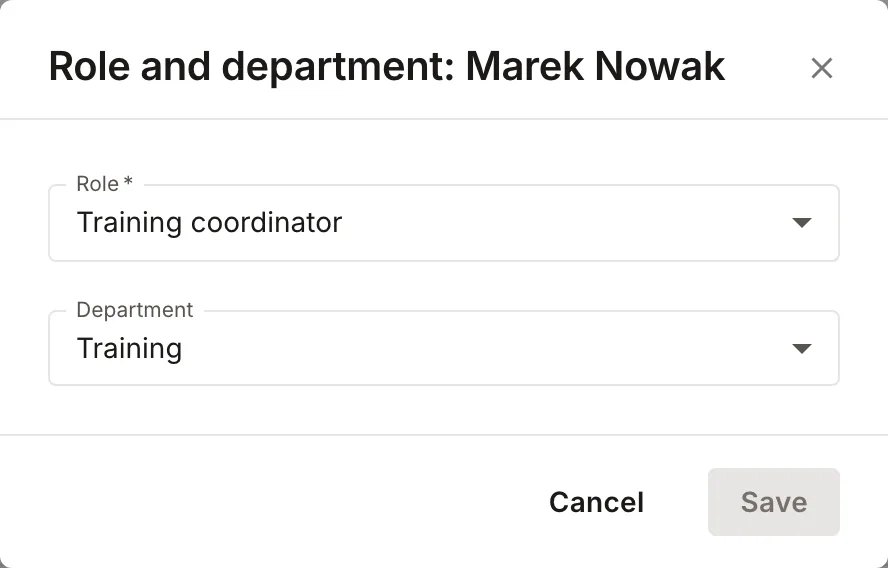
Role lists the roles you may hand out. Department lists the departments your permission reaches, plus No department if you manage people across the whole organization. If your reach is only your own department, the field says You can only choose your own department. A department the person is in that you couldn’t choose yourself stays visible, greyed out, and you can leave it as it is. Save turns on once something has changed.
The change takes effect at once. Moving someone to another department also changes what any department-limited permissions of theirs reach.
Deactivate
Section titled “Deactivate”Available when: your role has Manage people reaching this person
Deactivate switches a person off without deleting anything. They are signed out of this organization straight away, and from then on signing in here gives them Account is disabled. Their records, role and department stay. Activate, in the same place, lets them back in, and they sign in afresh.
Use this for long leave, or as the first step when someone leaves: it’s instant and you can undo it. Deactivation concerns this organization only. Their account keeps working in any other organization they belong to.
Deactivating someone doesn’t touch the access keys they made. Those belong to the organization and keep working until someone disables them.
Deactivate always opens a dialog first, titled with the person’s name. If they leave nothing behind, it says This person is not responsible for any open package, is not named in any workflow and nobody is waiting for them. Continue?, and Hand over and deactivate goes ahead. Otherwise it lists what they leave: Open packages with their titles (the first 20 when there are more), Workflows naming them and Places waiting for them as a party, and asks one thing: Hand everything to.
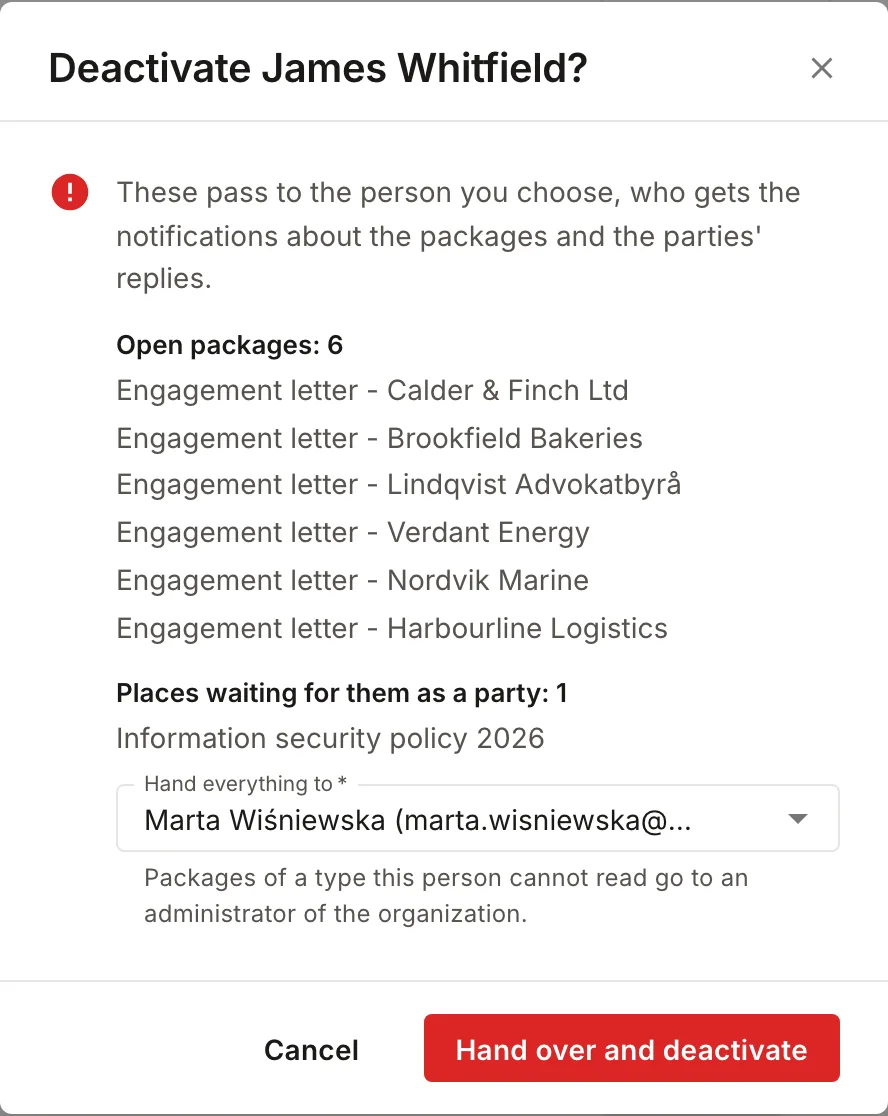
Choose the person and click Hand over and deactivate. The list offers every active colleague who may view documents. Their open packages and workflows pass to that person, who from then on gets the notifications about those packages and the parties’ replies. The places they are waited on pass too, except where they have already signed, viewed or filled something in: those parties can’t be replaced and stay as they are. A package of a type the person you chose can’t read goes to the organization’s longest-standing administrator instead, and so does a workflow step that sends documents of such a type. Each package’s audit trail records who took over from whom.
Reset two-factor authentication
Section titled “Reset two-factor authentication”Available when: your role has Reset two-factor authentication reaching this person, and they have two-factor authentication on
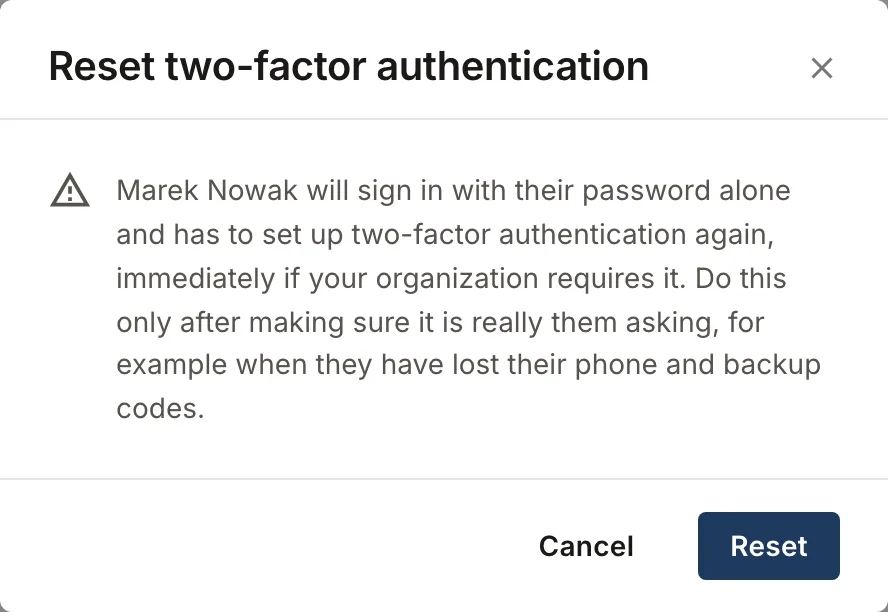
When a colleague has lost their phone and their backup codes, this is how they get back in. It takes their two-factor authentication off, so they can sign in with their password alone. If your organization requires it, they have to set it up again at once. The item appears only for someone who has two-factor authentication on, and the same rule about their role applies as for the rest of the menu.
Among the built-in roles only Administrators hold this permission, and you can give it to a custom role separately from managing people.
You can’t reset your own here: that’s done in your security settings. You also can’t reset it for someone who uses the same Doxtly account in another organization, because the same authenticator protects that organization too. Doxtly then tells you so. That person can sign in with a backup code, or contact Doxtly support.
Delete user
Section titled “Delete user”Available when: your role has Manage people reaching this person
Delete user removes the person from your organization, along with their avatar, saved signature and initials, and their notifications in it. It can’t be undone, and they lose access at once. If you want them back, send a new invitation.
Only their membership here goes. Their Doxtly account, password and any other organizations stay. So does the work: forms, templates, signed documents and their audit trails, and any access keys they made.
Someone who ever gave or held a signing authorization, even one that has ended, can’t be deleted, because those stay on record. Doxtly says so: This person gave or held signing authorizations, which stay on record, ended ones too, so they cannot be deleted. Deactivate them instead.
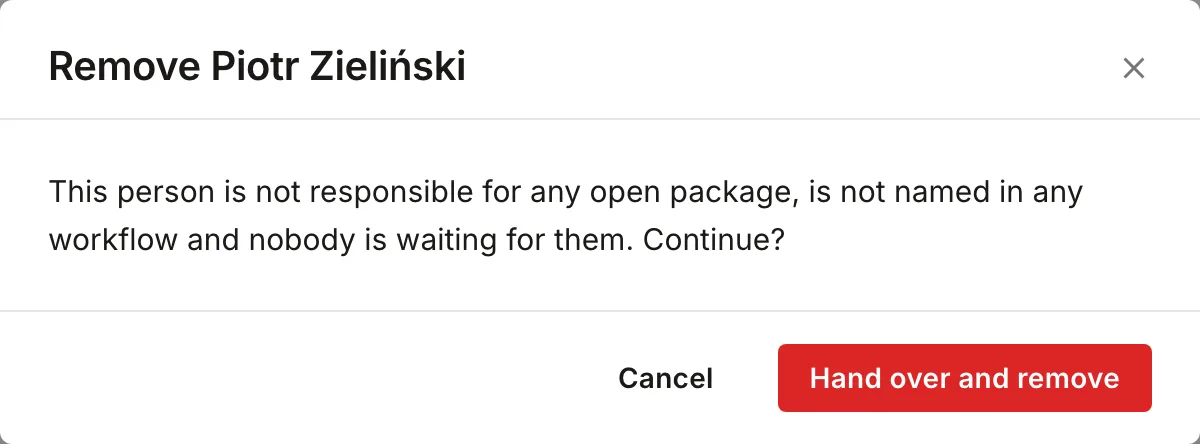
Delete user opens the same dialog as Deactivate, titled Remove and the person’s name, with Hand over and remove. If the person answers for open packages, is named in workflows or is waited on, choose who takes it over first.
The last administrator
Section titled “The last administrator”An organization always keeps at least one active Administrator, so somebody can always manage access and billing. Doxtly refuses to demote, deactivate or delete the last one. To hand over, first make someone else an Administrator, and then have them change your role.
This counts the built-in Administrator role only. A custom role with the same permissions doesn’t count.
When someone leaves the company
Section titled “When someone leaves the company”Say Julia is leaving Northbridge Advisory on Friday. A sensible order:
-
Deactivate her on Friday evening, choosing who takes over her open packages, workflows and the places she is waited on. She is out at once and nothing is lost.
-
Check the access keys list for keys she created. They keep working after she goes, so disable any that shouldn’t.
-
If she held signing authorizations, make sure someone else can now act on those packages.
-
Once her work has been handed over, choose Delete user if you want her gone from the list. You can also leave her deactivated: a person on the list takes nothing from your plan, and if she ever gave or held an authorization, that’s your only choice.
Questions that come up
Section titled “Questions that come up”A colleague changed their name. Can I edit it? No. Only the person can edit their own name, in their profile. The name is per organization, so changing it here leaves their other organizations as they are.
Can I reset someone’s password? No. They use Forgot password? on the sign-in page. Administrators never set a password.
Can someone see their own access? Yes. The Role & permissions tab of the profile shows their role, department and every permission with its reach.