

Import and export
A quiz or a survey can be saved as a single JSON file and imported as a new one, in your organization or in another. Use this to carry an exam from a test organization to the live one, to share a ready survey with a partner school, or to keep a copy of a test before you rework it.
The file holds the quiz itself. The people who take it, and everything they left behind, stay in the organization they belong to.
Export a quiz or a survey
Section titled “Export a quiz or a survey”In Quizzes or Surveys, open the menu at the end of a row and choose Export. You get the quiz as last saved, in a file named after it, for example quiz-safety-at-work.json or survey-customer-feedback.json.
From the designer, open More actions and choose Export. You get the quiz as it stands in the designer, including changes you haven’t saved, even before you create it. If the file can’t be made at that moment, you’ll see “The file could not be exported” and no file is made.
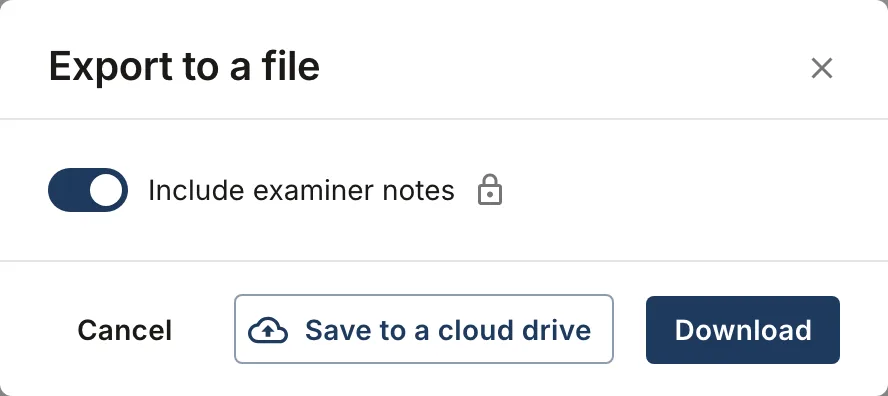
If you may read the examiner notes (you have Grade attempts or Manage quizzes), the Export to a file window asks whether to Include examiner notes. It is on by default. Switch it off when the file goes to anyone who shouldn’t read them, such as the people who will take the quiz. A survey has no examiner notes, and someone with only View quizzes, attempts and results gets the file at once, always without them.
In the window, Download saves the file on this device. With a connected drive whose files you may change, Save to a cloud drive saves it there instead.
What the file holds
Section titled “What the file holds”| In the file | Not in the file |
|---|---|
| The title, the kind (quiz or survey) and the Active state | Attempts, answers, points and grades |
| The introduction, every question, section and content block, in order, with their pictures | The access list, the people on it, and the sheet it is read from |
| Each question’s options, “Other”, answer key, rubric items, points and explanation | Personal links, invitations and distributions |
The result texts, and the variables ({{ … }}) written in any text |
The quiz’s password |
| Every language version | The quiz’s link and ID |
| All settings: timing, navigation, result and release, retakes, schedule, answer sheet, the security of the link | The workflow that makes its certificates |
| The theme: a built-in one by its name; one of yours with its colours | Your other themes |
| The grading scale, with its name and grades | Your other grading scales |
| The examiner notes, when you include them | |
| The name of the reCAPTCHA integration that protects its link | The integration itself |
Import a quiz or a survey
Section titled “Import a quiz or a survey”-
In Quizzes, or in Surveys for a survey, press Import from a file. In the Import from a file window, pick a
.jsonfile from this device or from a connected drive, check the title it shows and press Import. Quizzes and surveys are two products: a survey’s file is imported only among the surveys and a quiz’s only among the quizzes, and the other one’s is refused with a message saying what the file holds. -
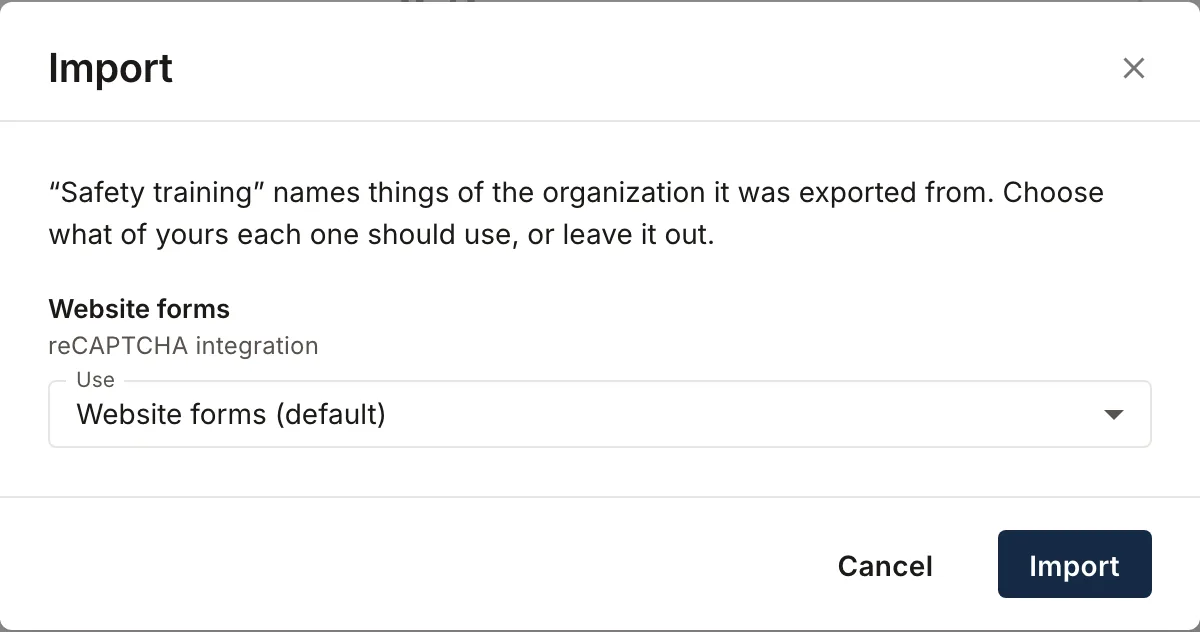
If the quiz’s link was protected by reCAPTCHA, a second window, Import, asks which of your reCAPTCHA integrations to use. Use takes one of yours; Leave out takes none. Press Import.
-
If Doxtly had to leave something out, a window Imported, with something left out lists it. Read it and press Review.
-
Check the new quiz in the designer and press Create.
Nothing is stored until you press Create: not the quiz, and not the theme or grading scale it brings. A survey’s file holds no grading scale and no examiner notes, since a survey grades nothing. Importing a quiz needs Manage quizzes, and importing a survey Manage surveys.
The theme and the grading scale
Section titled “The theme and the grading scale”| Item in the file | What happens when you press Create |
|---|---|
| A built-in theme | The quiz uses the same theme. |
| One of the exporting organization’s themes | If you have a theme with exactly the same colours and fonts, the quiz uses it. Otherwise a new theme of the same name is made for you. |
| A grading scale | If you have a scale with exactly the same grades and thresholds, the quiz is graded by it. Otherwise a new scale of the same name is made, and you’ll find it under Grading scales. |
Until you press Create, the settings show the scale as the quiz’s own. It grades the same either way.
What is left out, and why
Section titled “What is left out, and why”| Message | What happened |
|---|---|
| reCAPTCHA is switched off: there is no reCAPTCHA integration to protect the quiz with. Connect one and switch it on again in the quiz’s settings. | No reCAPTCHA integration was chosen. A link that asks for reCAPTCHA with nothing to verify it would refuse every attempt. |
| Only the people of its access list may take it, and people never travel in a file: add them on the quiz’s People and access page. | The quiz is taken by a list of people. The list stays empty until you add people or connect a sheet. |
| The certificate workflow “…” belongs to the organization the quiz came from: choose a certificate workflow again in the quiz’s settings. | Certificates were made by a workflow, which isn’t part of the file. |
| The picture “…” was left out: it is too large or of a format Doxtly does not take. | One picture couldn’t be stored. The question stays without it. |
After importing, check these
Section titled “After importing, check these”- Password. The file never holds one. Set it again in the settings if the quiz needs it.
- People and access. Add the people again, or connect the sheet they are read from, on People and access.
- Workflows. A quiz’s workflows, its certificate workflow among them, aren’t part of the file. Import them after the quiz: Doxtly suggests the imported quiz, by its name, for every trigger and step that named the original. The grades a trigger listens to keep working, because a scale is copied with its grades.
Who can do it
Section titled “Who can do it”Exporting needs View quizzes, attempts and results; the examiner notes go in only for someone with Grade attempts or Manage quizzes. Importing needs Manage quizzes, as creating a quiz does. An access key can export a saved quiz with the export_quiz operation (see Export a quiz); importing is done in the app.