

Settings and connecting to Doxtly
The plugin has one settings screen. It says where your Doxtly is and, if you want editors to pick forms from a list and find them when they add a link, holds the access key. Forms on your pages work without a key: it only changes how editors choose them.
Available when: the Joomla user may reach the component's administration, usually an Administrator or a Super User
Open Components → Doxtly Forms in the Joomla administrator.
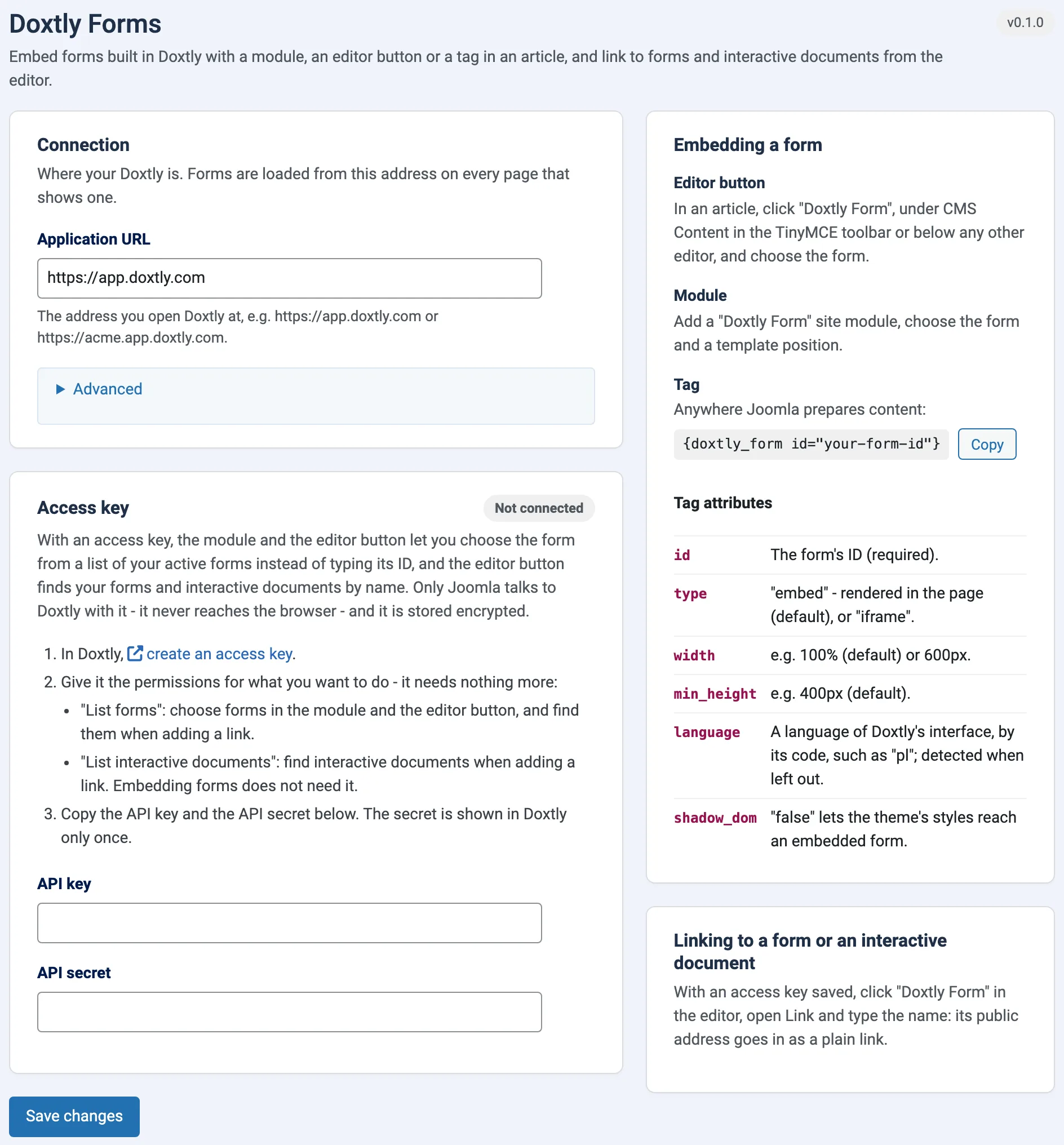
Connection
Section titled “Connection”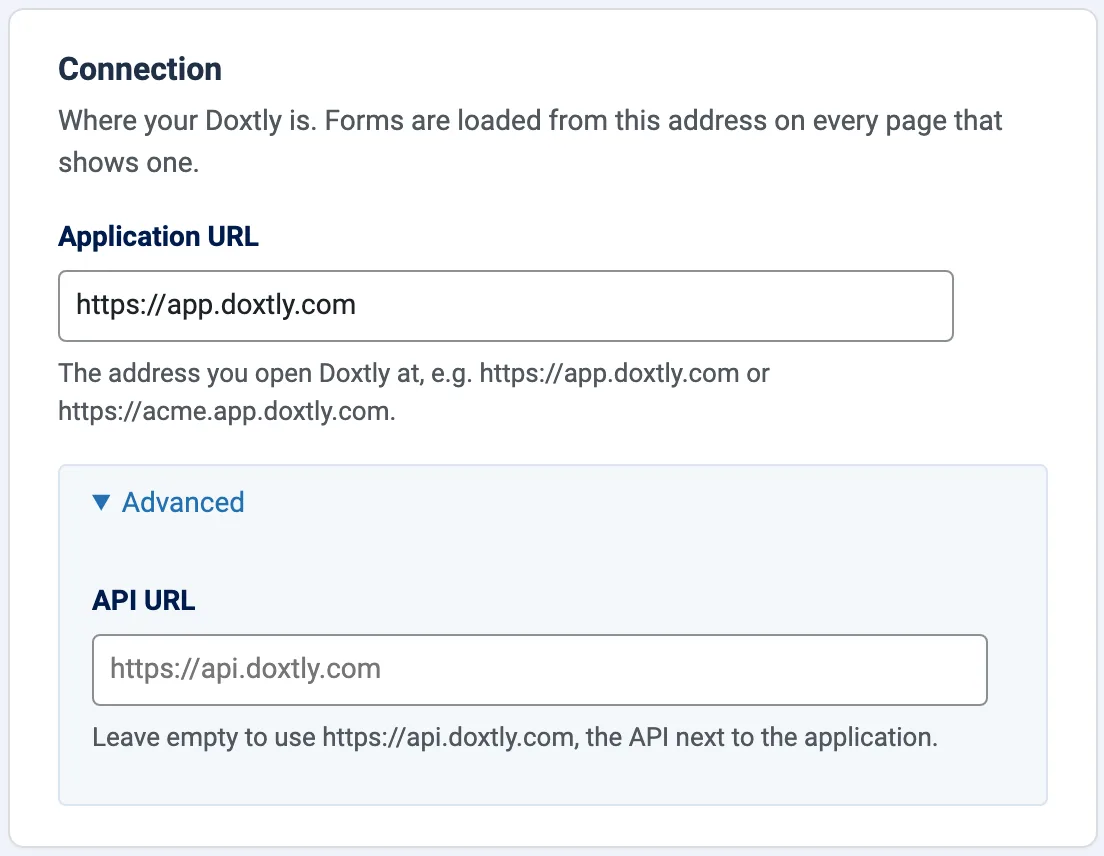
| Field | What it is for | Default |
|---|---|---|
| Application URL | The address you open Doxtly at, such as https://app.doxtly.com, or https://northbridge.app.doxtly.com if your organization has a subdomain. Every page with a form loads it from here. |
https://app.doxtly.com |
| API URL (under Advanced) | Where Joomla reads the lists of forms and interactive documents. Leave it empty: the plugin takes the Application URL and turns its app part into api. |
Worked out from the Application URL |
API URL matters only if your Application URL has no app part in it. The plugin then opens Advanced by itself and says so. This field is used for the lists in the editors, not for showing forms to visitors. Links found with the Link tab use the Application URL.
Both must be valid http or https addresses. A trailing slash is removed for you.
The access key
Section titled “The access key”An access key lets Joomla ask Doxtly what it can offer your editors. Without one, they type or paste a form’s ID, and the Link tab finds nothing. What a key gives depends on its permissions, and you choose only what you need:
| Permission | What editors get | Without it |
|---|---|---|
| List forms | A list of form names in the dialog and the module, and your active forms in the Link tab | Forms are entered by their ID and the Link tab doesn’t find them |
| List interactive documents | Your active interactive documents in the Link tab | Nothing changes for forms. Skip it if you only embed forms. |
| List quizzes, List surveys | A list of your active quizzes and surveys on the Quiz or survey tab of the Doxtly Form button, and both in the Link tab | Quizzes and surveys are placed by their token, and links to them are pasted |
| Read themes of public pages | A list of your Doxtly themes under Doxtly theme, wherever forms, quizzes and surveys are placed | The theme set in Doxtly is used, or a theme’s ID is typed |
Available when: your Doxtly role holds Manage access keys, to create the key
Keys are part of every plan. A key belongs to the organization and not to a person, so it keeps working when a colleague leaves.
-
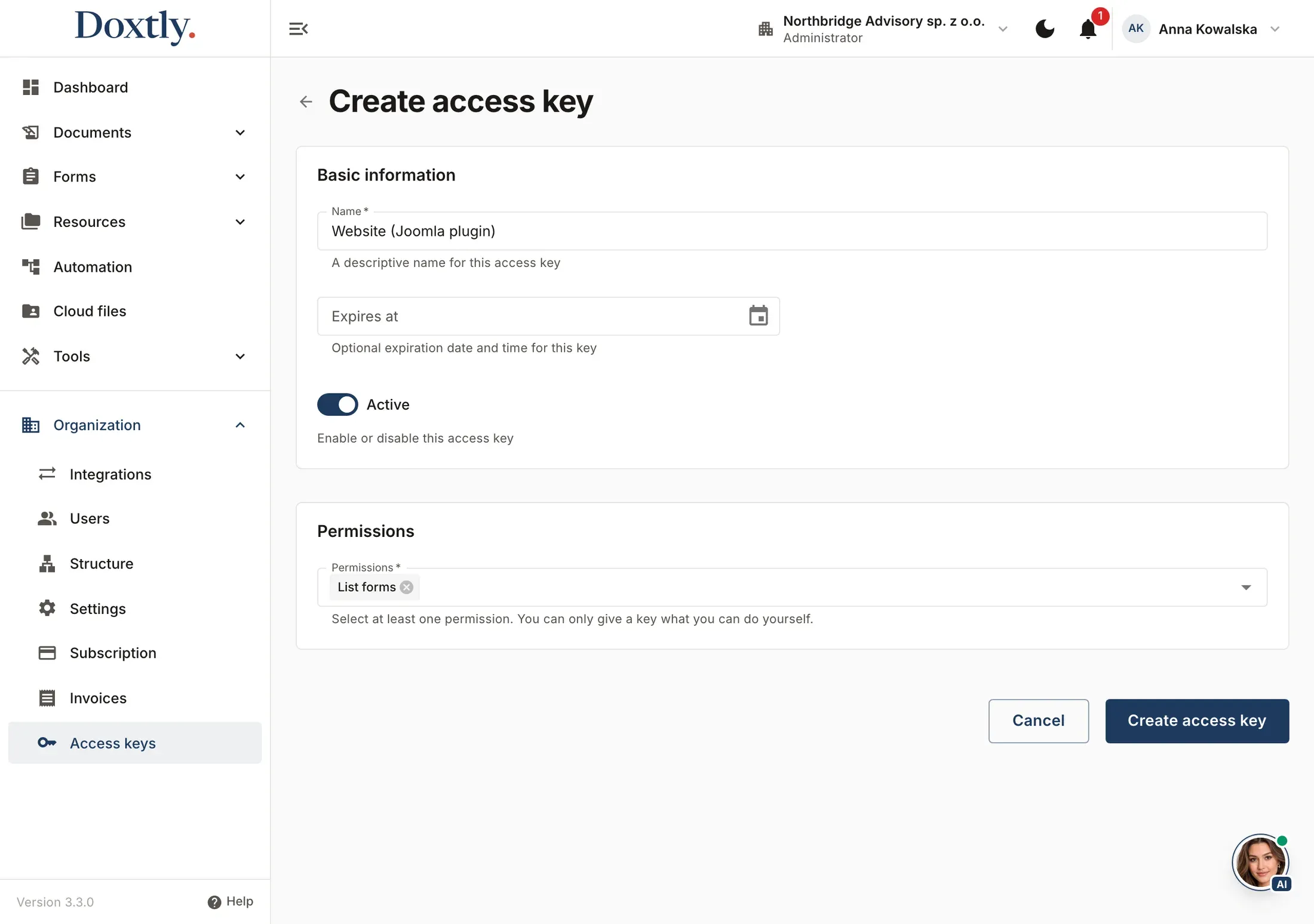
On the settings screen, click create an access key. This opens the new key form in Doxtly, at the address you entered as the Application URL.
-
Give the key a name that says what it is for, such as “Website (Joomla plugin)”.
-
Under Permissions, choose List forms. To link to interactive documents as well, add List interactive documents, and for quizzes and surveys List quizzes and List surveys. The plugin needs no more. You can only give a key what your own role allows.
-
Click Create access key and copy the API key and the API secret. Doxtly shows the secret only once.
-
Back in Joomla, paste them into API key and API secret and click Save changes.
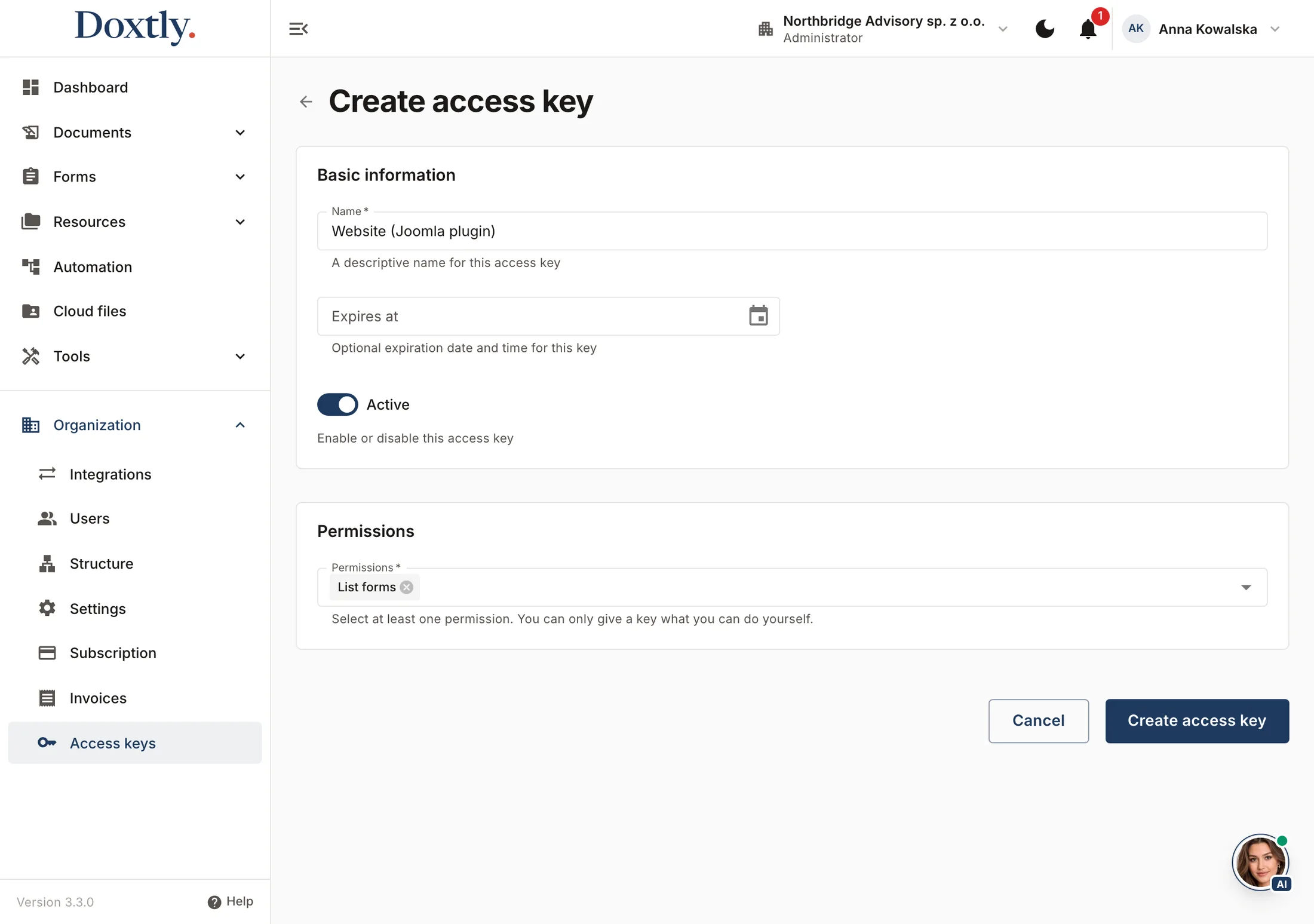
The screen then checks the connection and tells you what the key can read.
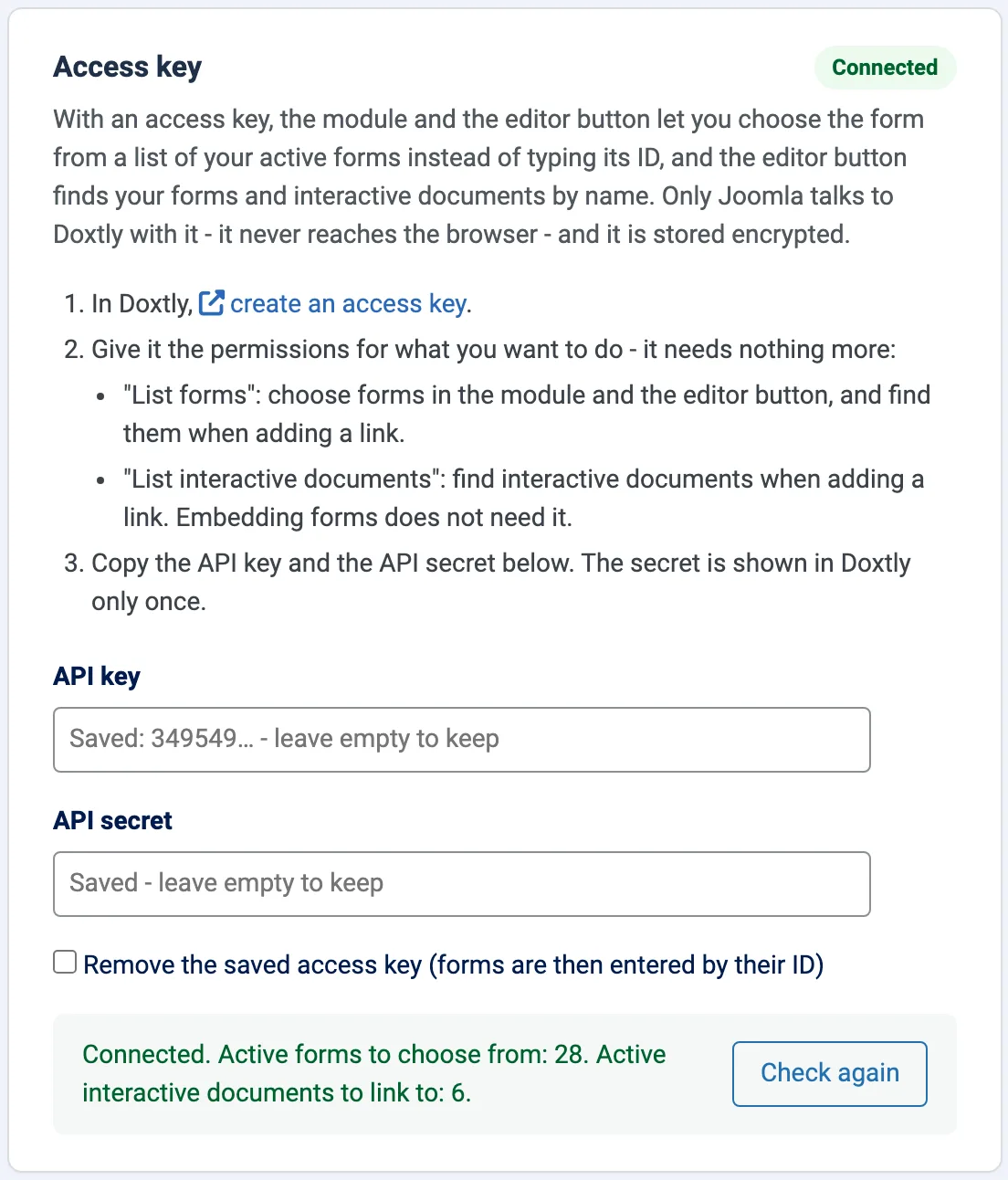
What you need to know about the saved key:
- Only Joomla uses it. It never reaches a visitor’s or an editor’s browser. Editors get names, IDs and links through your own site.
- It is stored encrypted, and the screen never shows it again. You see its first few characters so that you can tell which key is saved.
- It can do nothing but read the lists, if you gave it only the permissions above.
- Leave a field empty when you save and the stored value stays. That is how you replace only the secret after rotating a key.
Check again repeats the test straight away, against Doxtly itself. Saving the settings forgets the lists held in Joomla, so the next look reads them afresh.
Status
Section titled “Status”The label beside Access key tells you where you stand.
| Label | What it means |
|---|---|
| Not connected | No key is saved. Editors enter forms by their ID. |
| Checking… | The screen is reading the lists. |
| Connected | The list of forms was read. The message below it gives the number of active forms and of active interactive documents. If the key lacks List interactive documents, it says so. That is no fault: a site that only embeds forms needs nothing more. |
| Connected, without forms | The key reads interactive documents but lacks List forms, so forms are entered by their ID and the Link tab doesn’t find them. |
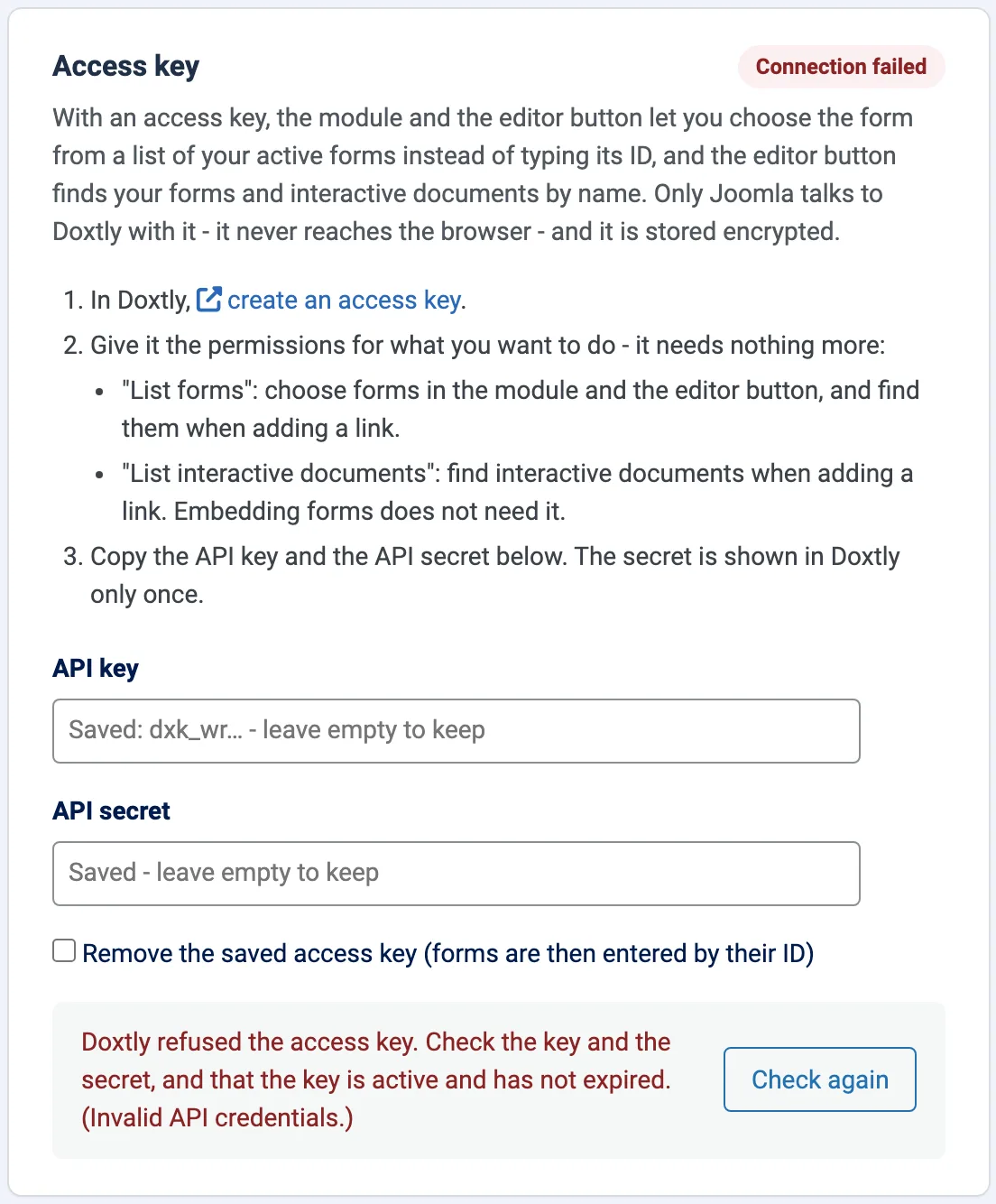
| Connection failed | The list of forms could not be read. The message says why. See Troubleshooting. |
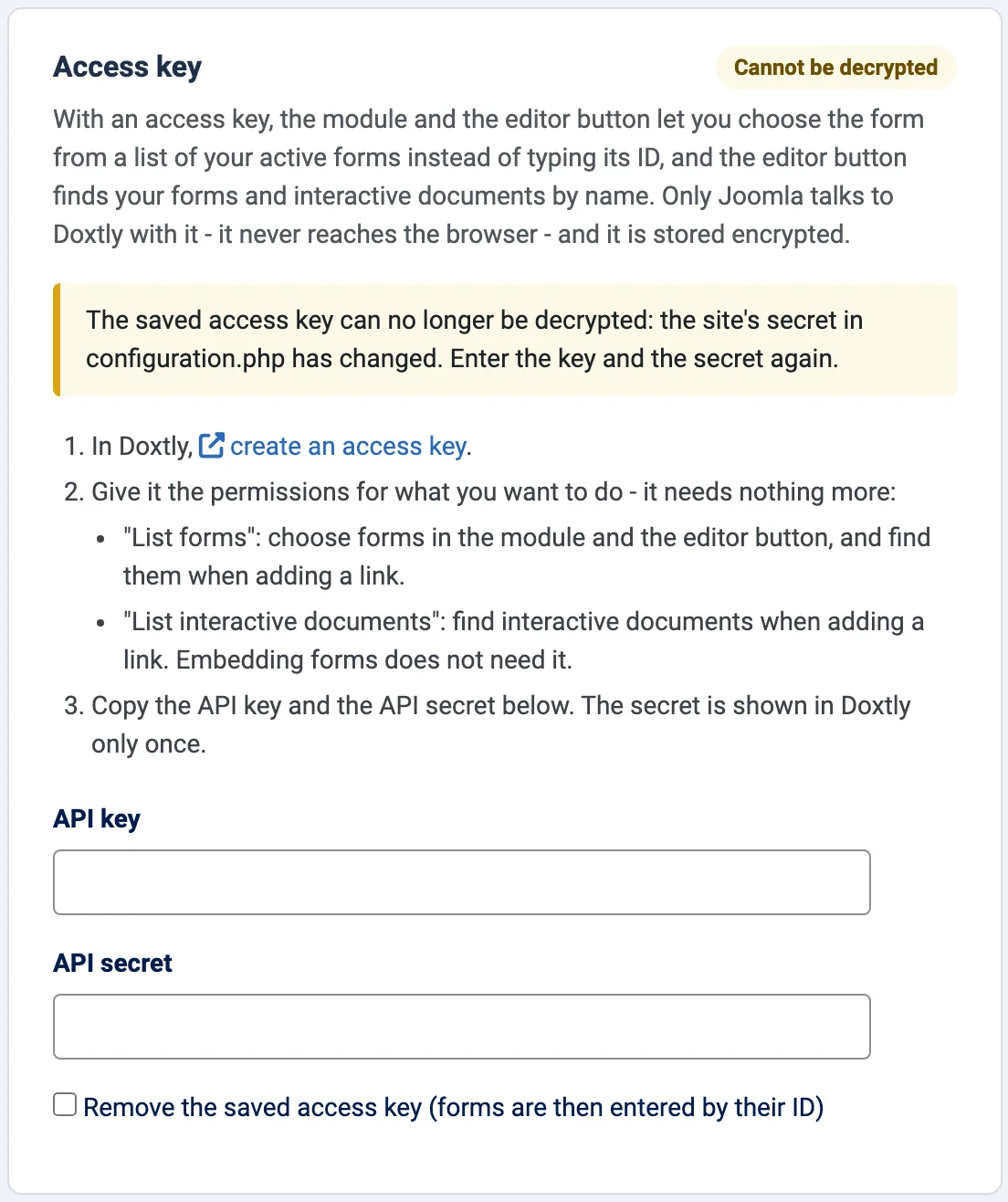
| Cannot be decrypted | The saved key no longer opens. See below. |
Where the encryption key comes from
Section titled “Where the encryption key comes from”Joomla encrypts the access key with a secret that lives outside its database, so a copy of the database alone does not give the key away. That secret is the $secret value of your site’s configuration.php, which Joomla sets when it is installed. There is nothing to set up.
If that value changes, the stored key can no longer be read, and a site moved to a new configuration.php meets the same thing. The status changes to Cannot be decrypted. Forms on your pages carry on working. Enter the key and the secret again.
Removing the key
Section titled “Removing the key”Tick Remove the saved access key (forms are then entered by their ID) and click Save changes. Forms already placed on pages keep working. To cut the connection from the other side as well, disable or delete the key in Doxtly.
Embedding a form
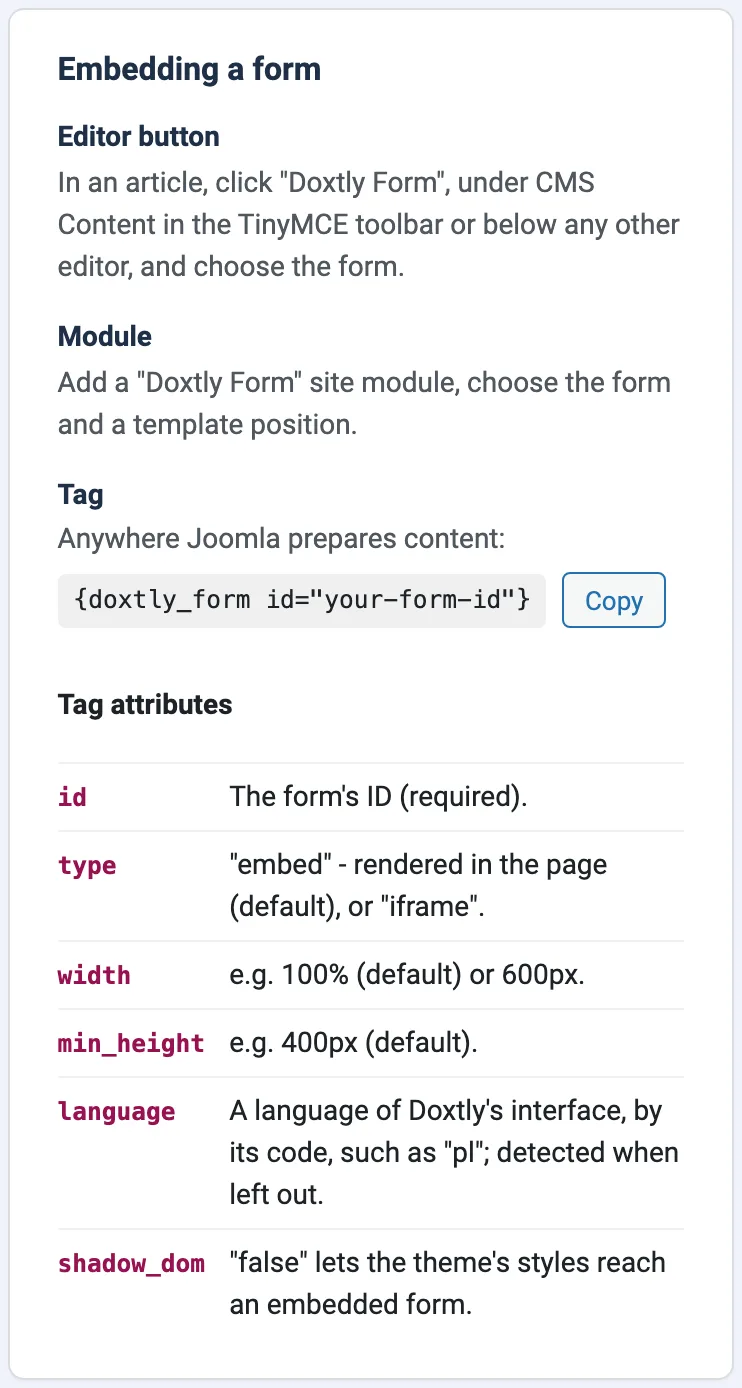
Section titled “Embedding a form”The card on the right is a reminder for whoever opens this screen: the three ways to place a form, a tag with a Copy button and the list of tag attributes. It changes nothing. The copied tag holds a placeholder, so replace your-form-id with a real ID. The card below it, Linking to a form or an interactive document, sums up the Link tab.
Messages after saving
Section titled “Messages after saving”| Message | What happened |
|---|---|
| Settings saved. | Everything was stored. |
| The settings were not saved: an address is not a valid http(s) URL. | Nothing was stored. Correct the address and save again. |
| The addresses were saved, but the access key was not: enter both the API key and the API secret, without spaces. | The addresses are stored. A key needs both halves, and neither may contain a space. |
Who can do what in Joomla
Section titled “Who can do what in Joomla”| Joomla user | Can |
|---|---|
| Those with Access Administration Interface or Configure ACL & Options on the component: by default Administrators and Super Users | Everything on this screen, and they get an Open the settings link in the notices of the dialog and the module |
| Those with Create or Edit on Articles: by default Authors, Editors, Publishers and Managers | Place forms, load the list of forms and find forms and interactive documents in the Doxtly Form dialog. They do not see this screen. |
| Everyone else | Nothing. Visitors only see the published forms. |
The Options button at the top of the screen opens the component’s permissions, where you can change the first row. It appears for those with Configure ACL & Options: by default Super Users.