

Certificates
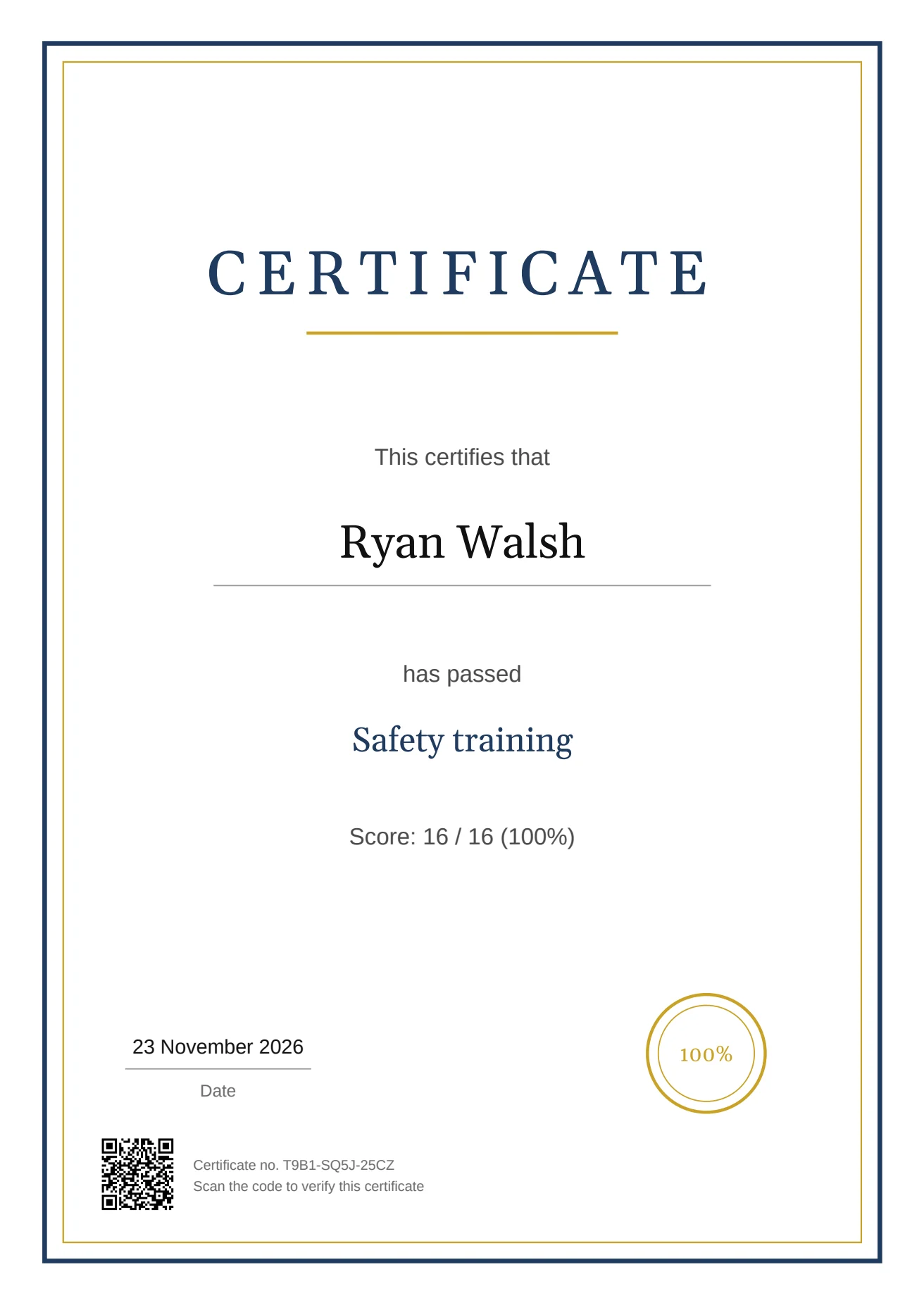
A certificate is a PDF your organization gives to someone who took a quiz: a training company’s proof of completion, a safety course’s pass, a language school’s level. A workflow generates it from a template, with the person’s name, the score and the date, and the result page offers it for download as soon as it’s made, so the participant leaves with it in hand.
Available when: your role has the Manage quizzes permission; creating the starter workflow also needs Manage workflows and Manage templates, and the plan's SVG templates
How it works
Section titled “How it works”- Someone finishes the quiz. When its score is final, the A quiz attempt is finished event of the Quiz trigger starts the quiz’s certificate workflow.
- The workflow generates the certificate from its template, with the person’s name, the score and the date.
- Meanwhile the result page shows Preparing your certificate. When the PDF is made it changes to Your certificate is ready with Download certificate, usually within seconds.
- If the certificate takes longer than 90 seconds, the page says Your certificate is on its way: it will arrive by e-mail, if the workflow sends one, or appear on the page later. If the workflow’s run fails, or ends without making a document, the page says so at once instead of waiting out the 90 seconds. Left open, the page keeps looking and still offers the download once it’s there, after a rerun of the workflow for instance.
The workflow can do more after the certificate: send it by e-mail, save it to a drive or tell a trainer.
Set it up in two clicks
Section titled “Set it up in two clicks”- Save the quiz, then open its Settings and the Certificate section.
- Under Certificate after a passed quiz, pick a Design (Classic, Modern, Minimal, Elegant, Academic or Bold; each shows your quiz’s title with an example person), optionally choose an e-mail template under E-mail with the certificate, and choose Create the certificate workflow. There is nothing more to save: the quiz uses the new workflow at once.
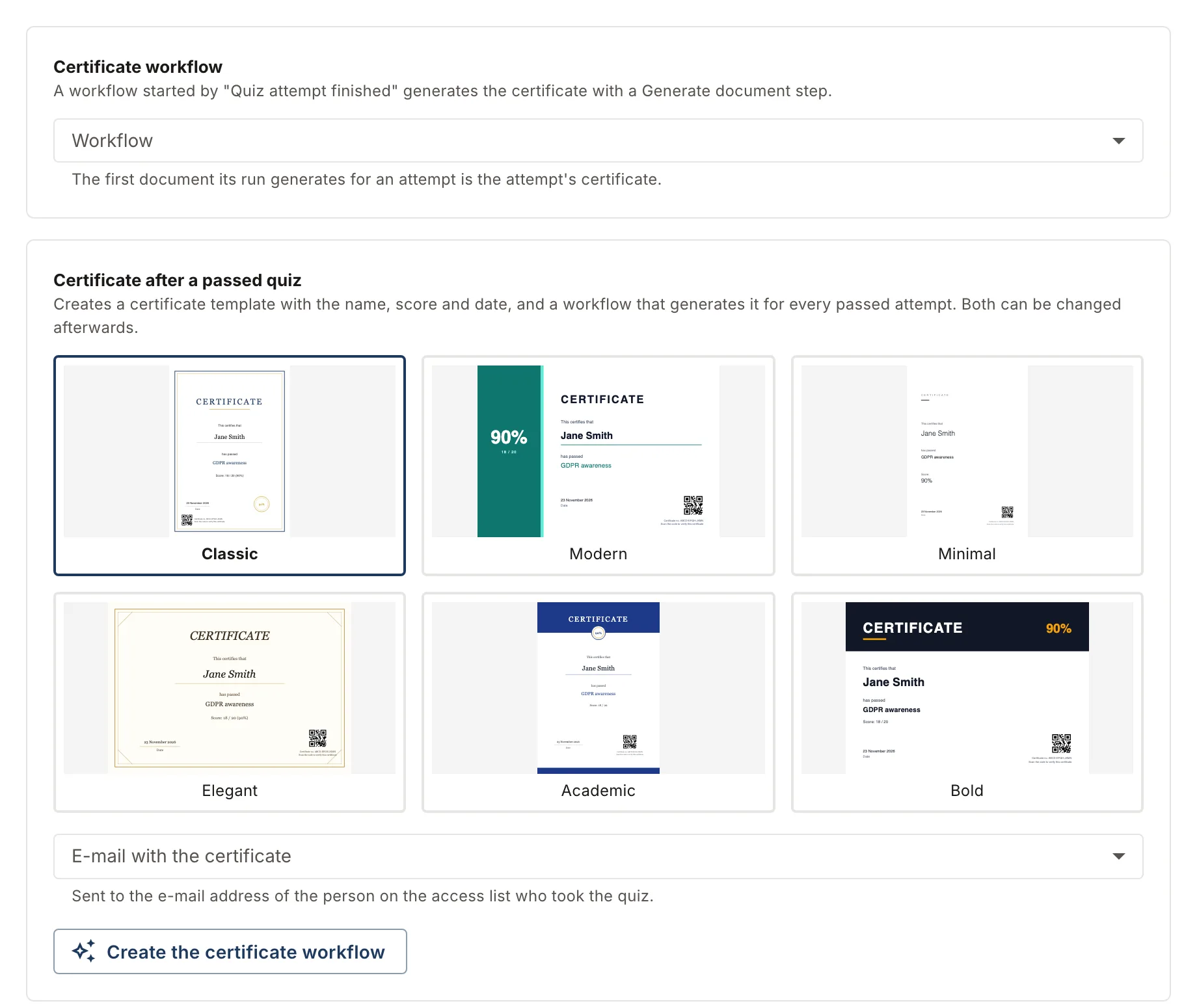
Doxtly creates two things you can change like any other:
- an SVG template named Certificate - Safety training, in your organization’s language, with the person’s name, the quiz title, the score in points and per cent, the date the attempt finished, and the certificate number with a QR code that leads to its public check;
- a workflow named Certificate after a passed quiz - Safety training: Quiz trigger, A quiz attempt is finished, Outcome set to Passed, then Generate document with Save in application on, and, if you chose an e-mail template, Send email with the PDF attached, to the address of the person on the access list.
The quiz’s settings name that workflow straight away, with the result page offering the certificate at once.
Like any workflow, it works from the moment it exists: attempts finished before you created it get no certificate from it.
The Certificate section
Section titled “The Certificate section”| Setting | What it does |
|---|---|
| Workflow | The workflow whose generated document is the attempt’s certificate. The list holds your workflows started by A quiz attempt is finished. No certificate turns it off. |
| Offer it on the result page at once | On by default. The result page waits up to 90 seconds and offers the download. Off, the page shows nothing about it and the certificate reaches the person only as the workflow sends it. |
| Seal the certificate | Off by default. The certificate is sealed with your organization’s PAdES seal, as signed documents are: any PDF reader shows who issued it and that it has not been changed. If sealing fails, the certificate is still issued, unsealed. |
| Open the workflow | Opens the workflow in a new tab, to change its template, its e-mail or its conditions. |
Only attempts the workflow runs for get a certificate. With Outcome set to Passed, the result page of someone who didn’t pass shows no wait at all.
Your own certificate design
Section titled “Your own certificate design”Any template works: a Word certificate made in your house style, an SVG from your designer, or a PDF. In the workflow, point Generate document at it. These variables are the ones a certificate needs most:
| Variable | Contents |
|---|---|
{{ _attempt.personName }} |
The name of the person on the access list who took the quiz. |
{{ _quiz.title }} |
The quiz’s title. |
{{ _attempt.score }}, {{ _attempt.maxScore }}, {{ _attempt.percent }} |
The points scored, the most there were, and the share in per cent. |
{{ _attempt.finishedAt | formatdate("d MMMM yyyy") }} |
The day the attempt finished, written out in the template’s language. |
{{ _attempt.certificateCode }} |
The certificate number, such as ABCD-EFGH-JKMN, checked on its public page. |
{{ qrcode(_attempt.certificateUrl) }} |
A QR code of the certificate’s public check, for an <image> element. |
The Quiz trigger page lists every variable.
Download a certificate yourself
Section titled “Download a certificate yourself”On the Responses tab of the quiz’s results, a quiz with a certificate workflow has a Certificate column. Its button downloads the attempt’s certificate; while it’s being made the button shows an hourglass, and when the run ended without it, a warning: open the workflow’s runs to see why. Whoever may grade also finds Download certificate in the attempt they open. Each click asks for a fresh link valid for 10 minutes, and only your organization’s people get one: it needs the View quizzes, attempts and results permission.
When grading comes first
Section titled “When grading comes first”An attempt with open answers gets its certificate when its score is final: right after the AI grades it, or after someone grades it by hand. If the person is still on the result page then, it switches to the download; otherwise the e-mail brings it.
A regrade that makes a failed attempt pass - graded again by hand, or after a key or the pass mark changed - issues the certificate as the finish would have: the quiz’s certificate workflow runs for that attempt, and only that workflow, so the steps of your other A quiz attempt is finished workflows don’t run twice. An attempt that already has its certificate gets no second one, and one that passed before the regrade gets nothing new.
Verify a certificate
Section titled “Verify a certificate”Every certificate issued has its own number, printed on it with a QR code. Whoever scans the code, or opens https://<your address>/v/c/<number>, sees whether the certificate is genuine: who it was issued to, the quiz, the result and the date, your organization as the issuer, and whether it is sealed. They can also drop their PDF on the page to compare it with the one issued; the file stays on their device.
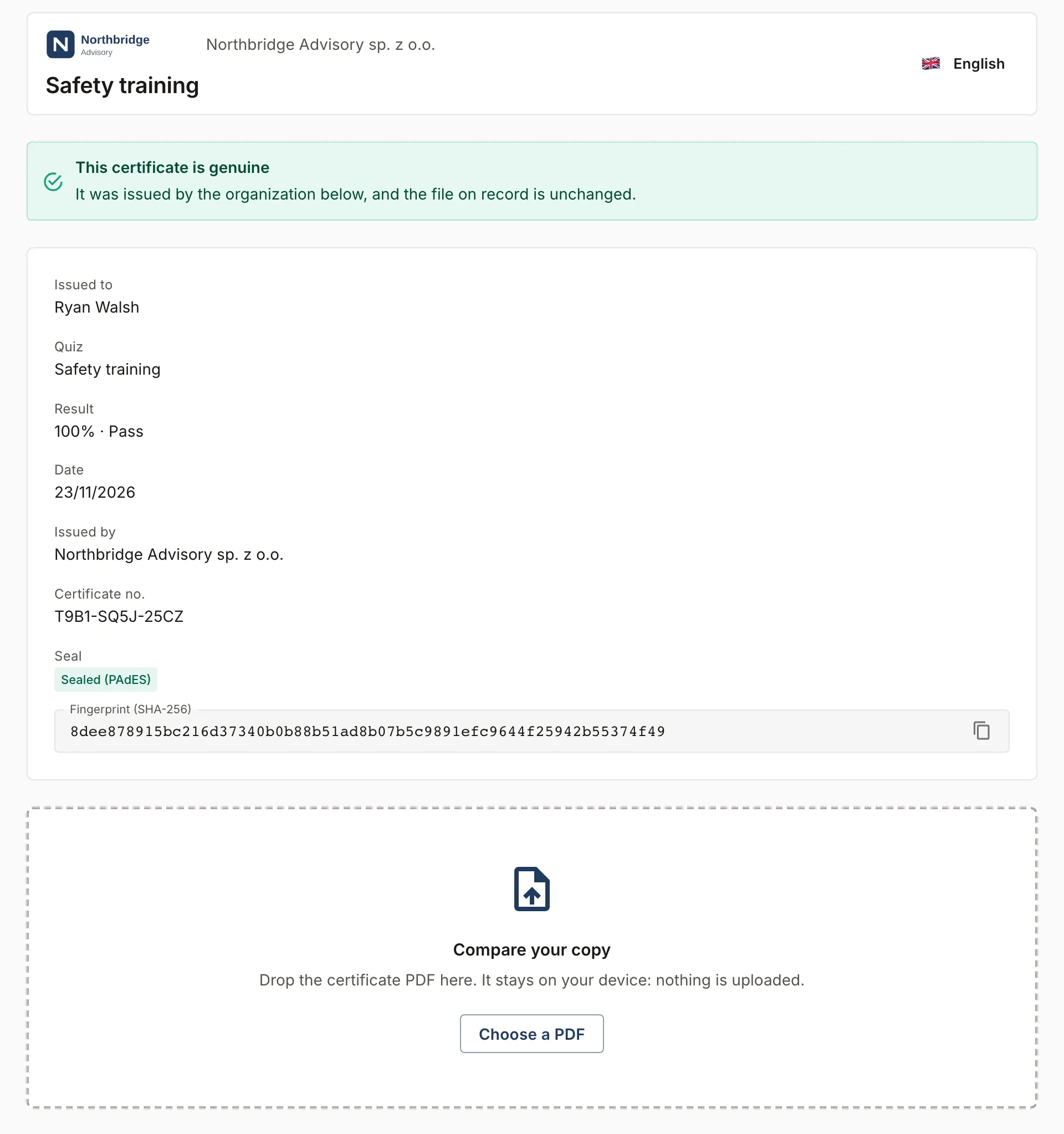
The page answers only on your organization’s own address, and only while Turn on the public verification link is on in the organization’s settings, the switch that also governs sealed documents. A certificate whose attempt has been deleted is no longer confirmed.
Kept safe
Section titled “Kept safe”- The download link is given only to the attempt’s own result page, in the browser that took the quiz, and expires after 10 minutes. The page asks for a new one by itself while it stays open, so a link copied elsewhere soon stops working.
- The certificate is stored with the attempt in your organization. Nobody else’s link ever leads to it.
- Only the quiz’s certificate workflow hands its document to the attempt: another workflow listening to the same quiz never replaces it.