

Import and export
A workflow can be saved as a single JSON file and imported, in your organization or in another. Use this to build a workflow in a test organization and carry it to the live one, or to give a client a ready workflow for their own Doxtly account.
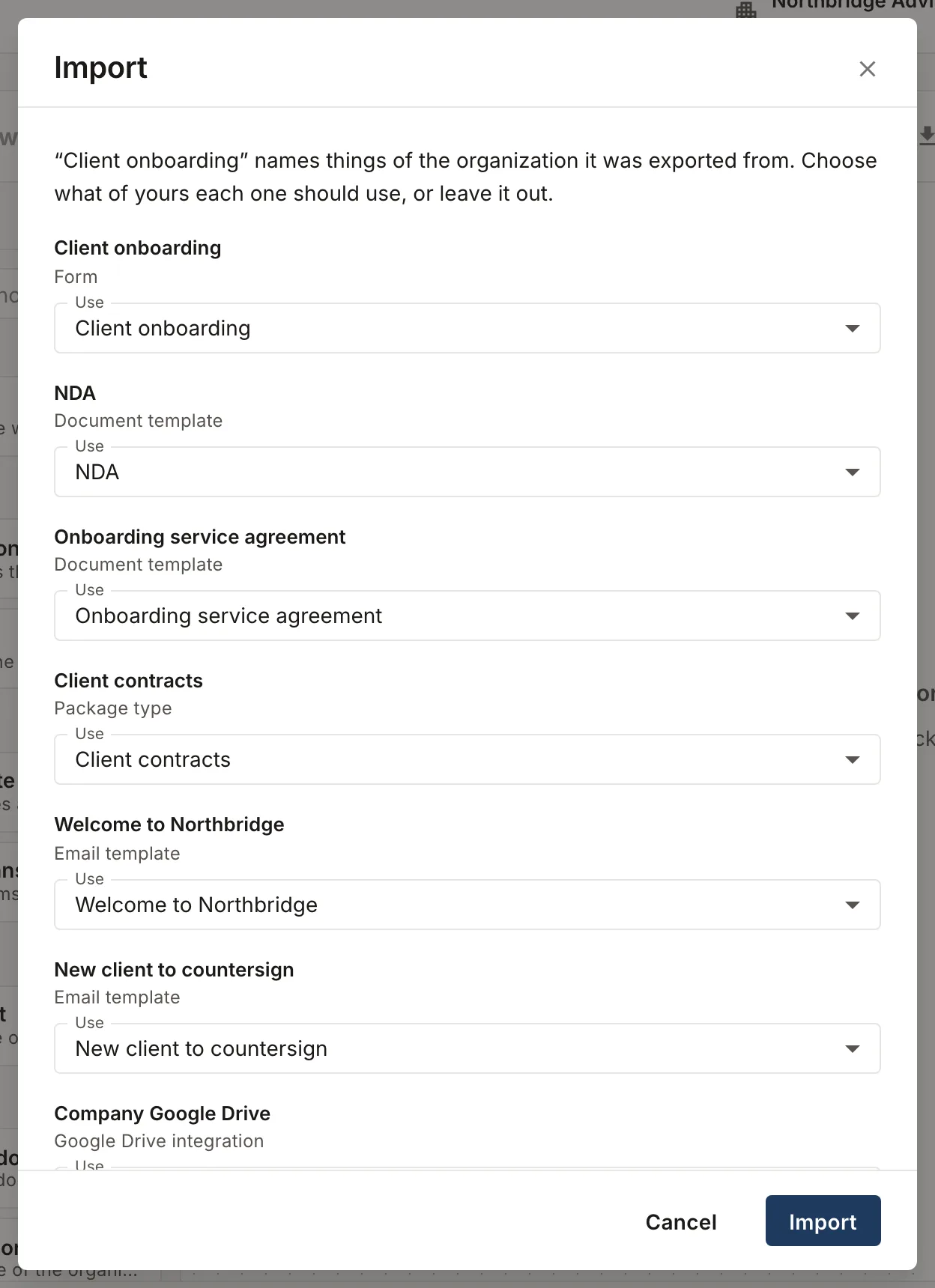
Steps use things of their organization: the form a trigger listens to, the mailbox and template an email goes out with, the person a package is assigned to, the Slack workspace a message is posted in. The file names each of them, and when it’s imported Doxtly asks which of the importing organization’s own to use in their place.
Export a workflow
Section titled “Export a workflow”You can export from two places.
From the designer, open ⋮ in the top bar and choose Export to a file. You get the workflow as it stands in the designer, including changes you haven’t saved.
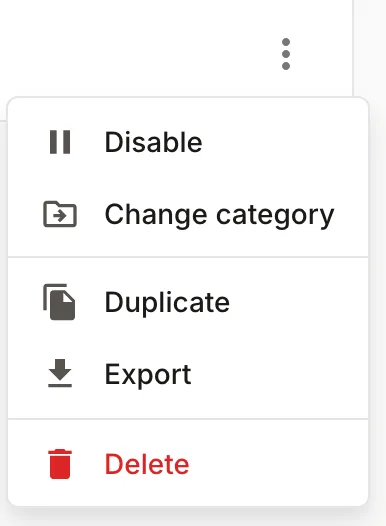
From the list, open the menu at the end of a workflow’s row in Workflows and choose Export. You get the workflow as last saved.
Either way, if your organization has a cloud drive connected and your role may change its files, a menu asks where the file goes: Download to this device, or Save to a cloud drive, which opens the drive’s folders with the file’s name filled in. Otherwise the file is downloaded straight away.
The file is named after the workflow, for example workflow-new-client-onboarding.json.
What the file holds
Section titled “What the file holds”| In the file | Not in the file |
|---|---|
| The name and description | The Active state and the category |
| Every step, its settings and how the steps connect | A webhook’s secure headers and signing secret |
| The name of each form, template, integration, person, department, company, AI agent or other thing a step uses | The things themselves |
Expressions, such as {{ client.email }}, as written |
The passwords of the documents a step creates |
| A file stored in the organization that a document of a step is made of | |
| The workflow’s runs |
A value written as an expression names nothing of the organization, so it travels as it is. Only a step’s choice of one of the organization’s own things is matched on import.
Import a workflow
Section titled “Import a workflow”-
In Workflows, press Import from a file. In the dialog, drop or pick a
.jsonfile from your computer or, with a drive connected, choose From cloud drive and Choose a file in the drive (see Importing from a drive), then press Import. To import into the designer instead, replacing the workflow open there, choose Import from a file in its ⋮ menu: the same dialog opens. -
In the Import window, check what Doxtly chose for each thing the steps use. Use takes one of yours. Choose Leave out for anything you’ll pick later.
-
Press Import, read what was left out, if anything, and press Review.
-
Check the steps the designer marks, and press Create or Save.
The imported workflow is unsaved until you press Create or Save, and it’s checked then as any other. A step left without what it needs shows under Problems until you fill it in.
What Doxtly suggests
Section titled “What Doxtly suggests”| Item | Suggested |
|---|---|
| An integration: a mailbox, SMS, WhatsApp, AI, a drive, a CRM | One of the same name; else your default of the type; else the only one you have |
| Slack or Microsoft Teams | Any of your messengers, of either kind |
| A form, template, email or text message template, package type, AI agent, company, department, contact type, incoming webhook, quiz or survey | One of yours of the same name; a quiz is matched only to one of your quizzes and a survey only to one of your surveys. Import a quiz before the workflows that listen to it, and the imported one is suggested. |
| A person | Someone with the same name and email address |
Something of another name is never suggested for a template, a form or a person, even when you have only one: it could be anything.
What is left out, and why
Section titled “What is left out, and why”| Message | What happened |
|---|---|
| Nothing of yours was chosen for “…”: the steps that used it wait for it to be chosen. | Nothing was chosen for it. The step’s field is empty. |
| A message to a channel goes through another messenger now: choose its channel again. | A Send to a messenger step posts through another workspace, whose channels are different. |
| A webhook’s secrets never travel: enter its secure headers and signing secret again. | A Webhook step had secrets. |
| The passwords of the documents never travel: set them again in the steps that create documents. | A step protected its documents with passwords. |
| A document a step creates was a file stored in the organization it came from, which this file does not carry: choose the file again in that step. | A document was a PDF uploaded in that organization. |
Who can do it
Section titled “Who can do it”Exporting and importing both need Manage workflows: the row menu with Export and the designer with Export to a file are shown only to people who have it. Importing creates a workflow, and saving it needs what each of its steps needs, as for any workflow. See Who can do what. Importing is done in the app. An access key given Export workflows (export_workflow) can export a saved workflow: see Export a workflow.