Forms overview
A Doxtly form is a page where people give you information: a new client’s details, a request for an invoice, a course registration, a satisfaction survey. What they send is stored as a submission, and it can start a workflow that generates a contract, sends it for signature and files it, with nobody retyping anything.
Northbridge Advisory, the consulting firm in our examples, uses one form for client onboarding. A new client fills it in once, and the same answers end up in the NDA, the service agreement and the welcome email.
What forms are good for
Section titled “What forms are good for”Any time you find yourself asking people the same questions by email, or copying their answers into a document, a form can take that over. These are the forms Northbridge runs:
| The need | The form | What happens to the answers |
|---|---|---|
| A new client has to be set up | Client onboarding | A workflow fills in the NDA and the service agreement and sends them for signature. |
| Accounting needs billing details | Invoice request | The request lands under Submissions, and a workflow emails the person who handles it. |
| People sign up for a course | Course registration | The form sits on the website, and each registration is one submission to work from. The success message gives them a reference to quote, or a redirect takes them to a thank-you page. |
| You want feedback after a course | Client satisfaction survey | The link goes out by email, and the answers wait under Submissions, or a workflow writes them to a spreadsheet. |
How a form goes from idea to answers
Section titled “How a form goes from idea to answers”- Build the form in the designer, from fields you drag onto a canvas, or let Doxie, the AI assistant in Doxtly, draft it.
- Adjust its settings and its look.
- Publish it: send people its public link, or embed it on your website. On WordPress, Joomla, Drupal and Magento, a plugin does this without code.
- Decide how much protection it needs: a password, a reCAPTCHA, spam filtering.
- Read what comes in under Submissions, and connect a workflow if the answers should do something on their own.
The Web forms page
Section titled “The Web forms page”Web forms in the main menu has two tabs. Forms lists the forms themselves, and is what this page describes. Submissions lists what people sent through all of them, and has a page of its own.
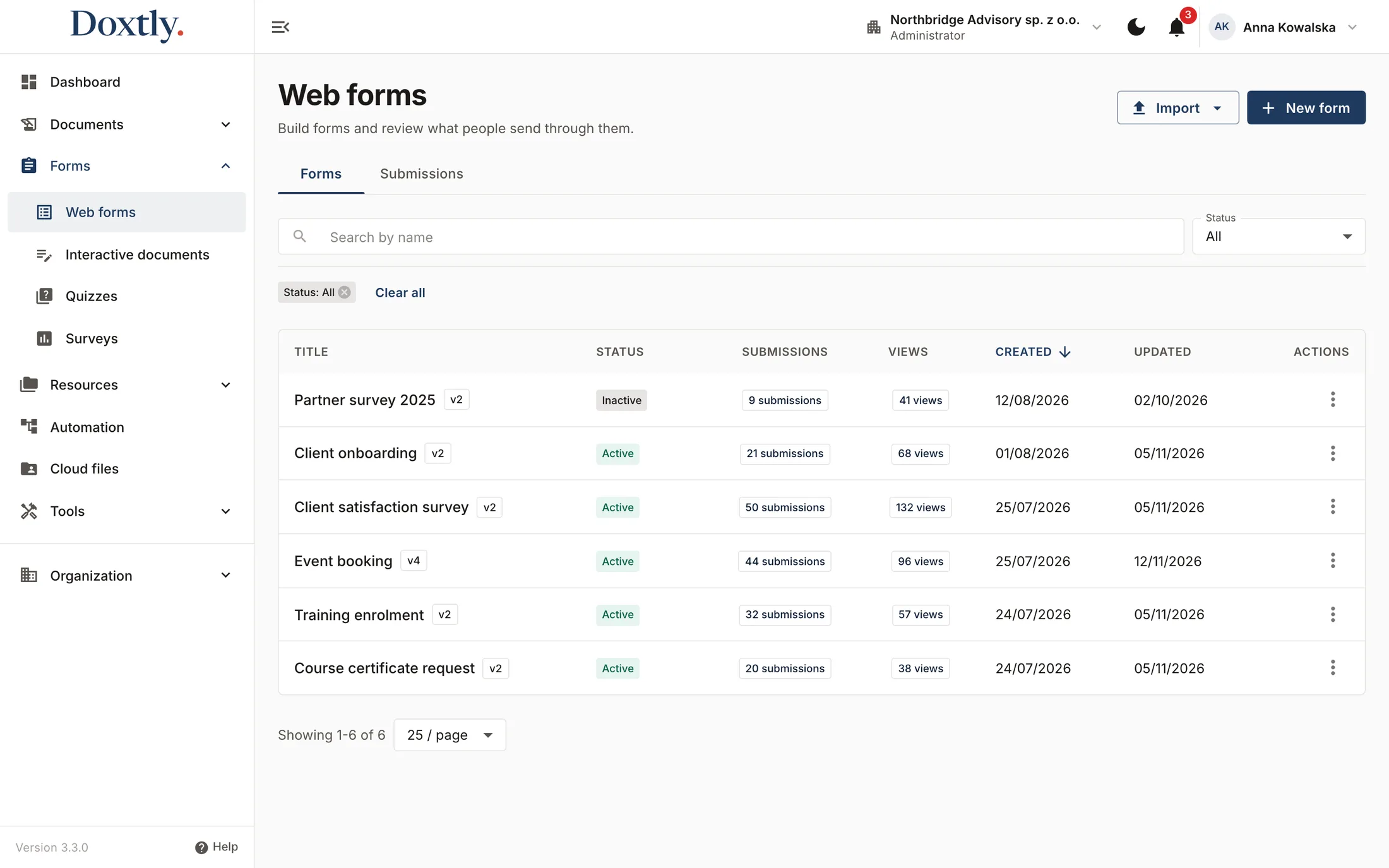
Click a row to open the form in the designer. Each row also has a menu at its right end, described further down.
Adding a form
Section titled “Adding a form”New form at the top right opens an empty designer. The form appears in the list once you press Create there, and you stay in the designer to go on building it. To start from a file instead of an empty canvas, open Import beside it and choose From a file (where importing from a link is not available to you, the button is Import from a file itself): see Import and export. To start from a form you already have, duplicate it. To start from a public form in another system, open Import and choose From a link. See Import a form from a link.
Available when: your role has the Manage forms permission and your plan has room for another form
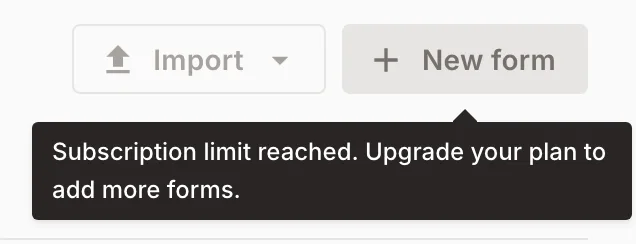
Without the permission the button is not shown at all. When your plan’s limit of forms is reached, the button stays visible but greyed out, and hovering over it tells you why: “Subscription limit reached. Upgrade your plan to add more forms.” Every form counts towards that limit, inactive ones too. To make room, delete a form you no longer need or change your plan.
If you have no forms yet, the list shows “No forms yet” with a New form button in the middle of the page. You will not see that button if you may not add a form, or if your plan has no room for one.
Columns
Section titled “Columns”| Column | What it shows |
|---|---|
| Title | The form’s name, with a small version chip next to it, such as v4. A new form is v1, and every save in the designer adds one, so a high number tells you the form has been reworked a lot. |
| Status | Active or Inactive. See the next section. |
| Submissions | How many submissions the form has, such as “12 submissions”. Spam kept aside is not counted here. |
| Views | How many times the form was shown to someone. Hover over the chip for the opens as well. |
| Created | The date the form was created. |
| Updated | The date of its last change. |
| Actions | The three dots that open the item menu. |
Views and opens are two different figures, and the difference matters for a password-protected form:
- Views count the times the form’s content was shown.
- Link opens count the times the link was opened, including visits that stopped at the password prompt.
For an open form the two are close. For a protected one, many opens and few views mean people reach the prompt and do not get past it. A form with plenty of views and few submissions tells you something else: people look at it and give up, so it may be too long.
The same visitor within half an hour is counted once, so refreshing the page adds nothing. Sending the form ends the visit, though: if the same person fills it in again straight away, that is a new view. This way a form never shows more submissions than views.

Active and inactive
Section titled “Active and inactive”The status says whether the form is open to the public. A new form starts as Active. To change that, open the form, flip the switch in the designer’s top bar, which reads Active or Inactive, and press Save.
| Active | Inactive | |
|---|---|---|
| Public link and embeds | Show the form | Show Form not found |
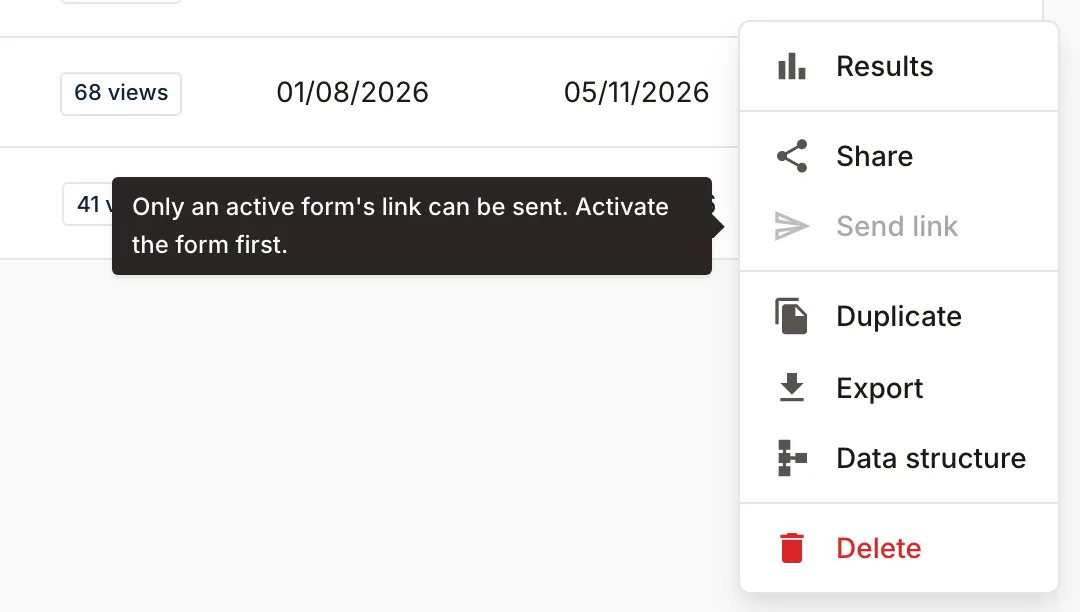
| Send link | Available | Greyed out: “Only an active form’s link can be sent. Activate the form first.” |
| WordPress form picker | Offered | Not offered |
| Links on portals | Shown | Hidden until the form is active again |
| Earlier submissions | Kept | Kept |
| Counts towards the plan’s forms limit | Yes | Yes |
Going inactive is the way to close a form without losing anything: a course whose registration has ended, a survey that has run its time. Switch it back on and the same link works again. Someone who still has the form open when you close it cannot send it any more: they are told it is no longer available.
A form placed on an interactive document follows that document’s link, so switching the form to inactive does not take it off the document.
Sorting
Section titled “Sorting”Click Title, Status, Views, Created or Updated to sort by that column. The first click sorts ascending, the second descending, and the third returns to the list’s usual order, newest first. Created is that usual order, so it switches between its two directions.
Submissions cannot be sorted.
Search and filters
Section titled “Search and filters”
Search by name finds forms whose title contains what you type, in any place and regardless of capital letters.
Status has three choices: All, Active and Inactive.
Each filter you set shows as a chip that you can remove on its own. Removing the status chip puts the filter back on Active. Clear all removes everything at once, and keeps your sorting and page size. When nothing matches, the list says “No forms found” and offers Clear all filters.
Filters, sorting, the page number and the page size are stored in the page’s address. That means you can bookmark a filtered list, or send a colleague the link to it.
Under the list you choose how many forms a page shows: 10, 25 or 50. The default is 25.
The item menu
Section titled “The item menu”The three dots at the end of a row open the actions for that form.
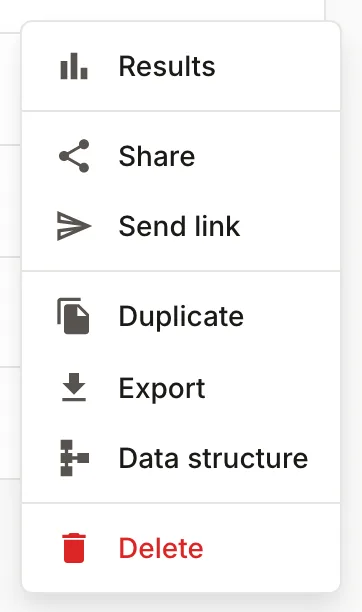
| Item | What it does | Who sees it |
|---|---|---|
| Results | Opens the summary of the form’s answers, question by question. Shown while Show results is on in the form’s settings. See Results. | Everyone who can see the list |
| Share | Opens the dialog with the form’s public link and the snippets to embed it. See Sharing a form and Embedding a form. | Everyone who can see the list |
| Send link | Sends the public link to a list of people, using one of your email templates. See Sending the link by email. | People with Manage forms |
| Duplicate | Makes a new, inactive copy of the form. See below. | People with Manage forms |
| Export | Saves the form as a JSON file named after its title, such as form-client-onboarding.json: Doxtly file (JSON) downloads it to this device and, with a drive connected, saves it to a cloud drive. Useful for a backup, or for moving a form to another organization. See Import and export. |
Everyone who can see the list |
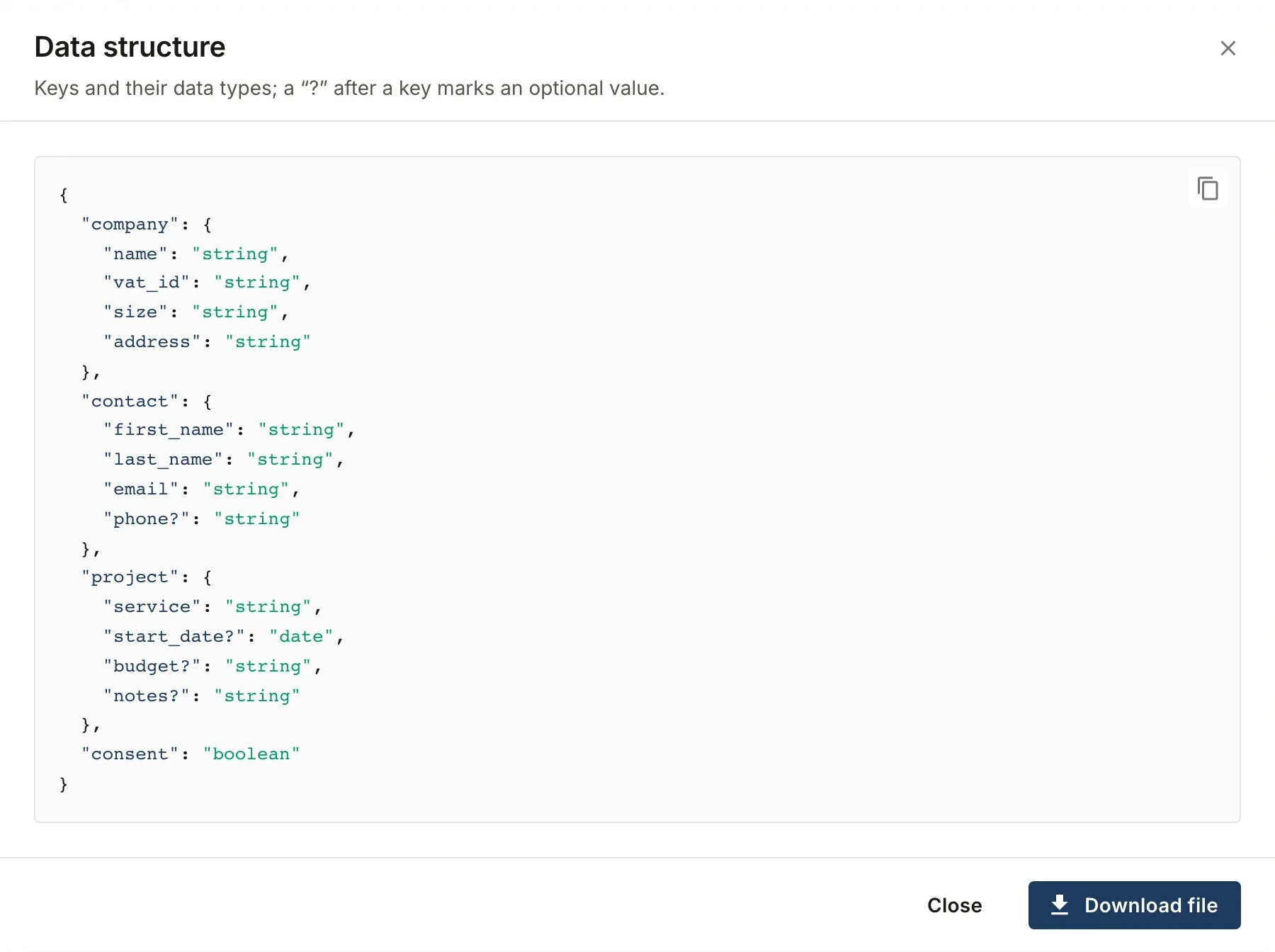
| Data structure | Shows the keys of the data the form collects and the type of each. See below. | Everyone who can see the list |
| Delete | Removes the form for good, after you confirm. Refused while a workflow uses it: see Deleting what a workflow uses. | People with Manage forms |
Send link can be greyed out for two reasons, and hovering over it tells you which. Either the form is inactive, or your organization has no active email integration, so there is no mailbox to send from. In that case add one under Integrations.
An export carries the form’s fields, settings and pictures, but never its password.
Duplicating a form
Section titled “Duplicating a form”A new course that runs like the last one, a survey for another client, a test version of a live form: Duplicate gives you a new form to change, with the original untouched. It works without AI, and it’s also in the designer of a saved form, under More actions.
A short dialog asks for the copy’s name, filled in as the original’s with “ (copy)” at the end; change it or keep it, and press Duplicate or Enter. The copy then opens in the designer. It is made from the form as last saved, so changes you haven’t saved in the designer aren’t in it.
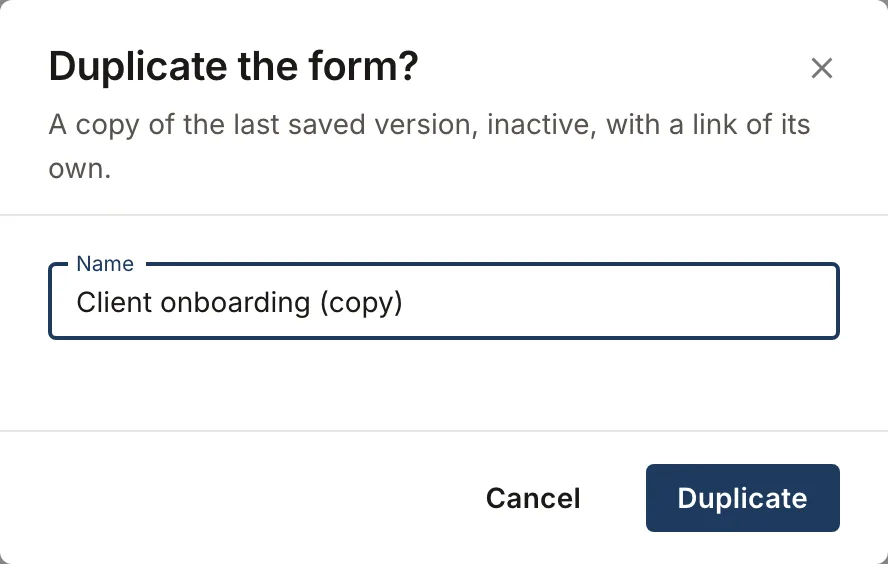
The copy is identical to the original: every element, the pages, every setting, the styling, the departments and the pictures, those of the options included, along with the password, Validate request origin, Block IPs from list, reCAPTCHA and all other protections. Two things differ, because a new form needs them to: it stays Inactive until you switch it on, and it has a public link of its own. Its pictures are stored as its own files, so deleting one form doesn’t touch the other.
Submissions, views and opens are records of the original rather than part of the form, so the copy starts with none of them, at v1. A workflow is started by one particular form, so connect the copy to a workflow of its own. See Workflows.
If a picture’s file can’t be found in storage, the copy is still made: that image stays on the form without a picture, and a message names the file so you can upload it again.
A copy counts towards your plan’s limit of forms. When the limit is reached, Duplicate is greyed out, and hovering over it tells you why. An interactive document or a WordPress page that shows the original keeps showing the original.
Data structure
Section titled “Data structure”This dialog answers the question “what exactly will this form hand over?”. It lists every key with the type of its value, and a ? after a key marks a value that may be missing, such as an optional field. Keep it next to you when you write a document template or map a form’s answers to something else, or send it to the developer who asks what your form delivers.
The copy button at the top of the structure, Copy structure, puts it on the clipboard, and Download file saves it as a file. The designer offers the same dialog, where it shows the form as it stands on the canvas, saved or not.
Deleting a form
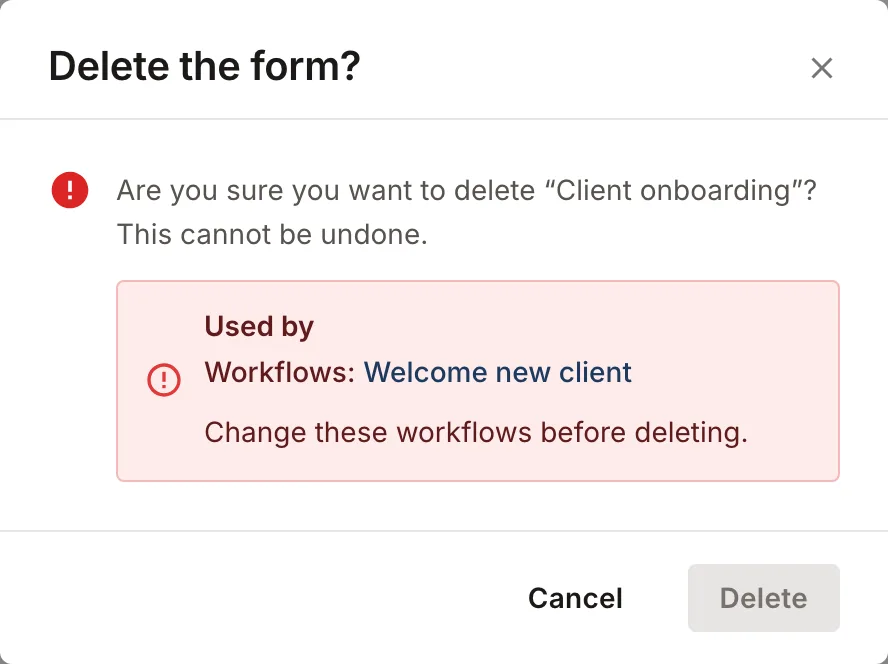
Section titled “Deleting a form”Delete asks for confirmation, because it cannot be undone. The dialog names the form, and the portals that link to it if you may see portals. Deleting it also deletes:
- all of its submissions, including spam kept aside, along with their edit history and the workflow runs they started;
- the files people uploaded through it, and the pictures placed on it;
- the signing sessions started from its submissions;
- its place on any interactive document that holds it, so look at those documents afterwards;
- the links to it on portals.
The link stops working at once, and every page that embeds the form shows Form not found. While a workflow listens to the form, or a payment trigger is narrowed to it, Delete is greyed out and the dialog lists those workflows under Used by: change them first (Deleting what a workflow uses).
Who can do what
Section titled “Who can do what”Two permissions of a person’s role decide what they get here.
| Permission | What it allows on this page |
|---|---|
| View forms and submissions | See the list, Share, Export, Data structure. Rows cannot be clicked, so the designer stays closed. |
| Manage forms | Everything above, plus New form, opening a form in the designer, Send link, Duplicate and Delete. Import > From a link also takes Use the AI assistants. |
Correcting what was submitted is a separate permission, covered in Editing submissions.
Limits of your plan
Section titled “Limits of your plan”Two limits of your plan apply to forms:
- the number of forms your organization has, active or not: 1 on Free, 15 on Starter, 40 on Pro and 100 on Business;
- the number of submissions in a billing period: 10 on Free, 750 on Starter, 2,500 on Pro and 10,000 on Business. Spam kept aside does not use it up until someone marks it as not spam.
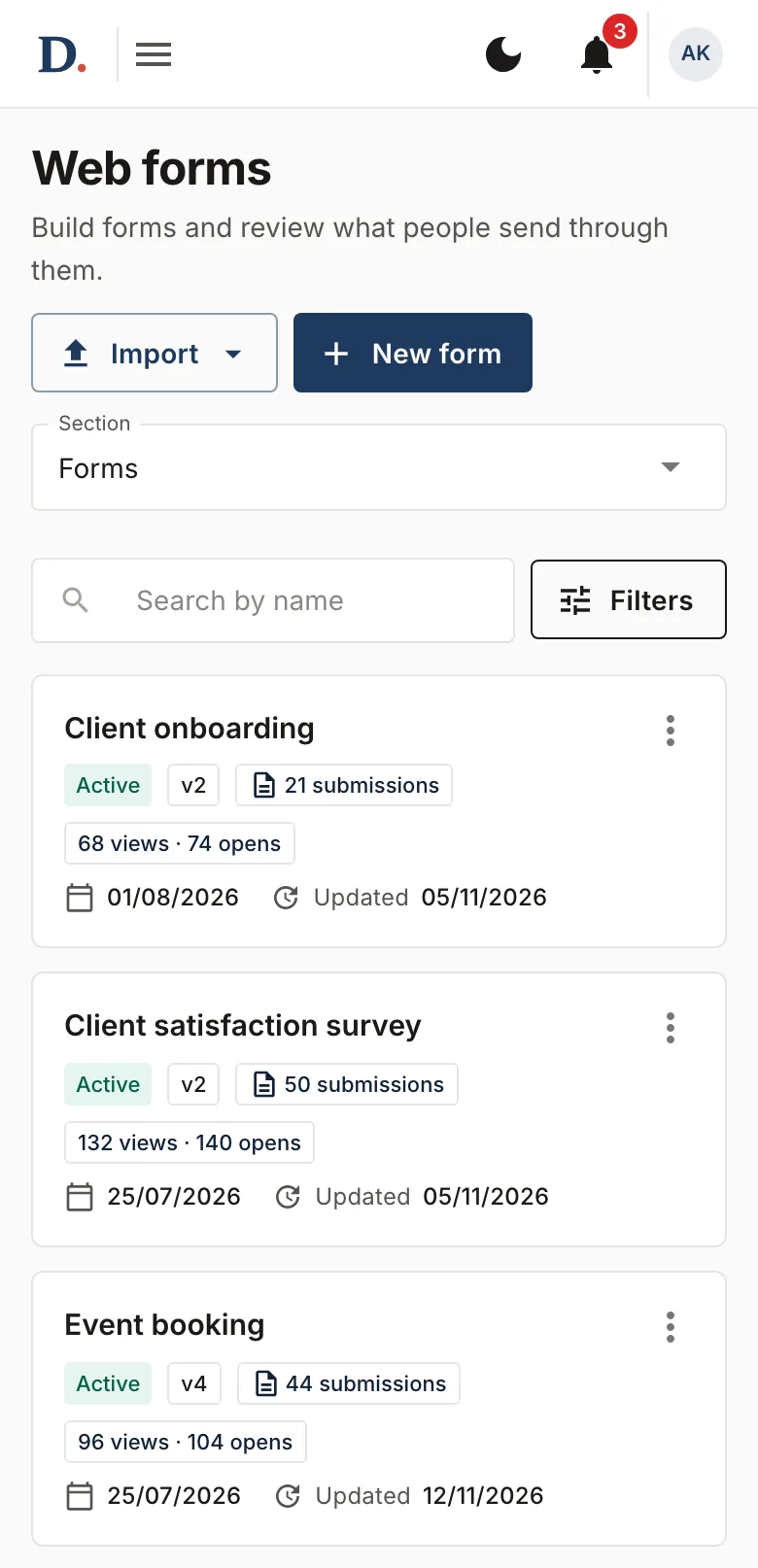
On a phone
Section titled “On a phone”On a small screen each form is a card rather than a table row. The card shows the same information: status, version, submissions, and views with opens side by side, with the dates below. Tap the card to open the form, and use the three dots for the menu. The Forms and Submissions tabs become a Section list, and the Status filter moves behind the Filters button. Search and the page size work as on a computer, but the cards have no column headers to sort by.