

Templates from cloud storage
A template’s file can live in a connected Google Drive, OneDrive, SharePoint, Dropbox or Box instead of being uploaded. Your legal team keeps editing the NDA where it always has, and Doxtly picks up each new version by itself, with no re-uploading. For a Word or SVG file the new version is taken automatically. For a PDF, a person approves it first.
Available when: your organization has an active Google Drive, OneDrive, SharePoint, Dropbox or Box integration, and you hold Manage file templates and View cloud files
Documents always come from the approved copy
Section titled “Documents always come from the approved copy”This one rule explains everything else on this page. Doxtly keeps its own copy of the file, and every document is generated from that copy. The cloud file is only where the copy is refreshed from.
So a drive that is down or disconnected never stops a document from being generated, by a workflow or the API. A file deleted from the drive leaves the template working on its last approved version. And a PDF replaced in the drive cannot have values printed in the wrong places, because the new file waits until somebody has looked at it.
Each document records the version it was made from.
Linking a template to a cloud file
Section titled “Linking a template to a cloud file”-
Connect a drive under Integrations, if you have not yet.
-
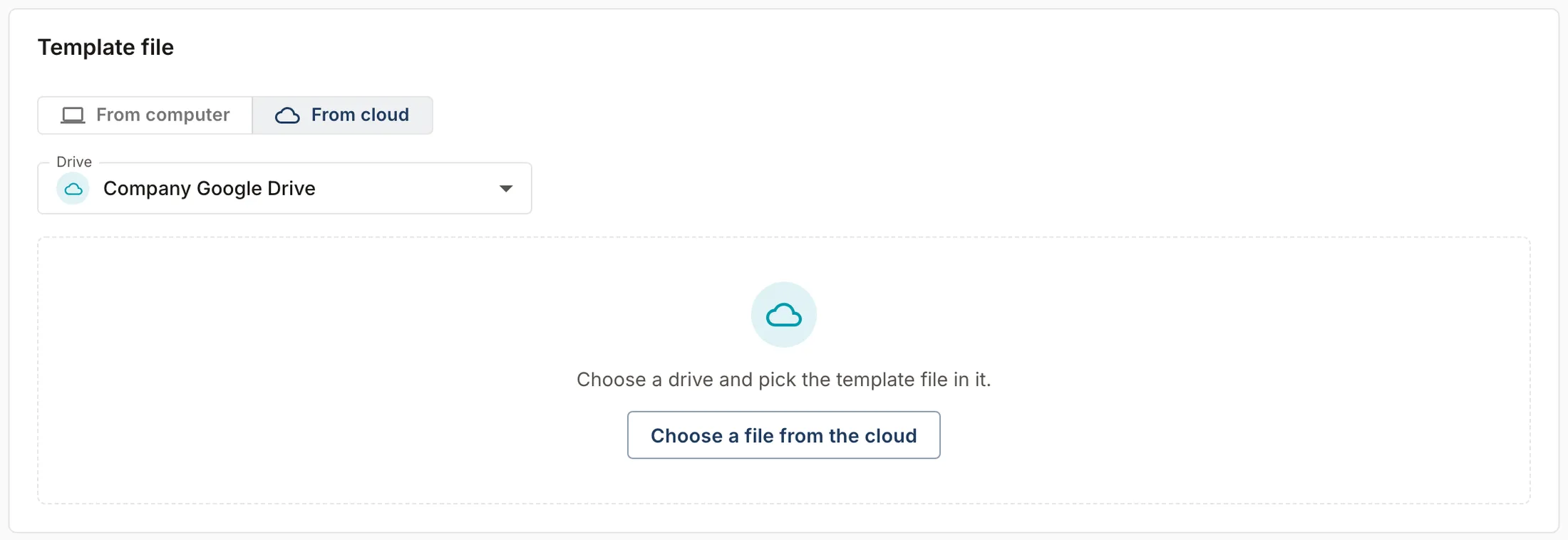
On the new template form, or on the Template tab of a template, go to Template file and choose From cloud.
-
If you have several drives, choose one under Drive. With one drive, it is picked for you.
-
Click Choose a file from the cloud, and find the file.
-
Click the file and then Select, or double-click it. The file appears with its drive and folder. On a PDF template you draw the areas in its designer once the template is saved, as with an upload.
-
Save the template.
The picker works like the Open dialog of your computer: a path at the top, Search this folder beside it, and folders listed before files. It remembers the last folder per drive, which is usually where your templates are.
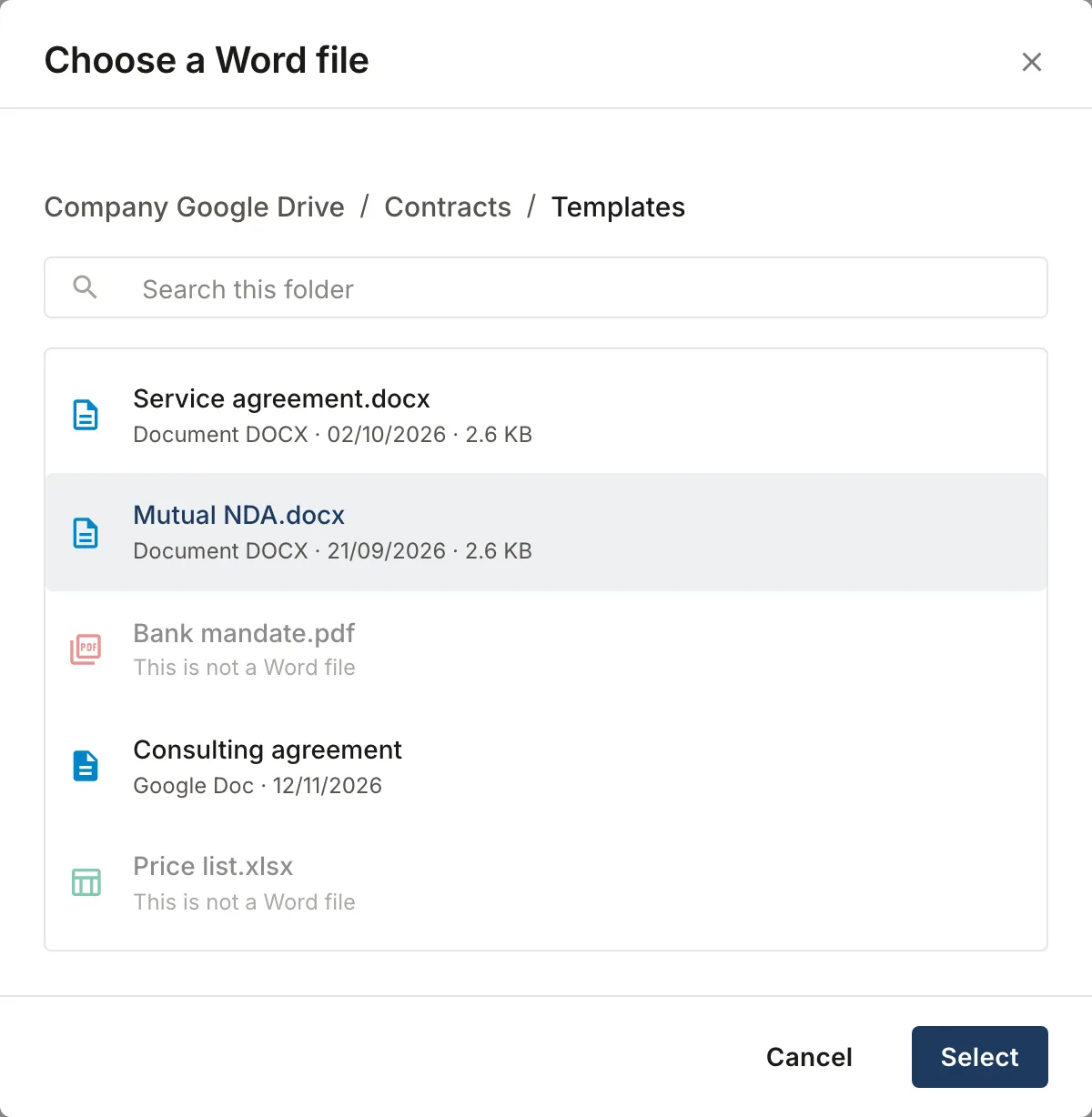
Files that cannot be used stay in the list, greyed out, with the reason on hover:
| Reason shown | What it means |
|---|---|
| This is not a Word file (or PDF, SVG) | The file does not match the template’s type. |
| The file is larger than 10 MB | Over the limit for any template file. |
| Google Sheets and Slides cannot be templates, as they are not text documents. Save the content as a Word file (or PDF, SVG) | A template is a document with text to fill in. Put the content in a Google Doc, or save it as a file of the template’s type. |
| Google Drive cannot export this document as a Word file, as the file would be larger than 10 MB. Use fewer or smaller pictures. | Appears when you pick the Google Doc. Drive exports at most 10 MB, and usually pictures are what take the room. |
If a chosen PDF cannot be loaded, the form says The preview of the chosen file could not be loaded. Try choosing it again. A file that passes this list can still be refused on saving, the way an upload can: a damaged Word file gets The file cannot be read as a Word document: it is damaged, or of another kind.
If the file changes in the drive between your preview and your save, Doxtly does not save a version you never saw. It loads the current one and says The cloud file changed after it was previewed. Its current version has been loaded — check it and save again.
Back at the file, Open in Google Drive, Open in OneDrive, Open in SharePoint, Open in Dropbox or Open in Box opens it in a new tab. Change file picks another, and Undo returns to the file the template already follows.
Google Docs
Section titled “Google Docs”A Google Doc works as a Word template. It is listed beside your Word files in the same picker, labelled Google Doc, so a contract your team drafts together in Google Docs can generate documents without anyone downloading it first. Write the markers in the Doc exactly as in a Word template: ${client}, conditions and repeated blocks all work the same.
Doxtly asks Drive for the Doc as a Word file and keeps that copy as the template’s file. Everything else is the same as for a .docx in the drive: the 10 MB limit, your plan’s disk space, and following the document for changes. Doxtly exports the Doc again only when Drive reports that it changed. If the exported content is the same as before, for example after somebody only shared or renamed the Doc, the template stays on its current version.
A Google Doc saves itself as you type, so Doxtly takes a new version once the Doc has been left unchanged for 5 minutes. To take it sooner, press Check now on the template.

Starting from Cloud files
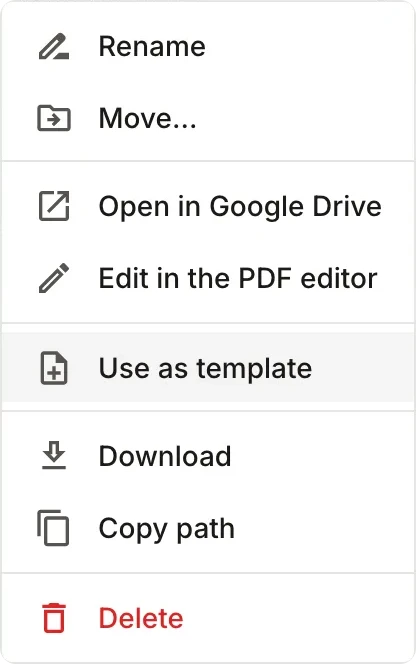
Section titled “Starting from Cloud files”In Cloud files, a suitable file has Use as template in its menu. It opens the new template form with the type and the file already chosen, and you can still change anything. The item appears for a Google Doc and for a .docx, .pdf or .svg file of up to 10 MB, if you may manage templates and your plan has that type of template and room for another one.
Google Drive and which files you can see
Section titled “Google Drive and which files you can see”Some Google Drive connections only let Doxtly see files added through Doxtly: uploaded in Cloud files, or written by a workflow. The picker then shows Only files added through Doxtly are shown here, which you can hide with Do not show again. In that case, upload the template through Cloud files once, then keep working on it in Drive. Upload new versions over the existing file, so that it stays the same file. A new file with the same name is a different file to Doxtly.
Who can choose a file
Section titled “Who can choose a file”Choosing a file is browsing the drive, so it takes View cloud files as well as Manage file templates. Somebody without View cloud files can still edit a template that follows a file: its file stays, and they may replace it with a file from their computer, but they cannot pick another file in the drive. If they switch away from that file, the form says Choosing a file in a cloud drive requires access to cloud files. You can choose a file from your computer instead. On a template with no cloud file, they see only the upload.
A template follows one file in one connected drive, by the file’s own identity. You can rename the file or move it within the folder the connection covers, and the template goes on following it. If you have two Google Drives connected, the template never looks in the other one.
How a change reaches Doxtly
Section titled “How a change reaches Doxtly”You do not have to do anything. The drive tells Doxtly when something changes, and Doxtly also goes through the drive’s changes regularly in case a notice went missing. Three more things look at the file:
- Opening the template’s page, if the last look was over a minute ago.
- Generating a document from the template, if the last look was over ten minutes ago. This happens after the document is made, so the document itself never waits on the drive, and it comes from the copy held at that moment.
- Check now, the refresh button on the file’s card, which looks at once. Use it right after saving a change in the drive. It answers The template matches the cloud file when all is well, and otherwise The cloud file was checked, with the status showing under the card.
A change is judged by the file’s content. Renaming the file or sharing it with somebody does not count as a new version.
What happens to a new version
Section titled “What happens to a new version”| The new file is | Word and SVG | |
|---|---|---|
| The same content as the approved copy | Nothing happens. | Nothing happens. |
| A good template of this type | Taken at once: the copy is replaced, the version goes up by one, and the variables are read again. | Held back for review. Documents keep coming from the approved copy. |
| Not usable (wrong kind of file, too large, unreadable) | Refused. The approved copy stays. | Refused. The approved copy stays. |
| A version already refused or rejected | Stays refused, with no new notice. | Stays as it was, with no new notice. |
A Word or SVG template takes the new file on trust, because its markers are in the file itself. That has a consequence: if your colleague adds a new ${client.tax_id} marker to the contract in Drive, the template now asks for a value the workflow may not supply, and generations start failing. Agree on who may change the file, and watch the Variables tab after a change.
A file temporarily out of reach (a drive outage, a rate limit) is not treated as a bad version: Doxtly tries again.
Two more cases come up in practice. If somebody restores the file to the content of the approved copy, the template goes back to Matches the cloud file, and a version waiting for review is dropped. If the file changes again while a PDF waits for review, the newer version takes its place and people are told again.
The file card and statuses
Section titled “The file card and statuses”On the Template tab, a template that follows a file shows a card with the drive, the folder path, what the file is (Word, PDF, SVG, or Google Docs for a Google Doc), the size, the version and when it was last checked (Not checked yet until the first look). A line under it says what happens to a change: Changes you make in this document reach the template automatically. for Word, SVG and a Google Doc, A new version of this file waits for your approval before documents use it. for a PDF. The card has Check now and Open in Google Drive, Open in OneDrive, Open in SharePoint, Open in Dropbox or Open in Box. Change file picks another file. People who may only view the template, or who lack View cloud files, see the same card without that button.

When everything is fine, nothing else shows. Otherwise, one alert under the card says what is wrong, what documents are being made from meanwhile, and offers the one action that resolves it, if you are allowed to take it.
| Status | What it means | Documents come from | What to do |
|---|---|---|---|
| Matches the cloud file | The copy matches the file. | The current version. | Nothing. |
| New version awaiting approval | A PDF changed. | The previous version. | Review the new version, for people with Manage file templates. |
| New version failed validation | The new file cannot be used. The alert gives the reason, such as The file cannot be read as a PDF. | The previous version. | Fix the file in the drive: Open in Google Drive, Open in OneDrive, Open in SharePoint, Open in Dropbox or Open in Box. |
| New version rejected | Somebody rejected the change, so the cloud file differs from the approved copy. | The approved version. | Nothing, unless you want it. The next change comes up for review. |
| Cloud file unavailable | The file was deleted, moved out of the connected folder, or access to it was removed. | The last approved version. | Choose another file, or Detach from the cloud, for people with Manage file templates. Choosing also takes View cloud files. |
| Integration needs reconnecting | The connection to the drive expired or was revoked. | The last approved version. | Reconnect, for people with Manage integrations. Templates return to normal at the next successful look. |
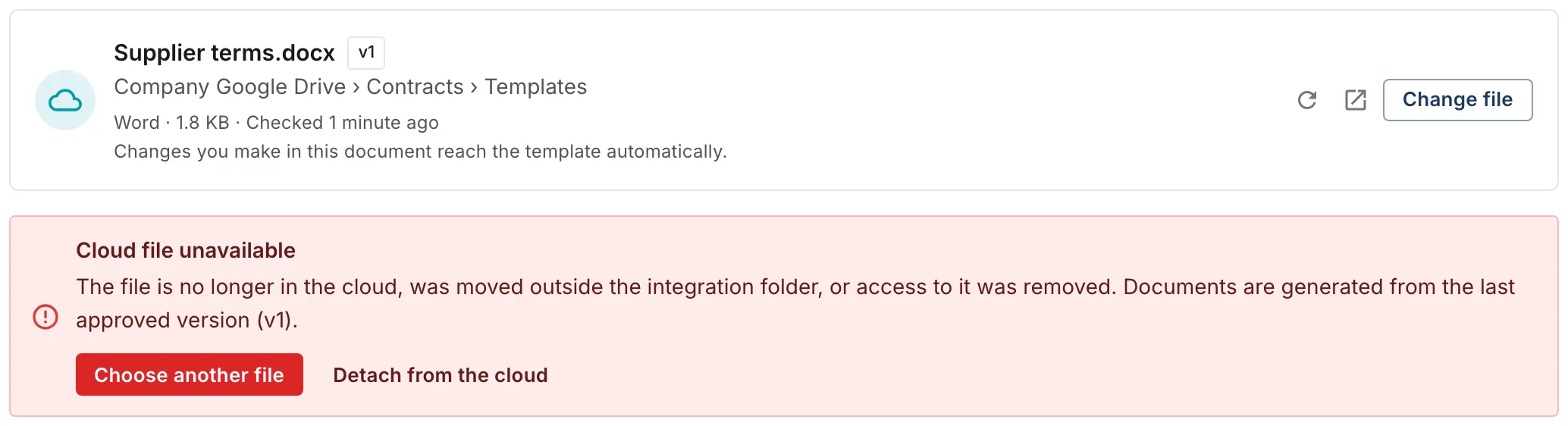
The status matters most for a contract that is in daily use. Say your legal team moves the NDA to an archive folder the connection does not cover. Generation carries on from the last approved version, nothing breaks, and the people who look after templates get a notice telling them the file is out of reach, so they can move it back or point the template at the new one.
In the template list
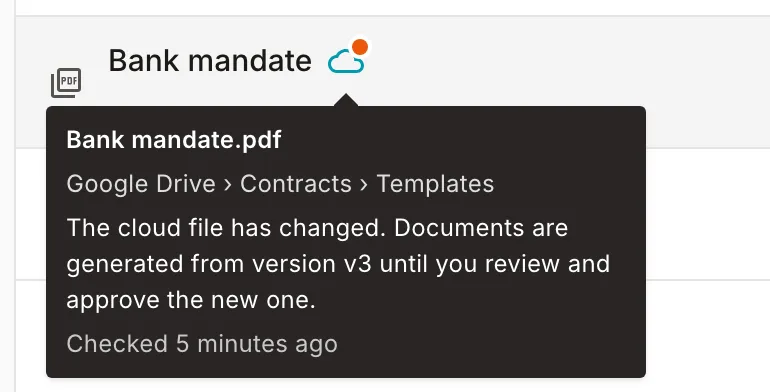
Section titled “In the template list”A cloud template has the drive’s icon beside its name. A coloured dot on the icon means the file and the template differ: blue for a rejected version, orange for one waiting or failed, red for a file or connection lost. Hover over the icon for the file, the folder, the status and the time of the last check.
The Cloud file filter set to Needs attention lists every cloud template whose status is anything other than in step, across all pages.
Who is told
Section titled “Who is told”When a template enters New version awaiting approval, New version failed validation, Cloud file unavailable or Integration needs reconnecting, Doxtly notifies the people who hold both View file templates and generated files and Manage file templates, in the app and by email as their notification preferences say. Each is told once per problem. The notification opens the review page or the template. A rejected version raises no notification: somebody on your team did that themselves.
Reviewing a new PDF
Section titled “Reviewing a new PDF”A PDF template is a file plus areas drawn on its pages, and an area is a position on one particular file. The new file may have other pages, or the same pages with different content at those positions. Only a person can tell a harmless typo fix from a moved signature line, so the new file waits for one.
Available when: you hold View file templates and generated files and Manage file templates
Open the review from the alert’s Review the new version button or from the notification.
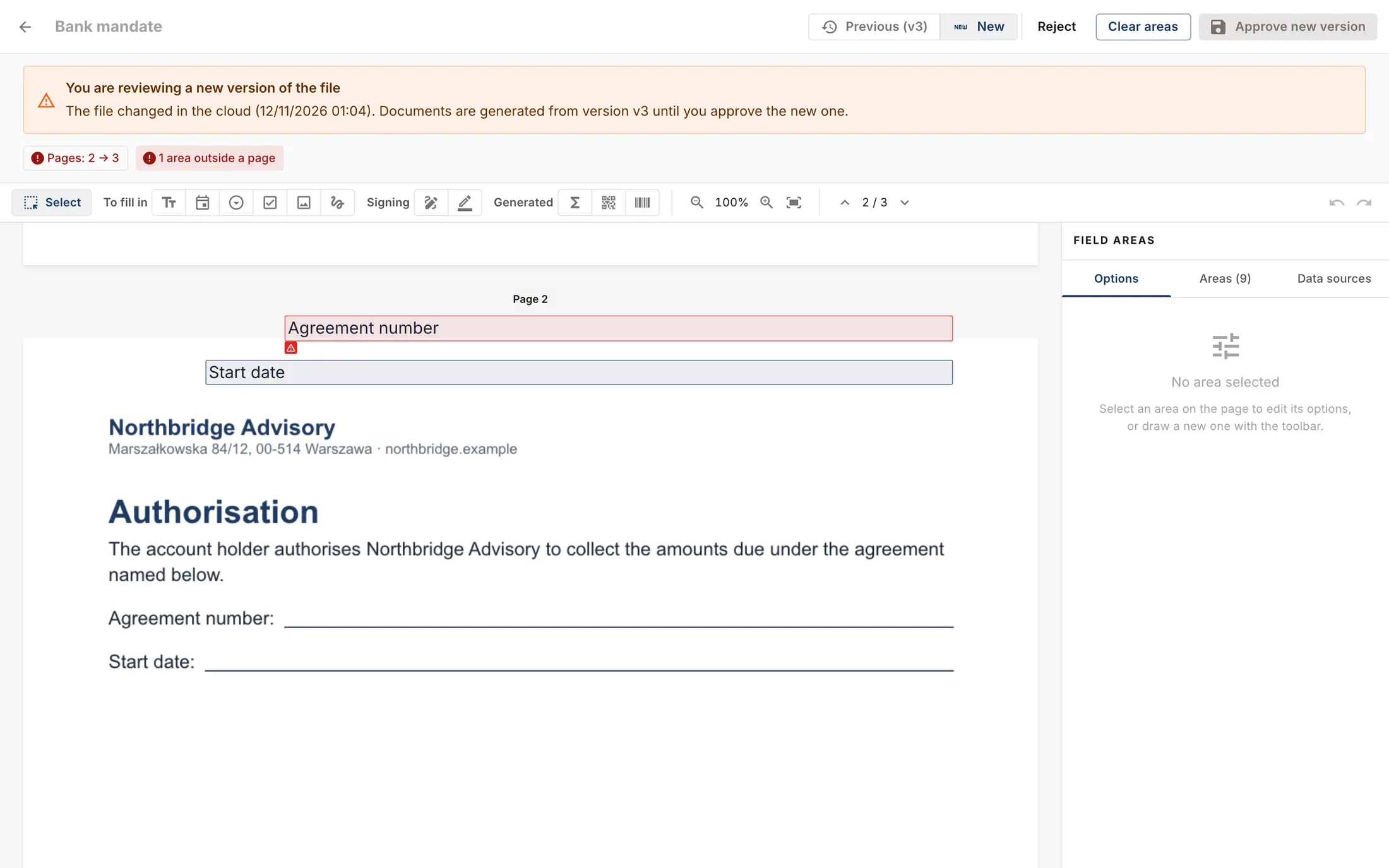
The banner says when the file changed and which version documents still come from. Below it, chips sum up the change:
| Chip | Meaning |
|---|---|
| Pages: 2 → 3 | The page counts, old and new. Green when equal, red when not. |
| Page sizes unchanged or Page sizes changed | Shown when the page count is equal. Green or orange. |
| All areas fit on the pages or 1 area outside a page | Whether every area still lies on a page. Click the red chip to jump to the first area that does not. |

The switch in the top bar flips between Previous (v3), read only, and New, where you work. Flip between them to spot a line of text that has moved.
On New, your current areas lie over the new file, and you work on them as on the designer’s canvas. An area that does not fit is outlined on the page and marked in the list. Move, resize or remove it.
Then decide with the buttons at the right of the top bar:
| Button | What it does |
|---|---|
| Approve new version | Takes the file with the areas as you left them, and takes you back to the template. The version goes up by one, and the variables are read again. Switched off while any area lies outside a page, with the hint Move, resize or remove the areas outside the pages to approve. A 0.5 point tolerance applies at the page edge. |
| Clear areas | Removes all areas, after you confirm, to draw them again on the new file. Nothing is saved until you approve. |
| Reject | After you confirm with Reject version, keeps the approved version. These exact file contents are not asked about again. The next change comes up for review. |
If the file changes in the drive again while you are looking, your decision is not applied to a version you did not see. Doxtly says The cloud file changed again. The latest version has been loaded for review. and starts the review over.
If there is nothing to review, the page says This template has no new file version to review. The arrow at the top left leads back to the template, as it does on the review itself.
Changing or ending the link
Section titled “Changing or ending the link”| You want to | Do this |
|---|---|
| Follow another file | Change file on the card, pick it, save. On a PDF template, the areas are cleared, because they belong to the old file. |
| Go back to uploads | Choose From computer. Confirm Stop following the cloud file? with Upload from computer, choose a file, and save. You must choose a file: Choose a file from your computer to replace the cloud file. |
| Keep the current copy and stop following a lost file | Detach from the cloud, offered on the Cloud file unavailable alert. After you confirm with Detach, the template keeps the last approved version as its own file, under the same version number. |
Removing the integration
Section titled “Removing the integration”An integration cannot be deleted while templates follow files in it. Doxtly refuses and names them: Templates follow files in this integration: … Point those templates at other files, or stop them following the cloud, and then delete it. A connection that merely stopped working is different: its templates show Integration needs reconnecting and keep generating.
- Keep templates in one folder of the drive, and limit who can write to it. Whoever can edit a followed Word file can change your contracts.
- Before a planned change to a Word or SVG file, compare its markers with what the workflow supplies. A PDF gives you a review step; Word and SVG do not.
- Your drive’s version history is a good complement to Doxtly’s version number, which keeps no old files.