

Invoices
The invoices page keeps every invoice for your Doxtly subscription in one place. Your accountant can download them here at the end of the month, and you can see which payments are still waiting for their invoice.
These are the invoices Doxtly sends you for your plan, not invoices you issue to your own clients.
Available when: you hold the View subscription and invoices permission.
Find it under Organization → Invoices. Reading and downloading take no other permission, so you can give an accountant a role with this one alone: they see the invoices and cannot change the plan. Invoices are not available through access keys.
Where invoices come from
Section titled “Where invoices come from”Every invoice is issued by Doxtly’s operator: for your plan, for any use beyond its limits, and for a top-up of the Doxtly balance. You pay by card through Stripe, and the invoice for that payment appears here shortly after it. You get one when you first take a paid plan, one at each renewal, monthly or yearly depending on how you pay, and sometimes one when you change plans. Use beyond your plan’s limits is charged month by month: on a monthly plan with the renewal, on a plan paid for the year once each month ends.
Stripe’s e-mail about a payment only confirms that you paid. It is not the invoice, and neither is anything you see on Stripe’s pages. The invoice is the PDF you download here.
On the Free plan nothing is charged, so the page says No invoices yet and that they will appear here once they are generated.

The invoice is made out to the name, address and tax ID in the Billing data section of the organization settings, so check them before your first payment. The PDF is in Polish and English. An invoice is in the currency of your subscription, or for a top-up the currency you paid it in; one in euro, pounds or US dollars also gives the VAT in Polish zloty, as Polish law requires.
Invoice in preparation
Section titled “Invoice in preparation”A payment whose invoice hasn’t been issued yet is listed as Invoice in preparation. It tells you that the payment arrived and that the invoice for it is on its way. It usually takes a few working days, and you don’t need to do anything: the invoice then takes the row’s place, with its number and its PDF.
Until then the row has no number and no PDF, so Download PDF in its menu is greyed out, and a search by invoice number doesn’t find it. For a Doxtly AI top-up, the row shows the amount before tax: the tax is added on the invoice. With a connected drive and the permissions to change its files, Download PDF also offers Save to a cloud drive, so the invoice can go straight to the accountant’s folder.
The list
Section titled “The list”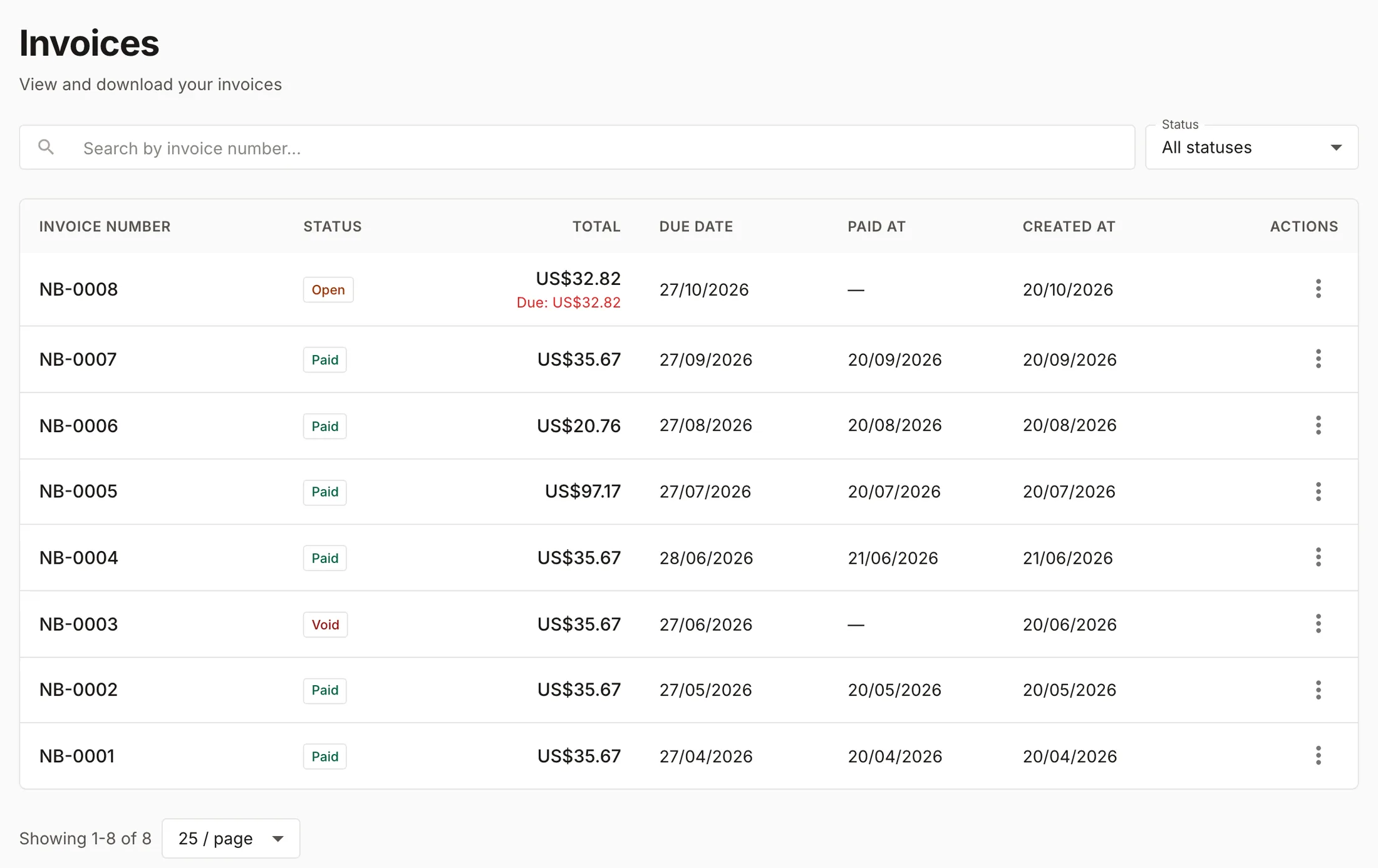
| Column | What it shows |
|---|---|
| Invoice number | The number on the invoice, or Invoice in preparation. A correcting invoice says under its number which invoice it corrects. |
| Type | What the invoice is for: Subscription for your plan, with any overage billed on it, Doxtly balance for a top-up, or Other |
| Status | Where the invoice stands, see statuses |
| Total | The invoice’s total. An invoice with money still to pay also shows Due in red. |
| Due date | When it has to be paid, or a dash if it has no due date |
| Paid at | When it was paid, or a dash |
| Created at | When the invoice was issued, or, while it is in preparation, when you paid |
| Actions | The menu described below |

The list starts with the newest invoice. Click any column heading except Type and Actions to sort by it. The first click sorts ascending, the second descending, and the third goes back to newest first. Two clicks on Total, for example, bring your largest invoice to the top.
An invoice has no page of its own: everything about it is in its row, and the invoice itself is its PDF, in the row’s menu. The list shows 25 invoices a page, and you can change that to 10 or 50 under the list. On a phone, each invoice is a card with the same details, newest first, without the sorting.
Finding an invoice
Section titled “Finding an invoice”Type in the Search by invoice number… box to find an invoice by its number. Part of the number is enough, and capitals do not matter. Type shows Subscription, Doxtly balance or Other invoices only, and Status Open or Paid ones only. All types and All statuses are the defaults. Set Status to Paid when your accountant wants the settled invoices for the books.
Each active filter appears as a chip you can remove on its own, and Clear all removes them all. If nothing matches, the page says No invoices found and offers Clear all filters.

Filters and sorting are kept in the page address, so you can send the link to a colleague who holds the same permission and they see the same list.
The row menu
Section titled “The row menu”The menu at the end of a row has one entry.
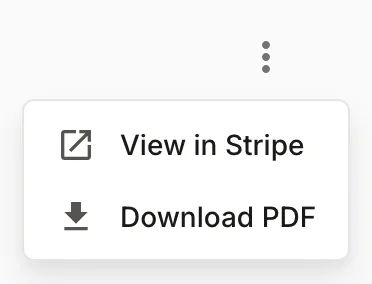
| Entry | What it does |
|---|---|
| Download PDF | Saves the invoice as invoice_<number>.pdf. It shows Downloading… while it works, and Invoice downloaded successfully when it is done. It is greyed out while the invoice is in preparation. |
Invoice statuses
Section titled “Invoice statuses”| Status | What it means | What you do |
|---|---|---|
| Paid | The invoice, or the payment waiting for it, is settled | Keep the invoice for your records |
| Open | The invoice is issued and not paid yet | Pay it by its due date |
A card payment that fails never shows here: there is nothing to invoice until it goes through. Doxtly tells you about it on the subscription page, where you pay it.