

Generated files
Generated files is the log of everything your templates have produced. Each attempt to make a document leaves one row, whether it worked or not. Come here for the everyday questions: did the certificate for yesterday’s course go out, which template keeps failing, where is the PDF of that NDA?
Available when: your role has the permission View file templates and generated files
Where to find it
Section titled “Where to find it”Open Resources > File templates in the sidebar and switch to the Generated files tab.
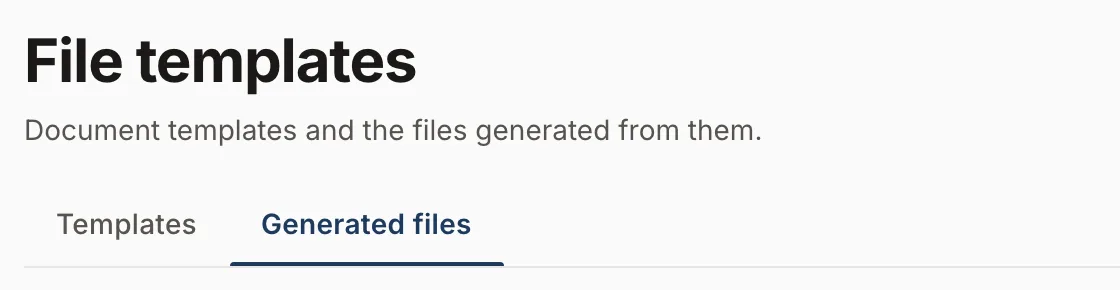
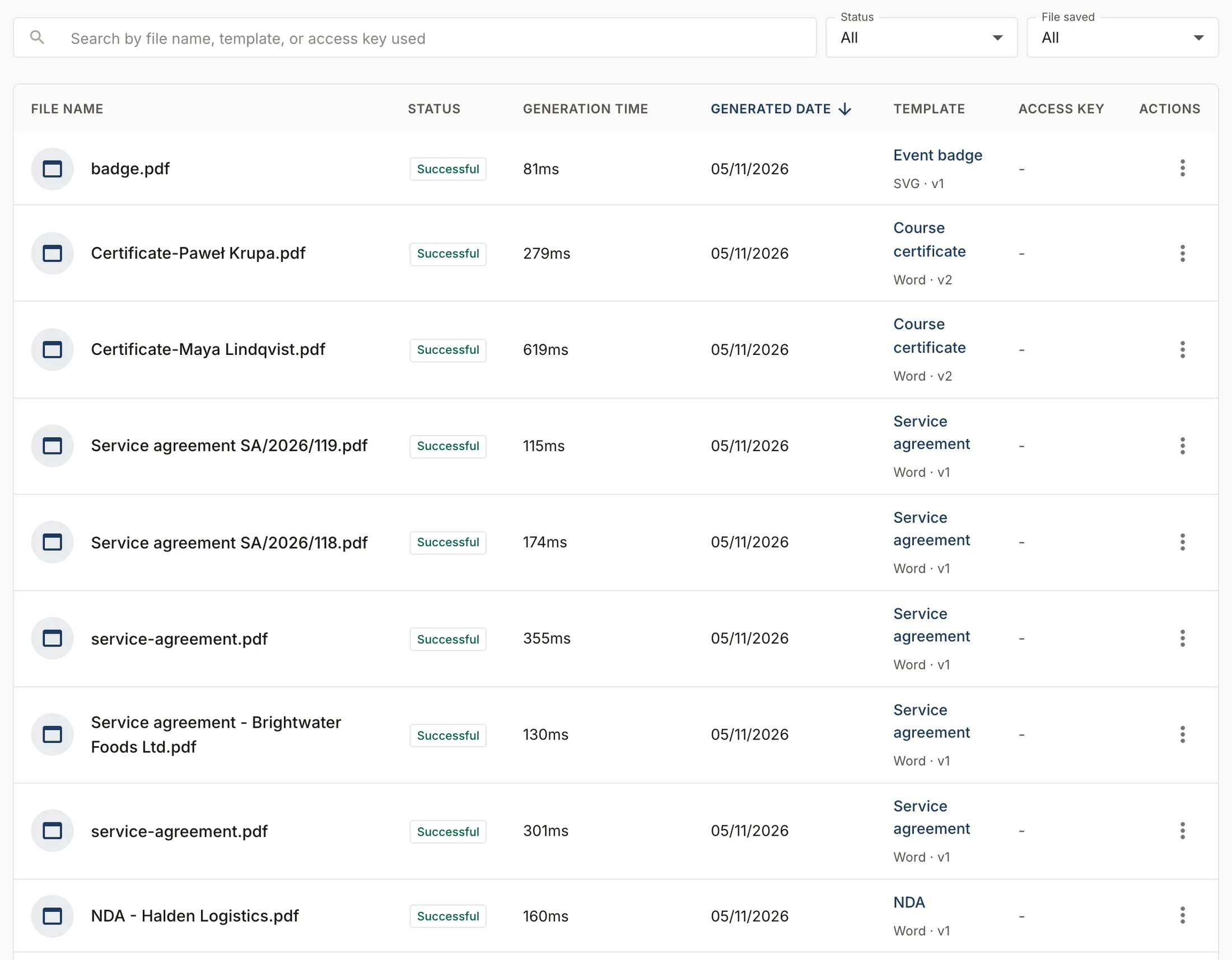
The list covers the whole organization and shows the newest documents first, 25 to a page.
Where the rows come from
Section titled “Where the rows come from”Two things make a row:
- A workflow with a Generate document step, for example one that issues a course certificate when a participant’s form comes in.
- The API, when another system of yours asks for a document. See Generate a document.
Nothing else does. A signing document that the Create documents step builds straight from a PDF template has no row here, and neither does the PDF of an interactive document submission.
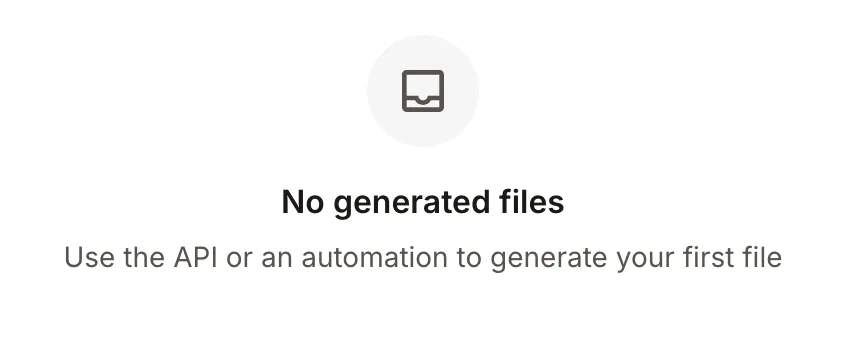
Until a workflow or the API has made a document, the tab shows No generated files.
What each column means
Section titled “What each column means”| Column | What it tells you |
|---|---|
| File name | The name given to the document. The icon beside it is crossed out when no file was saved, and a padlock marks a password-protected file. |
| Status | Successful or Failed. |
| Generation time | How long the document took to make, in milliseconds under a second and in seconds above it. A failed generation shows a dash. |
| Generated date | The day the document was made. |
| Template | The template’s name, which opens that template, with its type (Word, SVG or PDF) and the version used, such as Word · v4. |
| Access key | The name of the access key that asked for the document. |
| Actions | The menu with Download and Delete. With a connected drive, Download also offers Save to a cloud drive. |
The file name comes from Output filename in the workflow step, or from filename in the API call. Either way it always ends in .pdf: Doxtly adds the ending if it is missing, so agreement 12.2026 becomes agreement 12.2026.pdf. A name can have up to 255 characters, ending included. An API call that leaves the name out gets document.pdf, and so does a step whose name comes out empty because a variable had no value.
The version is the one the template had at that moment, and it does not change afterwards. That matters most for a template that follows a cloud file, which can change without anyone in Doxtly editing it. If a client says their agreement has the old wording, the version tells you which one they received. Older documents may show the type without a version.
The template and key names are the current ones, so renaming a template renames it in all of its old rows.
A dash in Access key means no key is recorded: the document came from a workflow, or the key has since been deleted. If you can see the name but not click it, your role lacks the View access keys permission.
There is no separate page for a single generation. The row holds everything Doxtly shows about it, and only its links and menu can be clicked.
Password-protected files
Section titled “Password-protected files”A padlock beside the name means the PDF opens only with a password. Point at it to read Password protected file.

The record keeps only the fact that the file is protected, not the password. You download the locked file, and you need the password from wherever it was set: the Document password of the workflow step, or password in the API call. If that password is built from variables, work it out from the same data, because each document can have a different one.
Sorting
Section titled “Sorting”Click a column heading to sort by File name, Status, Generation time or Generated date. Template and Access key do not sort.
The first click sorts ascending, the second descending, and the third returns to the default order, newest first. Generated date only flips between its two directions, since it is the default order itself, so your first click there shows the oldest documents.
Sorting Status ascending puts failures on top. Sorting Generation time descending shows your slowest documents, with the failed rows last, as they have no time.
Find a generation
Section titled “Find a generation”The search box looks through the file name, the template name and the access key name at once. It ignores upper and lower case and matches parts of words. If you type several words, each one must appear somewhere in those three fields, so nda acme finds NDA-Acme-2026.pdf as well as Acme.pdf made from the template Mutual NDA.
The search runs shortly after you stop typing. Press Enter to run it at once.
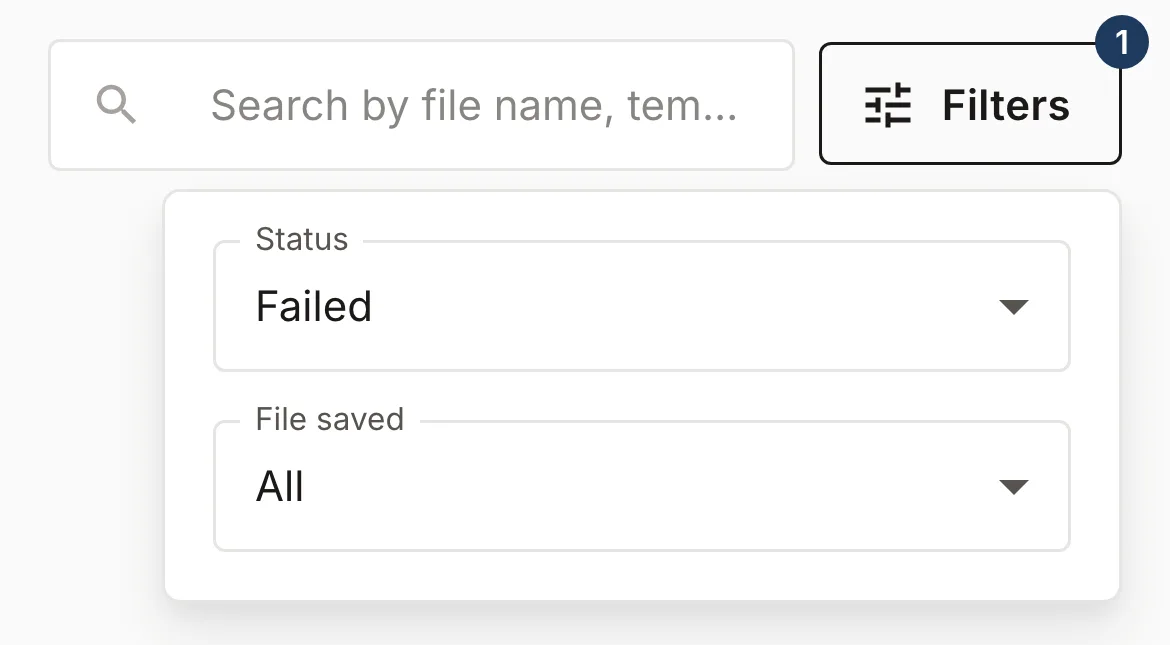
| Filter | Options | Use it to |
|---|---|---|
| Status | All, Successful, Failed | See what went wrong, or only what worked. |
| File saved | All, Yes, No | Separate the documents you can still download from those you cannot. |
Each active filter appears as a chip under the bar. Remove one with its cross, or use Clear all to drop them all. Sorting and page size stay as they were.

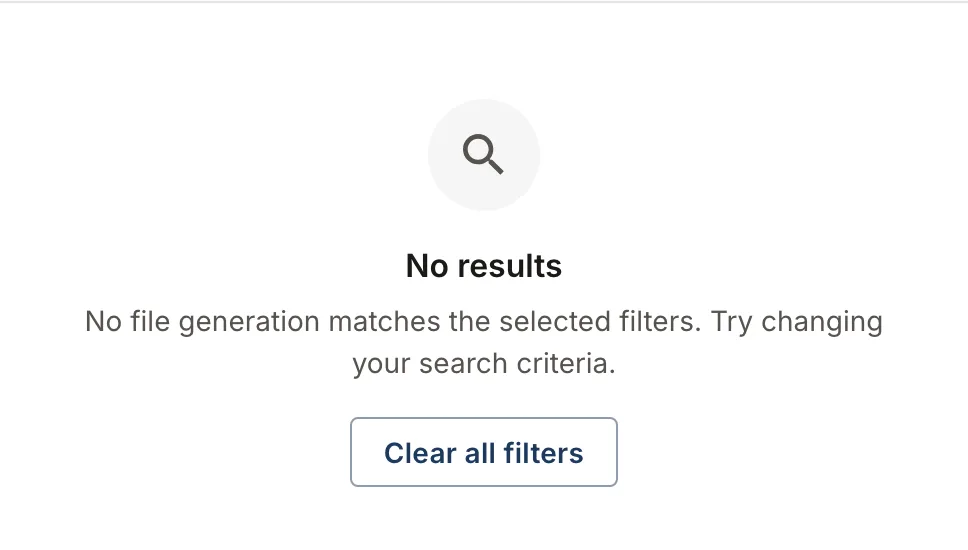
If nothing matches, you see No results with a Clear all filters button.
Filters, sorting and the page live in the page’s address, so you can bookmark a view or send a colleague a link to exactly the rows you are looking at. Whoever opens it needs the same permission to see them.
At the bottom of the list, choose 10, 25 or 50 rows per page.
The list does not refresh itself while it is open. Reload the page to see a document that was made a moment ago.
Download a file
Section titled “Download a file”- Find the row and open the menu at its right-hand end.
- Choose Download. With a cloud drive connected, a menu then offers the file under Download to this device and under Save to a cloud drive: see Saving exports to a drive.
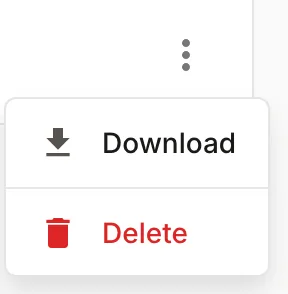
You get the PDF exactly as it was stored, under the name in the list. Every document is a PDF, whichever type of template it came from. Downloading needs only the view permission.
Download appears only when a file was saved. There are three reasons why a row has none:
- The generation failed, so there is no document.
- Saving was not requested. A workflow step saves the document only with Save in application turned on, which is off by default. An API call saves it only with
persistset totrue. Without saving, the document still reaches the next steps of the workflow or the API caller, and then it is gone from Doxtly. - The organization was out of disk space. The document is made and handed on, but not stored. The row says Successful, File saved is No, and you get a notification saying so. To save such documents again, free up space or change your plan.

So a row with Successful and no file is normal when the document was only meant to travel, for example straight into an email. If you want a copy of every signed-off agreement, turn on Save in application in that workflow. If your team keeps its documents in a drive instead, add an Upload to the cloud step after it: Upload to Google Drive, Upload to OneDrive, Upload to SharePoint, Upload to Dropbox or Upload to Box in the palette.
When a generation fails
Section titled “When a generation fails”A failed row looks like this: Failed, the crossed-out icon and a dash for the time. It never has a padlock, even if the document was meant to have a password.

The list tells you that it failed, not why. The reason goes to whoever asked for the document:
- Made by a workflow: open the run on Executions and read the failed step. Once you have fixed the cause, Rerun it. The new attempt gets a row of its own, and the failed one stays.
- Made through the API: the reason is in the error response to the call. Only the caller sees it, so log it in your own system.
The usual reasons are:
| What the message says | What to do |
|---|---|
| Request data is missing required variables, followed by their names | Send those values, or add them where the data comes from, such as a form field. See Data and variables. |
| The template has a syntax error on a given line | Fix that line in the template. |
| The template could not be filled in, because a line uses data that is missing or shaped differently | Compare what you send with the template’s variables. |
| The template uses a tag, filter or function that is not allowed | Take it out of the template. |
| The file of the template could not be found | Upload the template file again. |
| An image is invalid, of an unsupported type or over 10 MB | Correct the picture you pass in. In a Word template, use PNG, JPEG, GIF or BMP. |
| The document password could not be completed | A variable used in the password is empty or missing. Check the data, or the password itself. |
| PDF generation failed, or the document could not be protected with its password | Something went wrong while the file was being built. Try again, and contact support if it keeps happening. |
A failed generation does not count against your plan’s limit on generated documents.
Some requests are refused before any work starts and leave no row at all. The caller gets the error, and nothing appears here:
- the template does not exist;
- the organization has reached its plan’s limit on generated documents for the billing period, and has no overage to carry on with;
- it is a PDF template with fields people fill in or sign themselves, which cannot be generated from data alone. Use such a template in a Create documents step instead;
- an API call with a blank
filename;
So if a document is missing and there is no Failed row for it, look at the run or the API call.
A client says the document never came
Section titled “A client says the document never came”Northbridge Advisory runs a course, and a participant writes that her certificate did not arrive. Search for her name and read what you find:
- A Successful row with a file. The document exists. Download it and send it on, then look at the email step of the run to see why it did not reach her.
- A Successful row with no saved file. The document was made but not kept. Rerun the workflow, and consider turning on Save in application.
- A Failed row. Open the run and read the failed step.
- No row. The workflow may not have reached the step, or the request was refused. Start from the run.
Notice failures early
Section titled “Notice failures early”The Failures widget on the dashboard counts the failed generations of the last seven days under File generation. If nothing failed anywhere, it says No failed operations. When there are failures, click that line to come here with the list already narrowed to those rows.
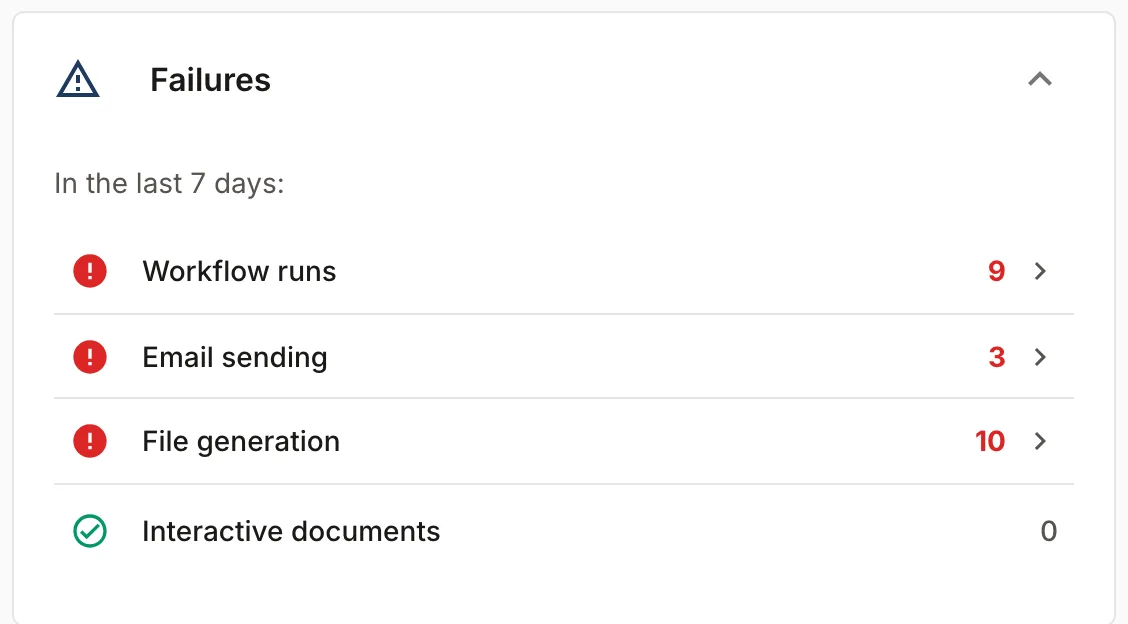
That view has a Status: Failed chip and a Since chip with the date and time the seven days began. Remove the Since chip to see every failure still on the list.
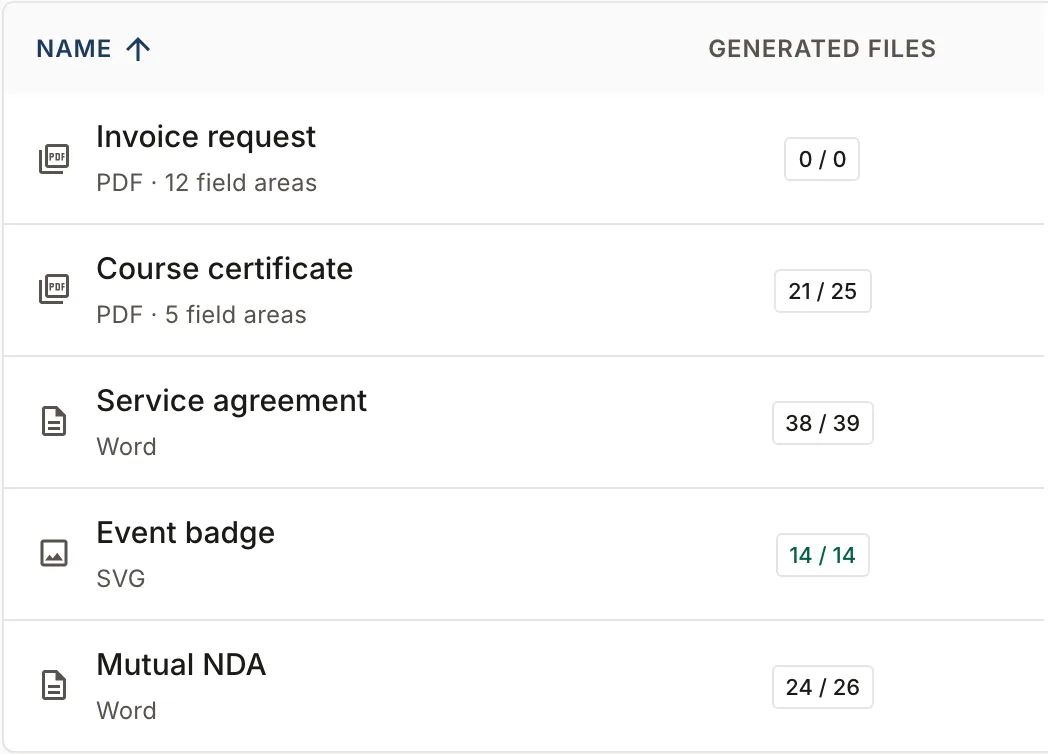
Each template also has a summary on the Templates tab. The Generated files column shows successes out of all attempts, such as 41 / 43. It is green when nothing failed, red when nothing succeeded, and neutral for a mix or for a template not used yet. A neutral chip with two numbers that differ is a reason to come here and search for that template. The template’s Information tab has the same figures under Usage statistics, with the success rate.
Delete a generation
Section titled “Delete a generation”Available when: your role has the permission Manage file templates
- Open the menu at the end of the row and choose Delete.
- Confirm in the Delete file generation dialog. This cannot be undone.
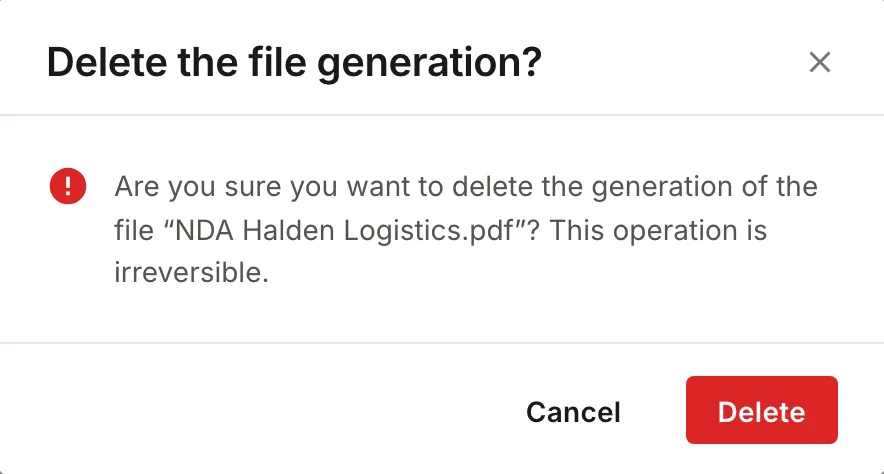
Deleting removes the row, the data the document was made from, and the saved file, which frees its disk space.
There is one exception: if a signing document was made from the file, the file stays, keeps taking up disk space, and the document carries on as it was. Tidying this list cannot pull a contract out from under someone who is signing it.
A workflow run that made the document keeps its Generated document chip, but the file can no longer be downloaded from it.
People without Manage file templates do not see Delete. On a row that also has no saved file, they see no menu at all.
What else removes rows
Section titled “What else removes rows”Deleting a template removes all of its generations and their saved files, with the same exception for files used by signing documents. If you need the history, keep the template. See Deleting a template.
Data retention removes old records every night. Under Generated files in the organization’s Data retention settings, Remove older records is on by default with a Number of days of 1825, about five years. You can set anything from 1 to 3650 days, or switch it off so that rows are Kept for good. A law firm bound to keep documents for ten years would raise it. A company generating thousands of one-off certificates might lower it to save disk space. If a shorter period would remove rows, Doxtly tells you how many before you save. Removal covers failed rows too and works like Delete, including the exception for signing documents.
What generations count towards
Section titled “What generations count towards”| What | How it counts |
|---|---|
| Your plan’s generated documents | Every Successful row counts once in its billing period, saved or not. Failed rows do not count, and deleting a row does not give the use back. |
| Disk space | Each saved PDF. The Storage widget on the dashboard lists them as Generated files. |
| Data space | The data each document was made from, until the row goes. |
| The template’s Generated files figures | The rows on this list, so they drop when rows are deleted or removed by retention. |
A successful generation can also start other work. A workflow with the Document generated trigger runs each time its template produces a document, by either route and whether or not the file was saved. A failed generation starts nothing.
On a phone
Section titled “On a phone”On a narrow screen each generation is a card with the same information. Chips show the status, the template type, the version and Protected for a password-protected file. A card leaves out the access key when there is none. Cards always keep the list’s current order, because there are no column headings to click.
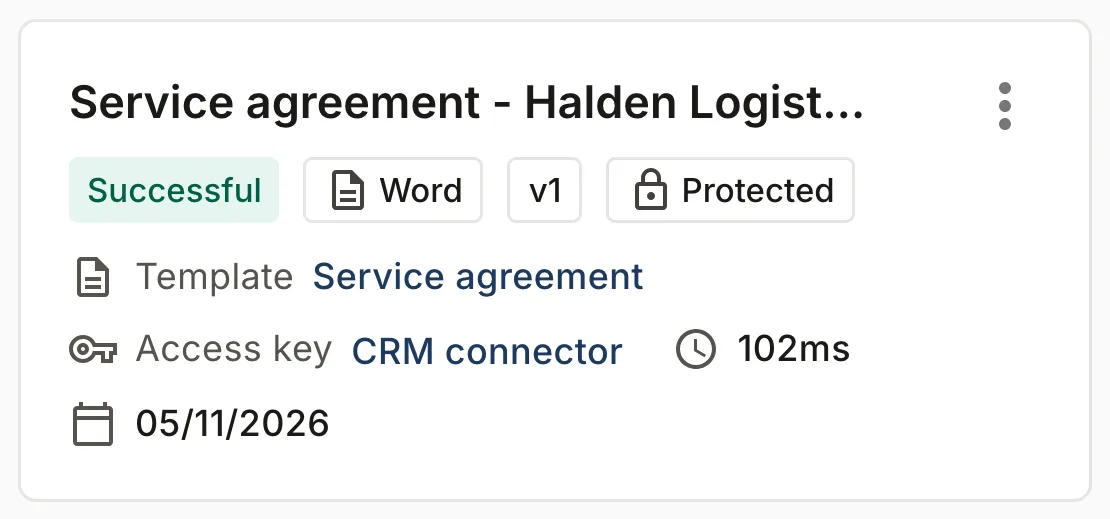
The filters move behind a Filters button that shows how many are active.
From a workflow run
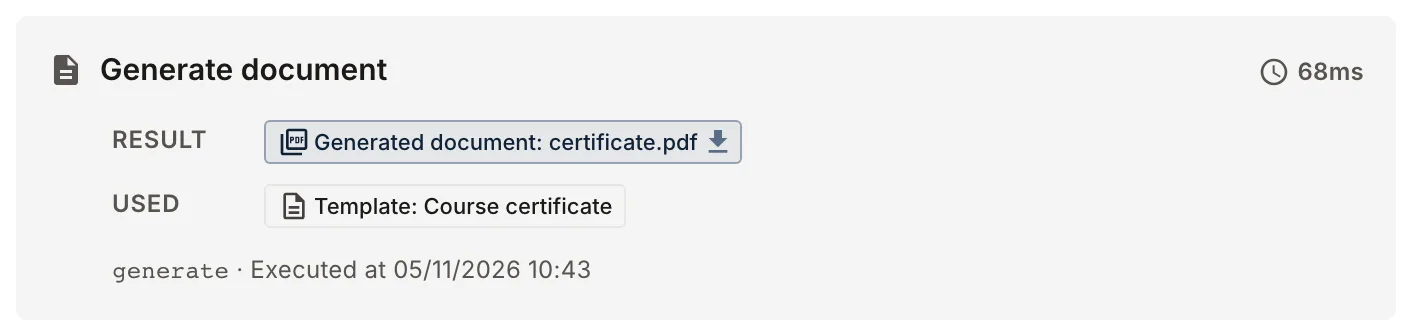
Section titled “From a workflow run”When a workflow generates a document, the step in the run shows a Generated document chip with the file’s name. If the file was saved, clicking the chip downloads it, so you do not need to look it up here. That takes the same view permission. A document that was not saved is only named, with nothing to download.
A run started by the trigger A document is generated offers the same download on its trigger step, as long as the file was saved.
Through the API
Section titled “Through the API”Your own systems can do all of this too, and make the documents as well. An access key needs these permissions, found in the File templates and generated files group:
| Permission | Lets the key |
|---|---|
| Generate document | Make a document. The row shows the key’s name. |
| List generated files | Read the list, with the same search, filters and sorting. |
| Read generated file | Read one generation. |
| Download generated file | Fetch the saved PDF. |
| Delete generated file | Delete a generation, with the same rules as above. |
The calls are described under Generated files in the API reference.