

People and access
An exam for your own staff, a certification for the people who took a course, a survey only a client’s team should answer: when a quiz is for named people, give it an access list. Only the people on it get in, each with a password of their own or a personal link Doxtly emails them, and every attempt carries the name of the person who took it. You can also send the quiz to your contacts, each with a personal link of their own, and follow everyone on one tab: who was invited, who opened the quiz, who started and who finished.
Available when: your role has the Manage quizzes permission, or Manage surveys for a survey; the contacts on the tab, and sending to them, also need View contacts
Who can take the quiz
Section titled “Who can take the quiz”The quiz’s Access settings decide whether the list is used:
| Option | What the person does |
|---|---|
| Anyone with the link | Opens the quiz’s link. The list is not used, and the page says so above it. |
| People with their own passwords | Opens the quiz’s link and types the password you gave them. |
| Invited people (personal links) | Opens the personal link from their invitation email. The page greets them by name, and they need no password. |
You can build the list first and switch the quiz to it when it is ready.
Whatever the option, a personal link lets its person in and tells Doxtly who they are: the link of a person on the list, and the link a contact was sent. It gets past a password the quiz asks of everyone, and on a quiz with passwords its person types none. So you can invite the people of a list with passwords by email too, and hand the password only to those who can’t use the link.
Open the page
Section titled “Open the page”Choose People and access in a quiz’s row menu, or Manage people in the Access section of its settings. The page has two tabs, People and Access log, and shows under its title who can take the quiz. The quiz’s results have the same People tab, for whoever may manage quizzes.
People
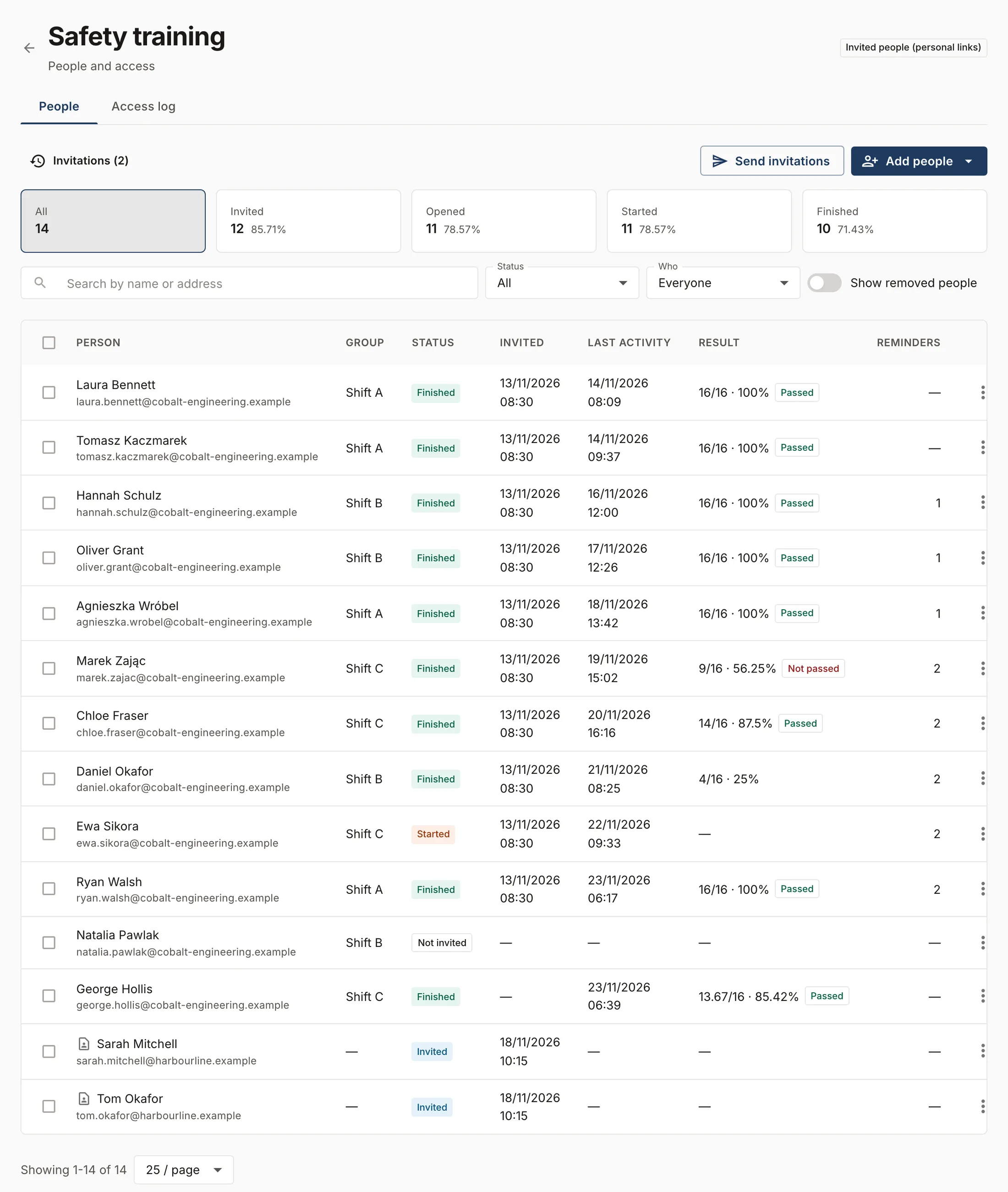
Section titled “People”The tab lists everyone the quiz was given to, side by side: the people on its access list and the contacts sent a personal link to it, marked with a contact icon. The list’s people come first, in the list’s order, then the contacts.
| Column | What it shows |
|---|---|
| Person | The name and the address. A contact’s name opens their page; a person taken off the list is marked Removed. |
| Password | With People with their own passwords only: the person’s password. |
| Group | The group the person belongs to, such as a course or a department. |
| Status | Where they stand, as the next table explains. |
| Invited | When their invitation went. |
| Last activity | When they last finished, started or opened the quiz. |
| Result | Their latest finished attempt: the points out of the maximum, the per cent, and Passed or Not passed. A survey says only Answered. |
| Reminders | How many reminders they were sent. |
Search by name or address finds someone in a long list, Status shows one status, and Who shows Access list or Contacts only (with View contacts). Show removed people lists the people taken off the list after the others. On a phone the table turns into cards with the status, the last activity and the result.
| Status | Meaning |
|---|---|
| Not invited | On the list, with no invitation sent yet. |
| Invited | The invitation, or the contact’s link, went out. |
| Not delivered | The invitation could not be sent. Point at the status to read why. |
| Opened | They opened the quiz but haven’t started it. |
| Started | They started an attempt and haven’t finished it. |
| Finished | They sent an attempt, also one still waiting to be graded. |
| Revoked | You revoked their way in. |
| Expired | Their link expired. |
Progress
Section titled “Progress”Above the list, five tiles count the people: All, then Invited, Opened, Started and Finished, each with its share of all of them. Each step counts everyone who got at least that far, so someone who finished also counts under Opened and Started. You see at a glance where people drop out: 40 invited, 31 opened, 12 finished means a reminder is due.
A tile filters the list to the people it counts; All clears the filter. On a phone the tiles are a row of chips you scroll sideways.
The row menu
Section titled “The row menu”Each row’s menu offers only what can be done to that person now:
| Item | What it does |
|---|---|
| Copy link | Copies the person’s personal link, for when it can’t go by email. A contact’s link only while it still works. |
| Copy password | Copies the person’s password, to pass it on yourself. For a person who has one. |
| Send invitation, Send invitation again | Opens Send invitations for this person. People of the list with an address who haven’t finished. |
| Send a reminder | Sends a reminder now, to someone invited who hasn’t finished. |
| Revoke access | Stops their link and password at once, after you confirm. See Revoke and expiry. |
| Restore access | Lets a revoked person in again, through a new invitation. See Revoke and expiry. |
| Edit | Changes the name, the address, the group or the password. People of the list only. |
| Remove from the list | Takes the person off the list, after you confirm. People of the list only. |
| Open contact | Opens the contact’s page. |
Invitations and reminders go out only while the quiz is Active.
Many people at once
Section titled “Many people at once”Tick the people you want, or the box in the header to tick the whole page. With the whole page ticked and more people matching the filters, Select all matching ticks every one of them, as a mailbox does, so you can remind the 200 people of a filter at once. On a phone, press Select first and Done when you are finished. Changing a filter clears the selection.
The bar under the list says how many are selected and offers:
| Button | What it does |
|---|---|
| Remind | Sends each of them a reminder now, skipping anyone who finished or whose way in no longer works. While the quiz is Active. |
| Revoke | Revokes their way in, after you confirm. |
| Restore | Restores the access of those revoked among them, for a new invitation. Shown when you tick someone revoked. |
| Export | Downloads them as a CSV file that opens in Excel: name, address, list or contact, group, status, when they were invited, opened, started and finished, the reminders, and for a quiz the score, the per cent and whether they passed. A survey scores nothing, so its file has no such columns. With a connected drive and the permissions to change its files, Export also offers Save to a cloud drive. |
| Clear selection | Unticks everyone. |
One action takes up to 10,000 people.
Add a person
Section titled “Add a person”- Select Add people, then One person.
- Type their Name and E-mail. One of the two is enough with passwords; personal links need the address.
- Type a Group if you compare results by group, such as Course A or Sales.
- With passwords, type a Password of 4 to 100 characters, or leave it empty and Doxtly makes one up: 10 letters and digits, without the ones easy to confuse, such as 0 and O.
- Select Save.
Two people can never share a password, since the password is what tells them apart; Doxtly says so if you type one that is taken. An address can be on the list only once, so adding an address already there changes that person instead.
Add people from a file
Section titled “Add people from a file”For a whole course at once, add the people of an Excel or CSV file whose first row names its columns. The file can come from your computer or from a connected cloud drive.
- Select Add people, then From a file.
- Drop the file on the area, or click it to choose one on your computer. With a cloud drive connected and the View cloud files permission, you can choose From cloud drive instead and pick the sheet there: Excel, CSV or a Google Sheets file (importing from a drive).
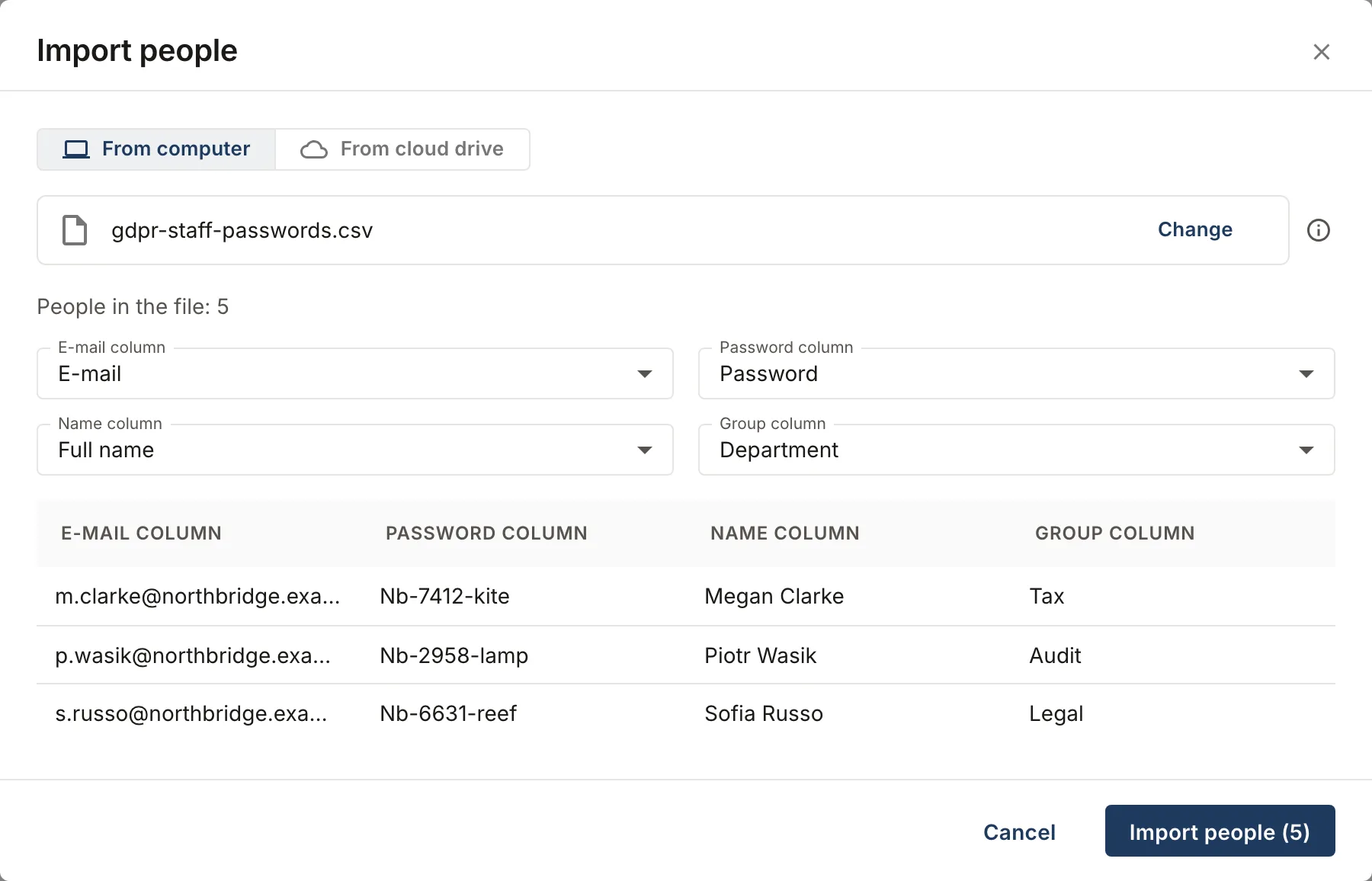
- Doxtly shows how many people the file holds and guesses the E-mail column, the Password column and the Name column from the header, in several languages: E-mail, Password, Name, Hasło, Imię i nazwisko, Correo electrónico, Contraseña and the like. Change any of them, or choose None.
- Select Import people.
The result says how many people were added, updated and skipped. A row with an address that isn’t valid is skipped, and so is a second row with the same address, or a password someone else already has. A person already on the list is updated rather than added twice, and brought back if they had been removed. Without a password column, each new person gets a made-up password; with personal links, no password column is offered. A list holds up to 5,000 people.
A file from a drive is read once, when you add its people; changes made to it later don’t reach the list. For a list that keeps following a sheet, use a live sheet instead.
A group column
Section titled “A group column”A column named Group, Class, Team or Department, or Grupa, Klasa, Grupo, Klasse, Équipe and the like, is taken as the Group column: each person goes into the group in their row. The first rows of the file show, under the columns chosen, how it will be read. An empty cell leaves a person’s group as it was.
A live sheet can have a Group column too. Each read sets everyone’s group from their row, and an empty cell takes it away.
Send the quiz to contacts
Section titled “Send the quiz to contacts”The access list and your contacts are separate: a contact you send the quiz to doesn’t join the list. They get a personal link of their own, as with Send to fill in, and appear on this tab beside the list’s people.
- Select Add people, then From contacts.
- Find the contacts with the search box and the Type and Company filters, as in the contacts list, and tick them. The box above the list ticks the page; with the page ticked, Select all matching ticks every contact the filters find.
- Select Next.
- In Send to fill in, with the quiz already chosen, pick how it goes and the message, set Valid for (days), and, if you like, a deadline and reminders, as described under Deadline and reminders.
- Select Send.
Each contact gets the link at their own address of the channel; a contact without one is skipped, and so is a contact who declined surveys when you send a survey. A contact has one link to a quiz: sending the quiz again sends the link they already have while it still works.
Send invitations
Section titled “Send invitations”Send invitations emails people of the access list their personal link: the quiz’s own address with a key of their own added to it. The invitations go out together as one batch, with a deadline and reminders if you like.
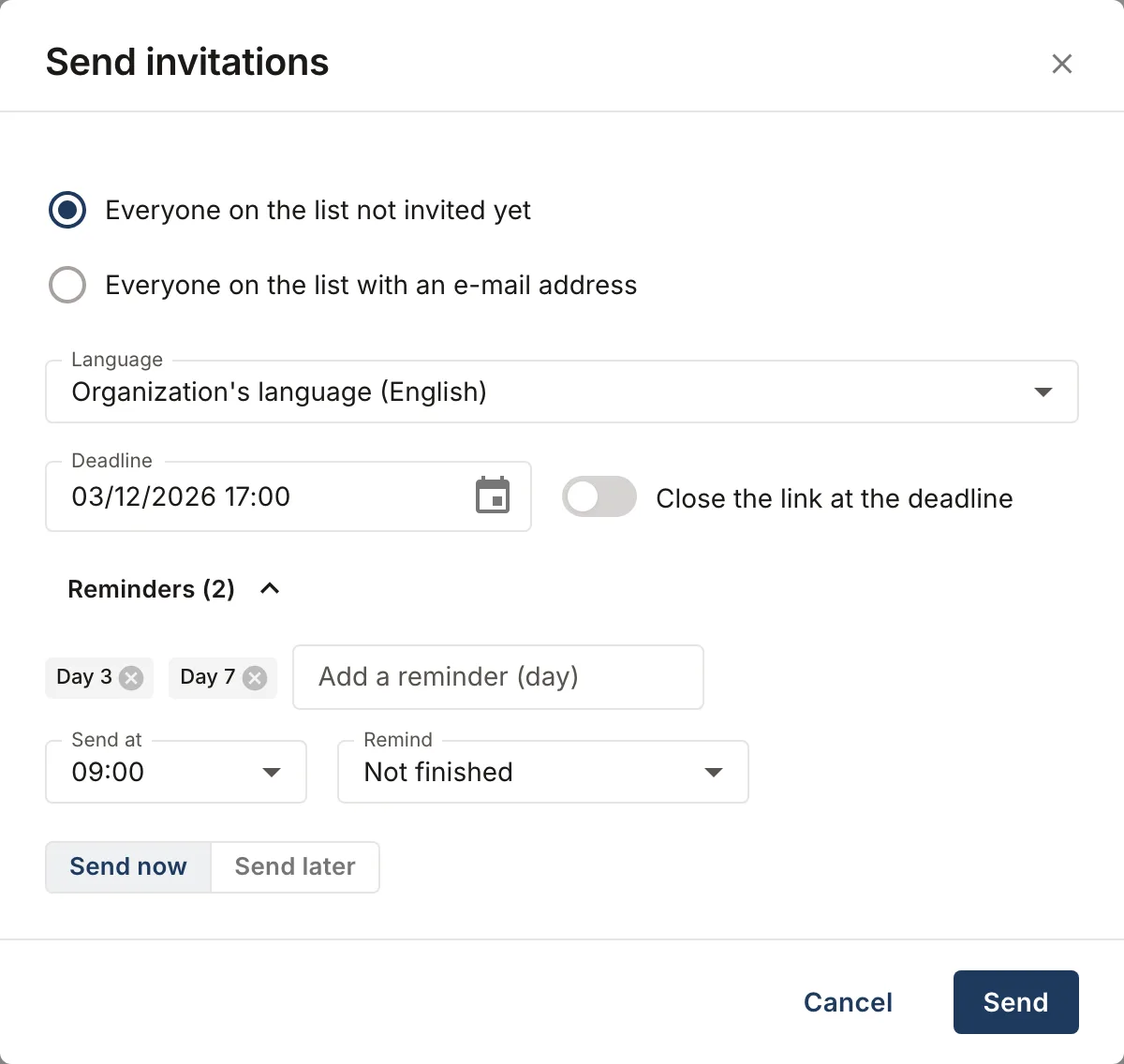
- Select Send invitations. To invite only some people, tick them first, or choose Send invitation in a person’s row.
- Under Send to, choose The people selected, Everyone on the list not invited yet (the default), or Everyone on the list with an e-mail address. People without an address are left out.
- Choose the message and its Language.
- Set a Deadline and reminders if you want them (below).
- Select Send.
The default is everyone not invited yet, so after adding ten more people you send again and only they get one.
The invitations go out from your organization’s email integration, in the Quiz link default message, where {{ recipientName }} is the person’s name, {{ quizUrl }} their personal link and {{ deadline }} the deadline (for a survey, the Survey link message, with {{ surveyUrl }}); the default message asks them to finish by then. Each one counts towards your plan’s emails. The quiz has to be Active to send them; until then the button says so. Contacts are not sent invitations here: send them the quiz from contacts.
Send later
Section titled “Send later”To have the invitations go at a set time, such as Monday at 08:00, choose Send later at the bottom of the window, pick the date and time under Send on, and select Schedule. The time is on a quarter of an hour, in your organization’s time zone. The same choice is there when you send the quiz to contacts.
The batch goes to the people chosen when you scheduled it; anyone whose access was revoked or expired by then, or who was taken off the list, is left out. Reminders, and a contact’s Valid for (days), count from the sending. Until it goes, Invitations lists it as Scheduled, and Cancel sending in its row stops it. If the quiz isn’t active at that time, nothing goes and the batch shows Not sent: quiz closed.
Deadline and reminders
Section titled “Deadline and reminders”Both are set when you send, in Send invitations and when you send the quiz to contacts.
| Setting | What it does |
|---|---|
| Deadline | The day and time by which you want the quiz finished. The message names it. Past it the links still work, unless you close them. Once it passes, reminders stop, and each person who hasn’t finished starts a workflow with A quiz recipient does not respond, for a call or a task in your CRM. |
| Close the link at the deadline | Appears once there is a deadline. The links stop working at it, and the people who haven’t finished show as Expired. |
| Reminders | Opens the reminders. Add a reminder (day) takes a number of days after the invitation, from 1 to 90; up to five reminders, such as on day 3 and day 6. |
| Send at | The time of day reminders go, on a quarter of an hour, in your organization’s time zone: 09:00 unless you change it. |
| Remind | Not finished (the default) reminds everyone who hasn’t finished; Not started only those who haven’t started an attempt. |
A reminder goes in the same message as the invitation, marked as a reminder. Each one is sent once, never twice, and never to anyone who finished, whose way in was revoked or expired, who was taken off the list, or, for a survey, who declined surveys. Remind and Send a reminder send one at once and leave the planned ones as they were.
Invitations sent
Section titled “Invitations sent”Once something was sent, Invitations beside the buttons lists the batches, newest first: when each went, Access list or Contacts, how many were sent of how many (Sent 22 of 24), how many were Not delivered, the deadline and the days of the reminders.
Revoke and expiry
Section titled “Revoke and expiry”Revoke access, in a row or for a selection, stops a person’s link and password at once. Whoever opens the link then reads that it no longer works, on your organization’s page with its logo and name. Their attempts stay, and they stay on the tab as Revoked. A revoked person gets no more invitations or reminders.
Restore access, in the row of someone revoked or for a selection, lets them in again through a new invitation. The link they had stays dead: send them a new one. A person of the list gets a new link and shows as Not invited, so Send invitations reaches them. A contact gets a new link the next time you send them the quiz.
A link also expires: a contact’s link after the days set under Valid for (days), and any link at a deadline that closes it. Whoever opens it then reads that it expired.
Whoever opens a personal link comes in as its person, so ask people not to forward theirs.
Remove a person
Section titled “Remove a person”Remove from the list stops the person from taking the quiz, on their password or their link. Nothing of theirs is deleted: their attempts stay on the Responses tab of the results under their name, and their visits in the access log, both marked Removed. Show removed people lists them after the others. Adding the same address again brings them back. A contact isn’t on the list, so it can’t be removed: revoke their link instead.
The live sheet
Section titled “The live sheet”When the list follows a live sheet, the page says when it was last read, and Read now reads it at once. If it could not be read, the page says so: check the file and the drive’s connection in the quiz’s settings. You can still add people by hand or from a file; the sheet changes only the people it brought.
Access log
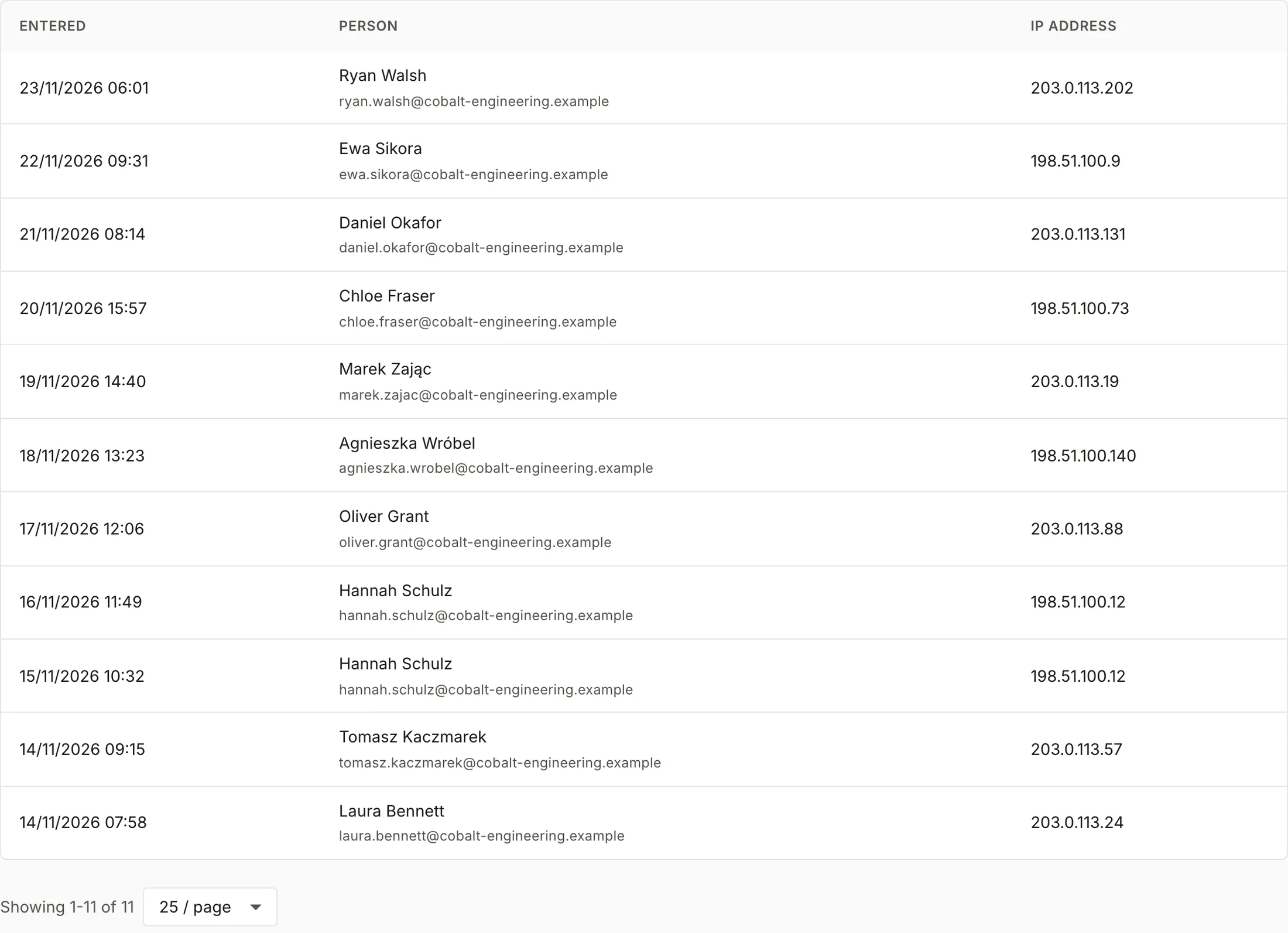
Section titled “Access log”The Access log tab shows who came in, newest first: when (Entered), the Person and the IP address. Each person is listed once a day for each address they came from. Entries are kept for 90 days. People removed from the list since stay in it, marked Removed.
People’s data
Section titled “People’s data”When someone asks what your quizzes hold about them, or asks to be forgotten, two API calls answer it across all your quizzes, found by their e-mail address or as a contact. The same two calls under /v1/surveys/people/ answer it across your surveys:
- Export a person’s quiz data: their places on access lists, the personal links they were sent and every attempt, with the answers.
- Erase a person’s quiz data: takes them off every list, deletes their personal links to quizzes and removes everything in their attempts that names them. Their answers are deleted, or kept without their name in the results if you choose. The workflow runs their attempts and invitations started are deleted too. This can’t be undone.
Both need an access key with the operation Export and erase a person’s quiz data, or Export and erase a person’s survey data for surveys. Deleting a contact also removes their name from the attempts they made through their links, and deletes the workflow runs those attempts started.
Quiz pages tell the browser not to pass their address on, so a link on the page or a picture from another site never learns the personal link it was opened from. The pages contacts open are kept out of search engines and out of the browser’s cache.
Through the API
Section titled “Through the API”Every action of this page has an endpoint: the people and the progress, adding and changing people, uploads, invitations with their deadline and reminders, reminding, revoking, restoring and exporting, the sheet’s status and the access log. See List the recipients and the entries after it in the API reference.