

Cloud files
Cloud files is a file browser for the drives your organization has connected to Doxtly. You see the same files, under the same paths, that your workflows read and write. Use it to put a price list where a workflow can find it, check what a workflow saved, or turn a contract in your drive into a template.
Available when: your role includes View cloud files and the organization has a Google Drive, OneDrive, SharePoint, Dropbox or Box integration that is active or needs reconnecting
Cloud files appears in the sidebar once there is at least one active storage to browse, or one that needs reconnecting. To connect one, see Integrations.
What it’s for
Section titled “What it’s for”Northbridge Advisory keeps its client folders on Google Drive. A workflow files each signed agreement under Clients/<client name>, and another adds every course booking to a spreadsheet. In Cloud files the office manager can:
- check that an agreement landed in the right folder, without leaving Doxtly;
- upload a new price list, which the workflows can use straight away;
- see which workflows depend on a folder before renaming it;
- look up a spreadsheet’s columns while building a workflow;
- copy a path and paste it into a workflow step.
Where the files live
Section titled “Where the files live”The files stay in your drive. Doxtly shows them and acts on them through the connection, so a change here is a change in the drive, and the other way round. They count against your drive’s space, not your plan’s disk space.
Each storage has a root folder, chosen when it was connected. Doxtly sees that folder and everything under it, and nothing above it. Every path you see is relative to it: if the root folder is /Doxtly, then the path Clients/Halden Logistics/Agreement.pdf is the same one a workflow step takes.
The page
Section titled “The page”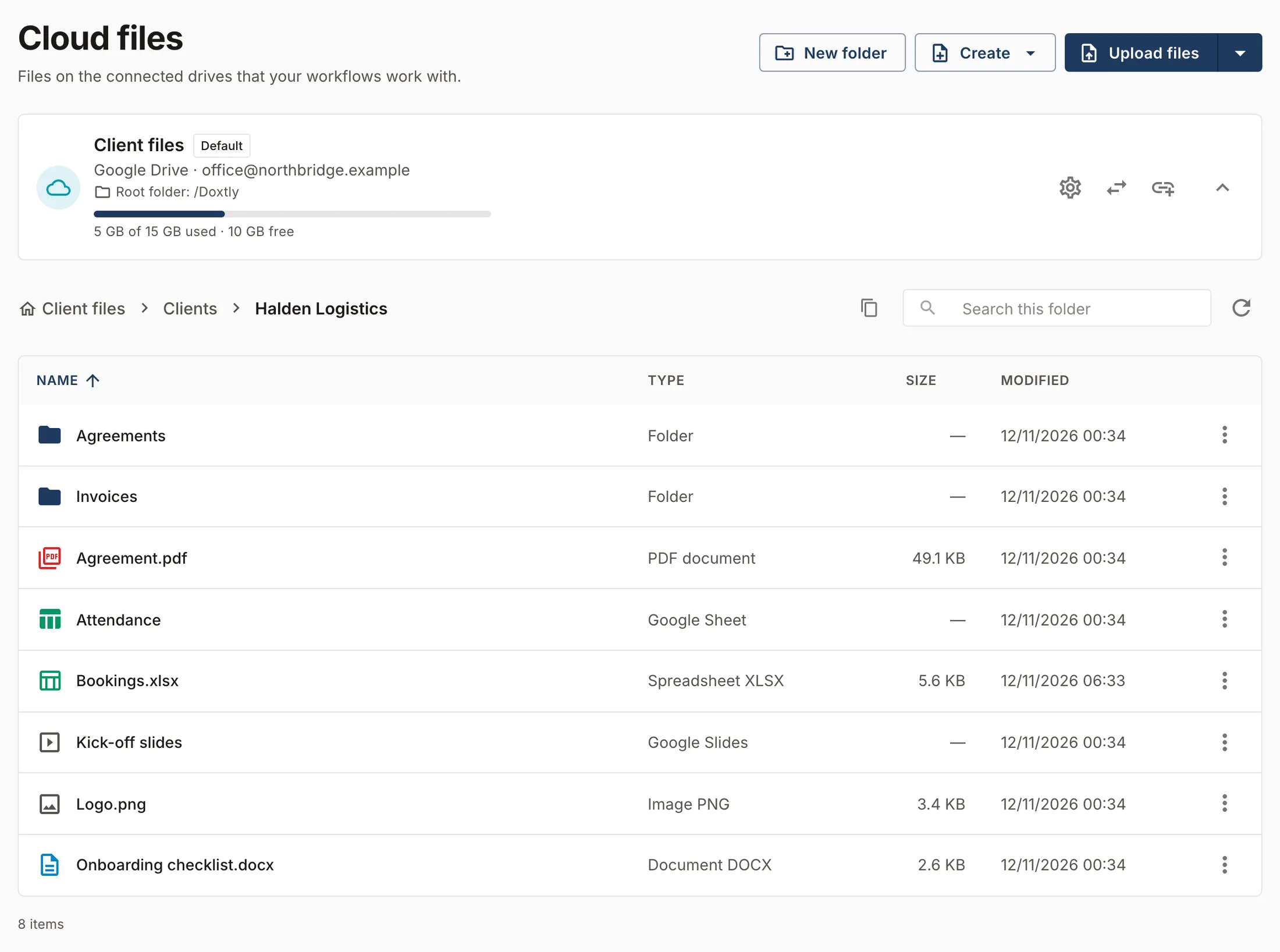
From top to bottom: the action buttons, the storage bar, any notices, the folder path with search, and the folder’s contents. The buttons New folder, Create and Upload files are covered in Managing files. They appear for people with Manage cloud files.
The storage bar
Section titled “The storage bar”The bar shows which storage you’re browsing.

| Element | What it tells you |
|---|---|
| Name | The name of the integration. |
| Default | This is the default storage of its provider: the one workflows use when none is chosen. |
| Provider and account | For example Google Drive · office@northbridge.example. |
| Root folder | The folder everything here is relative to. |
| Storage space | How full the drive is. |
The icons on the right:
| Icon | What it does | Who sees it |
|---|---|---|
| Integration settings | Opens the integration’s page. | People who manage integrations |
| Switch storage | Opens the list of storages. | Everyone, when there is another storage to switch to or reconnect |
| Connect storage | Starts adding a new integration. | People who manage integrations |
| Collapse / Expand | Folds the bar down to the provider, the name and Default. Doxtly remembers this in your browser. | Everyone |

Switching storage
Section titled “Switching storage”The default storages are listed first. With more than one provider, the list is grouped by provider. Storages whose connection stopped working appear at the end under Need to be reconnected: click one to open its integration, or read Ask an administrator to reconnect it if you can’t.
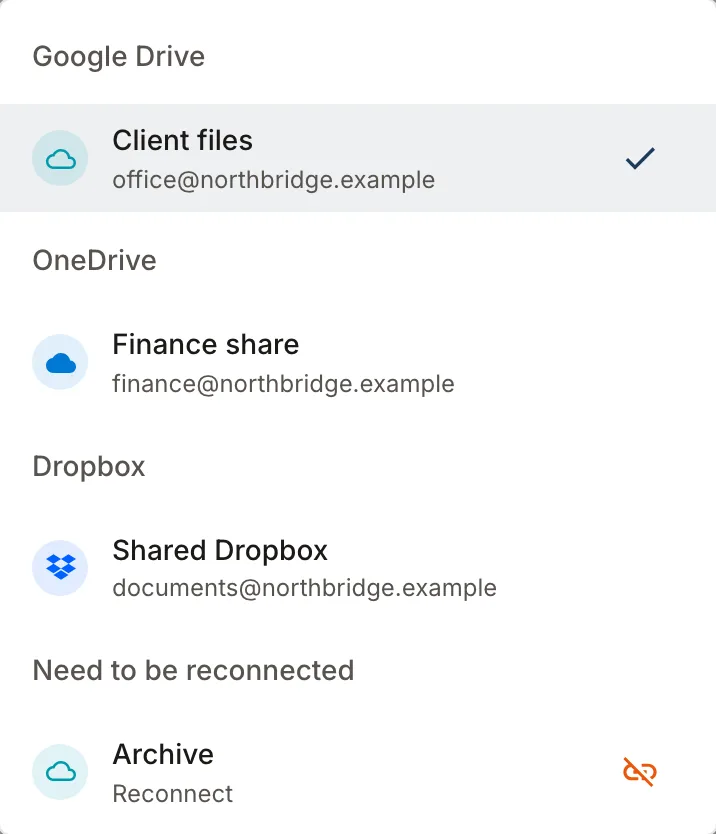
Switching takes you to that storage’s root folder. Doxtly opens the storage you used last in this browser, or otherwise the default.
Storage space
Section titled “Storage space”The figures are the whole drive’s as your provider counts them, not just the root folder’s, for example 5 GB of 15 GB used · 10 GB free. The bar turns amber from 90% and red when nothing is free. A drive with no limit shows only what it uses. Nothing is shown if the provider doesn’t report it, as with a Google shared drive.

Notices
Section titled “Notices”A storage needs reconnecting
Section titled “A storage needs reconnecting”If your provider stopped accepting a connection, because access expired or was revoked, its files aren’t shown and workflows can’t use them. People who manage integrations get a Reconnect button, or one button per storage, named after it, when several need it. Everybody else is told to ask an administrator. The button opens the integration’s page, where you sign in to the provider again.

If that was your only storage, Cloud files stays in the sidebar, and the page shows this notice above No file storage connected, so you know what to do next.
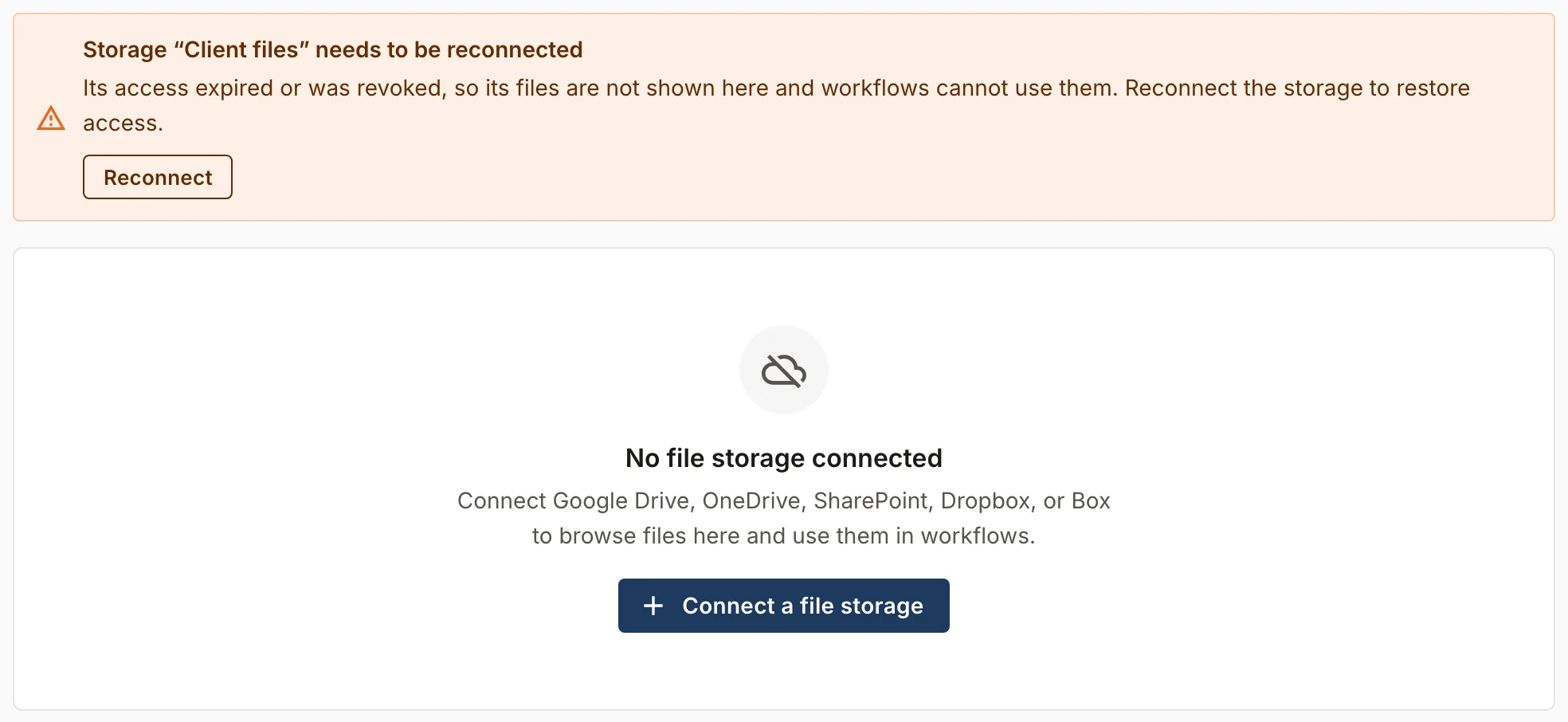
Reconnecting with the same account keeps the root folder. With another account, the root folder goes back to the top of that account’s drive, so choose a folder again and check that your paths still lead somewhere. See Google Drive, OneDrive, SharePoint, Dropbox and Box.
Only files added through Doxtly
Section titled “Only files added through Doxtly”On a Google Drive connection that sees only Doxtly’s files, the page says so, so that a missing file doesn’t look like a fault. Close the notice with its x and it stays away in this browser.

If someone added a file directly in Google Drive, upload it here instead. People without Manage cloud files are told to ask someone who has it.
A storage that’s gone
Section titled “A storage that’s gone”A link or bookmark can point to a storage that is no longer active. Doxtly then opens another one and tells you: The storage you asked for is no longer available. Showing “Client files” instead.
No storage connected
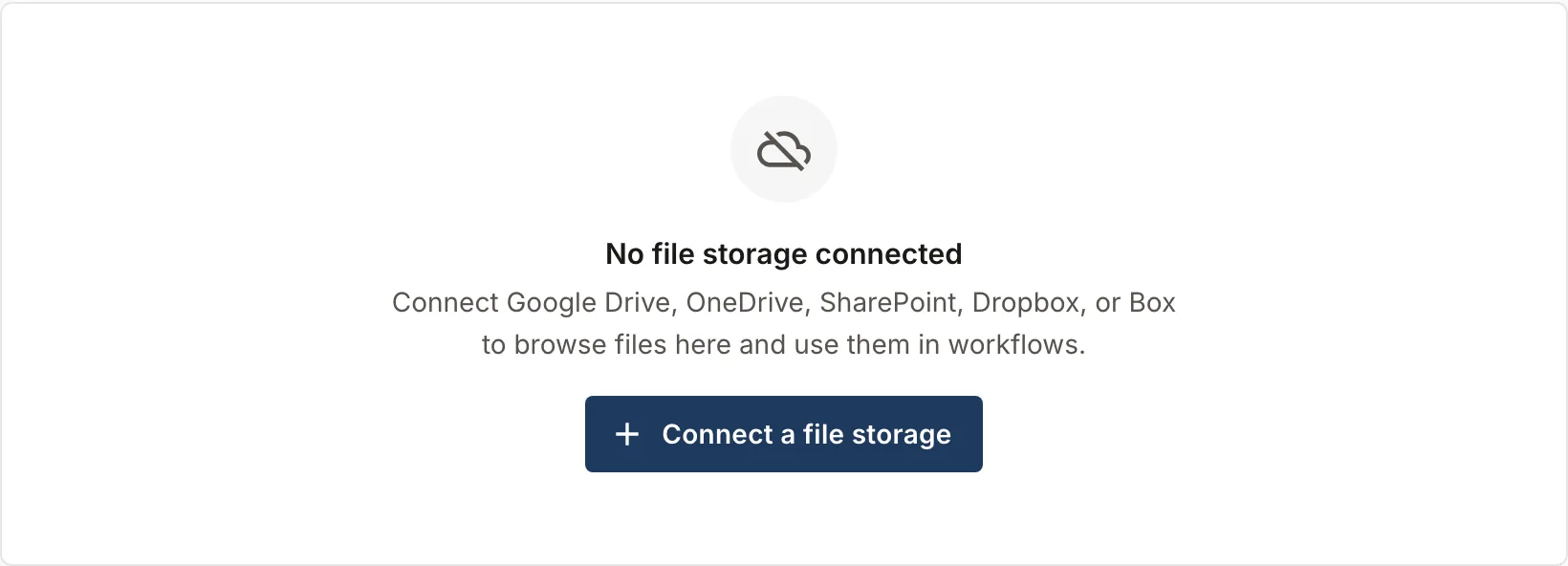
Section titled “No storage connected”Without an active storage the page shows No file storage connected, with Connect a file storage for people who may do that, and a suggestion to ask an administrator for everyone else.
Finding your way around
Section titled “Finding your way around”
The folder path shows where you are. Click any part to go back up, or the home icon for the root folder. Long paths collapse in the middle. The copy icon beside it, Copy folder path, copies the current folder’s path. It isn’t shown at the root, which has no path.
Search this folder looks for names containing what you type. It searches only the folder you’re in, not its subfolders. It’s cleared when you open another folder. With no matches you see No results and a Clear search button.
Refresh reloads the folder. Use it when a workflow has just written something, or someone has changed the drive. Doxtly also refreshes a folder when you come back to it after a little while.
The storage, the folder and the search are all in the page address. You can bookmark a folder, send a colleague a link to it, and use your browser’s back button to walk back up.
The folder’s contents
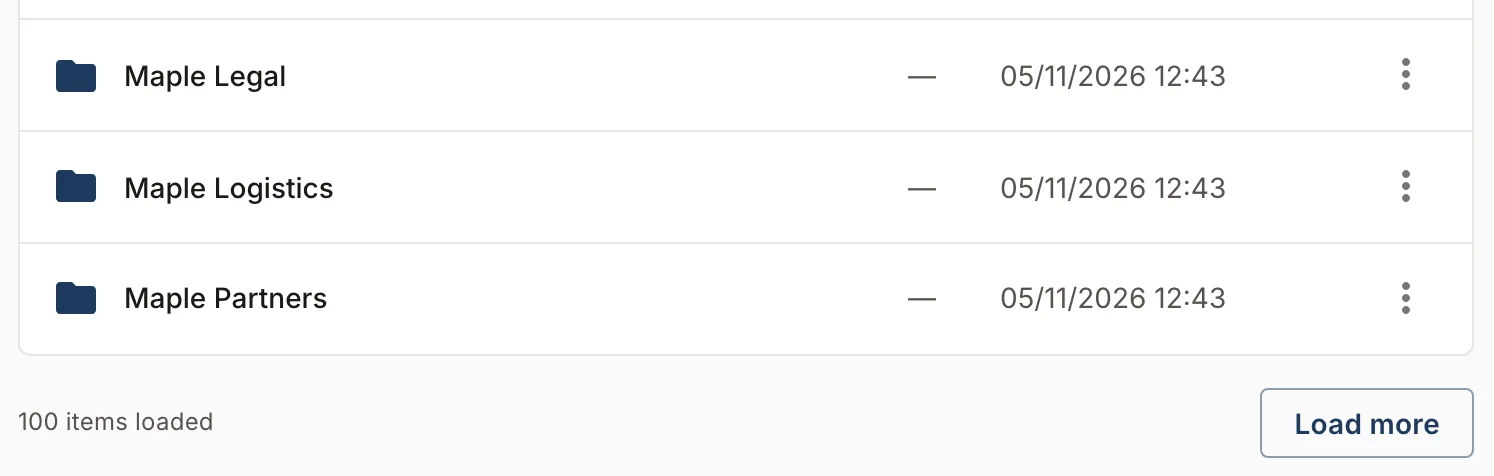
Section titled “The folder’s contents”Folders come first, then files.
| Column | What it shows |
|---|---|
| Name | The file or folder, with an icon for its kind. |
| Type | For example Folder, PDF document, Spreadsheet XLSX or Google Sheet. Shown on wide screens only. |
| Size | A dash for folders and for native Google documents, which have no size. |
| Modified | The last change, as the provider reports it. |
Click a header to sort. Click again to reverse. Folders stay on top whichever column you choose.
Click a folder to open it, or a file to open its details. The button at the end of the row opens the item menu.
Doxtly loads 100 items at a time. Under the list you see how many are loaded, and Load more if there are others. A folder that isn’t fully loaded stays sorted by name, and the column headers say Load all items to sort, because sorting part of a folder would suggest an order that isn’t true.
An empty folder says This folder is empty. If you may manage files you get an Upload files button, and you can also drop files there.

If a folder can’t be loaded you see the reason with Try again and, below the root, Go to the root folder. If the list of storages itself can’t be loaded, you get the reason and Try again.
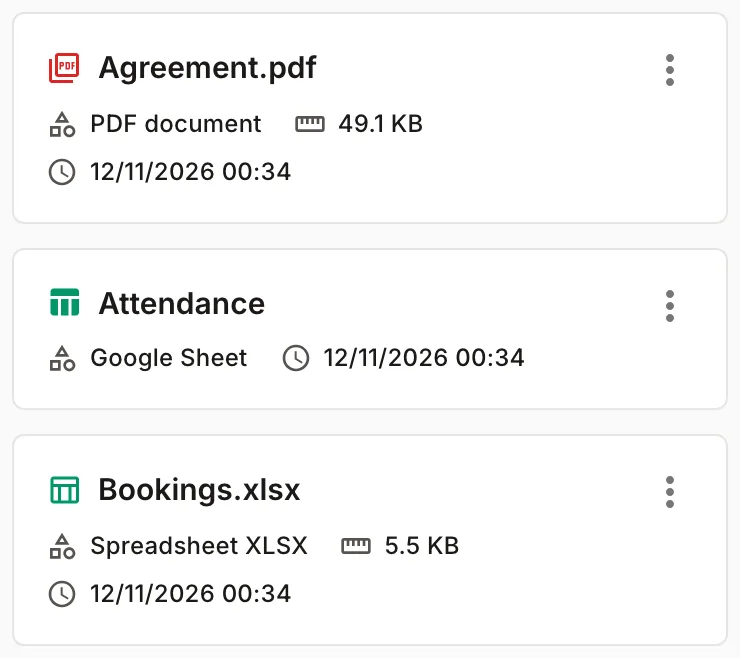
On a phone the table becomes a list of cards with the same facts, and the menu sits in each card’s corner. Cards have no sorting.
The item menu
Section titled “The item menu”The menu of a file or folder offers what you can do with that item, in groups.
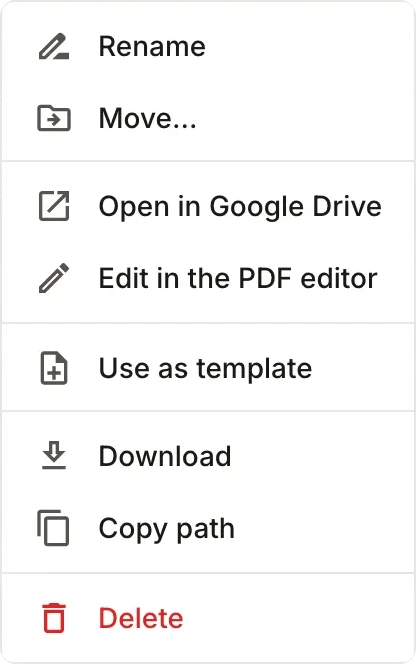
| Item | What it does | When it’s offered |
|---|---|---|
| Rename | Gives it a new name. | You hold Manage cloud files |
| Move… | Moves it to another folder of this storage. | You hold Manage cloud files |
| Open in Google Drive (or OneDrive, SharePoint, Dropbox, Box) | Opens it in a new tab, in the provider’s own interface. | The provider gives a link |
| Edit in the PDF editor | Opens the file in the PDF editor. | A PDF or a Word document (.doc, .docx, .odt, .rtf), you may use the editor and your plan includes it |
| Use as template | Opens the new template form with the file already chosen, so the template follows the file. | A .docx, .pdf or .svg file of up to 10 MB or a Google Doc, you hold Manage file templates, and your plan includes that template type and has room for one more |
| Download | Saves it to your computer. See Downloading. | Files only |
| Copy path | Copies its path, in the form workflow steps take. | Always |
| Delete | Deletes it, after you confirm. | You hold Manage cloud files |
A Google Doc can become a Word template. Google Sheets and Slides can’t become templates, as they are not text documents, and no native Google document opens in the PDF editor, because it has no PDF of its own.
A path is the address of a file inside a storage: folders and the file name, separated by /, starting from the root folder with no slash at either end.
Clients/Halden Logistics/Agreement.pdfCopy path gives you exactly this, ready to paste into a step such as Read from a sheet or Upload to the cloud. The confirmation names the storage, so you know which one to choose in the step.
A workflow finds a file by its path, not by what the file is. So renaming or moving something can break a workflow, which is why Doxtly warns you first.
On Google Drive, a workflow path treats a spreadsheet file and a Google Sheet as the same thing: Bookings.xlsx also finds a Google Sheet named Bookings. If both exist, the path is ambiguous and the step stops with an error rather than guessing.
Who can do what
Section titled “Who can do what”| Permission | What it allows |
|---|---|
| View cloud files | Browsing, searching, downloading, seeing a spreadsheet’s structure and which workflows use a path. |
| Manage cloud files | Uploading, creating folders and blank files, renaming, moving and deleting. |
The built-in Administrator, Manager and Member roles hold both, and Viewer holds the first. See Roles.
These permissions reach beyond this page, because a drive’s files shouldn’t leak through another door:
- Workflows. Adding or changing a step that reads from a drive takes View cloud files. A step that writes to one takes both permissions.
- Templates. Choosing a template’s file in a drive takes View cloud files.
- Documents and the PDF editor. Saving a file to a drive takes both permissions.
- Exports. Saving an export to a drive takes both, besides the export’s own permission.
For programs, an access key can hold Browse cloud files, Download cloud files, Upload files to the cloud and Manage cloud files (folders, moving, deleting). The calls are in the API reference.
Where else your drives appear
Section titled “Where else your drives appear”| Where | What it does |
|---|---|
| Upload to the cloud, Download from the cloud | Workflow steps that move files to and from a drive. |
| Read from a sheet, Write to a sheet | Workflow steps that work with spreadsheets in a drive. |
| Templates from the cloud | A template follows a Word, PDF or SVG file in a drive. |
| PDF editor | Opens files from a drive and saves them back. |
| Signed documents | A document’s PDF can be saved to a drive from its package. |
| Exports | Results, summaries, question exports, a form’s CSV, portable files, answer sheets, a quiz’s people and certificates, invoices, package exports, generated files, audit certificates and paper-copy scans can be saved to a drive instead of downloaded. |
| Imports | Questions, an access list’s people, portable files and the sheet and PDF files of an import of signed documents can come from a drive instead of your computer. |
| Data sources | A form or a PDF template reads a spreadsheet or a JSON file from a drive. |
| Portals | A portal’s File block links to a file in a drive. |
An integration can’t be deleted while workflows rely on it, templates follow files in it or data sources read from it. Doxtly names them, so you know what to change first. See Integrations.