

Emails
An email template is a reusable message: a subject, a designed body and gaps for the data that changes each time. You build it once, and Doxtly fills it in and sends it whenever a workflow, a person or your own software asks. It’s worth making one for anything your business sends more than twice: a welcome note to a new client, an invitation to a satisfaction survey, a course certificate with the PDF attached.
Everything lives under Resources > Messages in the sidebar, on three tabs: Templates, covered on this page, Notifications, the messages Doxtly sends by itself, and Sent, the record of each message that went out or failed. With an SMS or WhatsApp integration, Templates and Sent gain a Channel filter: choose SMS or WhatsApp there to see those lists instead of email. A template can be written in several languages.

Available when: your role includes View email templates and sent emails. Creating, editing and deleting take Manage email templates as well.
How a template reaches a mailbox
Section titled “How a template reaches a mailbox”A template sends nothing by itself. Something has to call it, and there are three ways to do that.
| Route | Who starts it | Data the template receives | Good for |
|---|---|---|---|
| The Send email step of a workflow | A workflow | Everything the workflow holds at that step | Confirmations, reminders, sending a generated contract |
| Send link on a form, an interactive document, a portal or a quiz | A person, from the item’s menu | The link, the name of the form, document, portal or quiz, the sender and your organization’s name | Inviting clients to fill something in |
The API: POST /v1/email_templates/{id}/send |
Your own software | Whatever you pass as data |
Sending from your CRM or website |
Northbridge Advisory uses all three. A workflow sends “Your NDA is ready” with the generated PDF after a client onboarding form comes in. A consultant picks Send link on the client satisfaction survey to invite twenty clients at once. The firm’s CRM calls the API a week before a course starts, with each participant’s course and date in the data.
What every send needs
Section titled “What every send needs”- An Active template. Draft and Archived ones are refused with “Email template must be active to send emails.”, and the pickers list only Active ones.
- An email integration that is active and verified. Mail goes out through your own mailbox or through Doxtly e-mail, and recipients see the sender address set on that integration. Set one up under Email integrations.
- One clear mailbox. The form dialog and the API use the integration marked as default, or the only active one. With several active integrations and no default, sending stops until you mark one. A workflow step can name its own integration.
Several recipients, CC and reply-to
Section titled “Several recipients, CC and reply-to”Each recipient gets a message of their own. Nobody sees who else received it, and each message has its own row on the Sent tab, with its own status and open tracking. If some messages fail, the others stay sent.
Addresses in CC are copied into every message and don’t count as extra emails. Everyone in CC sees the recipient’s address, and they see each other. The workflow step and the API accept CC, and they also take a reply-to address, for when answers should reach an account manager and not the mailbox that sent the message. A workflow step sends to one recipient. The API takes a list.
Attachments
Section titled “Attachments”Attachments go through the workflow step or the API, up to 25 MB in total per email. The API takes at most 20 files. A mailbox can have a lower limit of its own, as Outlook does: see Limits of Gmail and Outlook.
Send link
Section titled “Send link”Use this when a person decides who gets a link: the survey goes to the twenty clients who finished a course this month, not to everyone. The item is in the three-dot menu of a form or an interactive document, and it opens a window of the same name.
Available when: your role includes Manage forms or Manage interactive documents, and the organization has an active email integration
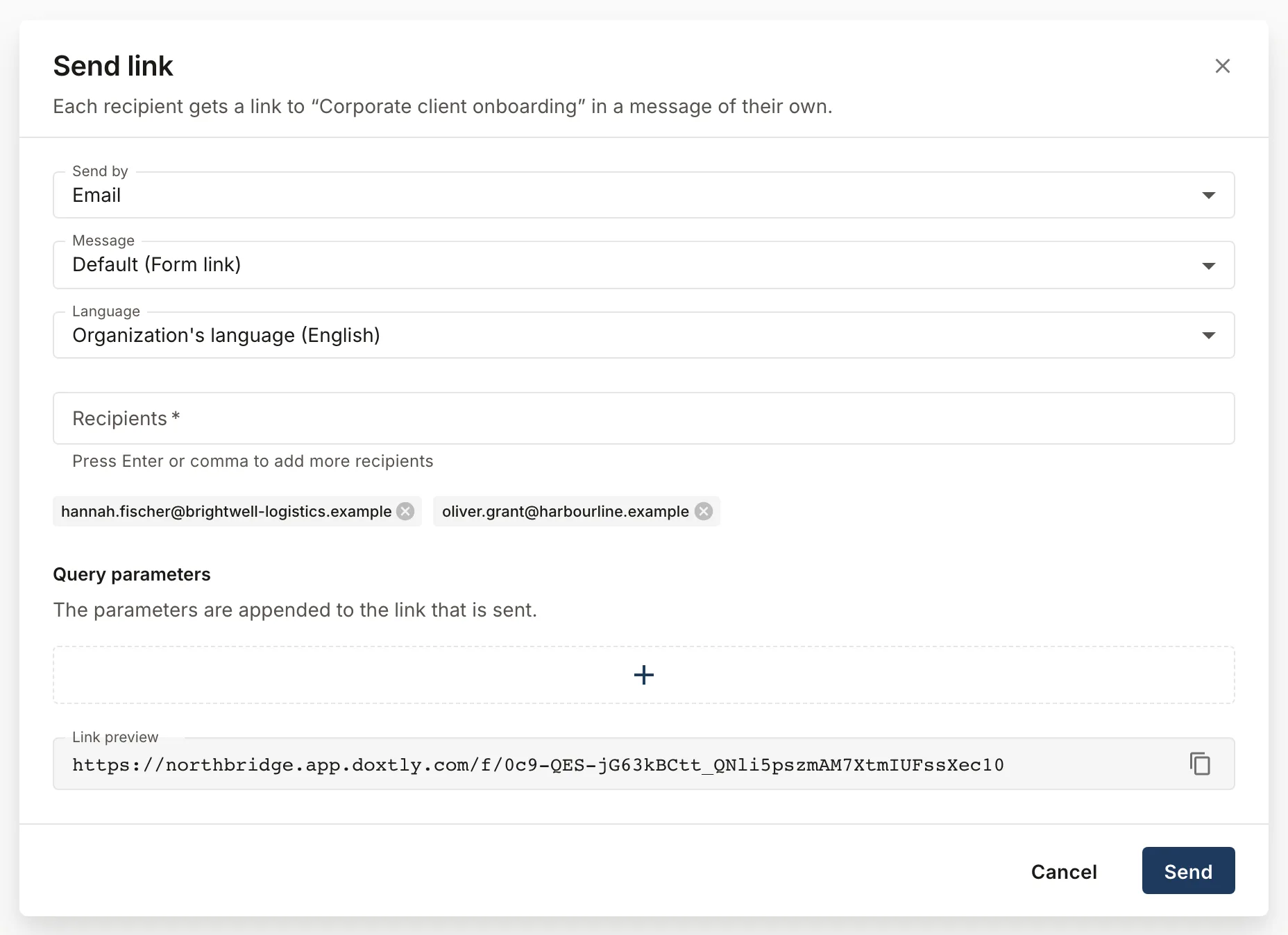
| Field | What it does |
|---|---|
| Send by | Email, or SMS and WhatsApp when your organization has those integrations. Email is the first choice. With one channel only, the field isn’t shown. |
| Message | What goes out. Shown only when your organization has written its own Active templates for this occasion and channel: the first option is then your default message, such as Default (Form link), followed by those templates. Without them, the default message goes. |
| Language | Organization’s language, or one language for every recipient. The message goes out in that version of the template, or in its default version when it has none. |
| Recipients | Required. Email addresses, or phone numbers with their country code, such as +48 600 100 200, for a text message. Press Enter or a comma after each one. For email, typing a name or address also suggests your contacts. An address still in the field when you click Send goes along too, and one already added is refused. |
| Link parameters | Optional pairs of Parameter key and Parameter value, added to the link so you can tell one campaign from another: source=newsletter. A pair missing either half is ignored. See Link parameters. |
| Link preview | The finished link with its parameters, to check or copy. |
Each recipient gets a message of their own. The message for this occasion is given the link, the name of the form or interactive document, your name as the sender and your organization’s name, so the default message works as it is. A template you write for it must keep the link.
When some messages fail, the window stays open under the heading Not sent to, with the reason for each address and only the failed addresses left in the list, so clicking Send again retries just those. When every message fails, you see the error and the list stays as it was.
The menu item is disabled, with the reason in a tooltip, when the organization has no active email integration, and on a form that isn’t active.
Template statuses
Section titled “Template statuses”You set the status with the drop-down in the designer’s top bar, then save.
| Status | Meaning | Can it be sent? |
|---|---|---|
| Draft | Still being written. A new template starts here. | No |
| Active | Ready for use. | Yes |
| Archived | Retired, with its history kept. | No |
The Templates tab
Section titled “The Templates tab”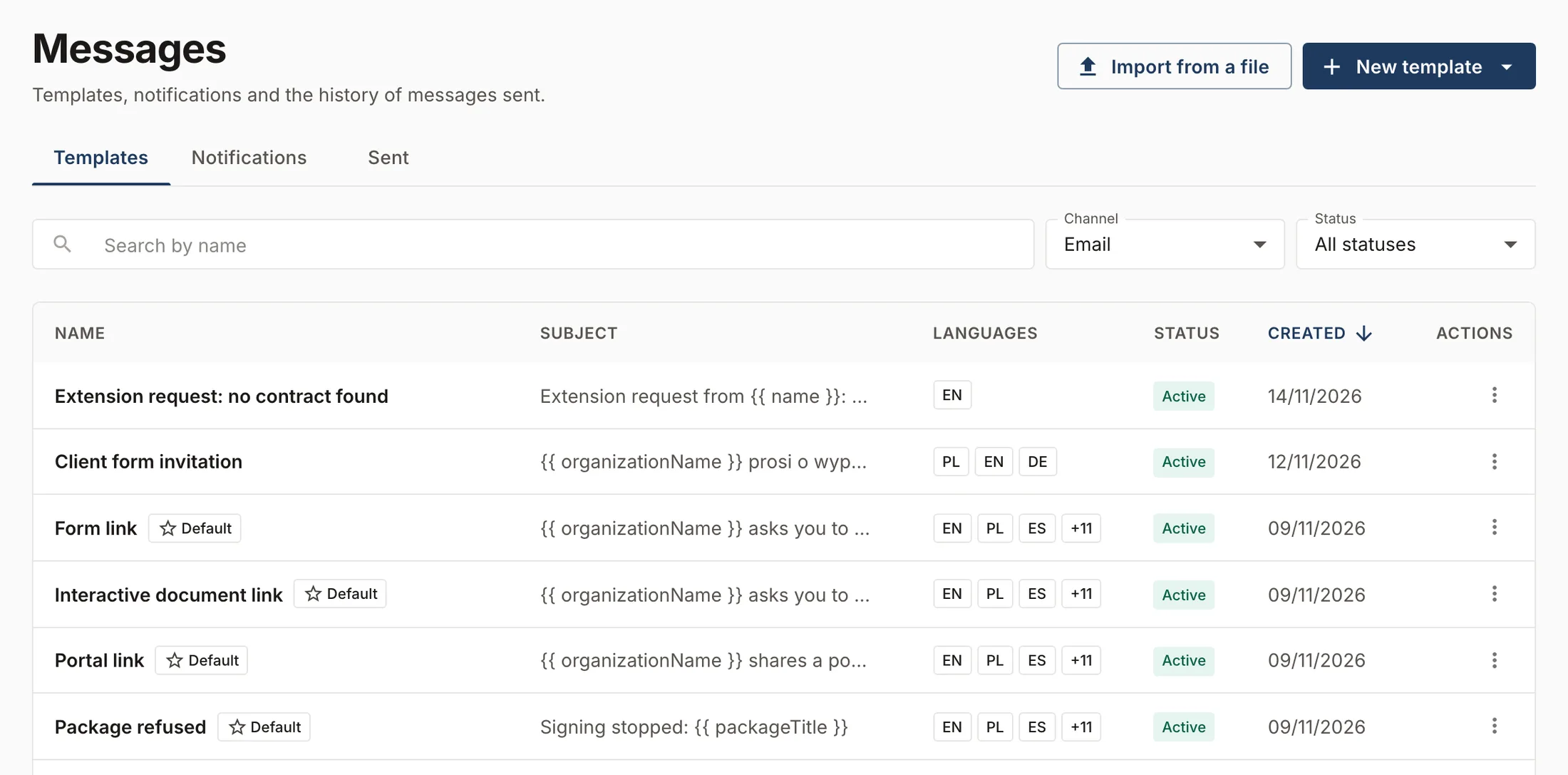
| Column | What it shows |
|---|---|
| Name | Your internal name for the template. Recipients never see it. Click the header to sort. |
| Subject | The subject as written, with its variables unfilled. |
| Languages | The language versions the template has, as short codes such as PL and EN. Hover a code for the language’s name. Beyond three, a + chip opens the whole list. |
| Status | Draft, Active or Archived. |
| Created | When it was created. Click the header to sort. |
| Actions | The three-dot menu described below. |
Click a row to open the template in the designer. This needs Manage email templates; with view rights alone the rows don’t open. The newest templates come first until you sort by a column, and a second click on a header reverses the order. Below the list you can choose to show 10, 25 or 50 rows a page. 25 is the default.
Above the table you can Search by name and narrow the list by Status. Active filters appear as chips you can remove one at a time, or all at once with Clear all. They are kept in the page address, so a bookmarked or shared link opens the same view. When nothing matches you see No results, with Clear all filters beneath it.

On a phone the table becomes a list of cards, which also show when a template was Last used: the last time at least one message went out from it. Sorting is available on the desktop table only.
To start a template, click New email template. With an SMS or WhatsApp integration the button reads New template and asks which kind first: Email, SMS or WhatsApp. When your plan’s limit is reached the button, or that kind in its menu, is disabled and says so. An organization with no templates yet sees No email templates and the same action in the empty list.
Default messages
Section titled “Default messages”Every organization starts with a ready message for each occasion Doxtly writes to somebody on its behalf, so you can send documents for signature or share a form without designing anything first. Each one is an ordinary email template you can open in the designer and change, written in all 14 of Doxtly’s languages, with your organization’s language as its default version. A matching text message goes with each, for SMS and WhatsApp.
| Message | Sent when |
|---|---|
| Signature request | A party’s turn to sign comes. |
| Signature reminder | A party who hasn’t finished is reminded, or somebody sends a party their signing link again. |
| Payment reminder | A party who signed but hasn’t paid is reminded, or sent their link again: in place of the signature reminder (Sign and pay). |
| Approval request | An approver is asked to approve a package. |
| Form link | A form’s link is sent to somebody. |
| Interactive document link | An interactive document’s link is sent to somebody. |
| Portal link | A portal’s link is sent to somebody. |
| Quiz link | A quiz’s link is sent to somebody. |
| Survey link | A survey’s link is sent to somebody. |
| Viewer link | Somebody is given read-only access to a package, or sent their link again. |
| Everyone signed | Every party has signed, and the parties and viewers are told the package is complete. Each party’s sealed documents go with it, and a viewer’s copy of every signed document when they fit. |
| Package voided | A package was voided and the parties told. |
| Package refused | A party refused and the package stopped. |
| Access password | A party is sent the password of their page, apart from the link. |
A message is written in the language of the person it goes to. For a party or a viewer that is the language they chose in Doxtly, when they are a member of your organization, and your organization’s language otherwise. When the template has no version in that language, it goes out in its default version.
Each message can show what its occasion gives it, such as {{ recipientName }}, {{ packageTitle }}, {{ documents }}, {{ deadline }}, {{ senderName }} and {{ organizationName }}. The link the message exists to deliver must stay in it: a signature request or a reminder without {{ signingUrl }}, for example, can’t be saved, because nobody could act on it. The same goes for {{ approvalUrl }} in the approval request, {{ formUrl }}, {{ documentUrl }}, {{ portalUrl }} and {{ quizUrl }} in the four link messages, {{ viewerUrl }} in the viewer link and {{ accessCode }} in the access password. The completion, void and refusal notices bring news, so they keep no link by rule: a link to the signed copies or to the package can go in them, but needn’t.
In the list of templates, each default message is marked Default: hover the mark to read what it means; on a phone the card says it under the mark. Default messages can be edited, but not deleted, and they are always active: Doxtly sends them by itself, so the designer doesn’t let you change their status. Whether a message about signing goes out at all is set on the Notifications tab, where it can be switched off. They don’t count towards your plan’s email template limit, and the emails a package’s signing sends from them don’t count towards its email limit either. You find each sent one under Sent emails. They don’t track whether they were opened; you can turn Track opens on in a message’s settings in the designer.
A default message is written for its occasion and given only what that occasion gives it, so it is offered only for that occasion: the Form link message when you send a form’s link, for example, but never in the Send email step.
The template menu
Section titled “The template menu”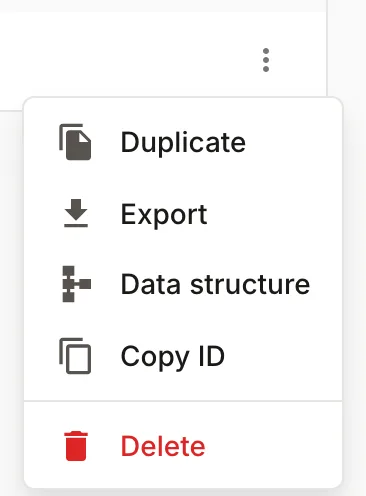
The menu comes in the order every list in Doxtly uses: what changes the template, then copies of it and what is read off it, then Delete. An entry you may not use is left out.
| Item | What it does |
|---|---|
| Make default for its purpose | Only on a template written for an occasion, such as a signature request, that isn’t its default yet: from then on it goes out whenever nothing else is chosen. See Default messages. |
| Duplicate | Makes a copy of the saved template: see Duplicating a template. Needs Manage email templates, and is switched off, with the reason in a tooltip, when your plan’s limit is reached. |
| Export | Downloads the saved template as a portable file, to import in another organization. Every language version goes with it, pictures inside the file. With a cloud drive connected it opens a menu: Download to this device or Save to a cloud drive (Saving exports to a drive). |
| Data structure | Lists the data the template reads, as keys and types, to copy or download. Hand it to whoever feeds the template. See Variables and preview. |
| Copy ID | Copies the template’s ID for use in the API. |
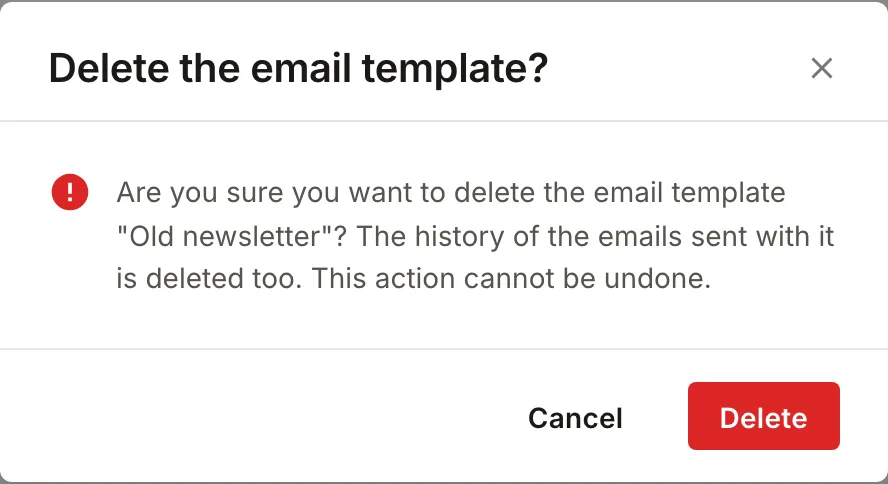
| Delete | Removes the template after a confirmation. Needs Manage email templates. A default message has no Delete. The dialog lists the workflows that use the template under Used by, and while there are any, Delete is greyed out: see Deleting what a workflow uses. |
Duplicating a template
Section titled “Duplicating a template”A copy saves you building a similar message from scratch: the autumn offer becomes the winter one, or a signature request gets a second wording for another team.
- Open the template’s menu and choose Duplicate.
- Change the name if you like. It starts as the original’s with “(copy)” after it.
- Press Enter or click Duplicate. The copy opens in the designer.
The copy is a Draft with every language version of the saved template, its blocks, its body written by hand and its purpose. Its pictures are stored again as its own, so deleting either template leaves the other’s pictures in place. Changes not yet saved in the original’s designer don’t go with it. The copy is never the default for its purpose until you make it one, and it counts towards your plan’s email template limit. Copying a default message gives an ordinary template of the same occasion.
Permissions
Section titled “Permissions”| Permission | What it allows |
|---|---|
| View email templates and sent emails | The Templates, Notifications and Sent tabs in the sidebar’s Resources > Messages section, opening a sent email, reading a template’s data structure, exporting a template. |
| Manage email templates | Creating, editing, duplicating and deleting templates, and sending them through the API. |
A role grants exactly what it lists, so Manage doesn’t bring View with it: someone who should reach the list needs both. Roles are set up under Roles.
An access key needs its own permissions for the API: List email templates, Read email template, Create email template, Update email template, Delete email template, Duplicate email template, Export email templates and Send emails from email templates.
Doxtly’s mailbox
Section titled “Doxtly’s mailbox”An organization with no mailbox of its own can still send its documents for signature: Doxtly offers a built-in mailbox, chosen on the Notifications tab like any other way of sending. Messages go from Your organization via Doxtly, and a reply reaches the person responsible for the package.
It carries only the messages about a package: signature requests, approval requests, reminders, completion with copies, void and refusal notices. Forms, portals and the Send email step need an email integration: your own mailbox, or Doxtly e-mail, which sends your own templates in your own words. Everything it sends is in Doxtly’s standard wording, so your edits to a default message or your own templates apply only to your own mailbox.
Messages from this mailbox aren’t listed on the Sent tab. Delivery is tracked instead: a party’s row shows whether the message really arrived or bounced. How many messages are included depends on your plan; once they are used up, or if too many of your organization’s messages are reported as spam, the mailbox stops, and the sending is refused with the reason. An organization with its own mailbox uses it by default and may pick Doxtly’s for any of these messages on the Notifications tab.
Plan limits
Section titled “Plan limits”Two numbers on your plan apply here.
Email templates counts how many templates your organization has, whatever their status, apart from its default messages. Deleting one frees a place; archiving doesn’t.
Sent emails counts the messages sent in the billing period. Each recipient is one email, and the count starts again each period. What the signing of a package sends, such as a signing link sent again, a viewer’s link or the completion notice, isn’t counted and is never held back by the limit. Failed messages aren’t counted. Doxtly checks the whole send before it starts, so inviting twenty people with ten emails left sends nothing at all. A subscription with overage turned on goes on sending past the limit and bills the extra emails.
Pictures in your templates also take disk space, shown as Email images in the dashboard’s Storage widget, and the copies kept on the Sent tab take data space.