

Executions
An execution is one run of a workflow: one form submission, one signed package, one recurring time coming round. Doxtly keeps a record of each, so when a client asks “where is my contract?” you can open the run and see which steps happened, what they produced and where it stopped.
Come here to check that a new workflow does what you drew, to find out why something failed, and to run it again once the cause is fixed. The menus call a run an execution and a step a node; this page uses both words.
Available when: your role has the permission View workflows and their runs (rerunning takes Manage workflows)
Where to find runs
Section titled “Where to find runs”Open Automation in the sidebar and choose the Executions tab. It lists the runs of every workflow in your organization, the latest first.
Most of the time you will arrive from somewhere else, already on the right run:
| You start from | What takes you there |
|---|---|
| A notification about a failed workflow | Open the latest failed run |
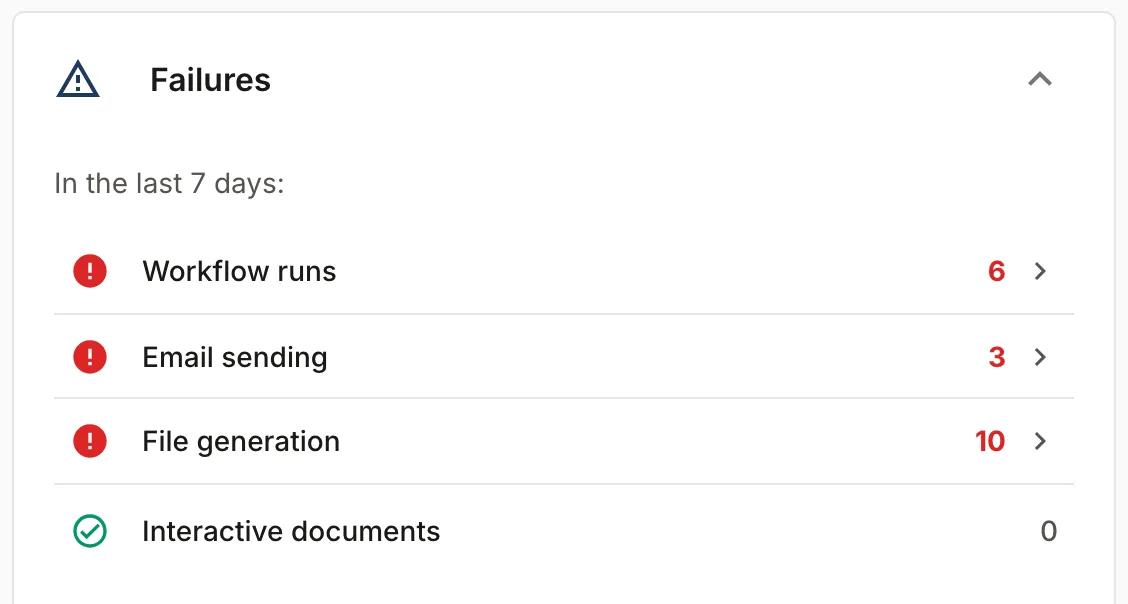
| The Failures widget on the dashboard | The Workflow runs count, which opens this list filtered to what it counted |
| A form submission | Triggered workflows on its Info tab, and the History tab for runs started by edits |
| An interactive document submission | Its History tab |
| A signing package | Workflow next to Source in the package |
| A webhook request | The Workflows tab of the request |
| A workflow’s designer | ⋮ > Executions, which opens this list filtered to that workflow |
How people use it
Section titled “How people use it”A few habits get most of the value out of this list.
- A client asks where their contract is. Paste the submission’s ID into the search box. You see every run it started, so you can tell them “it went out at 9:14” or find out that it never did.
- Monday check. Set Status to Failed and read the red icons. Three failures at the same step usually have one cause, such as a storage that lost its connection.
- A new workflow’s first week. Filter by Outcome. Lots of Not found runs on a certificate form mean people type their ID numbers differently from your sheet, which no error message would tell you.
- Something is slow. Open a run and read the times on the right of each step.
The list
Section titled “The list”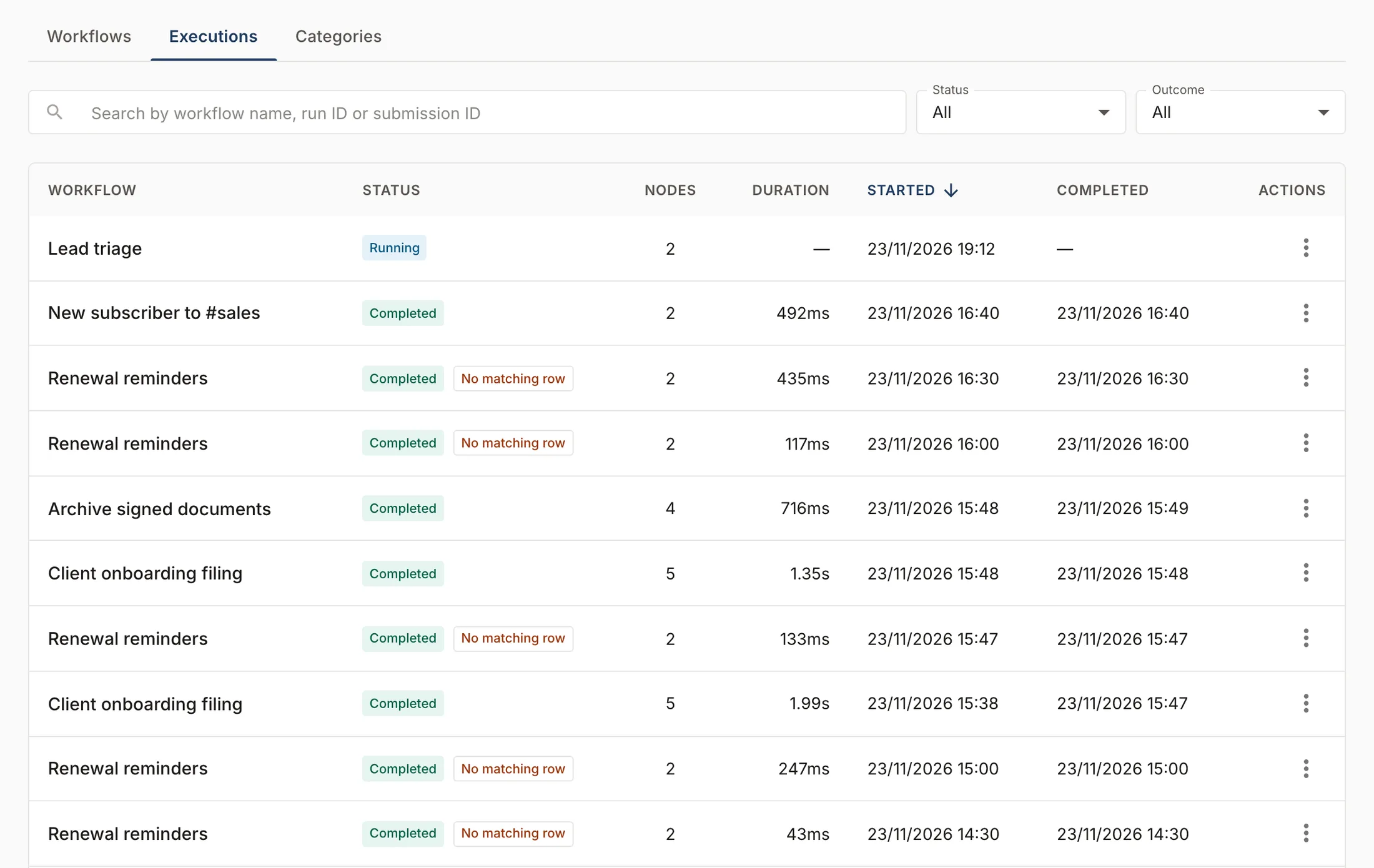
| Column | What it shows |
|---|---|
| Workflow | The workflow’s name. |
| Status | How the run stands, with an outcome chip when it ended early on purpose. A failed run also has a red icon: hover over it to read why the run stopped without opening it. |
| Nodes | How many steps ran, the trigger included. A run takes one path, so this is often fewer than the steps on the canvas. |
| Duration | How long the run worked, in milliseconds up to a second and in seconds with two decimals after that. It shows - until the run ends. |
| Started | When the trigger fired. |
| Completed | When the run ended, or - while it is under way. |
| Actions | The three-dot menu with Rerun. You see it only with Manage workflows. |

Click Workflow, Status or Completed to sort by that column: the first click sorts ascending, the second descending, and the third goes back to the default, latest started first. Started just switches between oldest and latest first. Below the table you choose 10, 25 or 50 runs a page; 25 is the default.
On a phone each run is a card, with the same facts and the same three-dot menu. The first two lines of the error show on the card itself. Tap them to read the rest.
Statuses
Section titled “Statuses”| Status | What it means |
|---|---|
| Running | The trigger has fired and the run isn’t finished. This covers the time it waits for its turn as well as the time it works. |
| Completed | The run reached an end of the workflow with nothing going wrong. Check the outcome chip, because a completed run may have stopped early by design. |
| Failed | A step could not do its job, or the run was refused before its first step. |
| Timeout | The run ran out of time. See Time limits. |
Outcomes
Section titled “Outcomes”Some steps have a second way out, such as Not found on a spreadsheet lookup or a contract search. If nobody connected that output, the run ends there. Nothing went wrong and it counts as Completed, but it didn’t reach the end you were probably expecting, so the list marks it with a chip. Hover over the chip for the explanation. A run that ended anywhere else has no chip.
| Chip | What happened |
|---|---|
| Not found | The row or file looked for was not there, and the Not found output was not connected. |
| No contract found | No contract matched what the Find a contract step looked for, and its Not found output was not connected. |
| No matching row | No matching row was found, and the No matching row output was not connected. |
| Already exists | The row already existed, and the Already exists output was not connected. |
| No matching case | The value matched no case of a Switch step, and its Default path was not connected. |
| No result | The AI agent gave no result, and the No result output was not connected. |
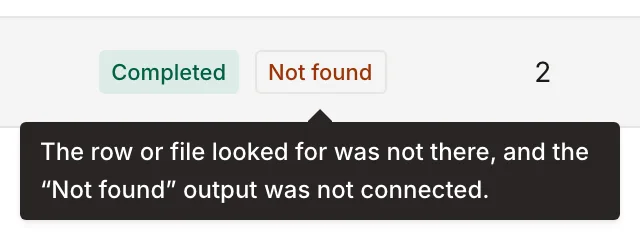
A chip is good news or bad news depending on your workflow. In the certificate recipe, a Not found chip on many runs means people are typing ID numbers you don’t have. If you want to act on such a case, connect the output to a step, and the run carries on with no chip at all.
Search and filters
Section titled “Search and filters”
| Filter | Options |
|---|---|
| Search box | Search by workflow name, run ID or submission ID. It also finds a run by the ID of whatever else started it, such as a package or a webhook request. Part of a name or an ID is enough. |
| Status | All, Running, Completed, Failed, Timeout. |
| Outcome | All, Not found, No contract found, No matching row, Already exists, No matching case, No result. |
A link from the dashboard adds one more filter, a chip reading Since with a date and time. It limits the list to runs started from that moment. Remove the chip to see them all.
Executions in a workflow’s designer adds a chip reading Workflow with its name: the list shows only that workflow’s runs, with every other filter still at hand. Remove the chip to see every workflow’s runs again.
Filters live in the page’s address, so you can bookmark “failed runs” or paste the link to a colleague. If nothing matches, the page says No results and offers Clear all filters. No executions means no run has been recorded yet.
Inside a run
Section titled “Inside a run”Click a row to open the run. The page has the workflow’s name as its title, an arrow back to the list, a three-dot menu holding Rerun (with Manage workflows), and two tabs.

Details
Section titled “Details”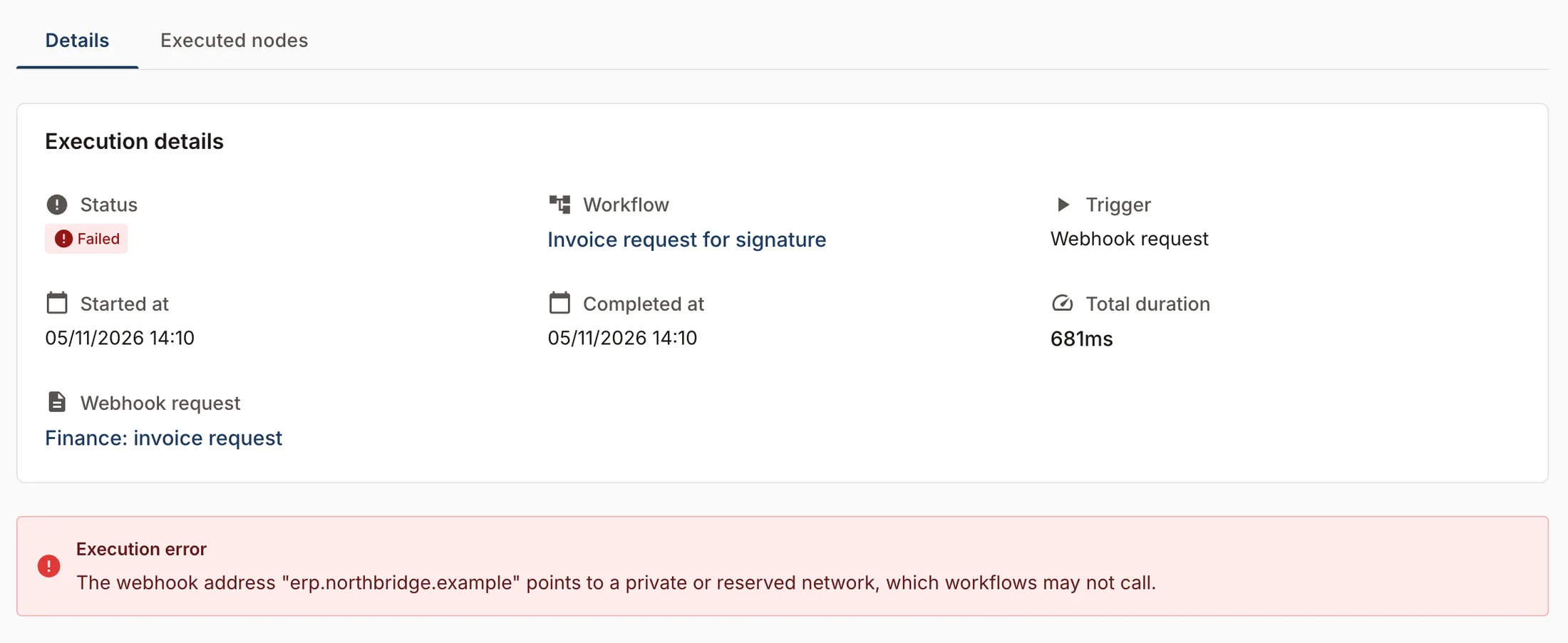
| Field | What it shows |
|---|---|
| Status | The status, plus the outcome chip if there is one. |
| Workflow | The workflow’s name. With Manage workflows it opens the designer. |
| Trigger | What starts the workflow, such as A form is submitted. |
| Started at | When the trigger fired. |
| Completed at | When the run ended. While it is under way this reads Running. |
| Total duration | How long the run worked. |
| The record that started it | That record, labelled for what it is: Form submission, Completed interactive document, Generated document, Document package, Webhook request, Contact, Quiz attempt or Survey response. A payment’s run shows the Form submission it paid for. It is named as it is now, by a submission’s or a package’s title or a contact’s name, and by its id when it has no name. It links to the record’s page if your role may open it. A generated document, a quiz attempt and a survey response have no page of their own, so their id is shown as plain text. A recurring run has nothing here, because nothing started it but the clock, nor does a CRM’s run, whose record is in the CRM, and neither does a run started by a document that wasn’t saved in the application. |
If the run ended with an error, the Execution error box under the card says what stopped it. When a step failed, that is the step’s own error, the same one its red card on Executed nodes shows. A run stopped by anything else, such as a time limit, has its message here too.
Workflow always opens the designer on the workflow as it is today. The run itself followed the workflow as it stood when the run started, so if you saved a change a minute later, that run didn’t see it. The steps on Executed nodes are the reliable record of what happened.
Executed nodes
Section titled “Executed nodes”This tab is the story of the run: one card for each step that ran, in order, joined by a line. The title shows how many there were.
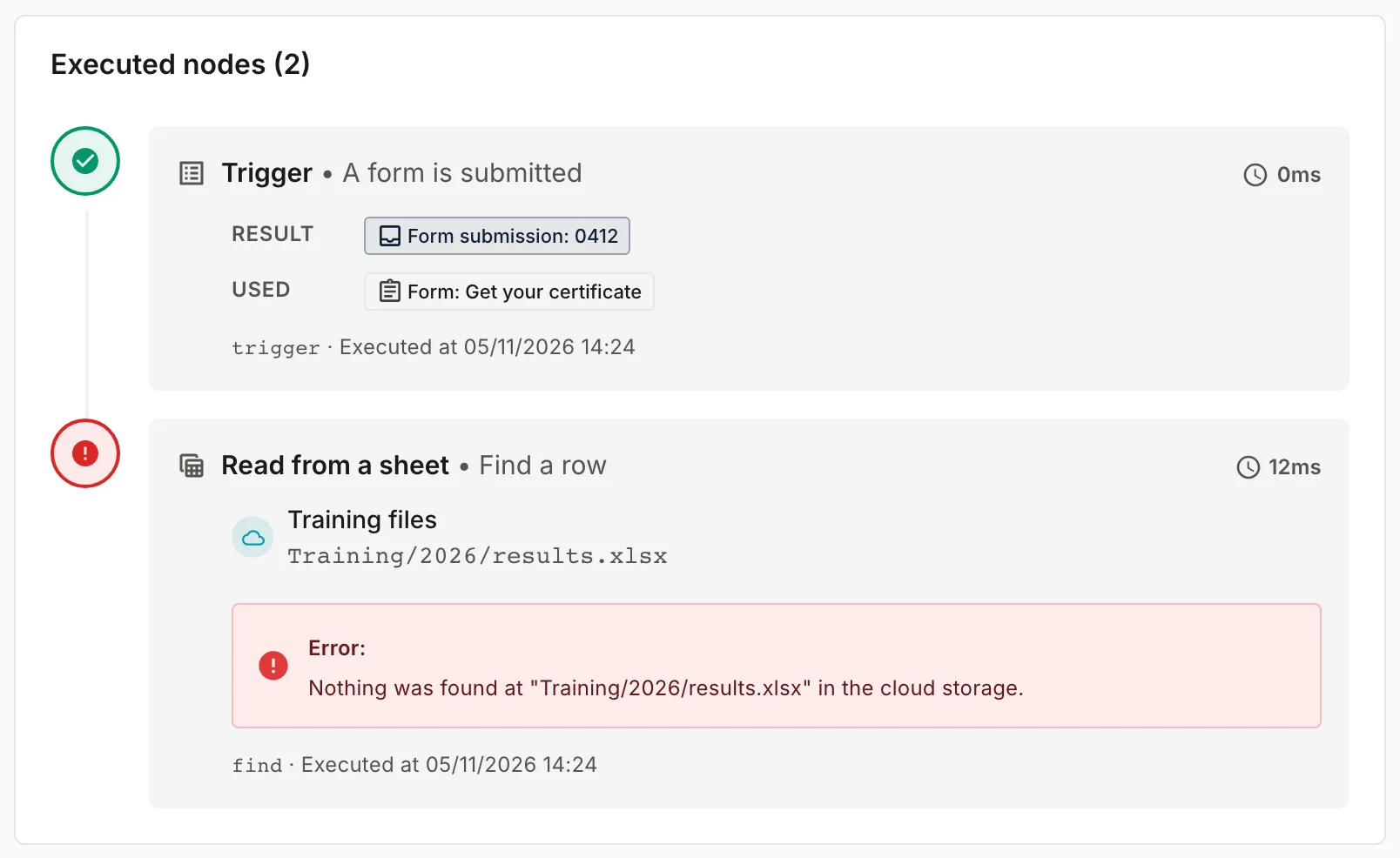
Steps that didn’t run have no card. A condition’s card therefore has only a title: the way it went is the step that follows it. If the tab says No nodes were executed, the run was refused before it began (see Why runs fail).
Every card has the same frame:
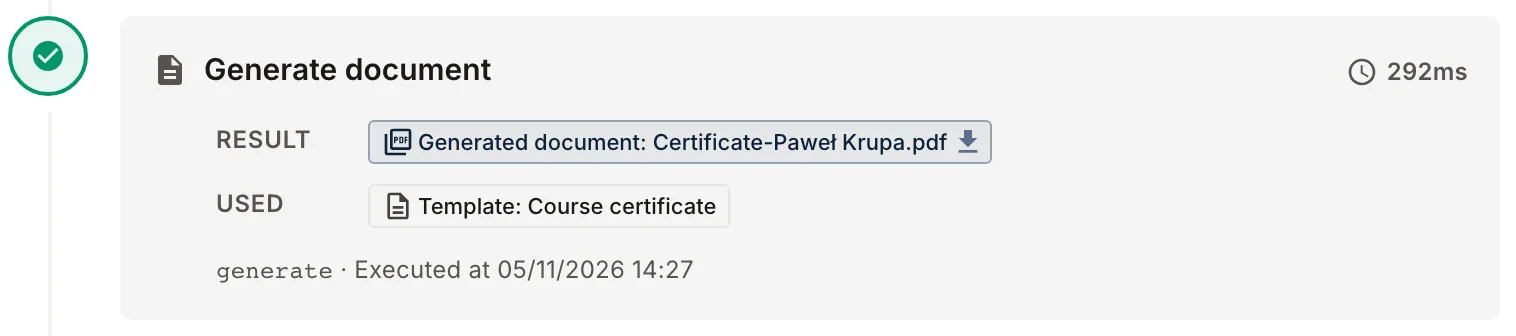
- The ring on the left is green for Success and red for Failed. Hover over it for the word.
- The title names the step, followed by a detail such as the trigger’s event or the integration used.
- The time on the right is how long this step took. A slow run shows you here which step is slow.
- The middle holds what’s particular to the step (see the table below).
- Result and Used are links to the records involved.
- Error spells out why a failed step failed.
- The last line gives the step’s node id, the same Node ID you see in the designer, and Executed at with the time.
What each step reports
Section titled “What each step reports”| Step | What its card shows |
|---|---|
| Trigger | The event, such as A form is submitted. Used names what it listened to (Form, Interactive document, Template, Document type, Webhook, Contact type, Quiz, Survey or, for a CRM, Integration with the integration’s name), and Result the record that started the run. A recurring trigger shows its frequency instead. |
| Condition | The title only. The next card tells you which way it went. |
| Switch | Which path it took: Took case 2: Poland, No case matched — default path or No case matched — the run ended here. When no case matched, it adds what kind of value arrived, such as Value type: text, or The expression gave no value. Cases: 3 says how many there were. |
| Send email | Result: Email sent with the address, or Failed email if sending failed, either one leading to the sent email. Used: the email template. |
| Send SMS, Send WhatsApp message | The integration in the title, and the number the message went to. |
| Send to a messenger | The integration in the title, then the channel or the person the message went to, and, for a message from a template, the language it went out in. |
| Save contact | What it did: Created, Updated, No change or Not found, then Changed: with the fields it changed and Note added. The card links to the contact. |
| Update contact | Contact updated, No change or No contact to update, and Changed: with the fields it changed. |
| Delete contact | Deleted, or Nothing to delete when no contact had the address. |
| Generate document | Result: Generated document, a chip that downloads the file. A document that wasn’t saved, because Save in application was off or there was no disk space left, is named on the chip with no download. Used: the template. |
| Create documents | Result: Document package, by its title. Facts such as 2 documents and 3 parties. If the package was never made, its intended title is shown as text. |
| Find a contract | Contract found, with the contract under Used, or No contract found. When several matched, 3 contracts matched; one was taken. |
| Send a quiz, Send a survey | The quiz’s or survey’s title, To a contact or To an e-mail address, then how it went out: Sent by e-mail, Sent by SMS, Sent by WhatsApp, or Link created, nothing sent. Used links the quiz or survey. |
| Quiz summary | The quiz’s title, Each person once or Every attempt, and the number of rows it made, such as 12 rows. Used links the quiz. |
| Data transformation | The start of the code, under Transformation code, which is enough to tell which one it was. |
| Webhook | The method and address, without the query string. After a success it adds Status 200, Signed if the request was signed, Response in: field if the response was stored, and the Delivery ID you can quote to the receiver. A failed call shows the address as you wrote it, and the error says what the endpoint answered. |
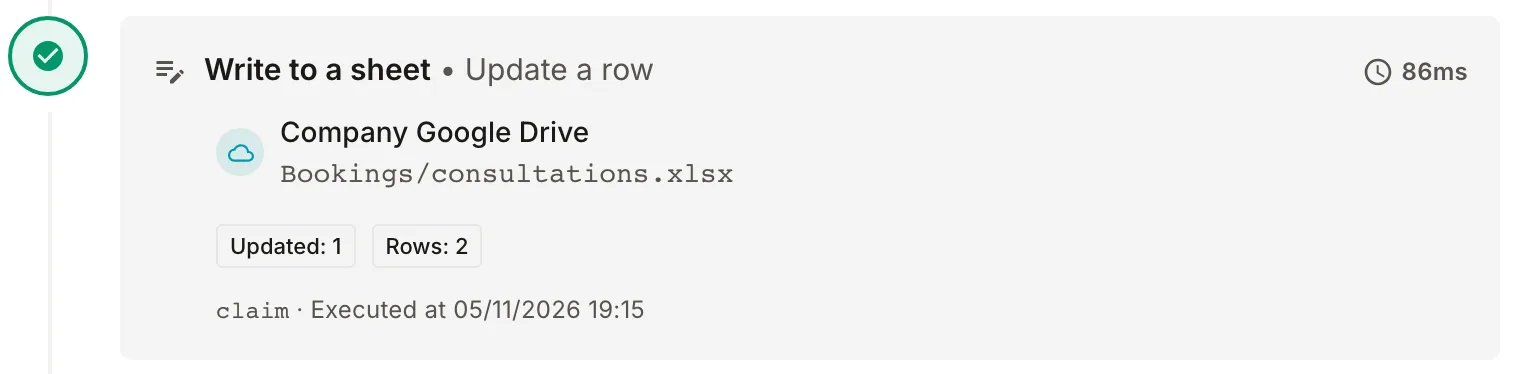
| AI agent | The agent’s name, the provider and model, the answer format, Tokens: 1.2k in, 300 out, Cached, Web searches, Images, Cost, and where the answer went: Stored in a variable or File with a name. No result in amber means there was no usable answer. |
| Upload to… | The storage and the folder, or Root folder if the step has none. Then the Files uploaded count and, when there were any, Skipped and Not uploaded. |
| Download from… | The storage and path, then File downloaded with its size, or File not found. Document exported means a Google document was exported to a file. |
| Read from a sheet | The mode in the title (Find a row, Load rows, Count rows), then the storage and path, or Workflow file, and the sheet. Then Row found, Rows found: 12, Matching rows: 12 or Not found, and Rows scanned. Result cut at the limit means there were more rows than the step’s maximum. Google Sheet marks a native sheet. |
| Write to a sheet | What the step was set to do in the title (Append a row, Add or update, Add if absent, Update a row, Create an Excel file, Create a CSV file), then the storage and path, Workflow file or the new file’s name, and the sheet. Then Appended, Updated and Skipped counts, the row numbers (Rows: 12, 13, the first five and then and 3 more) and any of the notes below. |
| Sync a contact with the CRM, Update a deal, Attach files in the CRM, Add a note in the CRM | The integration under the title and the kind of record, such as Record: Deal. A synchronization adds its direction and Created, Updated, No change or Not found, and links the contact. An update says what it changed, such as Changed: stage, status, or Nothing changed; an attachment Files attached: 2; a note Note added. |
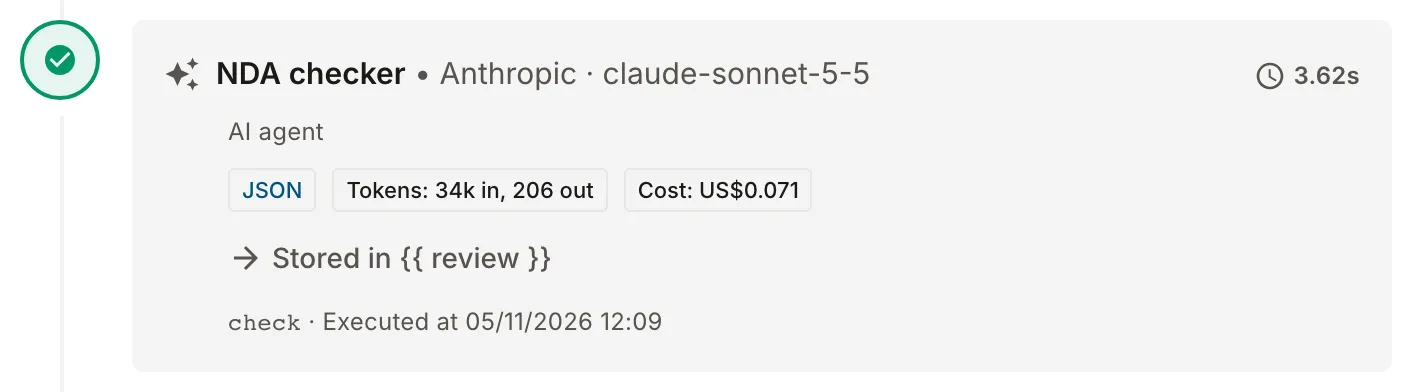
The notes on Write to a sheet are worth knowing:
| Note | What it tells you |
|---|---|
| No matching row was found | An update had nothing to change. |
| The row already existed – left unchanged | The row was there, so nothing was added. |
| Nothing written | The step ended without touching the sheet. |
| File created, Sheet created | The step had to make the file or the tab first. |
| Waited for the file: 4 s | Other runs were writing to the same file, and this one took its turn. A wait under a second isn’t mentioned. |
| Write attempts: 2 | Somebody changed the sheet at that moment, so the write was worked out again before it went through. |
| Already written by the first run – not written again | This is a rerun, and the sheet already has this event’s row. See Running it again. |
The Result and Used links
Section titled “The Result and Used links”Result lists what the step made, and Used what it worked from. A chip opens the record’s page if your role lets you open it. Otherwise it only names the record. Generated document is the exception, because a generated document has no page: clicking it downloads the file, for anyone who may view templates. If the file can’t be fetched, a message says The document could not be downloaded.

A failed step shows how far it got. A Create documents step that broke halfway still links to the package it started, and a failed email links to the record that says what went wrong.
What a run deliberately leaves out
Section titled “What a run deliberately leaves out”A run’s page isn’t a copy of your clients’ data. People who may read runs aren’t always allowed to read submissions, so the page records what happened and keeps the values out of it. Who a message went to and a package’s title do show, because you need them to trace a run. The rest stays behind:
- A sheet step shows counts and row numbers, never cell values.
- Paths are shown as you wrote them,
Contracts/{{ client_name }}, not filled in. - A switch shows the type of the value, not the value.
- An AI step shows usage, not the prompt or the answer.
- A webhook’s address loses its query string.
To see the data itself, follow the link to the submission or package, or open the email or the document.
Why runs fail
Section titled “Why runs fail”Open the run. Execution error on Details says why it stopped, and the red card on Executed nodes shows the step. The error is written for you, in the language you use Doxtly in.
| What you see | What it means | What to do |
|---|---|---|
| A red step with an error | That step could not do its job: a variable with no value in a required place, a file that isn’t there, an endpoint that said no. | Fix the setting or the data, save the workflow and rerun. |
| No nodes were executed, and an error saying you have reached a limit | The plan’s runs for this billing period are used up, or the feature isn’t in the plan. People who can see the subscription also get a Feature limit exceeded notification. | See Plans and limits. |
| An error beginning Not started: | Workflows keep starting one another, and the chain got too long: more than 10 in a row, or more than 100 in all. The error names the first run of the chain. | Open that first run and find out why the workflows trigger each other. See Workflows that start one another. |
| Maximum node execution count (100) exceeded. Possible infinite loop. | The run passed through 100 steps. That usually points to a loop. | Check the connections in the designer. |
| The spreadsheet is busy with other writes. Try again in a moment. | A sheet step waited too long for its turn at the file: two minutes, or 45 seconds when somebody is waiting to sign. | Rerun it when things are quieter. A busy form is better served by a Google Sheet. |
| Timeout | See below. | Look at the step times to see what took so long. |
What the failed run already did stays done. The email sent in step 2 is out of the door, even if step 3 failed. Keep that in mind before you rerun.
Time limits
Section titled “Time limits”A run may work for at most 5 minutes. A run with Allow immediate signing, where somebody is sitting on the page waiting to sign, gets 90 seconds. When the limit is reached the run stops and its status becomes Timeout, with an error such as Workflow execution exceeded the maximum allowed time of 300 seconds. The steps it finished stay on its record, and the one it was in the middle of has no card.
There is a safety net too. A run that is still unfinished 10 minutes after it began work, or that has waited for its turn for over an hour, is closed as Timeout with the error Workflow execution was stuck and has been automatically cleaned up. These runs are rare, and rerunning them is the usual answer.
Running it again
Section titled “Running it again”Rerun starts a new run with the same trigger data. It is what you want after fixing the cause of a failure: the client doesn’t have to send the form again. It’s offered on every run, whatever its status, so you can also repeat a Completed run, for instance to make a fresh package after a client declined.
-
Fix what went wrong and save the workflow. The rerun uses the workflow as it is now, not as it was.
-
Open the run, or find it in the list, and choose Rerun from the three-dot menu.
-
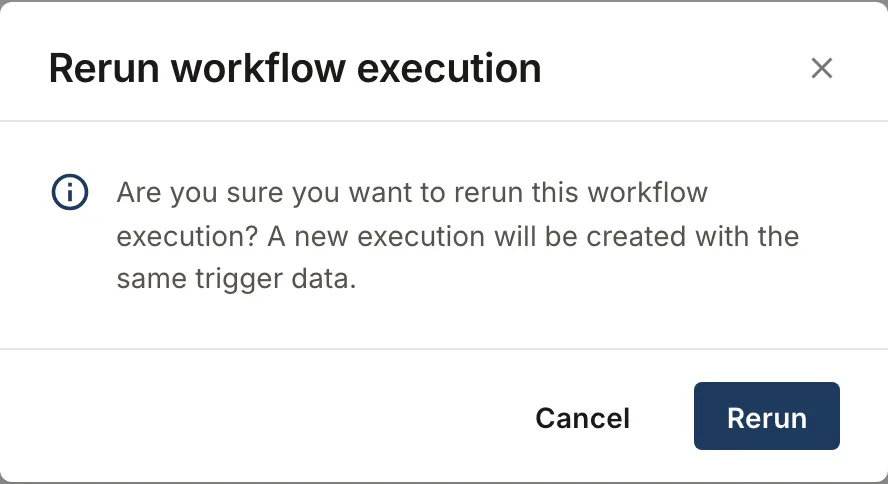
Read the dialog Rerun workflow execution and confirm with Rerun.
-
A message says The workflow will run again shortly. The original stays as it was, and you stay on it. The new run is a row of its own at the top of the Executions list, so go back there, reload the page and open it to see how it did.
What a rerun repeats
Section titled “What a rerun repeats”A rerun starts again from the trigger. It does not resume from the failed step, so every step runs again, with one exception:
| Step | On a rerun |
|---|---|
| Write to a sheet, on a Cloud file | Not written twice. If the first run already wrote for this event, the step skips the write, takes the same output and says Already written by the first run – not written again. A write that changed nothing the first time, such as an update that found no row, is tried again. |
| Write to a sheet, on a Workflow file or New file | Done again. It makes no difference, because such a file belongs to that one run. |
| Send email, Send SMS, Send WhatsApp message | Sent again. |
| Send to a messenger | Posted again. |
| Send a quiz, Send a survey | Sent again. A contact gets the link they already have, and an address already on the quiz’s or survey’s list gets its key again. |
| Save contact, Update contact | Done again. The contact ends up the same, but Save contact adds its note once more. |
| Delete contact | Nothing to delete the second time. |
| Generate document | A new document. |
| Create documents | A new package, with new signing links. The old package stays and its links still work. |
| Webhook | Called again, with a new Delivery ID. |
| AI agent | Called again, and your provider bills it again. |
| Upload to… | Uploaded again, following the step’s If a file with this name exists setting. |
| Sync a contact with the CRM, Update a deal | Done again. Nothing doubles: the contact and the deal end up the same. |
| Attach files in the CRM, Add a note in the CRM | Done again, so Pipedrive gets the file or the note a second time. |
So a run that sent the client an email and then failed will send it again. If that would confuse someone, tell them first, or take the step out of the workflow for the rerun and put it back afterwards.
What the rerun works with
Section titled “What the rerun works with”- The trigger’s data as the first run had it, with its metadata and link parameters. If somebody edited the submission since, that’s a separate matter: use Save and run workflows on the edit instead.
- The workflow as it is now, with your fixes. It doesn’t matter whether the workflow is switched on: a rerun works on an inactive workflow too. If you have replaced the trigger step in the meantime, the rerun fails because the step it started from is gone, with an error such as Node “trigger-1” not found in workflow definition.
- The trigger’s files, read again from where they are kept. A file that can no longer be read goes without its content, and the step that needs it says so.
- Today’s date. Anything built on
{{ _execution.date }}gives the date of the rerun.
The rerun stays tied to the same record, so it also shows up among the submission’s or package’s runs. If a person is still waiting on the page to sign right after a form, the rerun hands them the documents. If nobody is waiting any more, it runs quietly. Either way it has the ordinary 5 minutes.
A rerun that was refused for going too deep in a chain of workflows starts a chain of its own, so it can run once you have sorted out the cause.
When Rerun doesn’t work
Section titled “When Rerun doesn’t work”| Message | Why |
|---|---|
| Rerun is greyed out, in the list and on the run’s page, with the reason The workflow execution limit for the current billing period has been reached. | The plan’s runs for this billing period are used up. |
| This execution cannot be rerun: its trigger data is no longer available. | The data the run started with is gone, and Doxtly won’t send empty values through your steps. Start the event afresh, for example by sending the form again. |
Getting told about failures
Section titled “Getting told about failures”You don’t have to watch this list.
- Notifications. Everyone with View workflows and their runs is told when a run fails or times out, with the workflow’s name, the error and a link to the run. See Notifications.
- A run somebody is waiting on to sign works differently. If the error is one a retry could cure, Doxtly reruns it once by itself, so you may find a second run in the list that nobody asked for. Only when that doesn’t help does a notice go out, saying how many attempts were made and whether the signing link was sent to the person, with Open the failed run.
- The dashboard. The Failures widget counts runs with the status Failed in the last 7 days. Timeout runs aren’t in that count. Click Workflow runs to see them.
How runs count and how long they stay
Section titled “How runs count and how long they stay”- Plan. A run counts towards your plan’s workflow runs when it completes, with or without an outcome chip. A Failed or Timeout run counts too if a step after the trigger finished before it stopped. One that stopped on its first step doesn’t. A rerun is a run of its own. See Plans and limits.
- Keeping them. Runs are kept for the Workflow runs period under Data retention, five years unless your organization changes it. Older finished runs are removed with their data at night. A run that’s under way is never removed.
- Deleting a submission - of a form or an interactive document - or a quiz’s attempt or a survey’s response, by hand, with its form, document, quiz or survey, or by retention, deletes the runs it started, with their steps and data: a run’s steps hold what was sent, such as the folder a file went to. A run still under way is deleted once it ends. Runs another trigger started that only read the submission, such as a scheduled workflow, stay.
- Erasing a person’s data from quizzes or surveys, or deleting their contact, deletes the runs their attempts, responses and invitations started in the same way, although the attempts and responses themselves stay in the results without their name.
- Deleting a workflow deletes all its runs too, so switch it off instead if you want the history.
Who can do what
Section titled “Who can do what”| You can | With the permission |
|---|---|
| See the list, open runs, read errors | View workflows and their runs |
| Rerun, and jump from a run to the designer | Manage workflows |
| Open the records a run links to | The permission of each record: viewing forms for a submission, viewing documents for a package, and so on. Without it you see the record’s name only. |
More in Who can do what. Another system can read the same runs through the API, for example to show a status in your CRM.