

File details
Click a file in Cloud files and a panel opens beside the list. It gives you what you need when building or fixing a workflow: the exact path, the columns of a spreadsheet and the workflows that depend on the file.
Available when: your role includes View cloud files
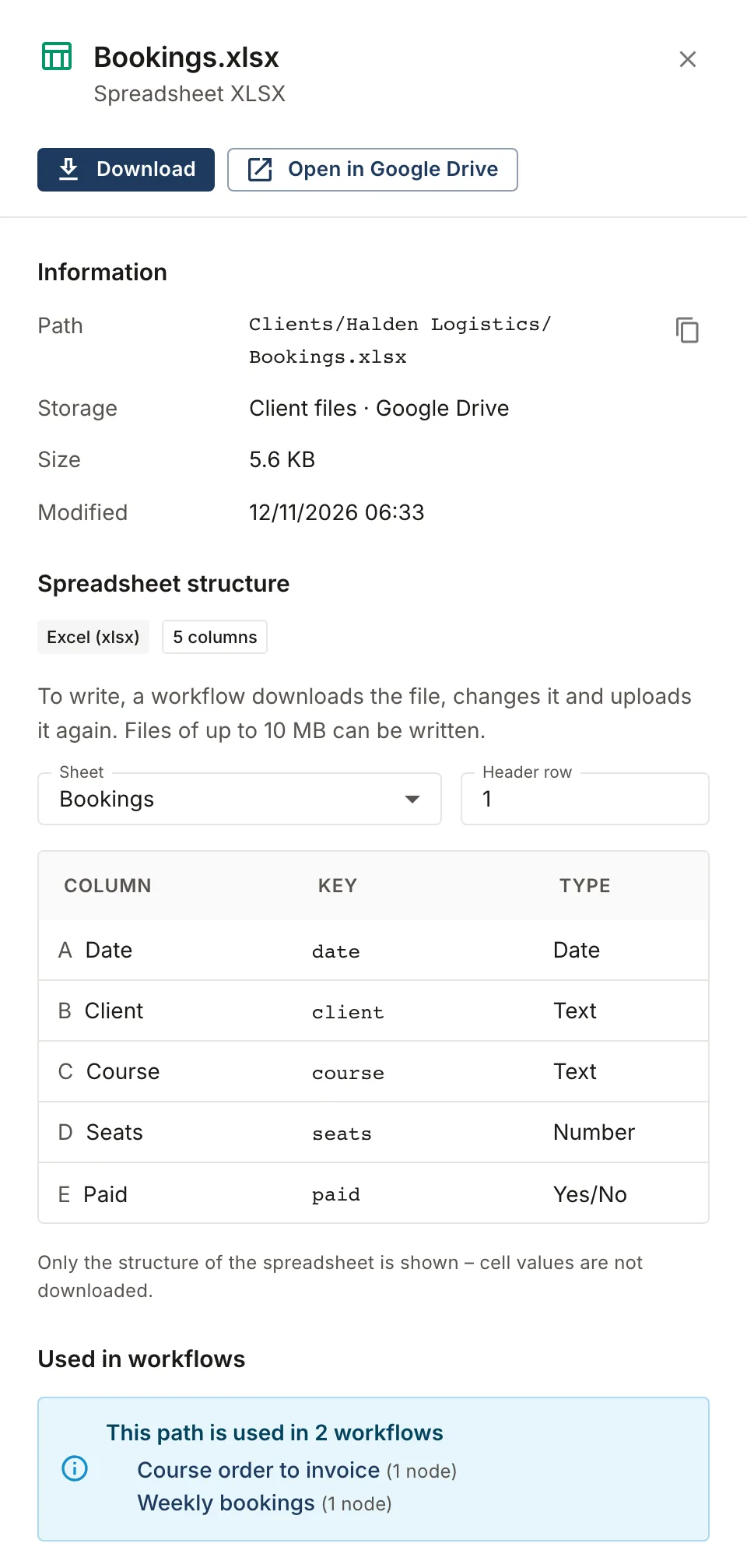
The panel is for files. A click on a folder opens the folder. On a phone the panel takes the whole screen. Close it with the x.
The buttons
Section titled “The buttons”Download saves the file to your computer, as described in Downloading.
The button next to it depends on the file:
| The file can open in | You see |
|---|---|
| Your provider and the PDF editor | Open in, with a menu of the two |
| Your provider only | Open in Google Drive, Open in OneDrive, Open in SharePoint, Open in Dropbox or Open in Box |
| The PDF editor only | Edit in the PDF editor |

Information
Section titled “Information”| Field | What it shows |
|---|---|
| Path | The file’s path, in the form workflow steps take, with a copy button. |
| Storage | The storage and its provider. |
| Size | The size, or a dash for a native Google document. |
| Modified | The last change. |
Spreadsheet structure
Section titled “Spreadsheet structure”For a spreadsheet, the panel shows what a workflow would see, without you opening the file. This section appears for .xlsx, .xls, .ods, .csv and .tsv files and for Google Sheets.
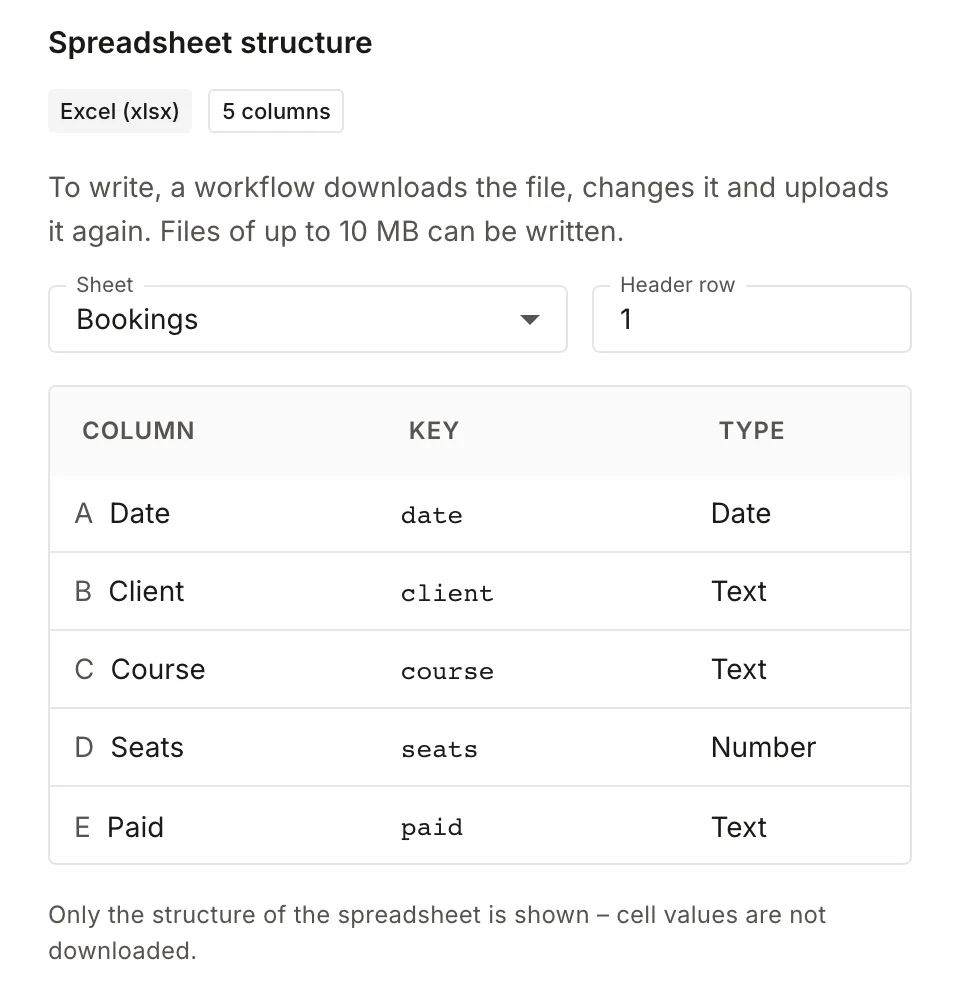
Say the office manager is about to build a Write to a sheet step for Bookings.xlsx. She opens the panel, sees that the headers sit in row 3 below a title, and copies the keys of the columns she needs. She never has to download the file or open Excel.
The chips give the format and the number of columns. A .tsv file counts as CSV. Under them, a sentence says how a workflow writes to this file:
| Format | How workflows write to it |
|---|---|
| Google Sheet | Rows go straight into the sheet, with no download or upload. |
| Excel (xlsx), OpenDocument (ods), CSV | The workflow downloads the file, changes it and uploads it again. This works for files of up to 10 MB. |
| Excel 97-2003 (xls) | The same, for files of up to 4 MB that hold no charts, pivot tables, macros, comments, drawings or embedded objects, which writing would lose. Save such a file as .xlsx for workflows to write to it. |
Sheet chooses which sheet you’re looking at. The panel starts on the first visible one. The field appears when the file has more than one, and hidden sheets are marked (hidden).
Header row is the row that holds the column names. Type a number from 1 to 1000 and press Enter or click away. If the top of your sheet holds a title and the headers come later, Doxtly suggests the likely row, and Use it applies it.

The table lists each column:
| Column | What it shows |
|---|---|
| Column | The column’s letter and its header, or (no header). |
| Key | The name a workflow reads the column’s value under. Use this when you write variables. |
| Type | What the values look like: Text, Number, Yes/No, Date, Date and time, Empty or Cell errors. |
If the chosen row is empty you see Row 1 has no column headers. Try another row.
Nothing you do here changes the file or any workflow. Sheet and header row are only for looking, and you set the real ones in the workflow step, such as Read from a sheet.
If the file can’t be read, the section gives the reason, with Try again and, after you’ve changed the sheet or header row, Back to the first sheet. A spreadsheet file over 25 MB can’t be read. If the file has gone since the list loaded, you see The file was not found. It may have been moved or deleted.
Used in workflows
Section titled “Used in workflows”The last section says whether any workflow step works with this path. No workflow uses this path. is the answer you want to see before tidying up.
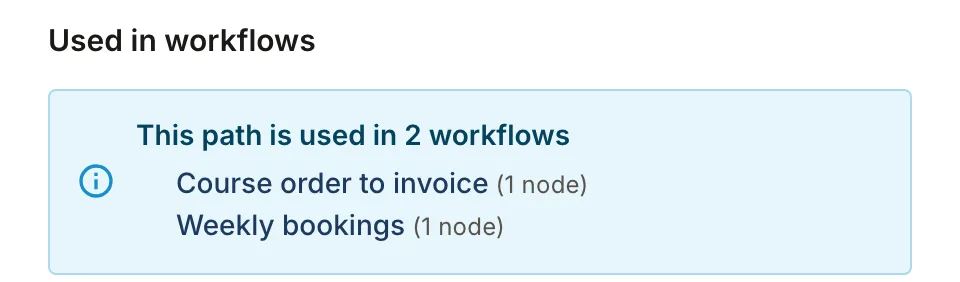
Otherwise you see how many workflows use the path, and up to five of them by name with the number of steps in each, then and 3 more. If you hold Manage workflows, each name links to the workflow, in a new tab. If you may not see workflows at all, you get only the number.
The rename, move and delete dialogs run the same check for a file or a folder, and add what the change will do.
What counts as use:
- steps that read, write, upload or download at this path, in this storage;
- for a folder, steps working anywhere inside it;
- inactive workflows too, since switching a workflow off for a while doesn’t make its files less needed;
- steps with no fixed storage that this storage would serve;
- a path built from variables, if it could lead here.
Clients/{{ client }}/Agreement.pdfcounts for every client’s folder, because Doxtly can’t know in advance which one a run will use.
On Google Drive, a path naming Bookings.xlsx also counts for a Google Sheet named Bookings, since that’s what the step would find.
Other uses aren’t in this list. A template that follows a file tracks it on its own, so it keeps following the file when you rename or move it.