

Forms on your website
Once a form is on a page, it is a Doxtly form in every sense. This page explains what that means for your visitors and for the rest of your site.
What a visitor sees
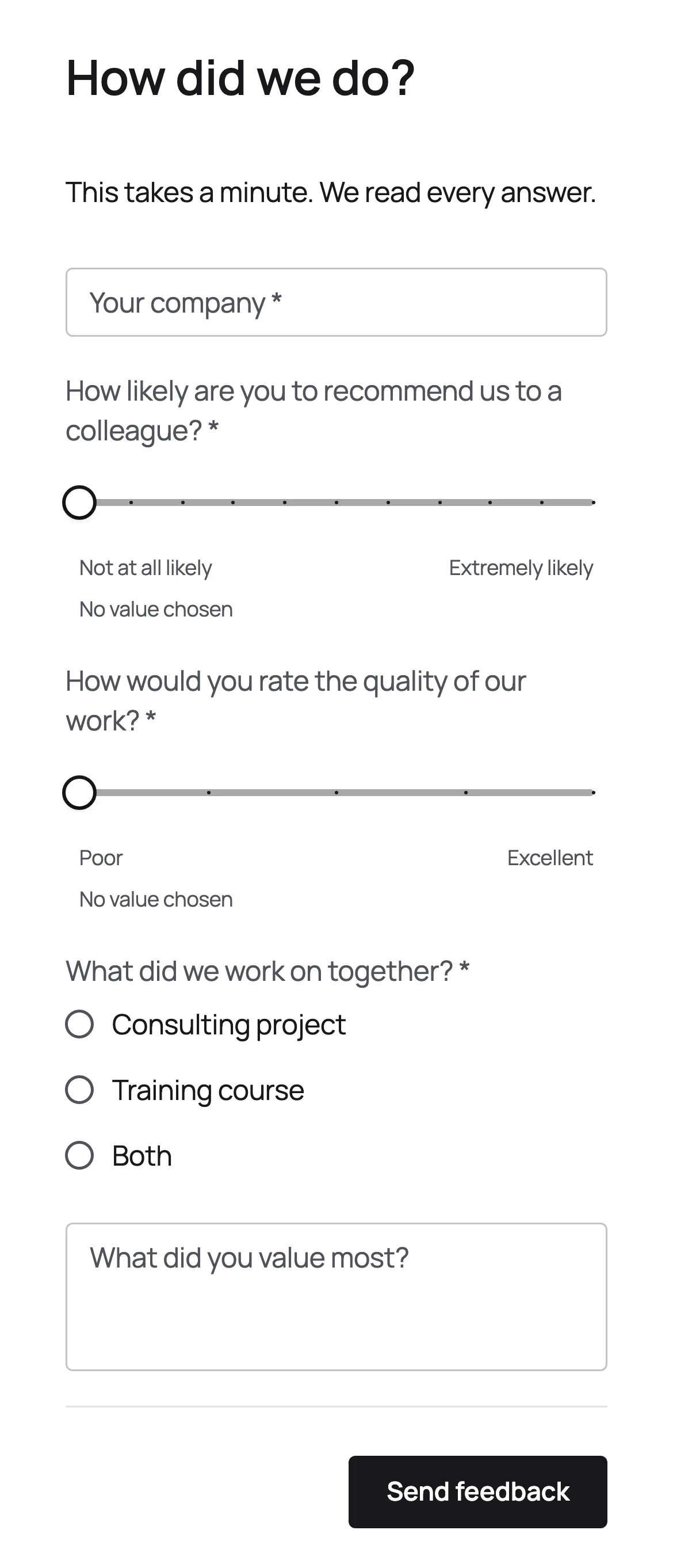
Section titled “What a visitor sees”The form appears as part of the page, with nothing to click first and no Doxtly branding. It keeps your pages, conditions, file fields and password or spam protection, and it fits a phone.
After sending, the form makes way for your success message, and the visitor stays on your page. The message can greet them by name and give them a reference, and it works the same here as on the form’s own page.
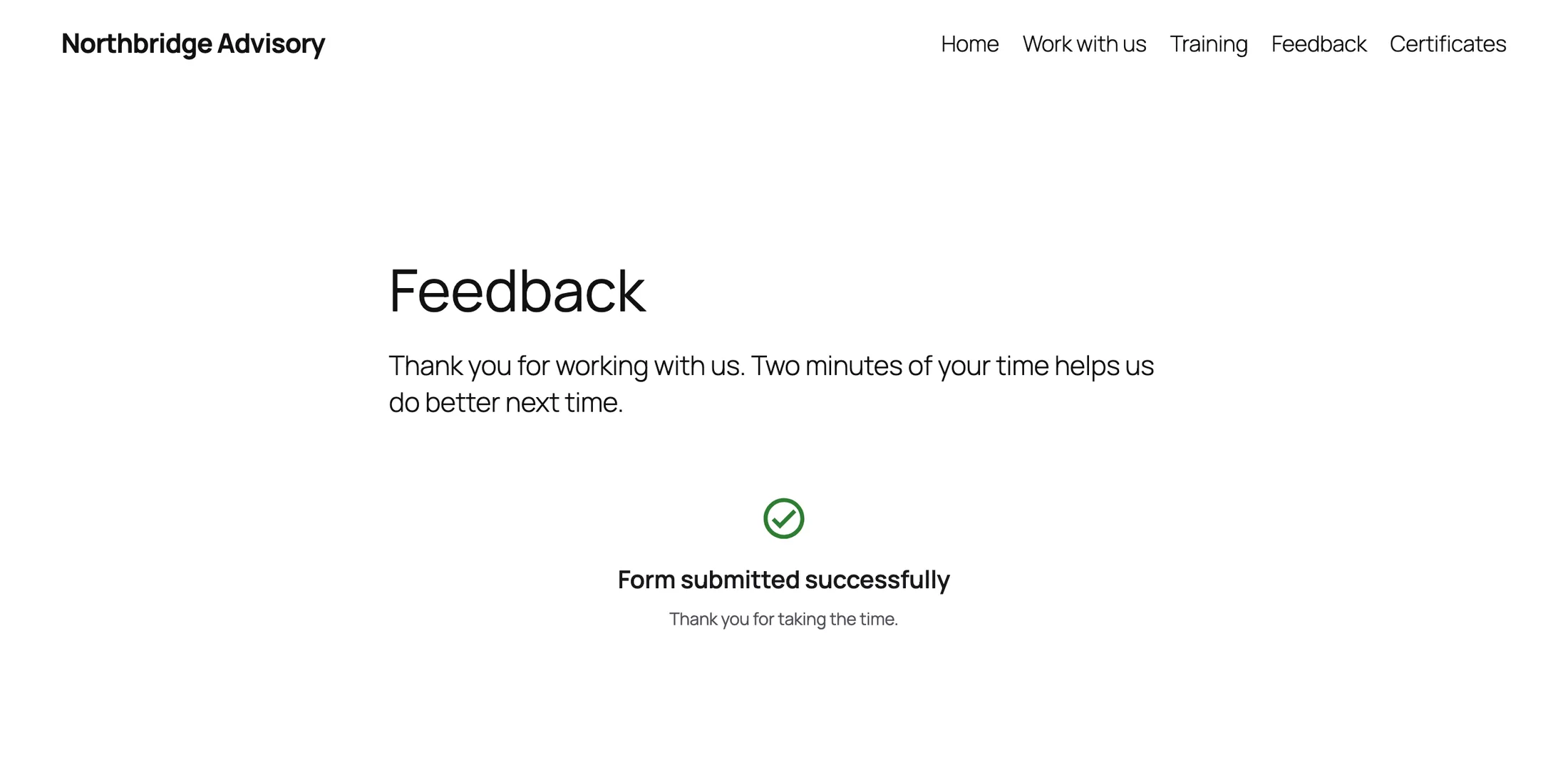
If you’d rather have a page of your WordPress site as the thank-you, set the form to redirect there. The whole window moves on, with either embed type, and nothing needs changing in the plugin.
If a workflow prepares a document for signing right after the form is sent, the visitor goes on to the signing page in the full browser window.
When the form cannot load
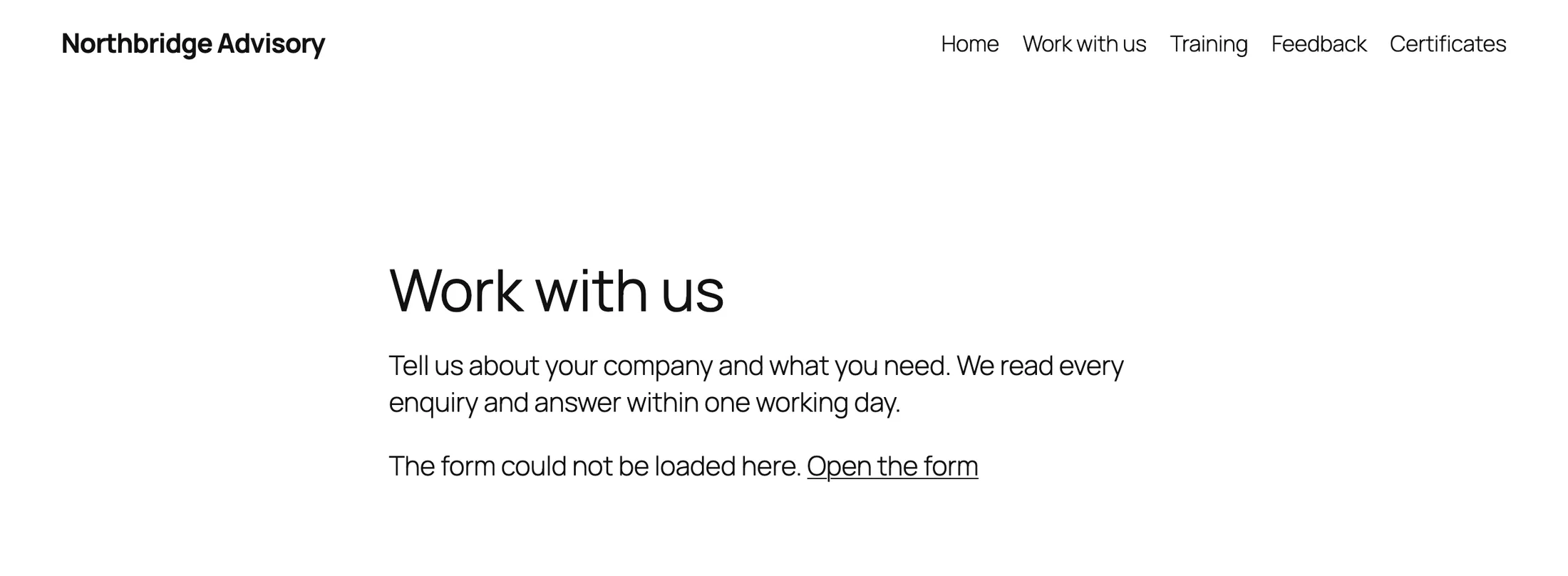
Section titled “When the form cannot load”An ad blocker, a strict privacy extension or a network problem can stop the form’s script. After ten seconds the visitor gets a message with a link to the form’s own page, so the enquiry isn’t lost. If the script turns up later, the form replaces the message.
Where submissions go
Section titled “Where submissions go”Straight to Doxtly. WordPress never receives or stores the answers or uploaded files, so there is nothing to back up or clean out on your site, and no extra personal data in its database.
Everything works as it does on the public link:
- Submissions appear under the form’s Submissions.
- Workflows start, whether that means sending an email, generating a document or asking for a signature.
- Each submission counts towards your plan as usual.
Changes you make to a form in Doxtly appear on your site at once. You don’t have to edit or republish the WordPress page.
Link parameters
Section titled “Link parameters”The form reads the parameters in the address of the page it sits on. If a visitor arrives at https://www.example.com/training/?utm_source=newsletter, the form receives utm_source=newsletter. Nothing has to be set up in WordPress.
Whether a submission keeps a value depends on the form’s Link parameters settings. A required parameter applies as well: without it, the page shows Missing required parameters in place of the form, so don’t require one on a form that people reach through your menu.
Styling
Section titled “Styling”With Native Embed, the form sits in a sealed area of the page. Your theme can’t break it, and the form can’t disturb your theme. Two things still come through from the page: the font and the background. On Northbridge Advisory’s site the form takes on the theme’s typeface without any work.
For everything else, write custom CSS in the form’s theme in Doxtly. It travels with the form to every page and also applies to Iframe Embed. This is the way to match your brand colours.
If you want your theme’s own stylesheet to style the form, use the shortcode with shadow_dom="false":
[doxtly_form id="YOUR-FORM-TOKEN" shadow_dom="false"]Your theme’s rules for input, button and the like then apply to the form as well, for better or worse, so test the form with its error messages showing. For a site with heavy styling, keep the isolation and use custom CSS.
Iframe Embed is always separate from your theme: system font, white background, and only the custom CSS of the form’s theme applies.
Caching and performance
Section titled “Caching and performance”The plugin adds its script only to pages that show a form, so the rest of your site carries no extra weight.
Page caching is safe. The cached page holds only an empty space for the form, and the visitor’s browser fetches the form from Doxtly on each visit. You don’t need to exclude pages with forms, or clear the cache when you edit a form.
Performance plugins are the one thing to look at. Some hold scripts back until the visitor moves the mouse or scrolls. The form then appears when the script is released, and the link to its page may show until then. If that happens, exclude embed.js and iframe.js from your plugin’s delay or combine settings.
If your site sends a Content Security Policy, it has to let the form through.
Languages
Section titled “Languages”Two languages are in play, and neither is tied to WordPress’s own language.
- The plugin’s screens follow the language of the WordPress user: in that language if it is Polish, Spanish, German, Portuguese, French, Ukrainian, Thai, Chinese (simplified), Hindi, Arabic, Japanese, Turkish or Italian, otherwise English.
- The form has the labels you wrote, plus Doxtly’s own texts around them, such as the error messages and the date picker. Those are in English, Polish, Spanish, German, Portuguese, French, Ukrainian, Thai, Chinese (simplified), Hindi, Arabic, Japanese, Turkish or Italian. In Arabic the form runs right to left.
With Language on Auto-detect, the visitor’s browser decides. If none of its languages is one of these, a native form looks at the language of your page, and after that it uses English. An iframe can’t see your page, so it goes straight to English.
The plugin has no connection to multilingual plugins such as WPML or Polylang and doesn’t follow their language switcher. It doesn’t need to, because each translated page holds its own block. For a two-language site:
- Make one form per language in Doxtly, because labels stay as you wrote them.
- On each language’s page, place that language’s form and set Language to match, so that the page doesn’t depend on the visitor’s browser.
Protection
Section titled “Protection”The form’s protection settings work as they do everywhere. If you turn on Validate request origin, the list has to hold your website’s address for Native Embed, and your Doxtly address for Iframe Embed. Remember that https://example.com and https://www.example.com count as two different sites.