

Generate document
Generate document fills one of your templates with the data of the run and produces a PDF. Use it whenever a workflow needs a real file: a course certificate after a registration, a service agreement after an onboarding form, a confirmation to attach to an email.
The file exists for the rest of the run. Later steps can email it, upload it to a cloud drive or send it for signature.
Always available
Each document counts towards the document generation limit of your plan. You find the node in the Basics group of the palette.
Setting it up
Section titled “Setting it up”-
Drag Generate document onto the canvas and connect it after the trigger or an earlier step.
-
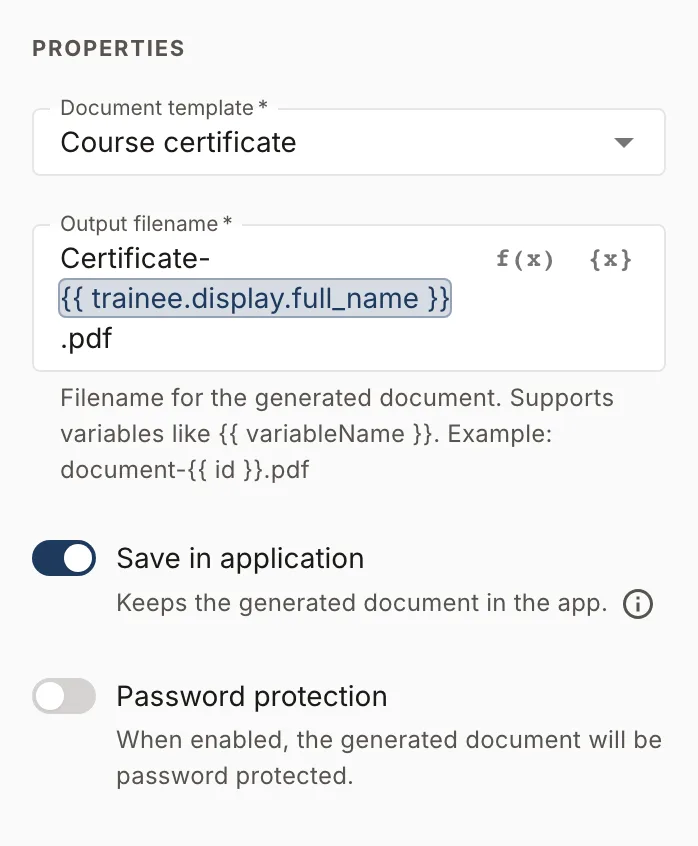
Pick the Document template.
-
Write the Output filename, for example
Certificate {{ participant_name }}.pdf. -
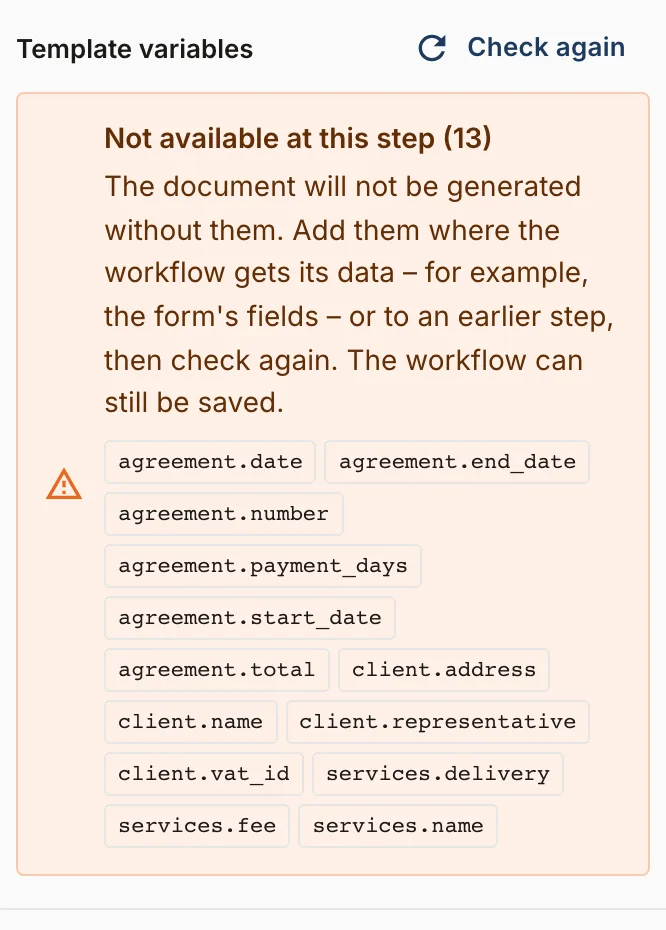
Read the Template variables box under the settings. It tells you whether this step has everything the template prints.
-
Turn on Save in application if you want a copy kept in Doxtly.
Settings
Section titled “Settings”| Setting | Values and default | What it does |
|---|---|---|
| Document template | Required. Any template of your organization, chosen by name. | The template to fill. Its type doesn’t matter: Word, PDF and SVG templates all come out as a PDF. A PDF template with areas for people to fill in or sign is on the list too, but it fails here: see When it fails. |
| Output filename | Required. Starts as document.pdf. Text and variables. |
The file’s name, in the steps that follow, in an email attachment and under Generations. A name that doesn’t end in .pdf gets the ending added. |
| Save in application | Off by default. | On: the PDF is stored and can be downloaded later. Off: it lives only for this run. See Keeping the file. |
| Password protection | Off by default. | On: the PDF opens only with a password. |
| Document password | Shown and required while Password protection is on. Text and variables. | The password that opens the file. See Password protection. |
Variables in these fields can carry operations and functions, such as {{ id | first(8) }} or {{ nickname ?? firstName }}: click a variable and then Operations, or use f(x).
Like every node, this one also has a Node ID in the panel. It matters here, because the file is known by it in the rest of the workflow. The designer page explains how to rename it.
A dot in a name is safe: Agreement no. 12.2026 becomes Agreement no. 12.2026.pdf. A variable that gives nothing, empty or not on the run at all, leaves a gap in the name, so build names from values the run is sure to have, or give them a stand-in: {{ client.name ?? "client" }}. The run ID works well too: {{ _execution.id | first(8) }}. A name that comes out with nothing in it becomes document.pdf.
Checking the template’s variables
Section titled “Checking the template’s variables”Once you pick a template, the panel compares what the template prints with what this step can see: the trigger’s data and whatever earlier steps add.
| What the box says | What it means |
|---|---|
| All variables the template uses are available at this step | You’re set. |
| The template uses no variables. | Nothing to check. |
| Not available at this step | The document won’t be generated without them. Add them where the data comes from, for example as a form field, or in an earlier step, then click Check again. |
| Optional, not available at this step | The document is generated without them: a value with a default uses the default, and a condition or checkbox reads a missing value as false. |
| Cannot be verified before the run | Doxtly can’t know yet, and the box says why. A Data transformation before this step is the usual reason, because its result only exists when it runs. |
| Available at this step: 5 of 6. | The count, shown under the groups above when nothing is plainly missing. |
A package’s number, _package.number, exists only after a Create documents step. With no package before this step, the box lists it as not available and says it exists only in a package; in Word, ${_package.number|} prints nothing in its place. See Where the number exists.
A node with missing variables shows Template variables missing on the canvas. It is a warning: you can still save the workflow, since you may be about to add that field to the form. The run itself is strict, though, and the step fails if a required value is missing.
Keeping the file
Section titled “Keeping the file”| Save in application | The next steps | Later on |
|---|---|---|
| Off | Get the file | The row under Generations stays, without a file to download. The run’s page names the document, with no download. |
| On | Get the file | You can download it from Generated files or from the run’s page |
Off suits a document that only travels, such as a confirmation sent by email. Turn it on for anything you may need to produce again, like a signed-off agreement or a certificate.
If your organization is out of disk space, the step still succeeds and the run goes on with the file. The document just isn’t stored, so it behaves as if the switch were off, and you get a notification. Check the plan limits if that happens.
Password protection
Section titled “Password protection”Write a fixed password, or build one from the run’s data so that each client has their own. A date of birth or a client number is a common choice: {{ client_number }}.
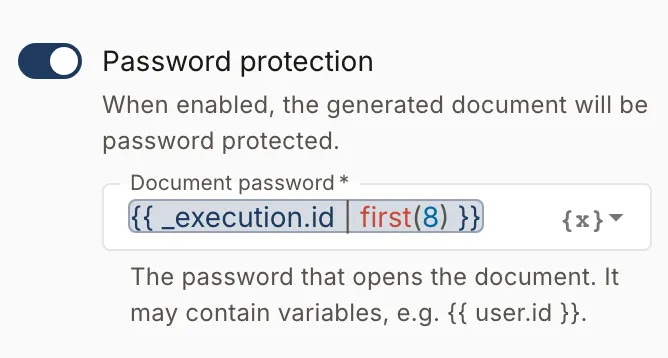
The workflow won’t save with Password protection on and the field empty. On a run the password is stricter than the file name: if a variable in it is missing or empty, or the whole password comes out empty, the step fails and no document is made. A locked file with a wrong or blank password would only look safe.
Three things worth knowing:
- Anyone who can see the workflow in the designer can read the password, so treat a fixed one accordingly.
- Doxtly records that a file is protected, never its password. If you lose a fixed one, it is still in the step. A password built from data can be worked out from that data.
- Turning Password protection off clears the password from the step.
Remember to tell the recipient how to open the file. A line in your email such as “use your client number” is enough.
What the next steps get
Section titled “What the next steps get”A file. The PDF joins the run’s files under this node’s ID. In the file pickers of the steps after this one, it appears in the Generated documents group, by its file name.
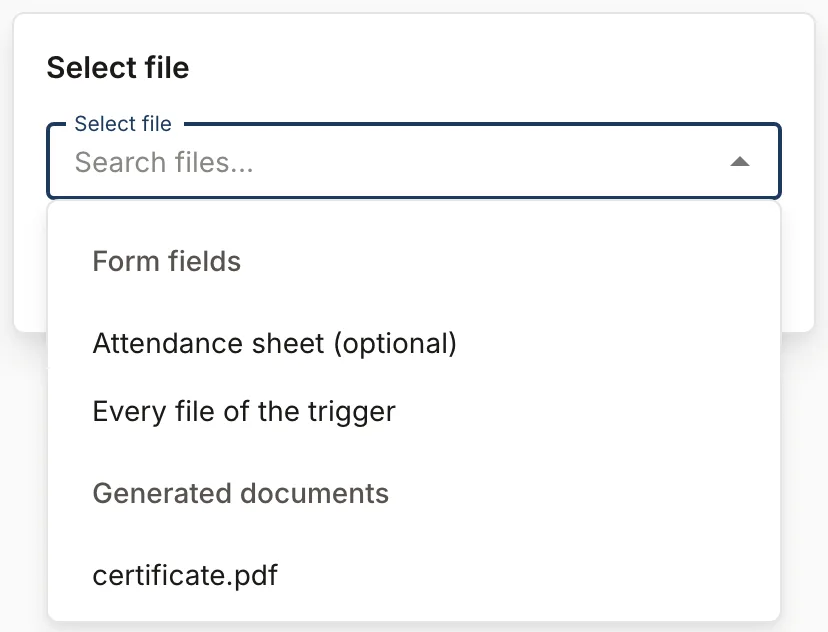
That is how you pass it on: pick it under Attachments in Send email, send it to a drive with Upload to the cloud, or add it to a document in Create documents with Add fragment > File from workflow and Choose a file. A step that isn’t reached after this node doesn’t get the file on offer.
The route through Create documents is how a Word or SVG template gets signed. Put [SIGNATURE:CLIENT] markers in the template, generate the PDF here, and Create documents already knows from the template who has to sign.
The template’s metadata. If the template has metadata, it joins the run’s _metadata, so later steps can read it, for example {{ _metadata.department }}. Where two sources name the same value, the later one wins. While this document is rendered, the template’s own metadata wins over the run’s. See Data and variables.
The node adds no other variables. On the run’s page the step shows the Generated document under Result, with a download if the file was saved, and the Template it was made from under Used.
When it fails
Section titled “When it fails”The step fails, the run stops here and nothing after it happens. The reason is on the run’s page, and people who may view workflows get a Workflow failed notification.
| What you see | Why | What to do |
|---|---|---|
| A required variable is reported missing | The run lacks a value the template prints | Check the Template variables box, then fix the source of the data or give the value a default in the template |
The document password could not be completed |
A variable in the password is empty or missing | Use a value every run has |
Cannot generate document: the PDF template has fields people fill in or sign themselves, such as a signature area. |
A PDF template has areas a person fills in or signs, and this step has nobody to ask | Use the template in Create documents, where recipients fill them in, or change those areas to take their value from data |
| A limit of your plan is named | The plan’s document generations are used up | See Plans and limits |
Most failed attempts also appear under Generations, which lists the common causes. After you fix the problem, Rerun on the run’s page starts a new run with the same trigger data. It goes through the whole saved workflow from the start, so any email sent before this step goes out again.
Example: a course certificate
Section titled “Example: a course certificate”Northbridge Advisory runs training courses. When a trainer submits the Course completion form, the participant should get a certificate by email.
| Step | Setting | Value |
|---|---|---|
| Trigger | A form is submitted | Course completion |
| Generate document | Document template | Course certificate |
| Output filename | Certificate {{ participant_name }}.pdf |
|
| Save in application | On, so the firm can reissue it | |
| Send email | Recipient email address | {{ participant_email }} |
| Attachments | The certificate, from Generated documents |
Every completed form now produces a named PDF, stored in Doxtly and sent to the participant, with nobody touching it.