

Answering a survey
A survey reaches people through one public link, and they need no account to answer it. This page covers how to hand out the link and what the respondent goes through, so you can write your invitation and answer their questions.
Share the link
Section titled “Share the link”Available when: your role has the View surveys, responses and results permission
Choose Share in the survey’s row menu. The Share the survey dialog shows the Public link with a copy button, Open the page to try it yourself, and a QR code to download and print. The address ends in /q/ and the survey’s public token, a random code.
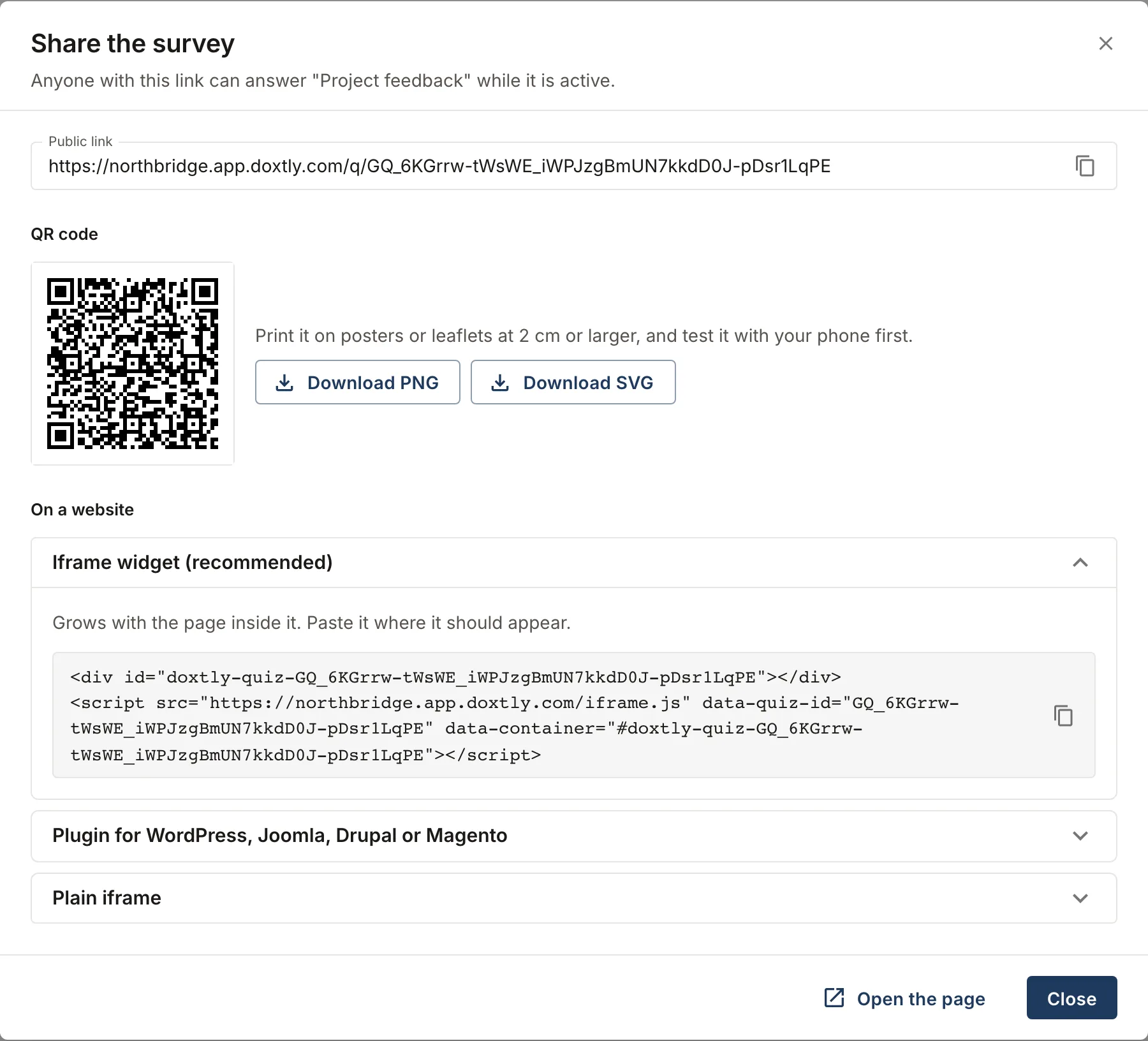
Anyone with the link can answer while the survey is Active and open, after its password if it has one, unless it is only for the people on its access list. Put it in a newsletter, at the end of a project report, or as a QR code at the reception desk. With link parameters accepted, add values such as ?channel=newsletter by hand and every response remembers where it came from. To send each contact a link of their own, use Send to fill in or Send link in the row menu.
On your website
Section titled “On your website”Under On a website the same dialog gives you the snippets with the survey’s token filled in, on the Script, Iframe and CMS plugin tabs, as for a quiz:
| Tab | Snippets | Height |
|---|---|---|
| Script | Simple native embed (recommended) draws the survey in your page, in its theme, its styles kept apart from your page’s; Advanced native embed does it from code. | Follows the survey |
| Iframe | Plain iframe, iframe widget (auto-resize) and iframe widget (advanced). | Fixed for the plain iframe, else follows the survey |
| CMS plugin | [doxtly_survey id="…"], or with type="iframe" in a frame, with the Doxtly plugin installed. In Joomla write it with braces: {doxtly_survey id="…"}. With an access key saved in the plugin, its block, widget and editor button let you choose the survey from a list. |
Follows the survey |
On the script’s tag the survey is data-survey-id, in code surveyId. The options are the same as for a quiz: see On your website, and another theme or a transparent background for one website’s look. If the survey opens only on some websites, add your website’s address there.
The introduction
Section titled “The introduction”Before the first question the respondent sees the survey’s title, the introduction you built in the designer, how many questions there are and, when the survey is set so, that they go forward only. A survey is never timed, so nothing on the page counts down.
A password-protected survey asks for its password first; with People with their own passwords, each person types their own. Someone who comes through a personal link is greeted by name (Hello, Helena) and asked for nothing. Without a valid personal link, a survey for invited people says This survey is by invitation and asks them to open the link from their invitation e-mail. Start the survey begins the response. With Ask a CAPTCHA to start on, an invisible check runs as they click; if it cannot be loaded, the page asks them to allow google.com in their browser.
Answering
Section titled “Answering”Answers are saved as the respondent types. If saving fails, the page says so and sends them again with the next step, so a short loss of connection loses nothing. A reload, or closing the browser and coming back, takes the response up again in the same browser, with its answers; another browser or device starts afresh.
The survey is split into pages as its settings say. With pages, the top shows Question 3 of 12 (or Questions 1-5 of 12 with several on a page) and the progress; Next and Back move between pages, and Send on the last page sends the response. With everything on one page there is only Send.
- Required questions must be answered before Next moves on, and before Send.
- Forward only: Back is not offered, and a page once left is closed.
- Other. A respondent who picks Other types their own answer into a box under it, up to 500 characters.
- Logic. What a condition hides is not asked, and a jump takes the respondent on to a later section or to the end. A hidden question is never required, and the progress counts only what is shown.
- Filled-in texts. Variables in the introduction, the questions and the thank-you are filled in from earlier answers and from the link.
The page works on a phone as well as on a desktop.
One question per page
Section titled “One question per page”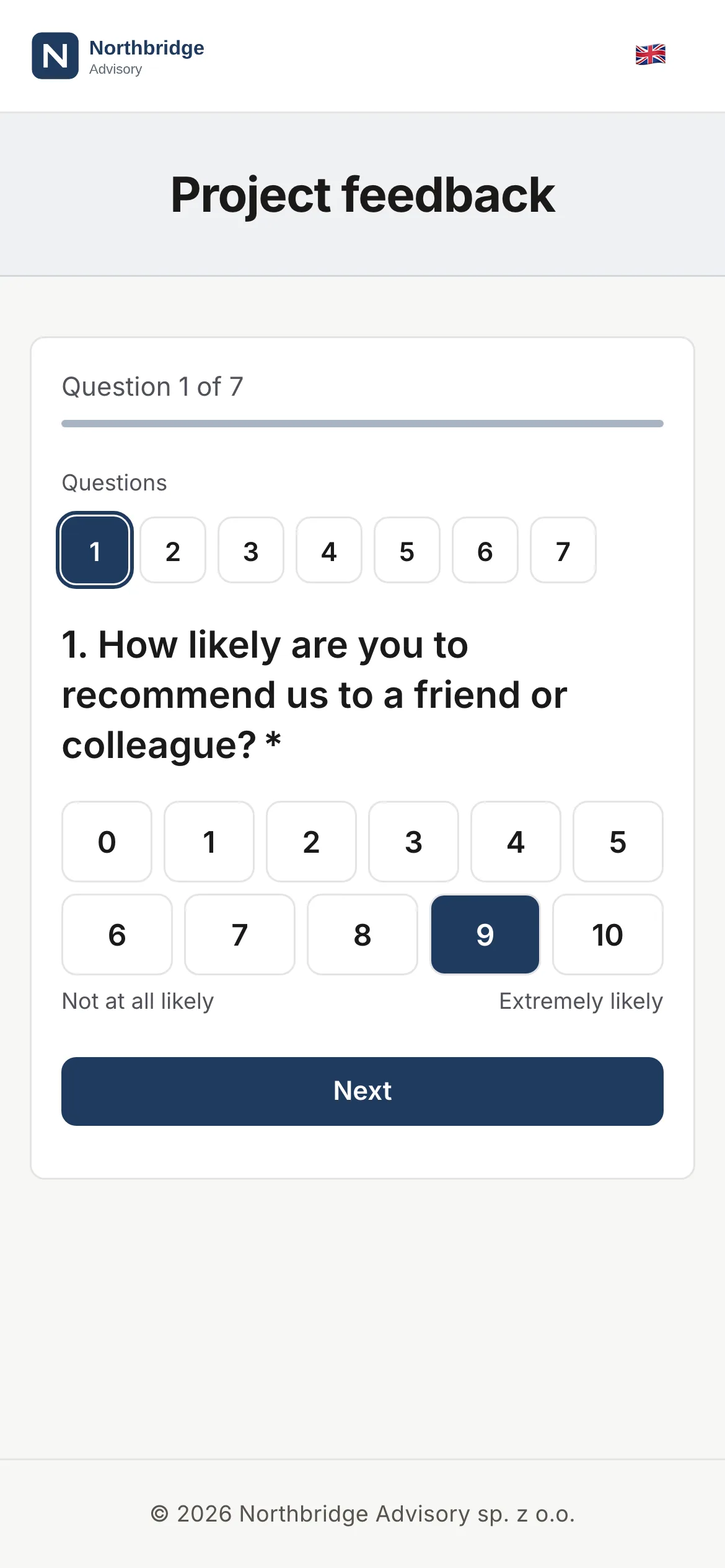
With One question per page, the default, each question fills the screen in large type, and the answers are tiles that are easy to tap on a phone. An NPS question is answered on eleven numbered tiles from 0 to 10, and any other scale shows its numbers and the value picked. With Move on once a single choice is answered, the next question follows by itself once a choice or a rating is picked. The keyboard does the rest:
| Key | What it does |
|---|---|
| 1 to 9, or A to Z | Picks the option with that number or letter, shown beside it. In a multiple choice question it ticks or unticks it. |
| Enter | Goes to the next question, or sends the response on the last one. In a long answer, Enter starts a new line. |
| Shift + Enter | Goes back to the question before, unless the survey is forward only. |
The thank-you
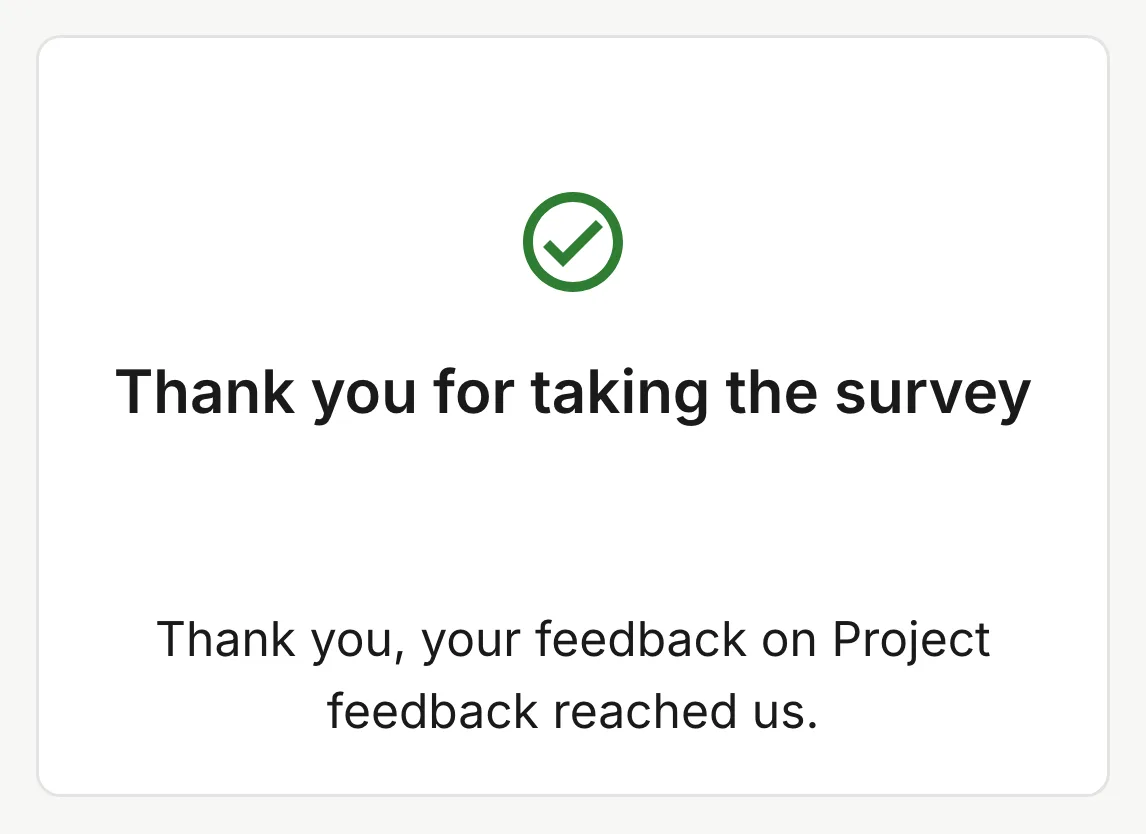
Section titled “The thank-you”Once the response is sent, the page says Thank you for taking the survey, with your success message under it, or it takes the respondent to your redirect address: see Result. A survey shows no score, no answers and no certificate.
When the respondent belongs to a quota that is full, the page says This survey is closed with the quota’s own text, or We already have enough responses like yours. Thank you for your time. Their response is kept apart and left out of the results.
What can go wrong for the respondent
Section titled “What can go wrong for the respondent”| They see | Why | What to do |
|---|---|---|
| Nothing to open here | The survey is inactive or was deleted, or the link is mistyped. | Switch it to Active, or send the right link. |
| The password you entered is incorrect. Please try again. | A wrong password. | Send them the password again. |
| You have answered this survey as many times as it allows. | Responses per person is used up in this browser, or by this person when the survey has an access list. | Raise the limit under Responding. |
| Not open yet and when it opens | The survey’s schedule opens it later. | Wait, or change the date. |
| Closed, No more answers are accepted. | The close date has passed. | Move the date, or switch it off. |
| Closed, All places have been taken. | The survey took all the responses it takes. | Raise Limit the responses. |
| The survey could not be started. Please try again., or the reason itself | The start was refused, for example because your plan’s survey responses for this billing period are used up. | Check the plan limits. |
A contact who no longer wants your surveys can decline them from the link at the end of every survey e-mail: see Declining surveys.