

Data transformation node
A Data transformation rewrites the run’s data with a short piece of JavaScript. Use it when the data isn’t in the shape the next step needs: adding up a list of line items, joining a first and a last name, keeping only attendees who confirmed. For a yes or no decision, a Condition is simpler.
Always available
Add a transformation
Section titled “Add a transformation”- Add Data transformation from the Basics group of the palette.
- Connect it into the workflow.
- In Properties, write the code in Transformation expression, or press the Doxie icon beside it, Ask Doxie, and describe what you need.
- Under Result, choose whether the result replaces the workflow’s data or is stored under a key.
A new step starts with the code data and Replace the workflow’s data, which together pass the run’s data on unchanged. The step is valid from the start, and nothing changes until you replace that code.
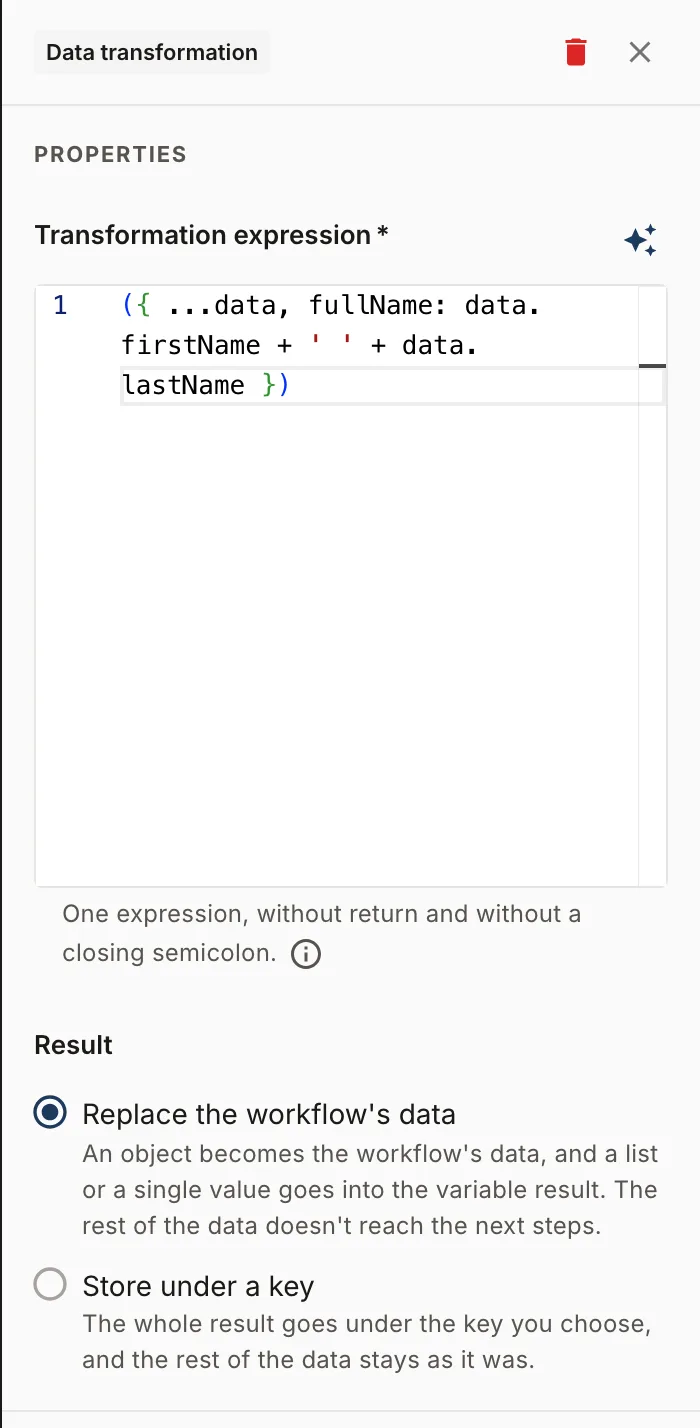
| Setting | What it does |
|---|---|
| Transformation expression | The code. Required, and data in a new step. The editor colours the code and suggests what the step can read. |
| Result | Replace the workflow’s data, the default, or Store under a key. See What it replaces and what it keeps. |
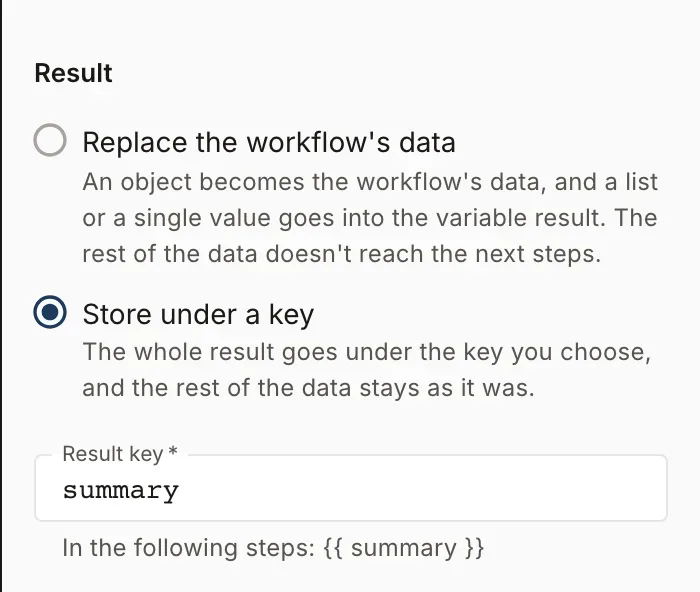
| Result key | With Store under a key: the variable the result is stored in, such as summary. Required then. It follows the rules of every output name, and the field suggests a free name. |
| Node ID | The node’s identifier, under Node information. |
The node has one output. On the canvas it shows the first 40 characters of the code.
Suggestions in the editor
Section titled “Suggestions in the editor”Type data. and the editor lists what this step can read: _metadata, _params and the same variables the variable picker offers in the other steps’ fields, each with its label on the right. Go on with a dot to reach deeper, data.customer. for the fields of a group, and data.items[0]. for the fields of a list’s items. Elsewhere the editor suggests data itself.
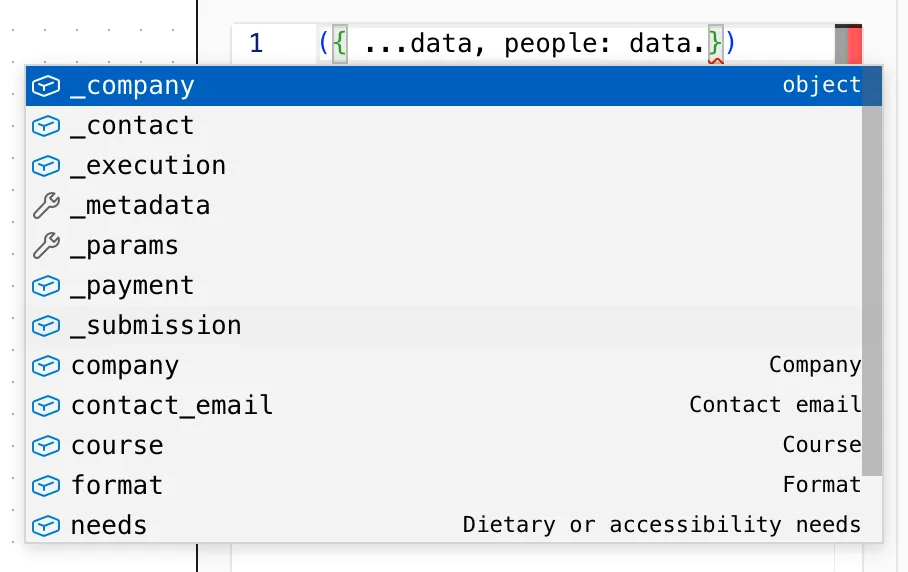
The suggestions follow the step’s place in the workflow: connect it first, and after another transformation expect only what the picker lists there (see What the designer shows afterwards).
How to write it
Section titled “How to write it”Write one expression. Doxtly works out its value and that becomes the result.
({ ...data, fullName: data.firstName + ' ' + data.lastName })data is the one name you get. It holds everything the step could read: the run’s variables by name, with data._metadata, data._params, data._execution, data._recipients and data._nodes where the run has them. The trigger’s block is there too, as data._submission and so on. A run with no link parameters has no data._params at all, so read it as data._params?.source.
Three things catch people out:
- There’s no
returnat the top, because this is a single expression and not a function body. - There’s no semicolon at the end. One there makes the code invalid.
- An object goes in round brackets, as above, so it reads as an object and not a block.
For several statements, wrap them in a function that calls itself. Inside it, return is fine:
(() => {  const net = data.items.reduce((sum, item) => sum + item.price * item.quantity, 0);  const vat = Math.round(net * 0.25 * 100) / 100;
  return { ...data, net, vat, gross: net + vat };})()
What it replaces and what it keeps
Section titled “What it replaces and what it keeps”Result decides what happens to what your code returns. Replace the data when the step reshapes everything the next steps work with. Store under a key when it only works something out, such as a total or a list of names, and the rest of the data should stay as it is.
Replace the workflow’s data
Section titled “Replace the workflow’s data”| Your code returns | The run’s variables become |
|---|---|
| An object | Its fields, by name. An empty object ({}) leaves no variables. |
| A list | One variable, result, holding the list. |
Text, a number or true/false |
One variable, result, holding it. |
null |
One variable, result, that is empty. |
| Nothing | Nothing: the step fails. |
| Part of the run | After a transformation |
|---|---|
| The trigger’s values, such as form answers | Replaced |
The trigger’s block, such as _submission |
Replaced. Keep it with ...data. |
| Results of earlier steps | Replaced |
| Files | Kept, untouched |
_metadata, _params, _execution |
Kept, read only |
_recipients, _nodes |
Kept, read only |
The read-only parts can’t be changed. If your result has a field under one of those names, it’s ignored. To use one of their values in later steps under a name of your own, copy it: ({ ...data, source: data._params?.utm_source ?? null }).
Store under a key
Section titled “Store under a key”With Store under a key and a Result key such as summary, the whole result goes into that variable, and everything else stays as it was: the trigger’s values, its block, the earlier steps’ results and the read-only parts.
| Your code returns | Later steps read |
|---|---|
| An object | Its fields under the key: ({ total: 20 }) gives {{ summary.total }}. |
| A list | The list as summary. |
Text, a number or true/false |
The value as {{ summary }}. |
null |
summary, empty. |
Return only the new values here, without ...data: the rest of the data is already there. A key that held something before is overwritten, and two steps can’t store under the same key or one inside the other.
({ total: data.items.reduce((sum, item) => sum + item.price * item.quantity, 0) })What the designer shows afterwards
Section titled “What the designer shows afterwards”Doxtly can’t tell what your code will return. After a step that replaces the data, the variable picker stops listing the trigger’s values and the earlier steps’ results for every step that follows. Metadata, link parameters, package parties and This run stay. Type the paths of your own fields by hand. For the same reason, a Template variables check after such a step reports those variables as Cannot be verified before the run, not as missing.
After a step that stores under a key, the picker lists everything as before, and adds the key itself as Transformation result, under the step’s name. What is inside it isn’t listed, so type summary.total by hand, and a Template variables check reports such a path as Cannot be verified before the run.
Let Doxie write it
Section titled “Let Doxie write it”You don’t have to write the code yourself. The Doxie icon beside Transformation expression, Ask Doxie, opens Doxie, the AI assistant in Doxtly, with a request ready to send: to write the code for this step, or, when the editor already holds code, to check and improve it. Describe the data the next steps need, in your own words and language, and she writes the transformation for the selected step.
- Select the transformation step and press the Doxie icon beside Transformation expression.
- Add what the step should return to the request, for example Add the number of participants, their names separated by commas, and the preferred date as day.month.year., and send it.
- Read the proposal. Doxie says which values the code returns and where each comes from, with the code under it.
- Press Apply. The code replaces what the editor held, and Undo on the proposal puts the earlier code back while the editor still holds the new one.
- Save the workflow. Until then nothing in the workflow has changed.
Doxie knows the variables this step can read, the same ones the editor suggests, with their labels and types, the code already in the editor and the step’s Result. When the step replaces the data, she keeps the rest with ...data unless you ask for only some values. When the step stores under a key, she returns only the new values. She never sees any run’s data: no form answers and no values from earlier runs, only the names, labels and types of the variables.
This takes Manage workflows and Use Doxie. See Work Doxie prepares.
What is checked before you see the code
Section titled “What is checked before you see the code”Doxtly checks every piece of code Doxie writes before showing it:
- Only work on the data. Code that reaches for anything beyond
datais refused:eval,Function,constructor, prototypes,globalThis,importorrequire,ProxyandReflect,fetch, timers,asynccode, loops without an end of their own (while,for (;;)) and escaped characters (\u,\x). These words count anywhere in the code, comments and text included. - No addresses you didn’t give. An email address or a link in the code must come from your request or from the code you already had. Later steps send data to people and services, so an address written in by someone else’s text, such as a field label, could send the run’s data away.
- A trial run. The code runs once in the same isolated environment as every transformation, on sample data made from the variables’ types: text, numbers, dates, yes/no and lists with one item. If it fails there, Doxie says so with the error. Sample data can lack something your real data has, so read such code before you apply it.
Code that breaks a rule is written again once, with the problem named. If it breaks a rule again, no code is proposed and Doxie tells you what was wrong. A request for anything other than a transformation, such as reaching outside, sending data somewhere or slowing the platform down, is refused, and no code is written.
What’s available to the code
Section titled “What’s available to the code”Standard JavaScript: Math, Date, JSON, String, Array, Object, Map, Set, regular expressions, and modern syntax such as arrow functions, ?. and ??.
| Limit | Value |
|---|---|
| Running time | 5 seconds |
| Memory | 48 MB |
| The run’s data and the code together | 5 MB |
| Depth of the result | 510 levels of lists and objects |
The code works only with data, and it can’t reach anything outside. There’s no network, no files, no import or require.
Only the immediate result counts, so promises and async code never run. console.log does nothing, and nothing is shown anywhere. toLocaleString() falls back to a fixed format, so format dates and numbers yourself.
When it fails
Section titled “When it fails”Any error in the code fails the step and the run, and the run shows the reason: Transformation execution failed, with the message. A misspelled name, a read of a field on a missing value (data.client.country with no client), a syntax error or running past the time limit all end up here. Past the time limit the message reads Transformation exceeded 5000 ms. Guard optional data with ?. and ??:
({ ...data, country: data.client?.country ?? 'unknown' })A result nested too deep fails with The transformation result is nested more than 510 levels deep. Return a flatter result. And Transformation engine is not available isn’t about your code: run it again a little later.
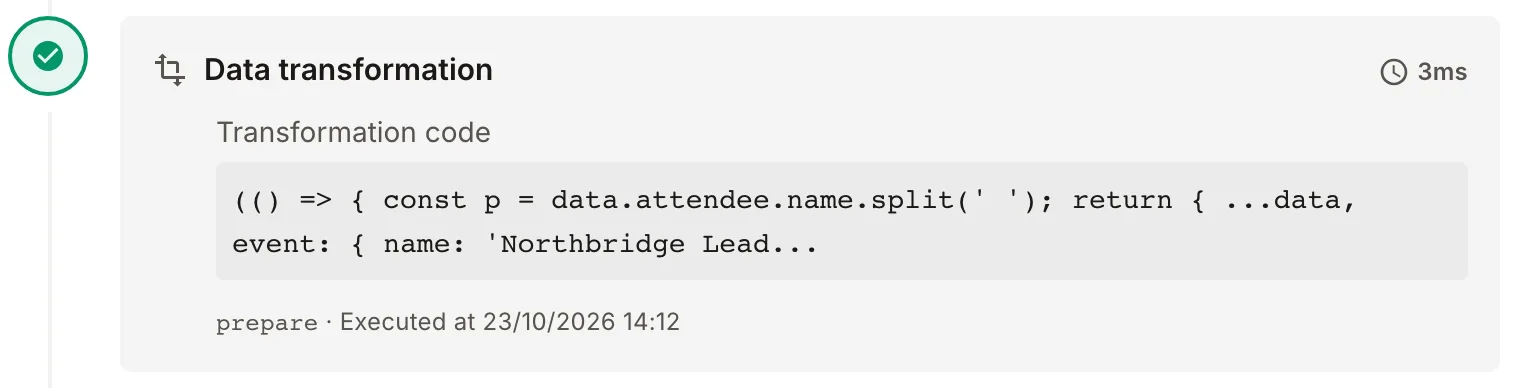
The code isn’t run when you save, so a mistake appears only in a run. Doxie tries the code she writes on sample data, but your own code isn’t tried. Try a new transformation on a test submission before you rely on it. A step’s card shows the start of the code under Transformation code, up to 100 characters, so you can tell which transformation it was, and, for a step that stores under a key, Result in: with the key.
Examples
Section titled “Examples”Keep only the people who confirmed. A list ends up under result, so a later list step reads result:
data.participants.filter((person) => person.attending === true)Keep the data and add a list of names, ready for a text field:
({ ...data, names: data.participants.map((person) => person.fullName).join(', ') })Turn answers into a code your CRM expects:
({ ...data, segment: data.fee >= 10000 ? 'KEY' : 'STD' })Send only what’s needed, and drop the rest on purpose. Nothing after this step can read anything else from the form:
({ clientName: data.company.name, contactEmail: data.contact.email })Example: an invoice request
Section titled “Example: an invoice request”Northbridge’s invoice request form has a repeating group of line items. The invoice template wants a net total, VAT and gross. A transformation after the trigger uses the reduce example from How to write it, and the Generate document step then reads {{ net }}, {{ vat }} and {{ gross }} next to the form’s own fields, kept by ...data.