

Send a quiz
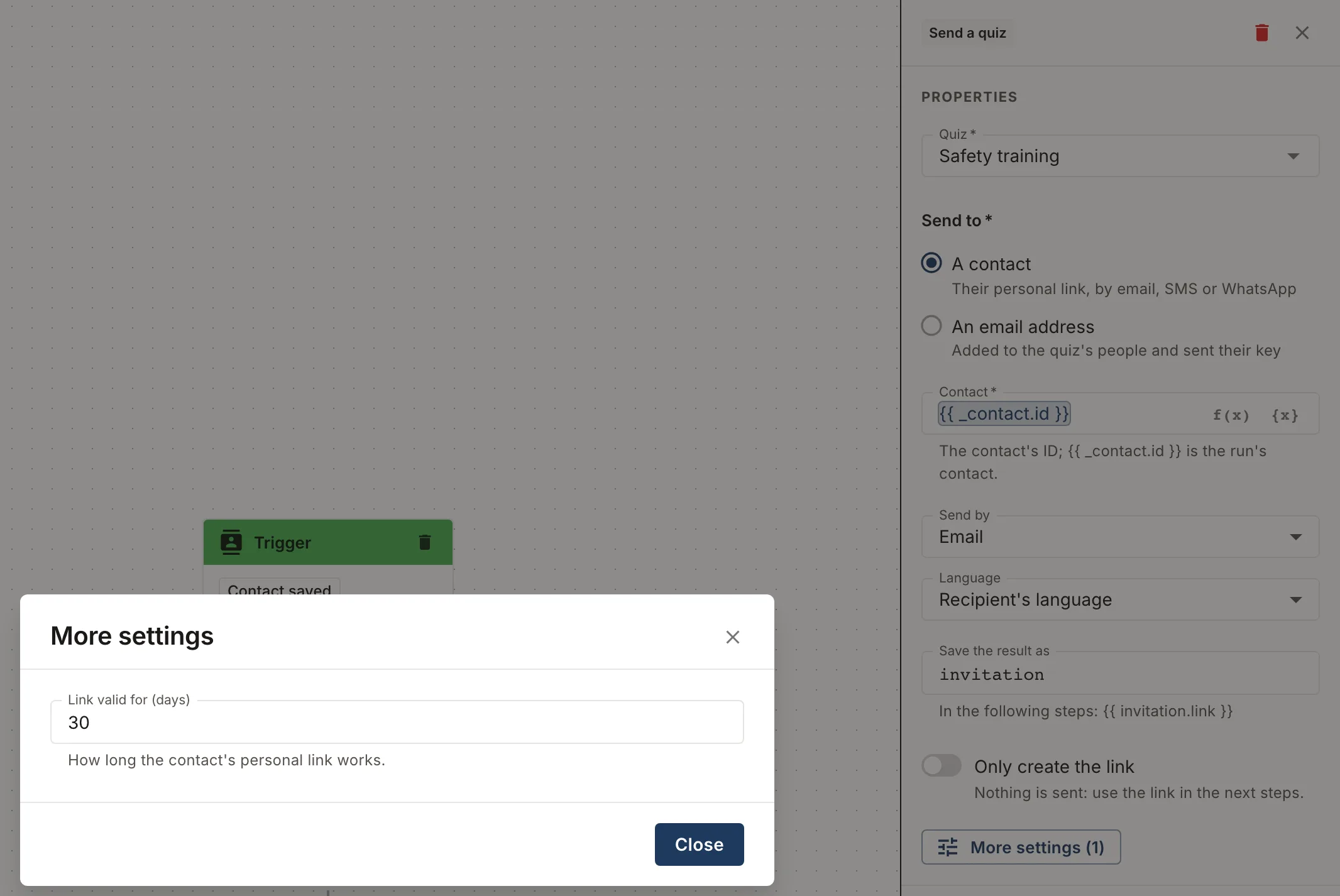
The Send a quiz node sends one of your quizzes to somebody while the workflow runs: “Sends a quiz to a contact or an e-mail address, or only creates the link”. Use it where the quiz follows from something that happened: a knowledge check for a new employee the day their contact is saved, a test for whoever signs up for a course through a form, a retake for someone who failed. To send a survey, use Send a survey.
Available when: the Manage quizzes and View contacts permissions to set up
You find it in the Quizzes group of the palette. On the canvas it shows whom it sends to, such as {{ _contact.id }} or {{ email }}.
Settings
Section titled “Settings”| Setting | What it does |
|---|---|
| Quiz | Required. The quiz to send: the list holds your organization’s quizzes, by title. |
| Send to | A contact (the default): “Their personal link, by e-mail, SMS or WhatsApp”. An e-mail address: “Added to the quiz’s people and sent their key”. |
| Contact | With A contact. Required. “The contact’s ID; {{ _contact.id }} is the run’s contact.” |
| E-mail address | With An e-mail address. Required. A fixed address, or a variable such as {{ email }}. |
| Name | With An e-mail address. Optional. The name the person is listed under, such as {{ name }}. |
| Only create the link | “Nothing is sent: use the link in the next steps.” Off by default. |
| Message | Hidden with Only create the link. How the message goes out: Send by, Message and Language, described below. |
| Link valid for (days) | Under More settings, with A contact only. “How long the contact’s personal link works.” 30 by default. |
| Save the result as | invitation by default. “The next steps read it under this name: {{ invitation.link }}, {{ invitation.entryId }}.” |
Every text field takes variables.
To a contact
Section titled “To a contact”{{ _contact.id }}, the default, is the contact the run is about: the one a form was sent to through a personal link, the contact of a Contact saved trigger, or one a CRM step found or made. Any other contact ID works too.
The contact is sent their personal link to the quiz, the same link Send to fill in sends from the contact’s page, so the quiz knows who is answering without asking. A contact keeps one link per quiz: one who already has an open link to it is sent that link again, not a new one. The sending appears in the contact’s History, naming the workflow and the run.
A contact who asked to be sent no surveys is still sent a quiz.
To an e-mail address
Section titled “To an e-mail address”The address is added to the quiz’s people, as if you had added it with Add people > One person, and sent the e-mail with their key: the quiz’s address with a key of their own. An address already on the list is that same person, sent their key again. An address is sent the quiz by e-mail only.
Only create the link
Section titled “Only create the link”With Only create the link on, the step creates the link and sends nothing: the contact’s personal link, or the person added to the quiz’s people. Use it to hand the link on another way, such as {{ invitation.link }} in a Send to a messenger step or in your own email. Nobody is invited, so no reminders follow.
Message
Section titled “Message”| Setting | What it does |
|---|---|
| Send by | Email. For a contact also SMS or WhatsApp, when your organization has an active integration of that kind; the contact needs a phone number with its country code. |
| Message | Default (Quiz link), the quiz’s own message, or one of your organization’s own templates for quiz links. |
| Language | For a contact Recipient’s language, the contact’s own, by default; or your organization’s language, or a fixed one. For an address your Organization’s language by default, or a fixed one. |
What it leaves for later steps
Section titled “What it leaves for later steps”| Variable | Label in the picker | Contents |
|---|---|---|
{{ invitation.link }} |
Link | The address the person opens the quiz with: a contact’s personal link, or the quiz’s address with the person’s key. |
{{ invitation.entryId }} |
Recipient ID | The ID of the contact’s personal link, or of the person on the quiz’s list. |
{{ invitation.kind }} |
Recipient kind (list or contact) | contact or list. |
With another name under Save the result as, the variables start with that name.
On the run’s page
Section titled “On the run’s page”The step’s card shows the quiz’s title, whom it sent to, To a contact or To an e-mail address, and how: Sent by e-mail, Sent by SMS, Sent by WhatsApp, or Link created, nothing sent. The quiz, and for a contact the contact too, are linked under Used.
When it fails
Section titled “When it fails”| What you see | Why |
|---|---|
This step sends a quiz that no longer exists in your organization. Open the step and choose another. |
The quiz was deleted. Saving the workflow is refused for the same reason. |
The quiz is closed and takes nobody. Open it again, or choose another quiz. |
The quiz isn’t active. |
"..." names no contact of your organization. |
Contact came out empty, or names no contact of yours. |
"..." gave no e-mail address to send the quiz to. |
E-mail address came out empty, or isn’t a valid address. |
The quiz has as many people as it can take; nobody more was added. |
The quiz’s list is full: it holds up to 5,000 people. |
The quiz could not be sent to the contact: ... |
The contact has no address for the channel, or your organization can’t send by it. |
The message with the quiz could not be sent: ... |
The email, SMS or WhatsApp message didn’t go out. |
A message that couldn’t be sent may be run again. Nothing was stored for a contact, and a person of the list stays on it, marked as not reached.
Example: a knowledge check for new consultants
Section titled “Example: a knowledge check for new consultants”Northbridge Advisory gives each new consultant a contact of the type “Consultant”. A workflow on the Contact saved trigger, with When set to A contact is created and Contact type to Consultant, sends them the data protection quiz on their first day:
| Setting | Value |
|---|---|
| Quiz | Data protection basics |
| Send to | A contact |
| Contact | {{ _contact.id }} |
| Send by | |
| Message | Default (Quiz link) |
Their attempts then start the Quiz trigger, for a certificate to everyone who passes.