

Signing on paper
Some people will not sign on a screen, and some documents travel to a meeting in a folder. With Allow signing on paper on, a party can print the documents, sign them with a pen and send back a scan or a phone photo. A law firm’s elderly client, a landlord who keeps everything in paper: they sign the way they always have, and the package still finishes in Doxtly, with the scan on the record.
Available when: the party has Allow signing on paper switched on when the package is prepared. It is off by default. A party that stands for a department or that signs with a qualified signature cannot have it
Turn it on
Section titled “Turn it on”In the package editor, on People, or on the People tab of a Create documents step, open the party’s row and switch on Allow signing on paper. It is a choice per party, so a client can be offered paper while your own director signs on screen.
What the party does
Section titled “What the party does”-
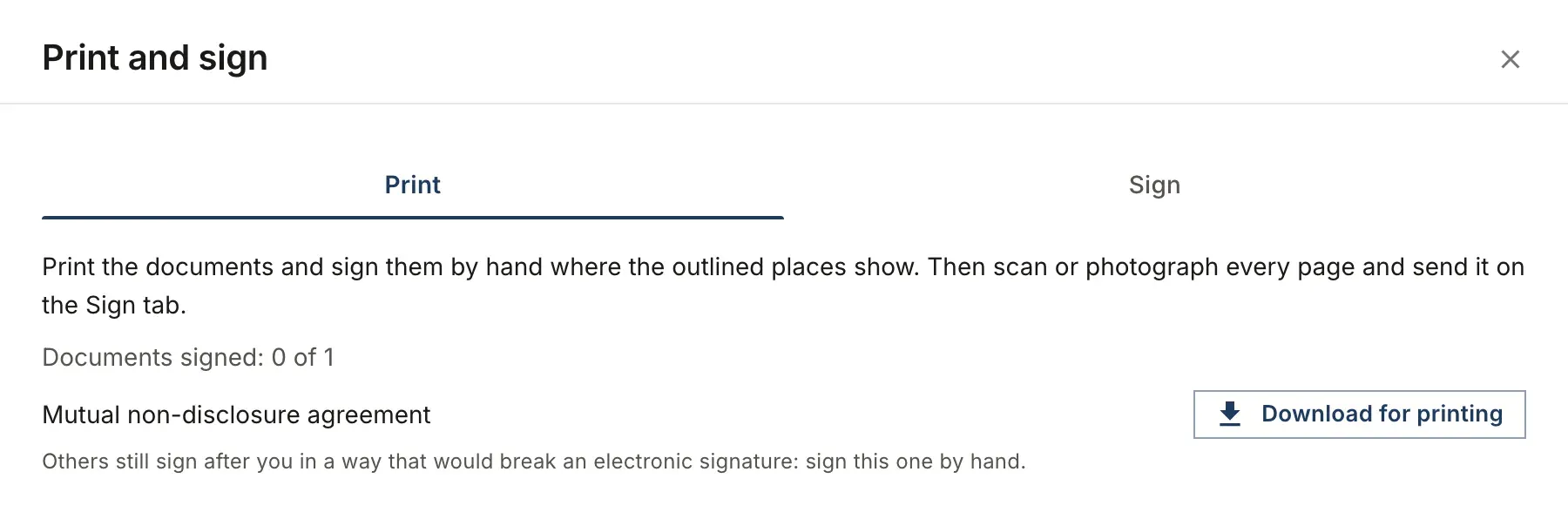
On the signing page, the More menu offers Print and sign. A dialog opens with two tabs, and a line saying how many documents are signed so far.
-
On Print, the party fills in the required fields first, because the paper is the final version, and then downloads what they will sign. In a package of several documents, Print all documents puts every document in one file, each page marked with the document’s title and its page number, so a stack of paper sorts itself. Download for printing gives one document at a time. Each place the party signs or initials is outlined on the paper with what goes there and their name, as the page shows it. Documents with a password are printed one by one.
-
They sign the printout by hand.
-
On Sign, under each document, Add a scan takes a PDF, JPEG, PNG or HEIC file, up to 20 files and 25 MB each. On a phone, Take a photo opens the camera. Arrows put the pages in order and the bin removes one.
-
Before anything is final, Doxtly says what it found: a scan, and a warning when the number of pages differs from the document’s, for example The scan has 3 pages and the document has 4. The party ticks I confirm that the scan I am sending is the document I signed by hand and presses Upload scan.
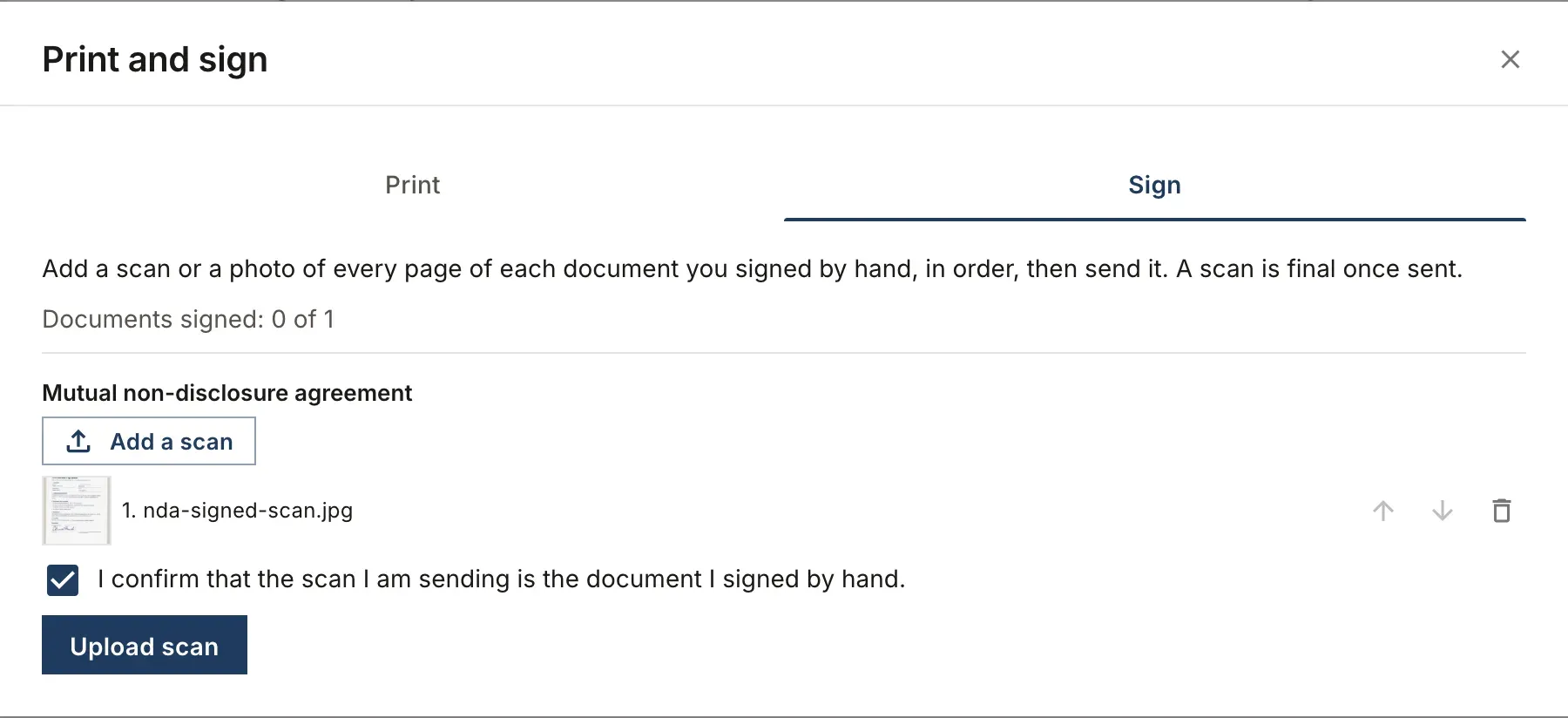
That one upload signs that document for this party at once. What the party typed before printing is stored with the signature and appears in the sealed document, just as when signing on screen, and a scan is refused while a required field of theirs is still empty. A scan is final and can’t be replaced, and each document takes one, so read the page-count warning before sending. If the package asks for required attachments or additional conditions, they come first, on the Sign tab as well.
Printing and sending can happen on different days. The party opens the same link again, goes through the same check if the package asks for one, and the dialog opens on Sign when something was already printed. A deadline still applies, so a document past it can’t be signed on paper either.
On the same package, other parties
Section titled “On the same package, other parties”Paper and screen mix freely. A party signing on paper doesn’t hold up anybody else’s way of signing, with one exception that the dialog explains: once somebody has signed on paper, later parties can’t add a signature with their own certificate to that document, and a party who is due to send back a PDF signed in their own program sees An earlier party signed on paper: sign this one by hand too. The other way round works the same: while somebody else still has to sign a document electronically, a party can’t send back a PDF signed in their own program for it, because the later signature would break theirs. The dialog then says Others still sign after you in a way that would break an electronic signature: sign this one by hand., and a scan is still taken.
On the record
Section titled “On the record”| Where | What it says |
|---|---|
| The document’s Audit log tab | Copy for printing and signing downloaded, and Party signed the document with Signature method: On paper, returned as a scan and the SHA-256 of the scan under Show details. |
| The document’s Parties tab | Signed on paper beside the party’s status and, for people who may view the organization’s documents, a button to download the scan. With a connected drive, it also offers Save to a cloud drive. |
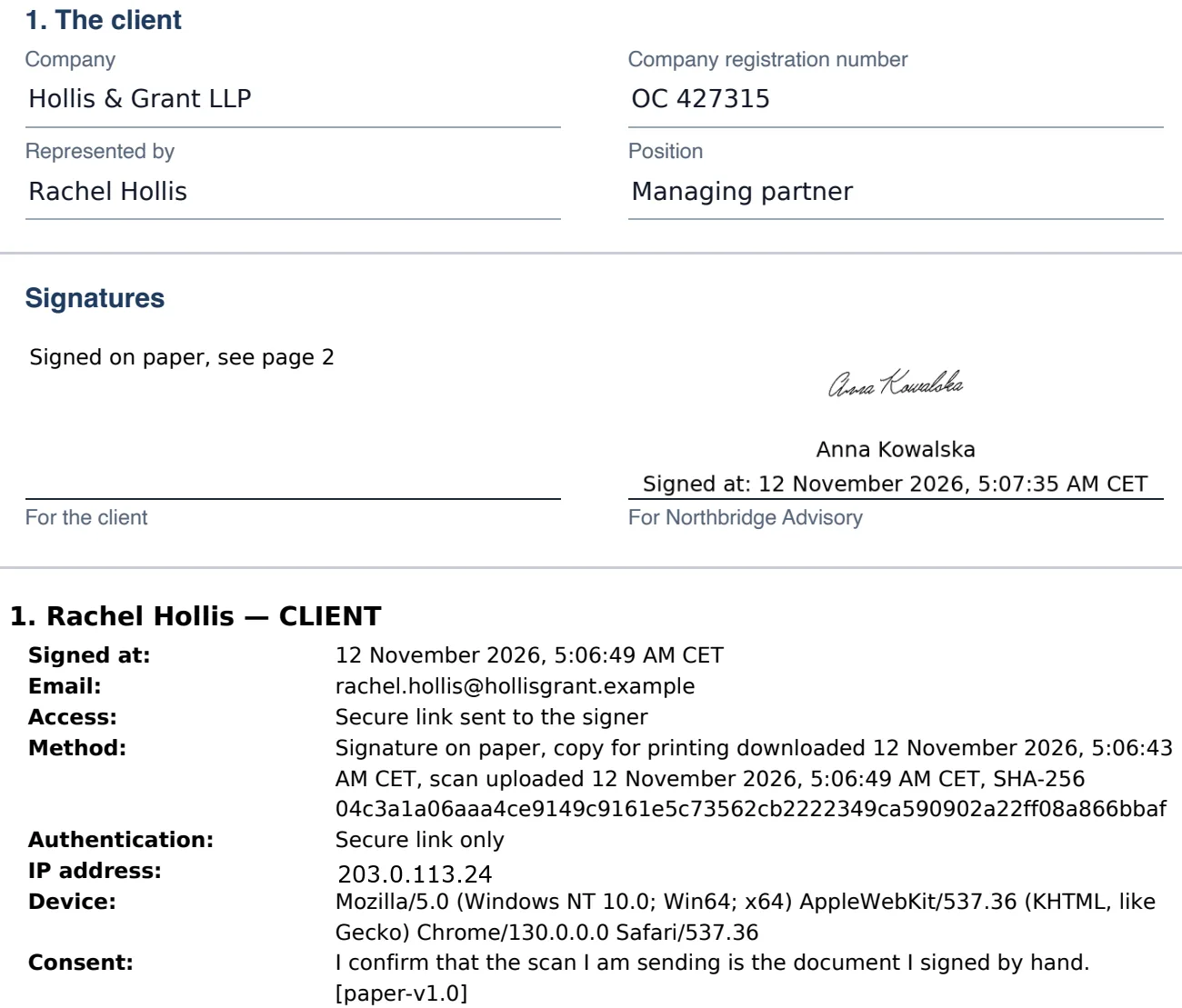
| Certificate of Completion and audit certificate | The party’s row reads Signature on paper, copy for printing downloaded (date), scan uploaded (date), SHA-256 (hash). When the copy was downloaded several times, the certificate names the last download before the upload. The row is in the certificate’s language, whatever language the party signed in; only the statement they confirmed stays in their words. A download that failed is not recorded. |
| The sealed PDF | The values the party typed, in their places. The party’s signature places read Signed on paper, see page N, and the scan follows the document as pages of its own, headed Paper copy signed by and the party’s name. |
Who sees what
Section titled “Who sees what”Your team reads the same trail as for any signature, on the package page. A workflow on A party signs starts as usual; the signature method is on the audit entry, not in the workflow’s data.
A party signing on a device you hand them can’t use this: on that page there is nothing to download and no paper route.