

Submissions
A submission is what one person sent through an interactive document: the values, the files, and the PDFs rendered from them. Here you check what came in, download the documents, and fix a typo without asking anyone to fill everything in again.
The list
Section titled “The list”Open Interactive documents and switch to the Submissions tab. It lists the submissions of all your interactive documents, newest first, 25 to a page. The control under the list switches to 10 or 50. Until the first one arrives it says No submissions yet.
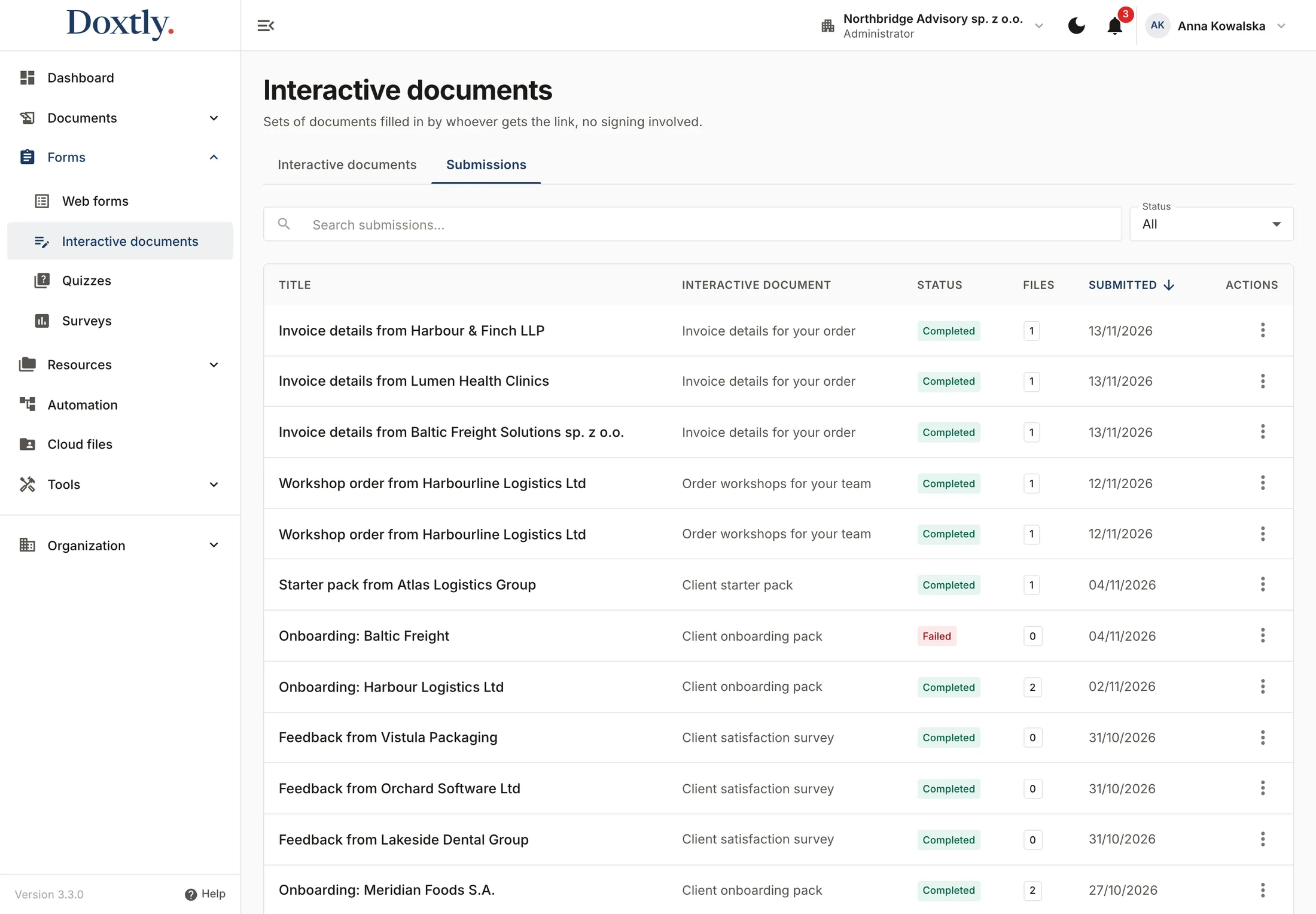
| Column | What it shows |
|---|---|
| Title | Built from the Submission title setting, or Untitled submission if there is none. |
| Interactive document | Which document it came through. |
| Status | Processing, Completed or Failed. |
| Files | How many PDFs were rendered for it. Uploaded files are not counted here. |
| Submitted | The day it arrived. |
| Actions | Delete, for people who can manage interactive documents. |
You can sort by Title, Status and Submitted, in the same way as the list of documents. The search box looks in submission titles, so a good title template pays off here: {{ customer.name }} finds a client in seconds. The Status filter offers All, Processing, Completed and Failed. Filters show as chips and stay in the page address.
The Interactive documents row of the Failures widget on the dashboard leads here too. It opens the list filtered to Failed and adds a Since chip with the moment it counts from. Remove the chip to see everything.
What the statuses mean
Section titled “What the statuses mean”| Status | Meaning |
|---|---|
| Processing | The values are safe and the PDFs are being rendered. An edited submission comes back to this status too. |
| Completed | The PDFs are ready and the workflows have been started. |
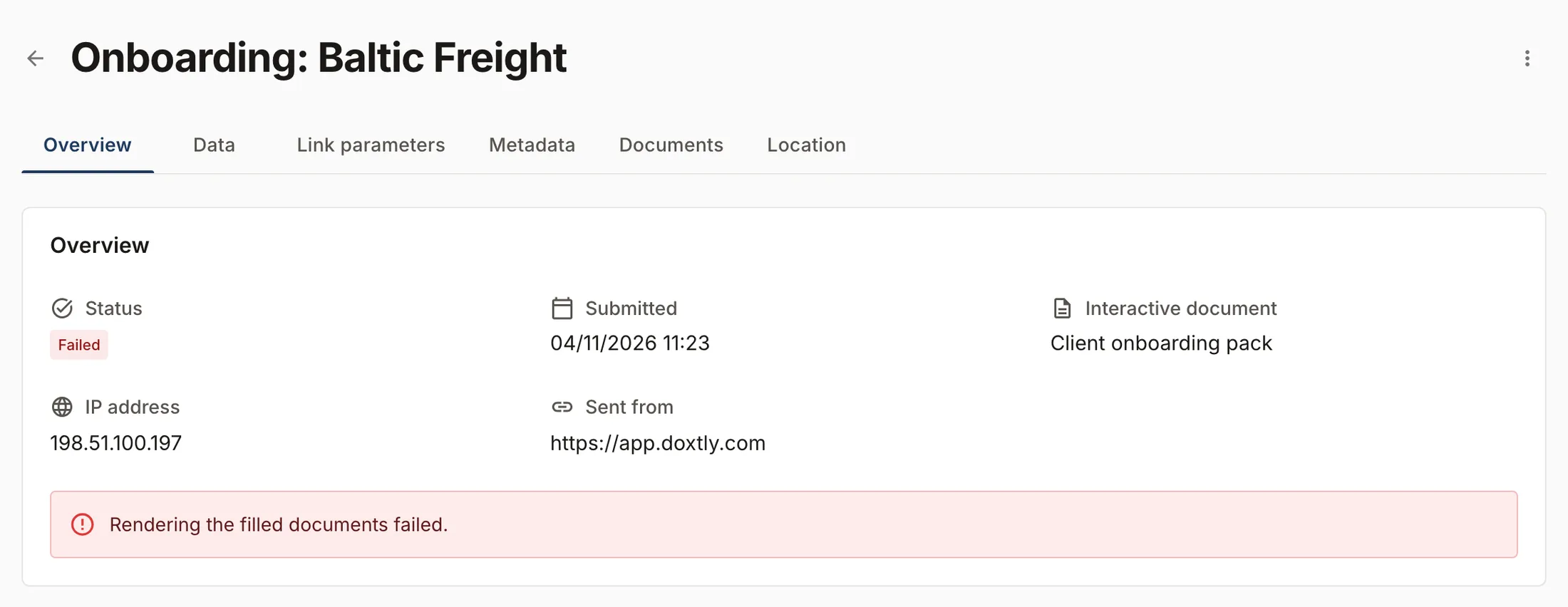
| Failed | The PDFs could not be rendered. No workflow started. The reason is on the Overview tab, and the row counts on the dashboard. |
A render is not retried on its own. To try again, edit the submission, provided the document allows it and the submission kept its values. An edit has to change at least one value. If the reason names a cause, fix that first. A failed submission gives its use back to your plan, and an edit that renders it again takes one, so that edit is refused if the period’s limit is used up.
A single submission
Section titled “A single submission”Click a row. The header shows the title, an Edited badge if it has been corrected, and a three-dot menu with Edit submission and Delete, depending on what you may do.
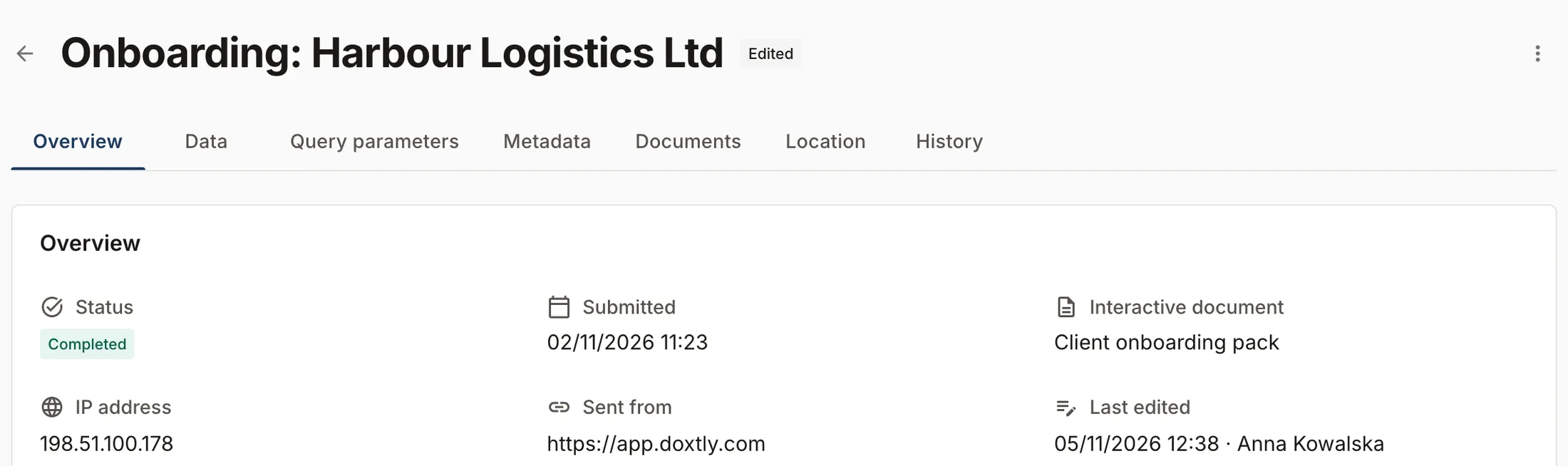
Overview, Data and Documents are always there. The others depend on what the submission holds.
Overview
Section titled “Overview”Status, Submitted, Interactive document, IP address and Sent from (the page the request came from). After an edit, Last edited shows when and by whom. A failed submission shows the reason in red.
All values as a tree. Click a branch to open or close it, search with the box above it, copy one value with Copy value, or everything with Copy JSON. This is the same data workflows receive: form answers and PDF areas that pass a value on, under their variables.
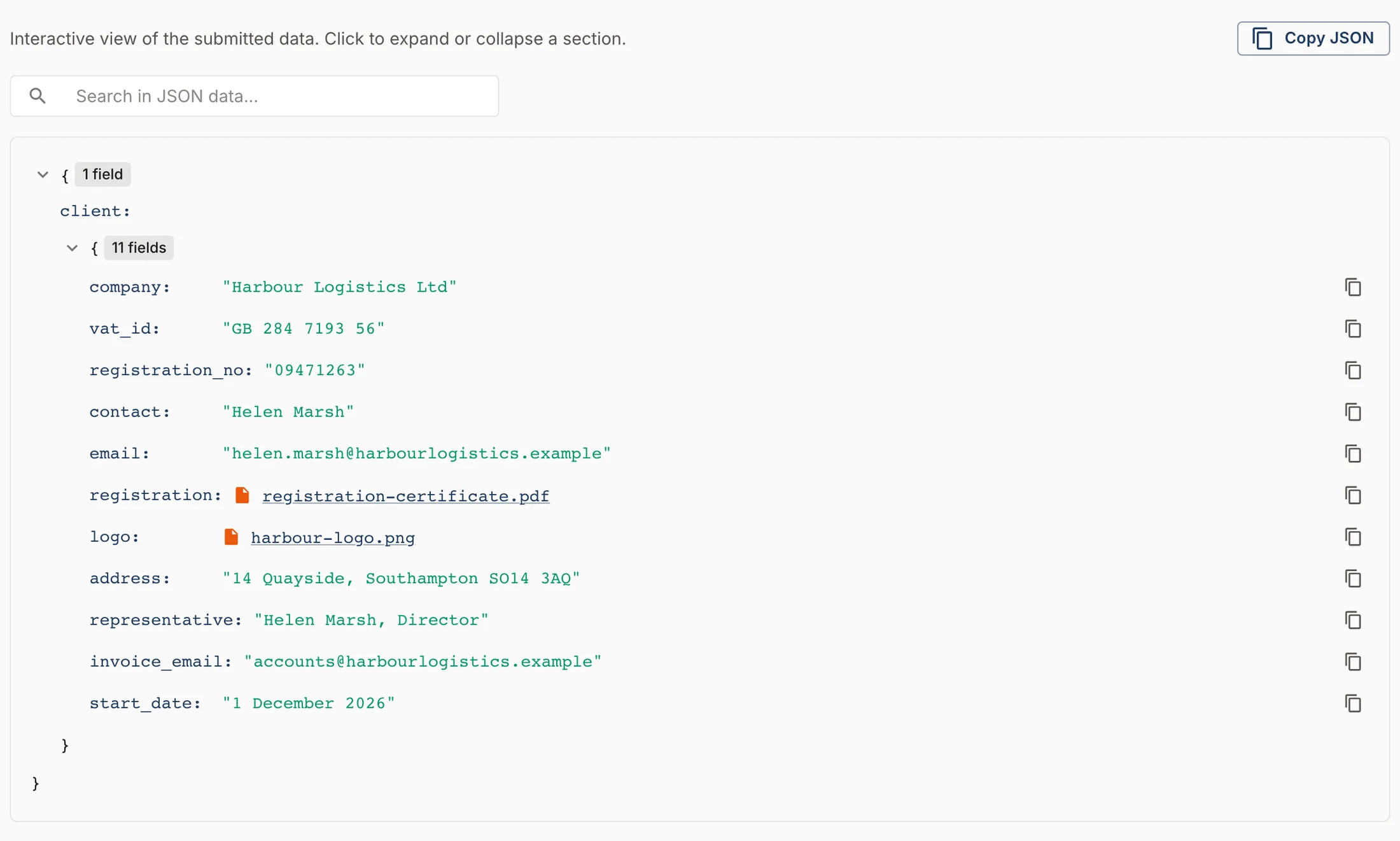
Values of areas without a variable are printed in the PDF but do not appear here. A file or picture appears as a reference: to get the file itself, use the Documents tab. If Store the submitted values was off when the submission arrived, the tab says The data was not saved for this submission. Only its metadata is available.
Link parameters
Section titled “Link parameters”The link parameters captured with the submission. Shown only if there are any.
Metadata
Section titled “Metadata”The metadata as it was when the submission arrived. Shown only if there is any.
Documents
Section titled “Documents”The rendered PDFs, one per template, with their sizes, followed by what was uploaded with the submission: files from the forms and pictures from image areas, each marked Uploaded file with its size. Click the download icon next to any of them. Everyone who can view submissions can download these, and uploads stay available even with Store the submitted values off.
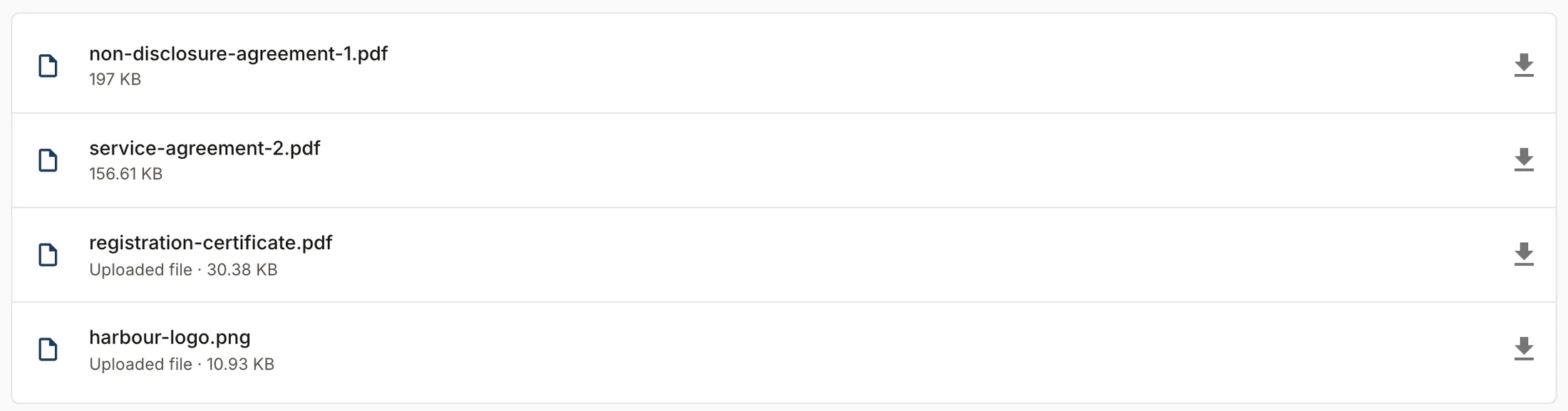
File names of the PDFs come from the item’s name and its number among the PDFs, such as nda-1.pdf. Until the PDFs are ready the tab says they have not been rendered yet. Web forms produce no PDFs. An upload an edit replaced leaves this tab and stays in the history.
Location
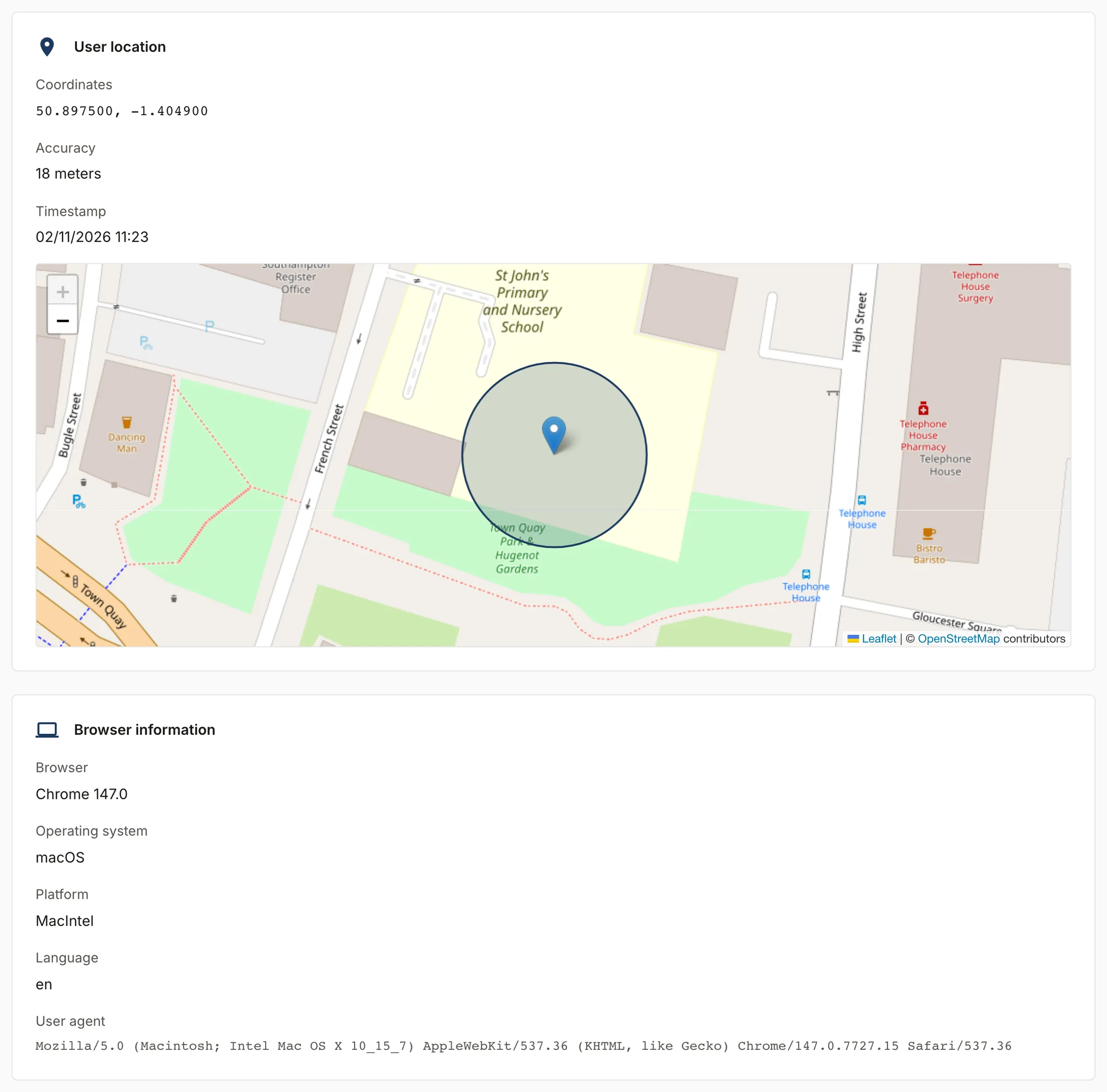
Section titled “Location”Where the submission came from: the IP address, Sent from, and Browser information with the browser, operating system, platform, language and user agent. If you turned on Ask for the location, this tab adds User location with the coordinates, accuracy, time and a map, or a Location error with the reason there is no position, such as User denied location permission or Location request timed out. That is useful when you have to show where something was filled in.
History
Section titled “History”Appears after the first edit. See The history.
Delete a submission
Section titled “Delete a submission”Choose Delete in the row menu or the submission’s header menu, then confirm. This needs the Manage interactive documents permission. The submission goes with its rendered PDFs, uploads, edit history and the workflow runs it started, and it cannot be brought back. A run still under way is deleted once it ends; runs another trigger started that only read the submission stay. The use of your plan’s submissions is not given back.
Edit a submission
Section titled “Edit a submission”A client wrote the wrong address, or spotted a typo the day after sending. You correct the values and Doxtly renders the PDFs again, so nobody has to fill everything in a second time. Every change is recorded with your name.
Available when: your role has View interactive documents and submissions and Edit submissions, and the document allows editing, as a new document does unless you turn it off
A submission can be edited when all of these hold:
- The interactive document has Allow editing submissions on, as a new document does until somebody turns it off.
- The submission kept its values, which means Store the submitted values applied when it arrived.
- Its PDFs are not being rendered right now.
If you hold the permission but one of these fails, a blue note on the submission’s page says why. Once the documents are rendered, people who can manage the document also get Open the document, a shortcut to its settings. A submission that arrived without stored values stays closed, whatever you change there.

Making the edit
Section titled “Making the edit”- Open the submission, click the menu in the header and choose Edit submission.
- Change what needs changing. The page looks like the public one: items on the left, the PDF or form on the right, zoom in the corner.
- Watch the counter at the bottom, such as 2 values changed, then click Review and save. It stays greyed out until something has changed.
- Check the changes in the dialog, set the options below and click Save changes, or Save and run workflows.
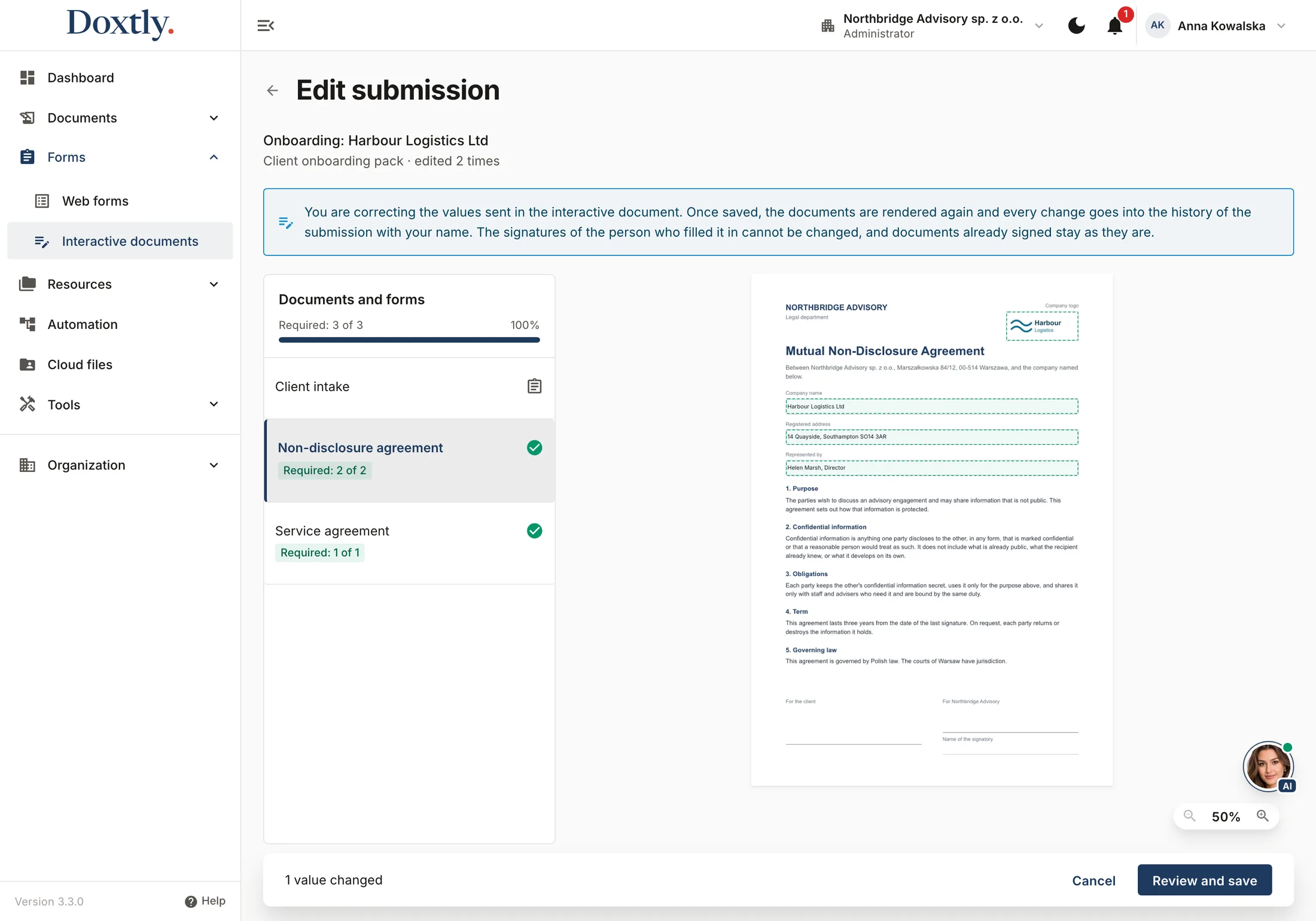
Some things work differently from the public page:
- Signatures are off limits. No signature area is shown. A signature the person made stays as it is, in a PDF area or in a form, and none can be added. A required signature is not asked for.
- Pictures and files stay unless you replace them. The current picture is shown in its area. A file in a form appears by its name, with a download link.
- The same checks apply. Required areas, formats, and form validation all run again. Print conditions are worked out from the edited values, the parameters of the original link and the metadata the submission kept. Review and save takes you to the first place that needs correcting.
- A form split into pages shows all its fields at once, so nothing has to be stepped through.
- The document’s link does not matter. You can edit while the document is inactive.
- You work on the document as it is today. The items and templates are the current ones, not those of the day the submission arrived, and the new PDFs come from them. If you changed a template in between, the corrected PDFs show that change too.
- On a phone, a Documents and forms button opens the list of items.
Cancel takes you back to the submission. If you leave with unsaved changes, Doxtly asks: Discard and leave or Keep editing.
Reviewing and saving
Section titled “Reviewing and saving”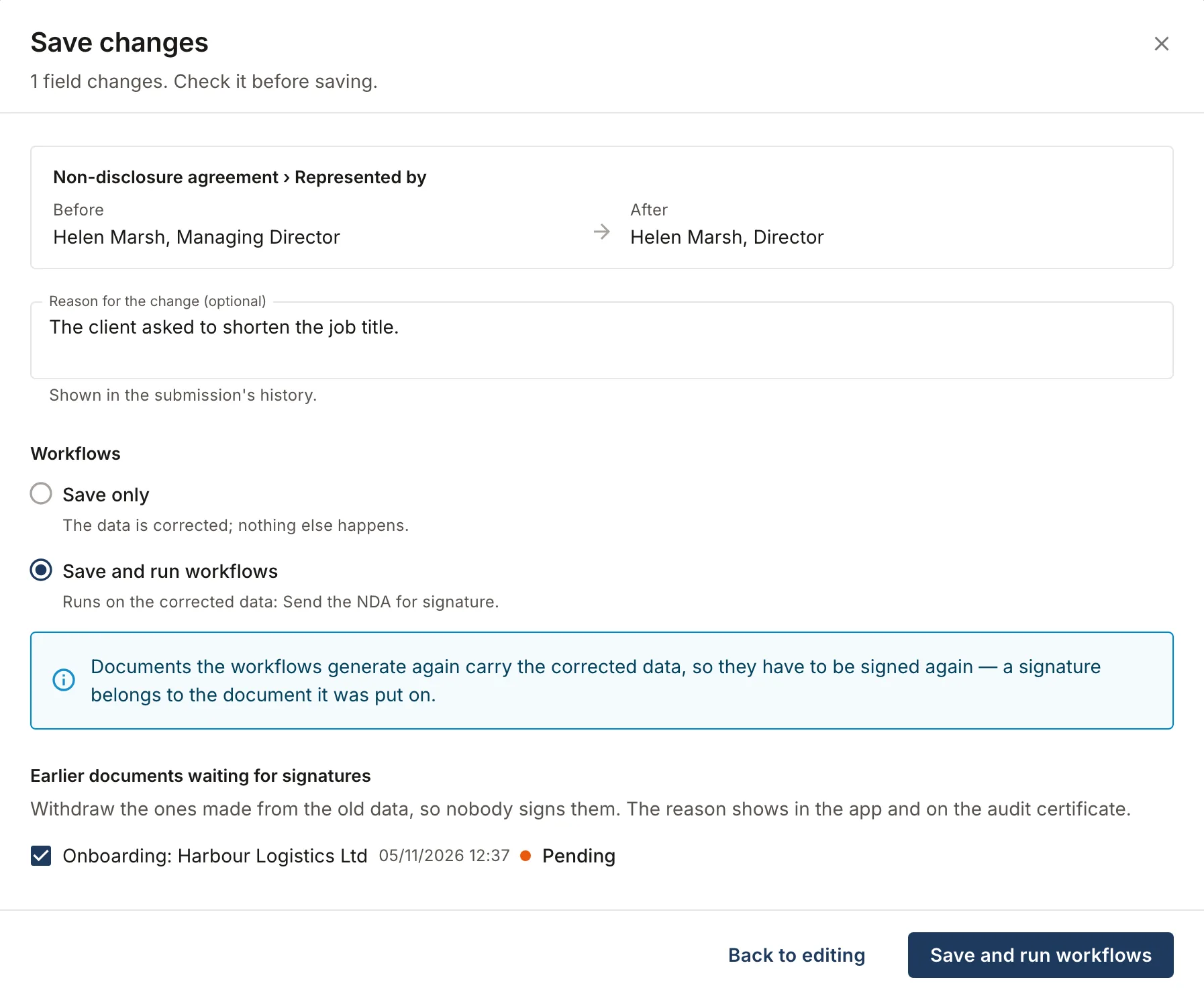
| Part | What it does |
|---|---|
| The list of changes | Each changed value before and after. A PDF area is named after its document, as in NDA › Company name. |
| Reason for the change (optional) | Up to 1,000 characters. Shown in the history, and given as the reason if you withdraw packages. Without one, a withdrawn package says Replaced after the values sent in the interactive document were corrected. |
| Workflows | Save only corrects the data and renders the PDFs. Save and run workflows also runs the workflows named under it. If none would run, it is greyed out and says how to set one up. |
| Earlier documents waiting for signatures | Packages that earlier runs created from this submission and that can still be withdrawn, if you may manage them. Tick the ones made from the old data so nobody signs them. The reason shows in the app and on the audit certificate. |
Save and run workflows is available when at least one active workflow on this document has When set to A submission is edited or Either in its trigger. The runs start once the PDFs are rendered, with the corrected values and the new files, and _submission names the edit: revision, editedAt and editedBy. Documents those workflows generate again need signing again, because a signature belongs to the document it was put on. Nobody is waiting on a page after an edit, so Allow immediate signing does not hand anyone a signing page.
Click Back to editing to return without saving.
What happens on save
Section titled “What happens on save”The submission holds the corrected values and goes back to Processing, and you return to its page. The earlier PDFs are deleted and new ones are rendered, so download a copy first if you need the old version. Its title is worked out again. Documents already signed stay as they are.
A file or picture you replaced is removed, unless it came with the original submission. That one is kept, so the first version stays complete in the history, where you can still download it.
If a package cannot be withdrawn, for example because the last party finished signing in the meantime, the edit is still saved. A warning tells you to void the package on its own page, and the history records it.
When two people edit at once
Section titled “When two people edit at once”If somebody else saves an edit while you work, your save is refused rather than overwriting theirs, and a warning appears on the page. Load the latest version starts over on their version, and your changes on the page are not saved, so note them first.

The history
Section titled “The history”The History tab lists each edit, newest first, down to the moment of sending.
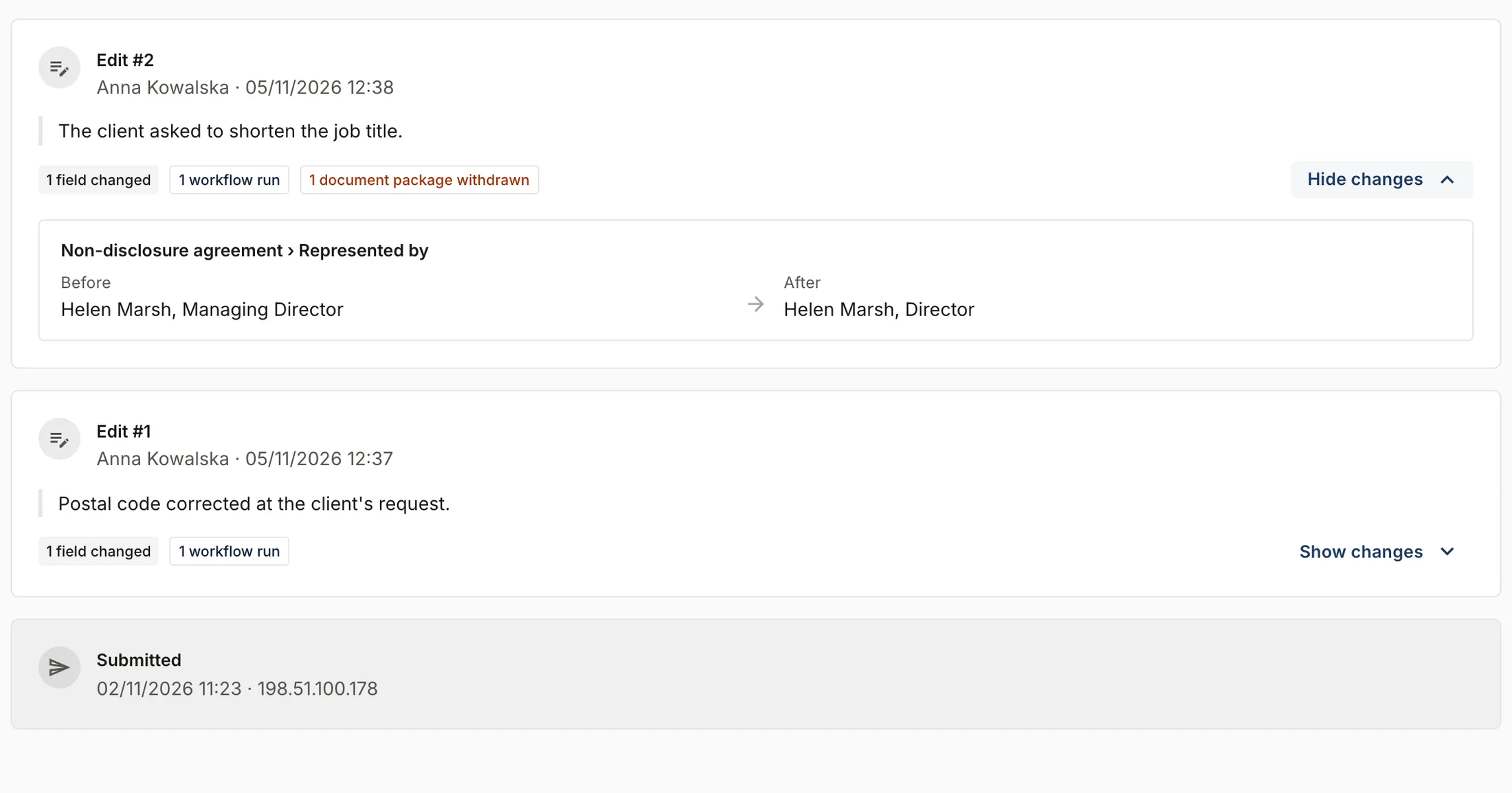
Each edit shows its number, who made it and when, and the reason if one was given. Chips sum it up: how many fields changed, how many workflow runs it started or Saved without running workflows, and how many packages were withdrawn or could not be. Show changes unfolds the values before and after, with links to the runs for people who can view workflows.
The last entry, Submitted, gives the original date and IP address.