

Companies
A company ties your contacts together. Choose a company on a contact, and the people from one client or supplier sit on one list, with the documents of all of them on one page. An accounting firm keeps its clients as companies here, a builder its subcontractors. Companies live on the Companies tab of Resources > Contacts, between Contacts and Types.
Available when: the View contacts permission; Contacts in your plan
What a company holds
Section titled “What a company holds”| Field | Required | What it is for |
|---|---|---|
| Name | Yes | Unique in your organization whatever its letter case and spaces, so “ACME” and “acme” are one company. |
| Tax ID | No | Shown in the list and on the company’s page. Searched. |
| Street, Postal code, City, Country | No | The company’s address. City is shown in the list and searched. |
| Email, Phone, Website | No | A click on the company’s page starts a message, a call or opens the site. A website without https:// gets it for you. |
| Notes | No | Up to 2000 characters of anything worth remembering about the company. |
The name takes up to 200 characters, the tax ID and the phone 50 each, the postal code 20, the city 100, and the street, email and website 255 each. The country is chosen from a list.
Whatever else you keep about a company, such as a contract number or a credit limit, goes into its custom fields, on the Custom tab of the company’s dialog.
Add a company
Section titled “Add a company”-
Open Resources > Contacts and the Companies tab, then press Add company.
-
Enter the Name and whatever else you know.
-
Press Add company.
Companies also appear on their own: type a new name in a contact’s Company field, and it is added with just that name when you save the contact. Open the company later to fill in the rest.
Choose a company for a contact
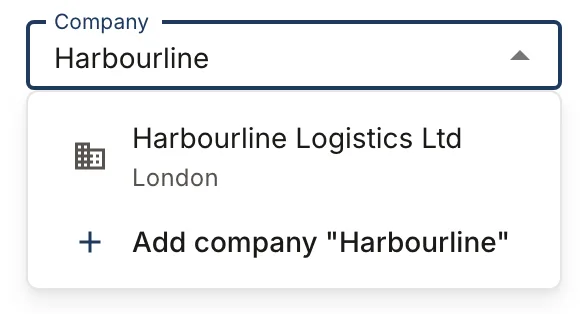
Section titled “Choose a company for a contact”The Company field on a contact’s form looks in your companies as you type: by name, tax ID or city. Pick one from the list. A name that no company has is offered as the last option, Add company “Halden”, so you see a typo before it becomes a company. Typing the same name in other letters shows the existing company instead of offering a new one.
To take a contact out of its company, clear the field.
Find a company
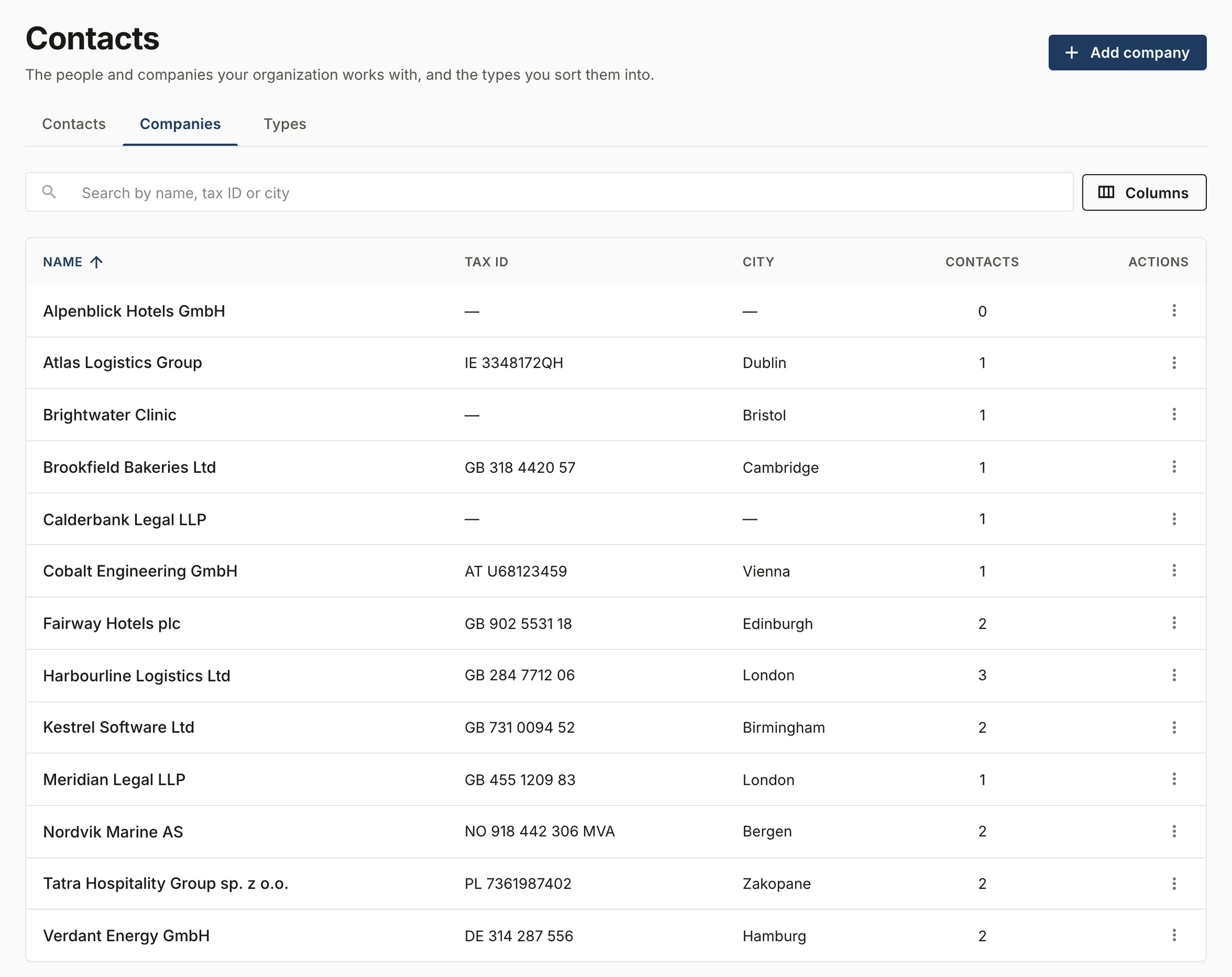
Section titled “Find a company”The list shows the name, tax ID, city and number of contacts. The search box looks in the name, tax ID and city. On a computer, sort by clicking a column heading; the list starts sorted by name. Columns, beside the search box, adds the Email, Phone, Website and Added columns and your custom fields of companies that are not sensitive; Reset to default brings the standard columns back. On a phone each company is a card with the same details.
On the Contacts tab, the Company column links to the company, and the Company filter narrows the list to one company, or to contacts of No company.
The company’s page
Section titled “The company’s page”A click on a company opens its page: the name, a card with its details, the Custom fields card when your organization has custom fields for companies, and three tabs. The menu in the header has Send to fill in for whoever may send the link, and Edit and Delete for whoever may manage contacts.
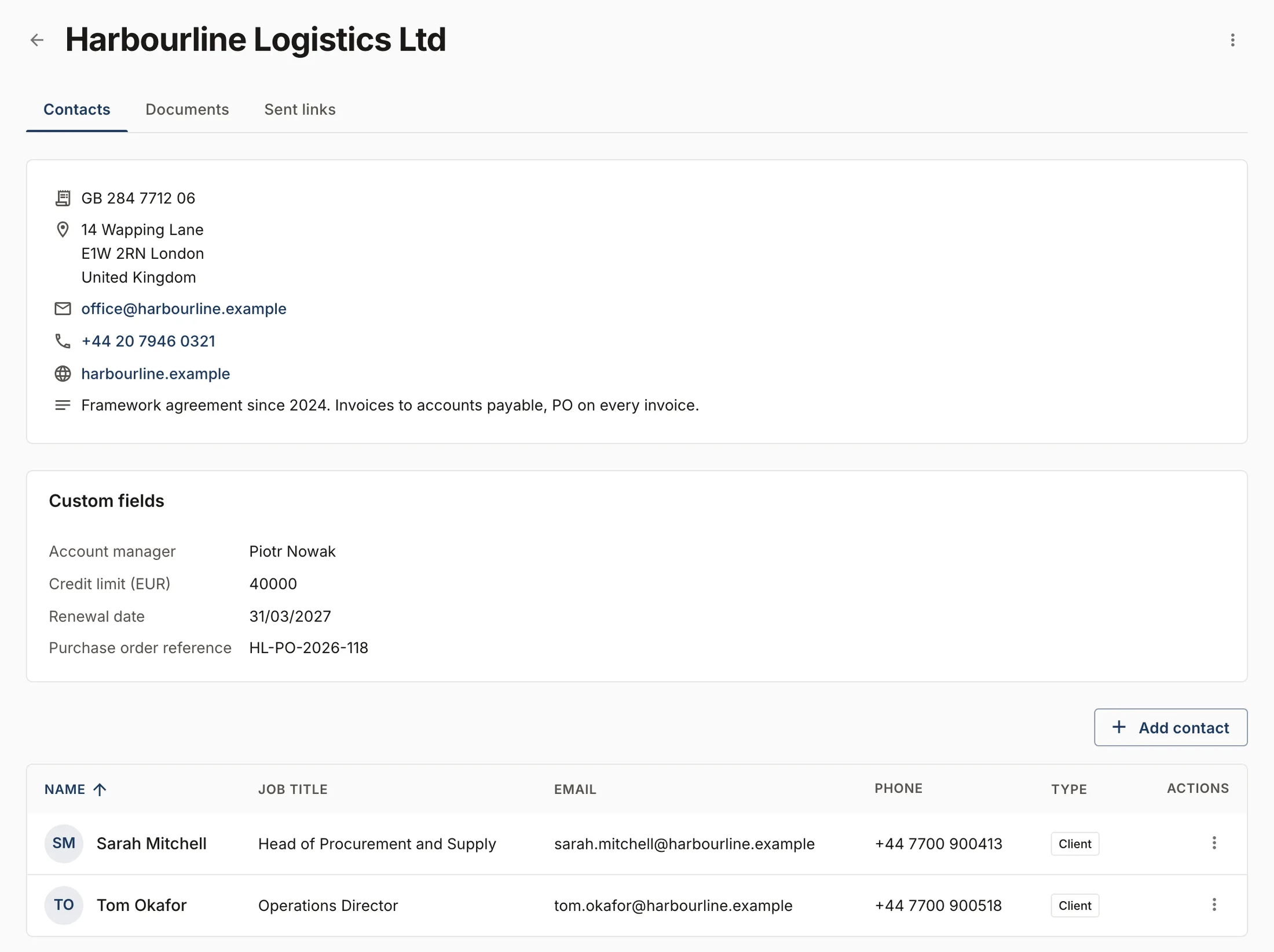
Contacts lists the people of the company. Add contact opens the contact form with the company filled in.
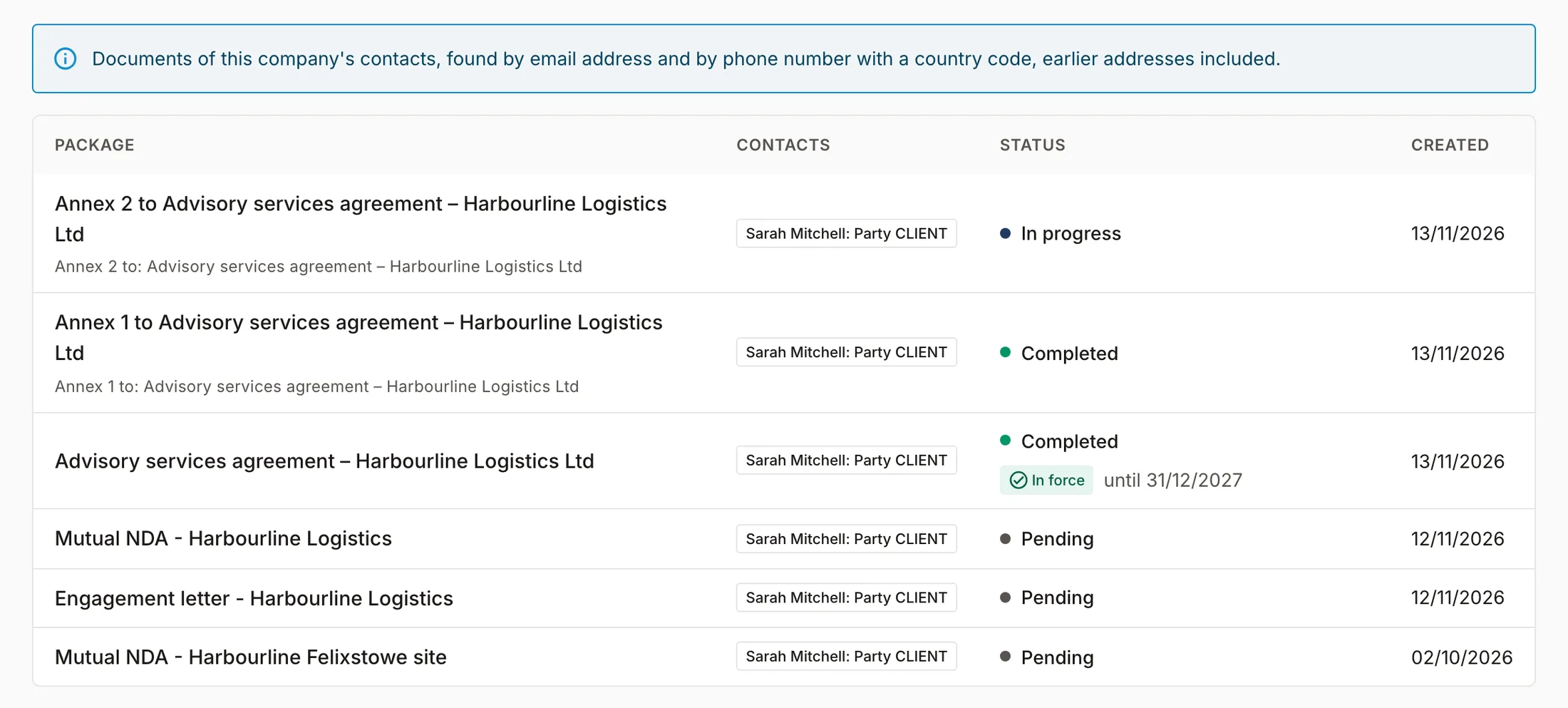
Documents lists the packages any of those contacts is a party to or views, found the way a contact’s documents are found, by email and by phone with a country code. Each package appears once, however many of the company’s people are in it, with who is there, its status and date. A contract and a change of a contract show the same as on a contact’s tab: the contract’s state and day beside the status, and the contract a change is made to under its title. You see the same packages as in your documents list, and the tab needs the View documents permission.
The Sent links tab lists the personal links sent to the company’s own address and to its contacts. Send to fill in in the header’s menu, or in a row’s menu, sends a new one.
Delete a company
Section titled “Delete a company”Open the menu on the company’s row or page and choose Delete. The confirmation says how many contacts it has. The contacts stay, without a company, and their documents are not touched. While a workflow’s step looks for the company’s contracts, Delete is greyed out and the dialog lists those workflows (Deleting what a workflow uses).
Limits
Section titled “Limits”A company isn’t a contact, so companies don’t count towards your plan’s limit. They come with Contacts in your plan: see Plans and limits. A contact saved with a new company name at the limit is refused for the contact, and no company is added with it.
Who can do what
Section titled “Who can do what”| Permission | What it allows |
|---|---|
| View contacts | The list of companies, their pages and contacts, and the Company picker. |
| Manage contacts | Adding, editing and deleting companies. |
| View documents | The Documents tab on the company’s page. |
See Roles and permissions for who has them by default.