

Certificate self-service
Your training team keeps exam results in a spreadsheet and spends hours answering “can you send my certificate again?”. With this workflow a trainee fills in a two-field form. Doxtly finds their row, prints the certificate and emails it. Your team goes on working in the spreadsheet, and the next request already sees their changes.
Available when: an active cloud storage integration, such as Google Drive, and an active email integration
What it looks like
Section titled “What it looks like”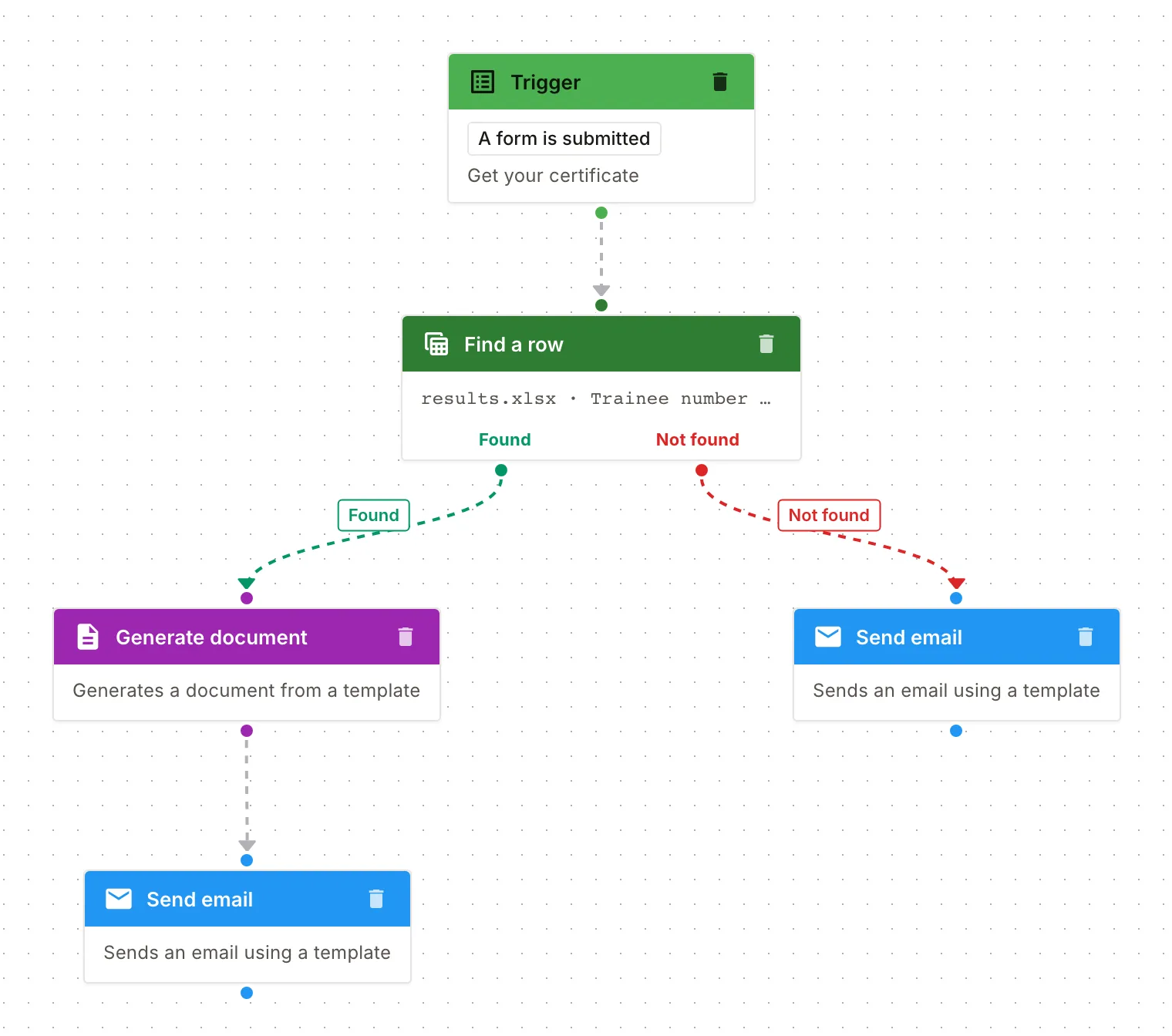
What you need
Section titled “What you need”A sheet on your drive, here Training/2026/results.xlsx, with a header row:
| Trainee number | Full name | Course | Exam date | Score | |
|---|---|---|---|---|---|
| 86042312345 | ola.nowak@mail.example | Ola Nowak | GDPR for managers | 2026-06-15 | 87.5 |
You also need:
- A form, here “Get your certificate”, with the fields
trainee_numberandemail. - A template, here “Course certificate”. It prints values read from the sheet: in a Word template
${trainee.display.full_name},${trainee.display.course}and${trainee.display.exam_date}. - Two email templates: one with the certificate, one saying nothing was found.
Build it
Section titled “Build it”-
Create a workflow with the trigger A form is submitted on “Get your certificate”.
-
From Spreadsheets in the palette, drop Find a row and connect it.
-
On the File tab, set Read from to Cloud file, choose the Storage, and enter the File path
Training/2026/results.xlsx. Pick the Sheet if it isn’t the first. -
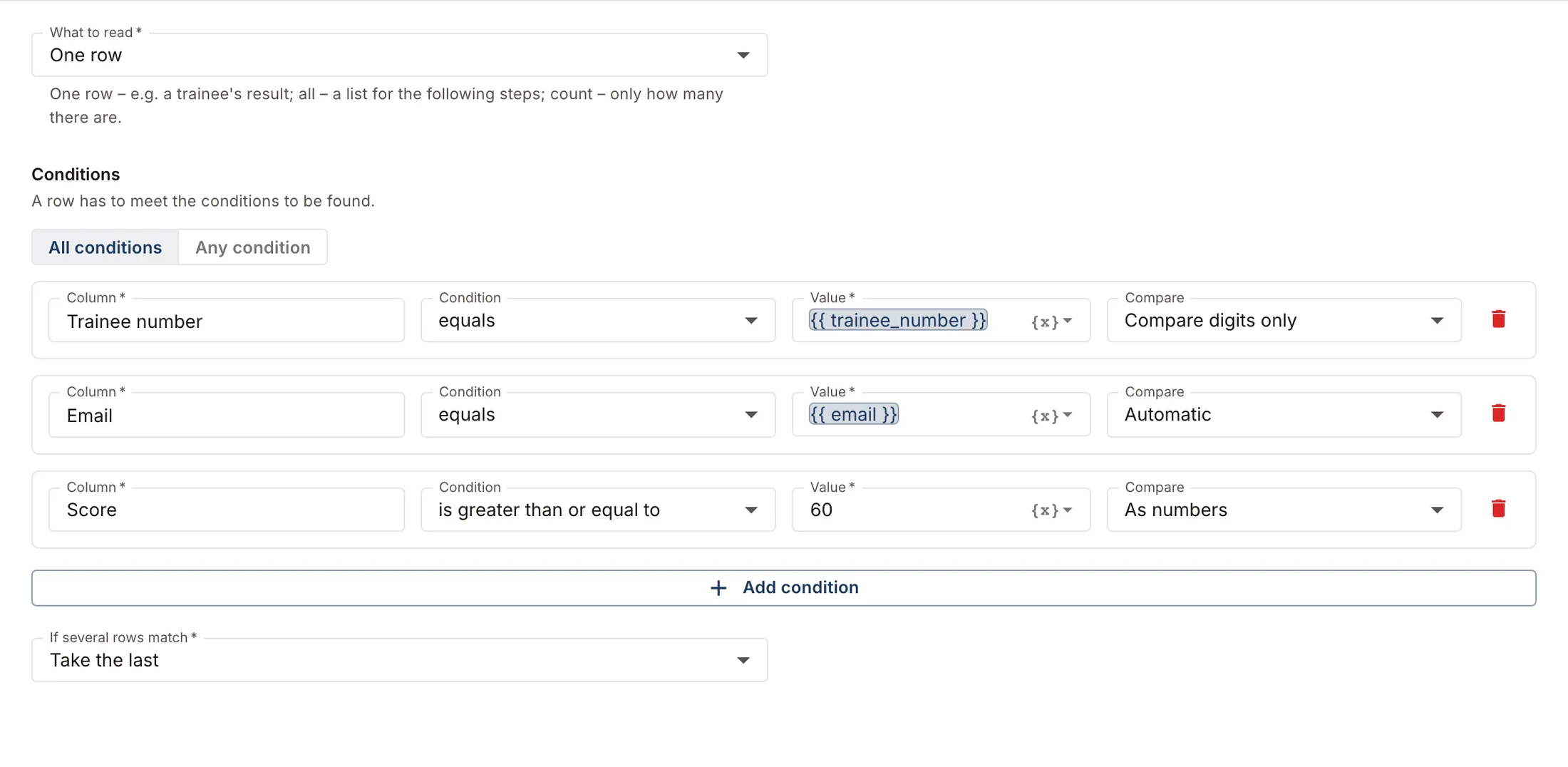
On the Search tab, add three Conditions:
Trainee numberequals{{ trainee_number }},Emailequals{{ email }}, andScoreis greater than or equal to60. Keep All conditions. For the trainee number, set Compare to Compare digits only, so a number stored without its leading zero is still found, and for the score As numbers, so only a passed exam earns a certificate. -
Set If several rows match to Take the last, so a retaken exam gives the newest result.
-
On the Result tab, set Store the result as to
traineeand If nothing is found to Branch: Found / Not found. -
From Found, add Generate document. Pick “Course certificate” and set Output filename to
Certificate-{{ trainee.display.full_name }}.pdf. Turn on Save in application if you want a copy under Generations and a download on the run’s page. Without it, the certificate exists only for the email. -
Add Send email. Set Recipient email address to
{{ trainee.row.email }}and under Attachments choose the generated document. -
From Not found, add Send email with
{{ email }}and your “not found” template. -
Save and switch it on.
Values and display values
Section titled “Values and display values”The result holds each cell twice, under keys made from the headers: Full name becomes full_name.
trainee.row.exam_dateis the plain value,2026-06-15. Use it in conditions and in further writes.trainee.display.exam_dateis formatted for your organization’s language. Use it in documents and emails.
To have the variable picker list the columns one by one, open the Columns tab, choose Fill in and then Load columns from the file.
Check the run
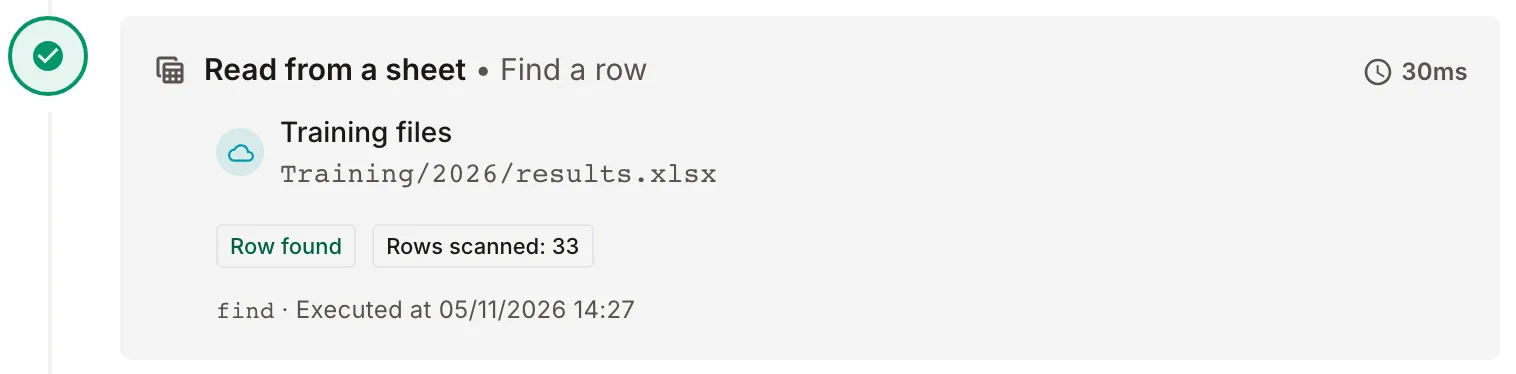
Section titled “Check the run”Try one known and one unknown trainee number. A hit shows Row found on the Read from a sheet card, then the document and the email. A miss shows Not found and goes down the other branch.
Variations
Section titled “Variations”- Leave Not found unconnected if you’d rather not answer. The run ends without an error and the list marks it with a Not found chip.
- The file changes every year. The path can hold variables:
Training/{{ _execution.date | first(4) }}/results.xlsx.