

AI integration
An AI integration connects your own account at Anthropic or OpenAI. AI agents run only on such an integration, so they need one before they can work. The provider bills you directly for what goes through it, and you can cap that with a monthly budget. A firm that has an agent read incoming contracts might give it one integration with a $100 budget, so that a busy month can’t run up a surprise bill.
Available when: you hold Manage integrations
What needs it
Section titled “What needs it”- AI agents and the AI agent step in workflows. They need a plan that includes AI agents.
- Doxie, the AI assistant in Doxtly, but only when you assign the integration to her under AI assistant (Doxie). Otherwise she runs on Doxtly AI, included in paid plans. The AI buttons of other pages, such as a form from a link and a template from a Word file, run on whatever Doxie runs on.
An AI integration can be connected on every plan. On a plan without AI agents, Free included, the form says Your plan doesn’t include AI agents, so this integration will be used only by Doxie, the AI assistant in Doxtly. Choose it in the organization settings, under AI assistant (Doxie). That is how a Free organization gives Doxie something to run on. See Which AI runs Doxie.
Choose a provider
Section titled “Choose a provider”| Provider | Models | Capabilities |
|---|---|---|
| Anthropic | Claude | Text, Structured JSON, Images, Documents (PDF), Web search |
| OpenAI | GPT | All of those, plus Image generation |
These are what the provider can do through Doxtly. A single model may do less, and the model list shows what each one can. If you need agents that produce pictures, you need OpenAI.
You can have several AI integrations, of one provider or of both, and let each agent pick. Because a budget belongs to one integration, this is also how you give teams separate limits: the training team’s agents on one integration with $50 a month, the legal team’s on another with $200.
Get an API key
Section titled “Get an API key”An API key is a long secret that lets a program use your account. Keep it like a password.
- Sign in to the Claude Console, set up billing and buy credit.
- Under API keys, create a key and copy it. It is shown only once.
- If you create the key inside a workspace, that’s all. If the key was made for several workspaces, you also need the workspace’s ID, found on the workspaces page. It starts with
wrkspc_.
- Sign in to the OpenAI platform and set up billing.
- Create a secret key and copy it. It is shown only once.
- If you restrict the key’s permissions, leave it allowed to list models, because that is how Doxtly checks it.
The form has a link to each of these pages beside the API key field.
Set it up
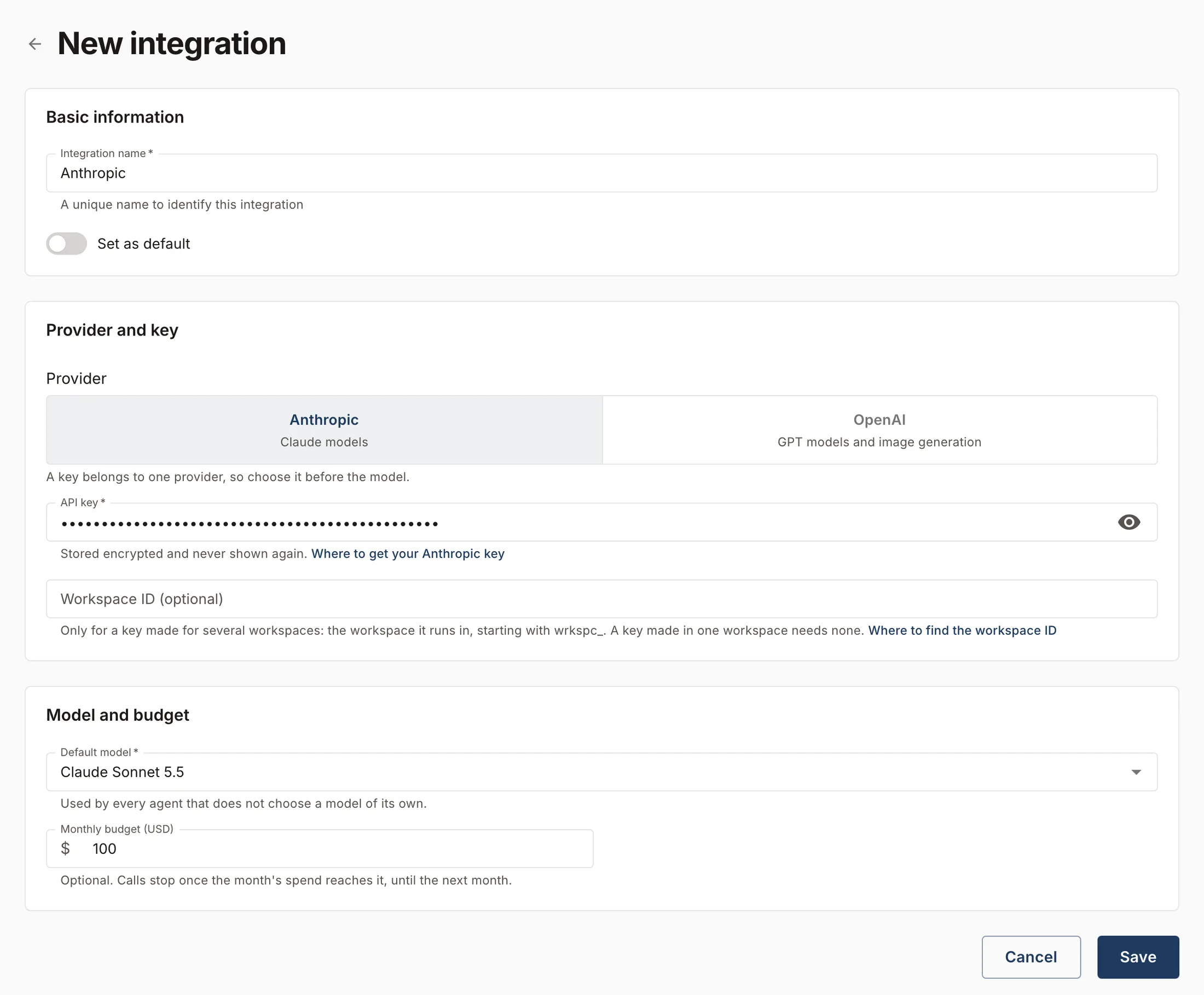
Section titled “Set it up”- Go to Organization, Integrations, click New integration and pick AI.
- Fill in Integration name.
- Pick the Provider.
- Paste the API key, and the Workspace ID if you have one. Doxtly asks the provider which models your key may use, and the list fills in a moment later. Until then Default model is greyed out and says “Enter the API key to load the models”.
- Pick the Default model. A model belongs to one key, so changing the key, the workspace or the provider here empties your choice.
- Set a Monthly budget (USD) if you want a cap.
- Click Save. Doxtly checks the key with the provider as it saves, and you land on the integration’s page.
Unlike the other types, an AI integration has no draft stage. If the key works, it is Active the moment it’s saved. If not, nothing is stored and you stay on the form with the reason under the field:

| Message | What to do |
|---|---|
| “The provider refused this key. Check that it is complete and belongs to the chosen provider.” | Paste the whole key, and check it’s for this provider. |
| “This key is not bound to one workspace: enter the ID of the workspace it should run in.” | Fill in Workspace ID. |
| “The models could not be listed: …” | The provider didn’t answer. Try again in a moment. |
Every field
Section titled “Every field”| Field | What it does |
|---|---|
| Integration name | Your label, shown when someone picks an integration for an agent. Up to 255 characters, unique among your AI integrations. A repeat is refused with “An integration of this type with this name already exists.” |
| Set as default | Makes this the integration used by agents that choose none. It doesn’t make it Doxie’s: she uses an integration only when it is chosen for her in the organization settings. |
| Provider | Anthropic or OpenAI. It can’t change once saved, because a key belongs to one provider. To move, add another integration. |
| API key | From 20 to 500 characters, stored encrypted and never shown again. A link beside the field opens the provider’s page for keys. On edit, the field’s hint shows the last four characters of the stored key. Leave it empty to keep that key. |
| Workspace ID (optional) | Anthropic only, so the field disappears when you pick OpenAI. Needed only for a key made for several workspaces: wrkspc_ followed by letters and digits. A link beside the field opens Anthropic’s workspaces page. |
| Default model | The model every agent runs on unless it chooses its own. Required. |
| Monthly budget (USD) | Optional. More than zero and at most 1,000,000, with cents allowed. Empty means no limit. |
Changing the key or the workspace checks the new one with the provider as you save, and a refused key leaves everything as it was. A key that passes makes the integration Active, whatever it was before.
Once a key has been checked, the integration’s page shows “The key works, and the provider offers these capabilities” with a chip for each.

The model list
Section titled “The model list”The list shows the language models your key may really use, as the provider reports them. Models in Doxtly’s price catalogue come first, and any others follow in alphabetical order. Models that can’t run an agent, such as speech or embedding models, are left out. You can search by name or ID.
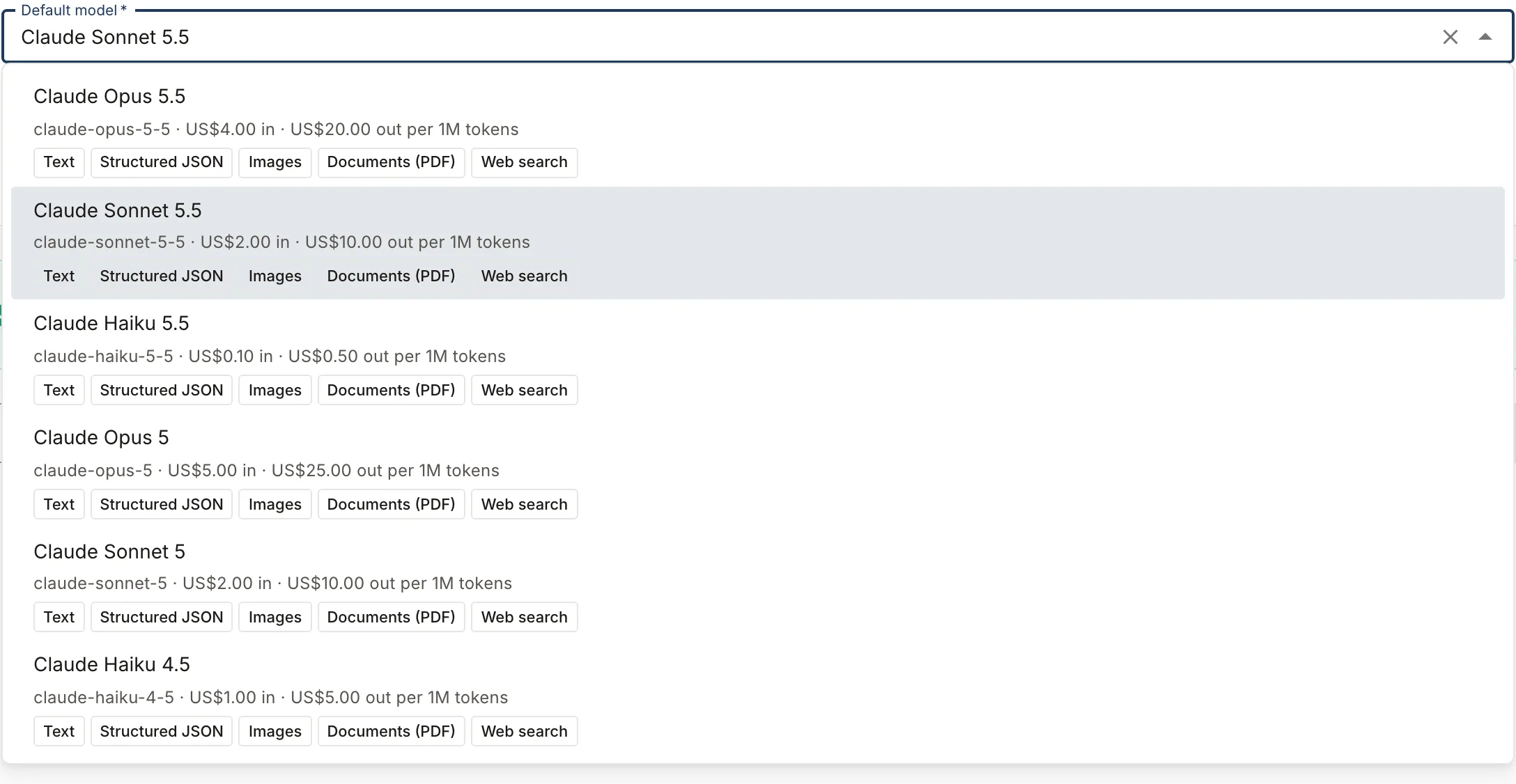
Each entry shows the model’s name and ID, its price, and chips for what it can do. The price reads like “US$2.00 in · US$10.00 out per 1M tokens”: tokens are the small pieces of text a model reads and writes.
Two marks need attention:
- Not priced means the model isn’t in Doxtly’s price catalogue, often because it’s very new. It works, but its runs are recorded with no cost, so they don’t count towards your budget. If you rely on a budget, pick a model with a price.
- No longer offered means the provider stopped listing the saved model. You can keep it for now, but choose another before it stops answering.
Doxtly remembers the list for an hour. Test connection reads it afresh, so run it when you expect a new model. On a saved integration, the list shows what the saved key may use: to pick from a new key’s models, save the key first.
The monthly budget
Section titled “The monthly budget”The budget stops the spending through this one integration. Once this calendar month’s recorded cost reaches it, every new agent run through it is refused, with “The monthly budget of the AI integration … is spent. Calls resume next month, or raise the budget under Integrations.” If the integration is Doxie’s, its budget covers her work and the AI buttons that run with her too. Once it is spent, she switches to Doxtly AI when your plan includes it or your organization has a Doxtly balance, and otherwise has no AI until the next month or until you raise the budget.
- The month follows UTC, so it turns over at 00:00 UTC on the first.
- A run already under way finishes, and runs that start at the same moment each pass the check, so a month can end slightly over the budget.
- The cost is worked out from the catalogue’s prices. Your provider’s invoice has the final word.
- Raising the budget takes effect at once.
For a hard limit on your account as a whole, also set one at the provider.
Test the connection
Section titled “Test the connection”Test connection asks the provider for its models again, which uses no tokens. Use it after the provider reported a problem or when a key may have been withdrawn.
If the provider refuses the key, the integration turns Invalid, and agents on it stop with “The AI integration … is not active. Test its connection under Integrations.” Paste a working key and save: that makes it Active again. The same thing happens without a test if a workflow’s AI agent step runs into a refused key. If the provider is only overloaded, the status stays as it was, and you see “… could not be reached or is overloaded. Try again in a moment.”
Which integration an agent runs on
Section titled “Which integration an agent runs on”| What runs | Integration used |
|---|---|
| An agent with its own integration chosen | That one. If it isn’t active, the run stops and says so. |
| An agent with none chosen | The active default. With no active default, the newest active integration. |
| Doxie and the AI buttons of other pages | The integration chosen under AI assistant (Doxie), while it is active and within its budget. Otherwise Doxtly AI, when the plan includes it. Never the default by itself. |
Deleting an integration doesn’t stop the agents that chose it: they move to the default.
What you see once it’s set up
Section titled “What you see once it’s set up”Click the row in the list for the summary:
- Provider, Default model, API key (its last four characters), and Workspace if there is one
- Capabilities of the provider
- This month: Calls, Tokens in and out, and Cost, shown against the budget if there is one. Calls counts everything that went through the integration, including key checks and tests, which use no tokens and cost nothing.
- “Verified on” with the date of the last check
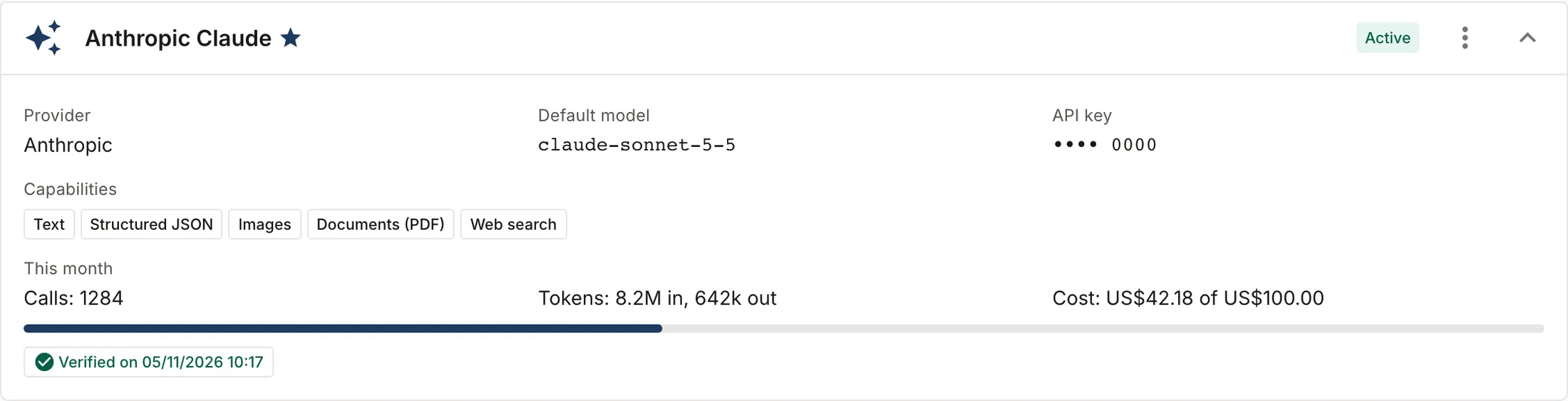
With a budget, a bar shows how much is used, and it changes color from 90%, which is your cue to raise the budget before calls stop. Usage counts the calendar month in UTC. For the whole organization’s figures, see what it costs so far on the AI agents page.