

Portals
A portal is a page of links to your web forms, interactive documents, quizzes, surveys and files in your organization’s drives, with headings and a few words of text around them. You hand out one address, and people find everything they need behind it instead of a list of links in an email.
Use one for a group of people who come back to the same paperwork: your own team’s internal requests, a client area with the forms of a service, or a branch office’s documents.
An example
Section titled “An example”Northbridge Advisory’s office staff used to keep a bookmark for every form they file. Now they open one portal, Office desk, protected by a password:
- A short text at the top: what the portal is for, and whom to write to with questions.
- A group Requests, shown as cards in three columns, with links to the web forms Training enrolment, Course certificate request and Event booking. Each card carries its own label, such as Enrol on a course, a one-line description and an icon.
- A group Handbook and policies, shown as a list, with two PDF files from the company’s Dropbox: the Company handbook, which Doxtly hands over to anyone let into the portal, and the Expense policy, which opens in Dropbox for those who have access to it there.
The office team comes in with the password Office, and the trainers who work with Northbridge with a password of their own, Partners, so the access log tells the two apart. When the Event booking form is switched off between seasons, its card leaves the portal by itself and comes back when the form is switched on again. Nobody edits the portal for it.
What visitors see
Section titled “What visitors see”A portal opens as a page of your organization: your logo in a slim bar at the top, the portal’s name in large type, then its links. Your accent colour tints the top of the page and the card icons, and your organization’s name closes the page. The bar also holds the language button, which switches the page’s own words (buttons, the search, the password prompt) to any of the app’s languages, and, unless you switched it off, Save this page.
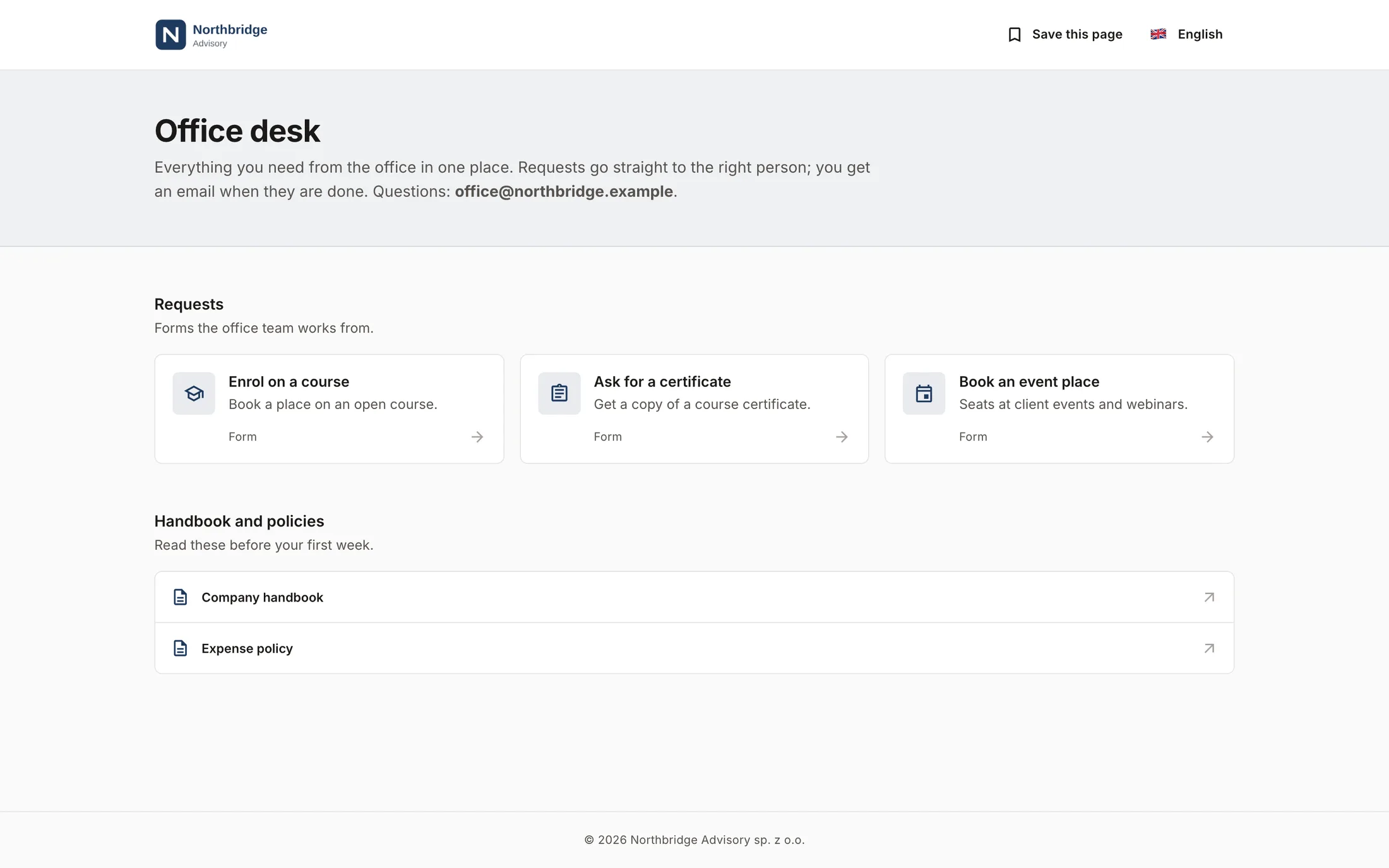
- A short text placed at the very top of the page appears under the portal’s name, as an introduction.
- Every link is a whole card or row to tap. A card shows its icon, its title, one line of description and a quiet word saying what it leads to: Form, Document, Quiz, Survey or File.
- A portal with more than eight links also offers a search under its name, and shows how many links each section holds. The search looks in the links’ titles and descriptions and in the groups’ titles, ignoring letter case and accents, so lodzki finds Łódzki wniosek. It keeps links in their groups, says how many results it found, and with none it says Nothing matches your search, with a button that clears it.
- A portal with nothing to open says Nothing here yet instead of showing an empty page, and a group whose links are all switched off is not shown.
- An address that leads to no portal, a deleted or inactive one or an old address after a new one was generated, shows Portal not found.
The editor shows the page the way visitors will get it, in your own logo and colour.
What you need first
Section titled “What you need first”- Your organization’s subdomain. A portal opens at
https://<subdomain>.app.doxtly.com/p/<token>, on your organization’s own address and nowhere else. Set the subdomain in Settings > Configuration. Without one you can build portals, but their address is not handed out yet. - Something to link to: at least one web form, interactive document, quiz or survey. A portal only points at them, so a change to a form reaches the portal at once.
The list
Section titled “The list”Available when: your role has the View portals permission
In the sidebar, open Resources > Portals.
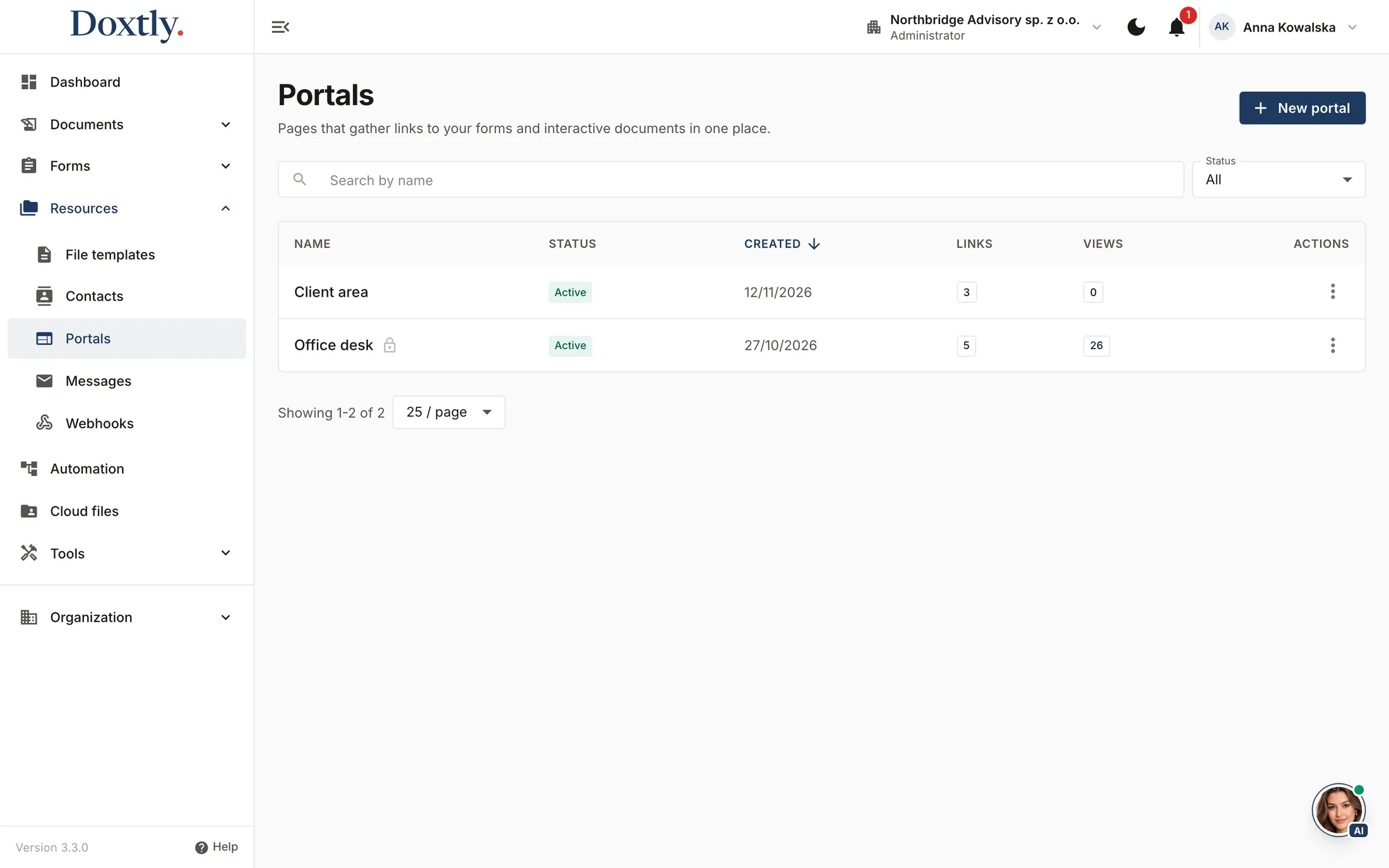
New portal sits above the list, for people with the Manage portals permission. It is greyed out once your plan has as many portals as it allows. With nothing created yet, the page says No portals yet and offers the same button.
| Column | What it shows |
|---|---|
| Name | The portal’s name. A padlock means the portal is password protected. |
| Status | Active or Inactive. |
| Created | The day it was created. |
| Links | How many links the portal holds, those in groups included. |
| Views | How many times the portal’s page was shown. Point at the number for the views and the opens. |
| Actions | The menu of the row. |
You can sort by Name, Status and Created. Click a heading to sort ascending, again for descending, and a third time to go back to the default order, newest first. Created only switches between its two directions.
The search box looks in the names. The Status filter offers All, Active and Inactive. Active filters appear as chips you can remove one by one, or all at once with Clear all. If nothing fits, the page says Nothing matches. The list shows 25 portals per page, and the control under it switches to 10 or 50. On a phone the table turns into cards with the same information.
Click a row to open the portal’s page: its links and, for people with the Manage portals permission, its access log. Edit on that page, or in the row menu, opens the editor.
When your organization has no subdomain, the list says so above the filters: A portal opens at your organization’s own address. Set a subdomain for your organization first., with a link to the organization’s settings.
The row menu
Section titled “The row menu”| Item | What it does | Who sees it |
|---|---|---|
| Edit | Opens the portal in the editor. | Manage portals |
| Share | Shows the portal’s address, under Public link, with a button that copies it and Open the page, and its QR code with Download PNG and Download SVG, as for forms. Without a subdomain the dialog says what is missing, and Open the page is greyed out. Anyone with Manage portals can also generate a new address there. | Everyone who sees the list |
| Send link | Sends the portal’s link by email, SMS or WhatsApp, a message for each recipient. Shown on active portals with a subdomain; greyed out when your organization has no email integration. | Manage portals |
| Duplicate | Asks for the copy’s name, filled in as the original’s with (copy) added, and opens the copy in the editor. The copy holds the same page, passwords and settings, and starts Inactive, so you can look it over before anybody opens it. Its views start at zero. Greyed out when your plan has no room for another portal. | Manage portals |
| Delete | Deletes the portal after you confirm. Its address stops working. The forms and interactive documents it links to are not touched. | Manage portals |
Deleting what a portal links to
Section titled “Deleting what a portal links to”Deleting a web form, an interactive document, a quiz or a survey is not stopped by a portal that links to it. The deletion dialog names the portals that do under Used by, for example Portals: Office desk, Client area with The link leaves these portals., and the link leaves their pages with the form. Workflows that use it are listed there too, and they do stop the deletion: see Deleting what a workflow uses. The names are shown to people who may see portals.
Plans and permissions
Section titled “Plans and permissions”Portals are counted in total against your plan: Free 1, Starter 3, Pro 10, Business 30. Creating and duplicating a portal past the limit is refused. Changing and deleting one always works, and moving to a smaller plan deletes nothing. See Plans and limits.
| Permission | What it allows |
|---|---|
| View portals | The list of portals and each portal’s settings. |
| Manage portals | Creating, editing, duplicating and deleting portals. |
Administrators, managers and members have both; viewers have View portals. A link can lead only to what you may see yourself: choosing a web form takes View forms and submissions, an interactive document View interactive documents and submissions, a quiz View quizzes, attempts and results, and a survey View surveys, responses and results. See Roles.
Portals are made in the app only. The API has no endpoints for them, and an access key is refused every portal operation.