

Single sign-on
Single sign-on lets your people enter Doxtly with the work account they already have. Your identity provider, the service that holds those accounts, confirms who they are, so people who leave the company cannot sign in again once you switch their account off: their access ends at the next sign-in, at the latest when the session limit runs out, and the provider’s own rules, such as multi-factor authentication, apply to Doxtly too.
Available when: your plan is Business, and your role has View organization settings to read the section and Change organization settings to change it
Open Settings in the organization and go to the Single sign-on section. It has three cards: Domains, Identity provider and, once a provider is set up, Access.
Setting it up
Section titled “Setting it up”- Under Domains, add the domain of your work email addresses and publish its DNS record.
- Under Identity provider, choose your provider and fill in the short form: Microsoft Entra ID, Google Workspace or another OpenID Connect provider.
- Click Test sign-in and sign in with your own work account. A passed test makes single sign-on active.
- Under Access, decide who gets in and whether single sign-on is compulsory.
Domains
Section titled “Domains”A domain is the part of an email address after the @. Doxtly needs proof that it is yours, because an address in a verified domain can be linked to an existing Doxtly account.
Click Add domain and enter it, for example example.com. A dialog gives you a TXT record to add in your domain’s DNS settings:
| Field | Value |
|---|---|
| Name (host) | _doxtly-challenge. followed by your domain |
| Value | doxtly-domain-verification= followed by a token made for your organization |
Add the record, then click Check now. DNS changes can take up to a few hours.
| Status | What it means |
|---|---|
| Pending | The record has not been found yet. |
| Verified | The record was found. The domain counts. |
| Not found | A verified domain whose record has gone missing. It keeps counting for 7 days, so a DNS mistake can be fixed, and stops counting after that. |
Doxtly looks every record up again each day. Only one organization can verify a domain, and an organization can have up to 20.
A domain that waits for its record has Verify, which shows the record again with its status, and a verified one Show record. The bin icon removes a domain after you confirm.
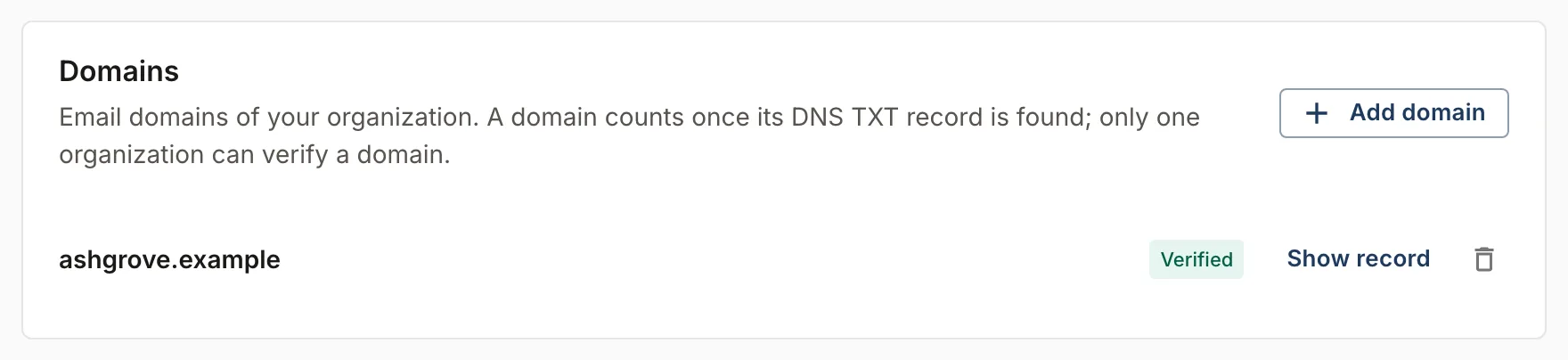
An address links to an account, creates one and is required to use single sign-on only in a verified domain. Removing a domain stops all three for its addresses. People already signed in stay signed in.
Identity provider
Section titled “Identity provider”Choose one of three kinds of provider. An organization has one provider at a time.
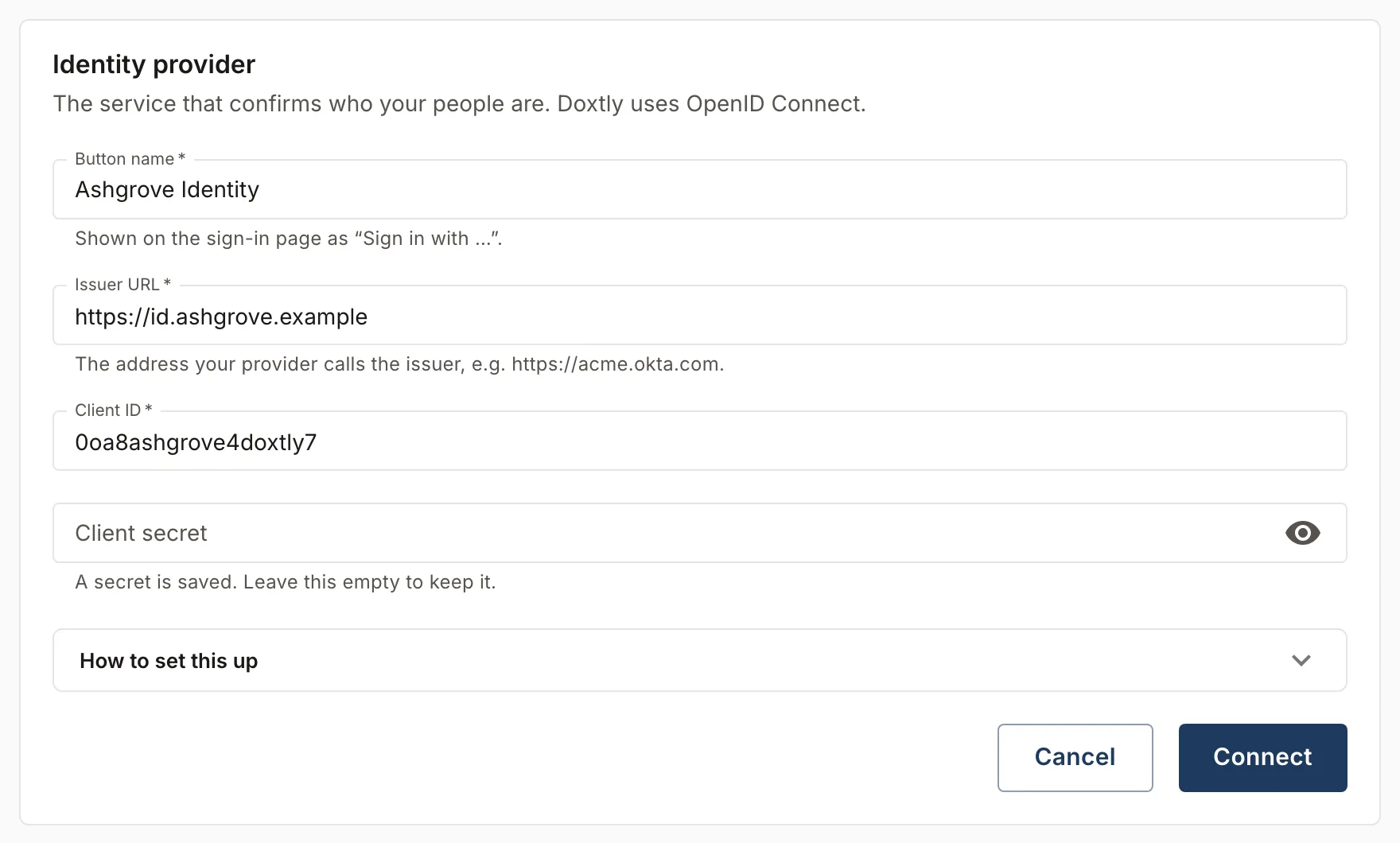
Button name is what the sign-in page shows, as “Sign in with …”. Under the form, How to set this up lists the steps for your provider, with the addresses to copy.
Test sign-in opens your provider in a small window and shows every check Doxtly made and what the provider sent back. If a check fails, the window shows which one, so you know what to fix. Until a test passes, the provider shows as Not tested and nobody can sign in with it.
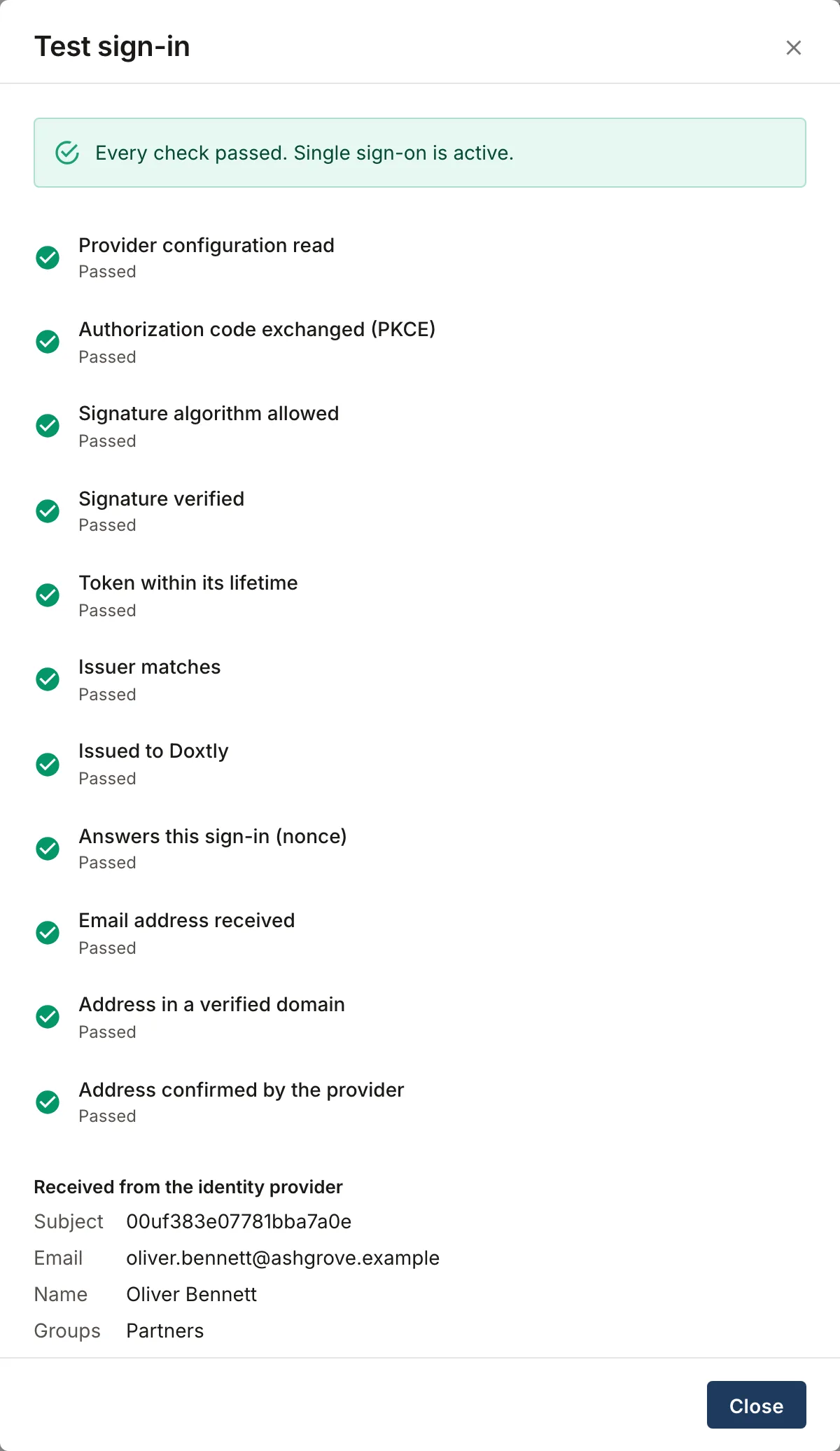
The checks come in the order Doxtly makes them, each Passed, Failed or, after a failure, Not checked:
| Check | What it proves |
|---|---|
| Provider configuration read | Doxtly could read your provider’s published settings. |
| Authorization code exchanged (PKCE) | The provider gave Doxtly a token for this sign-in. |
| Signature algorithm allowed, Signature verified | The token is signed in a safe way, with your provider’s key. |
| Token within its lifetime | The token is not out of date. |
| Issuer matches | It comes from the provider you set up. |
| Issued to Doxtly | It was issued for Doxtly’s client, not for another application. |
| Answers this sign-in (nonce) | It belongs to this sign-in, not an earlier one. |
| Directory (tenant) matches | Microsoft Entra ID only: the person is in the directory you named. |
| Email address received | The provider sent the person’s email address. |
| Address in a verified domain | The address is in one of your verified domains. |
| Address confirmed by the provider | The provider vouches that the address is really the person’s. |
Under the checks, Received from the identity provider shows the Subject (the provider’s own ID of the person), Email, Name and Groups. If somebody other than you signed in at the provider, the window says so: the test can still make the provider active, but to require single sign-on you have to test with your own account. If your browser blocks the window, allow pop-ups for Doxtly and try again; a test left unfinished too long expires and is started again.
Changing what the provider is, its directory, issuer, client or secret, takes it back to Not tested and switches off Require single sign-on, because the earlier test proved the earlier settings. Changing only the button name does not.
Remove signs out everyone who signed in with it and deletes the links between their accounts and the provider. Your domains stay.
Once connected, the card names the provider, its kind and when it was last tested, with its status, Test sign-in, Change and Remove. Change opens the form again; there, Connect saves it.
Access
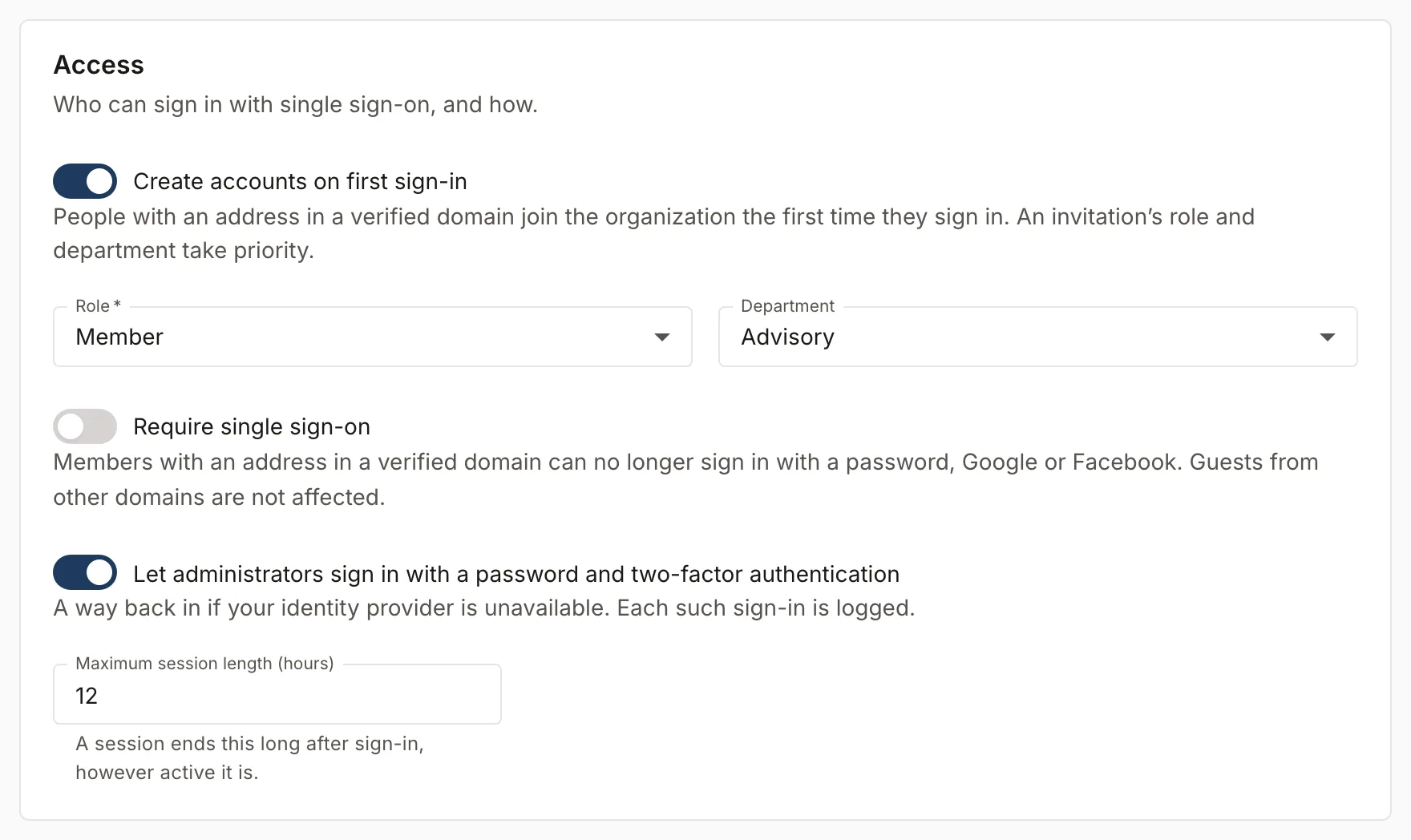
Section titled “Access”| Setting | What it does |
|---|---|
| Create accounts on first sign-in | On by default. Somebody with an address in a verified domain joins the organization the first time they sign in, with the Role and Department you pick under the switch. Without a choice that is the Member role and no department. Pick Administrator and the card warns that everyone who signs in for the first time becomes an administrator. Turned off, only members and people with an invitation can sign in. The new member is named as your provider says: the first and last name it sends or, when it sends only the full name, its first word and the rest; with no name, the part of the address before the @. They can change it in their profile. |
| Require single sign-on | Members with an address in a verified domain can no longer sign in with a password, Google, Microsoft or Facebook. Guests from other domains are not affected. |
| Let administrators sign in with a password and two-factor authentication | On by default. Your way back in if the provider is down. |
| Maximum session length (hours) | A session ends this long after sign-in, however active it is. From 1 to 168, 24 by default. |
An invitation always wins over the defaults: the person gets the role and department it names.
Requiring single sign-on
Section titled “Requiring single sign-on”The switch becomes available once a domain is verified, the provider is active, and you have run a successful test with your own account in the last hour. That proves the provider works and that you can still get in.
After you save, members signed in another way are signed out the next time their session is refreshed and asked to sign in with single sign-on.
The administrators’ way in works for somebody who may change the organization’s settings and has two-factor authentication set up. They sign in with their password and code, and each such sign-in is logged. Without two-factor authentication there is no way in with a password, so set it up before you need it.
Signing in
Section titled “Signing in”| Where | What people see |
|---|---|
| Your organization’s own address | A Sign in with … button with the name you chose. Where single sign-on is required, the password form is folded away under Administrator sign-in, if you allow that way in. |
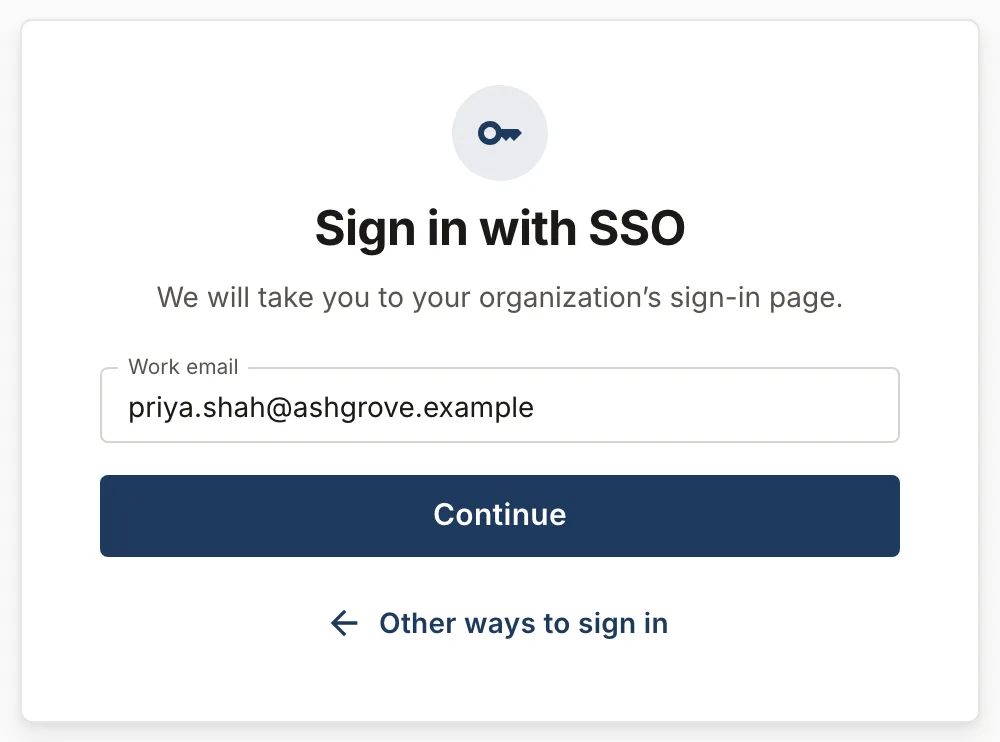
| The main sign-in page | Continue with SSO, the last of the buttons beside the password form, which asks for a work email and goes on to the provider of the organization that verified its domain. |
| A tile in your provider’s portal | Point the tile at the address shown in How to set this up. Doxtly starts the sign-in itself. |
| An invitation | Accept with …, when the invited address is in a verified domain. |
A person signed in this way sees it in their active sessions as Single sign-on · name.
What changes for your people
Section titled “What changes for your people”- One organization per session. A session opened by your provider works only in your organization. Somebody who also belongs to another organization signs in again, a different way, to work there. Your provider vouches for people in your organization and nowhere else.
- No Doxtly code. Single sign-on does not ask for a Doxtly two-factor code, because your provider asks for its own factors, and it meets your organization’s two-factor requirement.
- Acting for somebody else. Signing or declining in another person’s name asks for a fresh confirmation. In a session of single sign-on that is a new sign-in at your provider, except at Google Workspace, where it is a code or a password as in any other session.
- Accounts created at first sign-in have no password. To sign in elsewhere, the person sets one with Forgot password?.
- Access keys are not affected. They never sign in as a person.
If your plan changes
Section titled “If your plan changes”On a plan without single sign-on it is paused, not removed: nobody can sign in with it and nobody is required to, and the section says so. Everything you set up is kept and works again once your plan includes it. You can set it up on such a plan too, but Test sign-in waits for a plan that includes single sign-on, so a new provider stays Not tested until then.