

Sync a contact with the CRM
Sync a contact with the CRM keeps one of your contacts and its person in the CRM alike: Pipedrive, HubSpot or Copper. Sent To the CRM, it creates or updates the person, and the organization for the contact’s company. Brought From the CRM, it updates the contact and its company from the CRM, or creates the contact. Either way the contact ends up linked to its person, so later steps and workflows find one from the other.
A typical use: a client fills in your onboarding form through a personal link, and the workflow sends their details to the CRM before your salesperson calls.
The page speaks in Pipedrive’s words, a person and an organization. In HubSpot they are a contact and a company, in Copper a person and a company; what else differs is under With HubSpot and Copper.
Available when: your plan includes CRM integrations and the organization has an active CRM integration; setting it up takes View contacts and Manage contacts
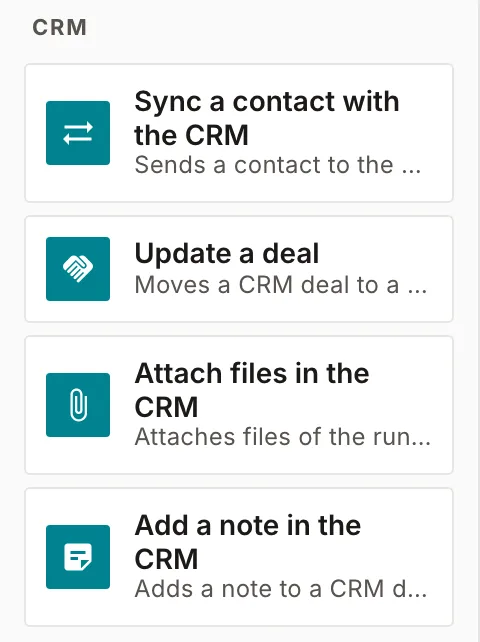
Without a CRM integration the node is greyed out in the CRM group of the palette with “No active CRM integration. Connect Pipedrive, HubSpot or Copper in the integrations.”, and on a plan without CRM integrations with “CRM integrations are not in your organization’s plan.”
Before you start
Section titled “Before you start”The integration must keep people’s IDs in a field of contacts: its Person ID in Pipedrive IDs, HubSpot contact ID in HubSpot IDs, or Person ID in Copper IDs. Without one, saving the workflow is refused with “CRM node “…” synchronizes contacts, but the integration “…” keeps the IDs of people in no custom field. Choose the field in the integration’s settings”.
Which values are copied, in both directions, is the integration’s field mapping: Pipedrive, HubSpot, Copper.
Setting it up
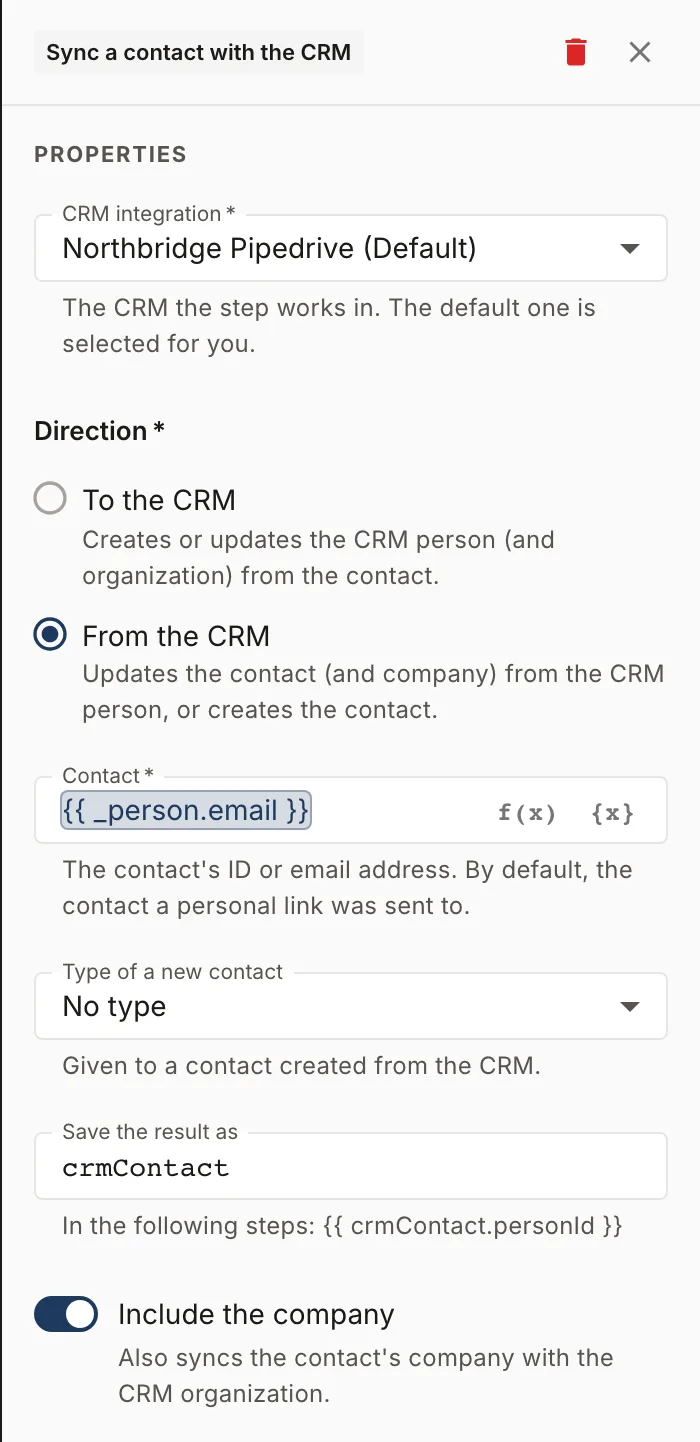
Section titled “Setting it up”- Drag Sync a contact with the CRM from the CRM group onto the canvas and connect it.
- Check the CRM integration. The default one is already selected.
- Choose the Direction.
- Check Contact: by default
{{ _contact.id }}, the contact a personal link was sent to. - Leave Include the company on to bring the company along.
Settings
Section titled “Settings”| Setting | Values and default | What it does |
|---|---|---|
| CRM integration | Required. Your active CRM integrations; the default one is selected for you. | The CRM account the step works in: a Pipedrive company, a HubSpot or a Copper account. |
| Direction | To the CRM (the default) or From the CRM. | Which side is brought up to date. |
| Contact | Required. A contact’s ID or email address, typed or from a variable. {{ _contact.id }} by default. |
Which contact. A form’s email field works too, such as {{ email }}. |
| Include the company | On by default. | Also syncs the contact’s company with the person’s organization in the CRM. |
| Type of a new contact | Only From the CRM. No type or one of your contact types. | The type a contact created from the CRM gets. |
| Save the result as | crmContact by default. |
The name later steps read the result under. |
What it does
Section titled “What it does”To the CRM
Section titled “To the CRM”- Doxtly finds the contact. If the expression gives an address no contact has, there is nothing to send: the step goes on with Not found.
- It finds the person in Pipedrive by the ID in the contact’s Person ID field. If there is no ID, or Pipedrive no longer has that person (deleted, or merged into another), it looks for a person with the contact’s email address, and failing that, creates one.
- It writes the mapped values that hold something. The contact’s address and number go first among the person’s, and those the person had stay behind them. An empty value of the contact never clears the person’s.
- With Include the company, it does the same for the company: by the ID in the company’s Organization ID field, then by the company’s exact name, and otherwise creates the organization, then links the person to it.
- It keeps the person’s ID in the contact’s field, and the organization’s in the company’s field when the integration has one.
From the CRM
Section titled “From the CRM”- Doxtly finds the contact. If the expression gives an address no contact has, it looks for a person with exactly that address in Pipedrive and brings them in: into the contact that keeps their ID or has another of their addresses, or else into a new contact with the Type of a new contact.
- It finds the person by the ID the contact keeps, or by the contact’s address.
- It copies the mapped values that hold something into the contact. A contact keeps its own address when it is one of the person’s addresses, and its own number likewise. A new contact without a first and last name gets the person’s full name split at the first space.
- With Include the company, it brings the organization in: into the company keeping its ID, or the company of the same name, or a new company. A company is renamed only to a name no other company has.
- If Pipedrive has no such person, nothing changes and the step goes on with Not found.
A change to the contact is saved like any other: its history names the workflow, and Contact saved workflows start. A value that a field can’t hold, such as text in a number field, is skipped, and so is a mapped field that is sensitive now.
What the next steps get
Section titled “What the next steps get”Under Save the result as, here crmContact:
| Variable | Meaning |
|---|---|
{{ crmContact.personId }} |
CRM person ID: the person’s ID in the CRM. |
{{ crmContact.organizationId }} |
CRM organization ID: the organization’s ID, empty without one. |
{{ crmContact.contactId }} |
Contact ID: the contact used or created. |
{{ crmContact.created }} |
Created: true when the step created what it wrote to, the person in the CRM or the contact in Doxtly. |
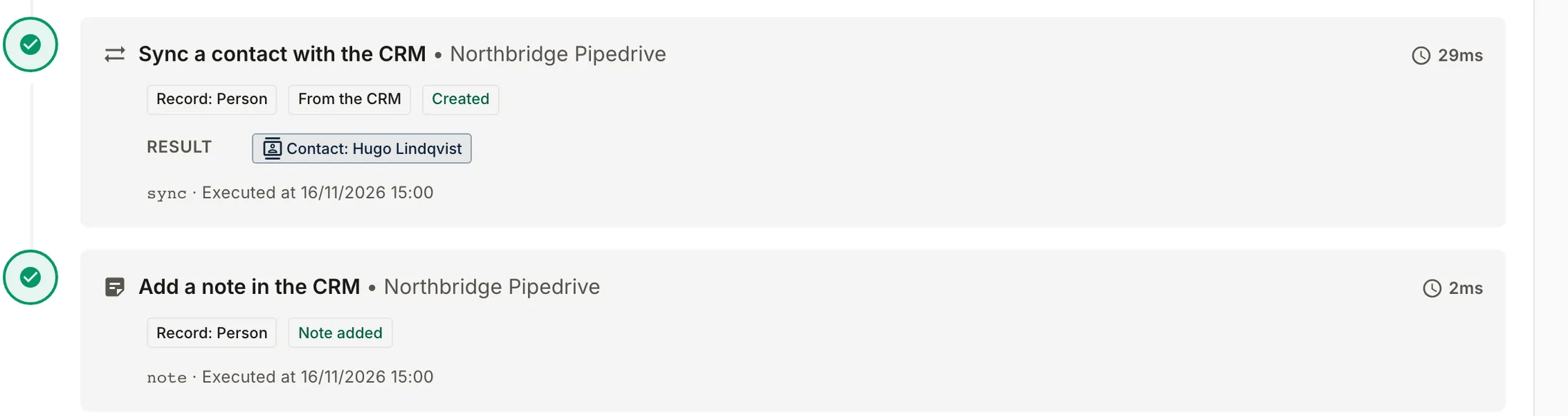
On the run’s page the step shows the integration, Record: Person, the direction and what happened: Created, Updated, No change or Not found. The contact it used or created is linked from the step.
With HubSpot and Copper
Section titled “With HubSpot and Copper”The step works the same way on a HubSpot or Copper integration, with these differences:
- In HubSpot the person is a contact. A HubSpot contact has one primary email address and one phone number: sending a contact fills them in when HubSpot has none, and leaves an address or number HubSpot already holds as it is.
- When contacts are merged in HubSpot, the merged contact gets a new ID, and the old one still leads to it. The step finds the contact by the ID it kept and keeps the new ID on the contact from then on.
- In Copper, as in Pipedrive, the contact’s address and number go first among the person’s, and those the person had stay behind them. Doxtly sends Copper only the fields that change, so the rest of the person stays as it is.
- Copper has no way to tell Doxtly of a merge. A person merged away is no longer there, so the step looks for the person by the contact’s email address, as it does when the ID is gone.
When it fails
Section titled “When it fails”A failed step stops the run, and people who may view workflows get a Workflow failed notification. Within the step, Doxtly waits out a short burst over the CRM’s limits (Pipedrive’s, HubSpot’s, Copper’s), and tries again after a brief outage when repeating the request is harmless. A step that failed isn’t retried: Rerun on the run’s page starts the workflow again with the same trigger data.
The messages name your CRM: where the table says Pipedrive, a HubSpot or Copper integration says HubSpot or Copper.
| What you see | Why | What to do |
|---|---|---|
Could not work out the contact from "...": it gives neither a contact's ID nor an email address. Check that every variable it uses exists in the workflow data. |
The variable is missing or empty | Check the data, or put a Condition before this step |
The CRM integration of this step is not connected. Connect it again or choose another one. |
The integration was deleted or turned Invalid | Reconnect it, or pick another one |
The CRM integration "..." keeps the IDs of people in no custom field. Choose the field in the integration's settings. |
The Person ID field was unset since the workflow was saved | Choose it in the integration’s settings |
Pipedrive no longer accepts Doxtly's connection. Connect the integration again. |
The connection ended, or Copper no longer takes the API key | Reconnect the integration: Pipedrive, HubSpot, or a new Copper key |
Doxtly's connection to Pipedrive may not do this. Connect the integration again as a user who sees the record, granting everything the app asks for. |
The connected user, or the user of Copper’s key, can’t see the person | Reconnect as a user who sees every record, such as an admin |
Pipedrive is limiting the number of requests. Try again in a moment. or Pipedrive cannot be reached right now. Try again in a moment. |
Pipedrive is busy or down | Rerun later |
Your Pipedrive company has used up its requests for today. Try again tomorrow. |
The daily limit of Pipedrive or HubSpot | Rerun tomorrow |
Pipedrive did not accept the request. |
The CRM refused a value, for example one its field doesn’t take | Check the integration’s field mapping |
The contact was not saved: ... |
A value from the CRM isn’t valid for the contact | Correct it in the CRM |
The contact was not changed: its new email address belongs to another contact, ... |
The person’s address is another contact’s | Merge or correct the two |
A person’s ID that another contact already keeps is refused like any repeated unique value, naming that contact.
Example: a new client goes to Pipedrive
Section titled “Example: a new client goes to Pipedrive”Northbridge Advisory sends its onboarding form to new clients through a personal link. A workflow on the form’s Form trigger sends the contact the link went to on to Pipedrive:
| Setting | Value |
|---|---|
| CRM integration | Northbridge Pipedrive |
| Direction | To the CRM |
| Contact | {{ _contact.id }} |
| Include the company | On |
| Save the result as | crmContact |
The salesperson finds the person in Pipedrive, under the right organization, minutes after the form came in. An Add a note in the CRM step after it, on Person with {{ crmContact.personId }}, can tell them what the client asked for.