

Password
You have one password for your whole account, and it opens every organization you belong to. Change it here when you know the current one. If you have forgotten it, use Forgot your password? on the sign-in page instead.
Change your password
Section titled “Change your password”-
Open your profile and choose Password.
-
Enter your Current password.
-
Enter the New password, and repeat it under Confirm password.
-
Click Change password.
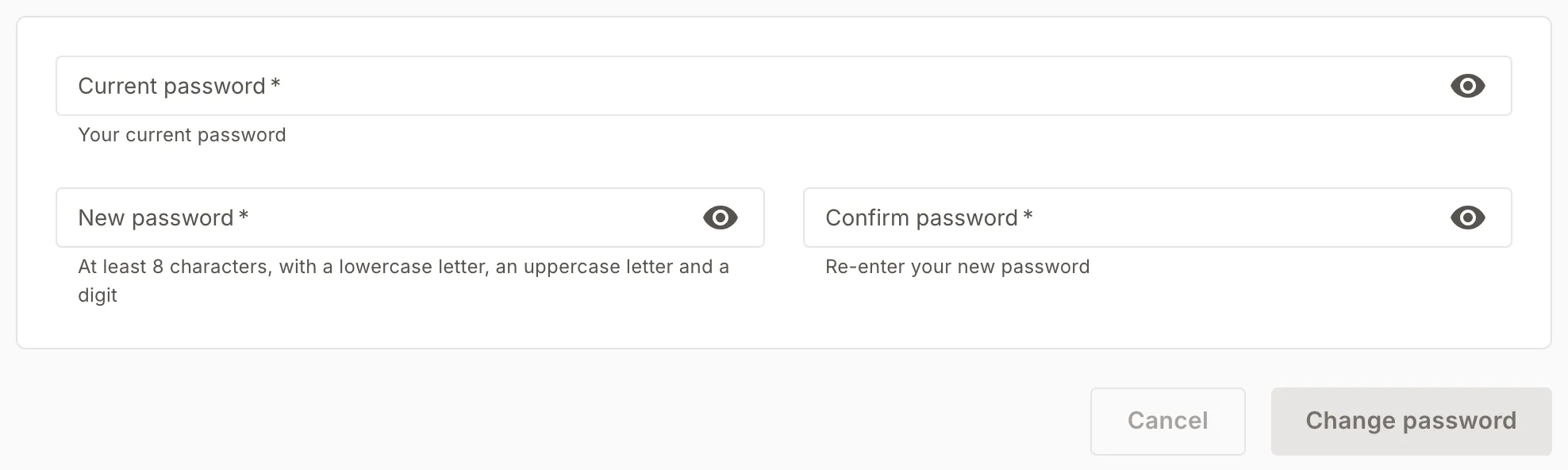
The eye icon in each field shows what you typed. The buttons stay off until you type something, and Cancel clears the form.
A new password needs at least 8 characters, with a lowercase letter, an uppercase letter and a digit. The form tells you under the field which rule is still missing, and whether the two new passwords match.

What happens next
Section titled “What happens next”Changing your password signs you out everywhere. Every session of your account ends, in every organization and on every device, including the one you are using. A new password is usually chosen because the old one may be known to somebody else, so anyone using it is put out at once.
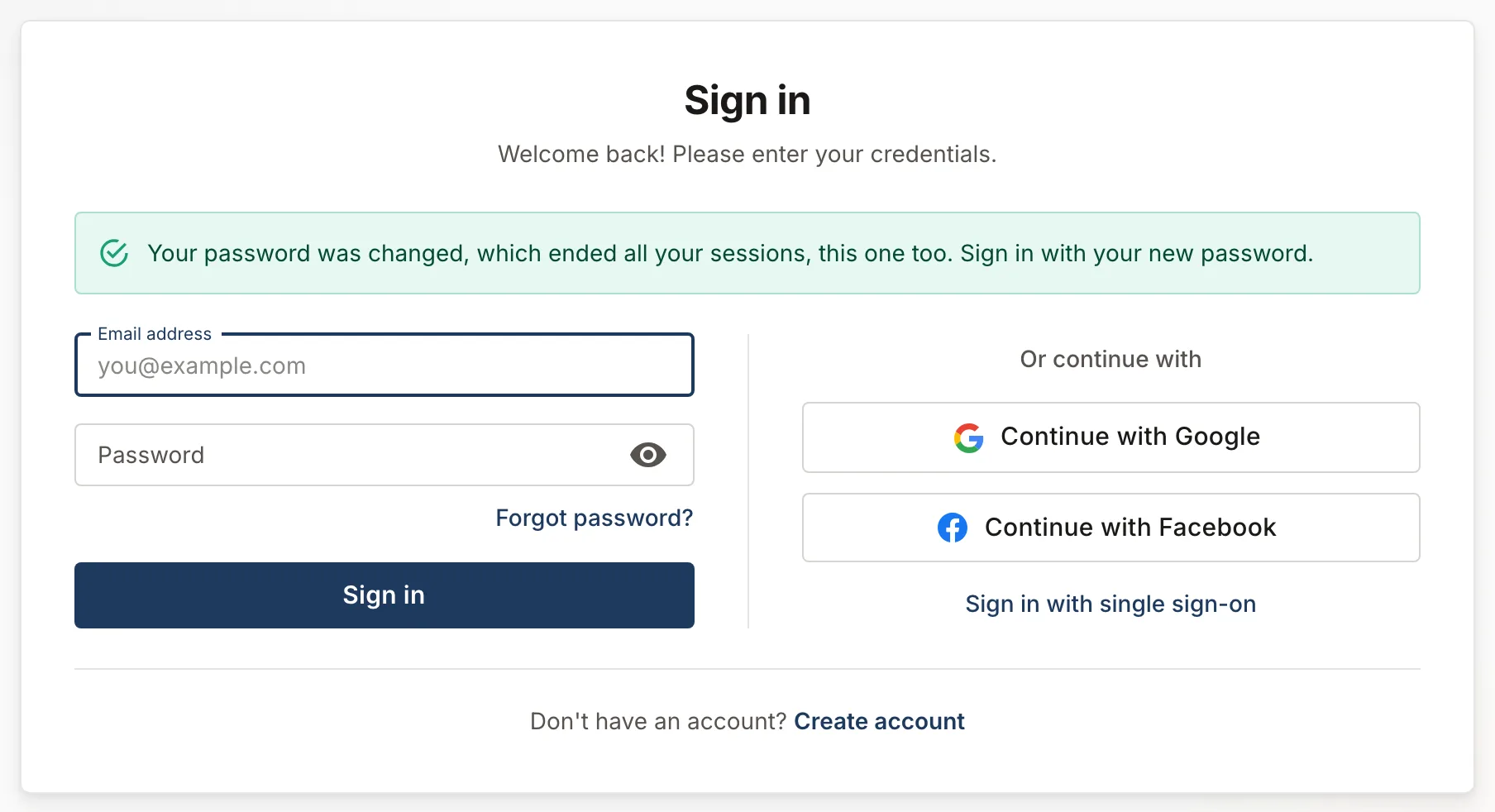
You land on the sign-in page straight away, and it tells you why: Your password was changed, which ended all your sessions, this one too. Sign in with your new password. On your other devices, the same happens at their next action, so save any work open elsewhere before you change it.
Two things don’t change: your two-factor authentication stays as it was, and you can still sign in with Google, Microsoft or Facebook if you did before.
If it is refused
Section titled “If it is refused”| Message | What it means |
|---|---|
| The current password is incorrect. | Check the first field. If you can’t remember it, reset it. |
| Rate limit exceeded. Please try again later. | Your account’s password was checked ten times within 15 minutes. |
That limit is per account, whichever organization you are in. It protects you if somebody finds your computer unlocked: the open session can’t be used to guess your password. Everything that asks you to confirm your password counts towards it, including starting two-factor setup and granting an authorization.
If you sign in with Google, Microsoft or Facebook
Section titled “If you sign in with Google, Microsoft or Facebook”An account made with Google, Microsoft or Facebook has no password until you set one, so this tab shows no form. It explains that, and offers Send me a link to set a password.
-
Open your profile and choose Password.
-
Click Send me a link to set a password. The tab then tells you to check your inbox, and that the link is valid for 1 hour.
-
Open the email and choose your password. The same rules apply as above.
-
Sign in again. Setting a password signs you out everywhere, just as changing one does.

If no email arrives, check your spam folder before asking again: Doxtly sends one link every five minutes at most, and a second request in that time sends nothing. You keep your Google, Microsoft or Facebook sign-in alongside the password.
It is worth doing even if you are happy with Google. A few things in Doxtly ask you to prove it is you with a password, such as granting an authorization.