
Onboarding paperwork your new hire signs before day one
Northbridge Advisory, our example firm, used to leave a stack of paper on a new hire’s desk. Now the office manager fills in one short form, and the new consultant reads, ticks and signs everything from a link the week before he starts.
A stack of paper for the first morning
Julia Kowalska runs the office and HR at Northbridge Advisory, a consulting and training firm of 40 people. For every new hire she opened the last person’s files, typed over the name and the job title, and printed the lot: the staff handbook, the policy acknowledgement, the data notice with its consents, and the laptop handover.
Then came the chasing. A handover came back without a serial number. A consent sat in someone’s tray for three weeks. When marketing wanted a consultant’s photo on the website, Julia had to go through a ring binder to find out whether he had ever agreed to it.
How Julia set it up, step by step
A short form for HR
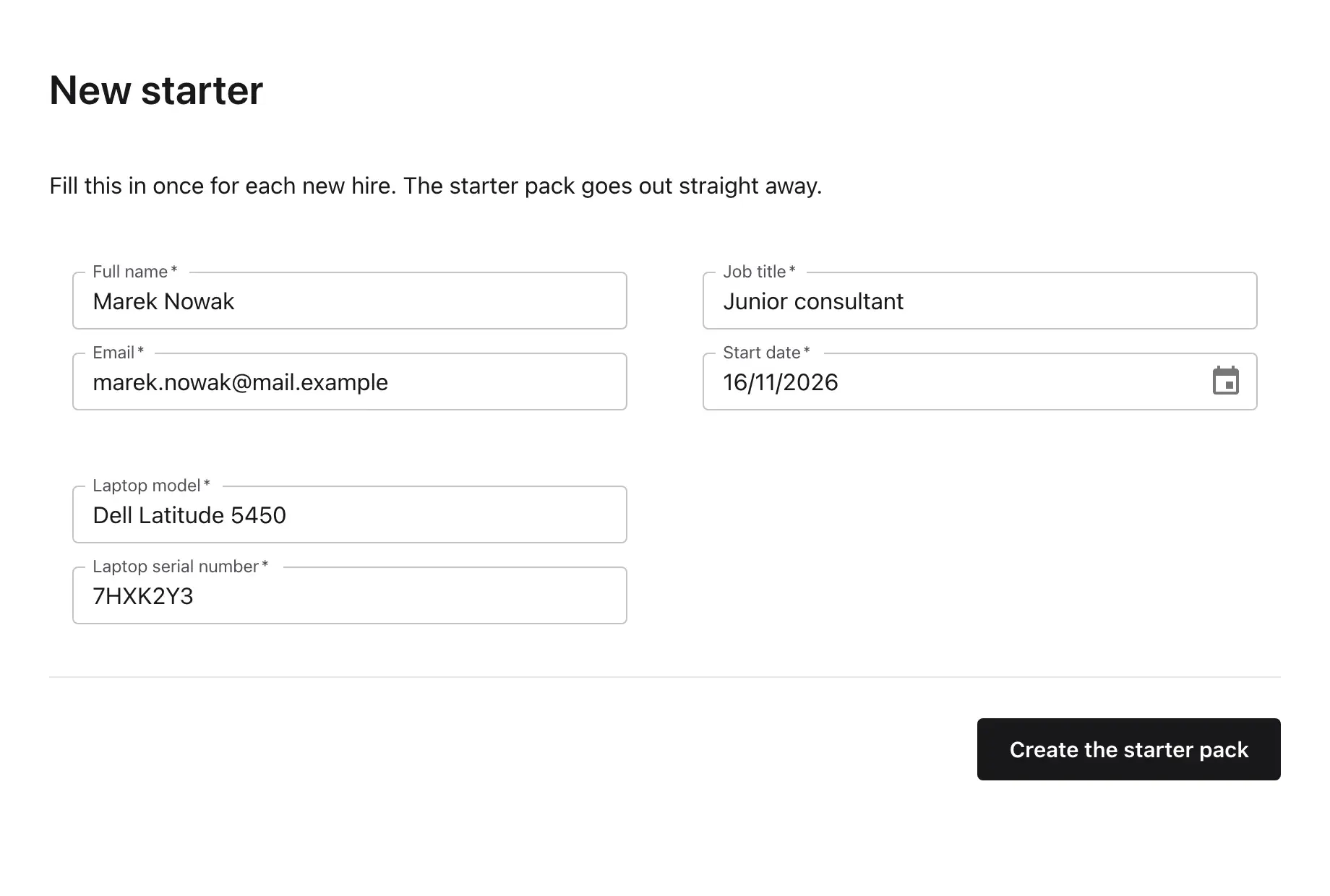
Her “New starter” form asks for six things:
employee_name,employee_email,job_title,start_date,laptop_modelandlaptop_serial. Anyone with a form’s link can open it, so she put a password on it.
Four PDFs become templates
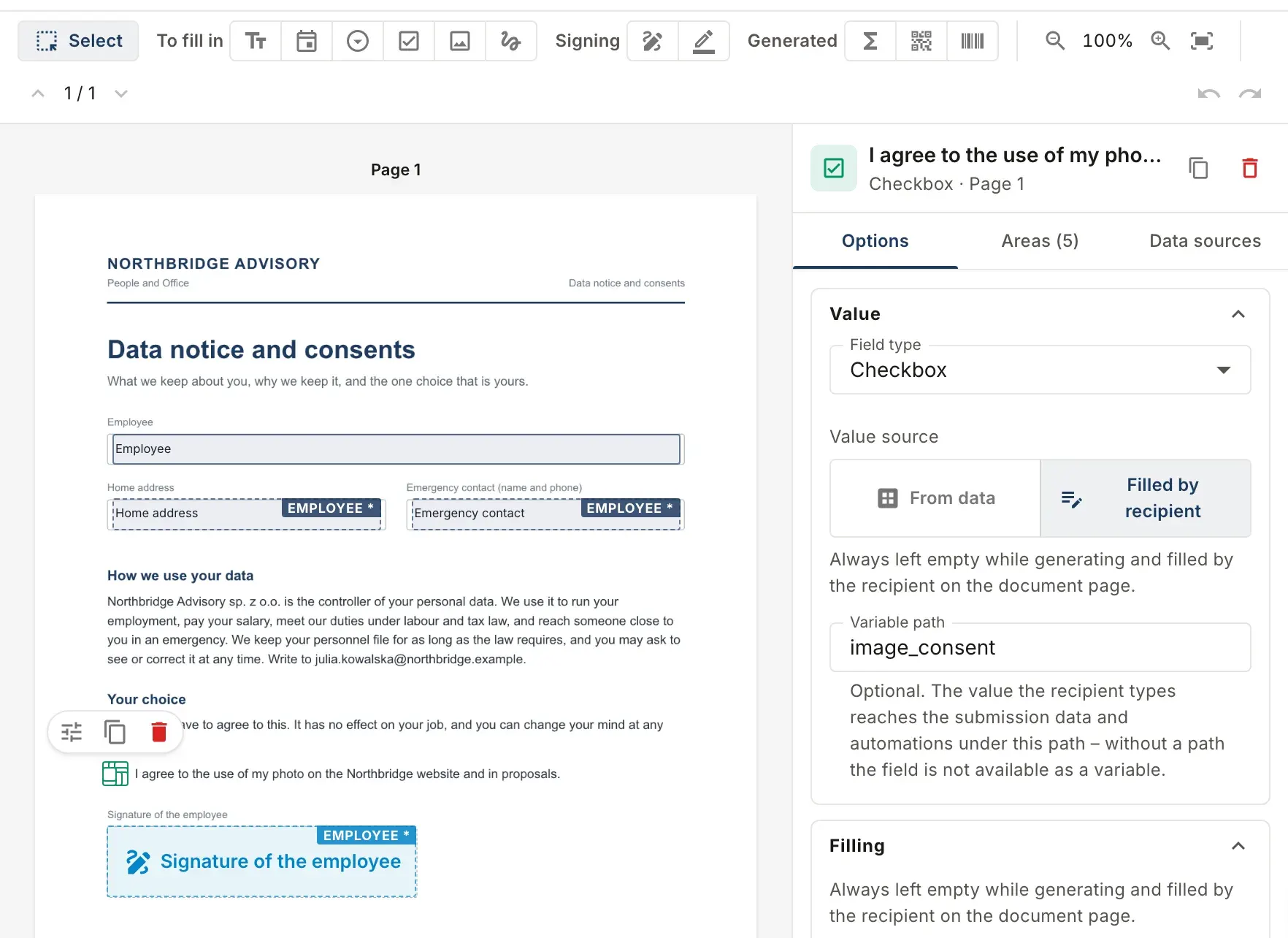
She uploaded the documents she already had as PDF templates and drew areas on them. The name, job and serial number print from the form. Home address and emergency contact are left for the new hire to fill in. The image consent is an optional checkbox, unticked to begin with. The handbook has no areas at all, so it goes in to be read.
One workflow makes the pack
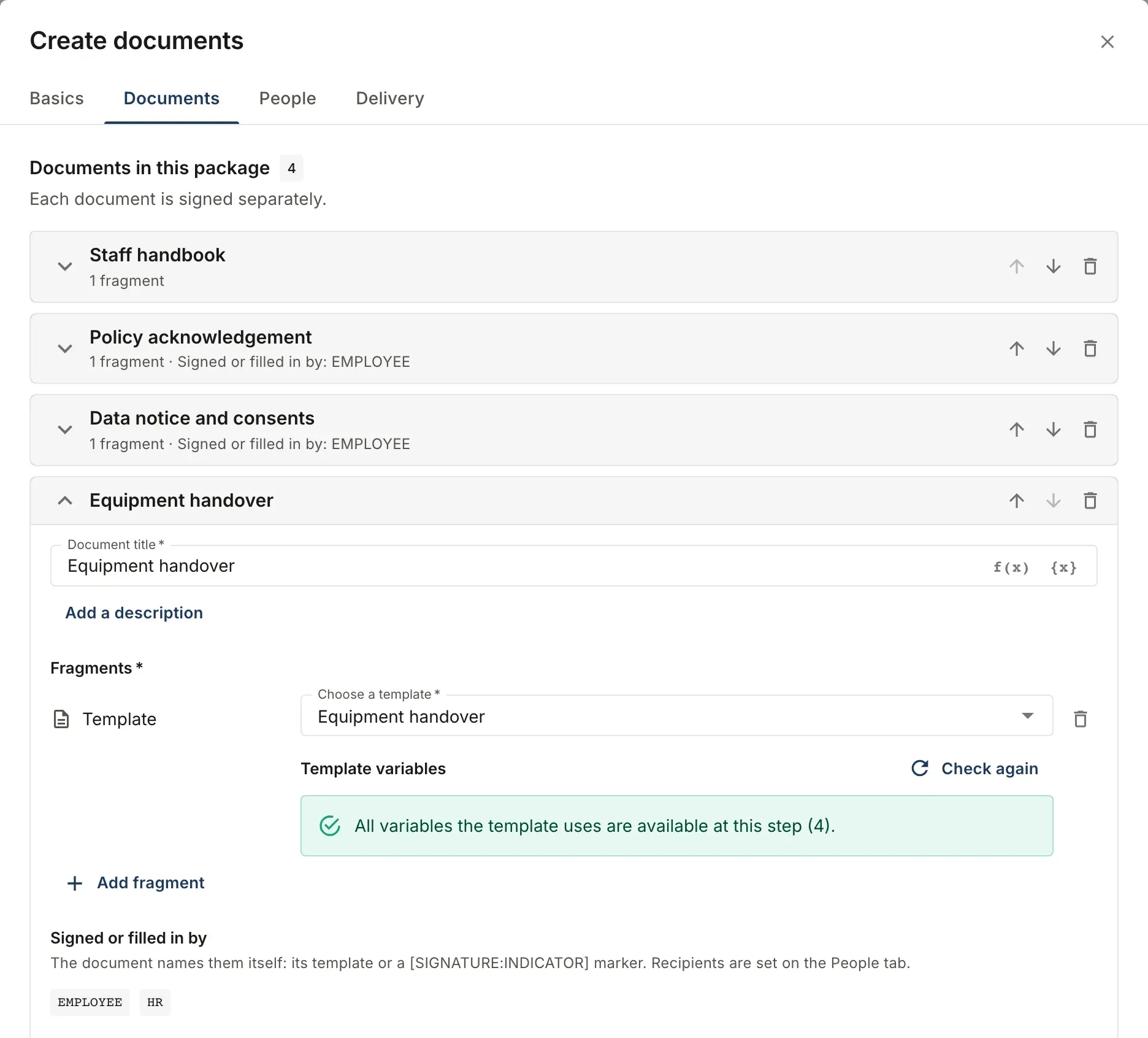
A Create documents step puts all four into a package of the type “Employment”, with two parties:
EMPLOYEEfrom the form andHR, which is Julia. It allows 14 days and uses the PAdES-LT level, meant for documents kept for years.
Marek gets one email, with a code to come in
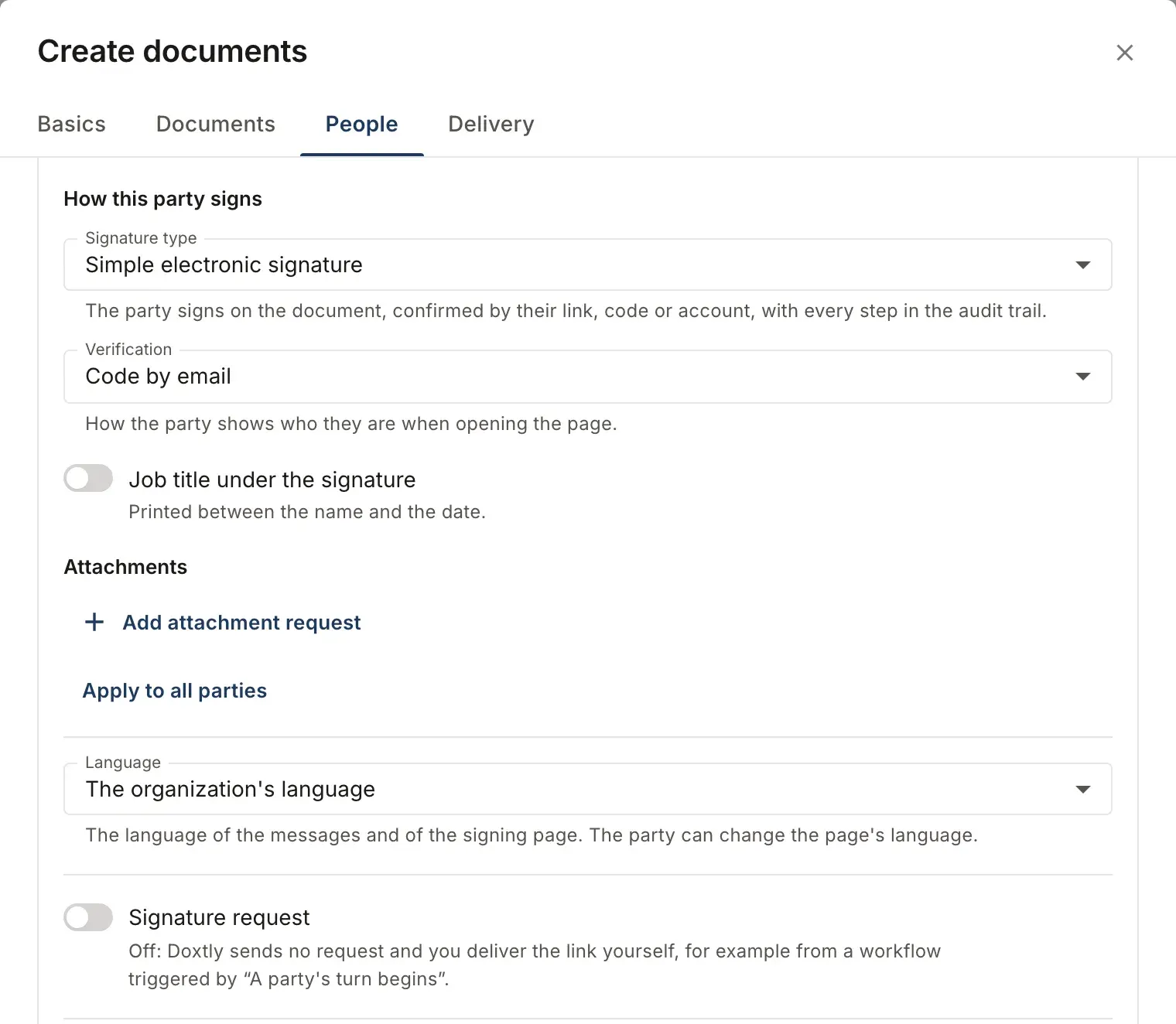
On the step’s People tab, Marek’s Verification is Code by email, so a one-time code opens his documents. A Send email step delivers his signing link, so his Signature request is off and he gets one email, not two.
A nudge if a new hire goes quiet
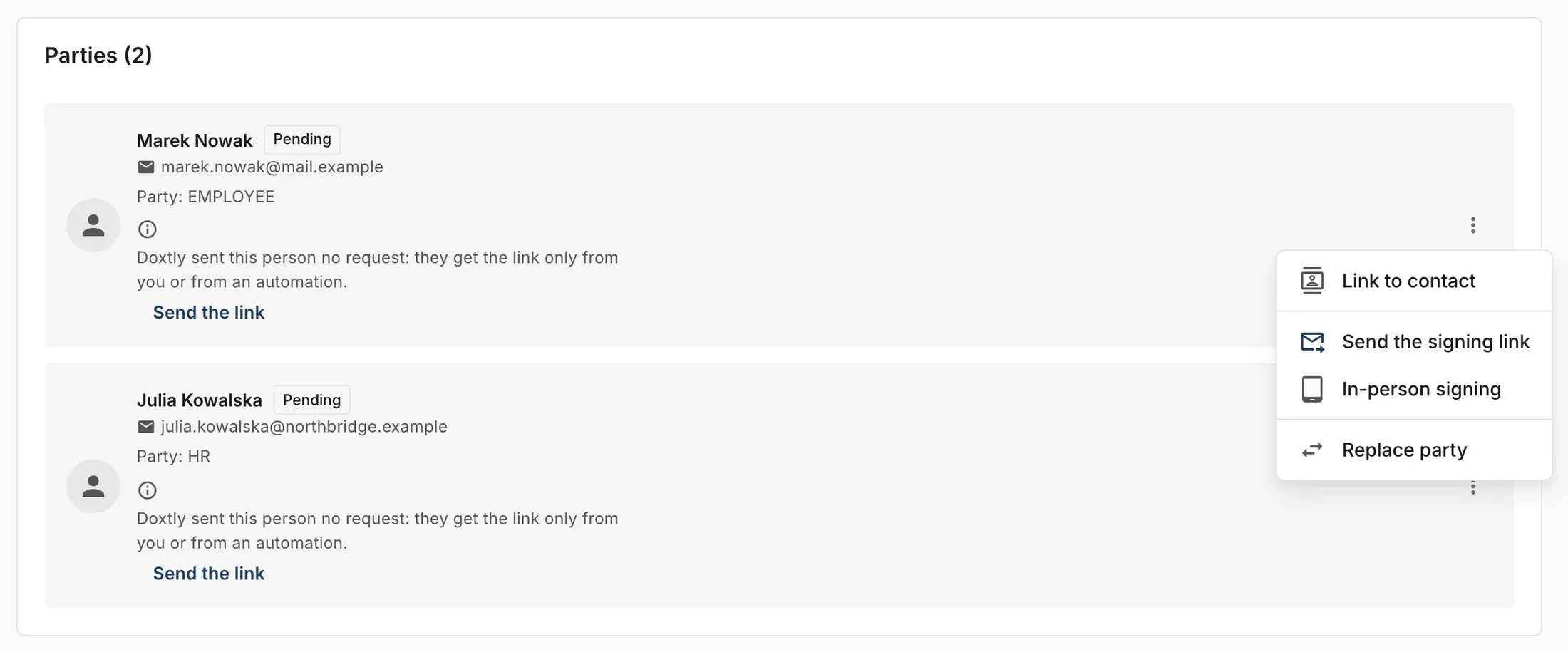
The package page shows who has signed. If a new hire hasn’t, Julia opens their menu there and chooses Send the signing link, and the audit log records the reminder.
Marek signs from his phone
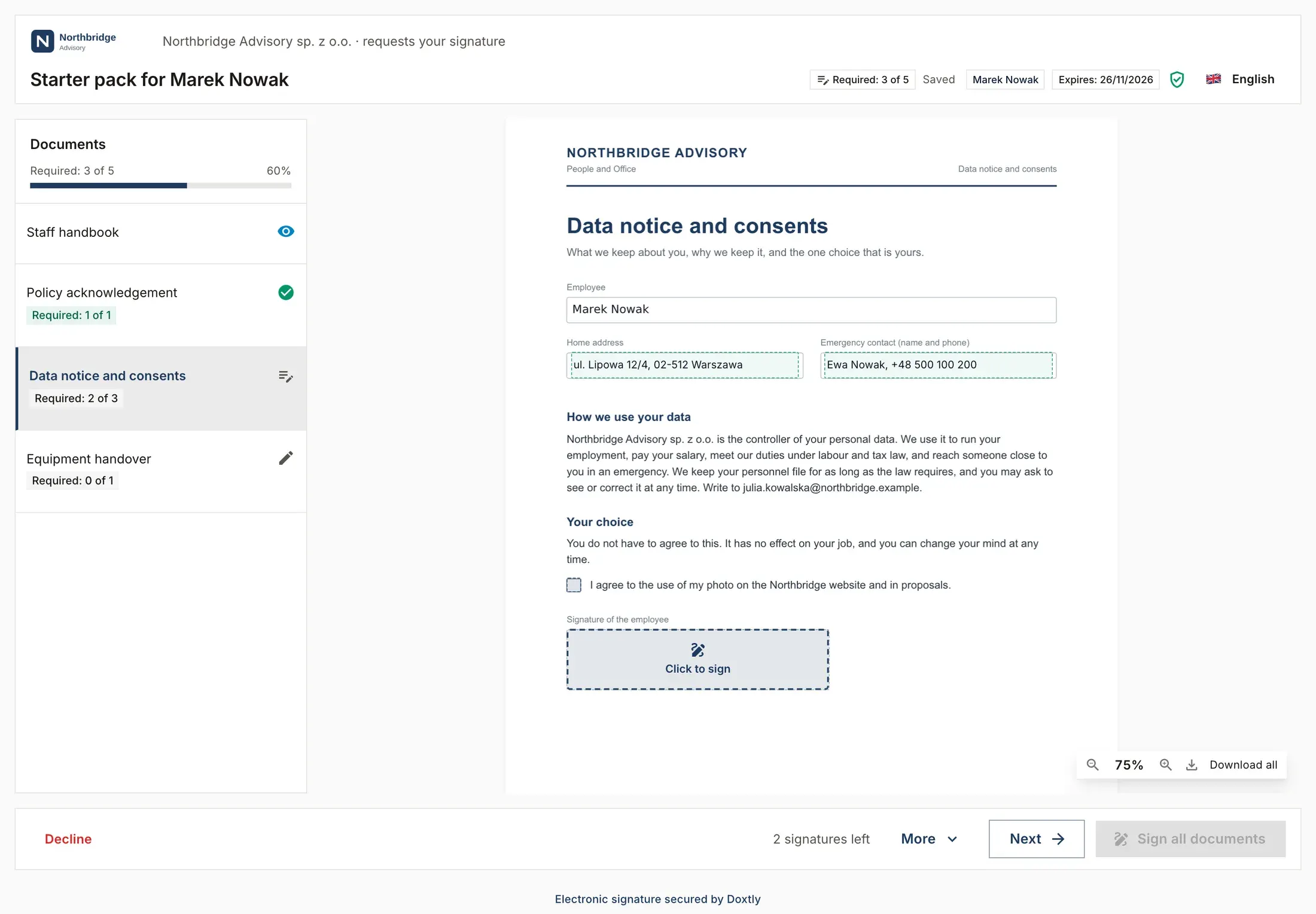
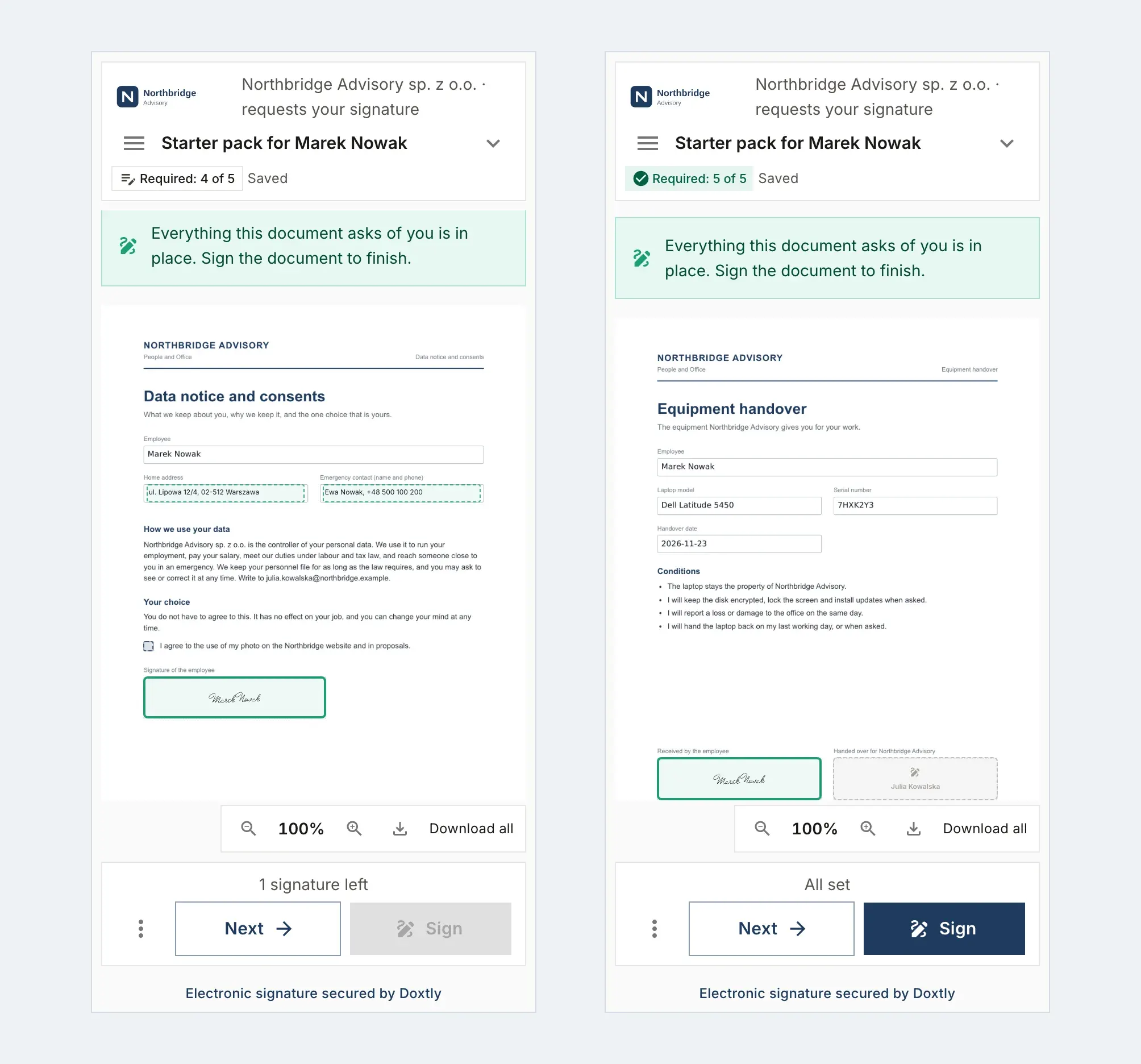
Marek Nowak, the new consultant, opens the link a week before he starts. He needs no account. He reads the handbook, types his address, decides about the photo and draws his signature. Once everything is in place he presses Sign, which reads Sign all documents on a computer.
Julia countersigns the handover
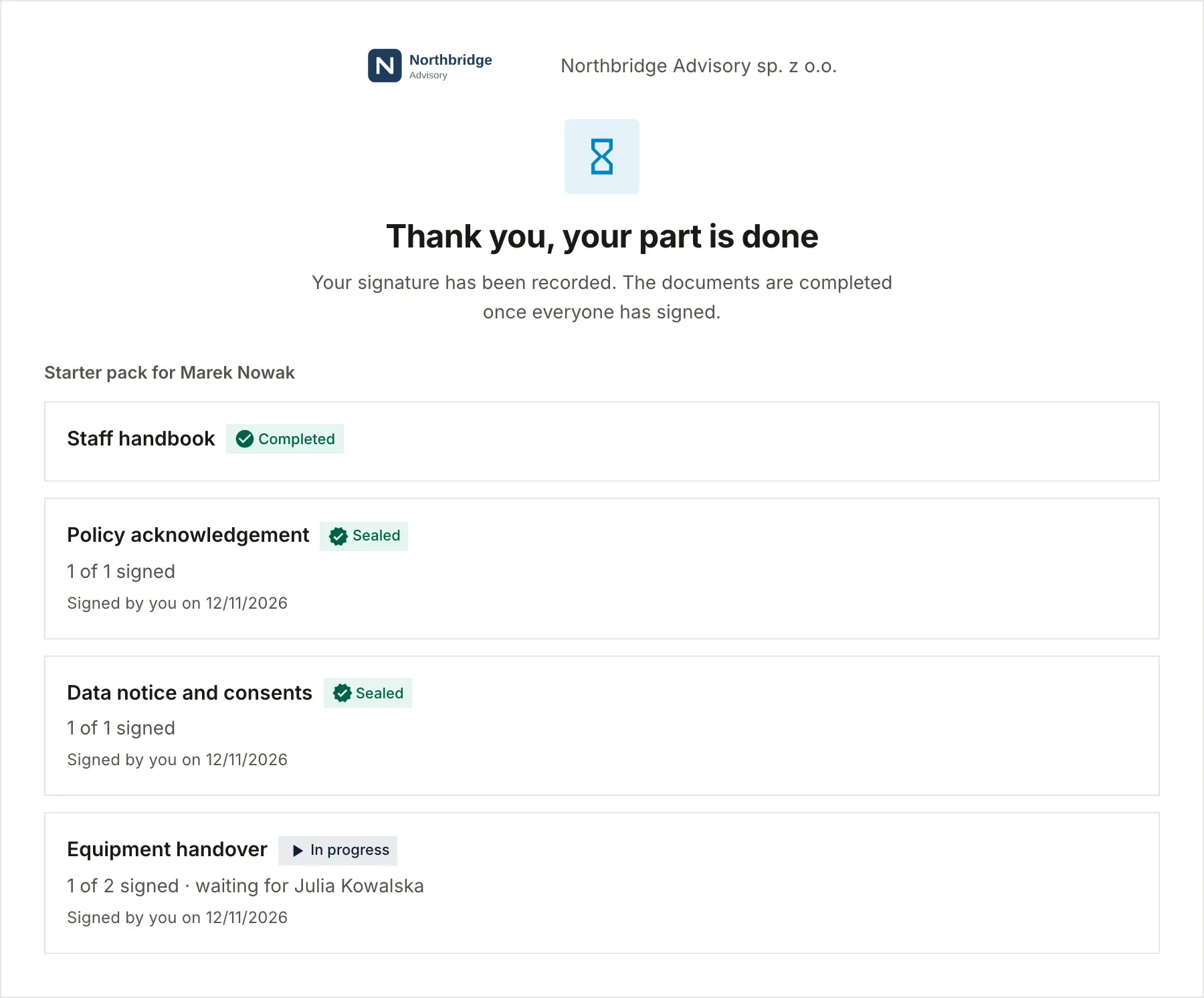
Marek’s part is done, and the equipment handover waits for Julia. Her address is the one on her Doxtly account, so the pack waits for her under Waiting for you on the dashboard, and she signs inside the app.
A second workflow files everything
When the last signature is in, a workflow on the The package is fully signed trigger uploads the sealed PDFs to
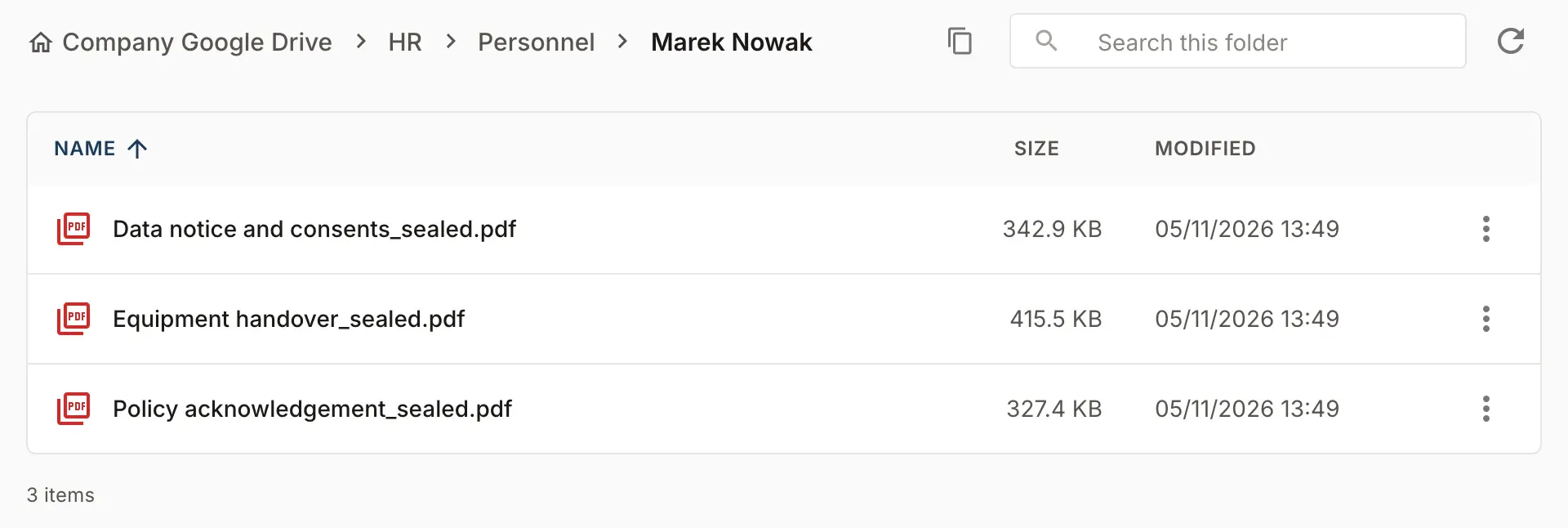
HR/Personnel/{{ employee_name }}on Google Drive, adds a row to a register, and emails Marek his copies.
What Julia has at the end
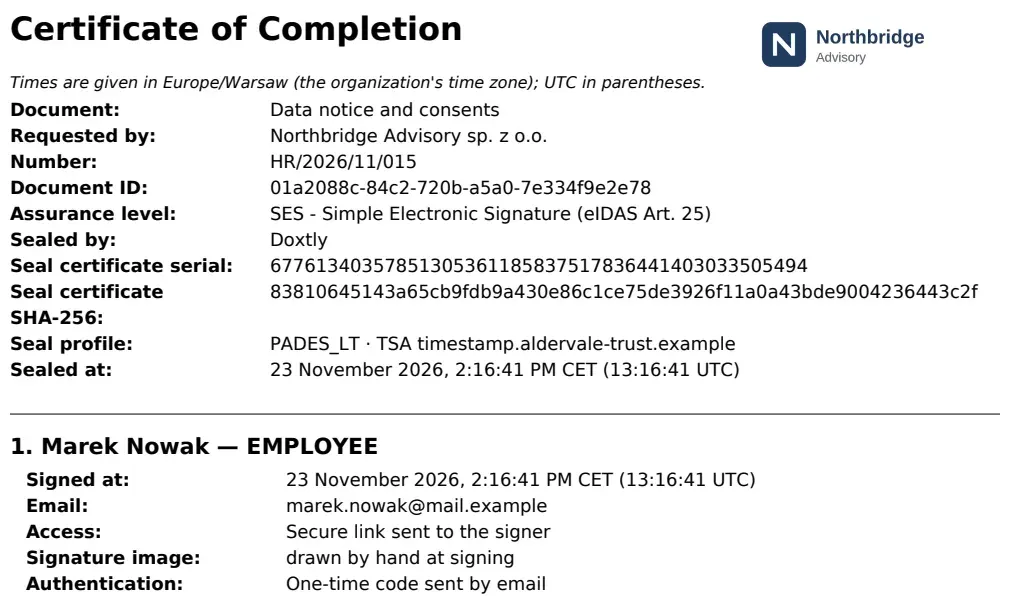
Three sealed PDFs in Marek’s folder, each with a Certificate of Completion saying who signed, when and how they were checked. One row in the register shows his start date, and its Image consent cell stays empty, because he left the box unticked. Her own work came down to one form and one signature.
What you set up once
- A form for HR, protected by a password
- Your documents as PDF templates, with areas for data, answers and signatures
- A document type such as “Employment”, restricted to the HR department
- An email integration, and an email template with the signing link
- A Google Drive, OneDrive, SharePoint, Dropbox or Box connection for the personnel folders
- Two workflows: one creates the pack, the other files it
Ways to adapt it
- An offer letter first
- Keep the letter in a Word template with a
[SIGNATURE:CANDIDATE]marker. Generate document writes it as a PDF, and Create documents sends it to the candidate. - A new policy for all staff
- Make a short form with name and email, and a workflow that creates the acknowledgement with immediate signing on. Send it to everyone with Send link. Each person signs right after the form, and the register shows who is still missing.
- A stronger identity check
- Replace the email code with SMS or WhatsApp, so the link and the code don’t travel through the same inbox. This needs the matching integration.
- Paperwork that needs no signature
- For a benefits declaration or a change of address, an interactive document lets people fill in the real PDF pages behind one link. A mark made there is only a picture on the page, so use it when that is enough.
- One policy to everybody
- For a policy every employee has to acknowledge, use Send separately to several people in a new package. Paste the list from Excel, and each person gets their own package and their own reminders.
Questions people ask
Can employees sign an employment contract this way?
Check first. A Doxtly signature is a simple electronic signature with evidence recorded, not a qualified one. That suits policy acknowledgements, handovers and consents. Where the law requires written form, as the Polish Labour Code does for the employment contract, use paper or a qualified signature from a trust service provider. Doxtly can still write the contract from your template. Ask your employment lawyer what applies to you. See Signature types and legal effect.
Do new hires need a Doxtly account to sign?
No. They open their personal link in a browser on a phone or a computer, and nothing has to be installed. Colleagues who already use Doxtly can sign inside the app instead.
What if an employee does not want to give a consent?
They leave the box unticked and sign the rest. That is why the consent should be an optional area and not a required one. Pressing Decline is a different thing: it closes all their open documents in the pack for good, and you would have to send a new one. A workflow on the A party declines to sign trigger can tell HR at once.
Who at my company can see these documents?
Restrict the document type to the HR department, and people whose access to documents is limited to their own department won’t see those packages. The built-in roles see every document, so colleagues outside HR need a custom role with View documents at Own department. Viewing form submissions, generated files, workflow runs and cloud files always covers the whole organization, so leave those permissions out of that role.
How long are signed HR documents kept?
Finished packages stay in Doxtly for good unless their document type removes them: on the “Employment” type you can set Remove finished packages after a number of days. Either way, you have your copies on your own drive. Form submissions follow the period you set under Data retention. The rules for personnel files differ from country to country, so check what yours require.
Does this fit the Free plan?
Only in part. This example uses one form, four templates, two email templates and two workflows, and Free allows one workflow, so you can try the pack there and add the filing workflow on a paid plan. Each new hire uses one form submission, one signature package, two workflow runs and two emails a month, and the Free plan’s three signature packages a month are what you will meet first. Pricing shows the limits of each plan.
Features behind it
In the manual
Start with one document.
Take the contract you retype most often and turn it into a template. The Free plan is enough, and you need no card.