
Survey answers that land in your Excel file on their own
People fill in a short online survey, and each answer appears as a new row in your Excel file on OneDrive or Google Drive. Nobody copies anything, and the charts already in your workbook keep working.
An afternoon of copying, and scores two weeks late
Take Northbridge Advisory, our example consulting and training firm. After each course the office gathers the feedback, and someone copies it into Course feedback 2026.xlsx, one answer at a time. It takes an afternoon, and in a busy week it waits.
So trainers hear their scores late, and the summary tab is always behind. It hurts most when a participant gives a course 2 out of 5 and says why. By the time anyone reads that comment, the moment to call them has passed.
Nobody at the firm wants to give up Excel. The workbook has its summary and its charts, and the whole team knows where to find them. They only want the answers to get there without anyone typing them.
What Northbridge builds, step by step
Connect the drive
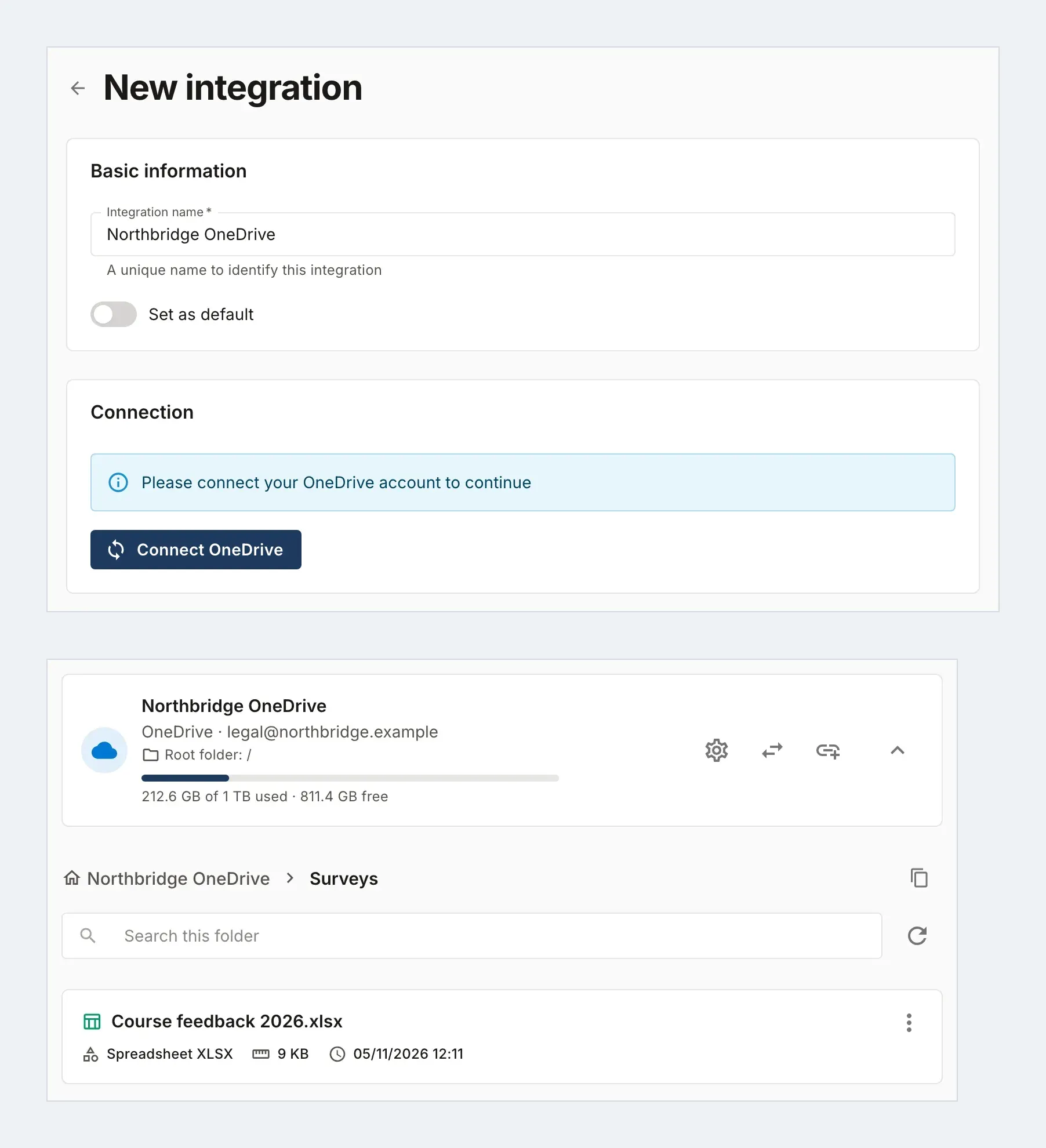
Under Organization, Integrations, they choose New integration, then OneDrive, name it Northbridge OneDrive and press Connect OneDrive to sign in with the Microsoft account. They keep the top of the drive as the root folder. The workbook stays where it is, at
Surveys/Course feedback 2026.xlsx, and Cloud files shows it there.
Build one survey for every course
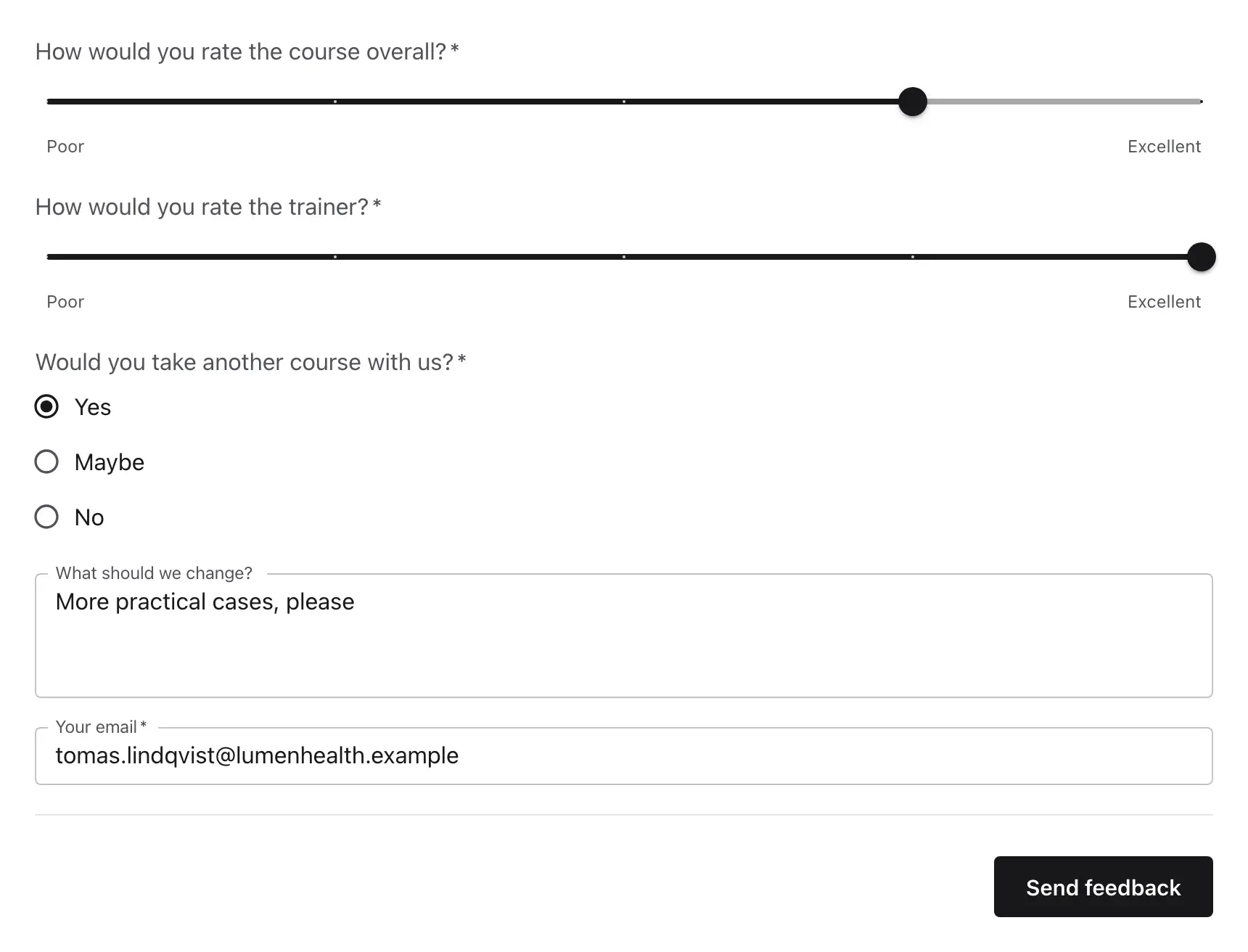
The form “Course feedback” has two Scale fields from 1 to 5,
ratingandtrainer_rating, a Radio groupwould_return, a Text areacommentsand an Email inputemail. Link parameterscourseanddateare switched on and required, so the link itself says which course an answer is about.
Point a workflow at the file
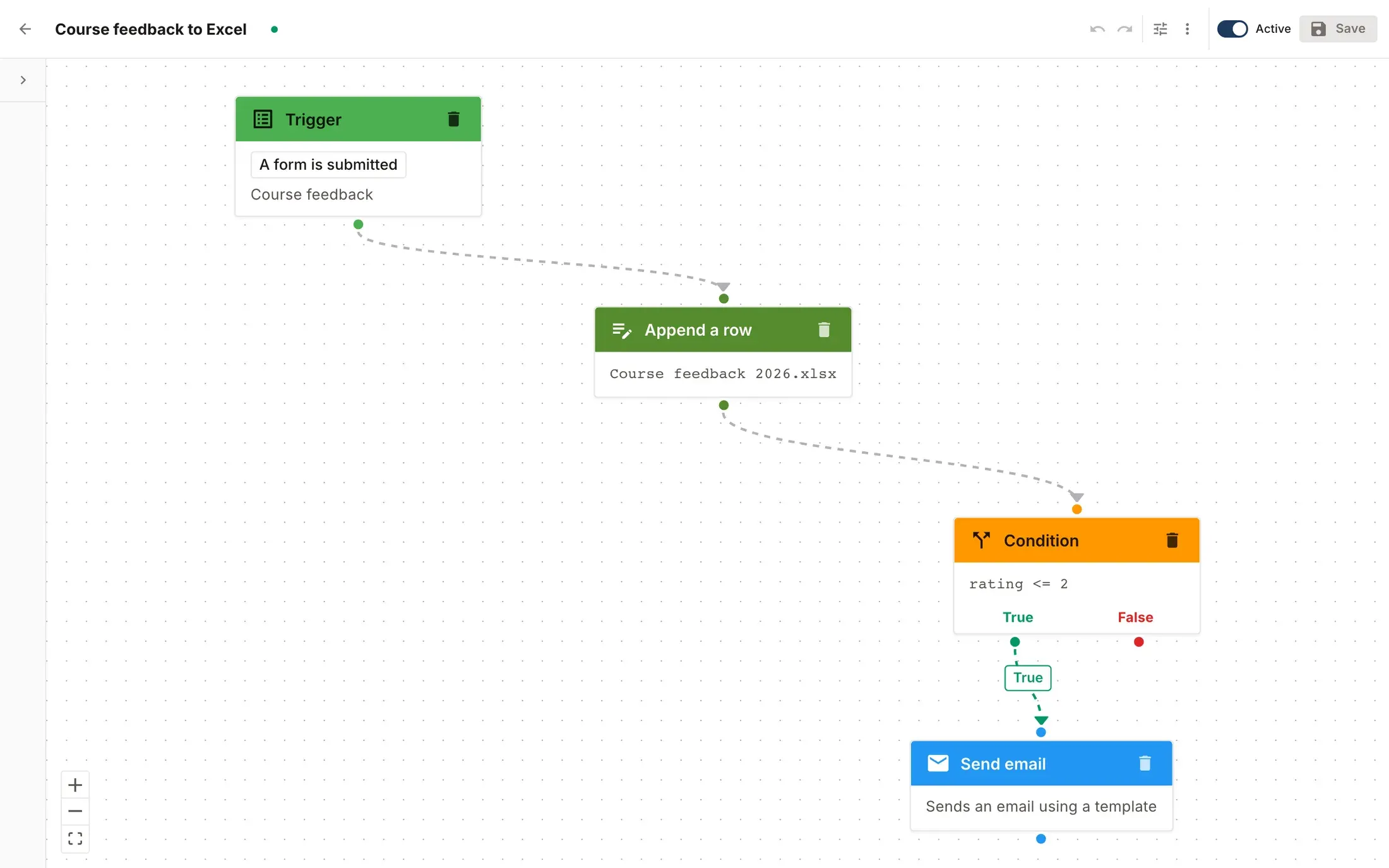
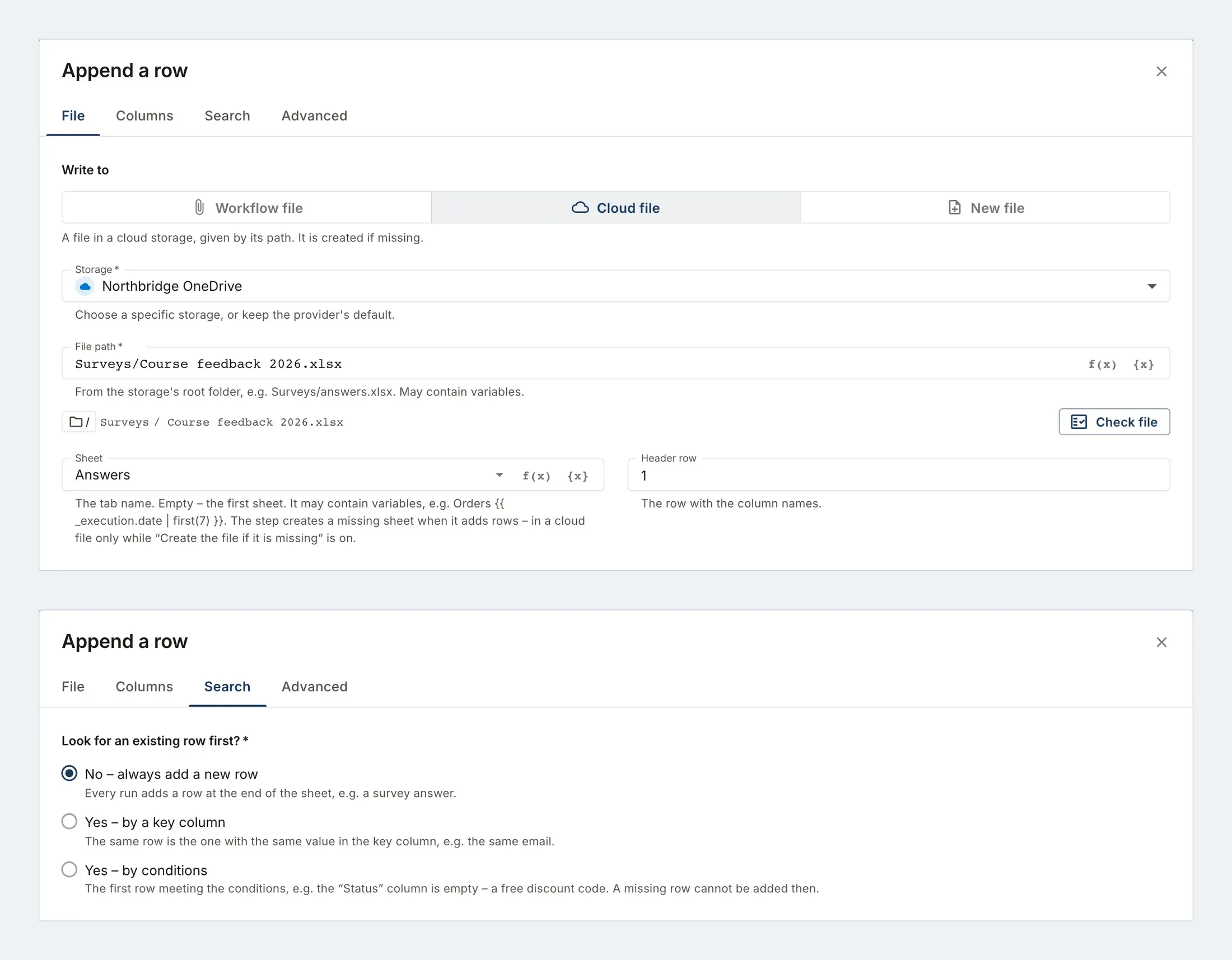
A workflow starts on A form is submitted, with one Write to a sheet step, which calls itself Append a row once it is set to add rows. Write to is set to Cloud file, the File path to the workbook, Sheet to
Answers, and the Search tab stays on “No – always add a new row”.
Match the columns
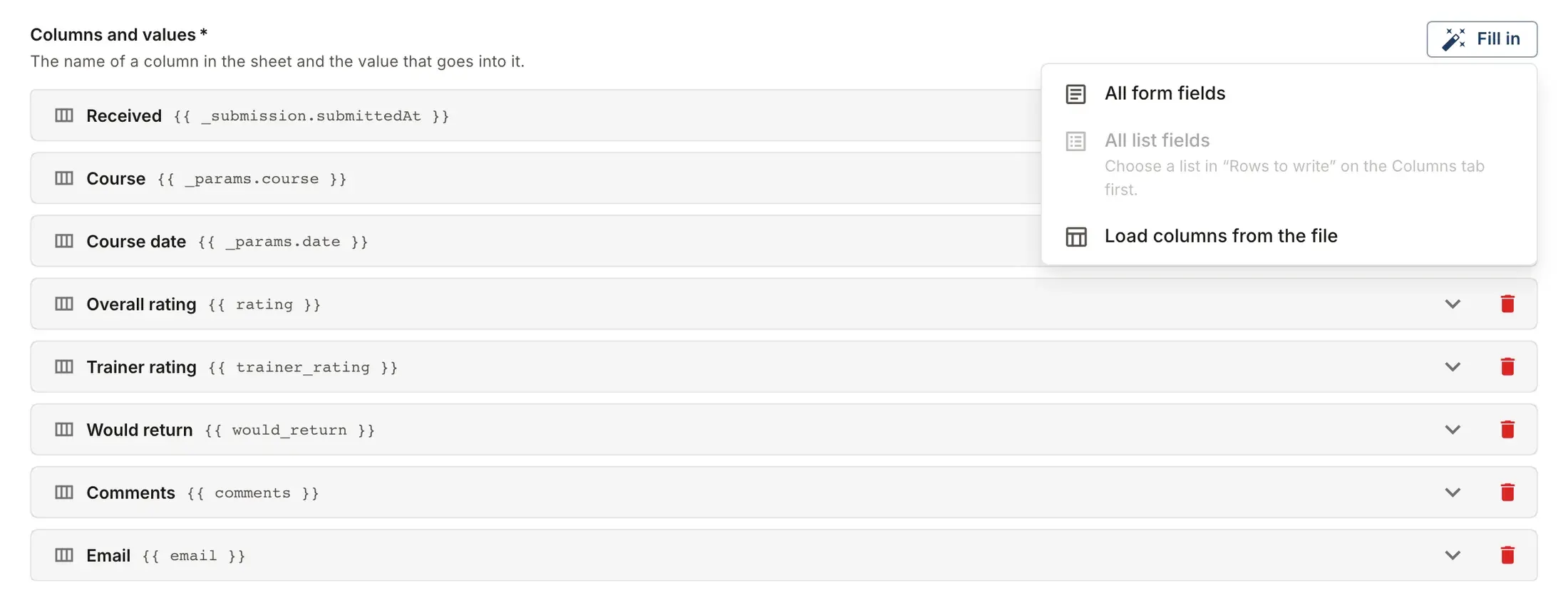
Fill in, then Load columns from the file, reads the header and pairs it with the form’s fields. Three columns get their values by hand:
Courseis{{ _params.course }},Course dateis{{ _params.date }}with the type Date, andReceivedis{{ _submission.submittedAt }}with the type Date and time.
Add an alert for low scores
After the write, a Condition checks
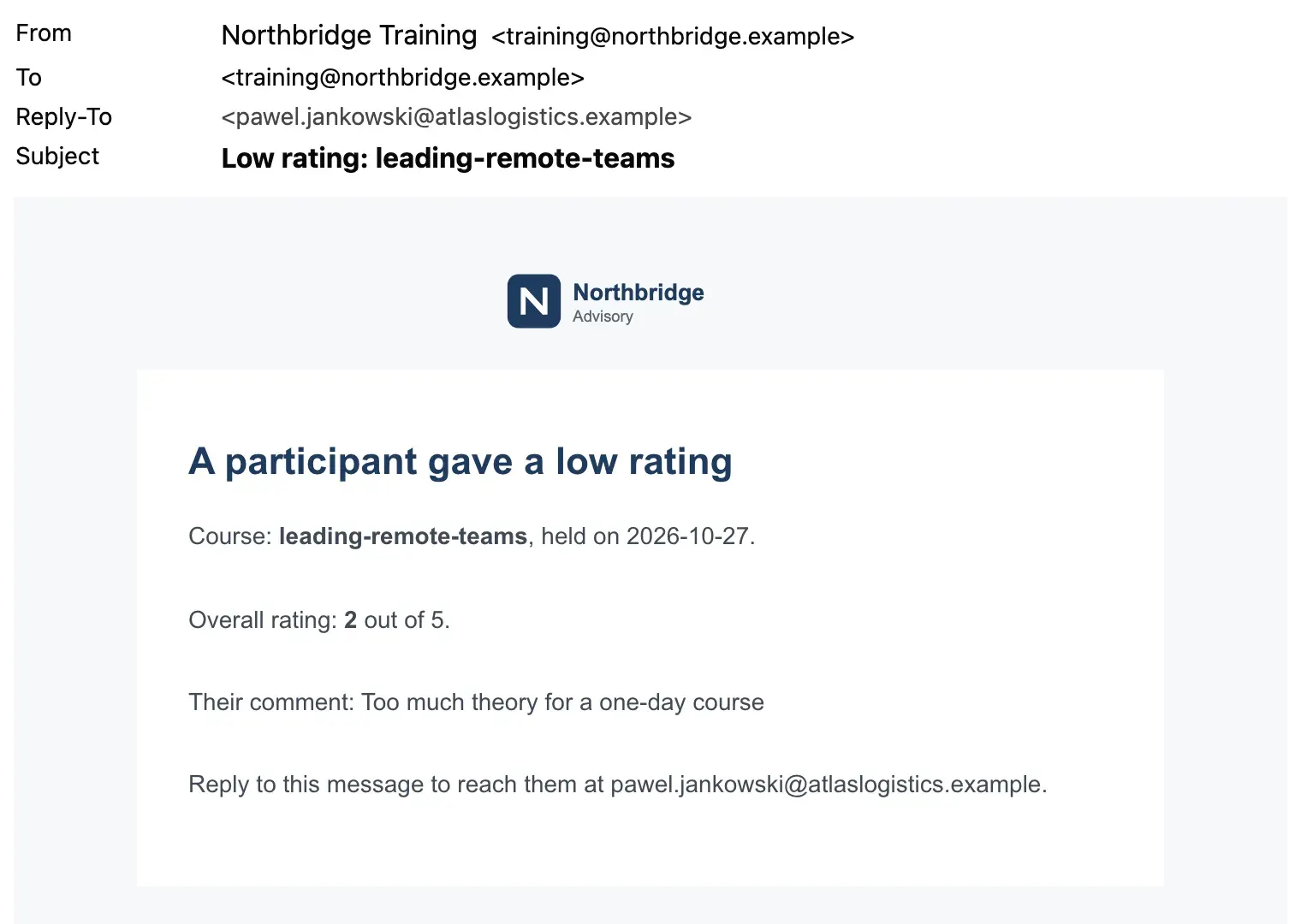
rating <= 2. Its True output leads to Send email, which tells the training coordinator, with the Reply-to address set to{{ email }}. They answer the email and reach the participant directly.
Send the survey after each course
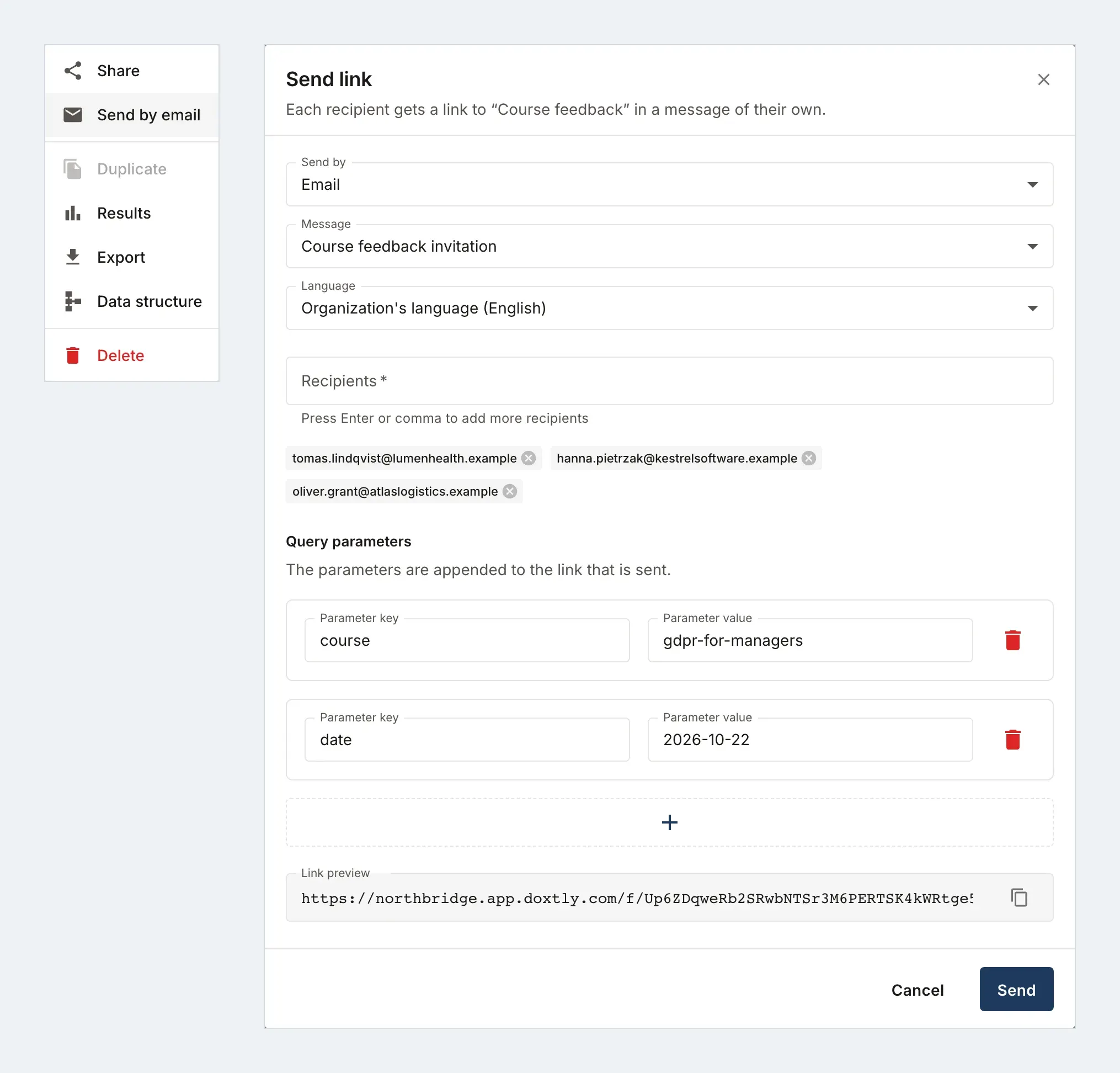
From the form’s menu, Send link opens the dialog of the same name. They pick their own invitation under Message, add the participants and put the course under Link parameters. Each person gets their own message, and the link ends in something like
?course=gdpr-for-managers&date=2026-10-22.
The answers arrive
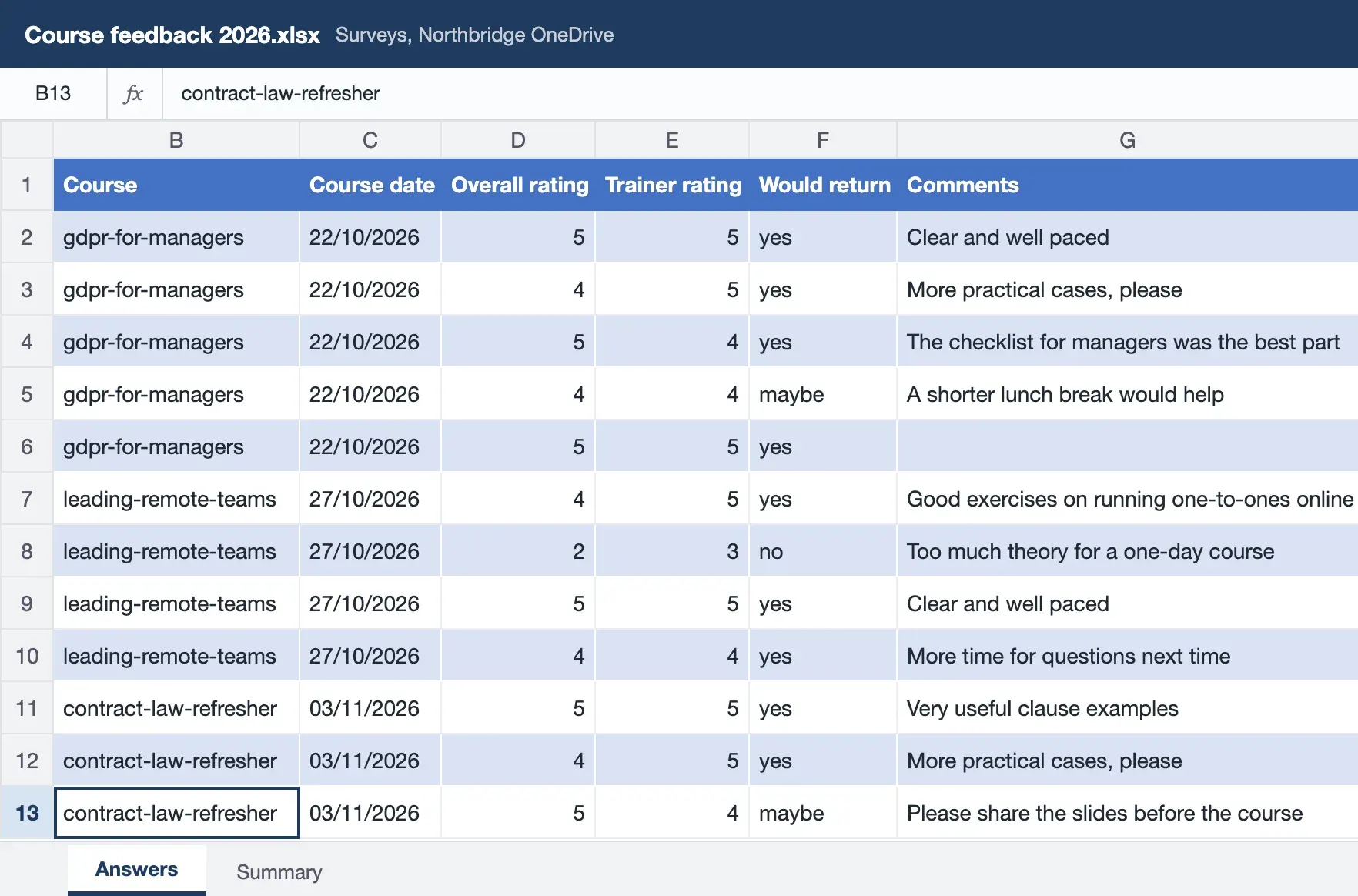
Moments after someone presses send, their row is in the Answers tab. The Summary tab and its charts update the next time the file is opened, and a low score is in the coordinator’s inbox the same day it was given.
What you set up once
- A OneDrive or Google Drive integration
- A survey form, with link parameters if one form serves many events
- A workbook with a header row, or nothing at all: the first answer can create the file
- A workflow with a Write to a sheet step
- An email integration and two templates: the invitation, used for Form link, and the low-score alert
Ways to adapt it
- Google Sheets instead of Excel
- Connect Google Drive and point the step at a Google Sheet. It takes many answers at once without waiting, which suits a survey sent to a big list.
- One row per person
- On the Search tab, choose “Yes – by a key column” and pick
Email. A second answer from the same address replaces the first one instead of adding a row. - A new file each year
- Put the year in the path:
Surveys/Course feedback {{ _execution.date | first(4) }}.xlsx. In January the first answer creates the new file with the step’s columns. Summary tabs and charts you add yourself. - The survey on your website
- Embed the form in a page rather than sending a link. On WordPress, the plugin does it without code. The rows arrive the same way.
- What it is not good for
- Doxtly collects the answers and files them. The analysis stays in your workbook, so charts and averages are yours to build. An
.xlsxor.odsworkbook keeps its charts when a row is added. An old.xlsone with charts can’t be written to, because saving it again would lose them: save it as.xlsxfirst.
Questions people ask
Will Doxtly see a sheet I already have on Google Drive?
It depends on the connection. One that covers only the files added through Doxtly can’t see a file put straight on the drive. Upload the sheet once on the Cloud files page, and your team goes on working in that copy.
Can I keep my existing Excel file, with its charts and formulas?
Yes. Doxtly changes only the tab it writes to, and only by adding rows. Charts, pivot tables, formatting and the other tabs stay as they were, and Excel recalculates the formulas when you next open the file. A range formatted as a table grows with the new rows, unless it has a totals row, so leave that out on the tab with the answers.
What if someone has the file open in Excel?
Doxtly tries the write again. If the file stays locked, the run is marked as failed and you get a notification. The answer is safe in Doxtly: one click on Rerun writes the row, and a row that already went in is not written twice.
What happens when many people answer at the same moment?
All the answers arrive. Writes to one Excel file wait in line, and each one sees what the previous one added, so no row overwrites another. In a Google Sheet the new rows go straight in.
Can the survey be anonymous?
You decide what the form asks and what goes into the sheet. Leave out the email field, and the reply-to on the alert with it, and the file holds only the answers. Doxtly still keeps technical facts about each submission, such as its date and IP address, so don’t promise more than that.
Can a stranger put something harmful into my spreadsheet?
Text that starts like a formula is always stored as plain text, so nobody can plant a working formula through your form. Spam protection and rate limits on the form help keep bots away as well.
Do I need a paid plan?
No, the free plan is enough to try it. Each answer uses one form submission and one workflow run from your monthly limit, and each survey email counts as an email sent. Pricing shows the current limits.
Start with one document.
Take the contract you retype most often and turn it into a template. The Free plan is enough, and you need no card.